
Create Janitorial Bid on Mobile App
Build a whole janitorial bid from your phone in the CleanGuru app — pick the customer, enter the cleanable square footage, set your price, and email the proposal without going back to the office.
Set Up the Bid
Open the janitorial bid list
Tap the Menu (the three lines) at the top left, tap Bids, then tap Janitorial.
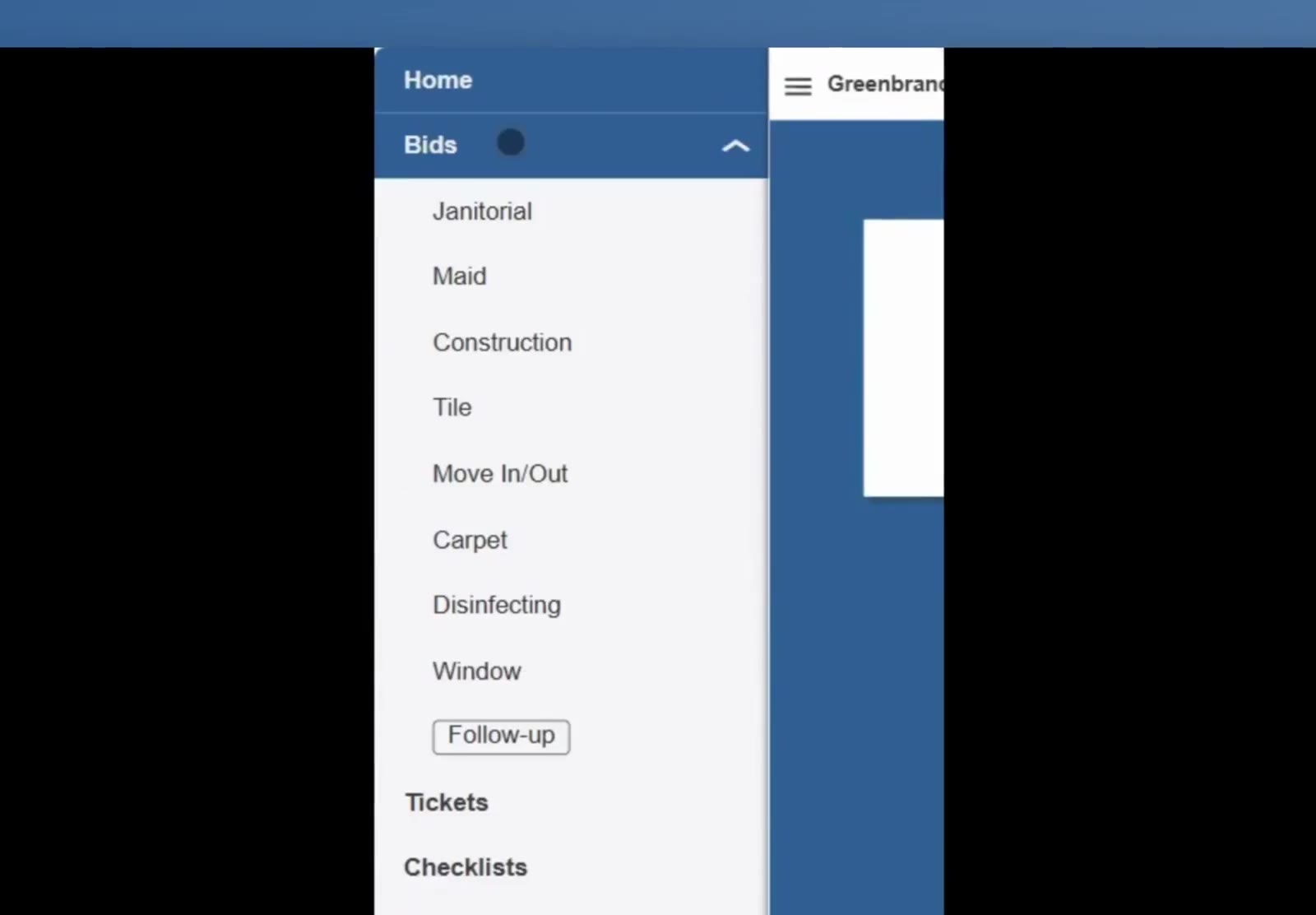
The Bids menu lists every bid type — Janitorial, Maid, Construction, Tile, Move In/Out, Carpet, Disinfecting and Window.
Start a new bid
Tap New Bid at the top of the screen.
Pick the customer or prospect
Tap the first dropdown to switch between Prospect and Customer, then tap Select... and choose the account.
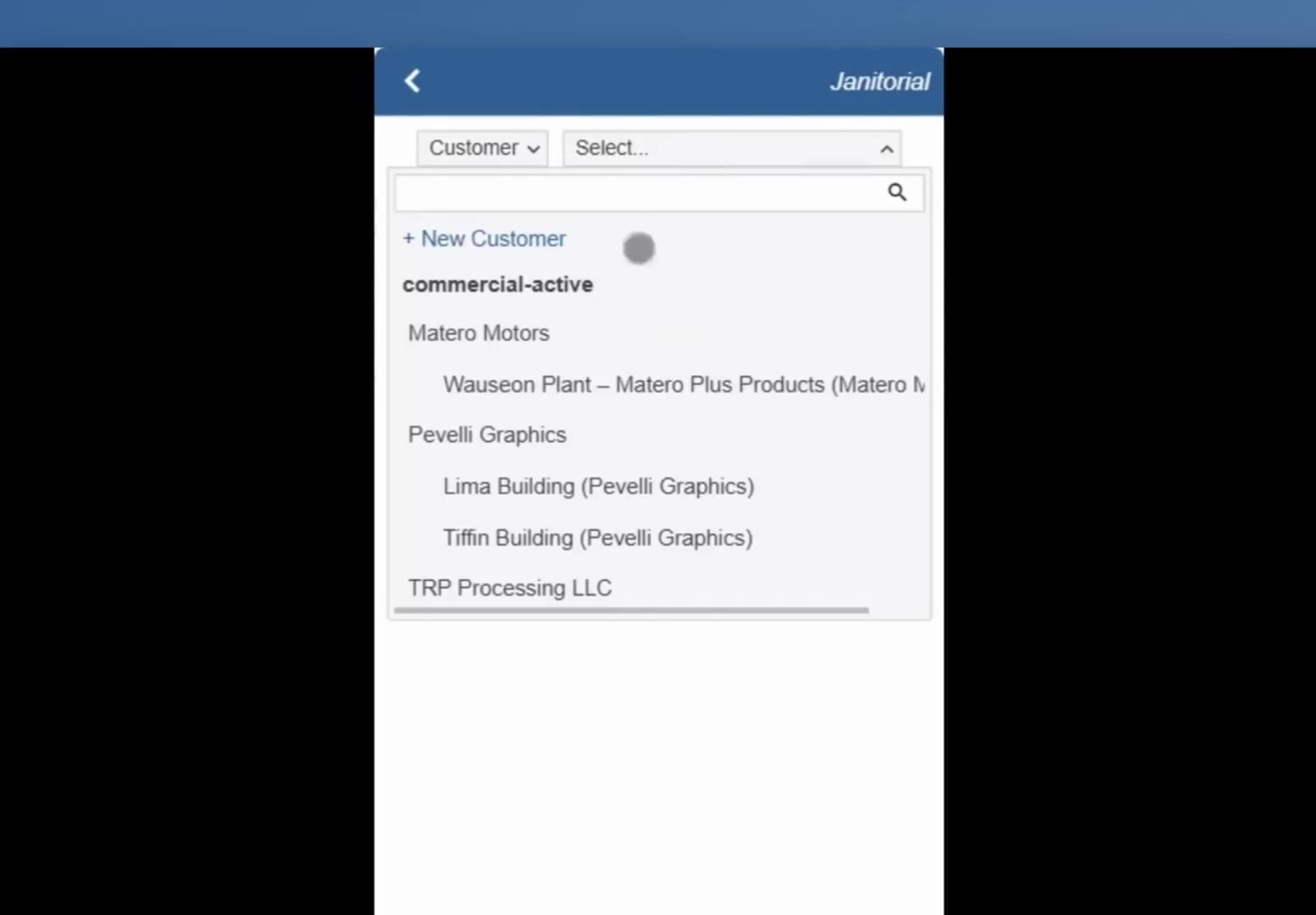
The list is grouped by customer, with that customer's buildings underneath.
Name the bid and set the type and frequency
The Bid field fills in with the customer name — change it if you want. Choose the facility Type, then pick a Frequency. Tap Create.
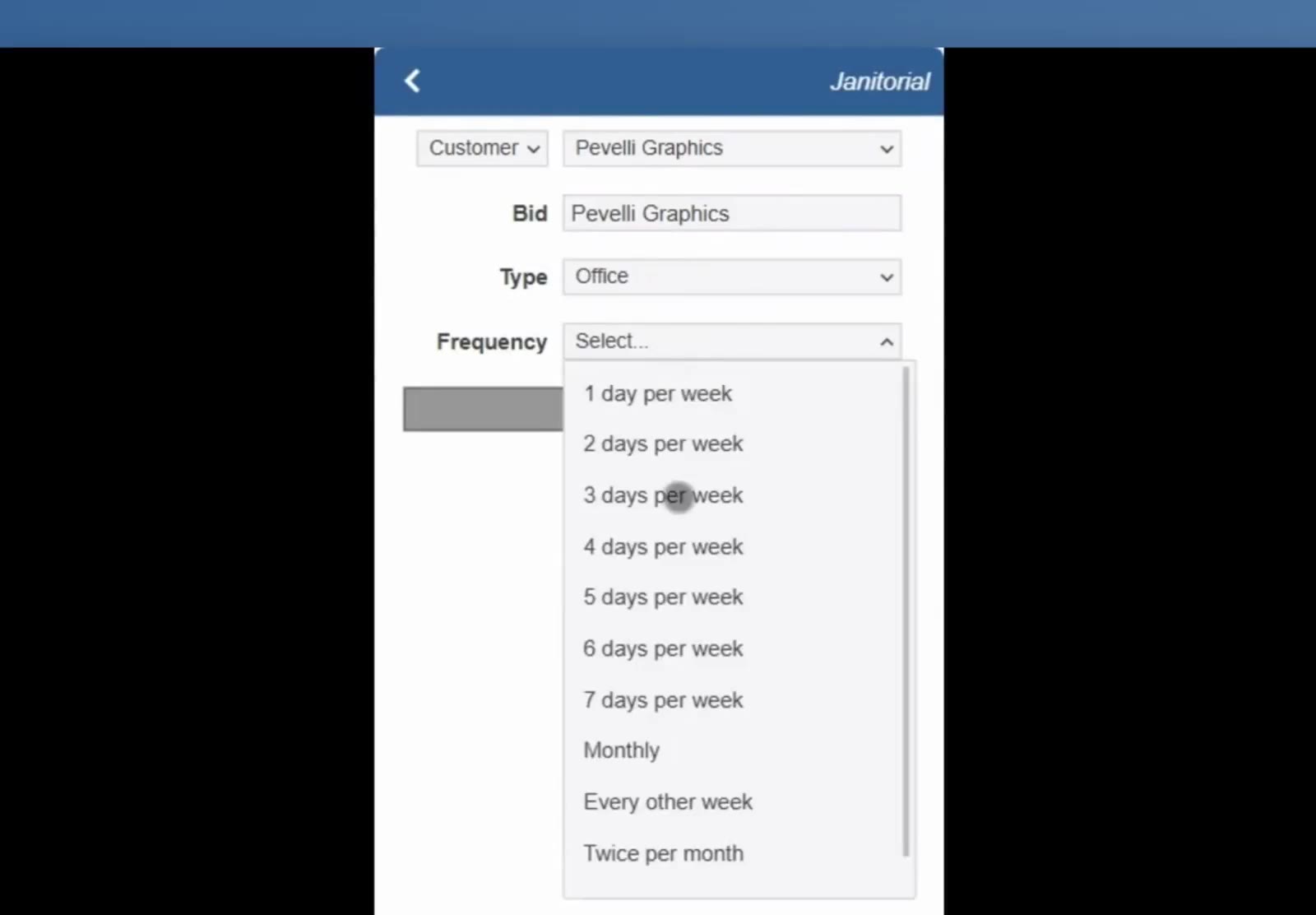
Frequency runs from 1 to 7 days per week, plus Monthly, Every other week and Twice per month.
Enter the Measurements
Choose how to enter the size
Tap the Areas tab. When the Enter Measurements box appears, tap Express.
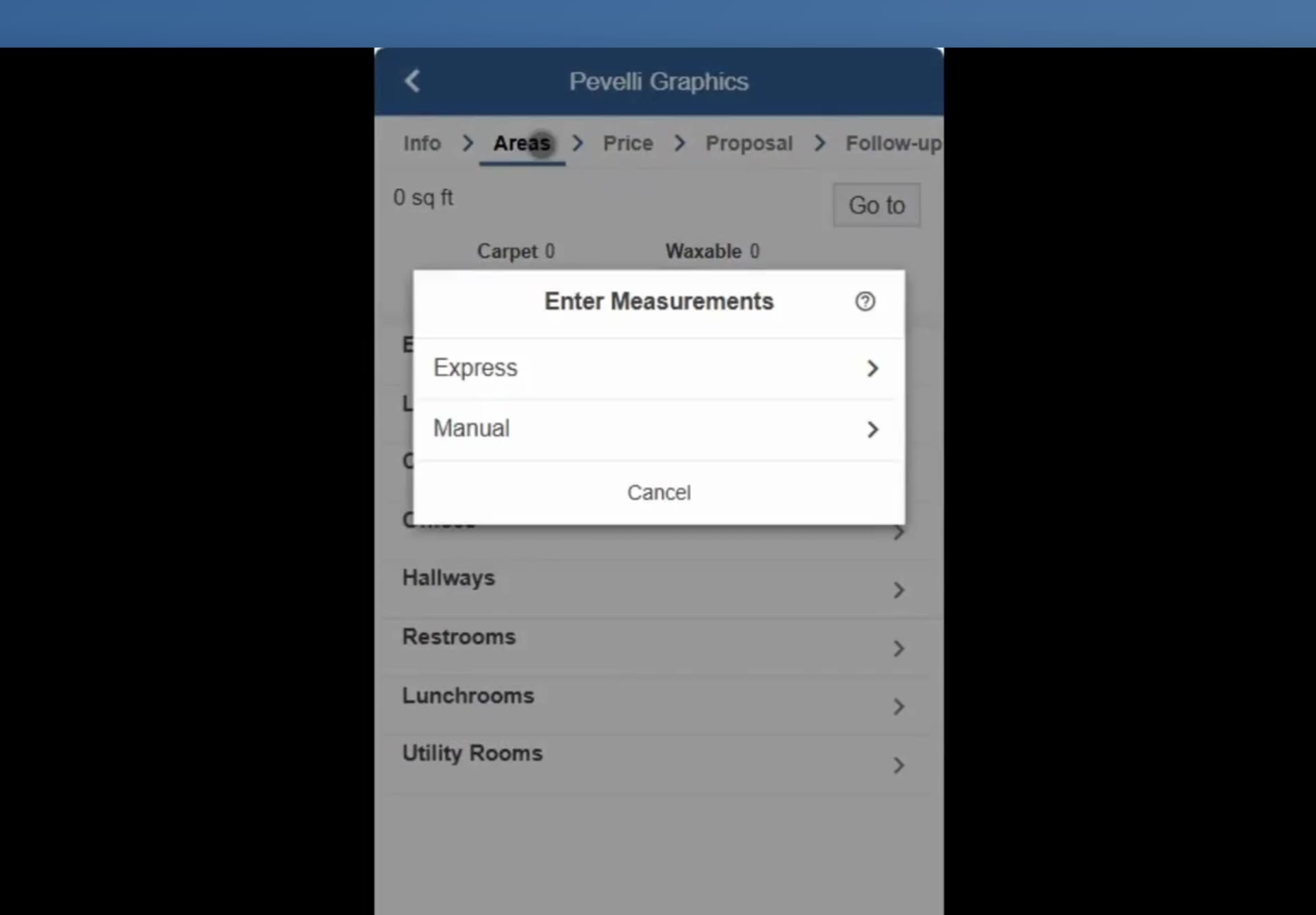
Express and Manual are the two ways to enter the building size.
Express asks for one total cleanable square footage and splits it across the standard area types by percentage, which is quick enough to do while you are standing in the building. Manual is the other way — you enter the dimensions one area at a time.
Enter the total and check the percentages
Type the building's total cleanable square footage in Total Sq Ft. Each area has its own percentage and floor type. To rename one, tap the arrow beside it, type the new name, and tap Save.
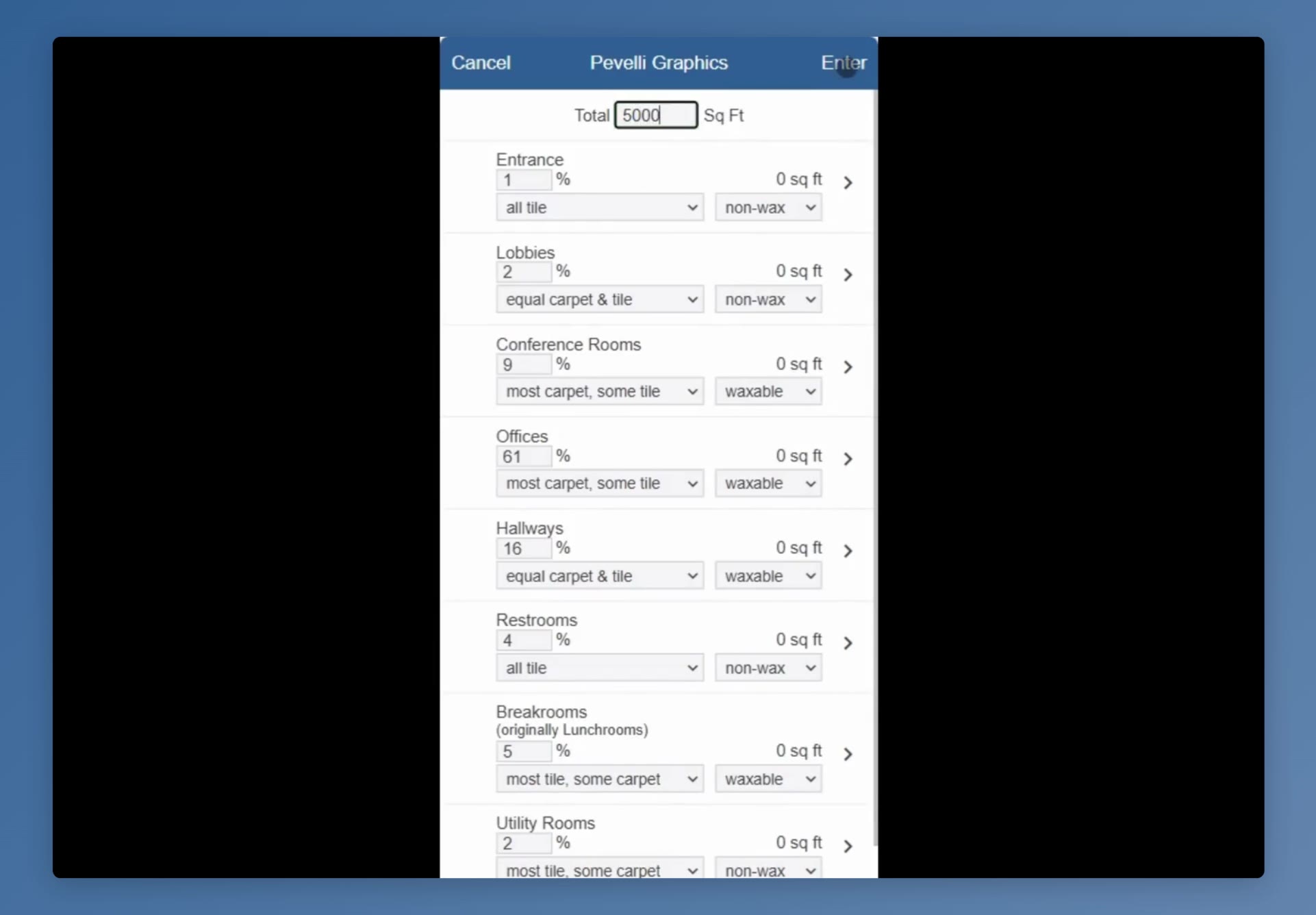
Each area carries a percentage, a floor type and a waxable or non-wax setting. A renamed area shows its original name underneath.
Commit the measurements
Tap Enter at the top right. CleanGuru splits the total across the areas and shows the square footage for each one.
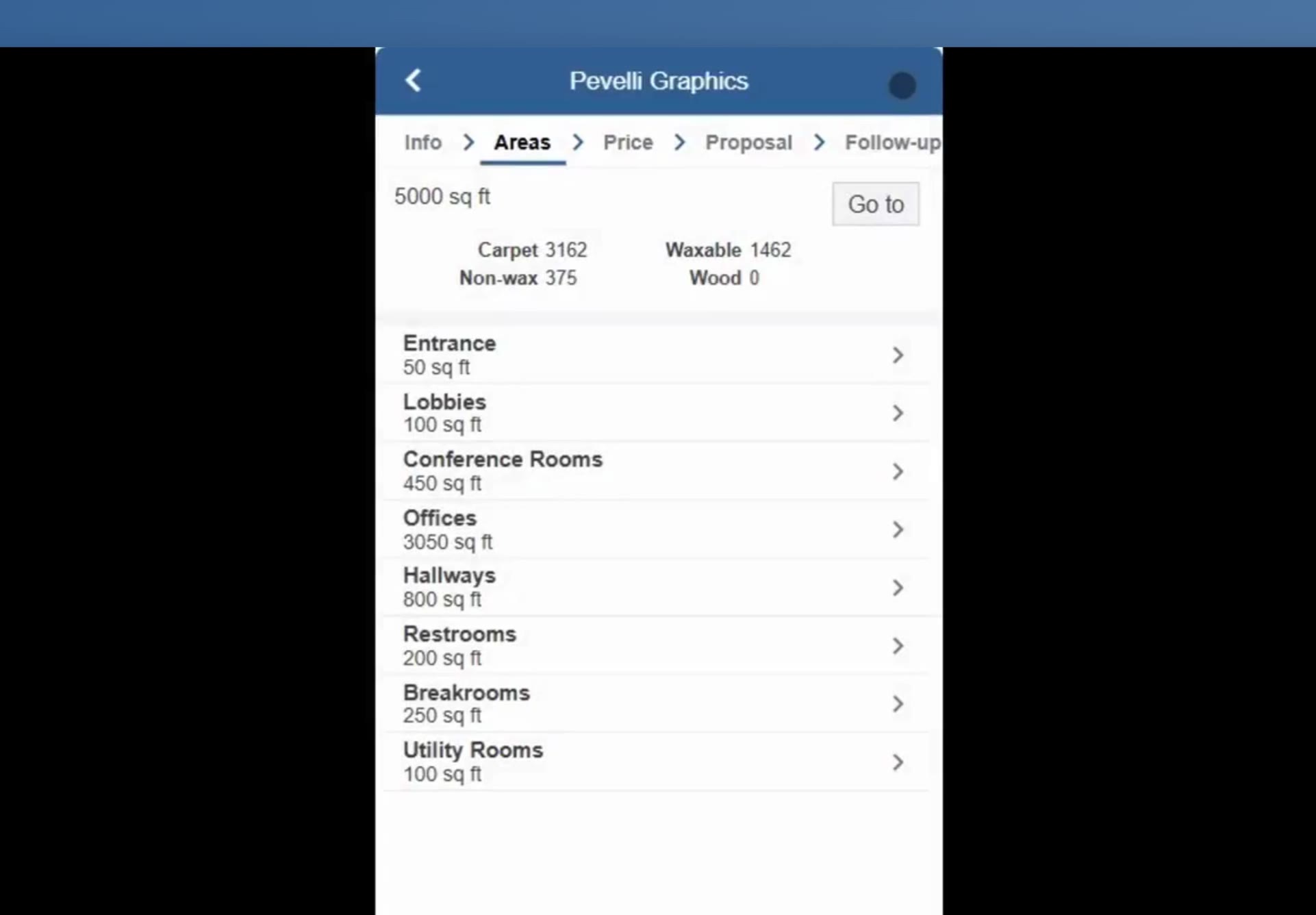
After Enter, every area shows its own square footage, with carpet, waxable and non-wax totals at the top.
Adjust the cleaning tasks
Optional. On the Areas tab tap Go to, then tap options. Tap an area name to open its Tasks, Items and Other tabs, and tap Add at the top right to add a task.
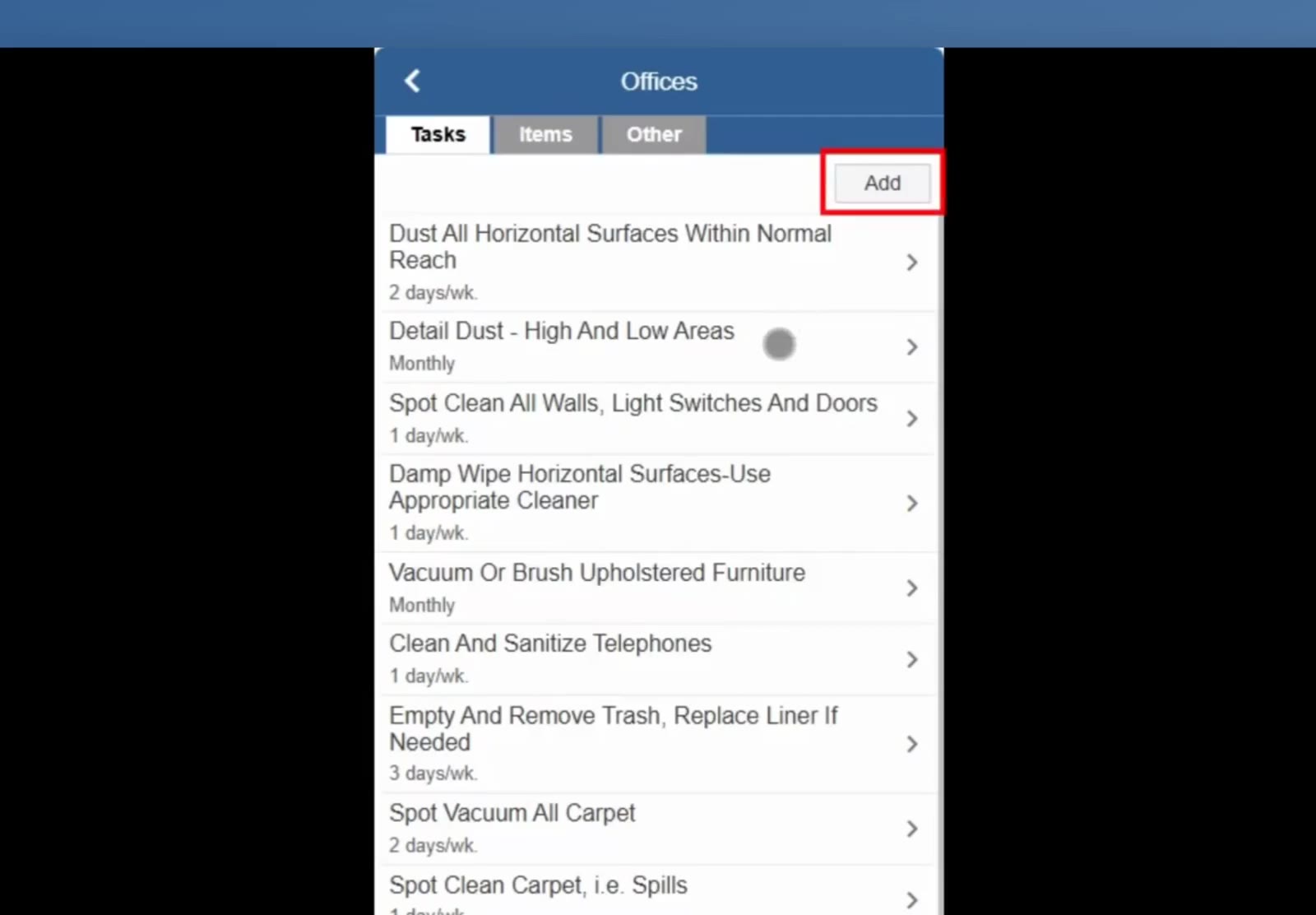
Each task carries its own frequency, and Add at the top right puts another one on the list.
Price the Bid
Open the price worksheet
Tap the Price tab. The Worksheet shows hours per day and per month, wages, payroll taxes, overhead, your profit percentage and the monthly price.
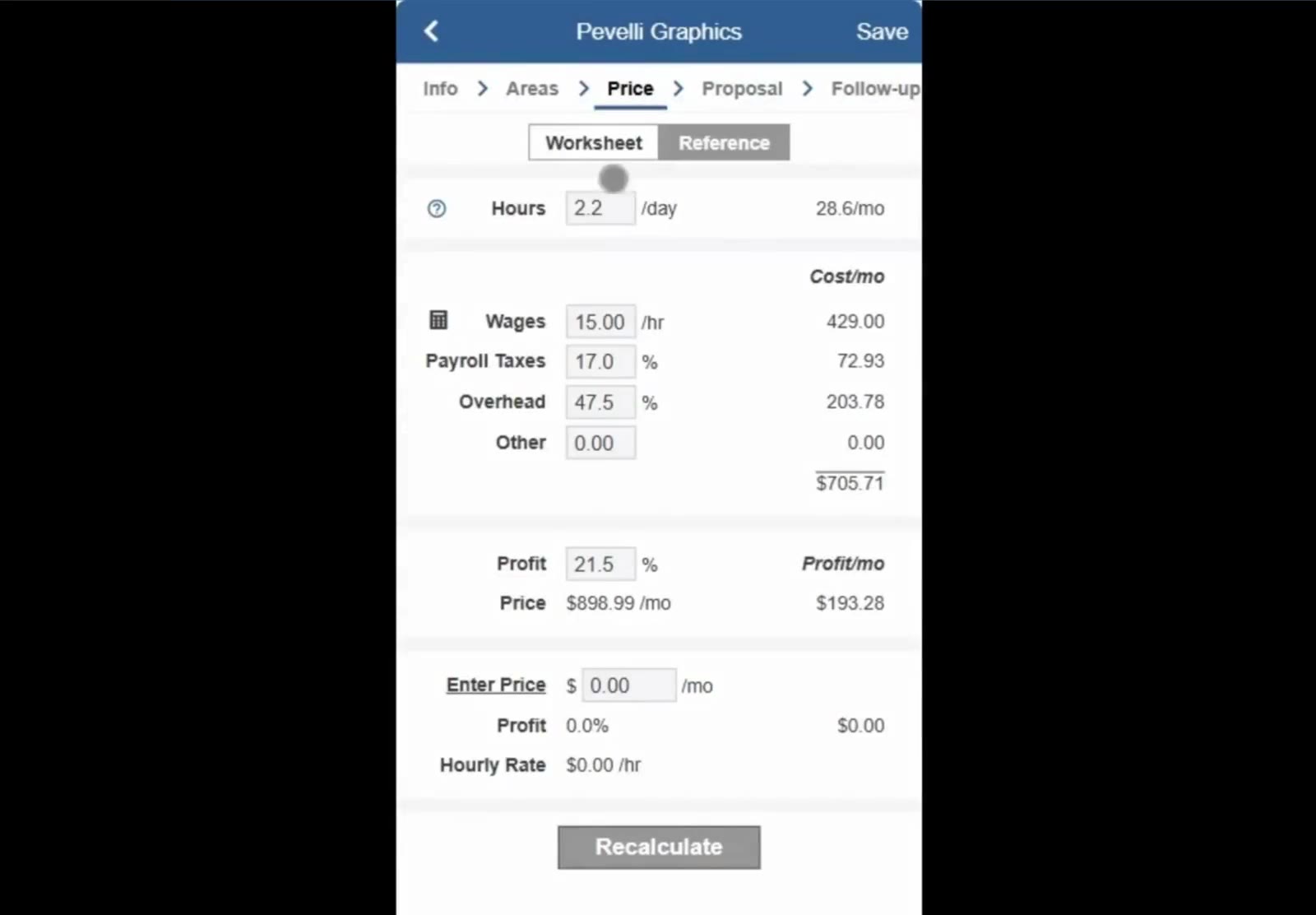
The worksheet totals your costs, then applies the profit percentage to reach the monthly price.
Change the hours or the wage
Type over any figure — Hours and Wages move the price most — then tap Recalculate at the bottom.
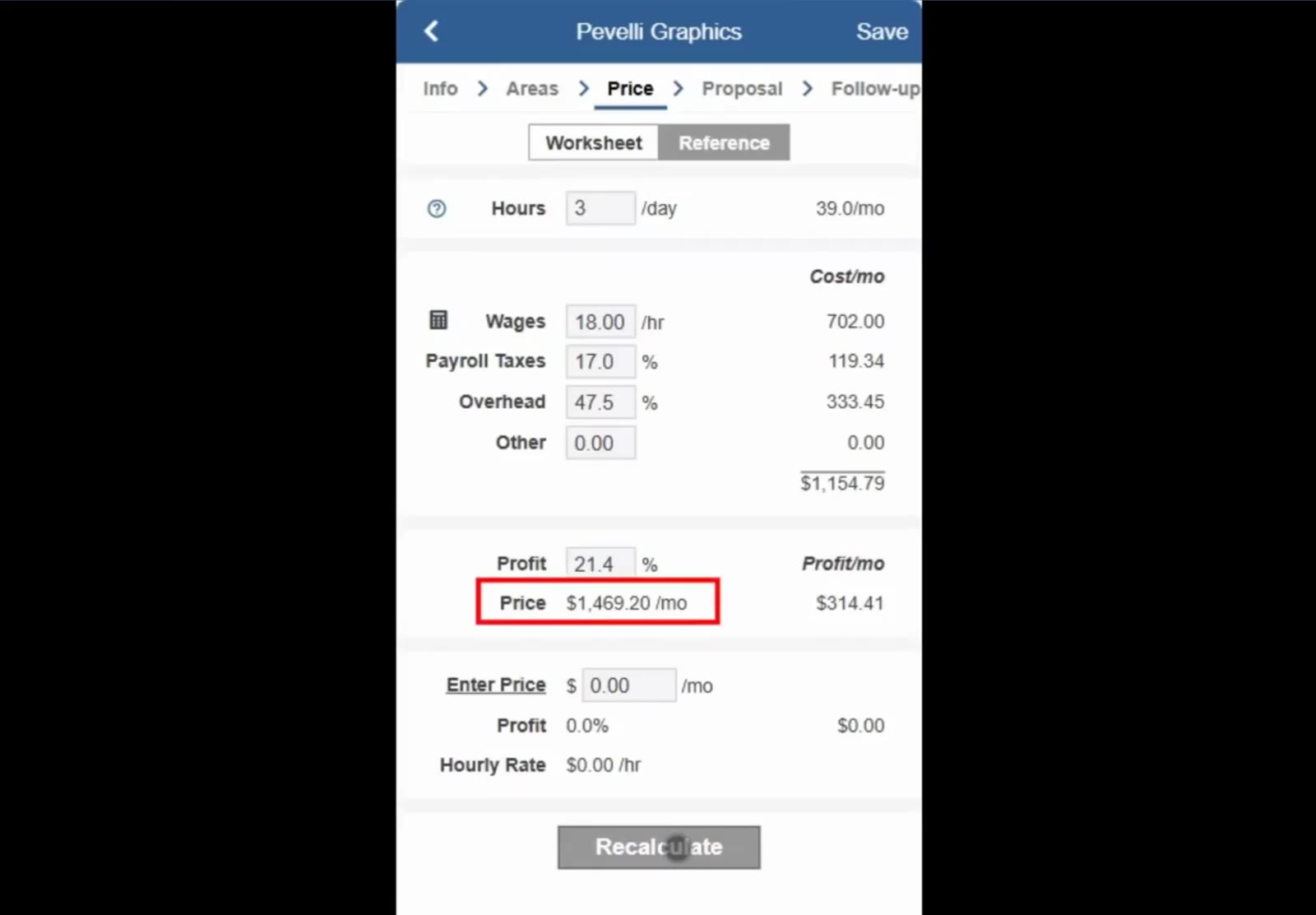
Raising the hours and the wage raises the cost, and the monthly price moves with it.
Or work back from a price
If you already know what you want to charge, put it in Enter Price and tap Recalculate. CleanGuru shows the profit percentage and hourly rate that price gives you. Tap Save at the top right.
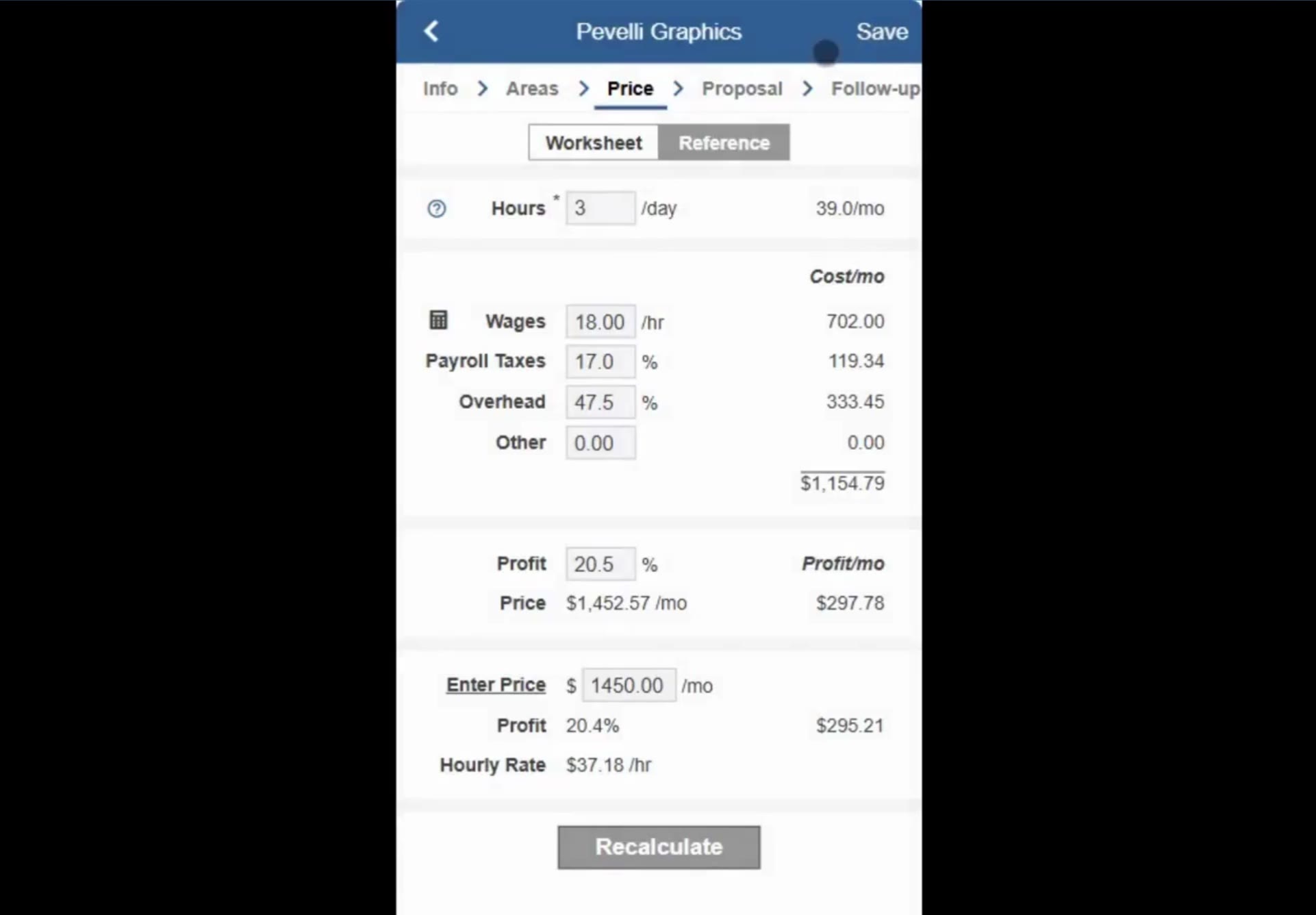
Enter Price works the sum backwards — type the monthly figure and read off the profit and hourly rate.
Build the Proposal
Choose what to include
Tap the Proposal tab and check the documents you want: Proposal, Job Specifications, Measurement Summary and Area Hours Summary.
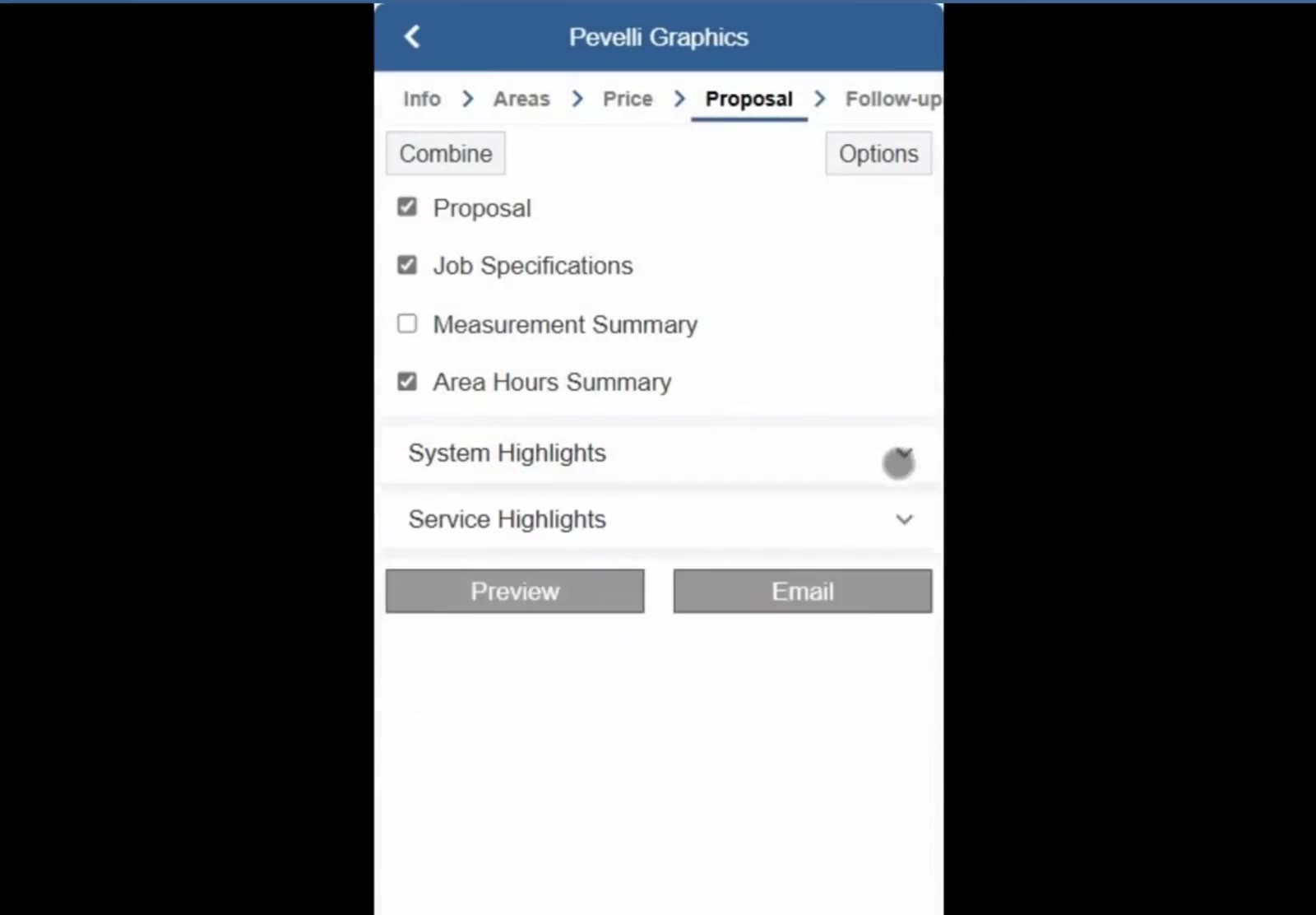
Tick the documents to include; Preview and Email sit at the bottom of the same screen.
Customize the sections
Tap Options at the top right to edit sections such as the Cover Page, Supplies and Invoicing. The System Highlights and Service Highlights dropdowns on the same screen add marketing pages.
Preview it and send it
Tap Preview to view the proposal. Scroll through it to check the layout, your logo and the task lists, then tap Email at the top right to send it to the client.
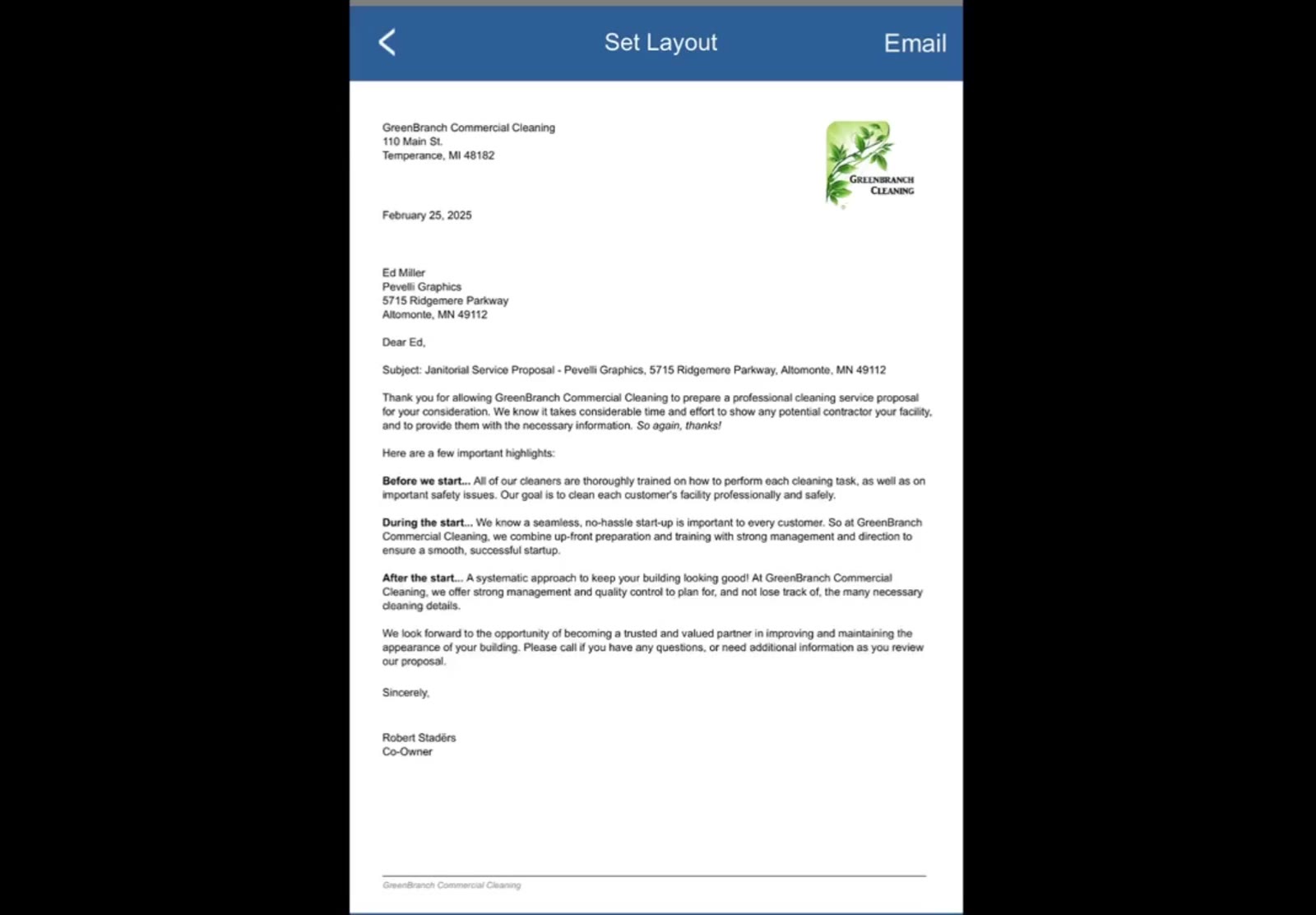
The preview shows the finished proposal, with Set Layout and Email across the top.
If a section of the proposal splits across two pages, tap Set Layout and move that section down. It starts on the next page instead and prints in one piece.
FAQ
What is the difference between a Prospect and a Customer?
A prospect is someone you haven’t worked with yet, while a customer is an account you’ve already done business with.
Can I change the measurement method after I start?
Yes. On the Areas tab tap Go to, then tap re-enter.
What service frequencies can I pick?
1 through 7 days per week, Monthly, Every other week, and Twice per month.
Can I set my own price instead of the one CleanGuru works out?
Yes. Put your monthly figure in Enter Price and tap Recalculate, and CleanGuru shows you the profit percentage and hourly rate that price comes to.
Where does the logo on the proposal come from?
Your company settings in the CleanGuru web app. Once it is saved there it prints on proposals you build on the phone as well.