
Use Email Verification
CleanGuru keeps a log of every proposal you email and tells you whether it reached the prospect's mail server and whether they opened it, so you know when to follow up.
Check a Proposal's Delivery Status
Open the delivery log
Open the bid and click the Proposal tab. At the bottom of the screen, a table lists every emailed document with its Date, recipient (To), Subject, and Status.
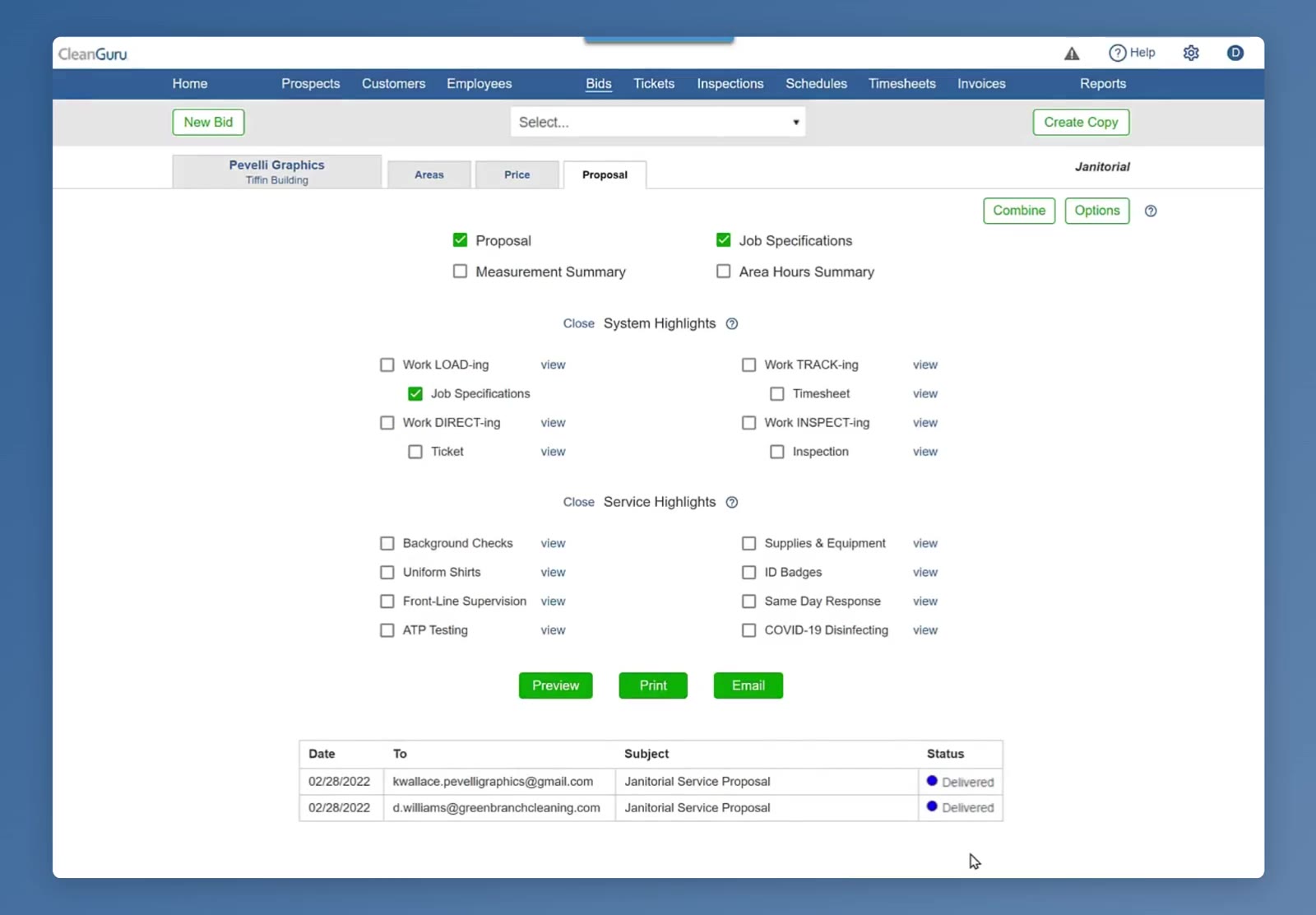
The delivery log sits at the bottom of the Proposal tab, with a status dot beside each email.
Open the verification details
Click any row in the log. The Email Verification window opens, showing the bid, the building, when it was sent, every recipient with its own status and timestamp, the email subject, and any attached file.
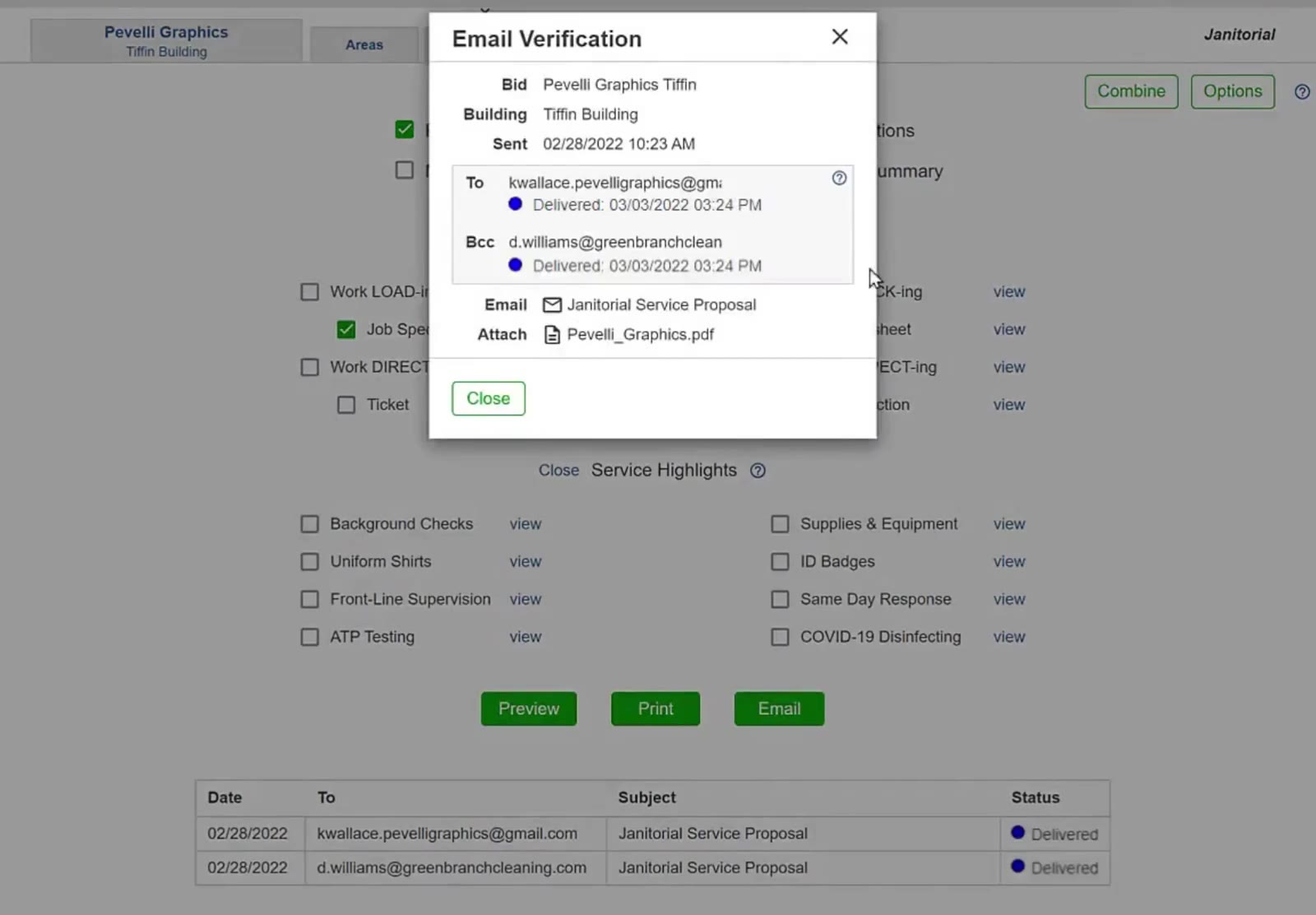
The Email Verification window lists each recipient with its own status and timestamp, plus the subject and attachment.
Check what a status means
The information icon beside the recipient list brings up the legend for the four status colors.
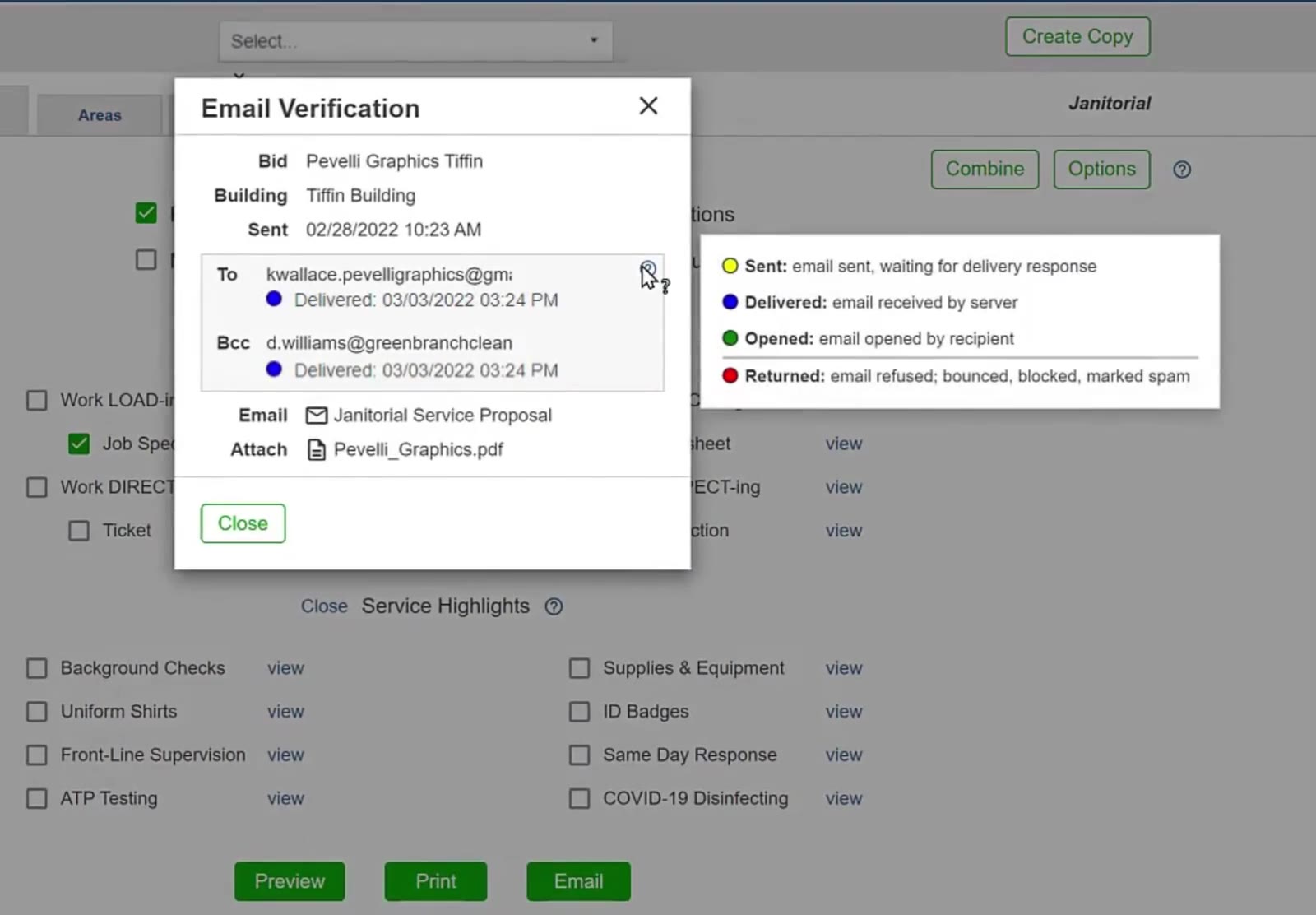
The legend names all four status colors in one place.
- Yellow — Sent: email sent, waiting for a delivery response.
- Blue — Delivered: email received by the recipient's server.
- Green — Opened: email opened by the recipient.
- Red — Returned: email refused, bounced, blocked, or marked as spam.
Close the window
Click Close to go back to the Proposal screen.
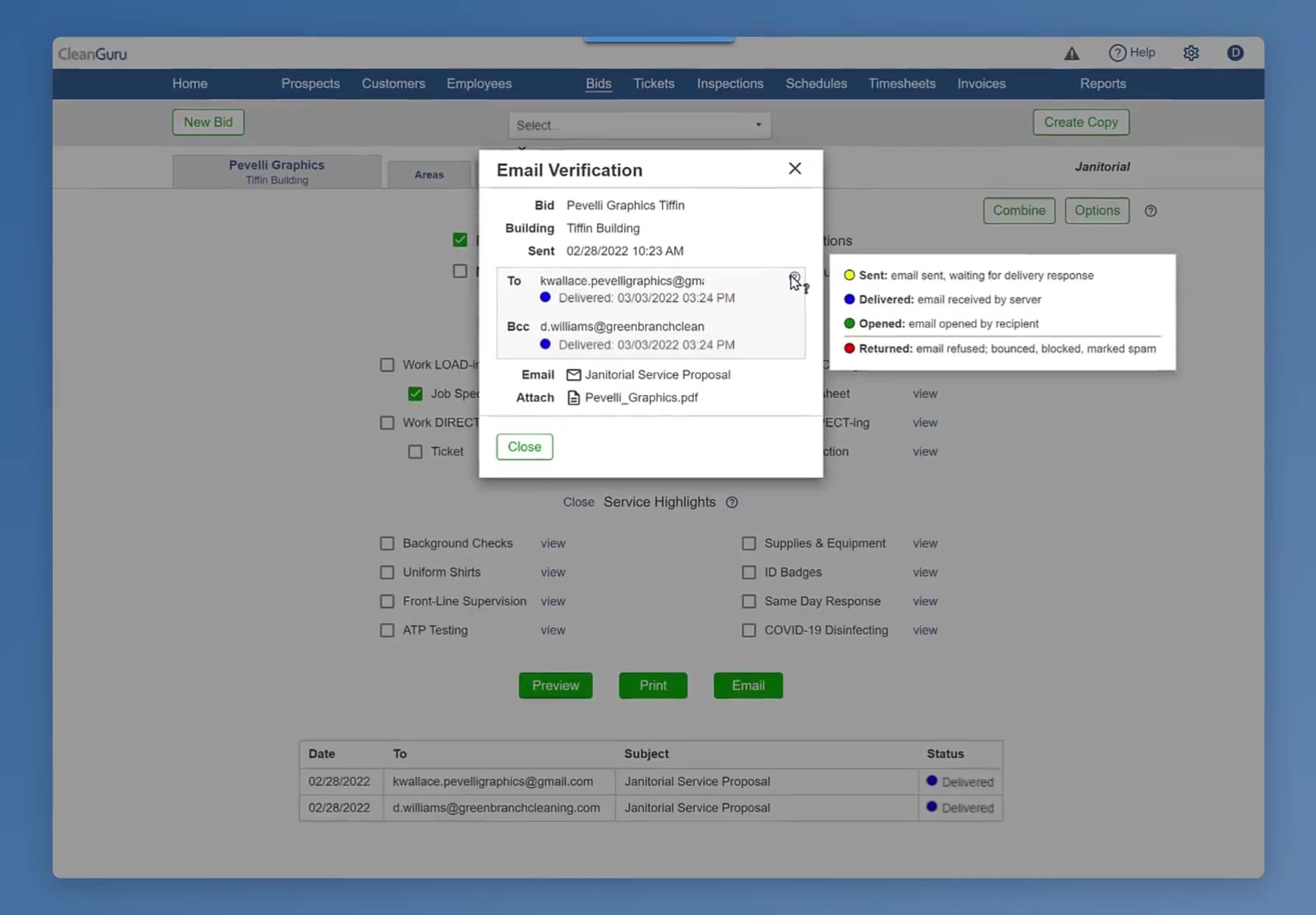
Click Close to return to the Proposal screen.
Each recipient gets its own status line, Bcc included, so you can tell whether every copy of the proposal got through.
FAQ
Where is the delivery log?
At the bottom of the Proposal tab for that bid.
Does verification cover Bcc recipients?
Yes. The Email Verification window lists every recipient, To and Bcc, each with its own status and timestamp.
Can I see what was actually sent?
Yes. The window shows the email subject and any file attached to it.
Does Delivered mean the prospect read the proposal?
No. Delivered means the recipient's mail server accepted the message. Opened is the status that means the recipient opened the email.