
Contact Supervisor
CleanGuru holds two supervisor contacts, and sends your cleaners’ calls and texts to whichever one is selected. When a shift changes hands, you switch the selection and the calls follow.
Open the Supervisor Window
Open Settings
Click the gear icon at the top right of CleanGuru and choose Settings.
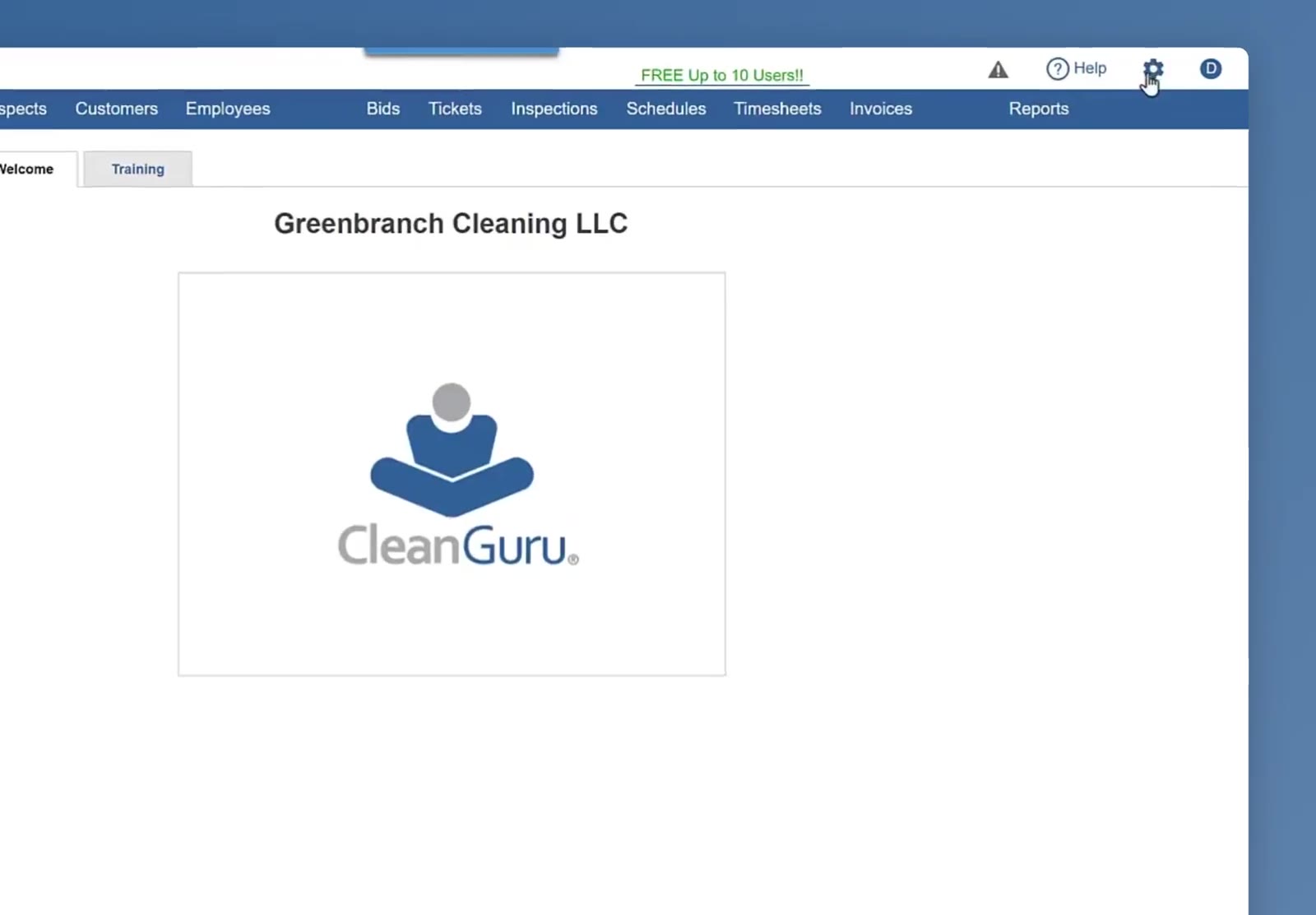
The gear icon at the top right opens the menu that holds Settings.
Click Supervisor
Supervisor sits on its own at the bottom of the Settings panel, under Schedules and Timesheets.
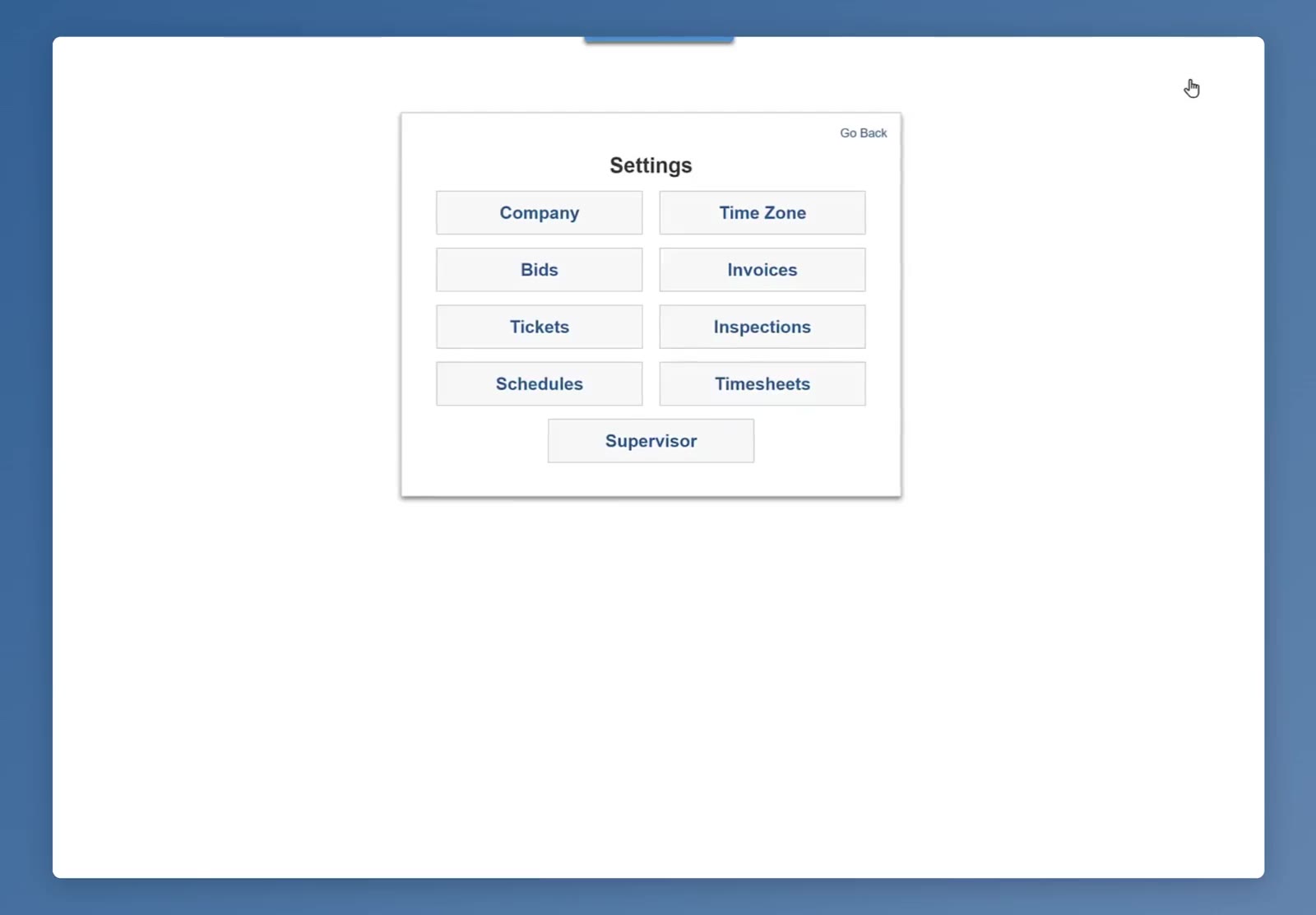
Supervisor is the last button in the Settings panel.
Turn It On for Your Cleaners
Switch the toggle on
The toggle beside the Contact Supervisor title turns the feature on. Switch it on and your cleaners get a Contact Supervisor button in the app. Switch it off and that button goes away.
Fill In Both Supervisors
Enter the first supervisor
Click Supervisor 1. Type the name in Name and the number in Mobile. The note box is marked optional, so you can leave it empty.
Say how to reach them
Under the fields, check Call, Text or both.
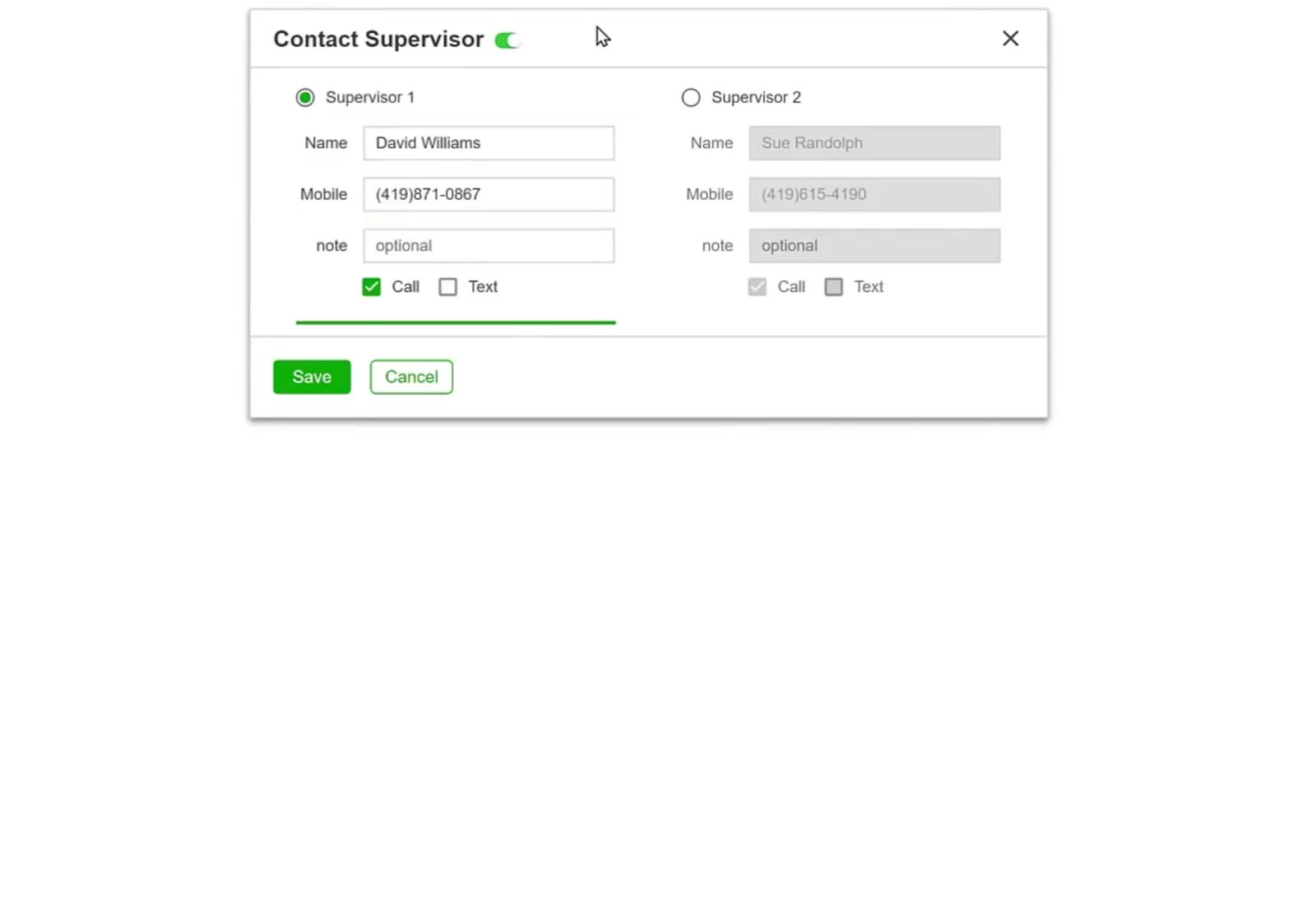
Supervisor 1 filled in and selected, with Supervisor 2 grayed out beside it.
Enter the second supervisor
Click Supervisor 2 and fill in Name, Mobile and the Call and Text boxes the same way.
Save
Click Save at the bottom left of the window.
Choose Who Is on Duty
Select the supervisor taking the calls
The supervisor you select is the one your cleaners reach. Calls and texts go to that person.
Switch when the shift changes
When one supervisor finishes and another picks up, come back here, click the other supervisor and click Save. The calls and texts move across to them.
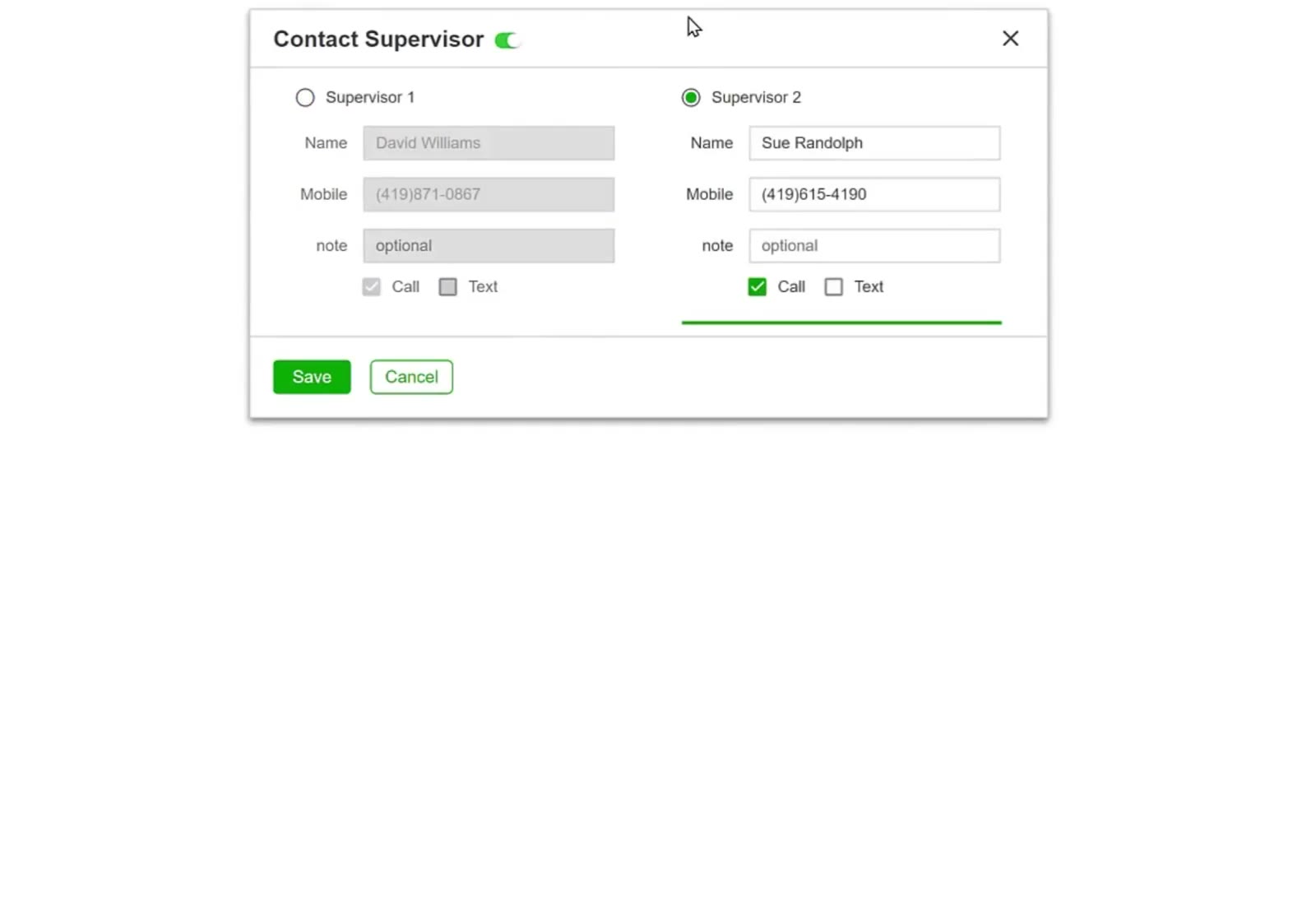
Supervisor 2 selected and live; Supervisor 1 is grayed out but keeps everything entered.
Selecting a supervisor does two jobs at once: it opens that supervisor’s details for editing, and it points the cleaners’ calls and texts at them. The other supervisor grays out and keeps everything you typed, ready for the next switch.
FAQ
What does the toggle beside the title do?
It turns Contact Supervisor on and off for your cleaners. Switch it on and the Contact Supervisor button shows up in the app for them. Switch it off and the button goes away.
Which supervisor gets the call?
The one that is selected. Click the other supervisor and save, and the calls and texts go to them instead.
Do I lose the other supervisor’s details when I switch over?
No. Their name, number and contact choices stay exactly as you left them, ready for when you switch back.
How many supervisors can I have?
Two. The window has a slot for Supervisor 1 and one for Supervisor 2.