
Set Up User Access
User access decides what each of your people can see and do in CleanGuru. You set it on the employee’s own record, module by module, and you can limit them to particular buildings as well.
Open the Users List
Open Account
Click the gear icon at the top right and choose Account.
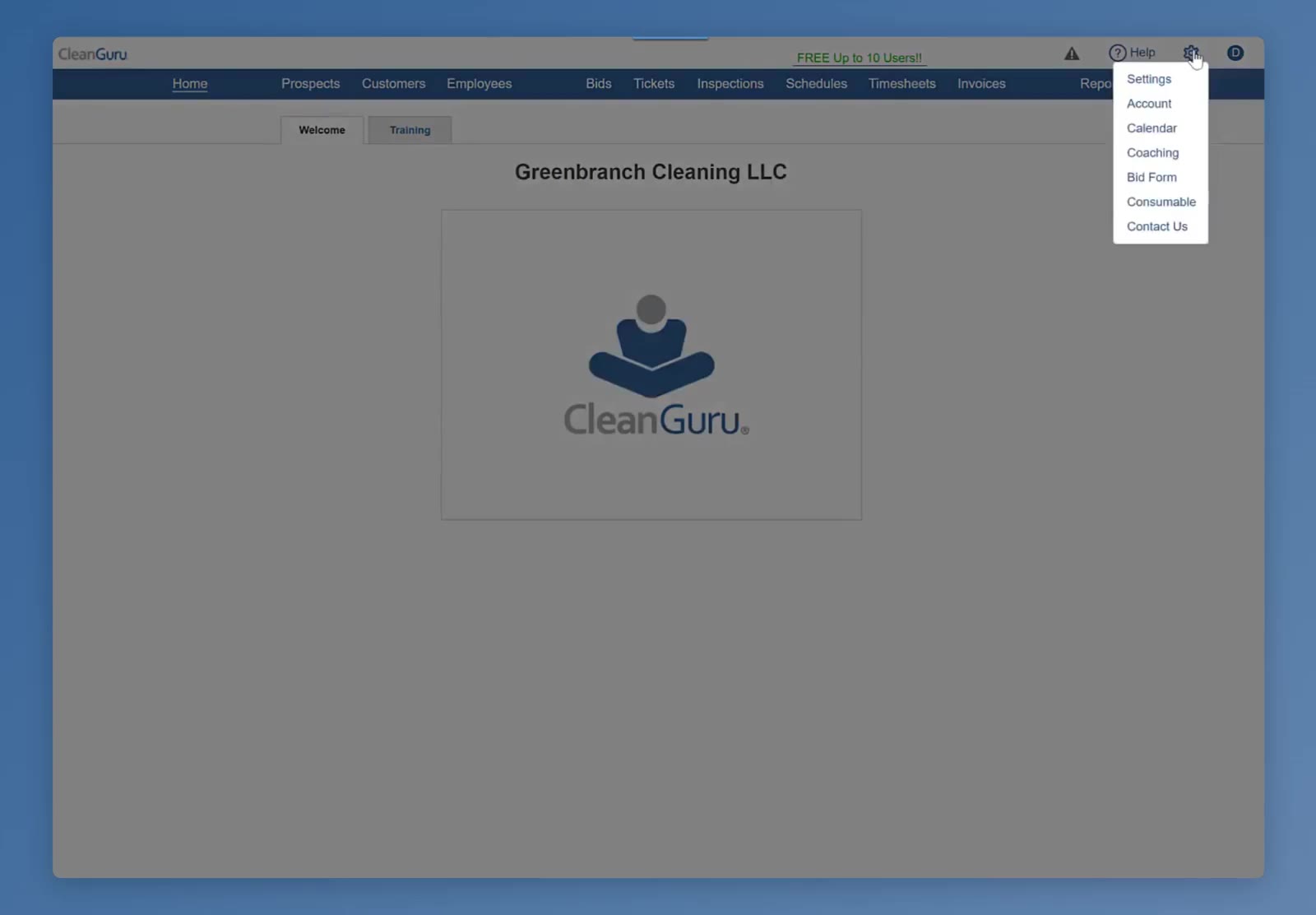
The gear menu at the top right holds Account.
Go to the Users tab
The Account window has Company, Credit Card, Billing and Users down the left. Click Users.
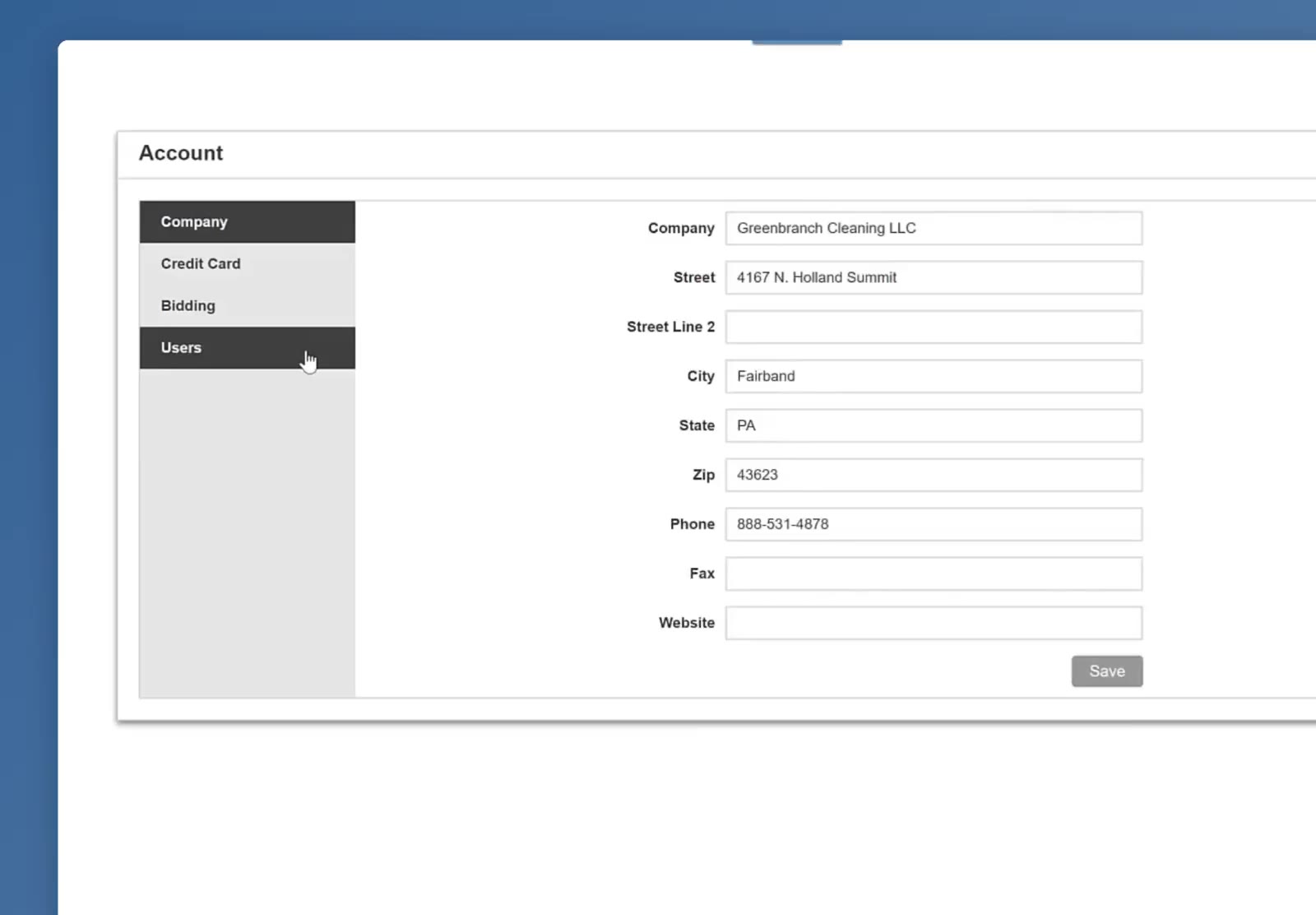
The Account window, with Users the last of the four tabs on the left.
Pick the employee
StaffSupport and Location-Based & Office-Based are listed separately, each showing how many user licenses you have and how many are in use. Click the name of the person you want to change.
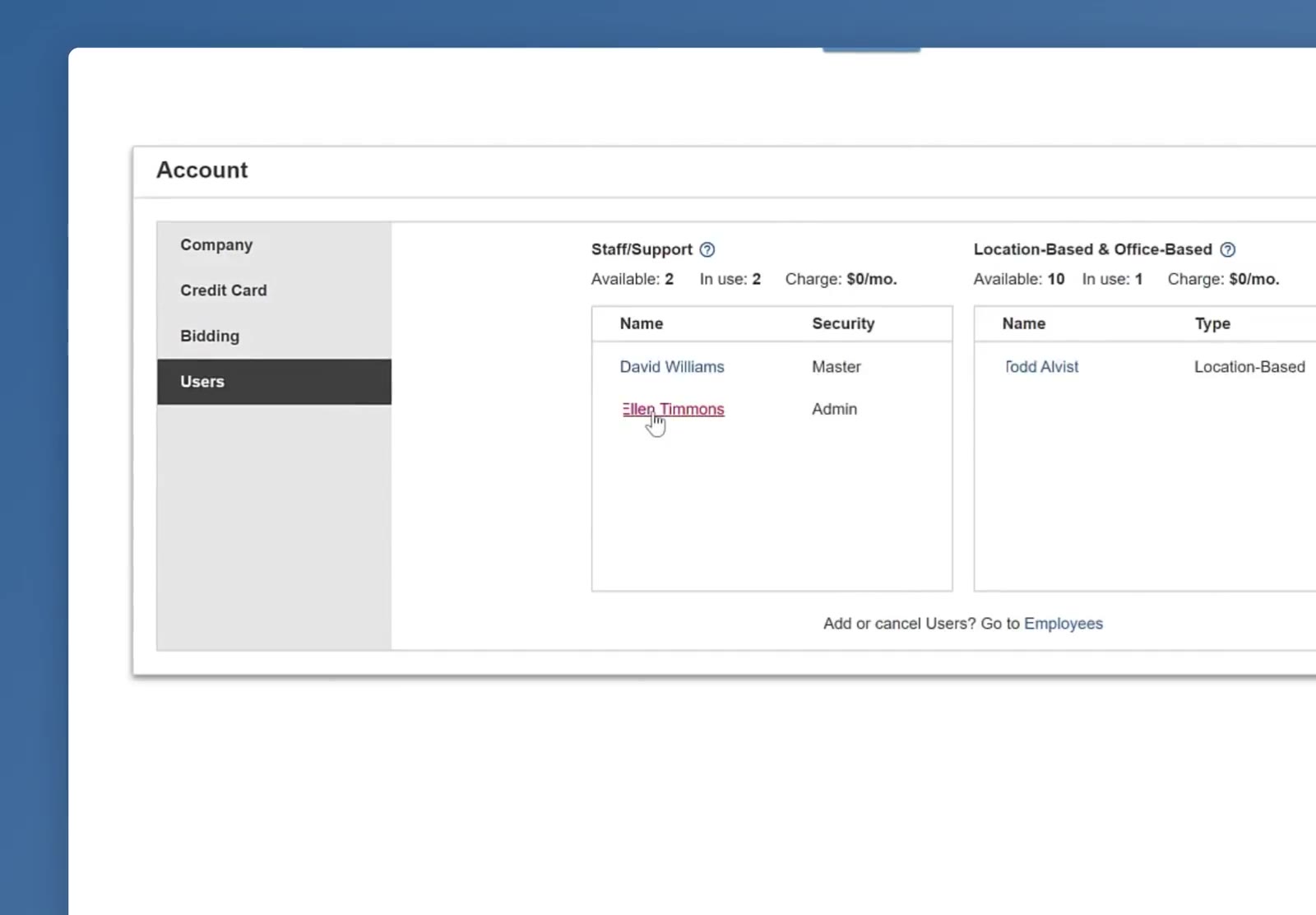
Each list shows the licenses available and in use, and a Security role beside every name.
Set What They Can See
Open the Access tab
On that employee’s record, click Access — it sits alongside Schedule and Timesheets.
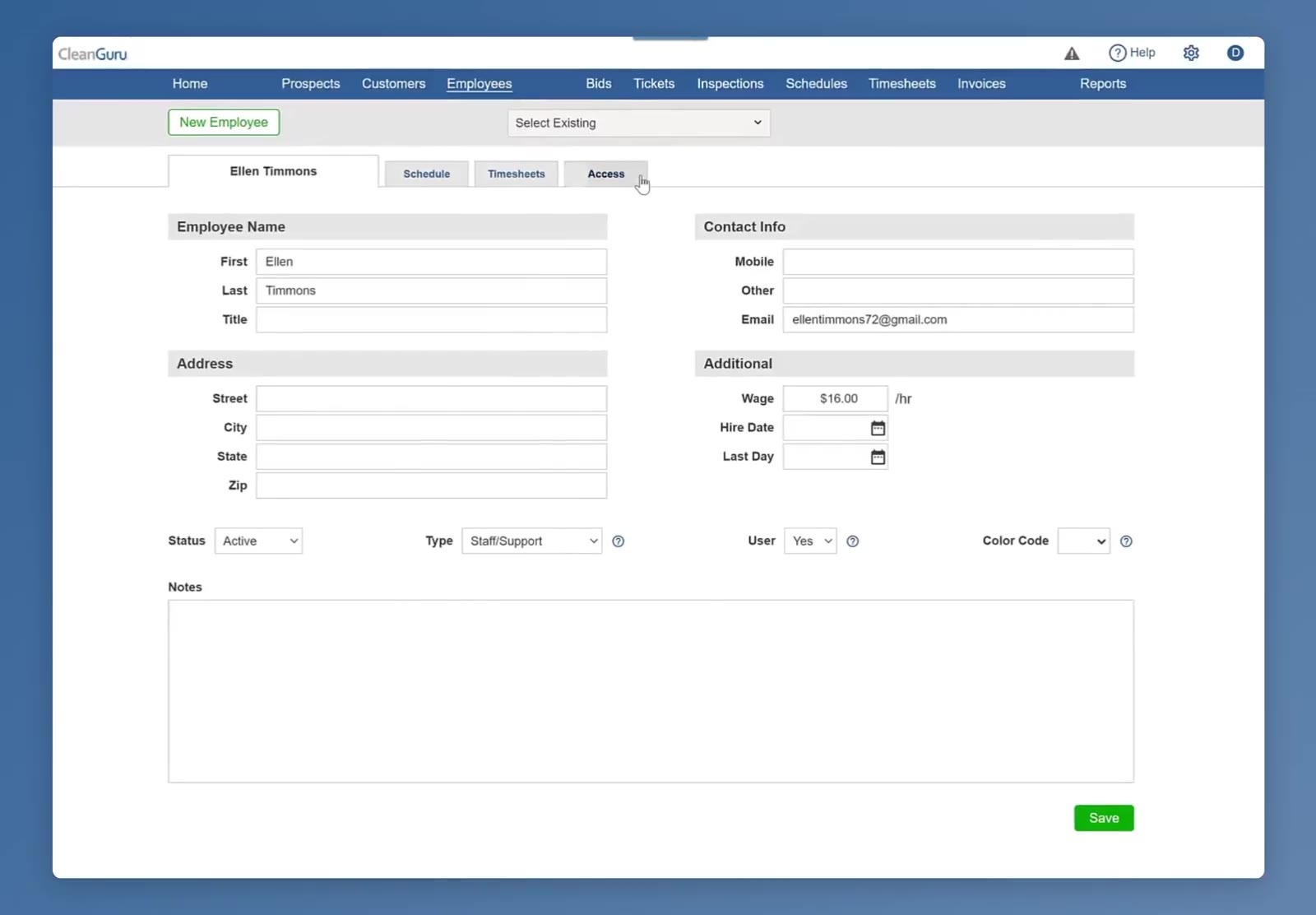
The employee record, with Access alongside Schedule and Timesheets.
Set the level for each module
The grid covers every part of CleanGuru — Contacts, Invoices, Employees, Coaching, Reports, Tickets, Inspections, Schedules, Timesheets, Alerts, Supervisor and Check In. Most offer Full or Read Only. Some offer Limited instead, and the ? beside it spells out exactly what that allows — on Tickets, Limited lets someone complete a ticket and add notes and pictures, but not change, reassign or delete it.
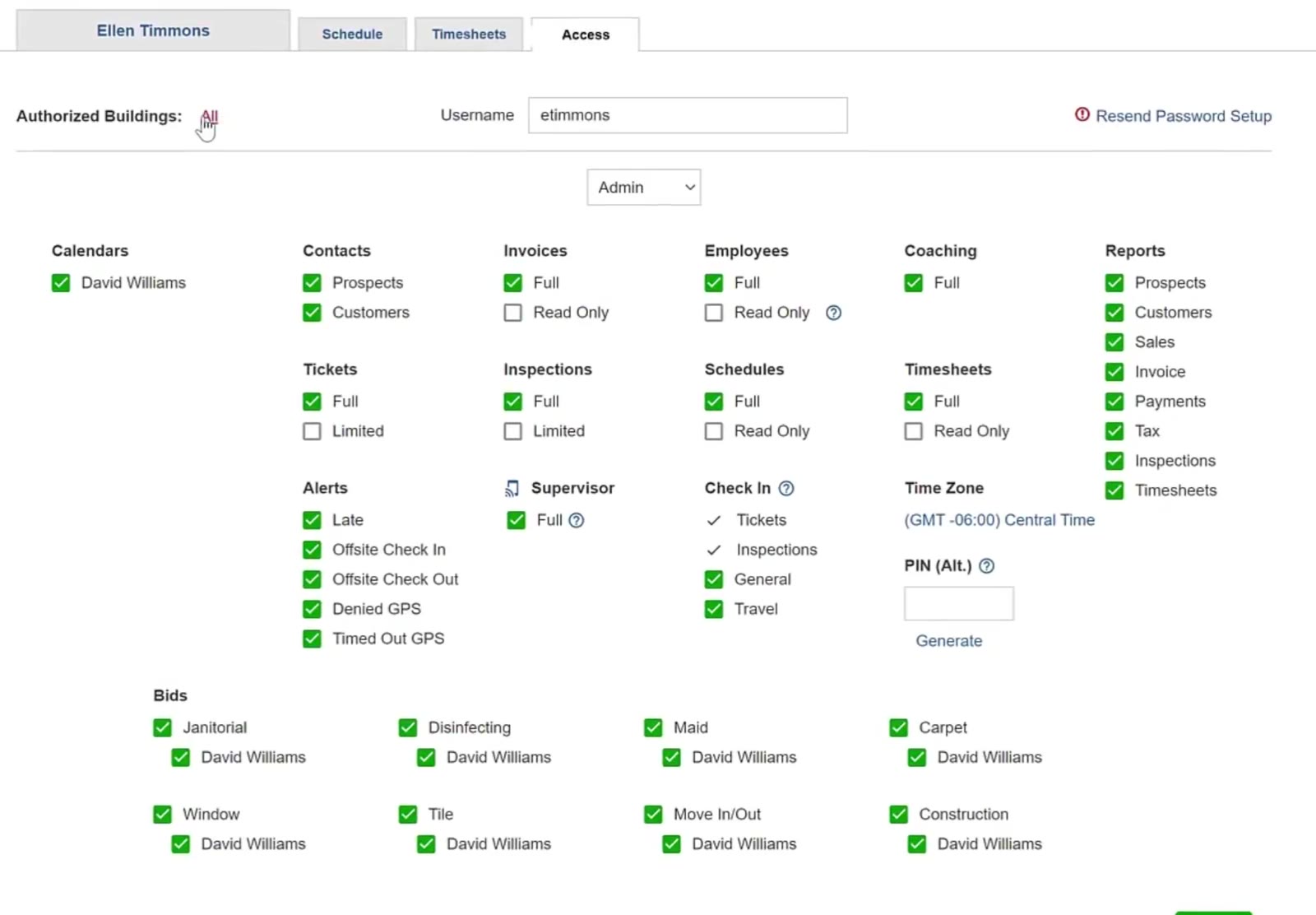
The Access grid. Most modules offer Full or Read Only; Tickets and Inspections offer Full or Limited.
Use Read Only for people who need to look at schedules or reports but should not be changing billing or payroll.
Say which bidding modules they can use
The Bids block at the bottom has a line for each module — Janitorial, Disinfecting, Maid, Carpet, Window, Tile, Move In/Out and Construction. The top box says whether this person can use that module at all. The name underneath says whose bids they can also see: tick someone there and this person sees their own bids plus that person’s.
Limit them to certain buildings
Authorized Buildings starts at All. Click it and the Restrict Access to box opens, listing your customers with their buildings underneath. Pick the ones this person should see.
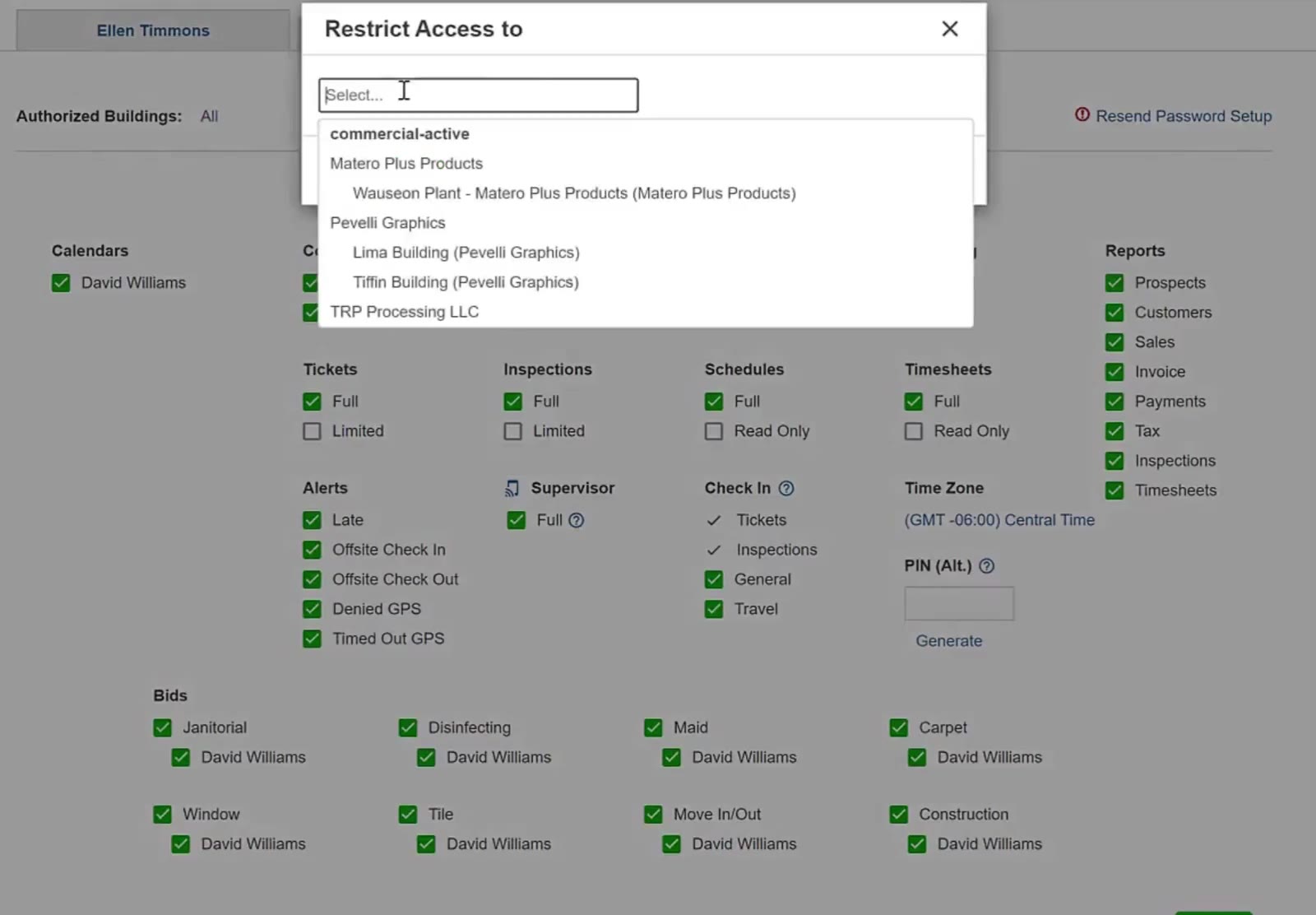
Restrict Access to lists each customer with that customer’s buildings underneath.
Set the security role
The dropdown under the username sets the role. Master is the account owner — usually whoever bought the plan — and has access to everything. Admin has all the same access, except they cannot change or cancel the plan.
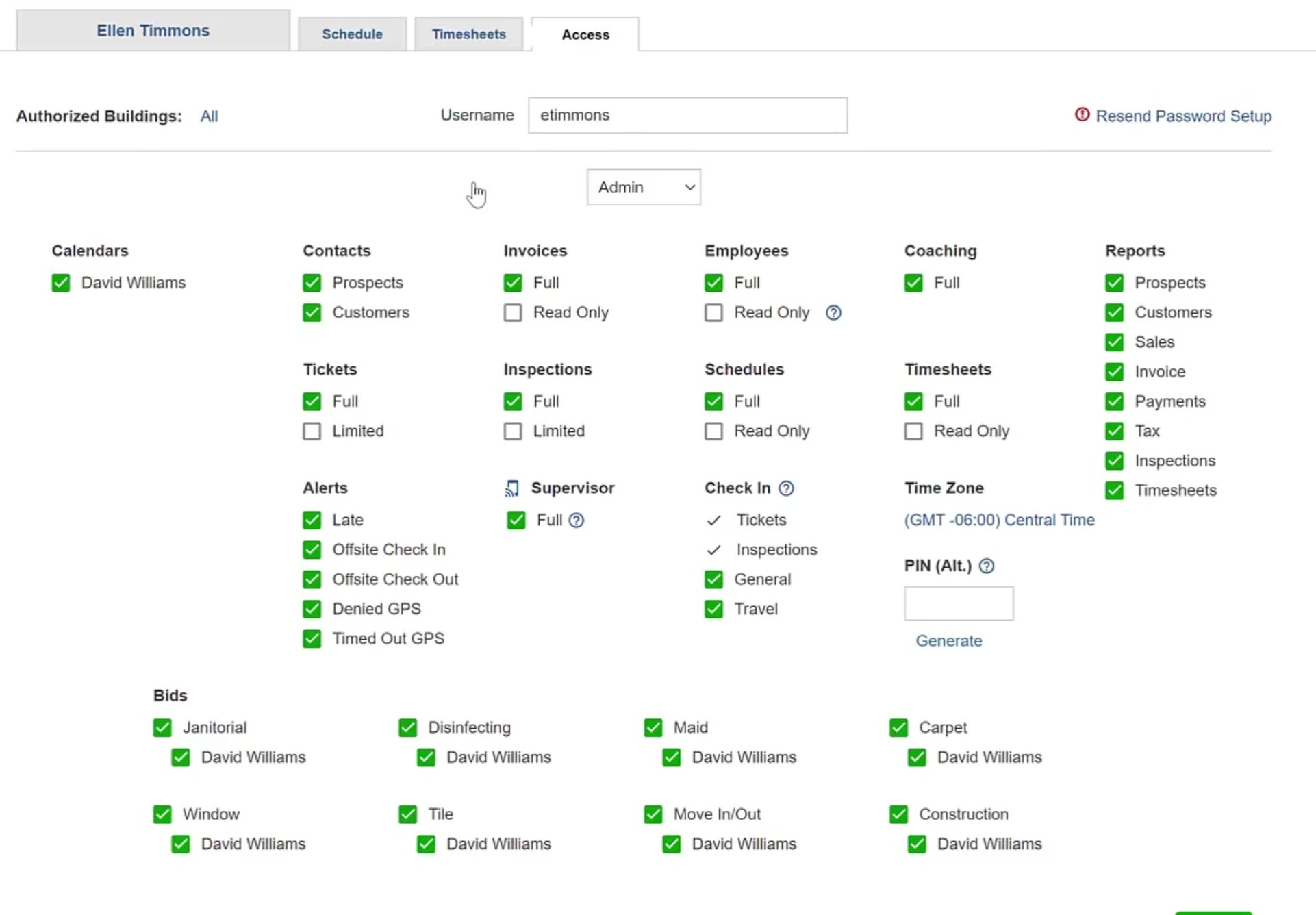
The username, with the role dropdown directly beneath it.
Save It
Save the changes
Scroll to the bottom of the Access tab and click the green Save.
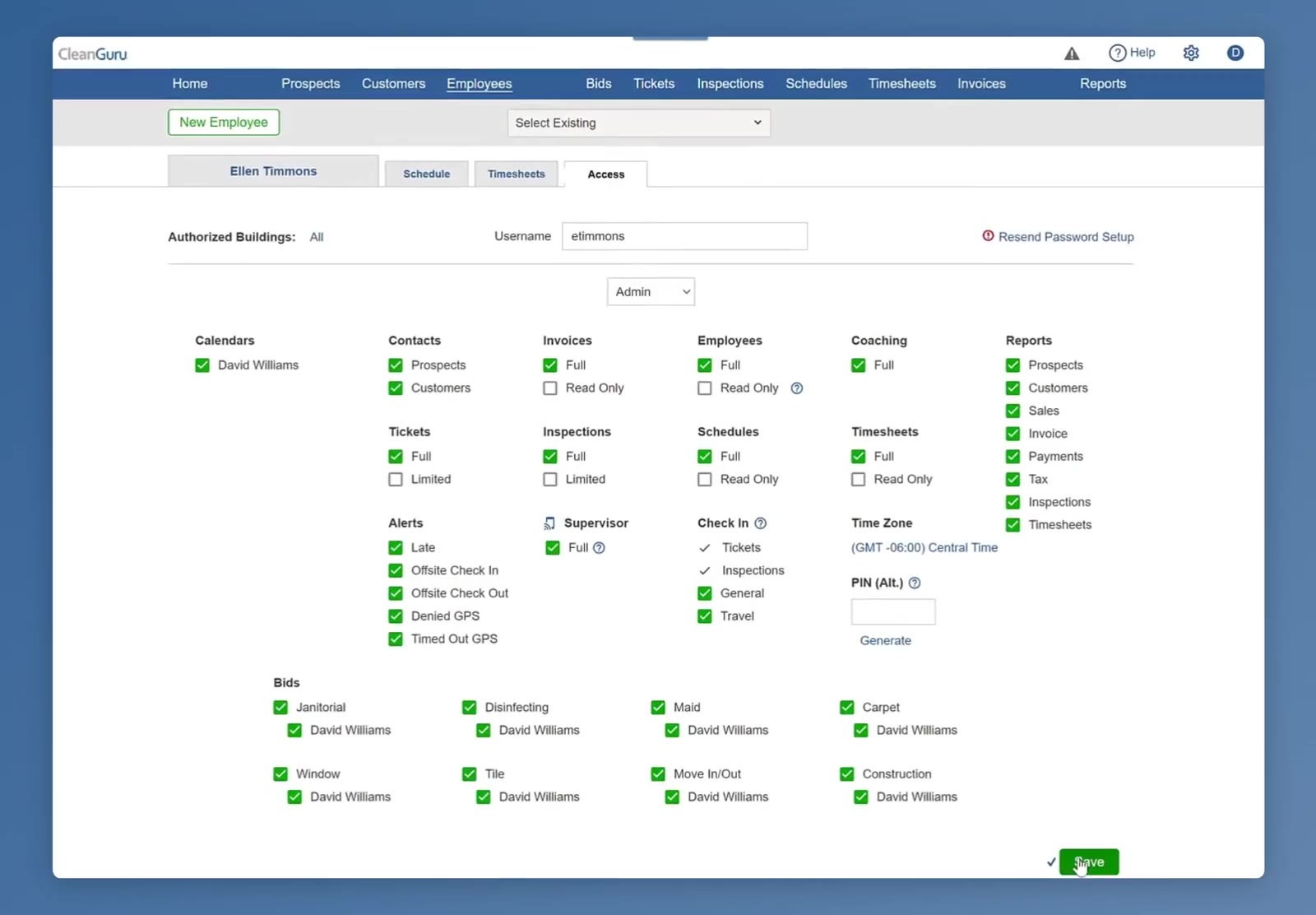
The green Save button at the foot of the Access tab.
FAQ
Why are there two separate user lists?
They are two pools of licenses. Staff/Support is for people whose responsibilities go beyond the cleaning itself; Location-Based cleaners start their shift at the first building, and Office-Based ones report to your office first.
How do I send someone their sign-in information again?
Click Resend Password Setup beside the username on the Access tab.
How do I add or cancel a user?
Open the employee's record and change the User field — Yes gives them access, No takes it away. The Go to Employees link at the bottom of the Users tab takes you there.
What does Authorized Buildings: All mean?
That the person can see every building. Use Restrict Access to if they should only see some of them.