
Record Payment
When a customer pays an invoice, you record the payment against it so the invoice shows as paid and the balance clears. This shows you how to do that in CleanGuru.
Find the Invoice
Open Invoices
Click Invoices in the top menu. It opens on the Summary sub-tab, which totals what is unpaid, overdue and current, with a Total Sales chart underneath. The sub-tabs run Summary, Invoices, Templates, Payments, Credits and History.
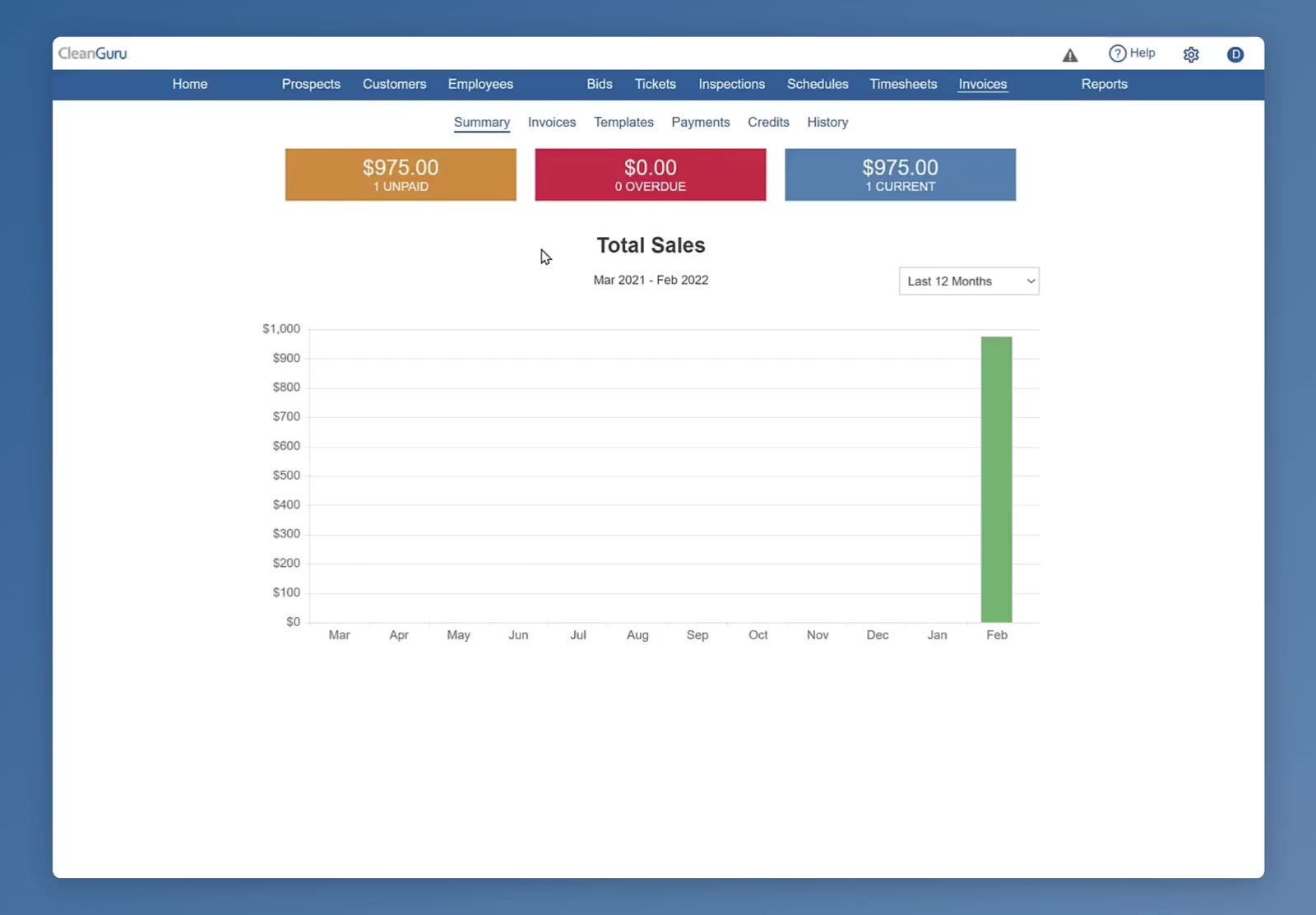
Invoices in the top menu opens the Summary sub-tab.
Open the invoice list
Click the Invoices sub-tab, next to Summary. Each row shows the date, number, customer, due date, amount, balance and status.
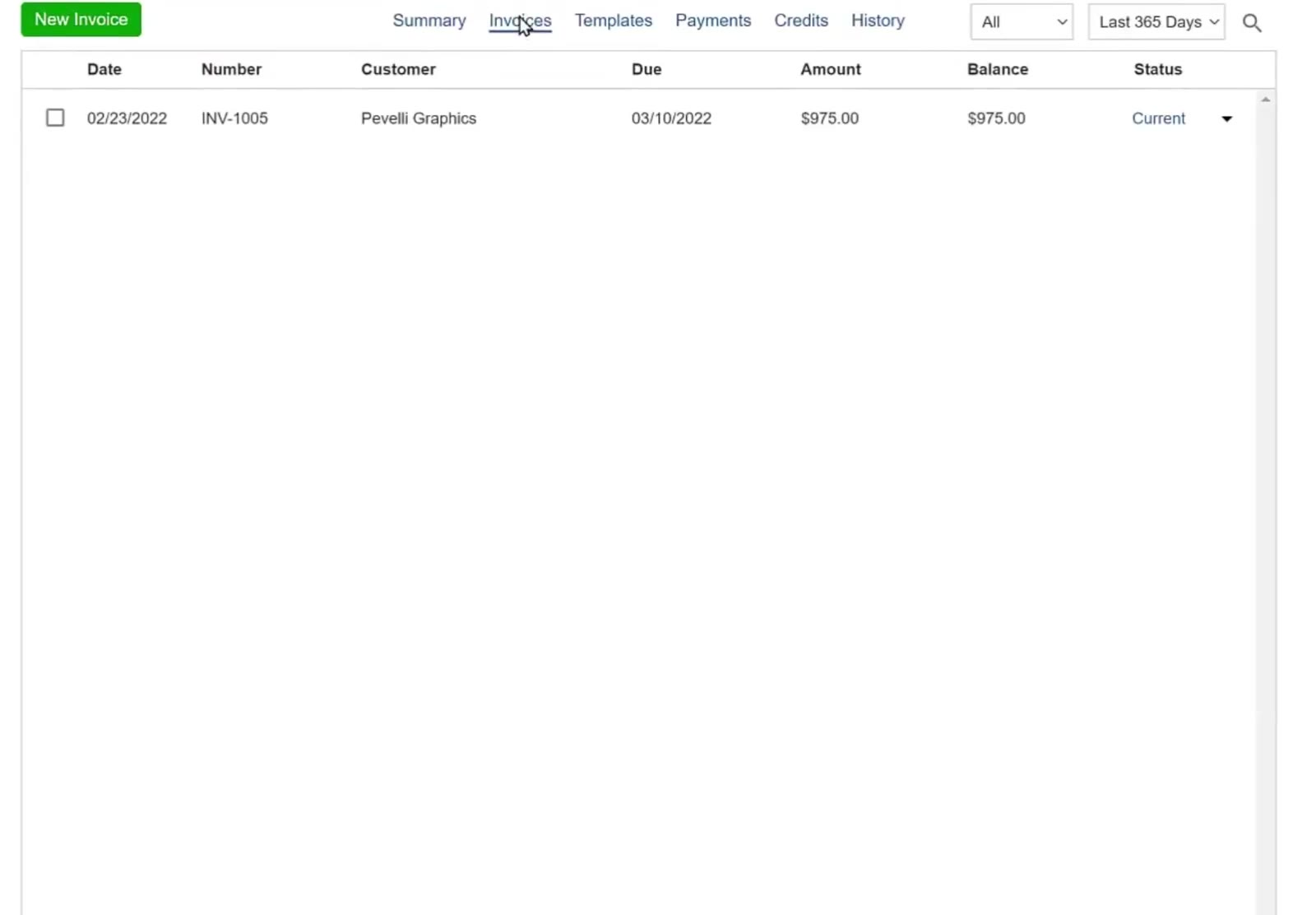
The Invoices sub-tab lists every invoice with its balance and status.
Open the invoice you were paid for
Click the invoice. It opens with a Current badge under the heading while it is still unpaid.
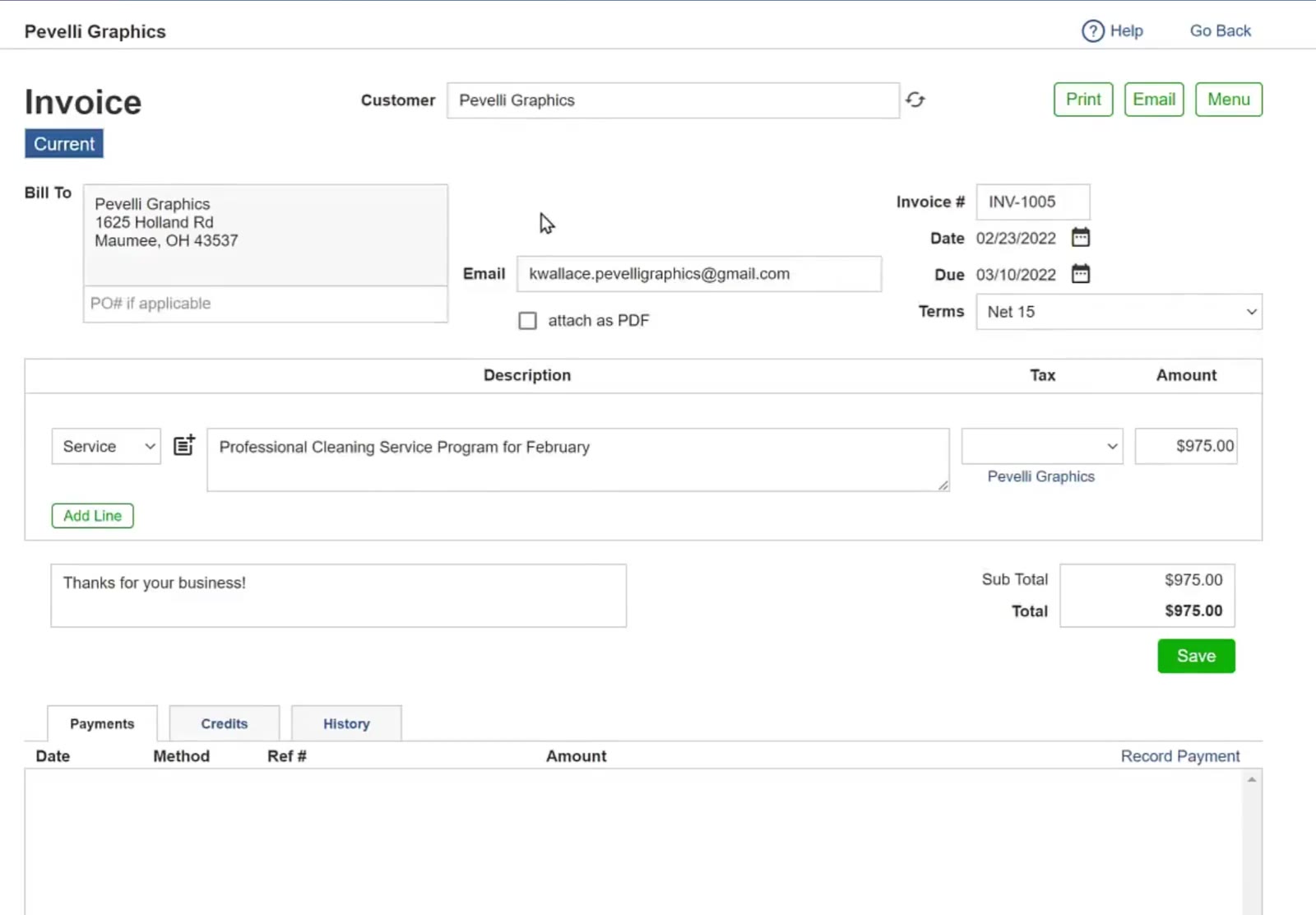
The invoice opens with its badge, customer and line items.
Record the Payment
Choose record payment
Click Menu at the top right of the invoice and choose record payment. There is also a Record Payment link on the Payments tab at the bottom of the invoice, which opens the same box.
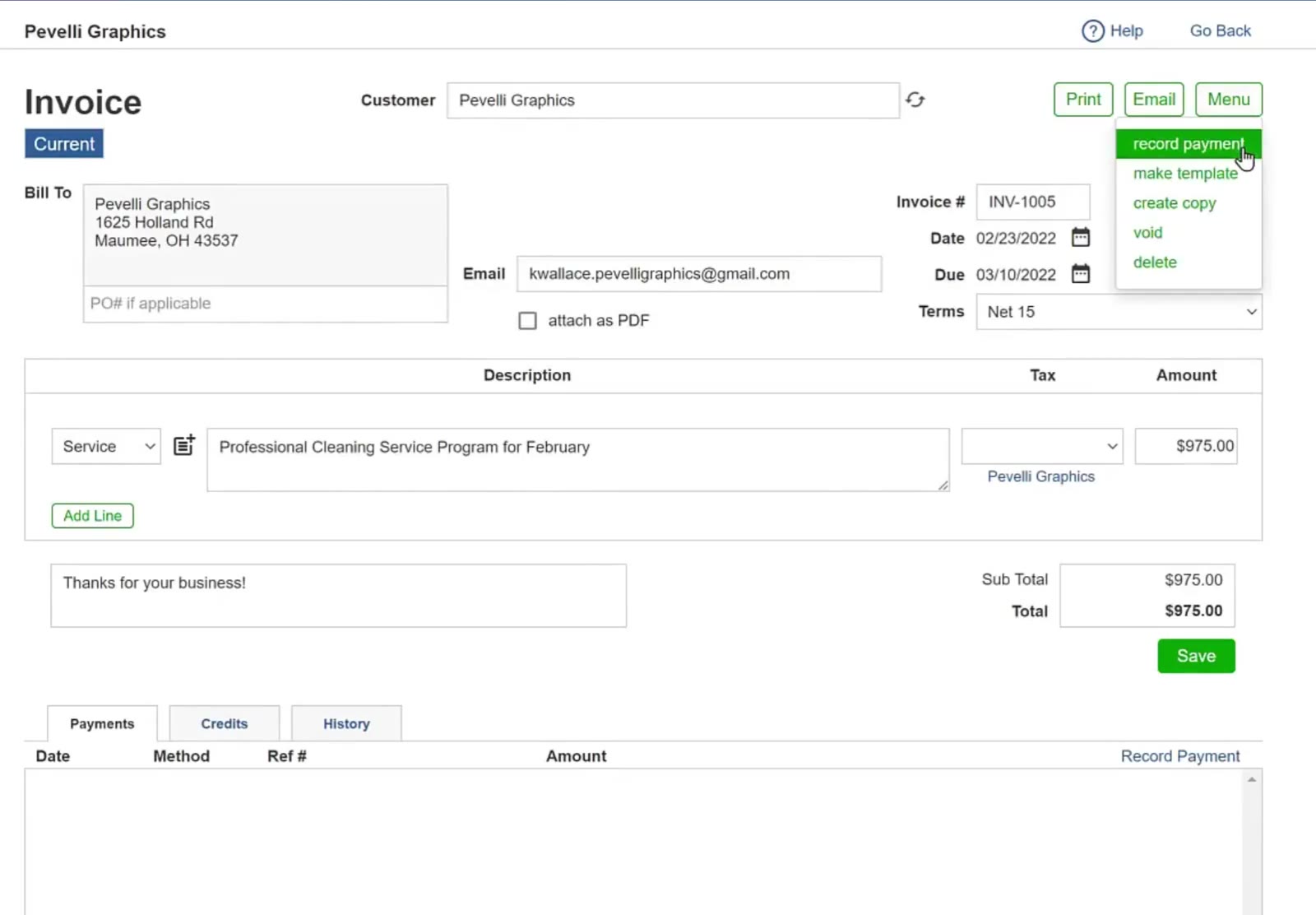
record payment sits at the top of the Menu dropdown, above make template, create copy, void and delete.
Fill in the payment
The Payment box opens with the Date and the Amount already filled in from the invoice. Put the check or transaction number in Ref. #, and use Notes for anything you want to remember about it.
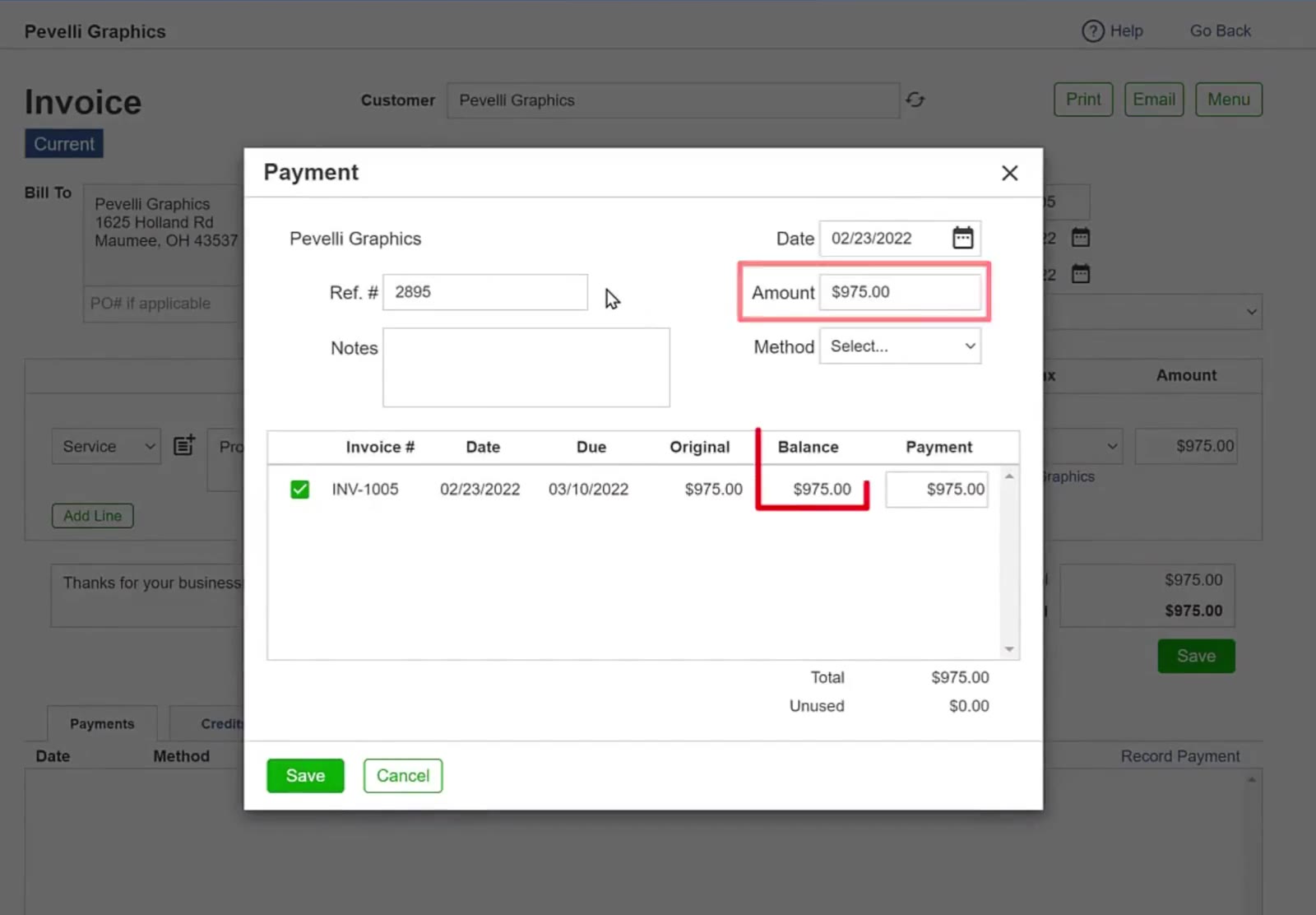
Ref. # takes the check or transaction number; Amount comes across from the invoice.
Pick how they paid
Choose the payment type from the Method dropdown — Cash, Check, Credit card or EFT. The recording uses Check.
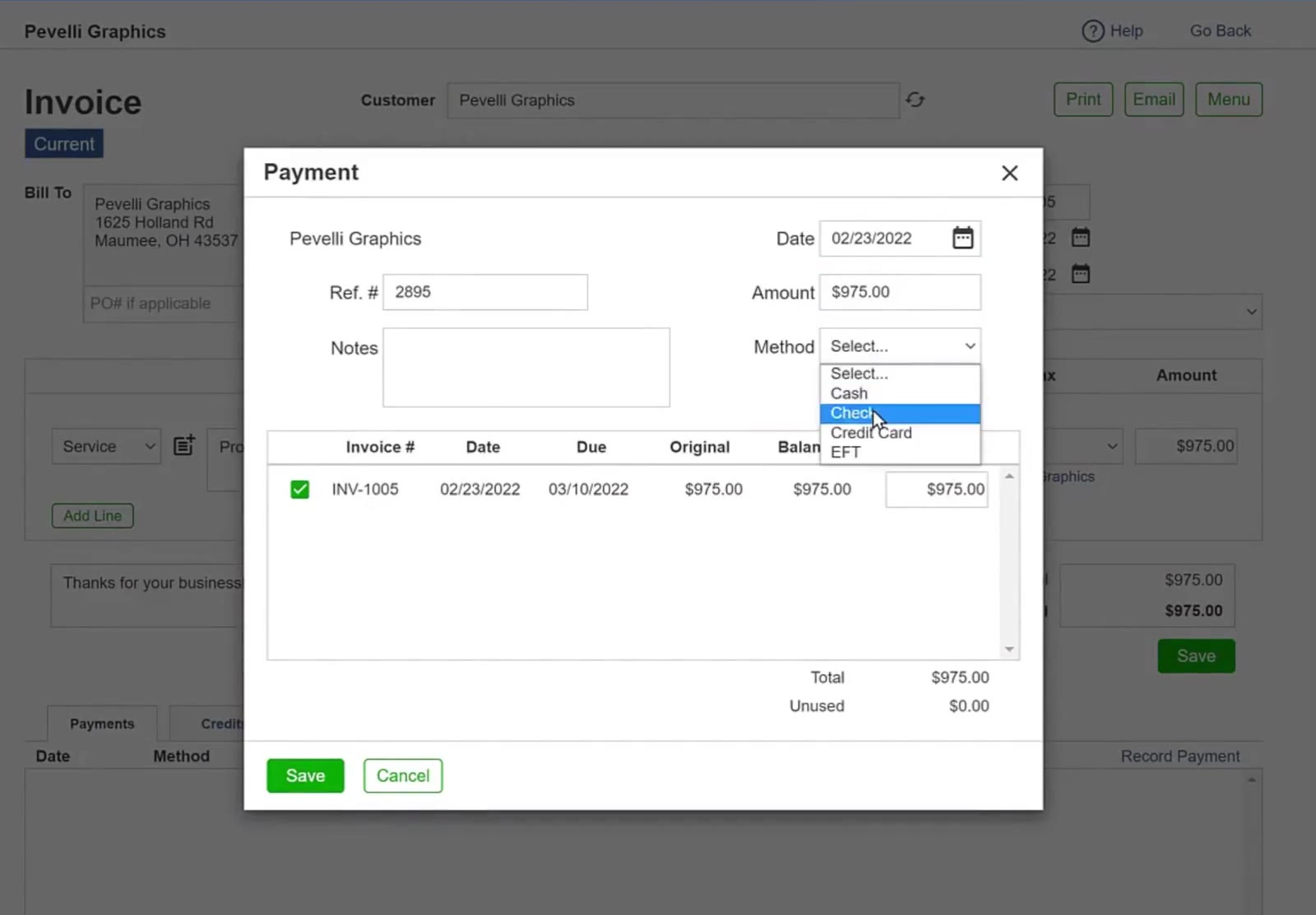
Method is a dropdown beside the amount.
Save it
The invoice is ticked in the list at the bottom of the box, with the payment set against it. Total and Unused underneath show how the payment is being applied. Click Save.
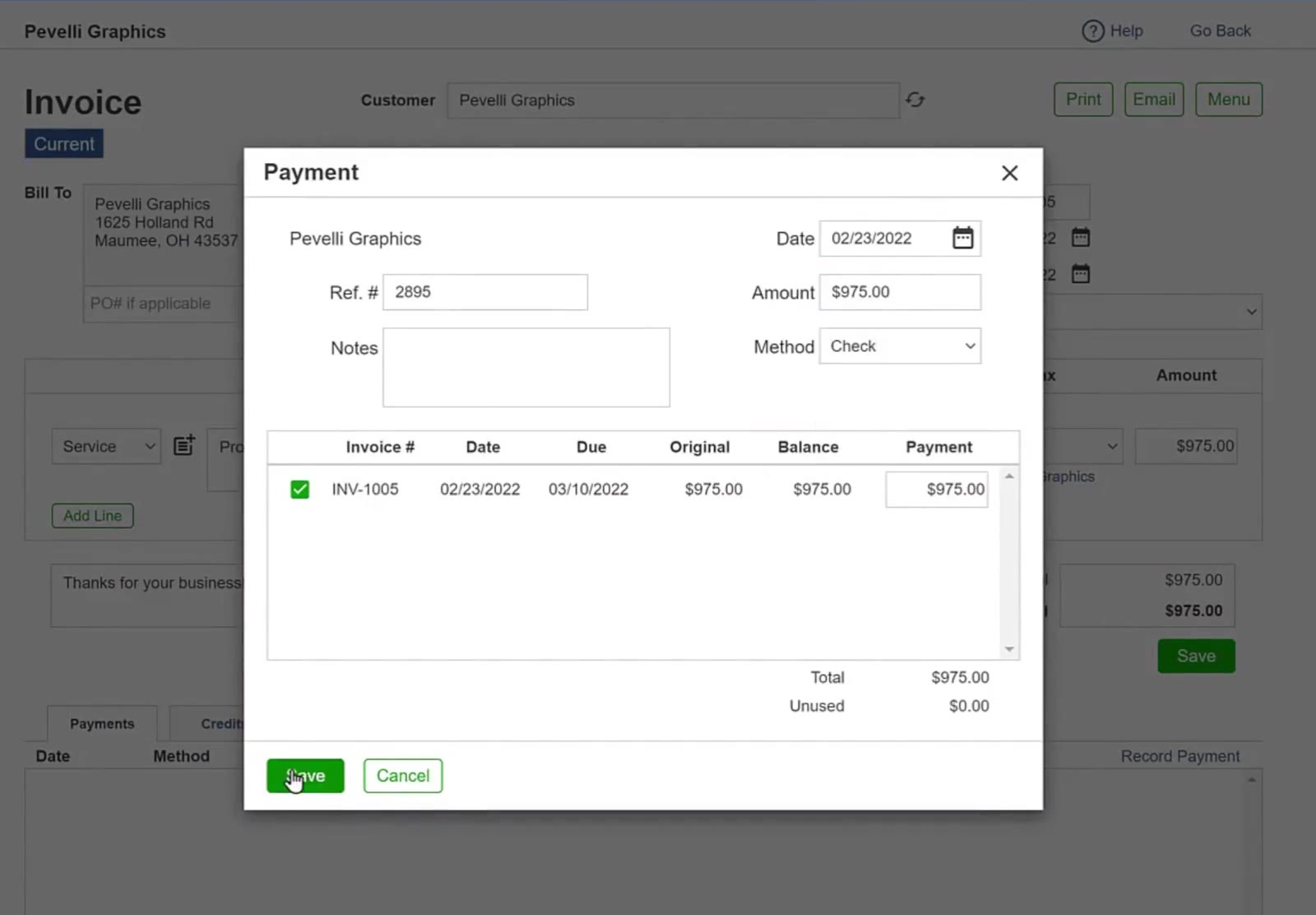
The invoice is ticked with the payment against it, and Unused reads $0.00 when the payment covers it exactly.
Check It Went Through
Look at the badge
Back on the invoice, the badge changes from Current to Paid.
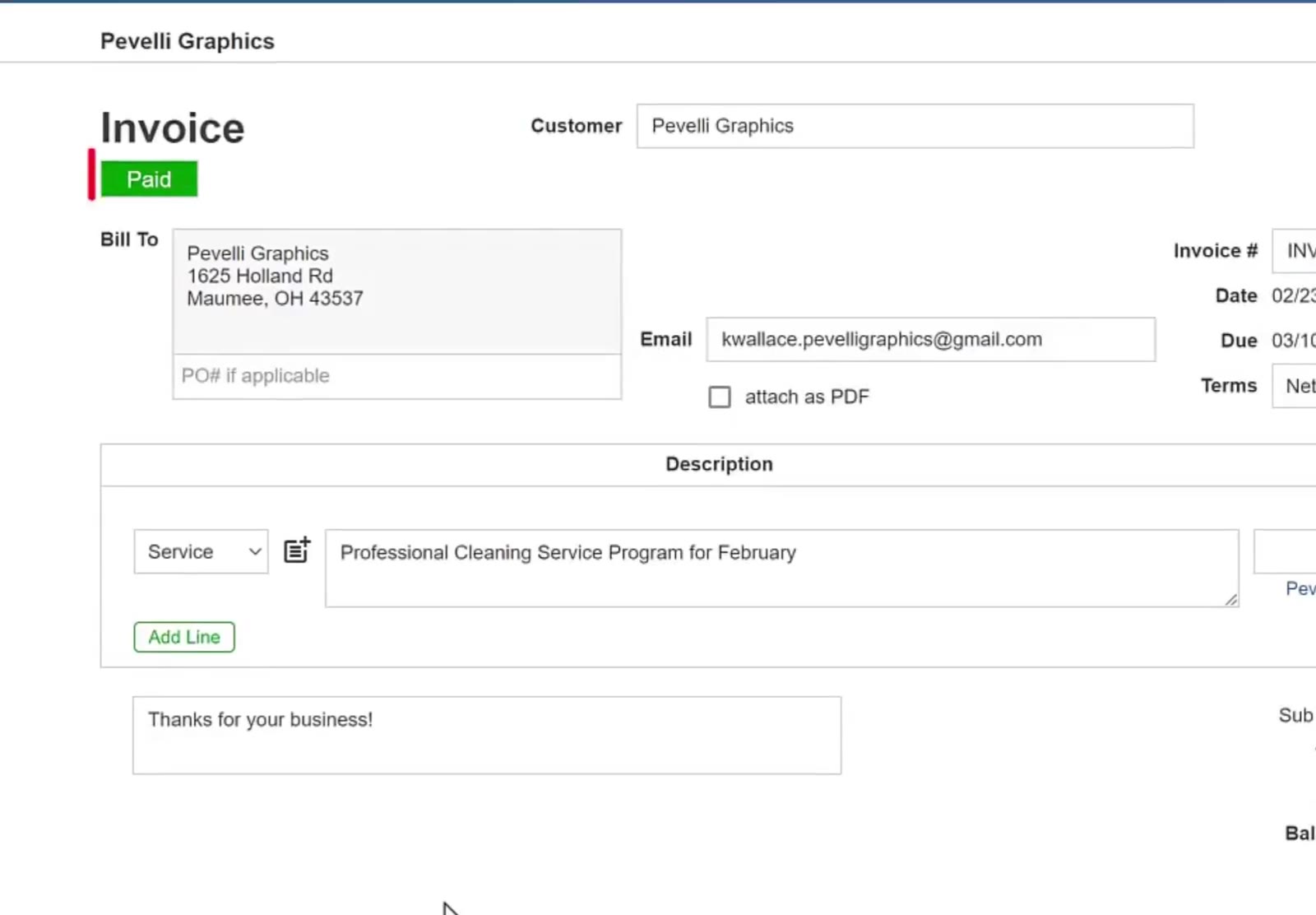
The badge under the Invoice heading now reads Paid.
Look at the payment
Further down, Paid and Balance update, and the Payments tab at the bottom lists the payment with its date, method, reference number and amount.
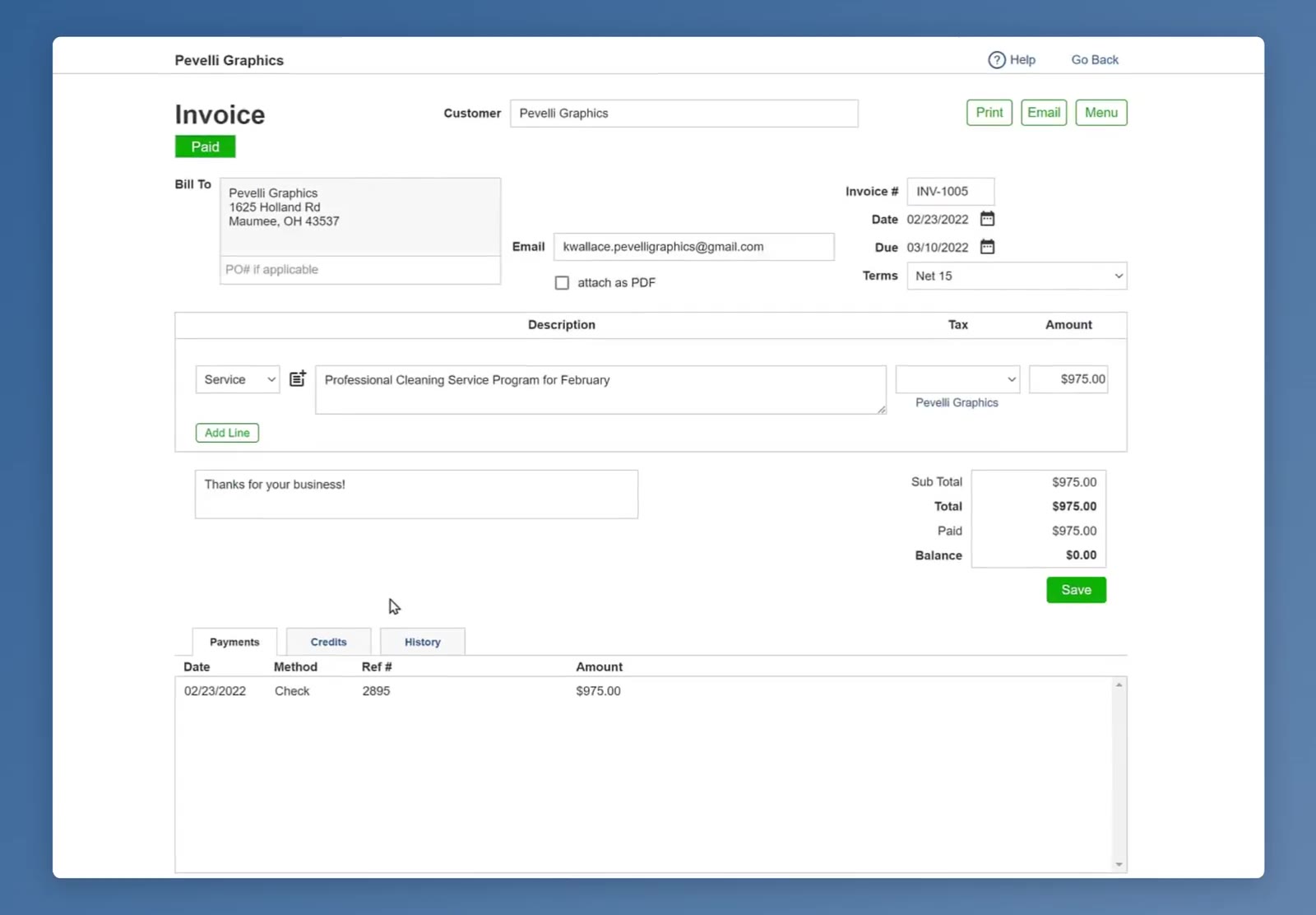
The Payments tab lists the payment, and the balance has gone to $0.00.
FAQ
Is there another way to start a payment?
Yes. The Payments tab at the bottom of the invoice has a Record Payment link that opens the same box as the Menu. You can also go to the Invoices main menu and then click on the Payments sub-tab.
What does Unused mean in the Payment box?
It is the part of the payment that has not been put against an invoice. When the payment covers the invoice exactly it reads $0.00.
What else is on the invoice Menu?
Besides record payment, the Menu offers make template, create copy, void and delete.
How do I know the invoice is settled?
The badge reads Paid and the Balance shows $0.00.
What payment methods can I record?
Cash, Check, Credit card and EFT.