
Create Recurring Invoice
A recurring invoice is an invoice template CleanGuru bills from on a schedule, so a customer you clean for every month gets invoiced without you doing anything. This shows you how to build one.
Start the Template
Click New Template
Click Invoices in the top menu, go to the Templates sub-tab and click the green New Template button. The Create Template box asks which customer it is for.
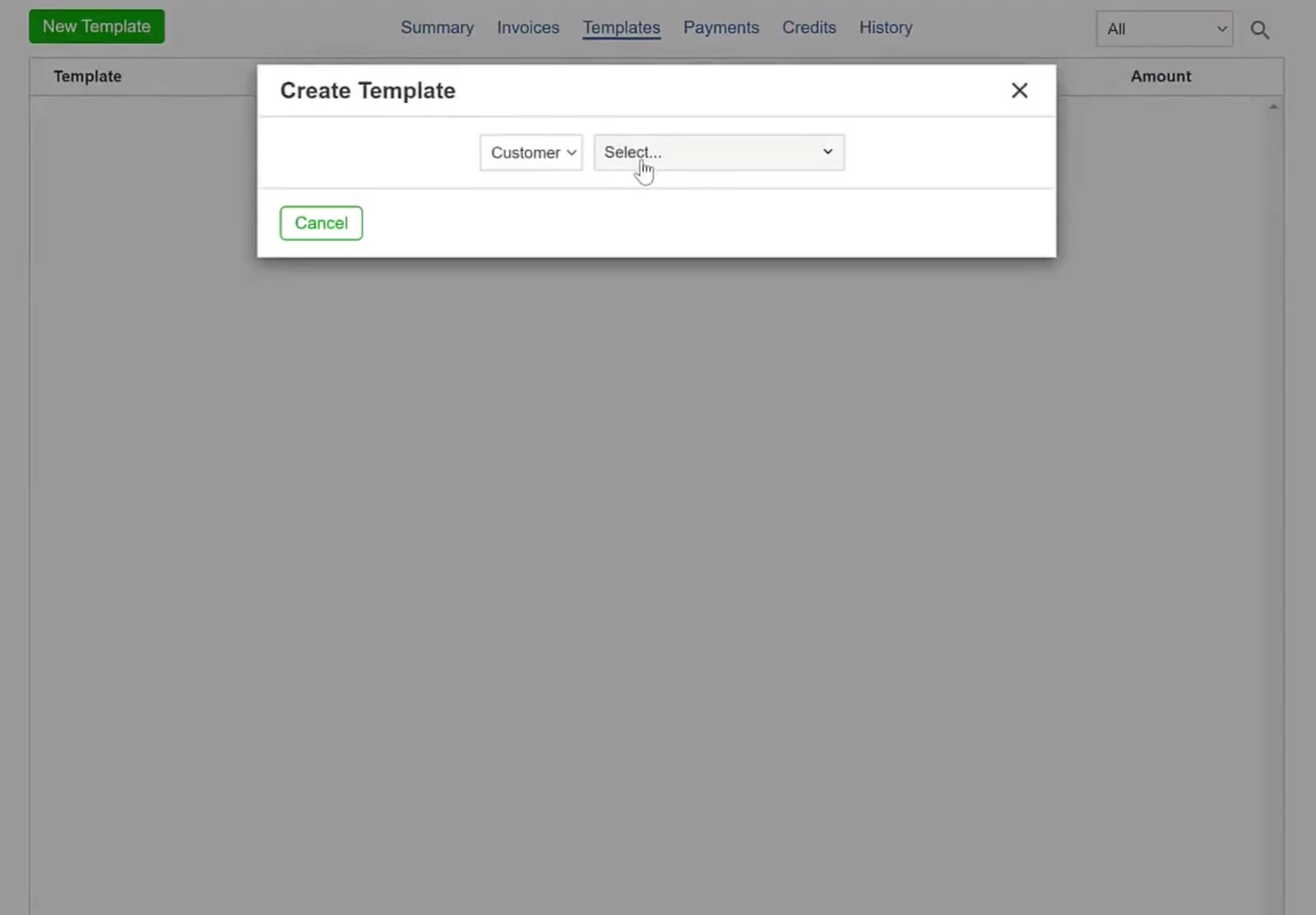
Create Template opens over the Templates list and asks for a customer.
Name it
Type a name in the Template box and click Create. The template opens looking like an invoice, with the customer's address and email already filled in.
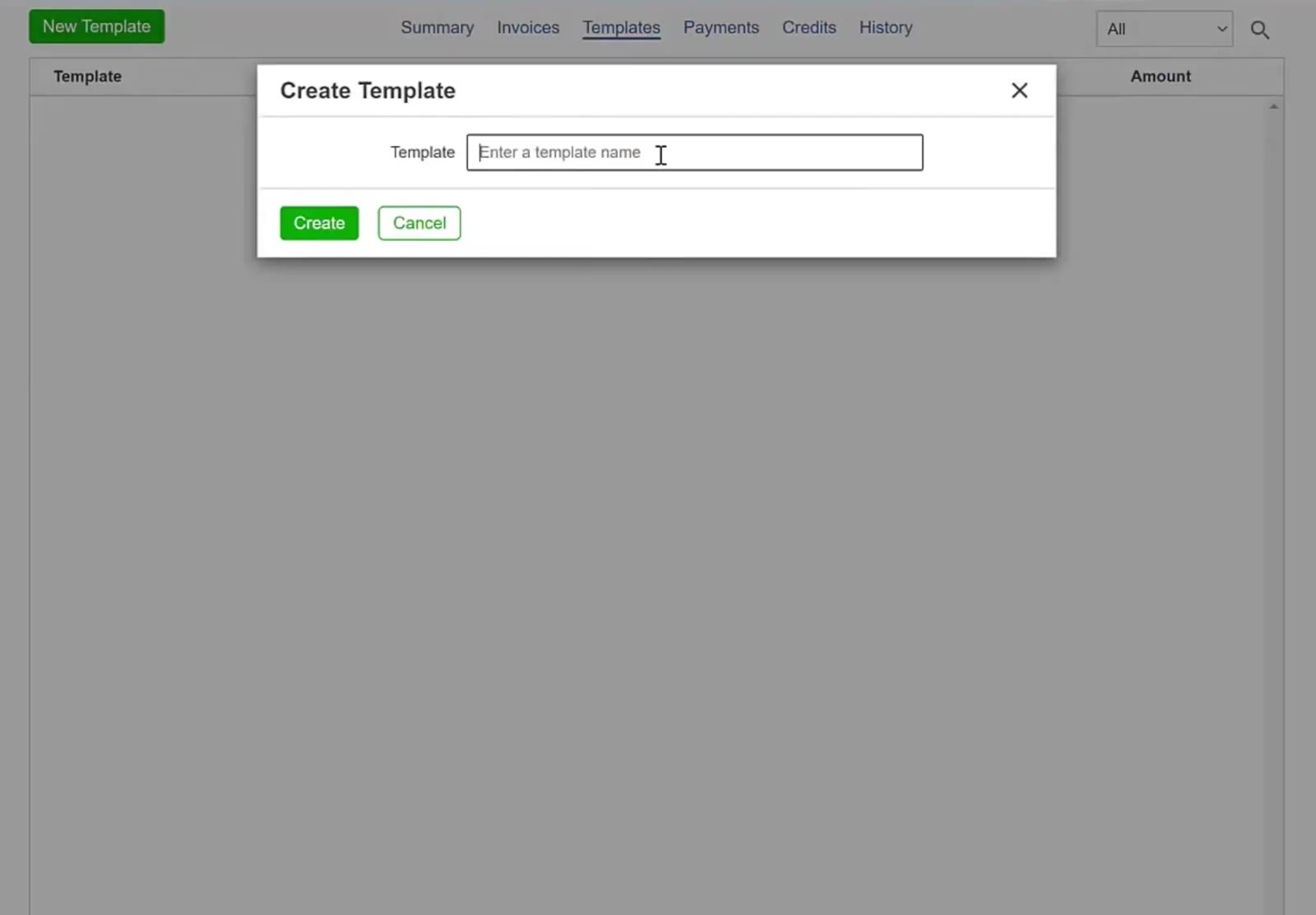
The Template box takes a name, with Create underneath.
Fill In What You Bill
Choose what you are charging for
Click the small notepad icon beside the first description line. The Description box that opens sorts ready-made wording by kind of work — Janitorial, Maid, Carpet, Window, Tile, Move In/Out, Construction, Products and Hourly. Tick the line you want and click Add. Create New lets you write your own.
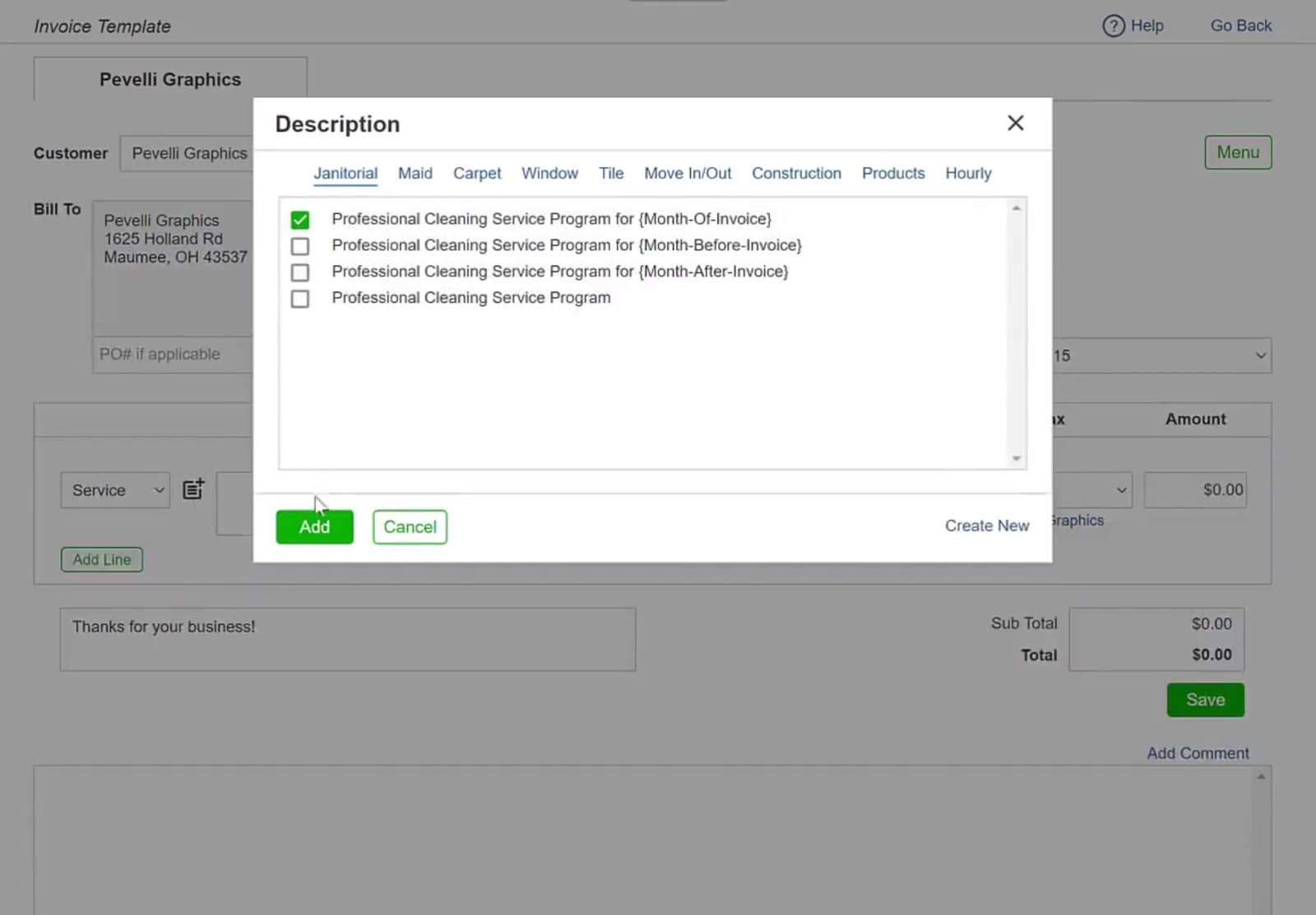
The Description box sorts ready-made wording by kind of work, with Add and Create New at the bottom.
Three of the ready-made lines carry a month variable: {Month-Of-Invoice}, {Month-Before-Invoice} and {Month-After-Invoice}. CleanGuru swaps the variable for the real month as it creates each invoice, so you never edit the template. Pick Professional Cleaning Service Program for {Month-Of-Invoice} and an invoice going out on 1 January reads Professional Cleaning Service Program for January.
Add lines and set the tax
Click Add Line for more rows and change the type if you need Product or Hourly instead of a service. Type the Amount for each line, and pick a rate in the Tax column where it applies.
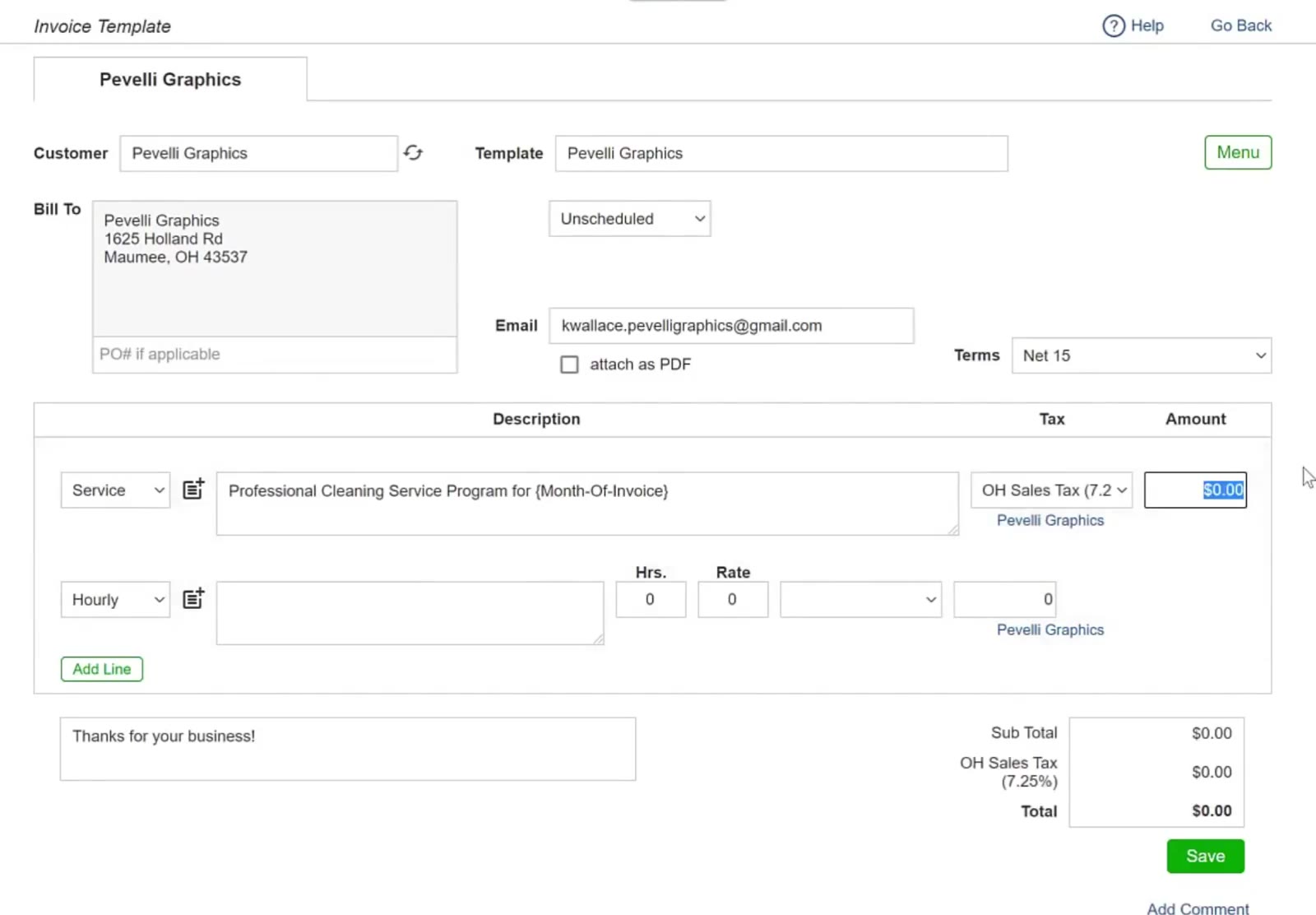
The Tax column and the Amount sit at the end of each description line.
Set the terms
The Terms dropdown sets how long the customer has to pay each invoice this template produces.
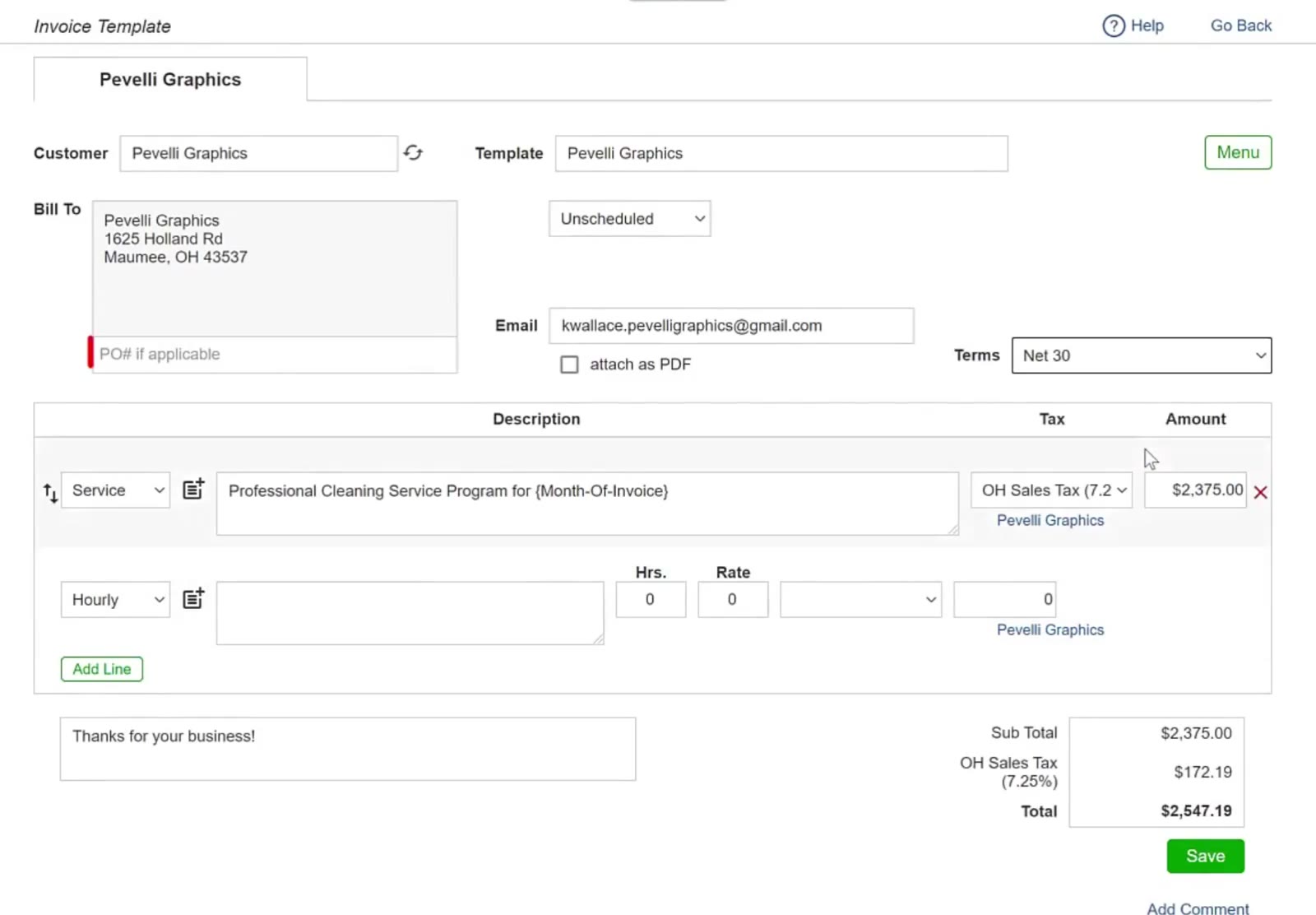
Terms sits above the description lines, on the right.
You do not have to put a template on a schedule. Leave it Unscheduled and it simply sits on the Templates sub-tab, ready to raise an invoice from whenever you need one. That is useful for work you do now and then that is always the same amount and the same wording — you get the template's figures without retyping them.
Put It On a Schedule
Choose how often it bills
Change Unscheduled to Scheduled, then pick how often from the dropdown beside it — Yearly, Quarterly, Monthly, Weekly, Daily or Every. Set a Start date and an End if you want it to stop. Next shows the date of the next invoice.
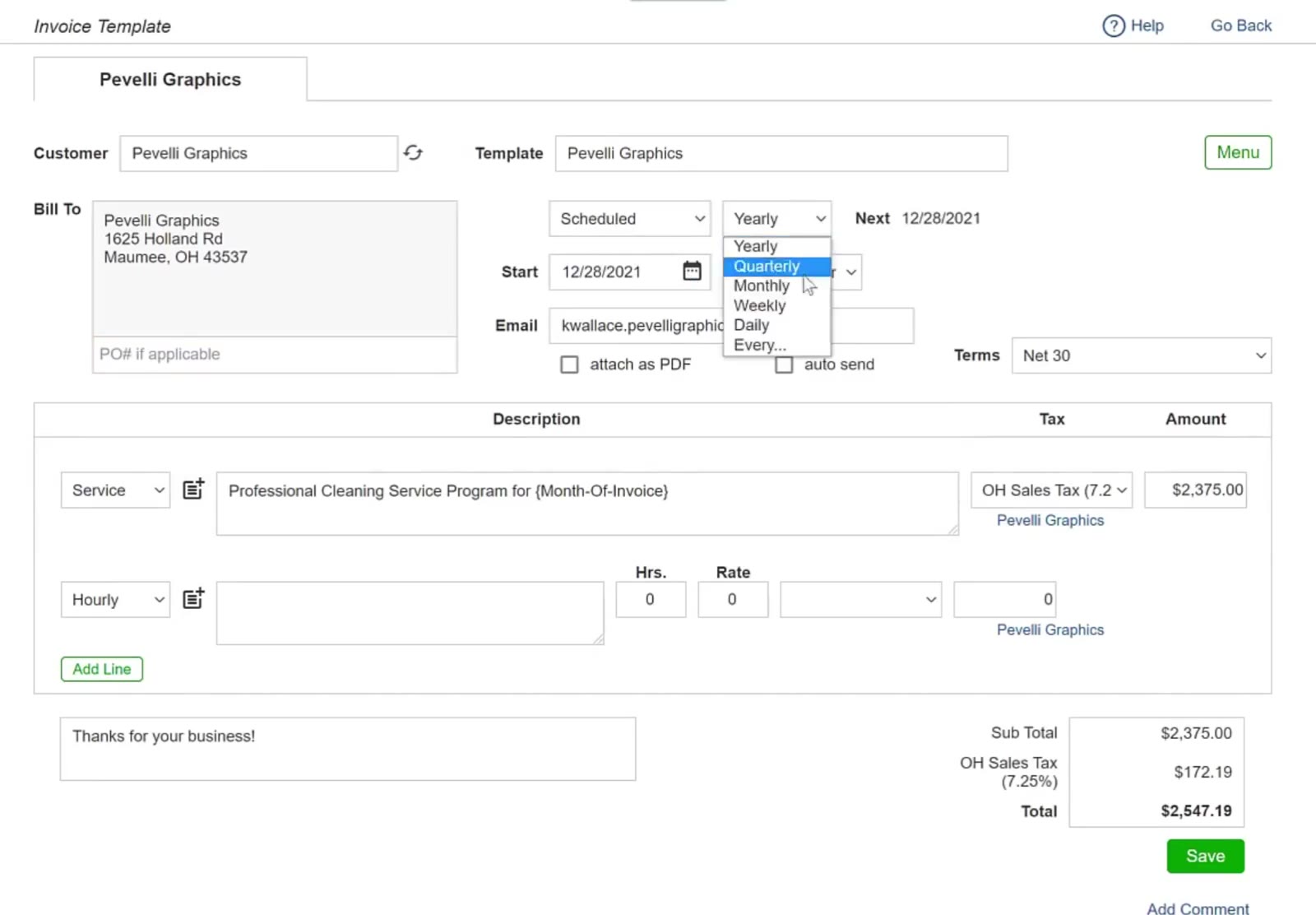
Setting the template to Scheduled reveals the frequency, Start, End and Next.
Turn on auto send
Tick auto send and CleanGuru emails each invoice to the customer when it creates it.
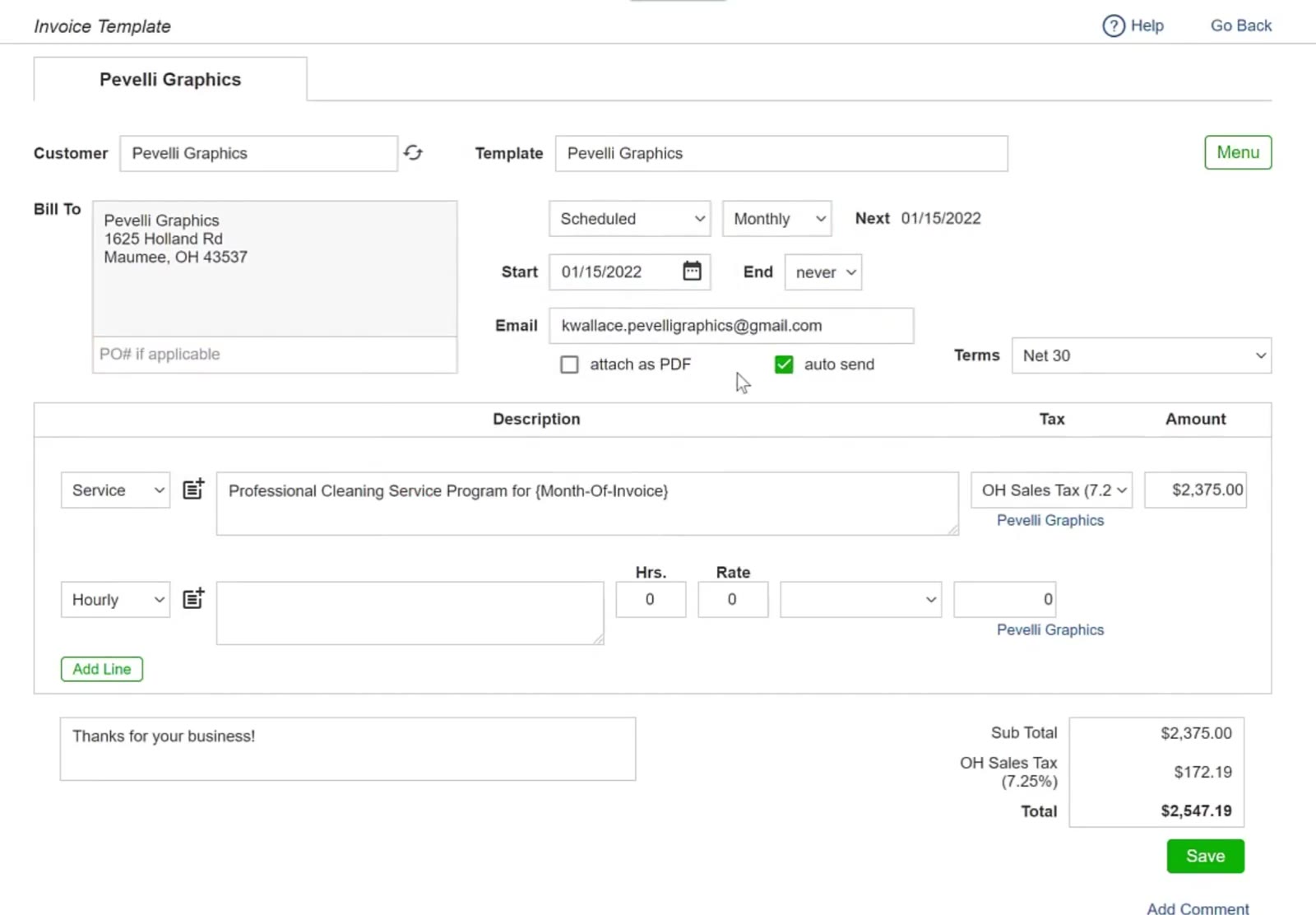
auto send sits beside attach as PDF, above the description lines.
Save it
Check the amounts, the tax and the schedule, then click the green Save.
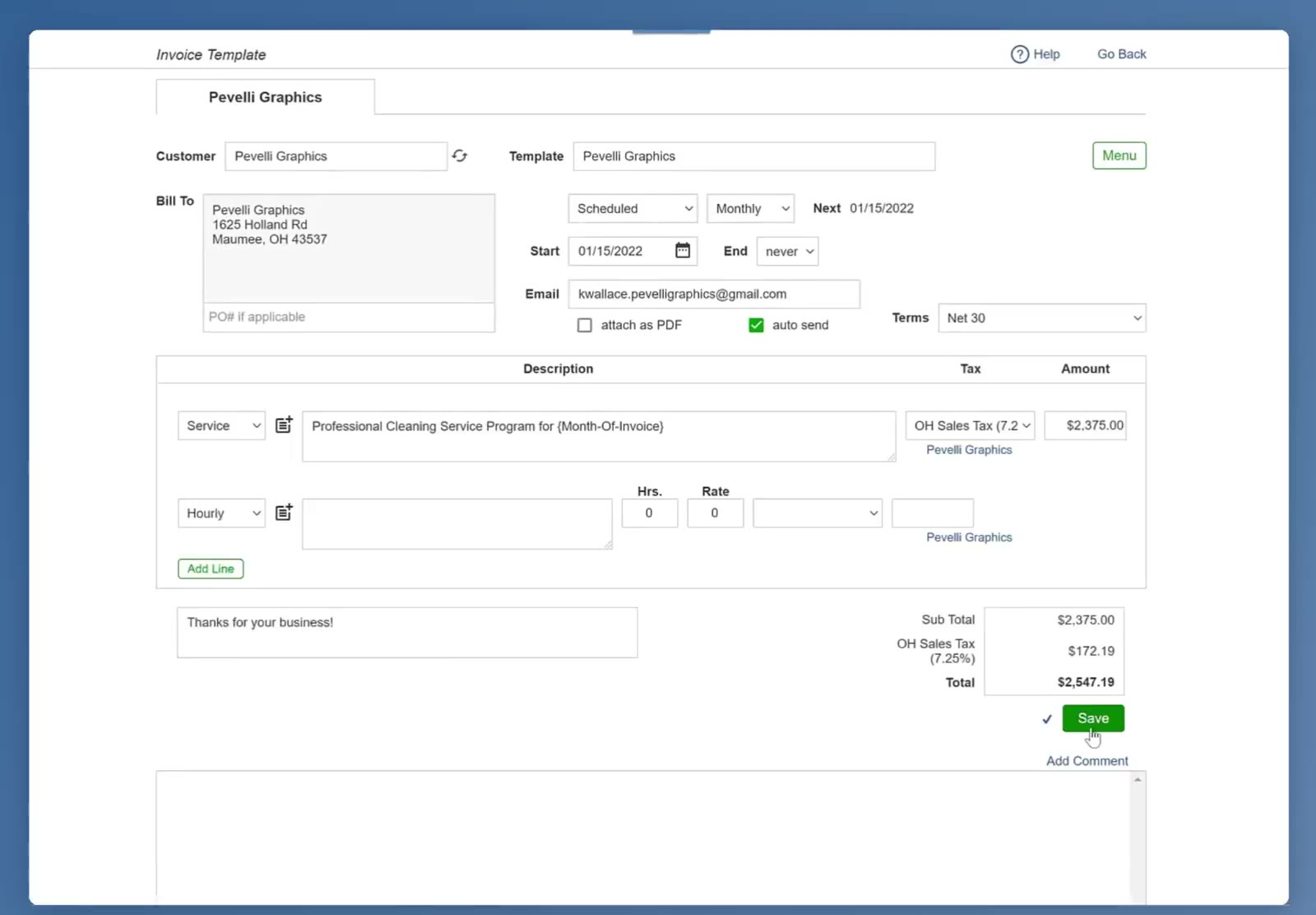
The saved template shows the schedule, the next invoice date and auto send ticked.
FAQ
How often can the invoices go out?
Yearly, Quarterly, Monthly, Weekly, Daily, or Every… — you pick from the dropdown once the template is set to Scheduled. Every… is for an interval you set yourself in days: every 1 day, every 2 days, every 3 days, and so on.
What does {Month-Of-Invoice} mean in a description?
It puts the invoice's own month into the wording, so the invoice that goes out in January reads January. {Month-Before-Invoice} and {Month-After-Invoice} do the months either side.
Do I have to send each invoice myself?
No. Tick auto send on the template and CleanGuru emails each one as it is created.
Where do my recurring invoices live?
On the Templates sub-tab under Invoices. The list shows each template's customer, type, frequency, the last invoice it produced and the next one due.