
Prepare Payroll
Preparing payroll means checking the hours your cleaners recorded, approving them, and taking out a report you can pay from. All of it happens on the Payroll view of the Timesheets screen.
Reviewing the Hours
Open the payroll view
Click Timesheets in the top navigation bar, then click the Payroll link above the list.
Choose the period you are paying
The dropdown at the top left opens on Day. Choose Week, Month, Pay Period or Custom to cover the span you are paying for.
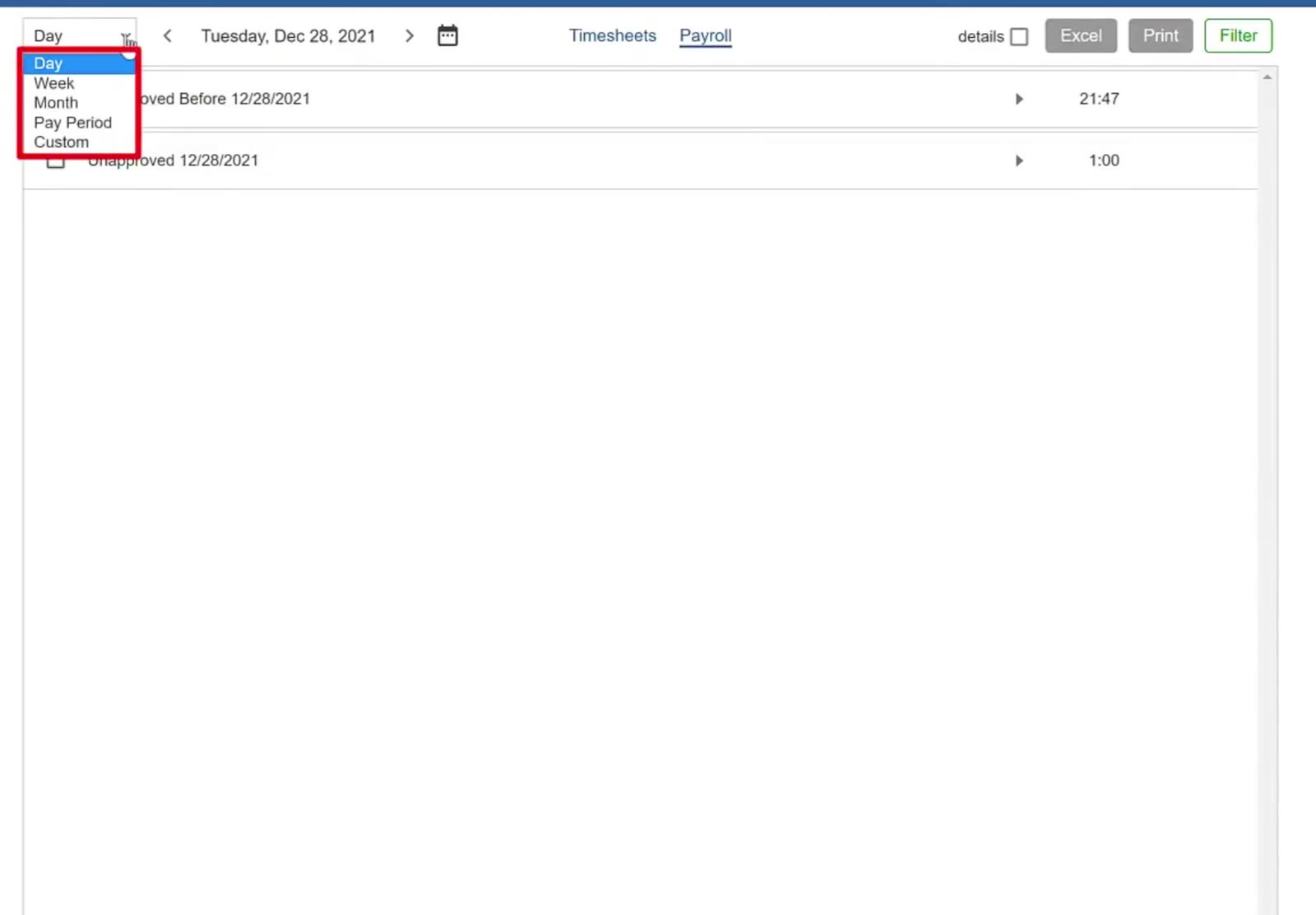
The period dropdown — Day, Week, Month, Pay Period and Custom.
See what is waiting
The list shows the unapproved hours for the span you chose, and above them an Unapproved Before group holding anything still unapproved from earlier, so nothing gets left behind. Approved hours for the span sit below.
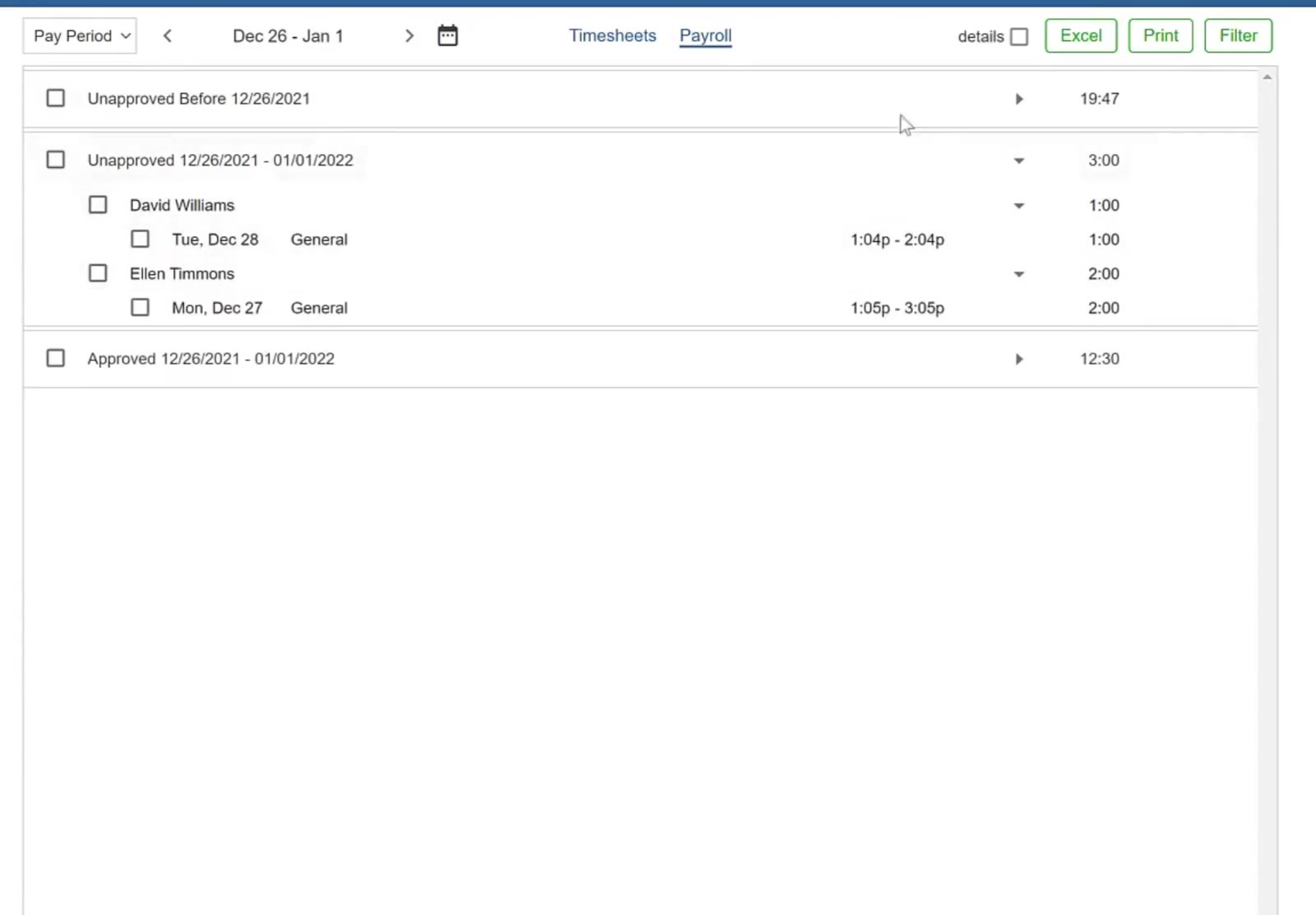
Unapproved hours for the chosen span, with an Unapproved Before group above for anything left over from earlier.
Open the detail
Tick the details box at the top right to expand every group at once. Each entry shows its date, ticket number, job, building, times and hours.
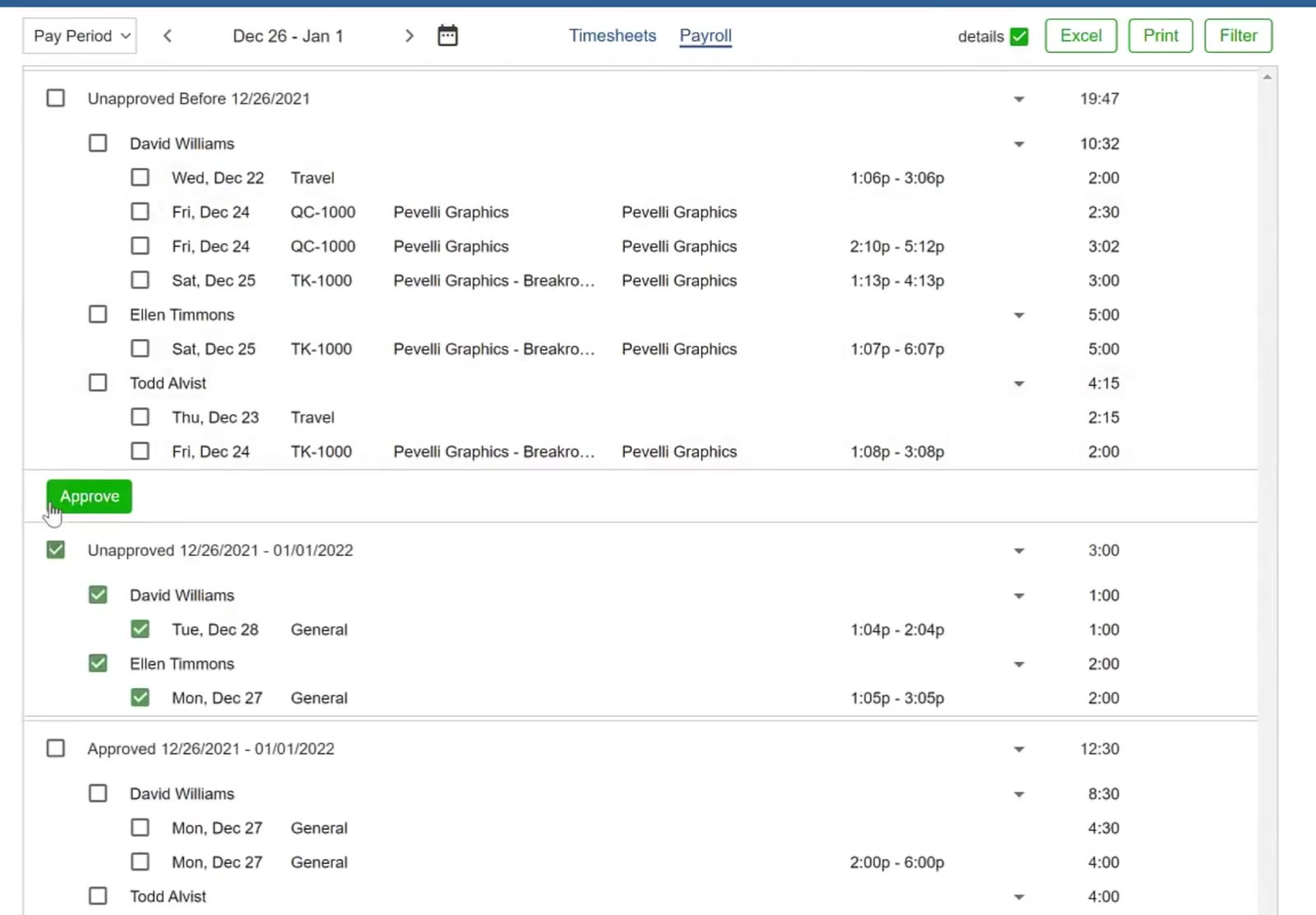
With details ticked, every entry is expanded — General and Travel time appear alongside ticket work.
Approving the Hours
Tick what you are approving
Tick a group’s box to take everything in it, or tick individual employees or single entries. A green Approve button appears above a group as soon as anything in it is ticked.
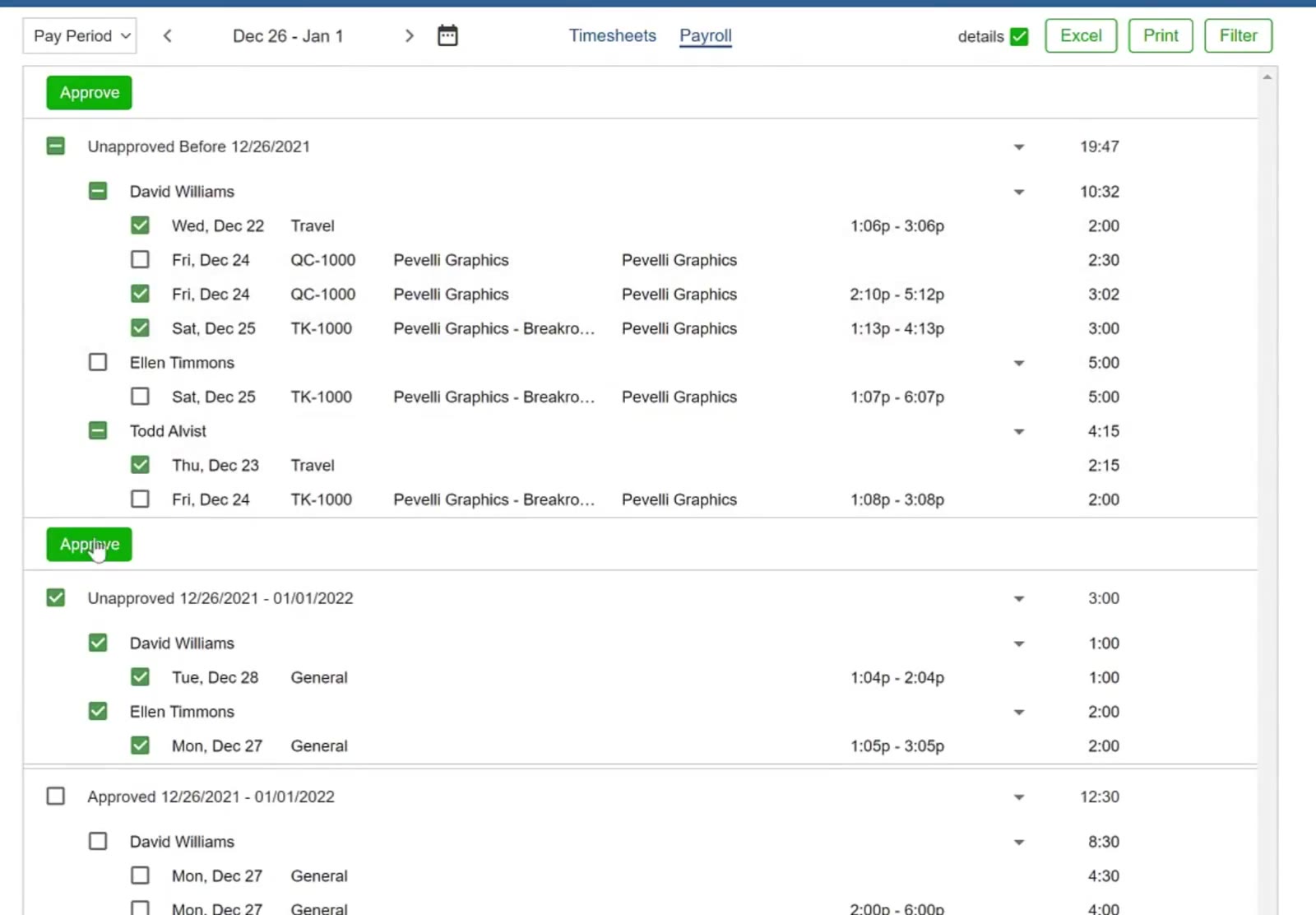
Ticked entries raise a green Approve button above their group.
Approve
Click Approve, then OK in the confirmation box. The entries move down into the approved group for that span.
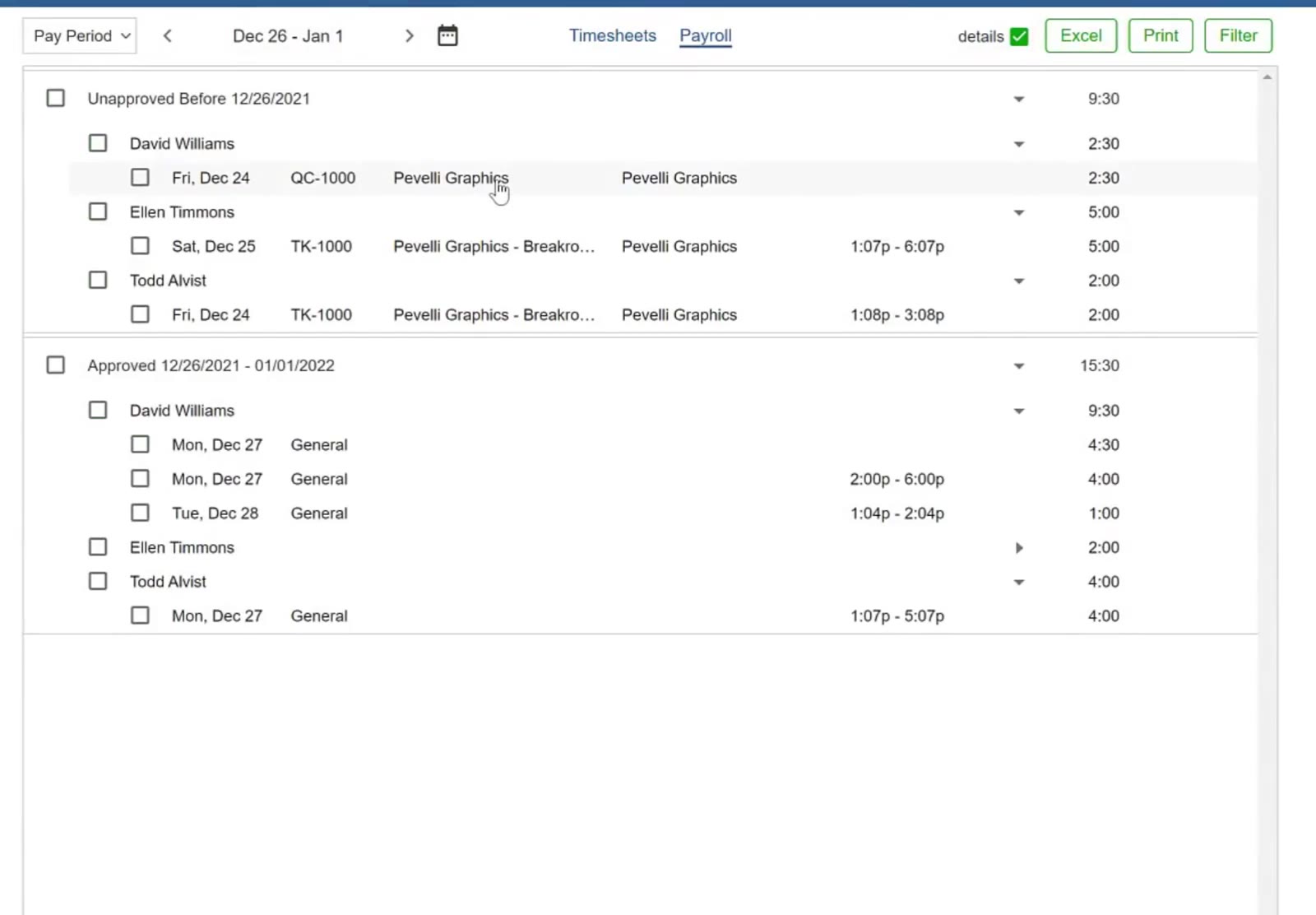
After approving, the entries have moved into the approved group and the unapproved totals have dropped.
Taking Out the Report
Choose Excel or Print
At the top right of the payroll screen, click Excel for a spreadsheet or Print for a PDF.
Choose how much detail
A small box opens offering Summary and Detail. Summary gives totals only; Detail breaks the hours down by building and workday. Tick Detail and a third option appears — one employee per page — for when each person needs their own sheet. Click Continue.
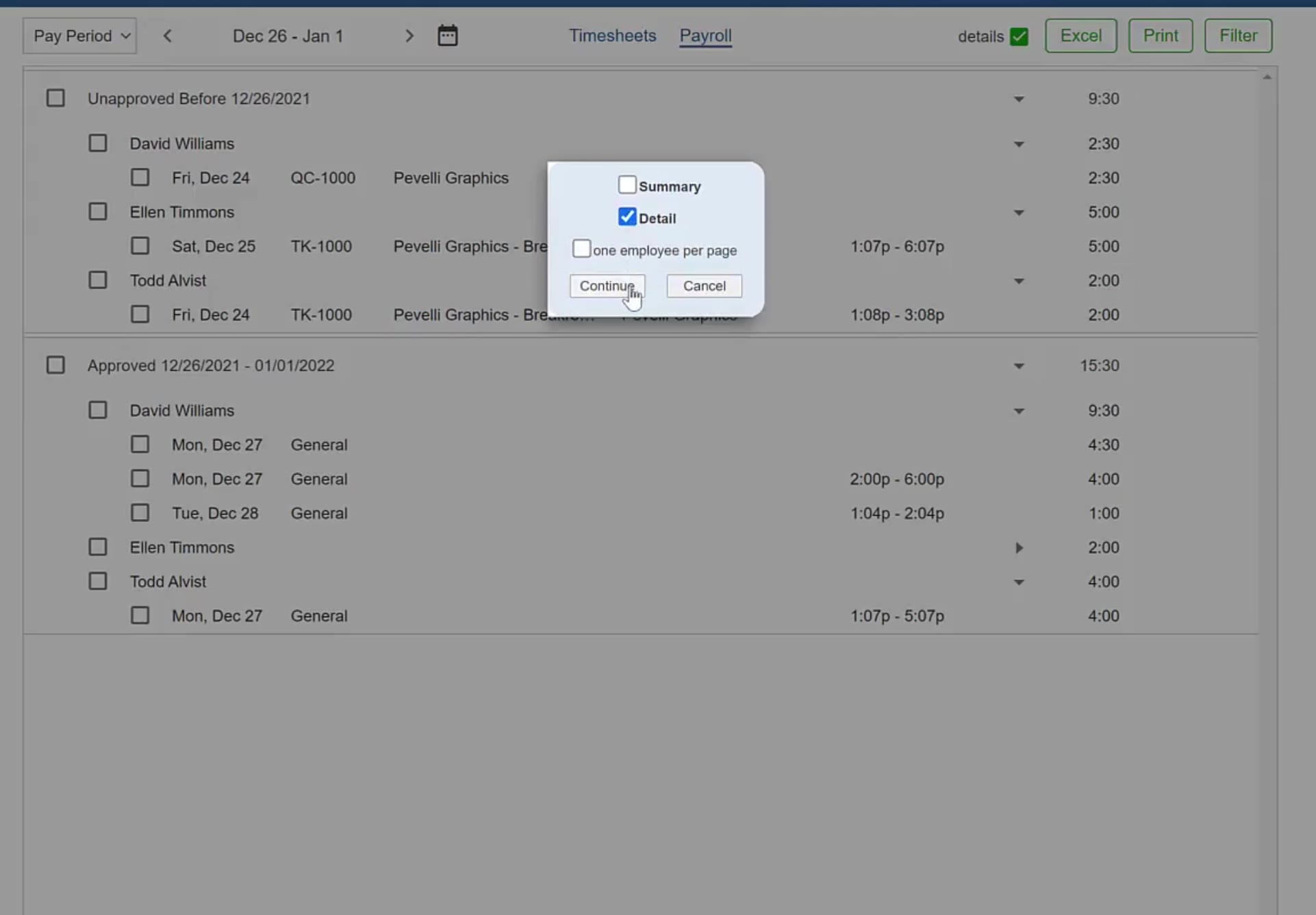
With Detail ticked, a third option appears: one employee per page.
Read the report
It opens headed with your company name and the date span, and lists each employee’s buildings, workdays and hours, with a total for that employee and a grand total at the bottom.
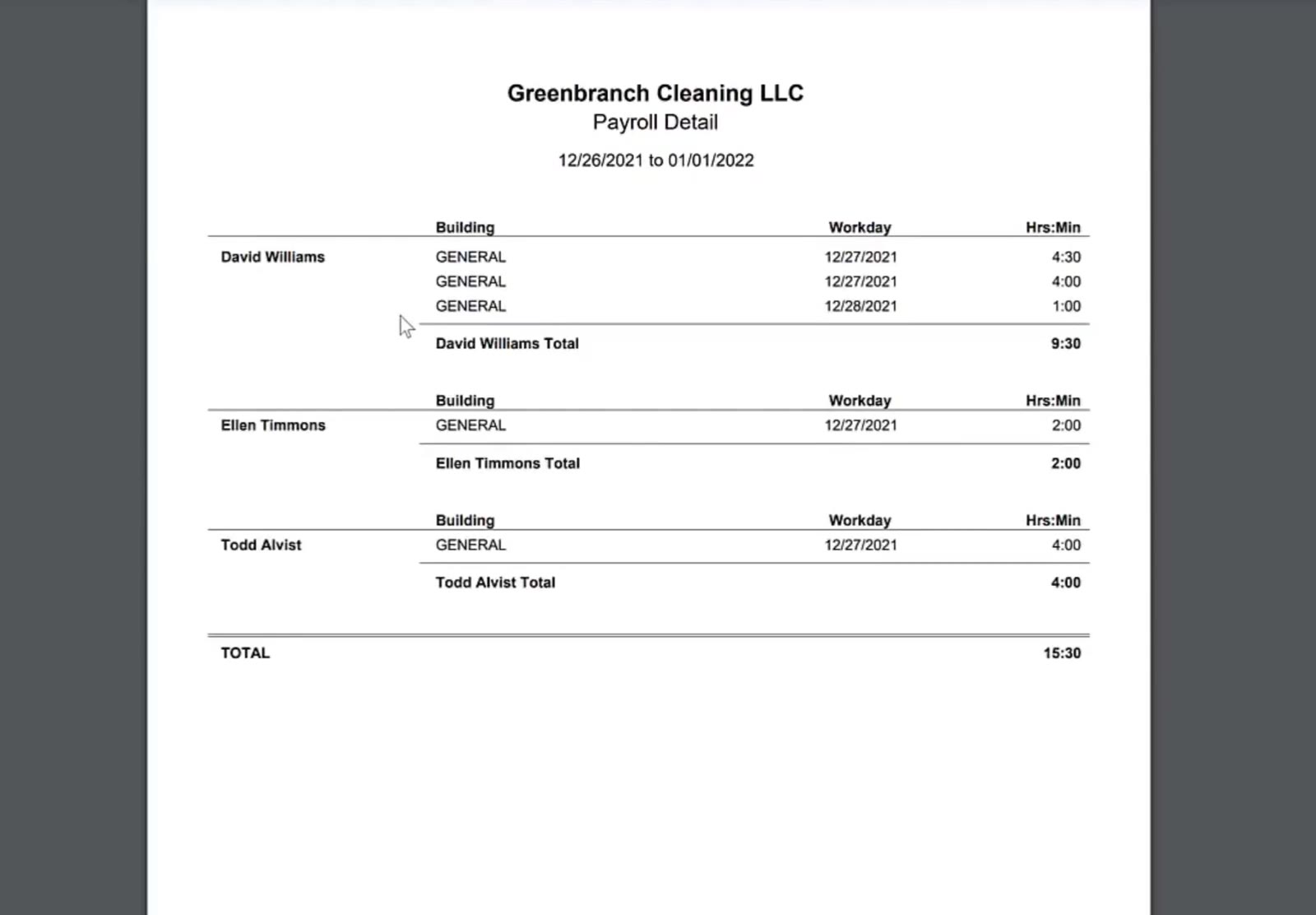
The Payroll Detail report — buildings, workdays and hours for each employee, with a total for each and a grand total.
Once the hours are approved and the report is out, your figures for that span are settled.
FAQ
What if I approve a timesheet by mistake?
Unapprove it. Tick the entries inside the approved group, click Unapprove and confirm — they go back to the unapproved list where they can be edited, and you approve them again afterwards.
Can I look at just one employee?
Yes. Click Filter at the top right. Your employees are listed in three groups — Location-Based, Staff/Support and Office-Based — each with All / None beside it. Use None to clear them, tick the one person you want, and click Apply.
What is the difference between General and Travel hours?
General is time that is not against a ticket — time in the office before heading out, for instance. Travel is time spent getting between jobs. Cleaning on site is normally recorded against a ticket, so it appears with its ticket number and building rather than as General.
Do I have to approve every entry one at a time?
No. Tick a group’s box — the Unapproved Before group, or the span you are paying — and everything inside it is selected for a single approval.