
Unapprove Timesheets
Approving a timesheet locks its entries so your payroll figures hold still. Unapproving is how you unlock them again — when hours need correcting after they have already been approved, you send the entries back to the unapproved list, fix them, and approve them a second time.
Finding the Approved Entries
Open the payroll view
Click Timesheets in the top navigation bar, then click the Payroll link above the list. Approving and unapproving both happen on Payroll.
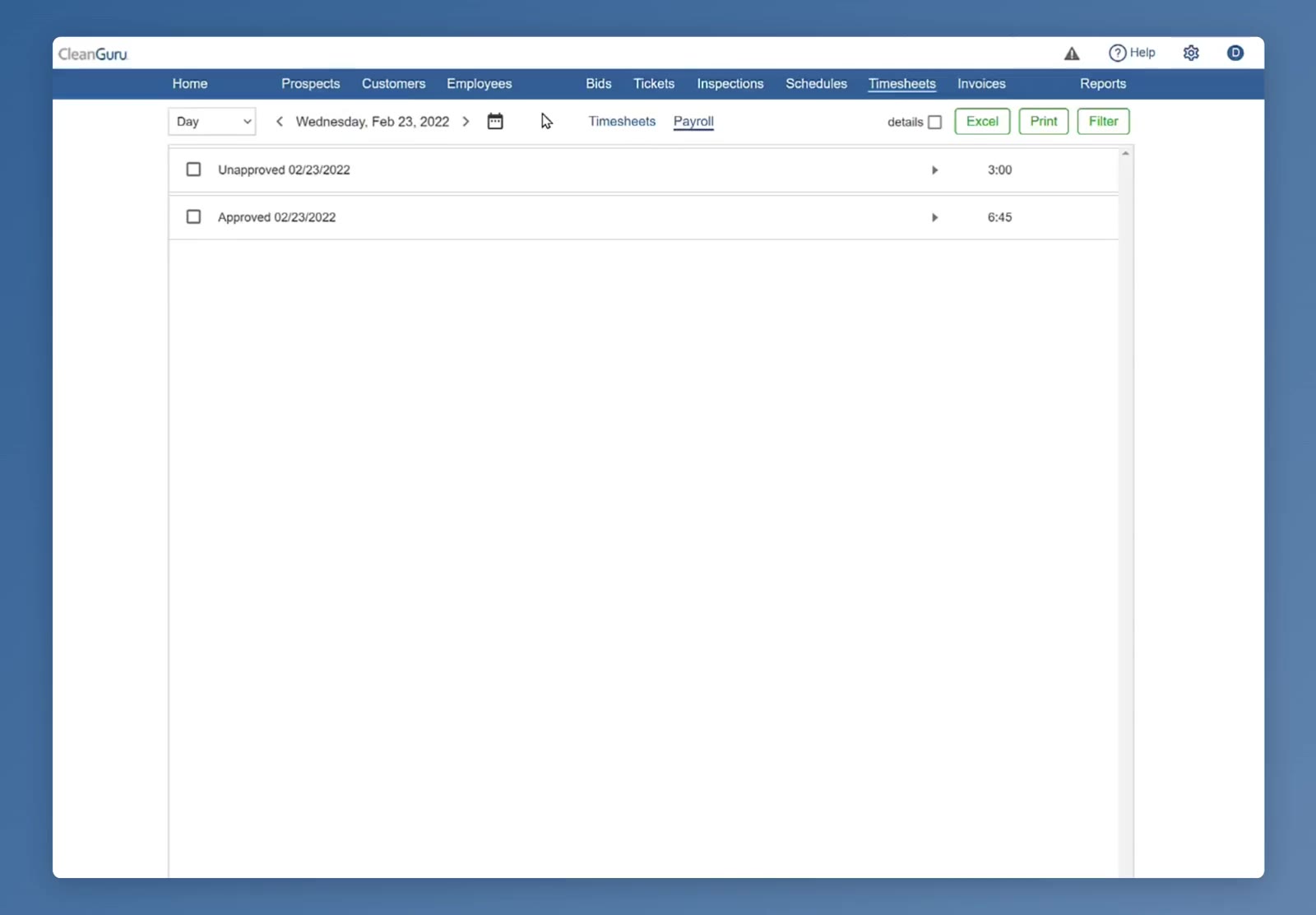
The Payroll view, with an Unapproved and an Approved group for the date.
Choose the period you want
The dropdown at the top left opens on Day. Choose Week, Month, Pay Period or Custom to bring a wider range of dates onto the screen.
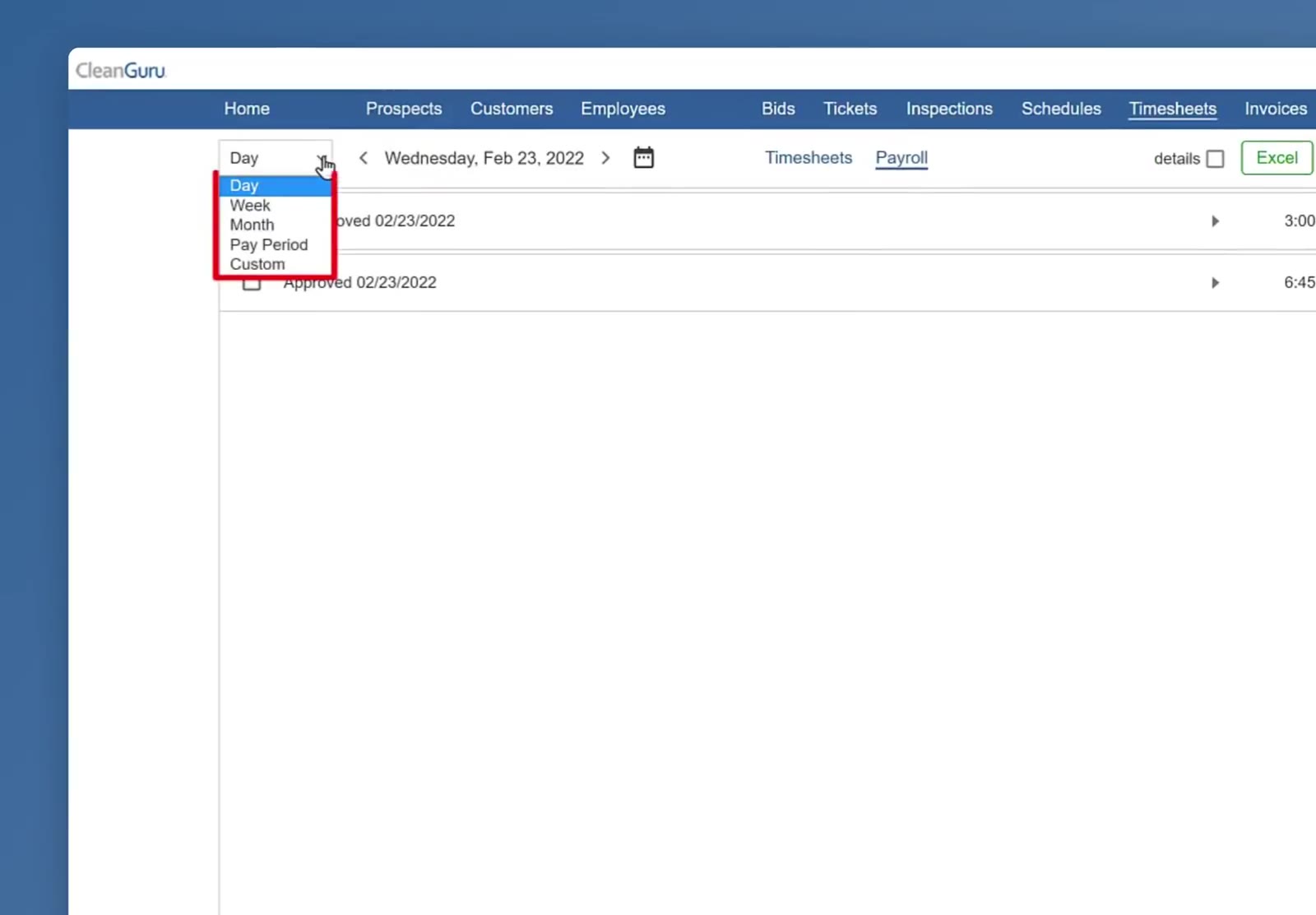
The period dropdown — Day, Week, Month, Pay Period and Custom.
Open the approved group
Click the arrow at the right of the Approved row for that date. It expands into the employees who have hours approved, with each one’s total beside them.
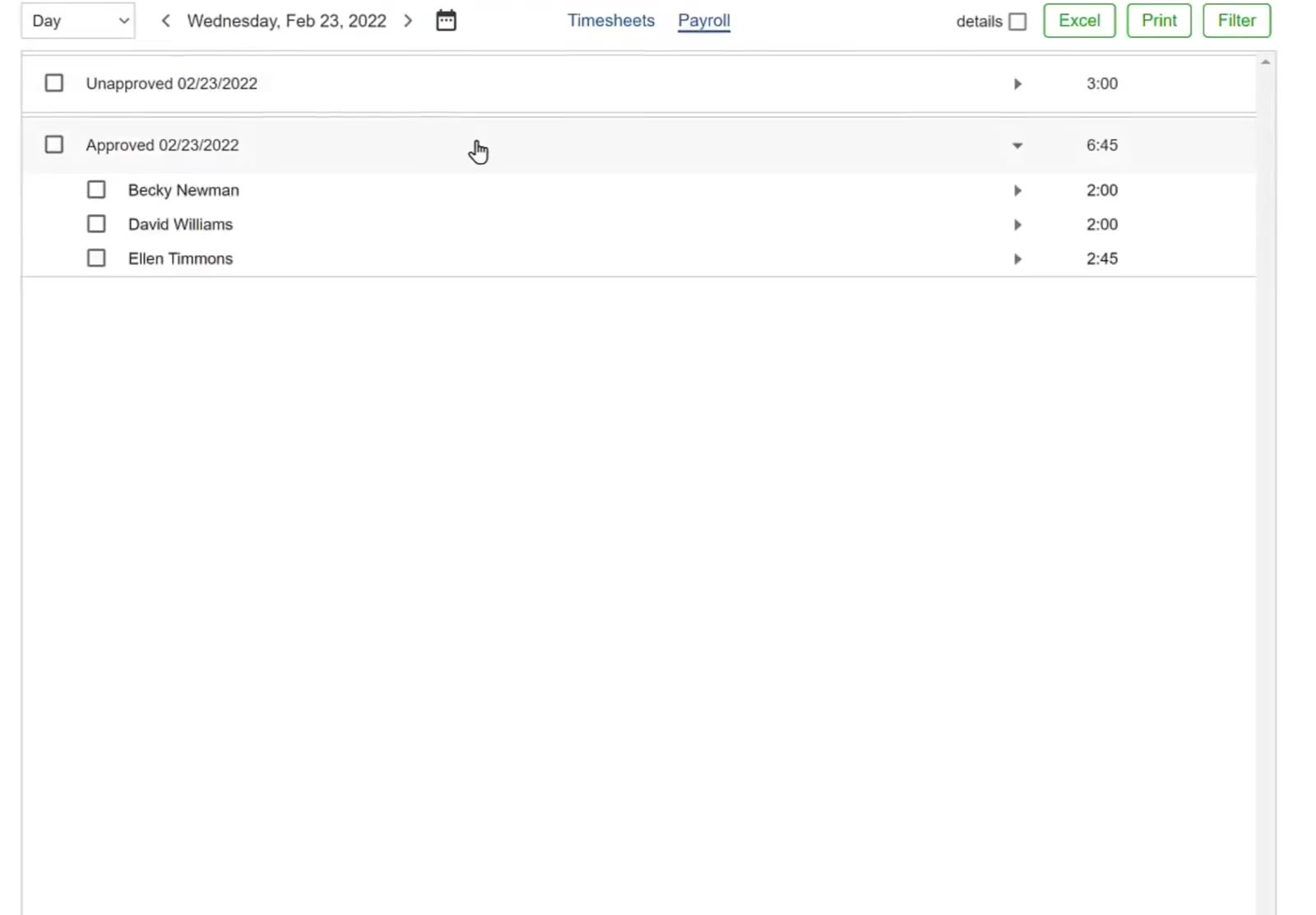
The Approved group expanded into the employees who have hours approved, with each total.
Open an employee to see their entries
Click the arrow beside an employee’s name. Each entry shows the date, the ticket number, the job, the building, the time range and the hours. Where the work is at a secondary building, its primary building — the customer — appears in parentheses beside it. Travel time appears as its own entry, without a ticket number.
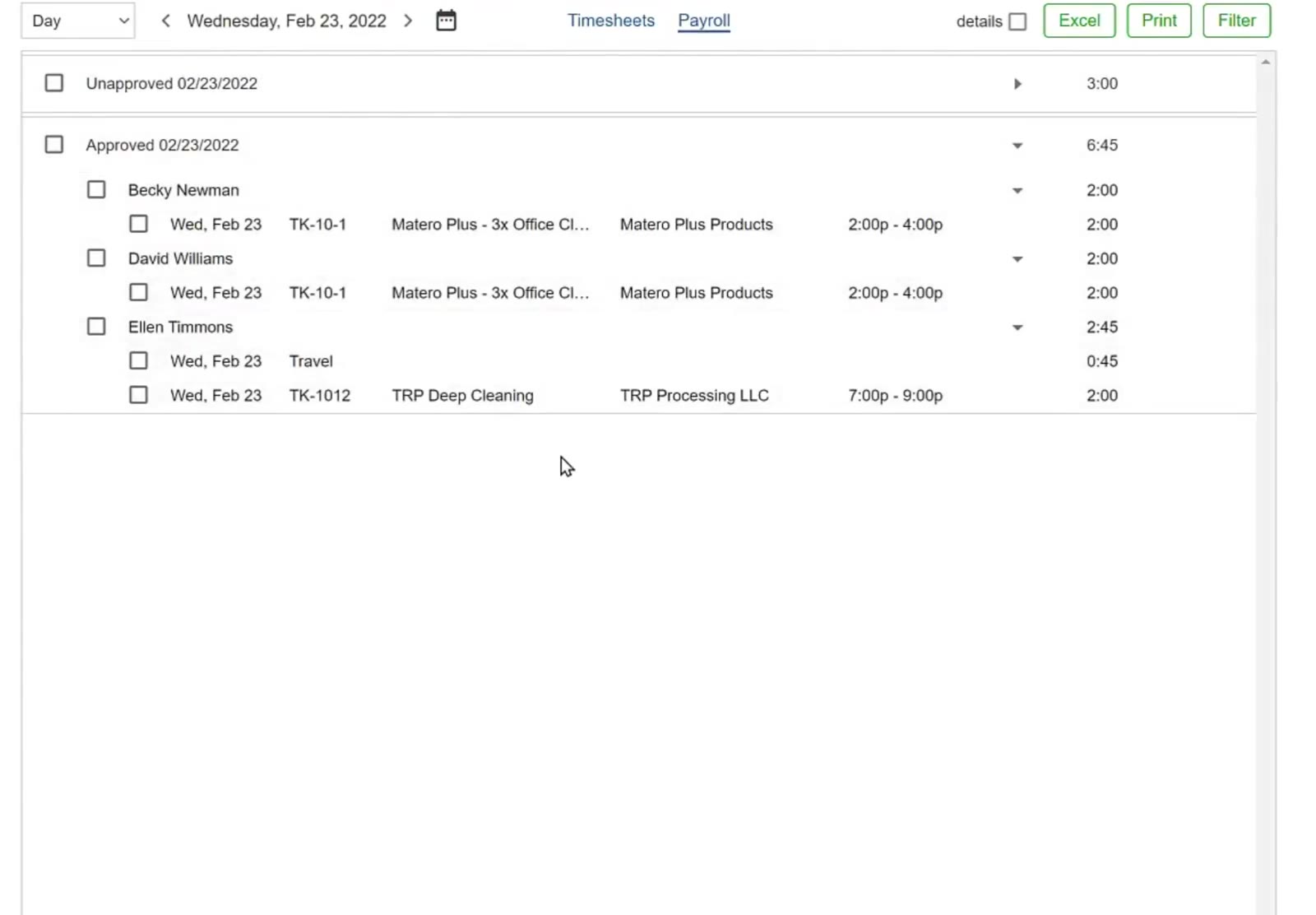
An employee expanded. Travel appears as its own entry, without a ticket number.
Unapproving the Entries
You can send back a whole date, one employee, or a single entry — tick only what you actually need to change.
Tick what you want to send back
Tick the box beside the Approved date to take everything in it, or tick individual employees or individual entries. A green Unapprove button appears above the group as soon as anything is ticked.
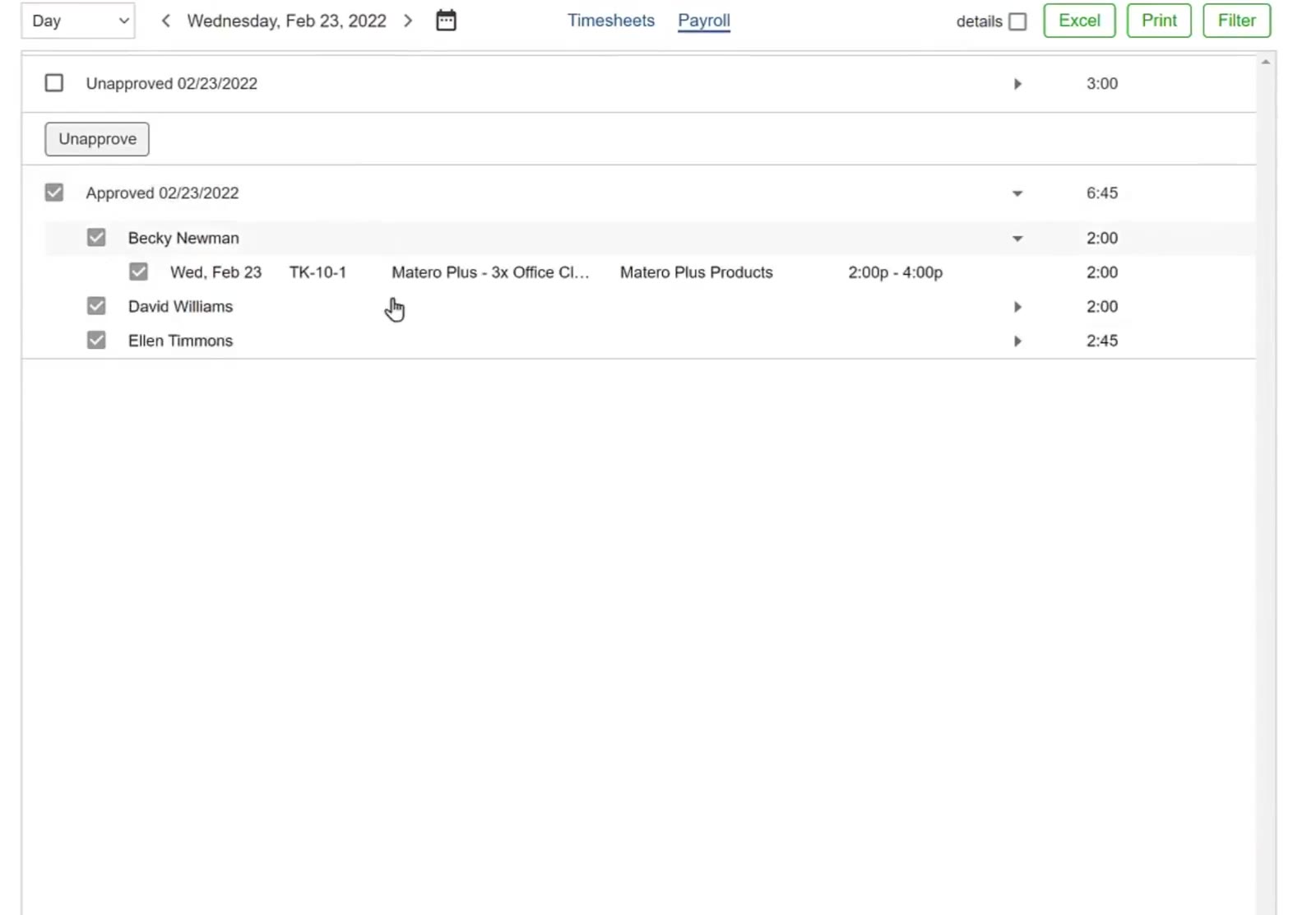
With entries ticked, the green Unapprove button appears above the Approved group.
Click Unapprove
A box headed Unapprove? opens to confirm what you are about to do.
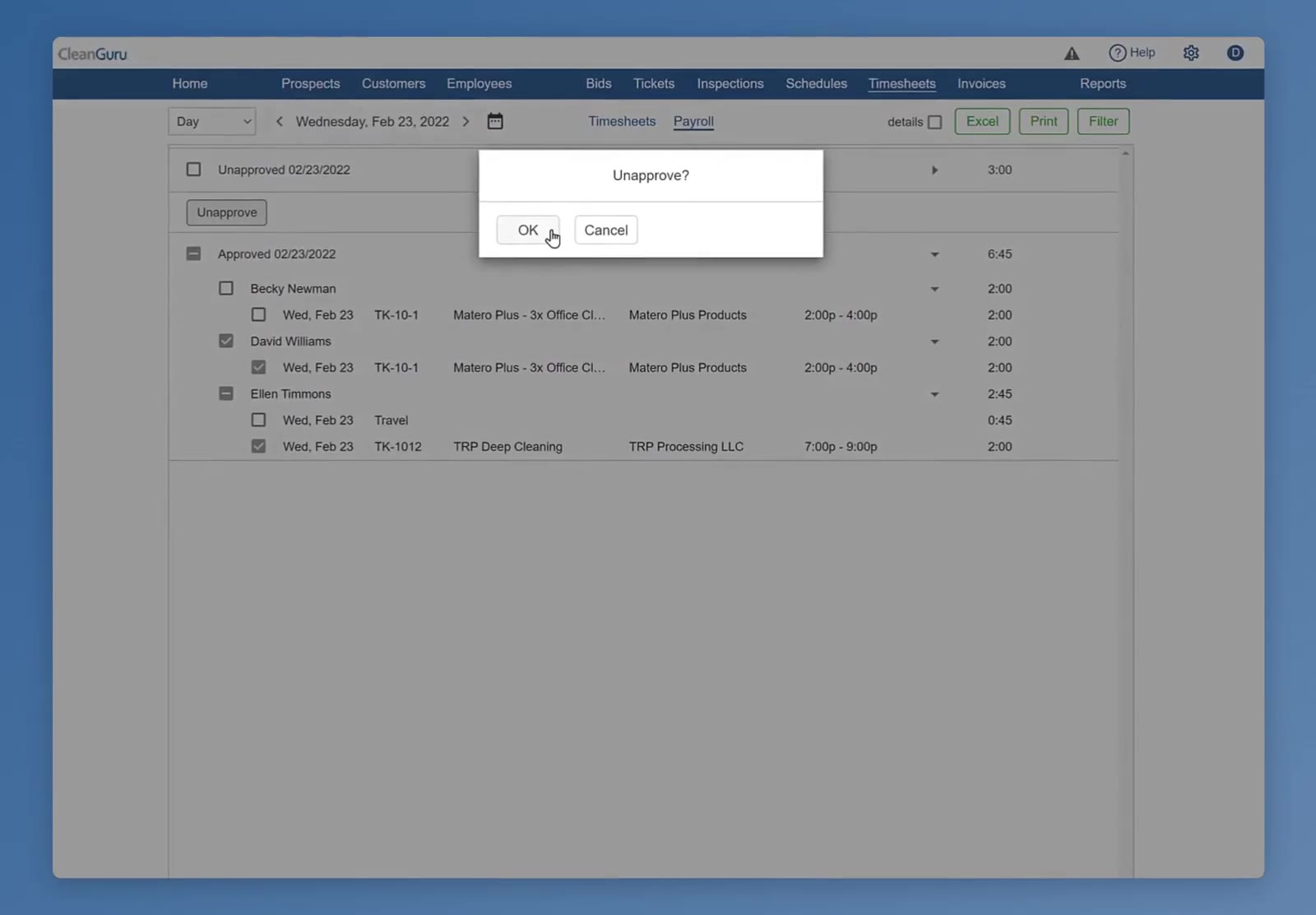
The Unapprove? confirmation, with OK and Cancel.
Confirm
Click OK. The entries move back to the Unapproved group for that date, where they can be edited again.
Unapproving changes nothing about the work itself — the entries keep their times and their details, they simply become editable again. Once your corrections are made, approve them a second time so they are ready for payroll.
FAQ
Can I unapprove more than one day at once?
Yes. Set the period dropdown to Week, Month, Pay Period or Custom so a wider range of dates is on screen, then tick the box beside each date you want to send back.
Does unapproving delete anything?
No. The hours, the ticket numbers, the job details and the times all stay exactly as they were. Unapproving only moves the entries back to the unapproved list so they can be edited.
Who can unapprove a timesheet?
A Staff/Support user who has been given full access to timesheets on their Access tab.
Can I unapprove one job rather than the whole day?
Yes. Expand the employee inside the approved group and tick only the entry you want to change.