
Approve Timesheets
Review the hours your employees have recorded and approve them, so your payroll figures are final and ready to use.
Review Unapproved Timesheets
Open the payroll view
Click Timesheets in the top navigation bar, then click the Payroll link.
Pick the period you want to review
Use the dropdown at the top left to choose Day, Week, Month, Pay Period, or Custom, then use the arrows or the calendar icon to land on the date you want.
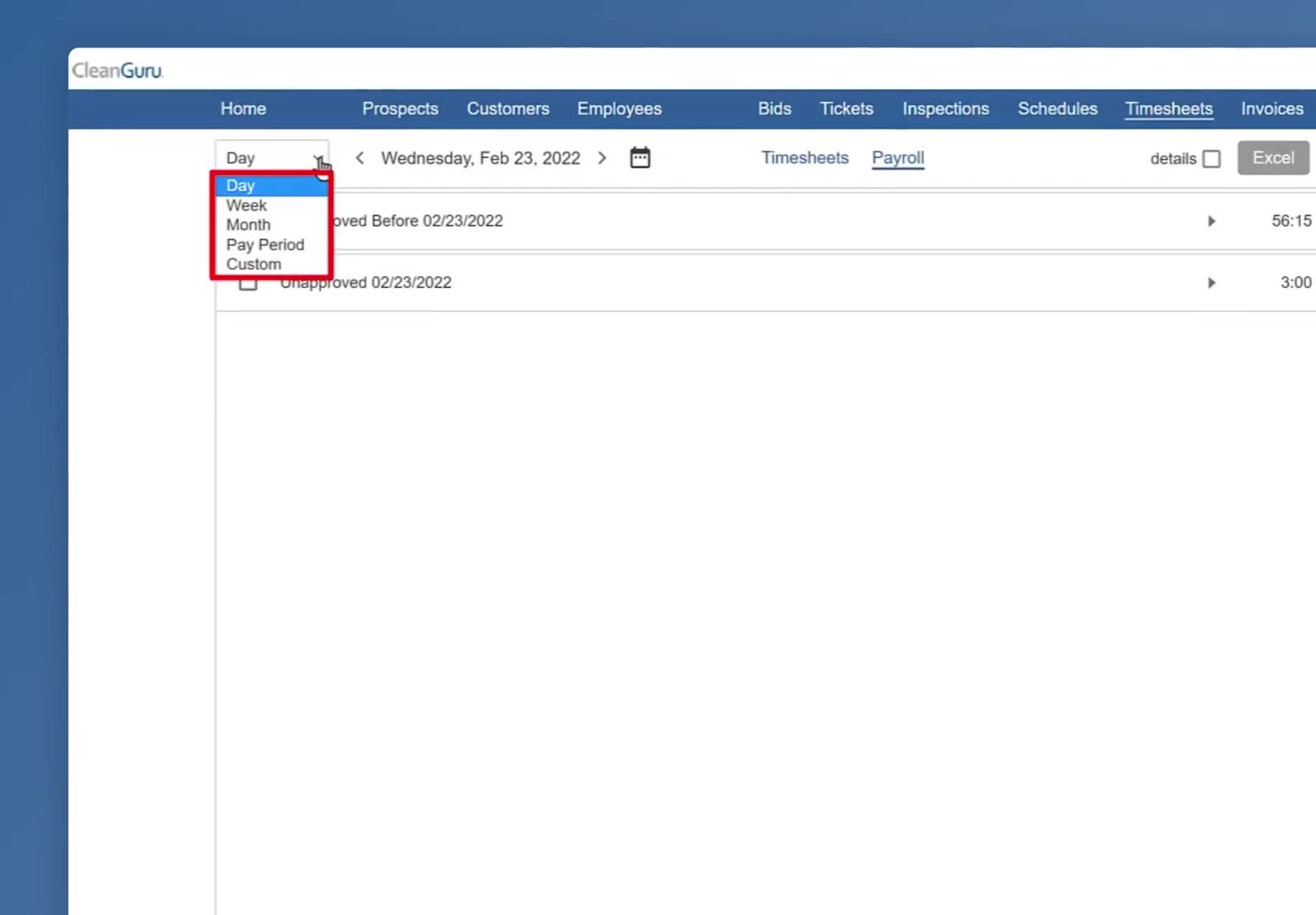
The period dropdown open on the Payroll screen.
Find the hours waiting on you
Unapproved timesheets appear grouped by date. A separate Unapproved Before group gathers anything older than the period you are viewing that is still waiting. Each group shows its total hours on the right.
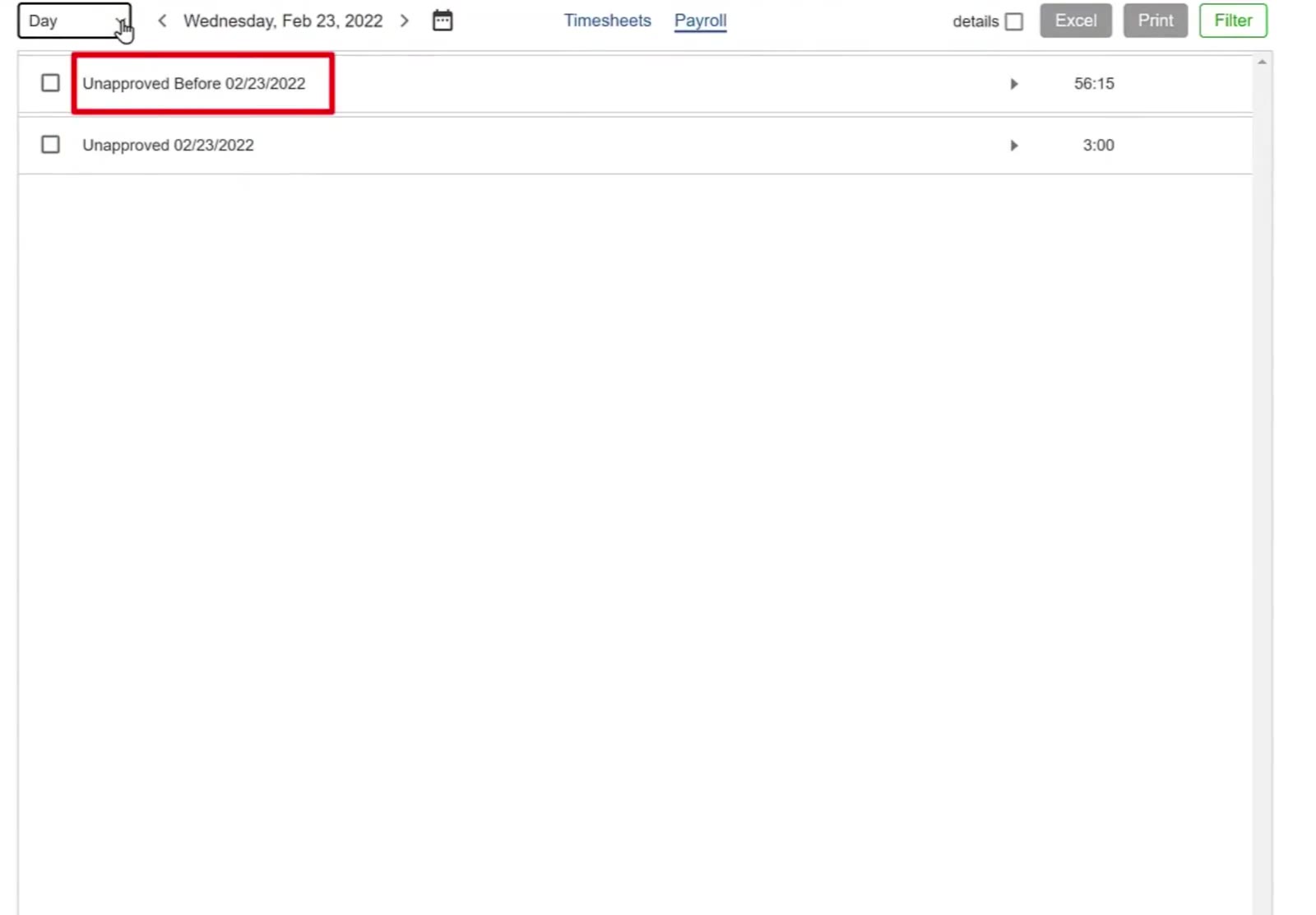
Two unapproved groups — everything before 02/23/2022, and 02/23/2022 — with their totals on the right.
See who the hours belong to
Click anywhere on a group’s row to expand it into the employees who recorded time, each with their own total.
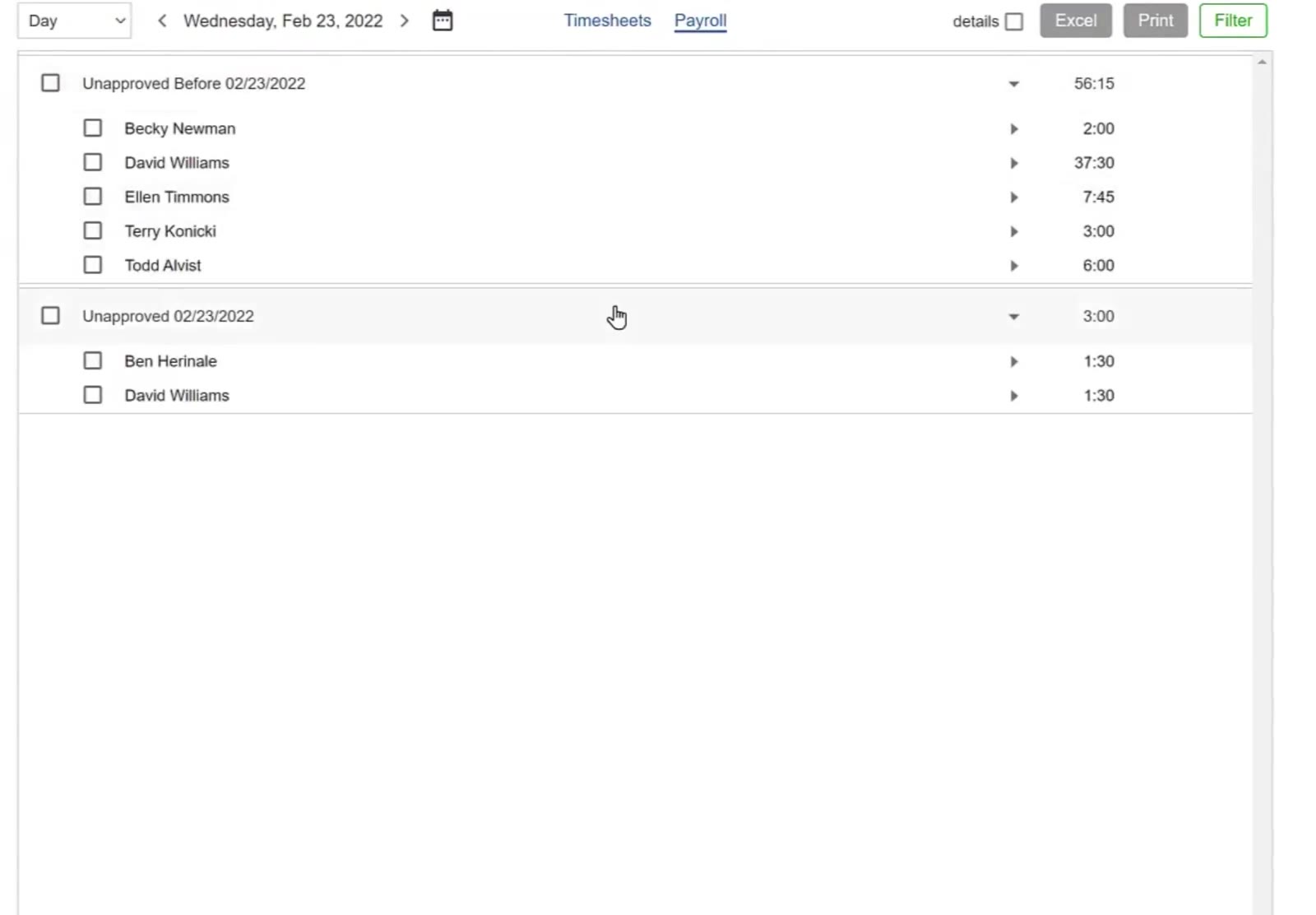
A group expanded into the individual employees and their totals.
Check one employee's entries
Click anywhere on an employee's row to see each entry — the date, the ticket, the building, the time range and the hours.
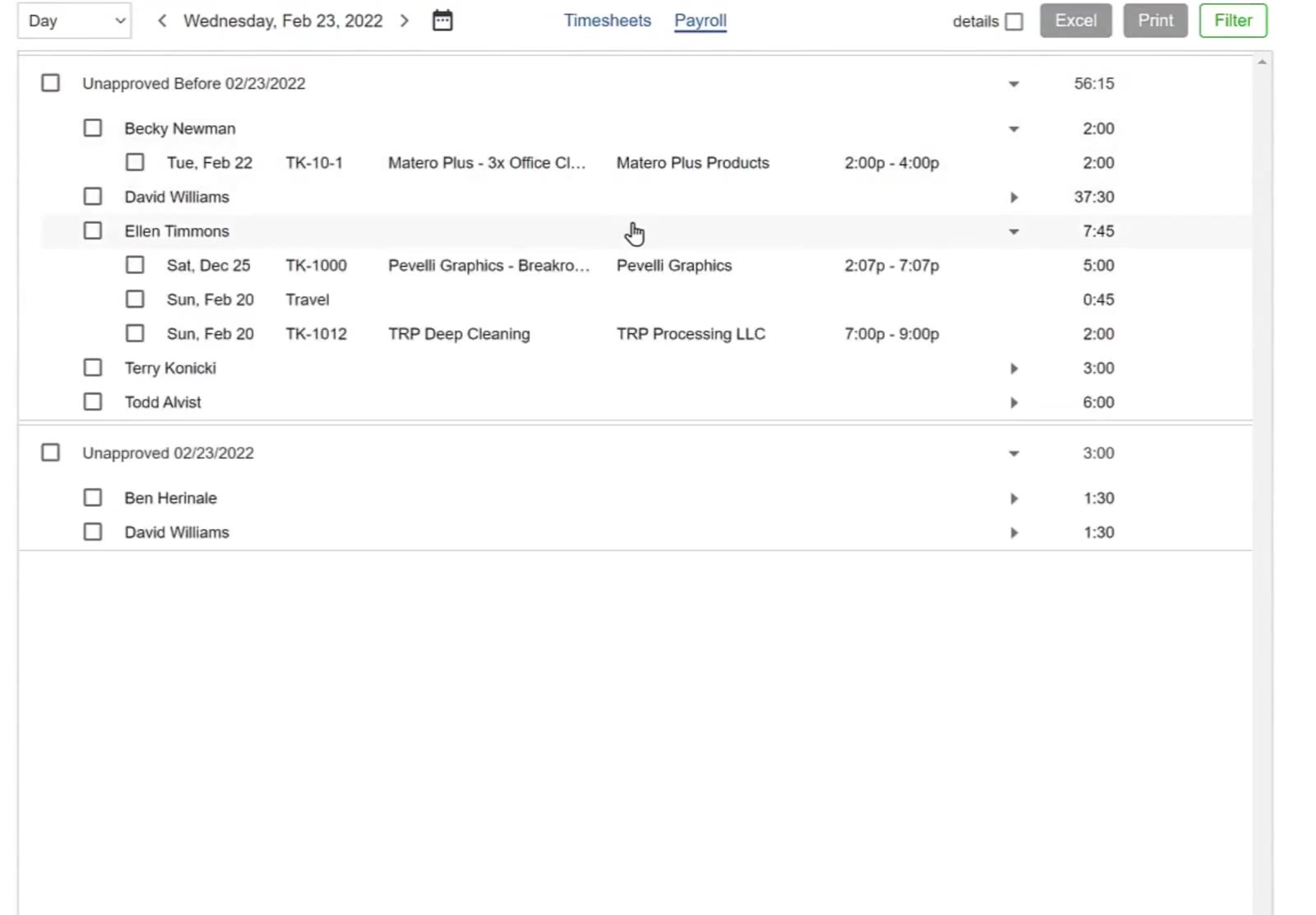
One employee expanded, showing each entry with its date, ticket, building and time range.
Or open everything at once
Tick the details checkbox at the top right to expand every group and every entry in one move.
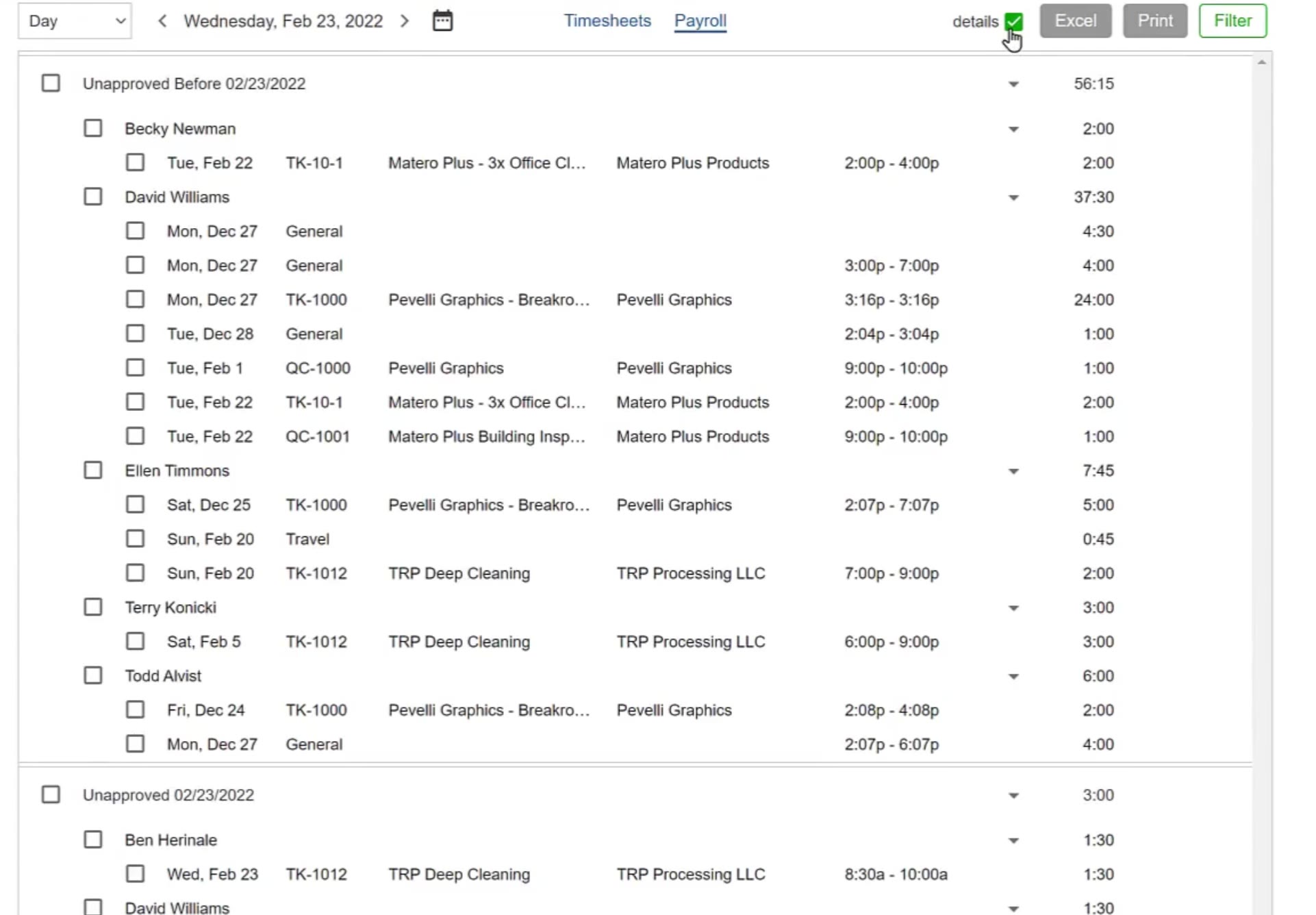
The details checkbox ticked, expanding every group and every entry at once.
Select and Approve
Select what you want to approve
Tick the checkbox beside a group heading to select every timesheet inside it. A green Approve button appears just above that group.
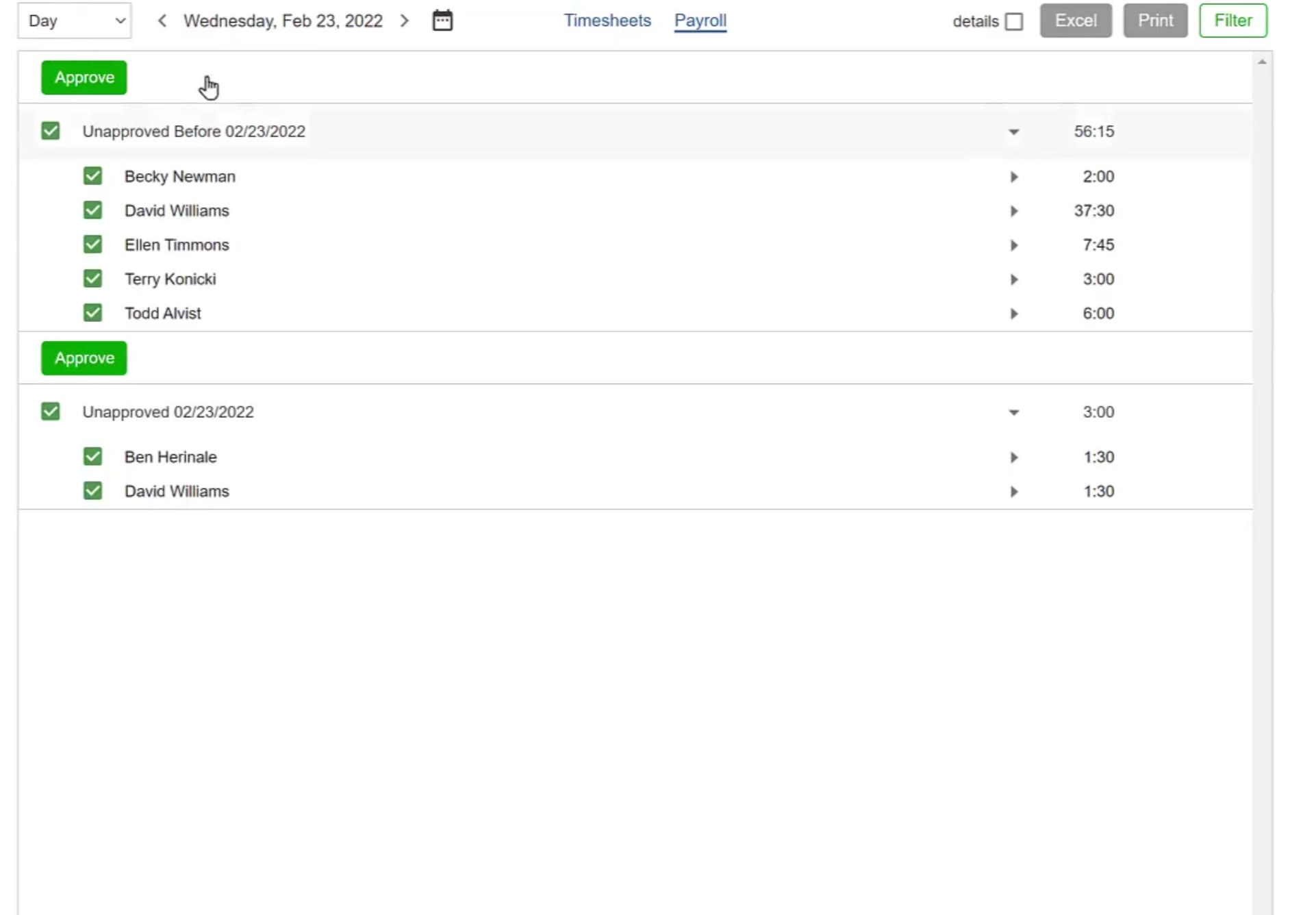
Both groups selected, with a green Approve button above each one.
Trim the selection if you need to
Untick an employee to drop all of their entries at once, or untick a single entry to leave just that one out.
Approve
Click the green Approve button, then click OK in the confirmation box.
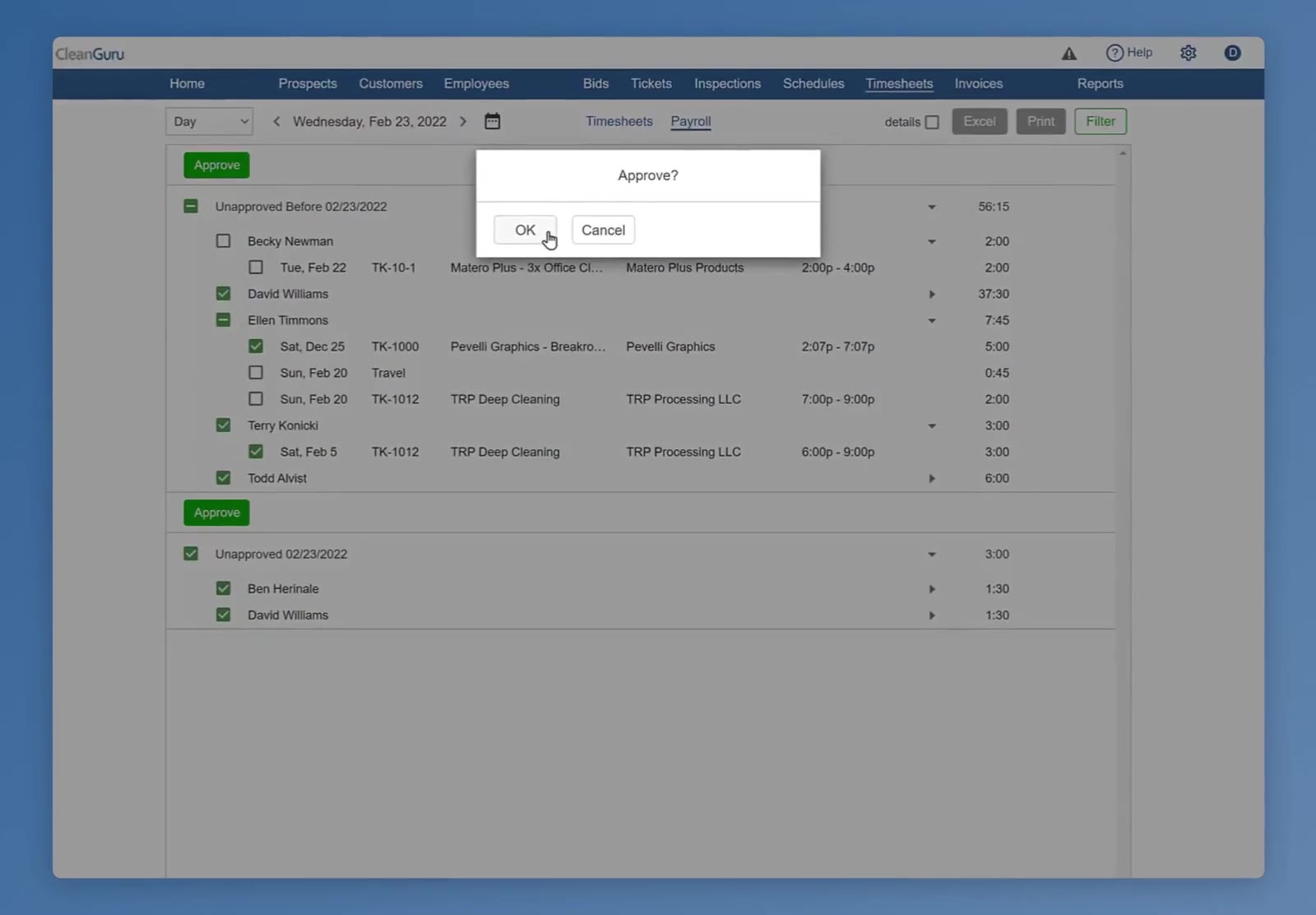
A few entries left unticked, and the Approve? box asking to confirm.
FAQ
Where do I find the timesheets that are waiting for approval?
Click Timesheets in the top navigation bar, then the Payroll link, and set the dropdown at the top left to the period you want.
What is the Unapproved Before group?
Older timesheets that are still waiting for approval, gathered into one group so nothing gets missed while you are reviewing a particular time frame.
Can I approve a whole group at once?
Yes. Tick the checkbox beside the group heading to select everything in it, then click the green Approve button that appears just above it.
How do I leave one employee out?
Untick that employee's name to drop all of their entries, or untick a single entry to leave just that one out.
How do I see every entry without expanding them one at a time?
Tick the details checkbox at the top right of the list.