
Use Week View
The Week View lays seven days of work out on one screen — every ticket and inspection, who it is assigned to and when it runs — so you can spread the load across the week and catch anything still waiting for a date. Day, Week, Month and List sit above the calendar; Week is the one that shows the whole week at once.
Reading the Week View
Open the Week View
Click Schedules in the top navigation bar, then click Week above the calendar.
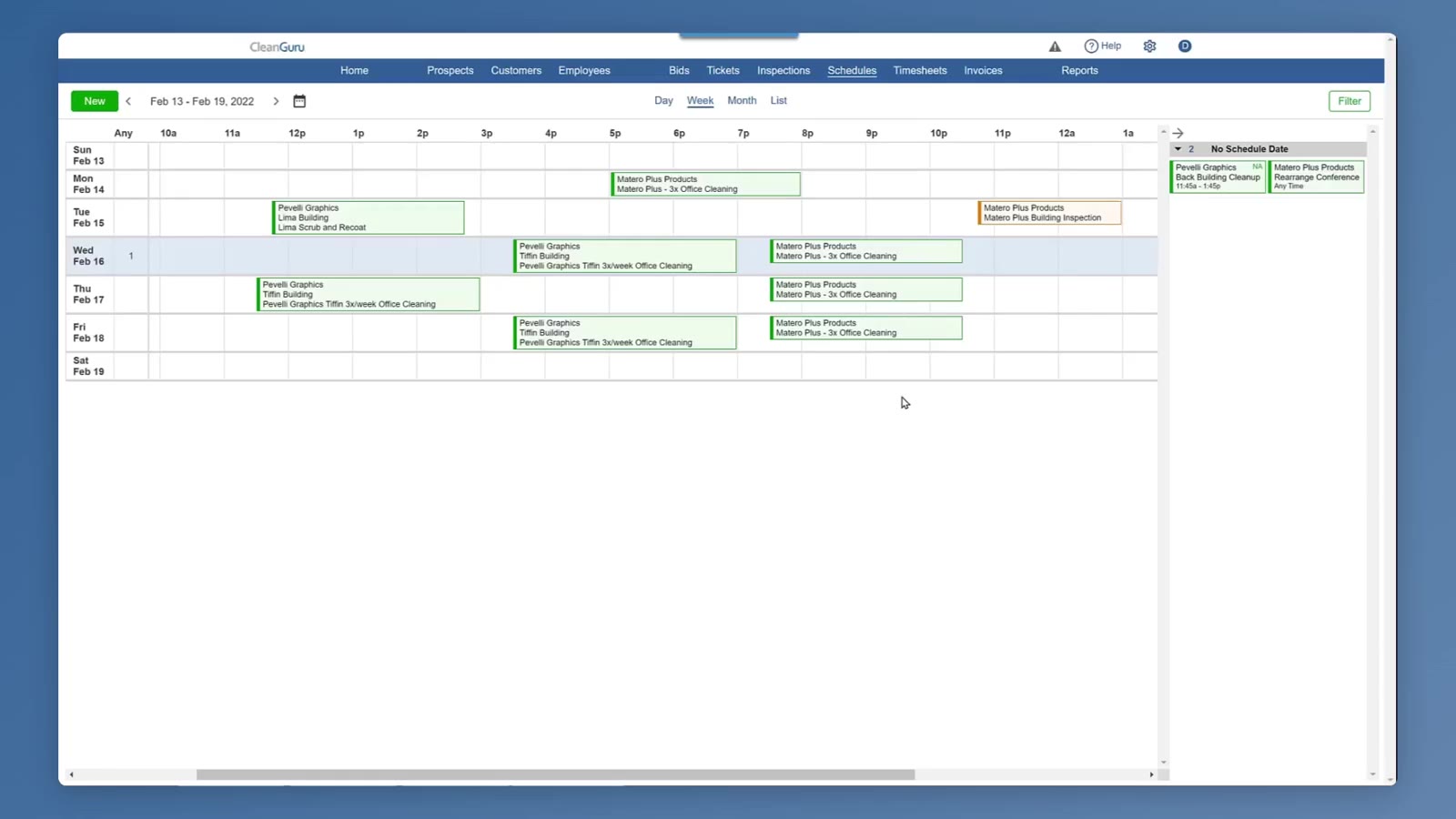
Each day of the week is a row and the hours run across the top. The bar down the left of a block says what the work is — green for a ticket, orange for an inspection.
Move to another week
Use the arrows either side of the date range to step back and forward a week, or click the calendar icon to jump to a particular date.
Filtering the Schedule
Filtering narrows the calendar to the people and the kind of work you want to look at. It changes what you see, not the schedule itself.
Open the Filter
Click Filter at the top right, above the calendar.
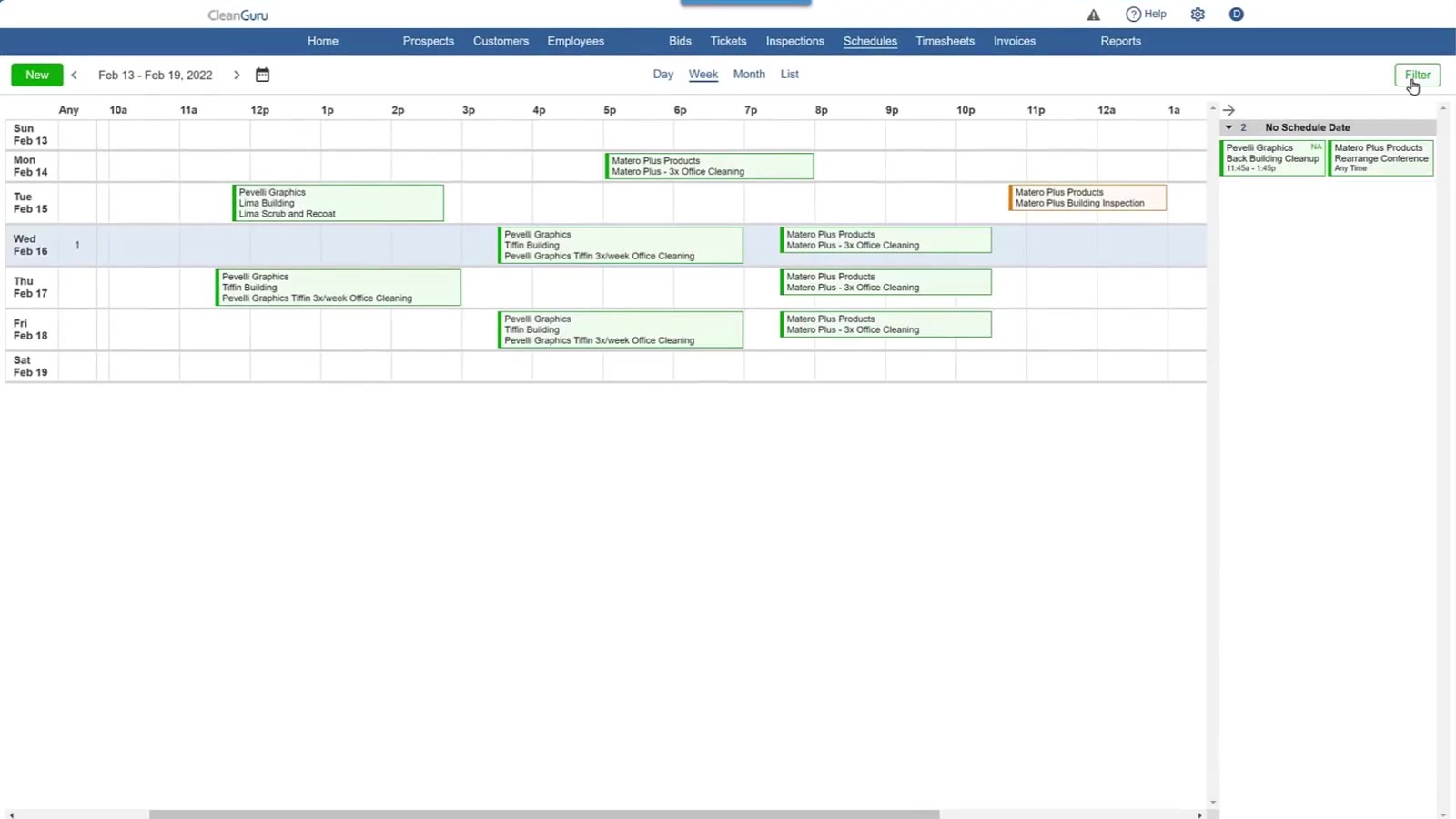
Filter sits at the top right of the Week View, above the calendar.
Choose what to show
Tick Unassigned to include work nobody is on yet, then tick the people you want under Location-Based, Staff/Support and Office-Based; All / None beside a heading selects or clears a whole group. On the right, Tickets and Inspections switch each kind of work on or off, and the dropdown beside each narrows it further: for tickets, the category — janitorial, carpet and so on, plus any category you have added yourself; for inspections, standard or internal. The dropdown below them chooses open or closed work, and starts on All.
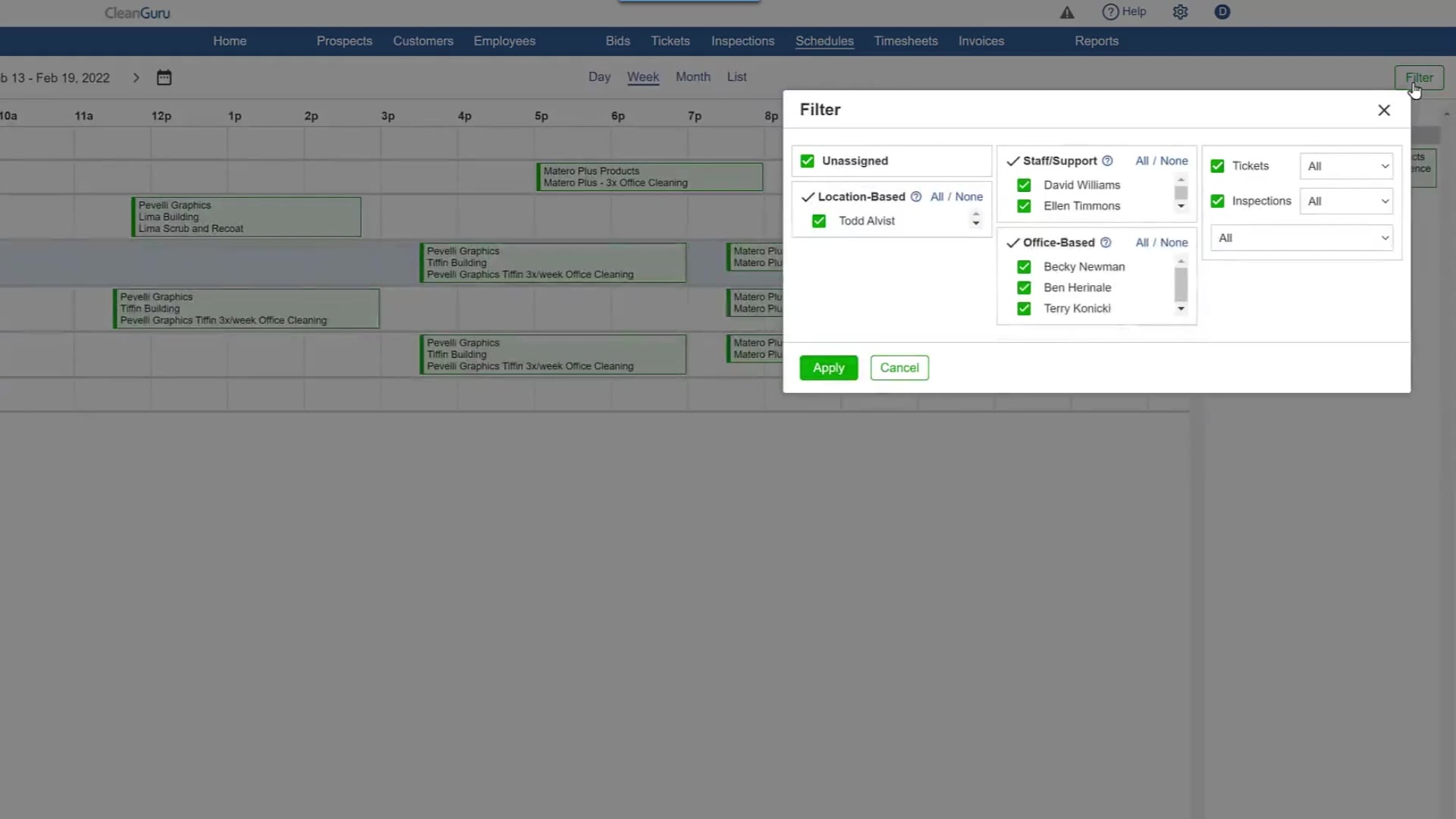
The Filter dialog: Unassigned on its own, your employees grouped by type in the middle, and Tickets and Inspections on the right.
Apply the filter
Click Apply and the calendar redraws with only what you ticked. Cancel closes the dialog and leaves your view as it was.
Work Waiting to Be Scheduled
Tickets and inspections that have not been given a date sit in a panel to the right of the calendar rather than on it. Many of them already have a time — what they are missing is the day.
Open the panel and read what is waiting
Click the arrow beside No Schedule Date to the right of the calendar. The number beside it is how many items are waiting, and each card shows the customer, the building and the work, with its time — or Any Time where none has been set.
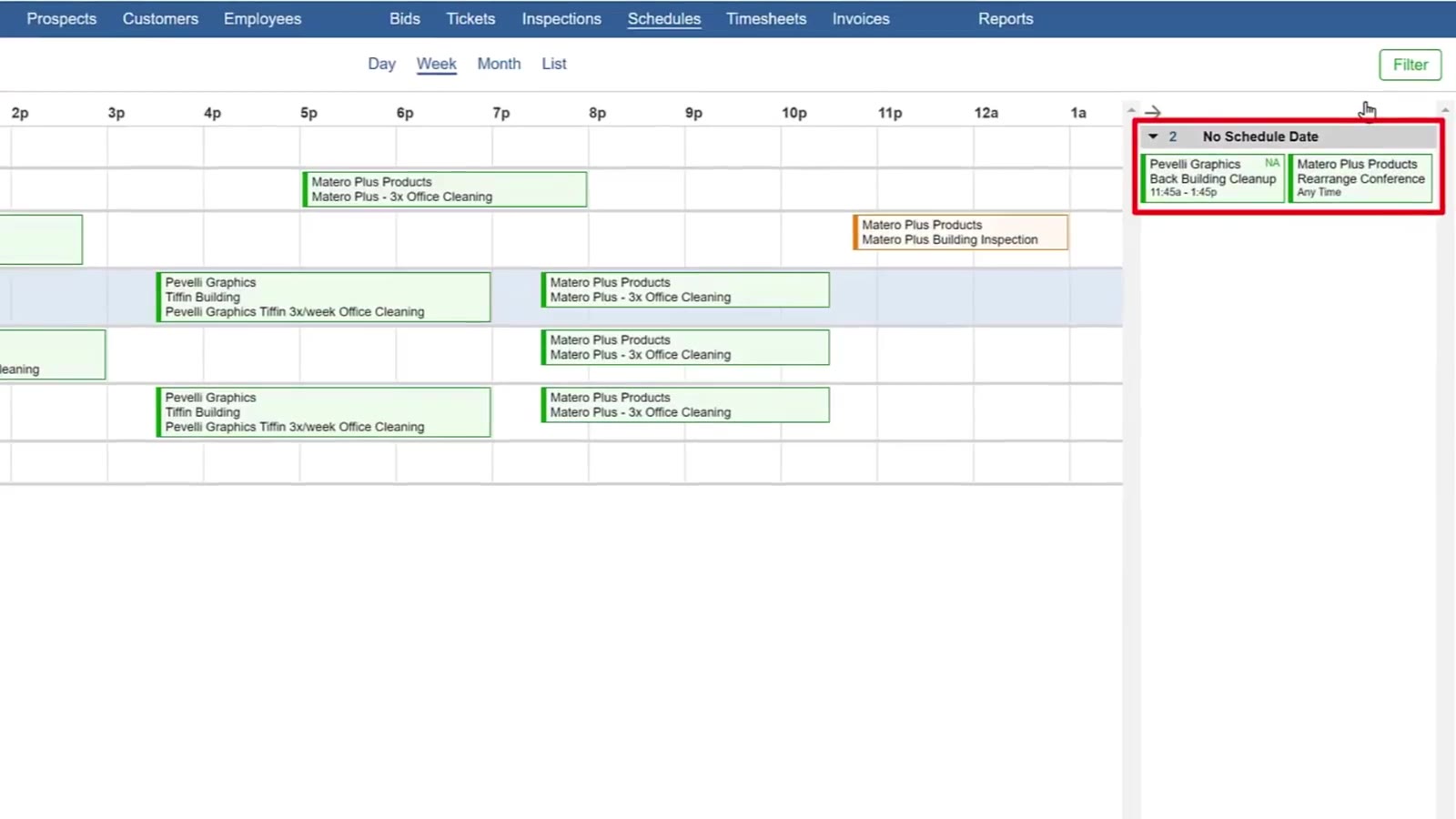
No Schedule Date expanded. The number beside the heading is how many items are waiting; one card here has a time, the other says Any Time.
Drag it onto the calendar
Drag a card out of the panel and drop it on the day you want it done. It leaves the panel and appears on that day.
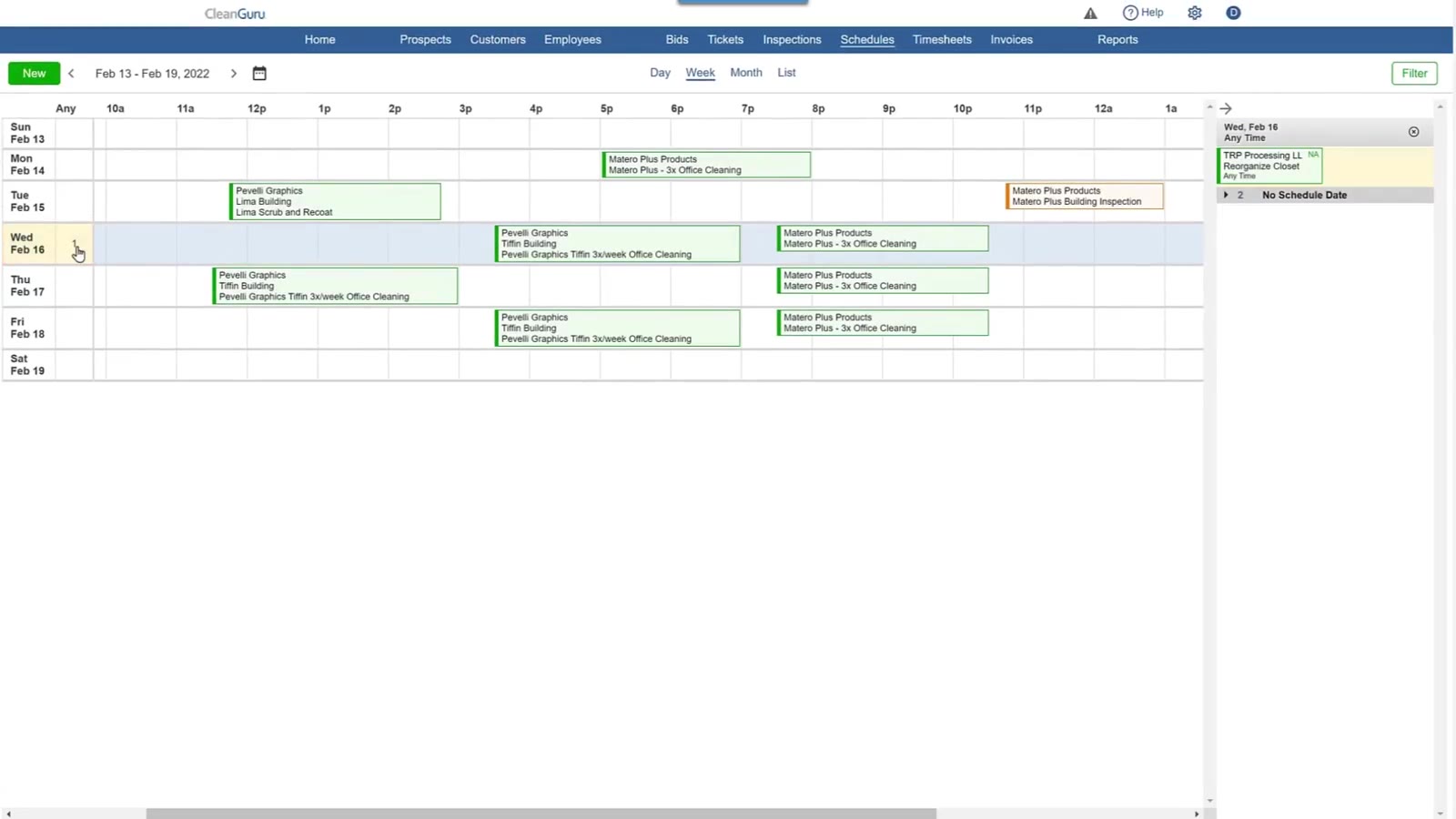
Dragging a card out of the panel and onto a day.
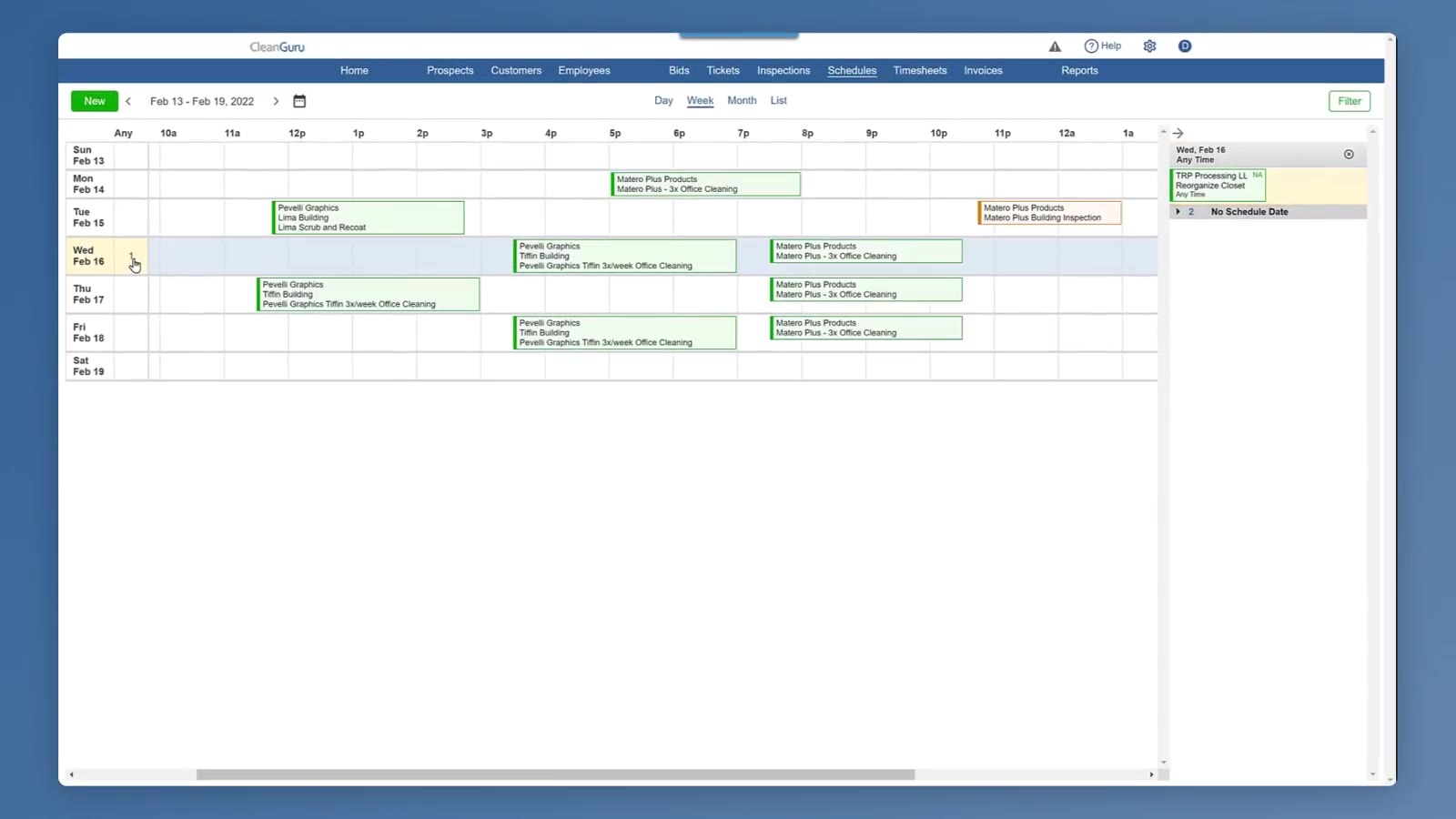
The item lands on that day — in the Any column, since this one has no set time.
Between the filter and the No Schedule Date panel, the Week View is where a week gets balanced — you can see who is assigned to what, narrow the view when it gets busy, and give a date to anything still waiting for one.
FAQ
Can I change which day the week starts on?
No. The Week View always runs Sunday through Saturday, and that cannot be changed.
What do the colors on the calendar mean?
The bar down the left of a block tells you the kind of work: green for a ticket, orange for an inspection. The block itself takes the color of the employee assigned to it, when that employee has a color set; if they do not, it stays green or orange. Where more than one employee is on the job and they have different colors, the block stays green or orange and carries a multicolor icon. Color never shows status — a completed ticket or inspection is marked with a check mark.
Can I put a scheduled job back into the No Schedule Date panel?
Yes. Drag it from the calendar onto the panel and it is unscheduled.
How do I find work that has not been assigned to anyone?
Open Filter and tick Unassigned. Use None beside each group of employees if you want to clear everyone else as well.
What is an internal inspection?
An inspection you want to keep in house rather than share with the customer. The Inspections dropdown in the Filter lets you show standard inspections, internal ones, or both.