
Create Recurring Ticket
A recurring ticket is a template CleanGuru builds tickets from on the days you pick, so a building you clean three nights a week gets scheduled without you doing it every week. This shows you how to set one up.
Start the Template
Open the schedule and click New
Click Schedules in the top menu, then click New at the top left.
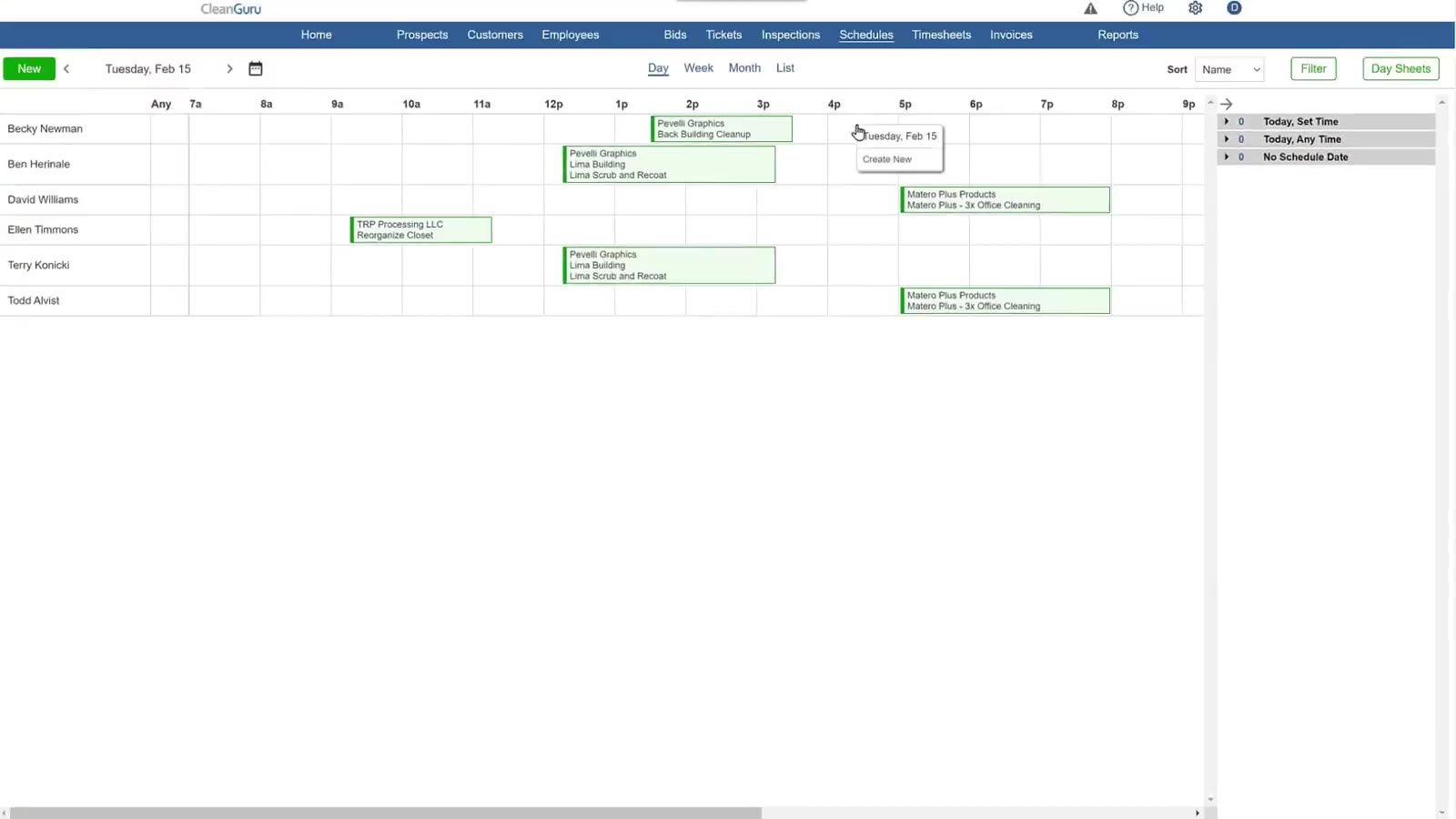
New sits above the day view on the Schedules page.
Choose New Template
The Create Schedule box has a New dropdown. Ticket makes a single job; New Template makes the recurring kind. Pick New Template.
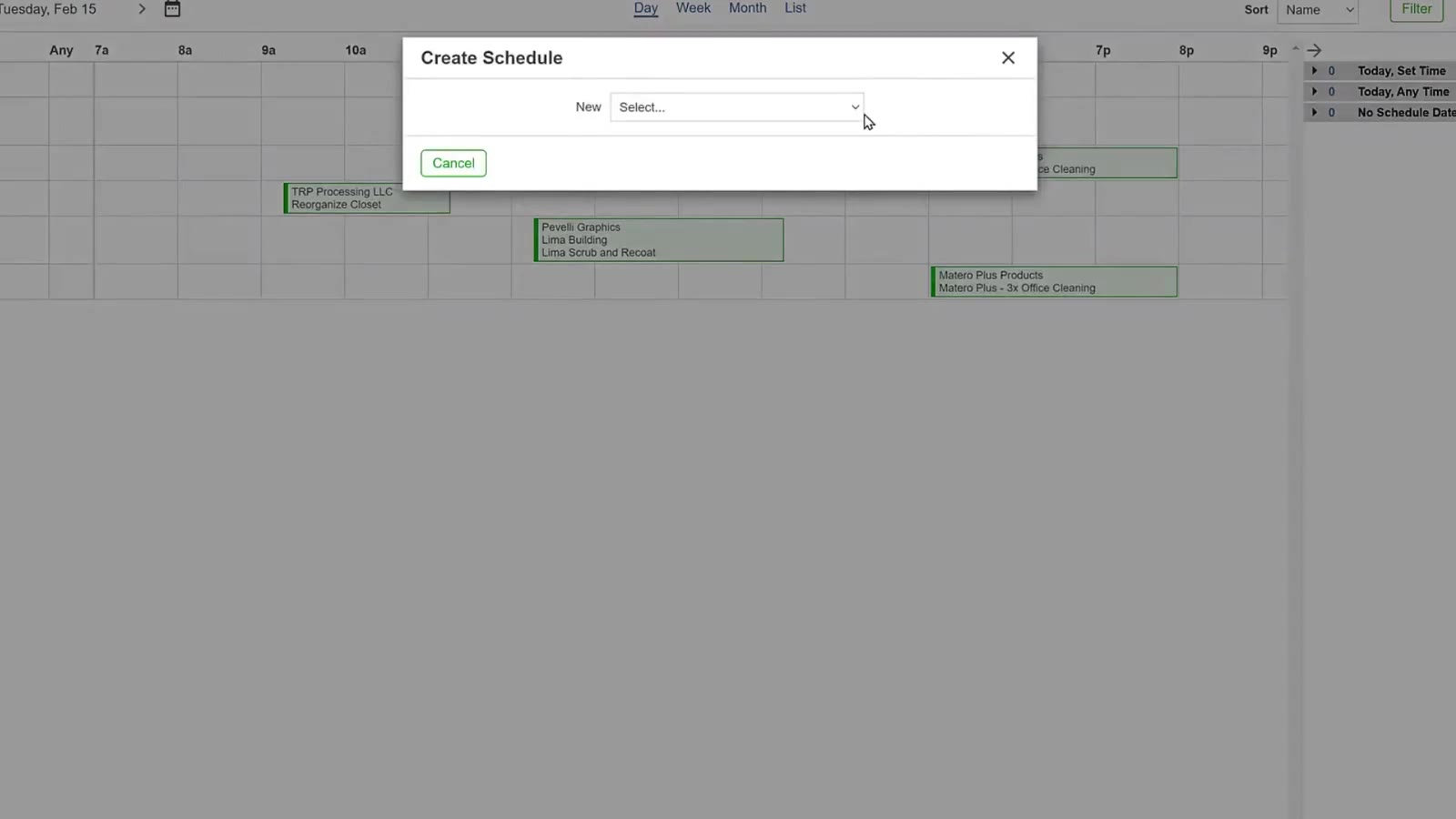
The New dropdown offers Ticket or New Template.
Pick the customer and the source
The Customer dropdown lists your customers with each customer's buildings underneath, so you can point the template at one building. Then choose a Source — Manual to start empty, or Bid to bring across the building's areas from a bid you have already created, with the tasks listed in each area.
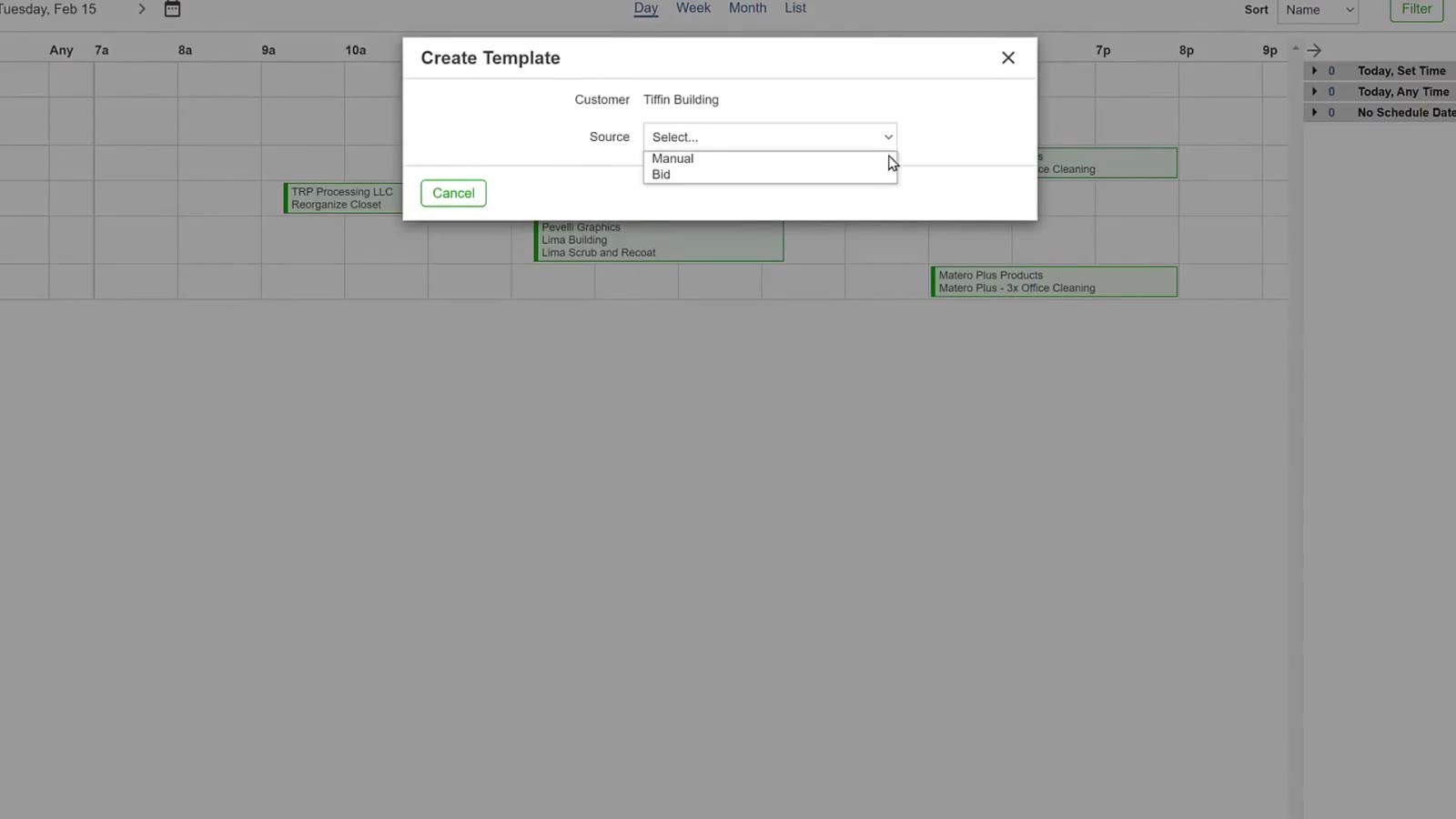
Customer lists the buildings under each customer, with Source underneath.
Pick the bid
Choosing Bid opens Create Template from Bid, listing that customer's bids with the date they were created, the bidding module, the bid and the building. Pick the one this work comes from and its areas come across into the template.
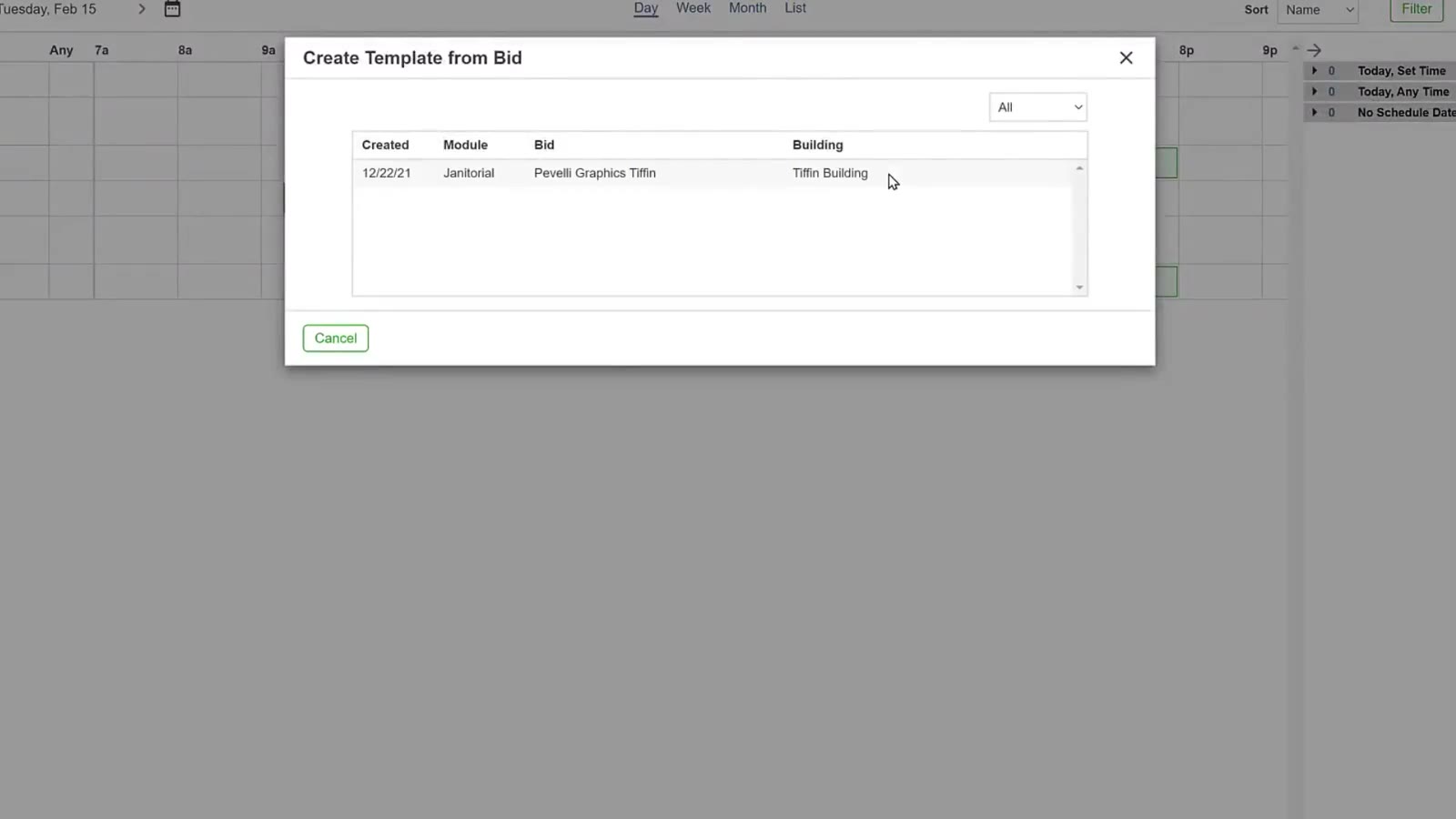
The bid list shows the date, the bidding module, the bid and the building.
Name it and pick the days
Type a name in the Template box and tick the days of the week in the Days row, then click Create.
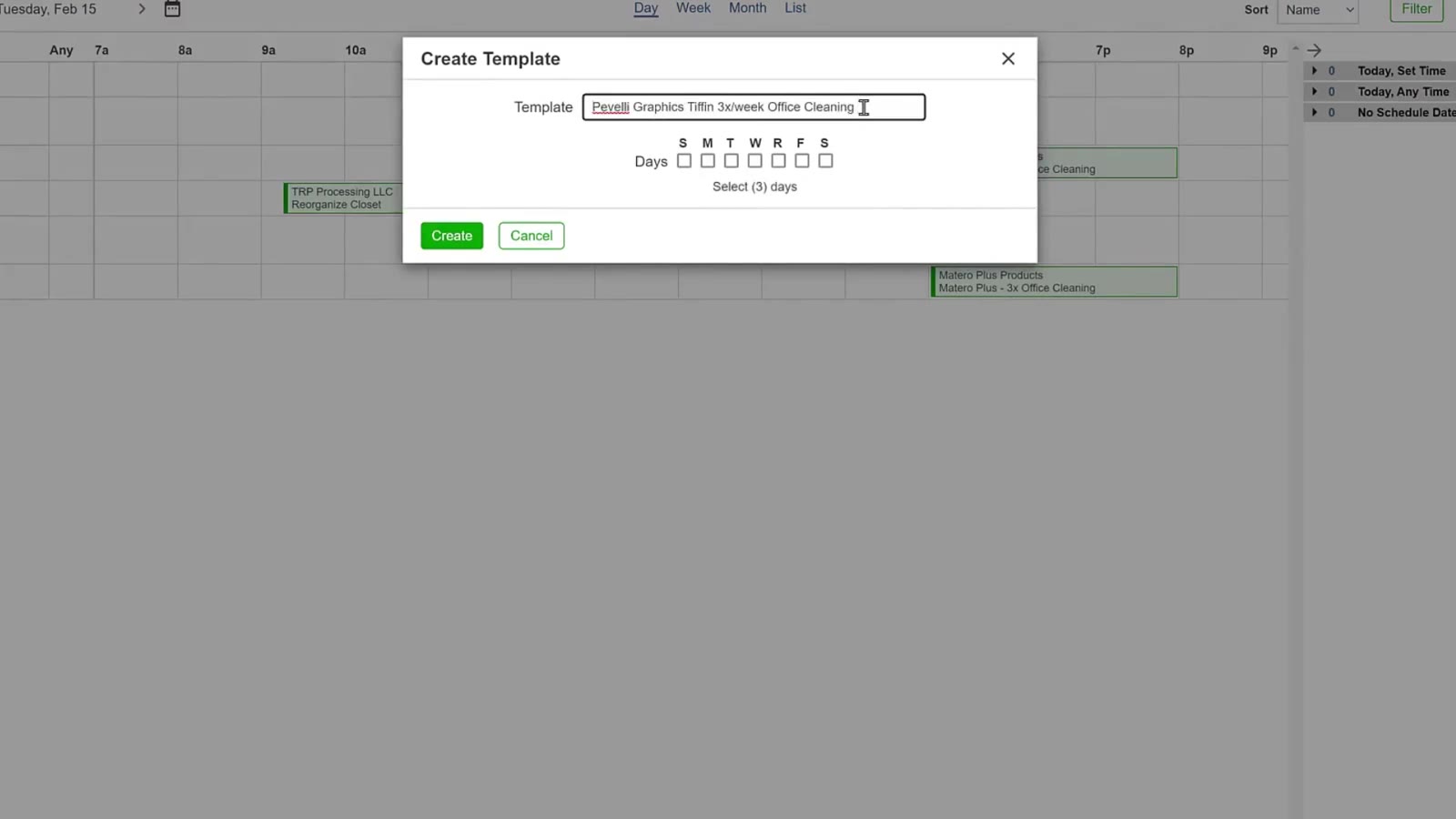
The Template box takes a name, with the S M T W R F S day ticks under it.
Set the Schedule
Turn the schedule on
The template opens with the building's areas down the left. Change Unscheduled to Scheduled, pick how often, and set a Start date and an End if it should stop.
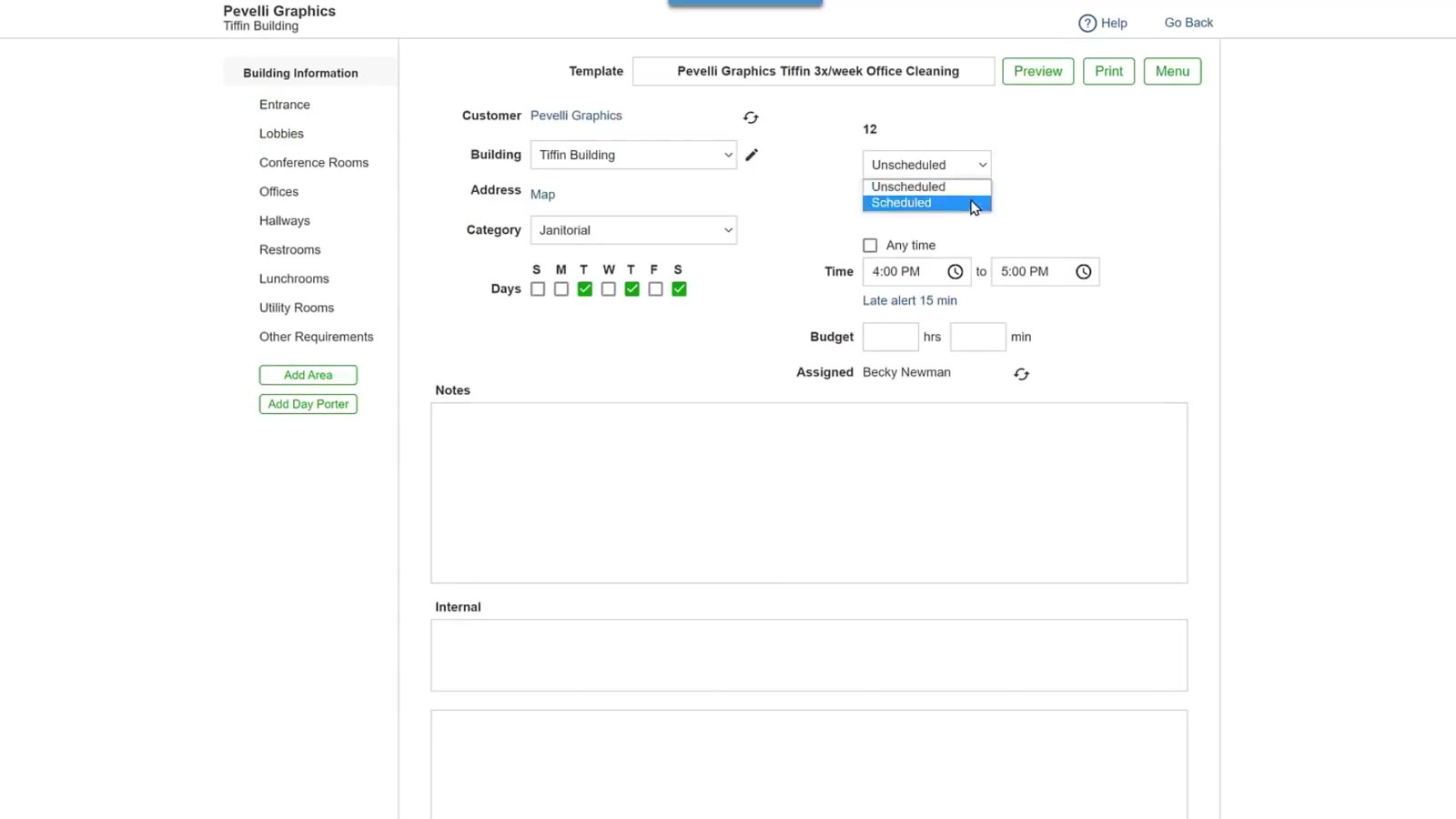
Setting the template to Scheduled brings up the frequency, Start and End.
Pick the days the tickets fall on
A weekly schedule has its own day box — Every 1 week(s) on with S M T W R F S underneath. Tick the days there and CleanGuru writes the pattern out below them, like Every week on Tue, then click OK. These are the days that decide when tickets get created, and they are separate from the Days row you ticked when you named the template — so tick the same days in both.
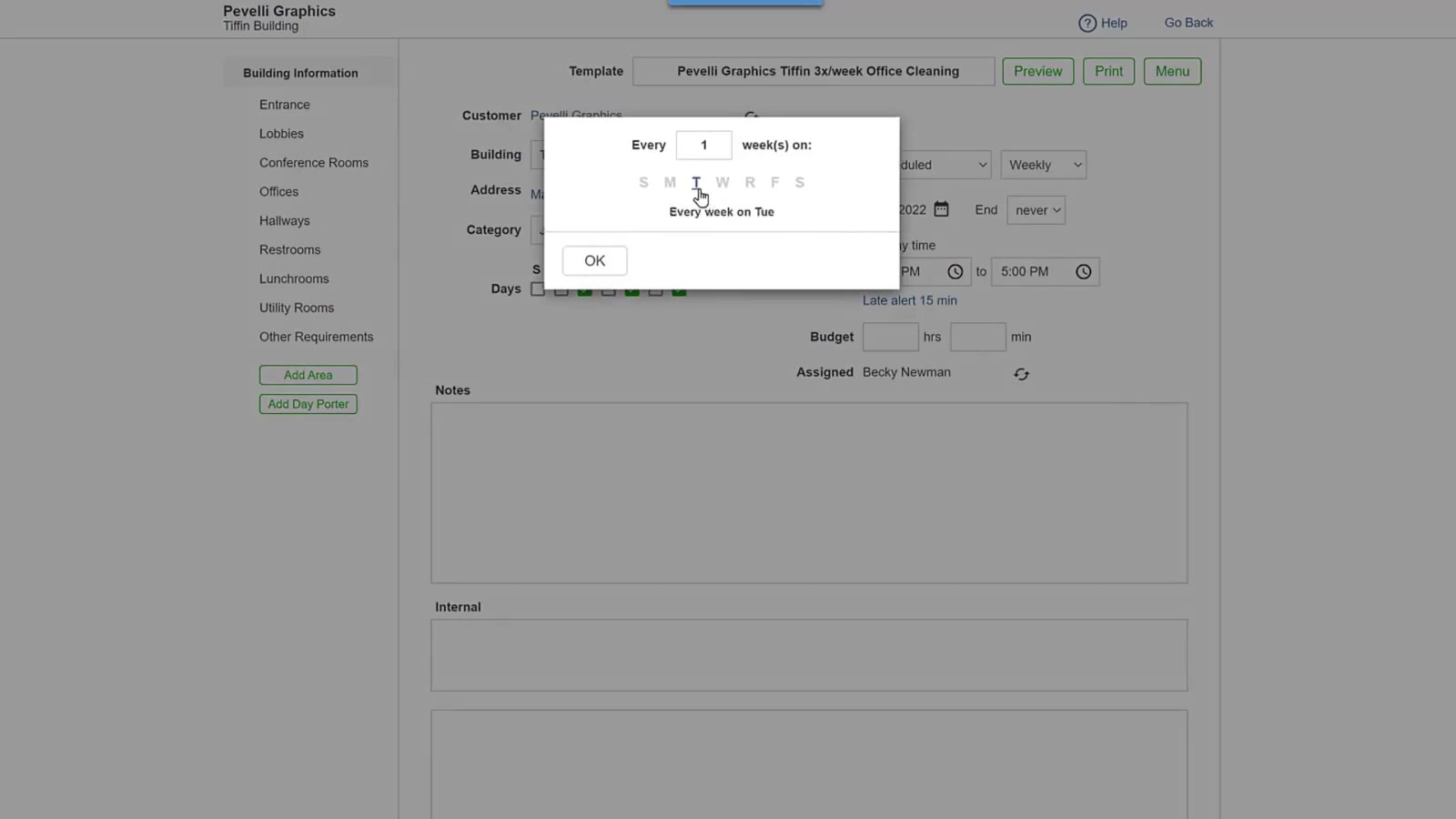
CleanGuru spells the pattern out under the day ticks.
Set the time, the budget and who does it
Tick Any time if the job just has to happen that day, or set a Time from and to. Late alert sets how long after that start time counts as late. Budget takes the hours and minutes you expect, and Assigned is the person doing it.
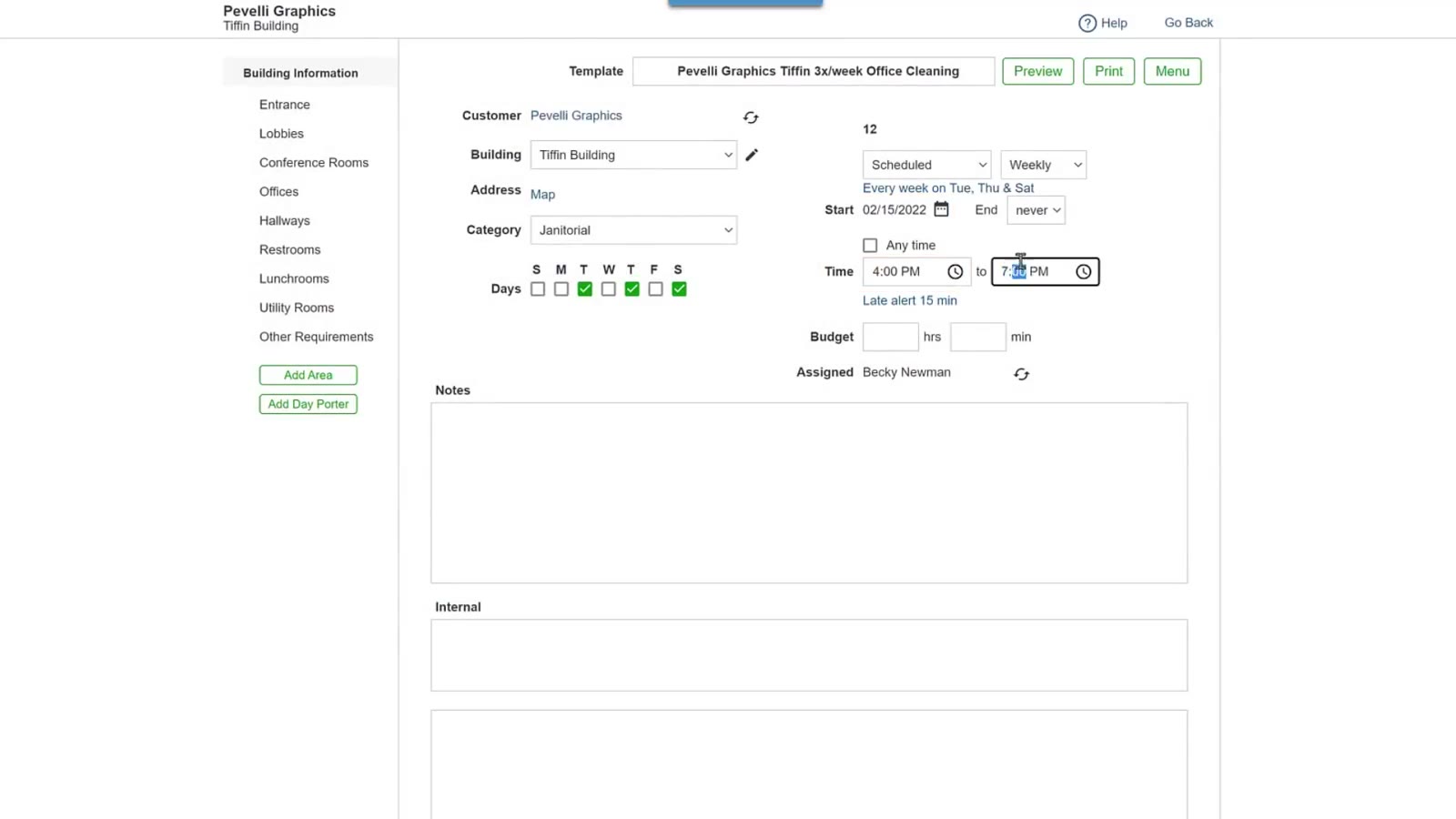
Time, Late alert, Budget and Assigned run down the right of the template.
Create the Tickets
Save it
Click Save. CleanGuru says Tickets Created — click OK. The tickets it made are listed underneath with their dates, their numbers and a status of Open.
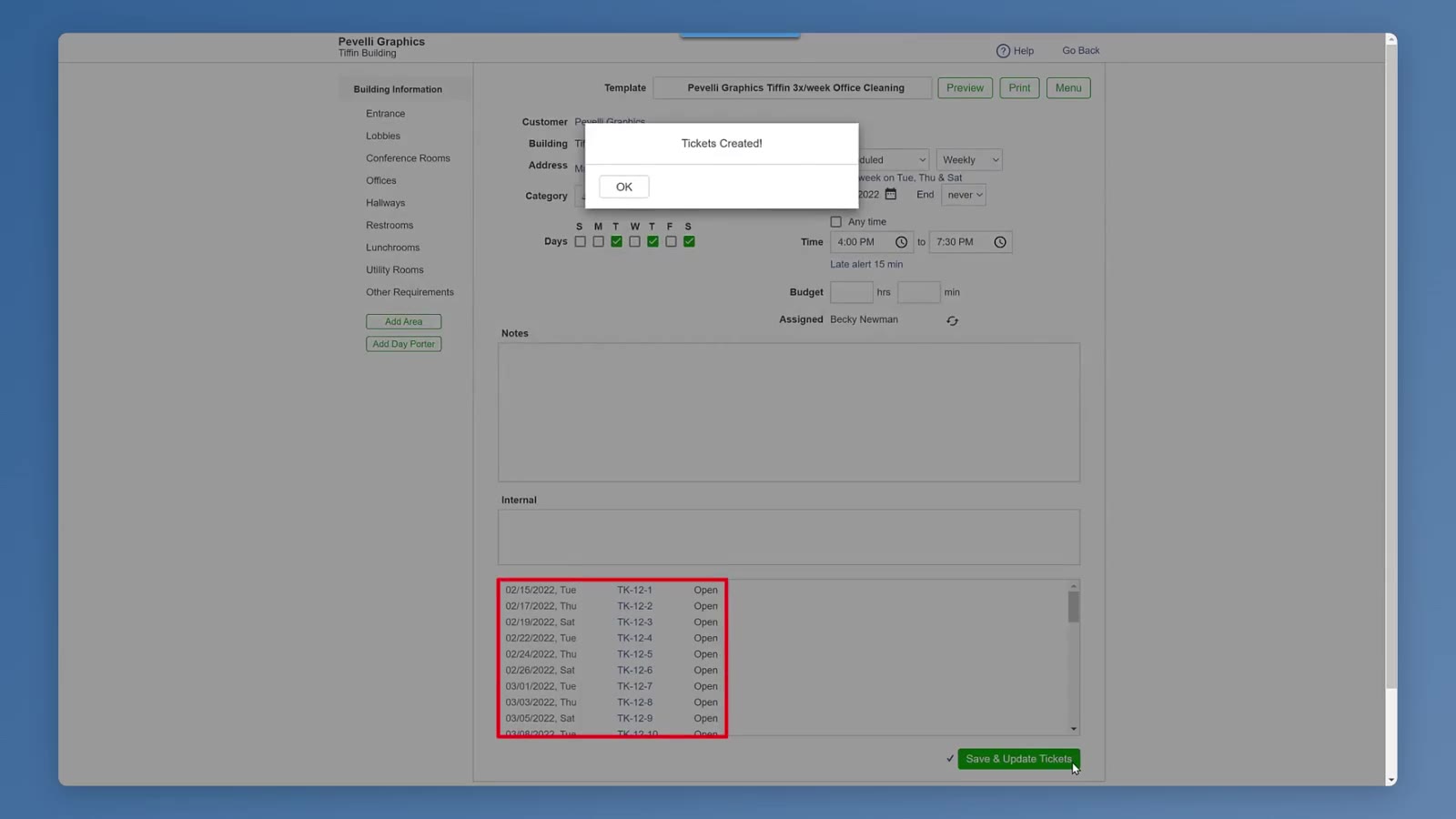
CleanGuru confirms with Tickets Created and lists what it made.
CleanGuru creates 90 days' worth of tickets straight away, then adds more each day so the schedule keeps running 90 days ahead. It carries on doing that until the template's End date, if you set one.
Check the schedule
Go back to Schedules and the tickets are there, on each of the days you picked, in the row of the person you assigned them to.
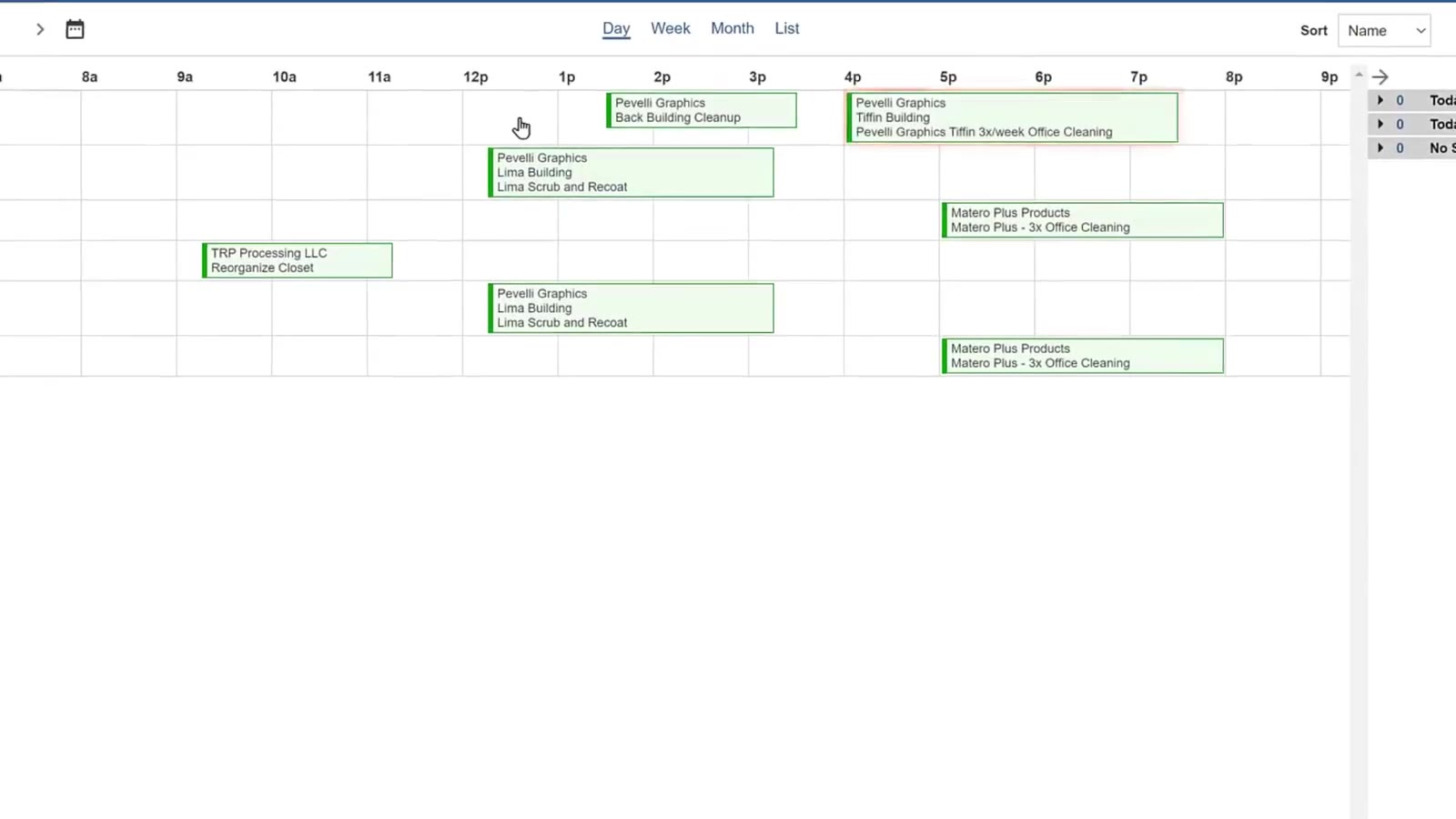
The recurring tickets now sit on the schedule under the assigned employee.
FAQ
What is the difference between a ticket and a template?
A ticket is one job on one day. A template is the recurring version — CleanGuru creates the tickets from it on the days you pick.
Do I have to start from a bid?
No. Source offers Manual as well. Starting from a Bid brings the building's areas across, with the tasks listed in each area, so you do not write them out again.
How do I say which days of the week?
In two places, and they are not connected. The Days row you ticked when you named the template records the days the job is done. The day box in the schedule is what decides when CleanGuru actually creates the tickets. Tick the same days in both so they agree.
What is the list down the left of the template?
The areas of the building — Entrance, Lobbies, Offices and so on. Add Area and Add Day Porter underneath let you add to it.