
Quick Start: Scheduling & Timekeeping
CleanGuru runs on two things: the employees you have entered and the tickets that tell them what to do. Recurring work comes from a ticket template; one-off work is a single ticket. Either way it lands on the schedule, and the cleaner picks it up on their phone.
Add Your Employees
Open the employee list
Click Employees in the top menu.
Start a new employee
Click the green New Employee button at the top left.
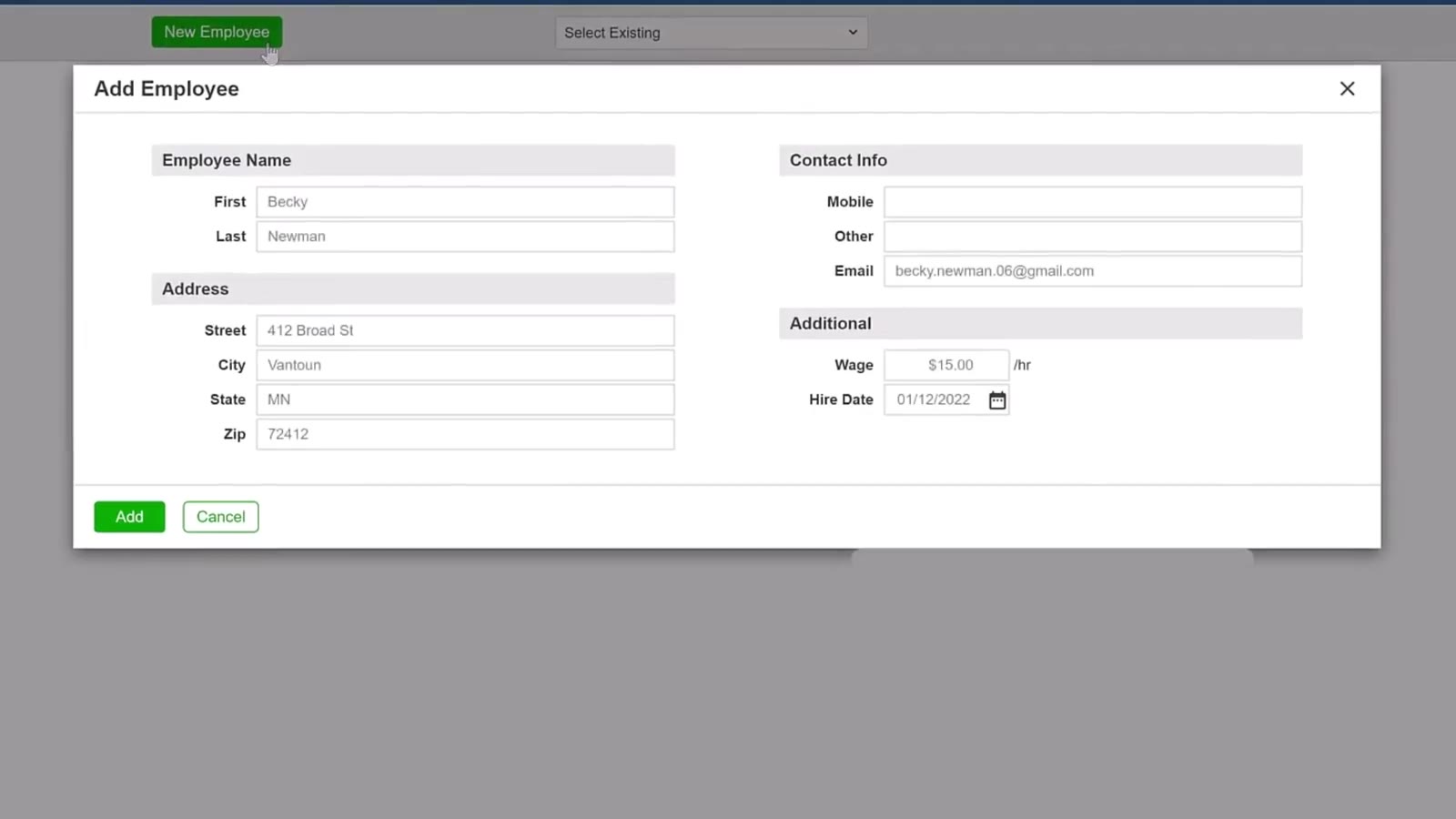
The Add Employee box takes the name, address, contact details, wage and hire date.
Fill in the card
First and Last name are the only ones you have to enter. Add the Address, Mobile, Email, Wage and Hire Date if you have them — in the recording Becky Newman goes in at $15.00 an hour. Click the green Add button to create the record.
Set the type
On the profile, use the Type dropdown. Office-Based is for staff who report to your office before their shift, Location-Based for cleaners who start at the first building or residence, and Staff/Support for people with responsibilities beyond the cleaning itself.
Decide on app access
Set User to Yes if this employee should be able to log in. Once you do, you have to give them either a mobile number or an email address — that is how their sign-in information reaches them. Give them a Color Code so their work stands out on the schedule, then click Save.
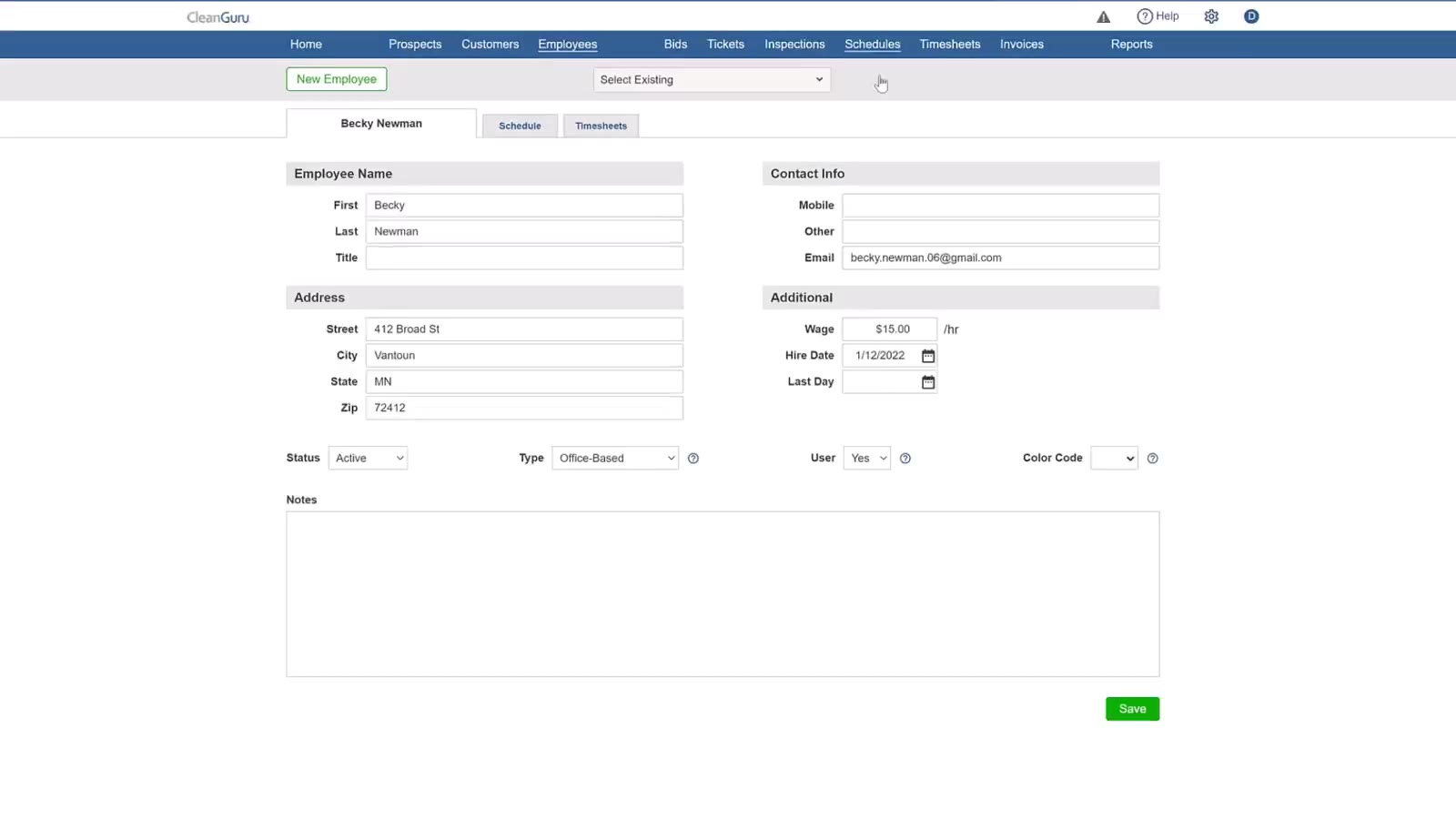
Once the record is saved, the profile adds Type, User, Color Code and a Save button.
Build a Recurring Ticket Template
Start a new schedule item
From Schedules, click the green New button at the top left, then choose Ticket Template.
Choose the customer and the source
Pick the customer, then set Source. Bid brings across the areas from a bid you have already done and the tasks listed in each area. Or pick Manual and type your own directions straight onto the ticket template.
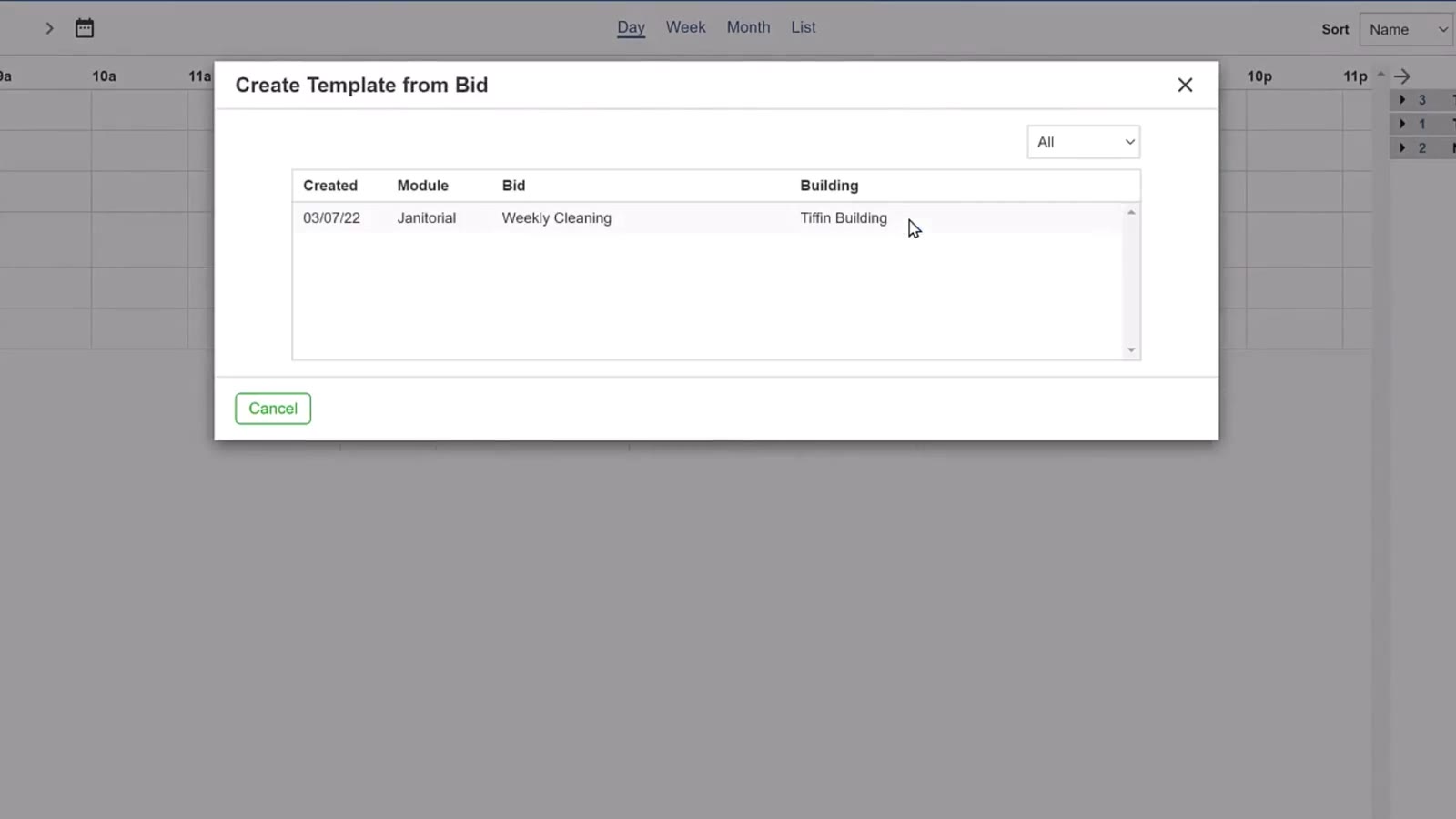
Create Template from Bid lists each bid with the date it was created, its module and its building.
Name it and pick the days
Name the template — Pevelli Graphics 5x Office Cleaning, here — tick the days of the week the work happens, then click Create.
Put it on a schedule
On the template, change Unscheduled to Scheduled, choose a frequency such as Weekly, and set the start date.
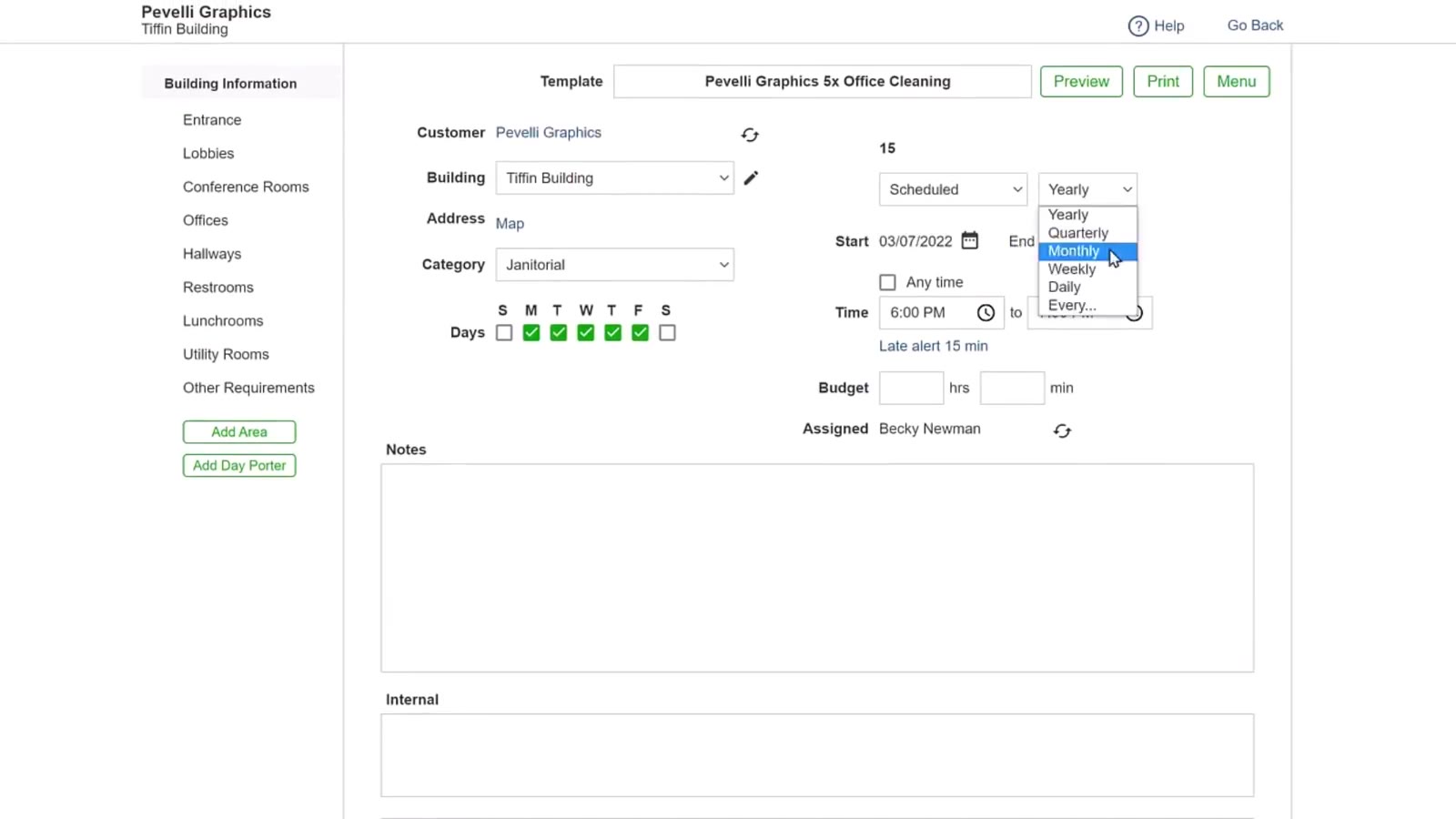
Setting the status to Scheduled reveals the frequency, start date and day-of-week boxes.
Set the time and the budget
Enter the service window — 7:00 PM to 9:00 PM in the recording — and the Budget hours for the job. If the work has no particular time it has to happen, tick Any time instead.
Pick the cleaners
Click the icon beside Assigned to open the staff list, tick the employees who will do the work, and click Save in that box.
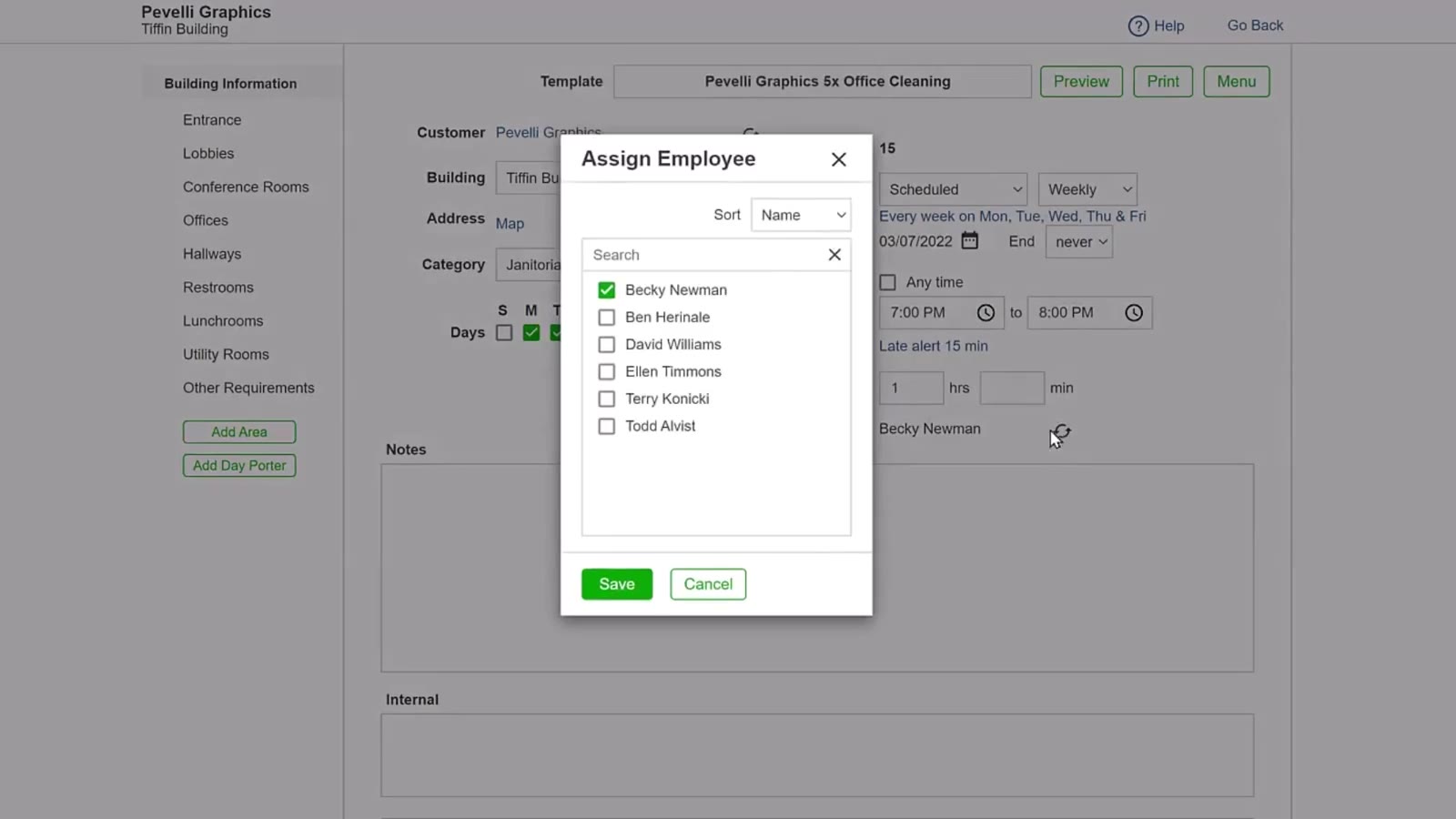
The Assign Employee box lists your staff with a checkbox each, so a job can be shared.
Save the template
Click Save on the ticket template itself. That is what generates the recurring tickets.
CleanGuru builds the tickets 90 days ahead, then keeps topping them up as the days pass, so there are always 90 days on the schedule — until the template reaches its end date, if you gave it one.
Schedule a One-Time Ticket
Start the ticket
In Schedules, click New and choose Ticket.
Fill in the details
Choose the customer and the building, and give the ticket a clear name such as Conference Rm CleanUp. Use the Category dropdown to classify it — Request or Complaints, for example.
Set the date
Pick the calendar day. Leave Any time ticked if the hour does not matter, or untick it and set a time window.
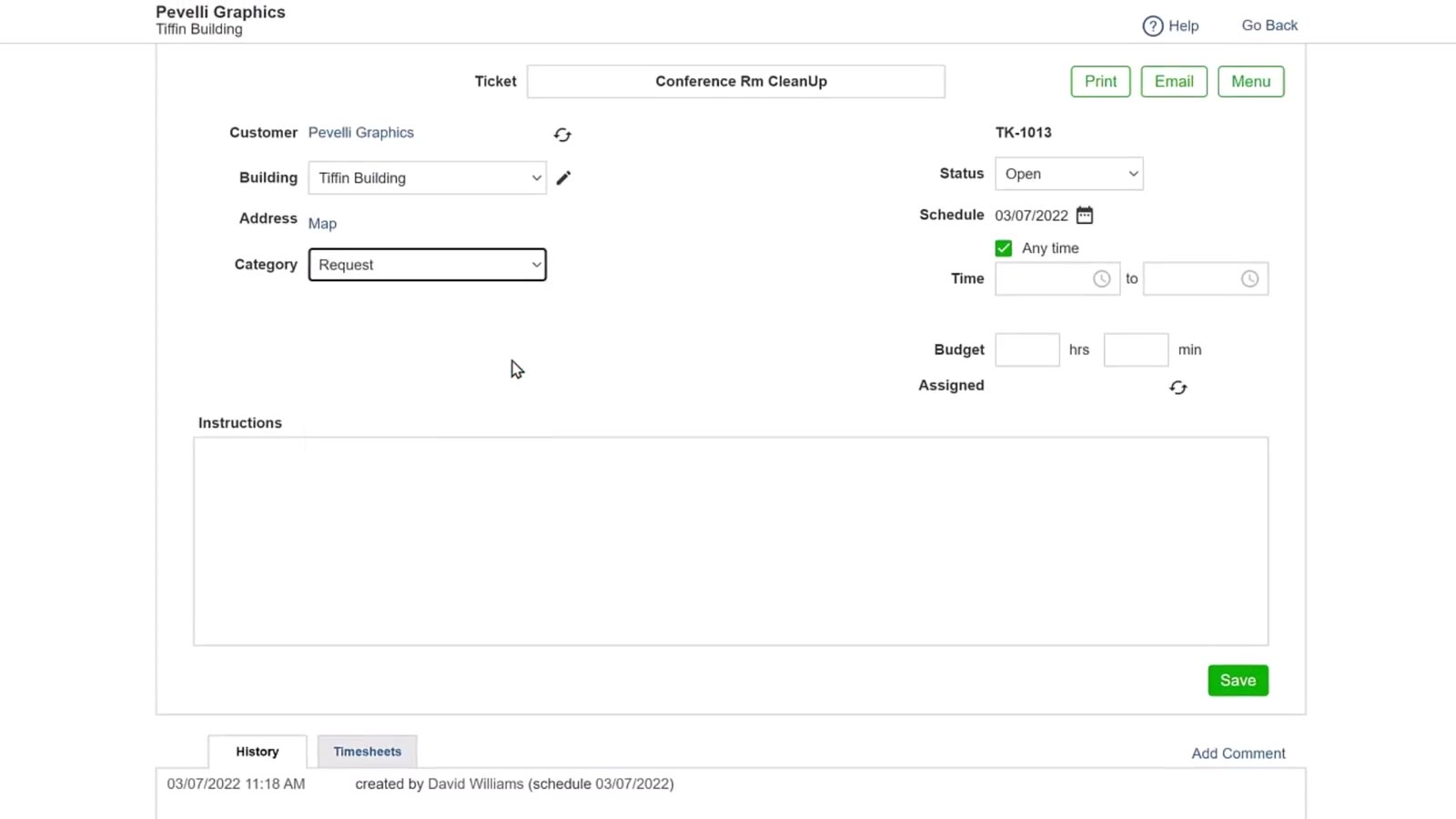
A one-time ticket carries its own category, date, instructions and Save button.
Pick the cleaner
Click the icon beside Assigned and choose who is doing it.
Add the instructions and save
Type anything the cleaner needs to know in the Instructions box, then click Save. With a cleaner on it, the ticket appears on their row for that day. Without one, it waits in the panel on the right of the schedule until you place it.
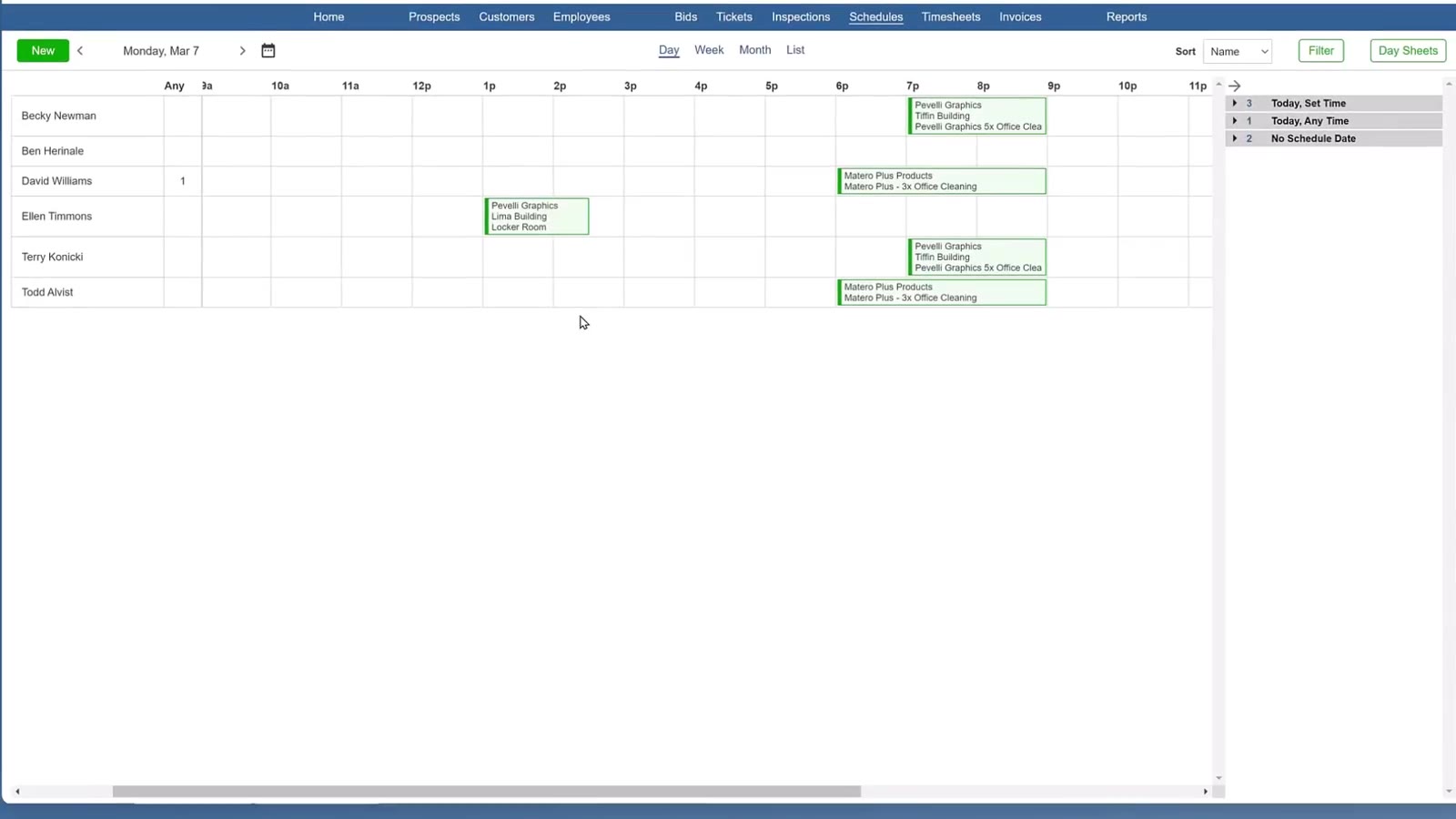
The day view shows each cleaner’s row, with the work blocks assigned to them.
Work the Schedule
Hand out the waiting work
The panel on the right of Schedules holds every ticket that has no cleaner on it yet, grouped into Today, Set Time, Today, Any Time and No Schedule Date. Drag one onto an employee’s row and it moves onto the grid.
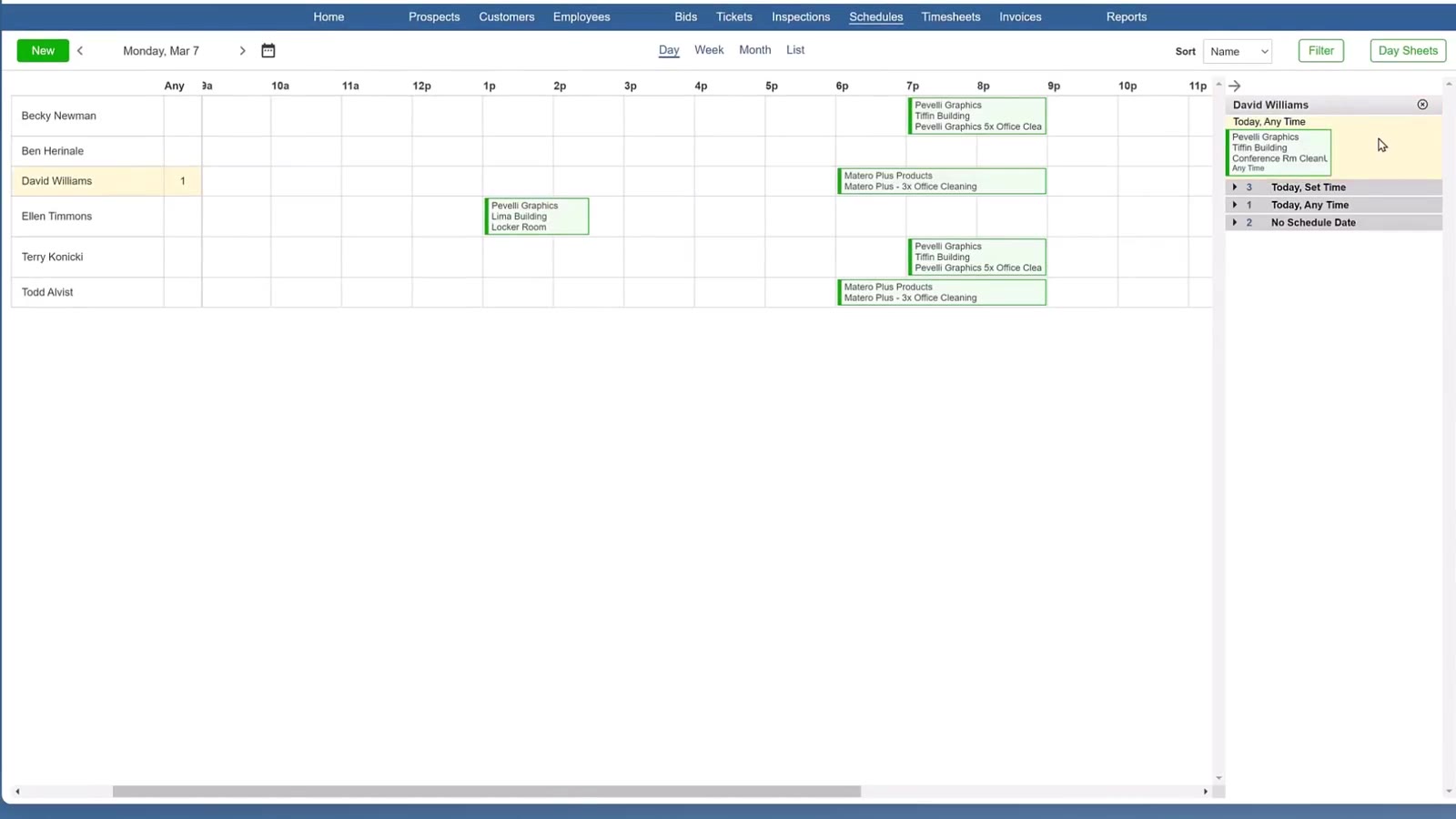
The sidebar groups unplaced work by whether it has a set time, any time, or no date at all.
Narrow what you see
Click Filter at the top right to choose who and what appears — Location-Based, Staff/Support and Office-Based each with All or None, and Tickets and Inspections on the right. Click Apply.
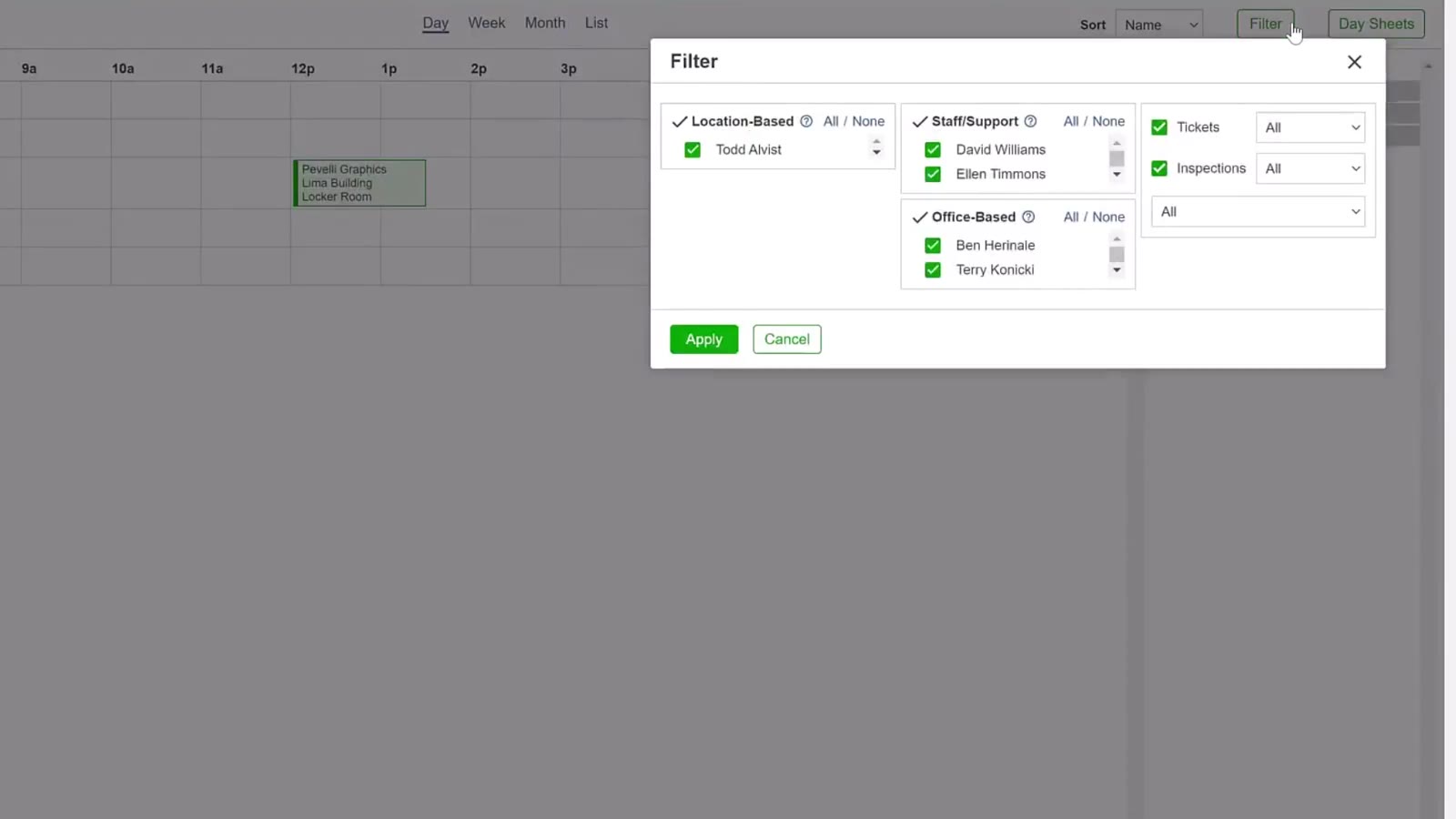
The Filter box switches employee types and work categories on and off.
On the Mobile App
Once a ticket is on the schedule and assigned, the cleaner picks it up in the CleanGuru mobile app. They can see the instructions, the address and the areas that came across from the bid, and they tap Check In on arrival and Check Out when they finish.
Those check-ins are what fill in Timesheets. Payroll reports are built from the time actually spent on site.
FAQ
Can I assign more than one cleaner to a recurring ticket?
Yes. Click the icon beside Assigned on the template and tick everyone who shares the job.
What if I do not pick a bid when I create the template?
Then pick Manual instead and type the directions you want straight onto the ticket template.
Can I see more than one day at a time?
Yes. Day, Week, Month and List sit just below the top menu on the Schedules page.
Why is a ticket sitting in No Schedule Date?
It has been created without a calendar date. Drag it onto a day to schedule it.