
Change Inspection Settings
The Inspections settings page sets up how inspections work across your whole account — the building types and what gets checked in each area, the rating scales your inspectors score with, the defaults new customers start on, and the emails that go out. This shows you what sits on each tab.
Open Inspection Settings
Open Settings
Click the gear icon at the top right of CleanGuru and choose Settings.
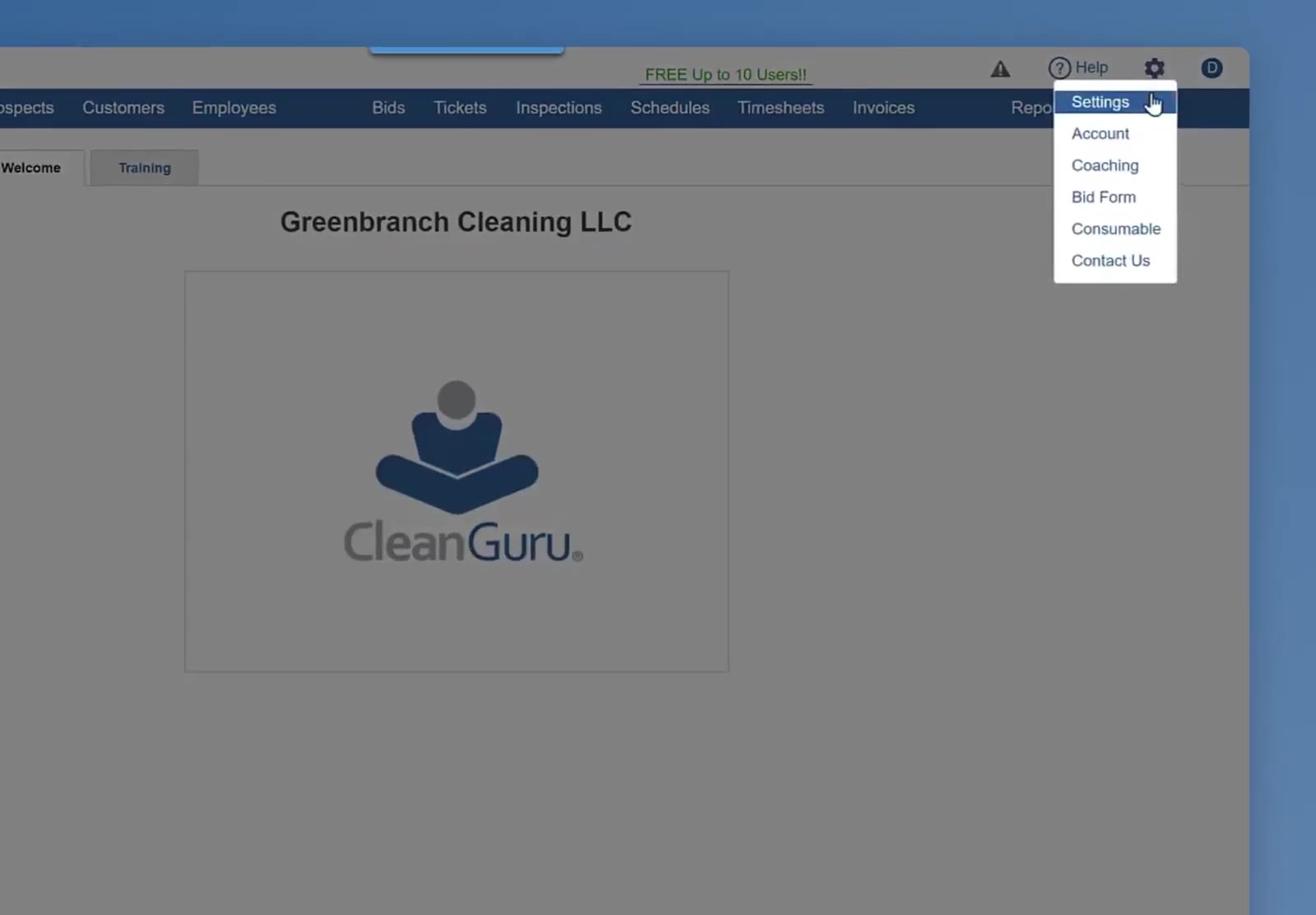
The gear icon at the top right opens a short menu with Settings at the top.
Click Inspections
The Settings panel lists Company, Time Zone, Bids, Invoices, Tickets, Inspections, Schedules, Timesheets and Supervisor. Click Inspections. The page that opens has six tabs: Setup, Ratings, Areas, Items, Other and Emails.
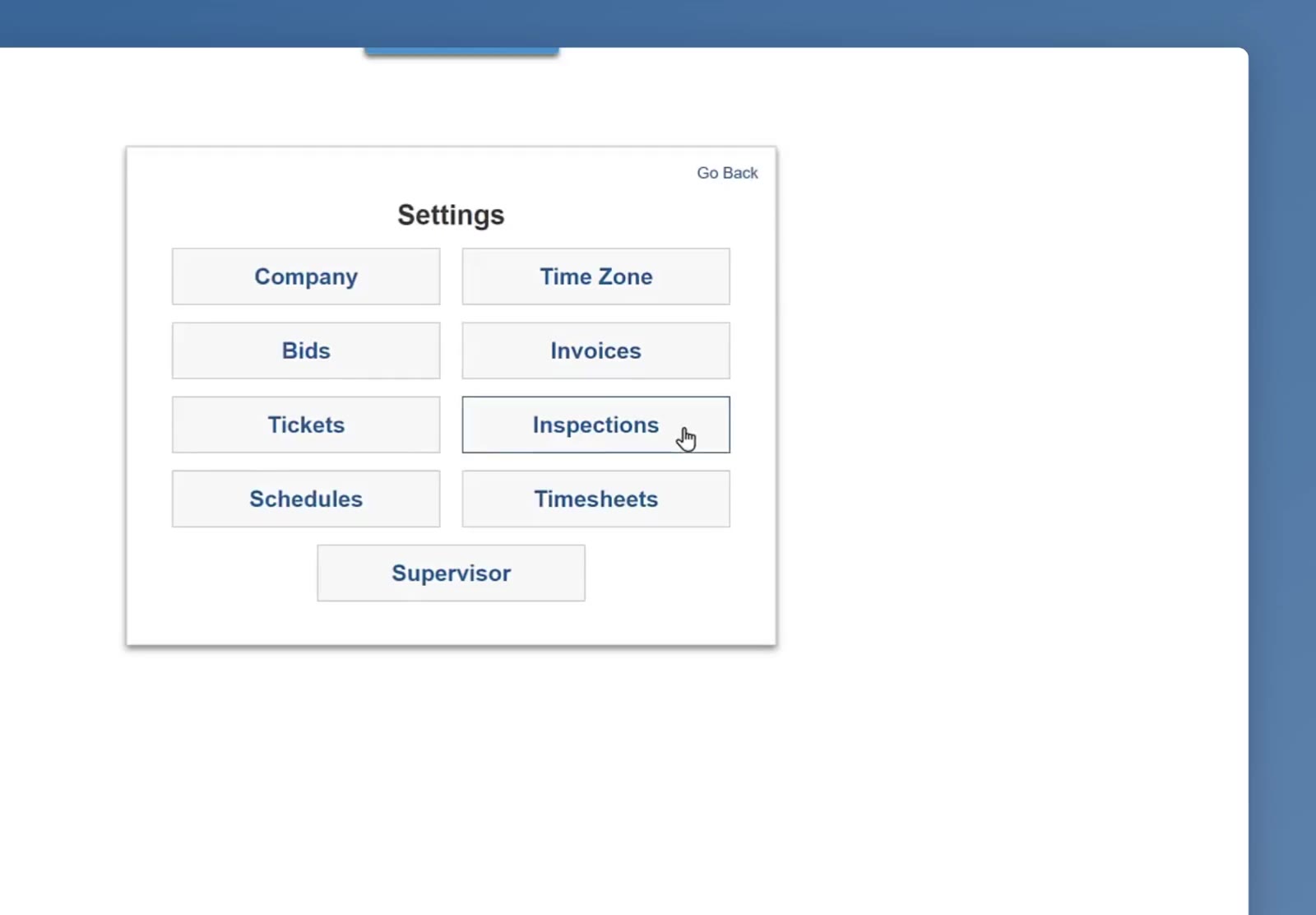
Inspections is one of the buttons on the Settings panel.
Setup and Ratings
Pick a building type
On the Setup tab, choose a building type from the dropdown. Its areas appear down the left — Hallways, Lobbies, Laundry Room, Restrooms and so on.
Check the items in each area
Click an area to see what gets checked there. Each item has a Rating and a Weight. Add Item adds another one. Click Save when you are done.
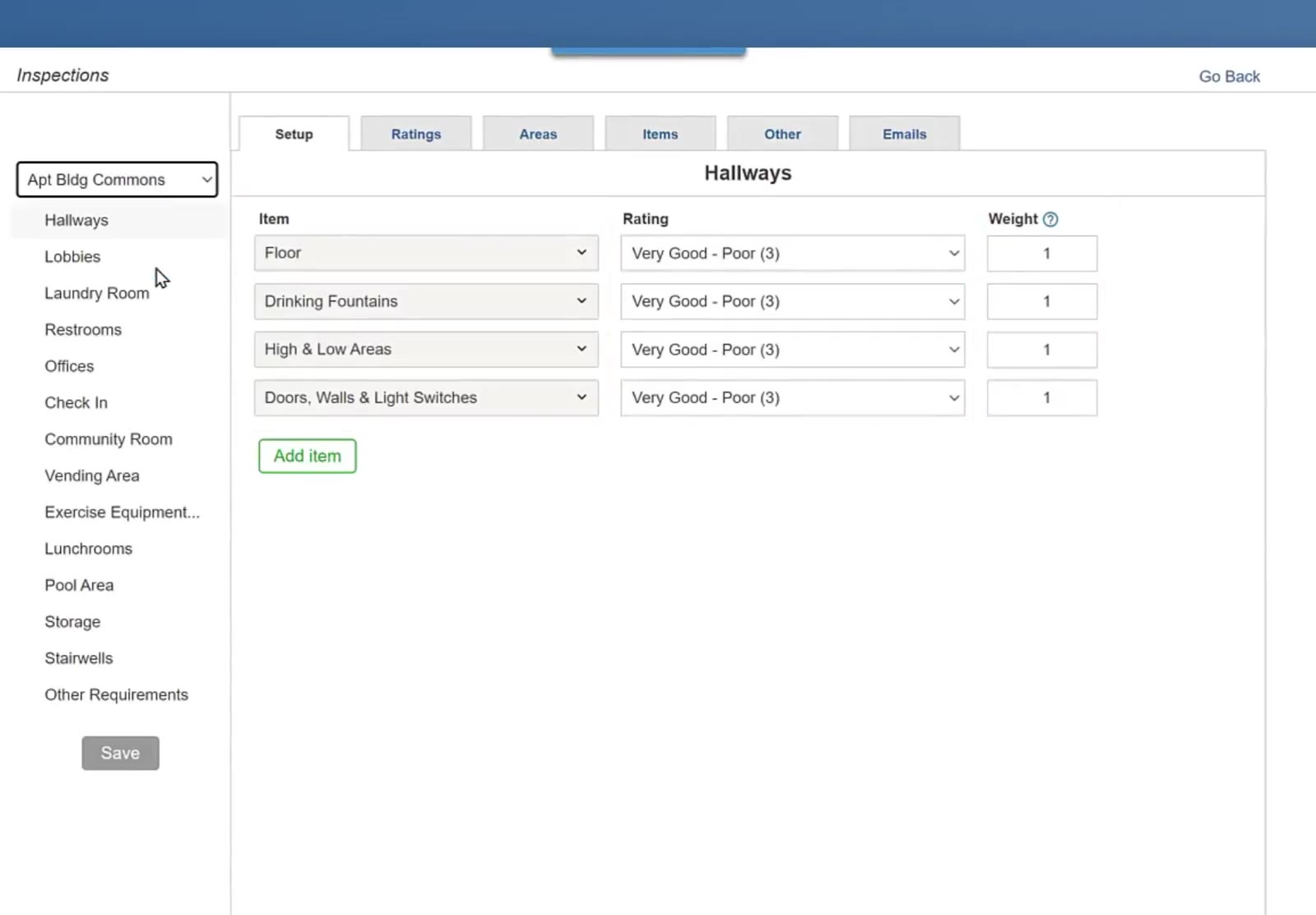
The Setup tab: the building type at the top left, its areas down the side, and each area's items with a Rating and a Weight.
Look at the rating scales
The Ratings tab lists the scales CleanGuru comes with: Grade, Pass/Fail, Sat/Unsat, Very Good - Poor (3), Very Good - Poor (5) and Yes/No. The Default dropdown at the bottom sets which one is used.
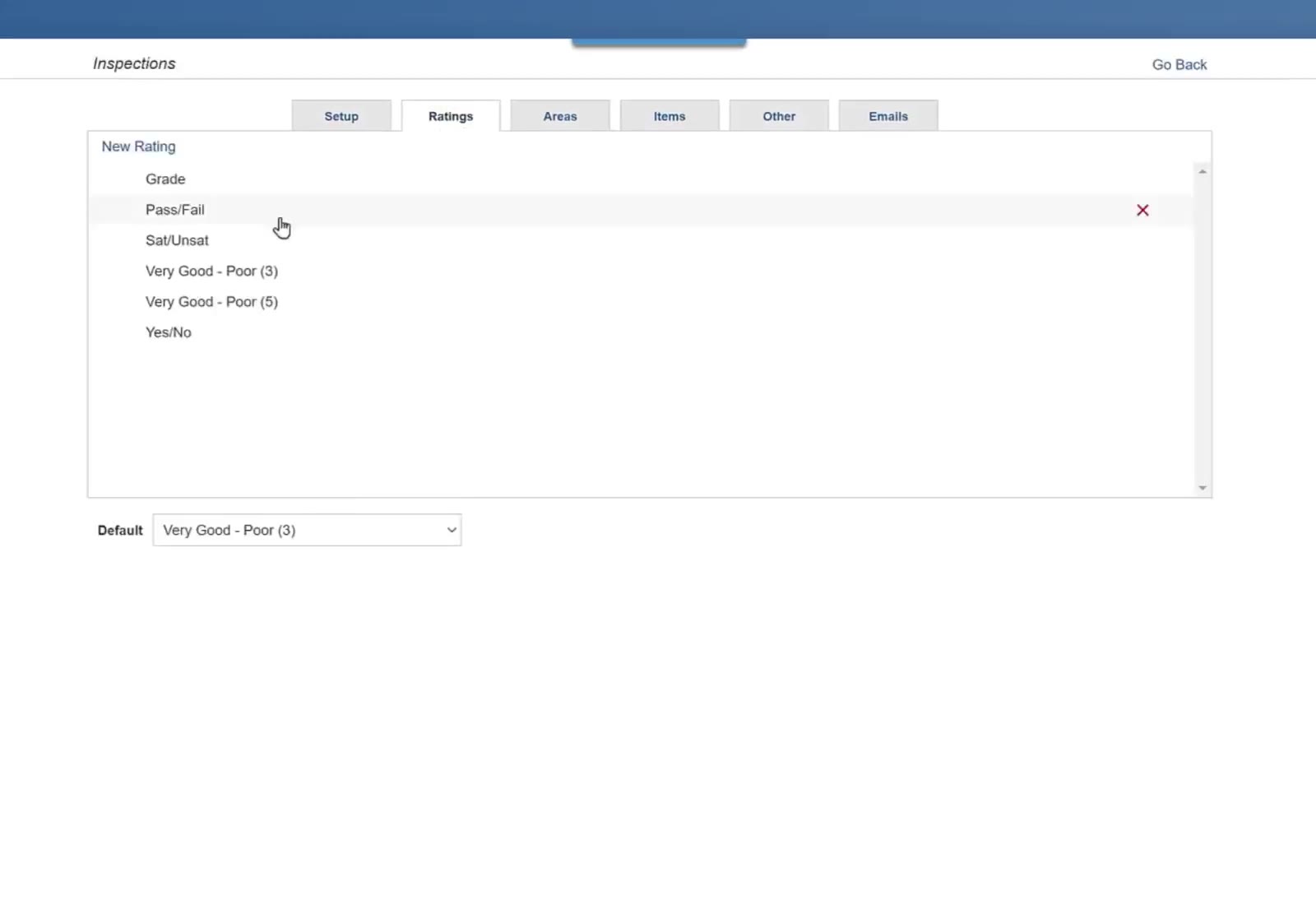
The Ratings tab lists the scales, with a Default dropdown underneath.
Edit a rating scale
Opening a scale shows its Levels. Each level has a name, a percentage, a color, a Deficient tick — the level that counts as a problem — and a Default tick. Add level adds another. Click Save.
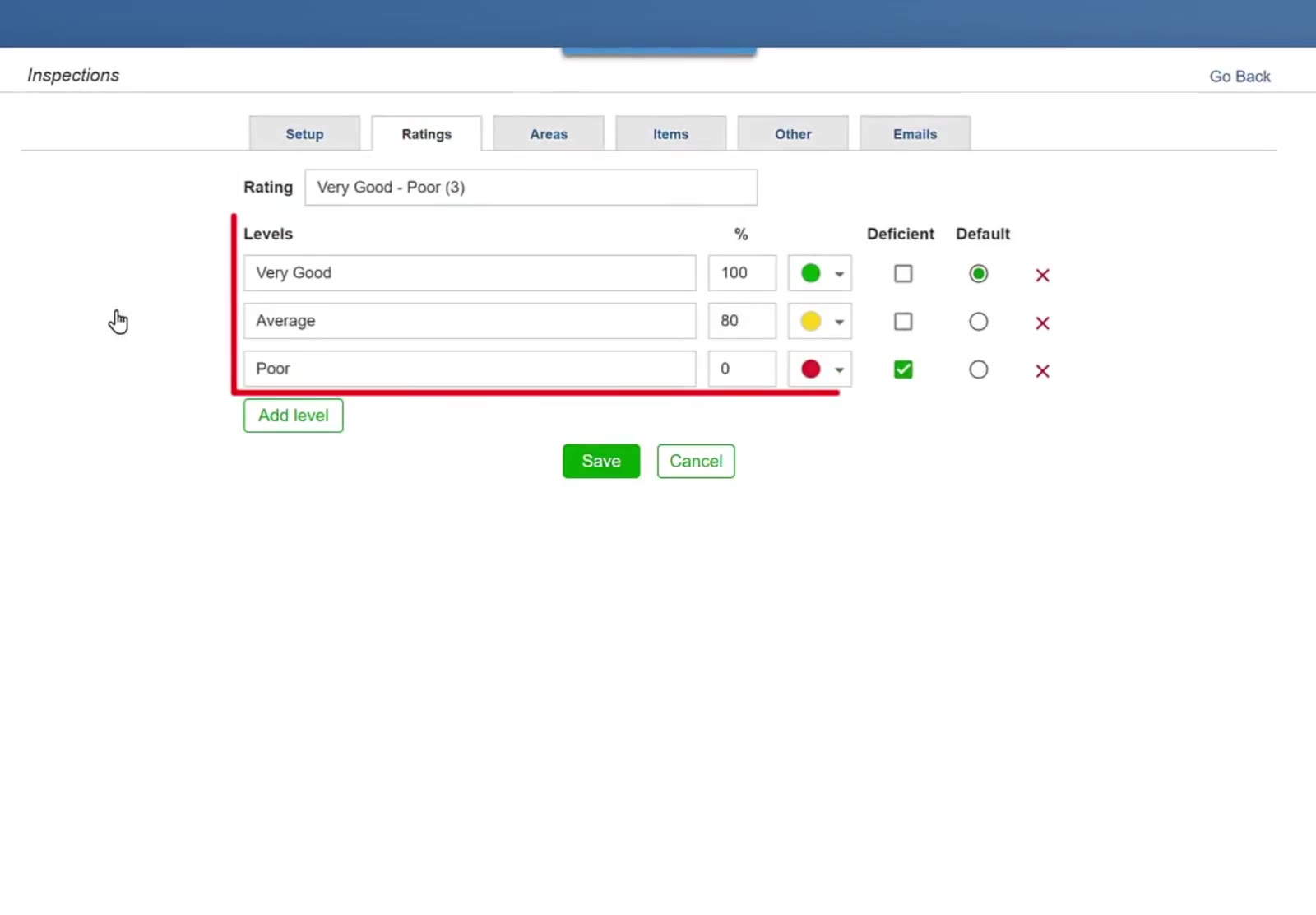
A scale's levels each carry a percentage, a colour and the Deficient and Default ticks.
Custom Areas and Items
Add an area of your own
If you inspect a space the building types do not cover, go to the Areas tab and click New Area. Type a name in the Create Area box and click Add.
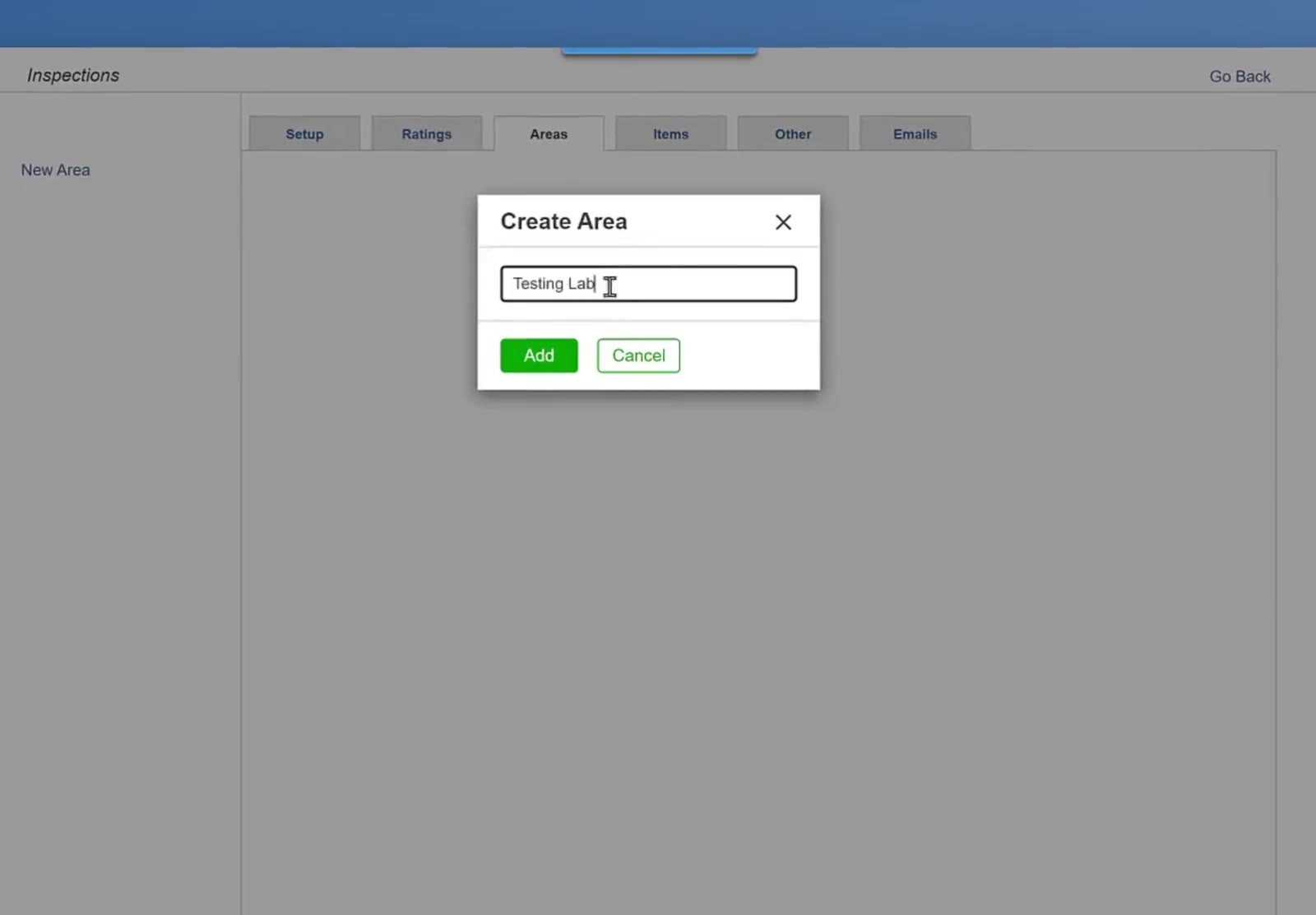
The Create Area box takes a name and an Add button.
Add an item of your own
The Items tab works the same way — click New Item to add one.
New Item sits at the top left of the Items tab.
Defaults and Emails
Set the score goal for new customers
The Other tab is headed Add Customer: — what you set here is what a customer starts on when you add them. Enter the Score Goal percentage.
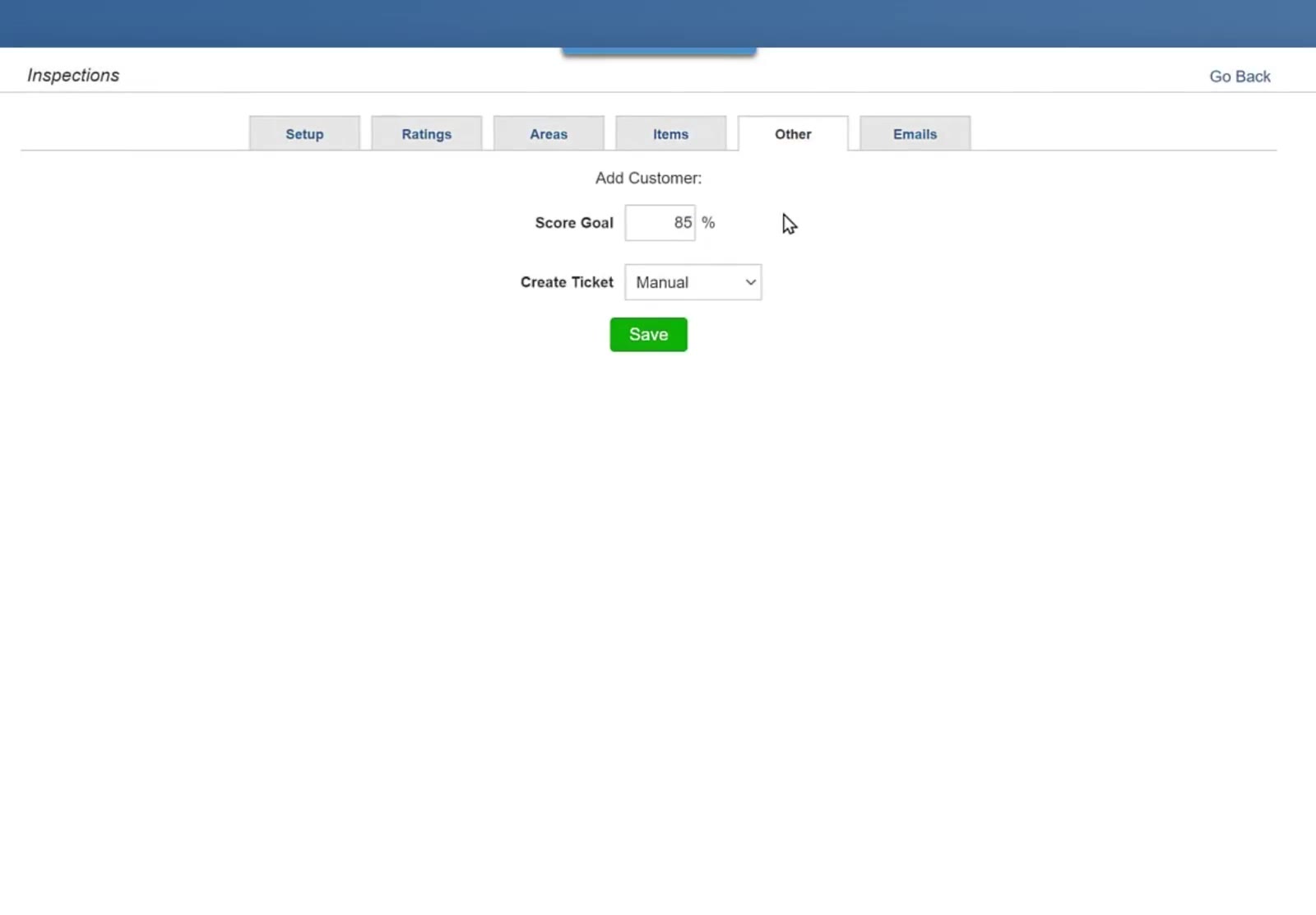
The Other tab sets the Score Goal a newly added customer starts on.
Choose how tickets get created
Open the Create Ticket dropdown and pick Manual or Auto. A ticket only comes from an item an inspector marks deficient: Auto has CleanGuru create it, Manual leaves it to you. Click Save.
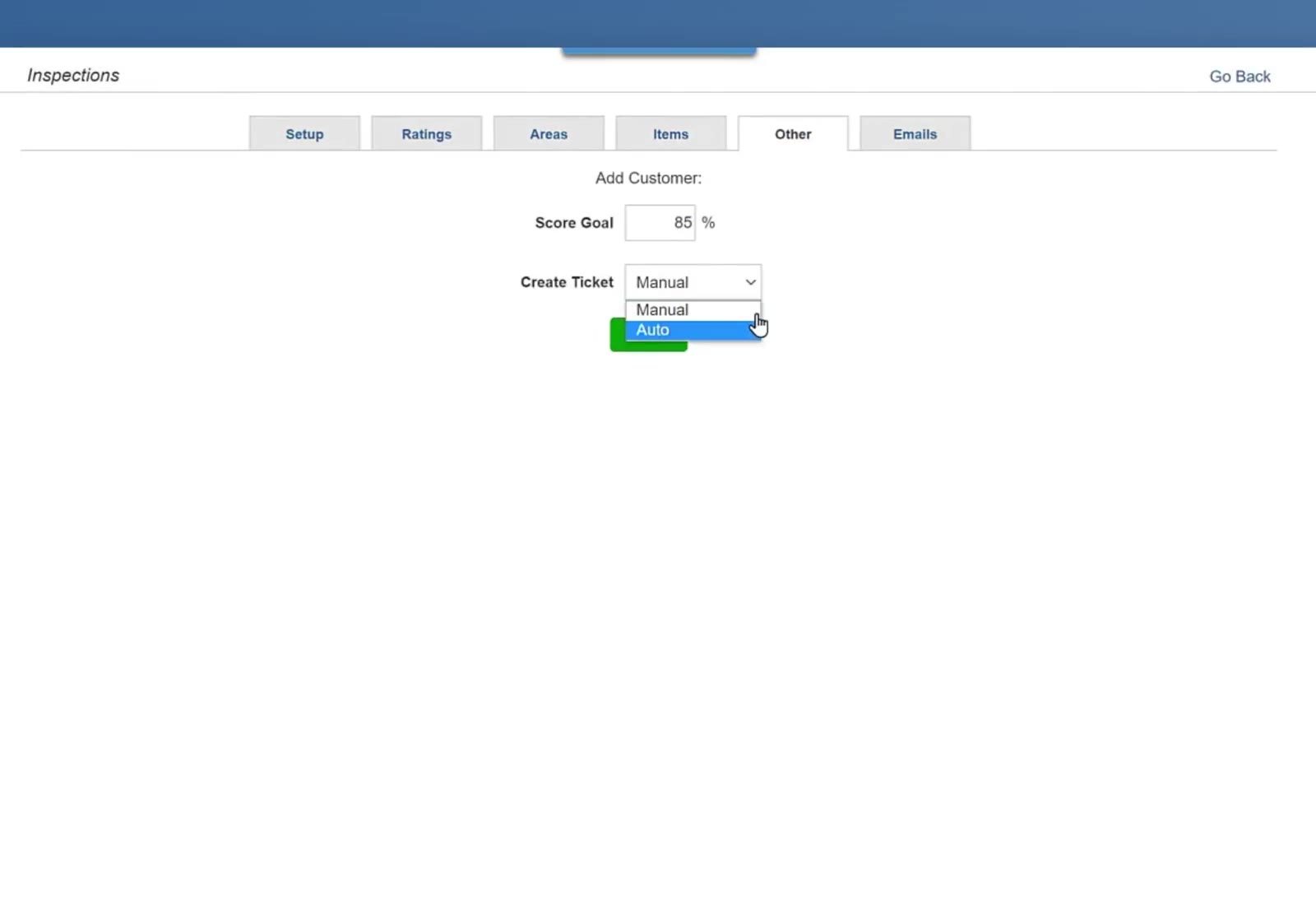
The Create Ticket dropdown offers Manual and Auto.
Edit the inspection email
The Emails tab has two sub-tabs. On Inspection, leave Standard selected to use CleanGuru's wording, or pick Use Instead and write your own subject and message. The message fills in {First Name}, {Building Name} and {Building Address} for you. Click Save.
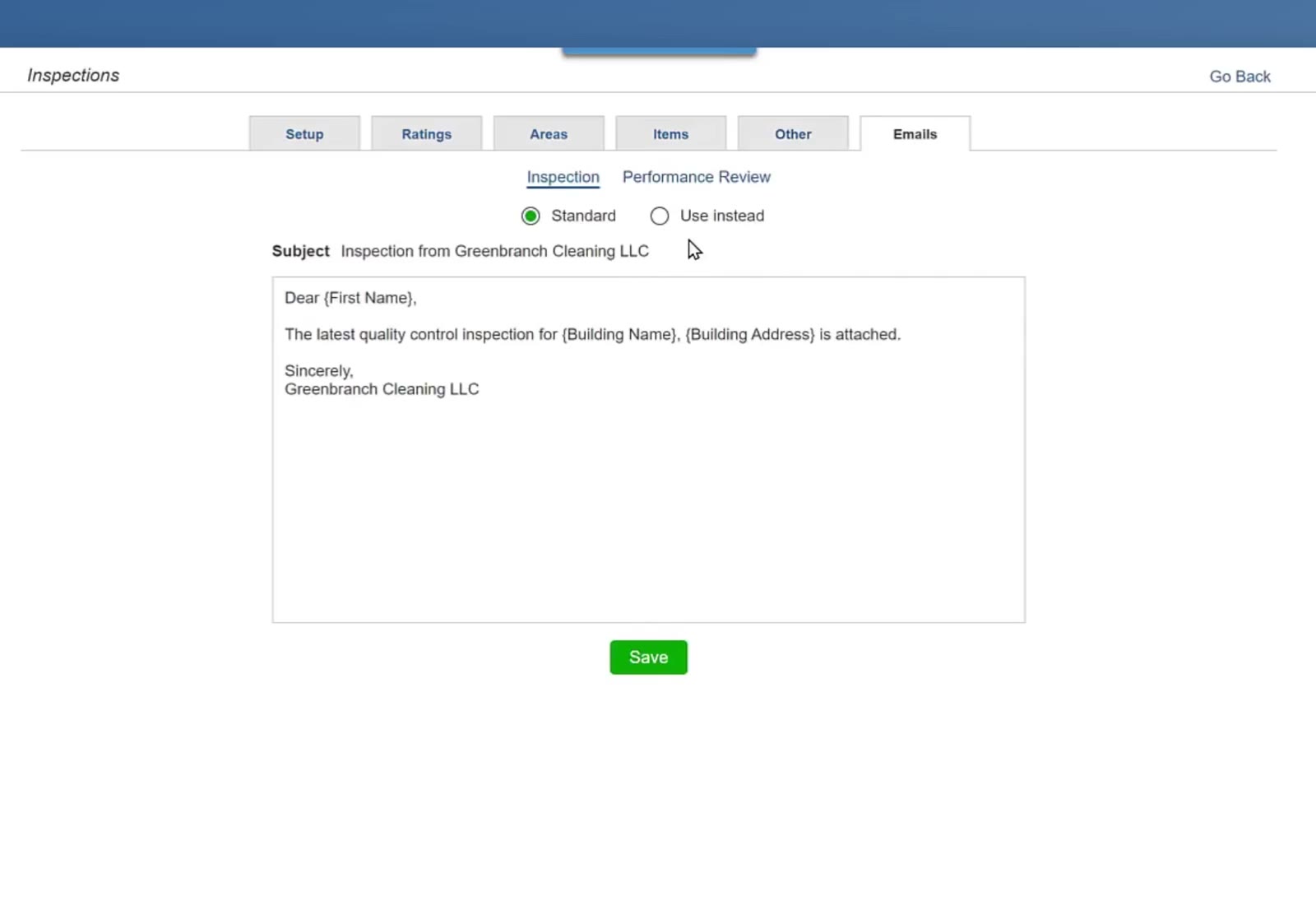
The Inspection email has a Standard or Use Instead choice above the subject and message.
Edit the performance review email
The Performance Review sub-tab holds a second message, sent with performance reviews rather than single inspections. Edit it the same way and click Save.
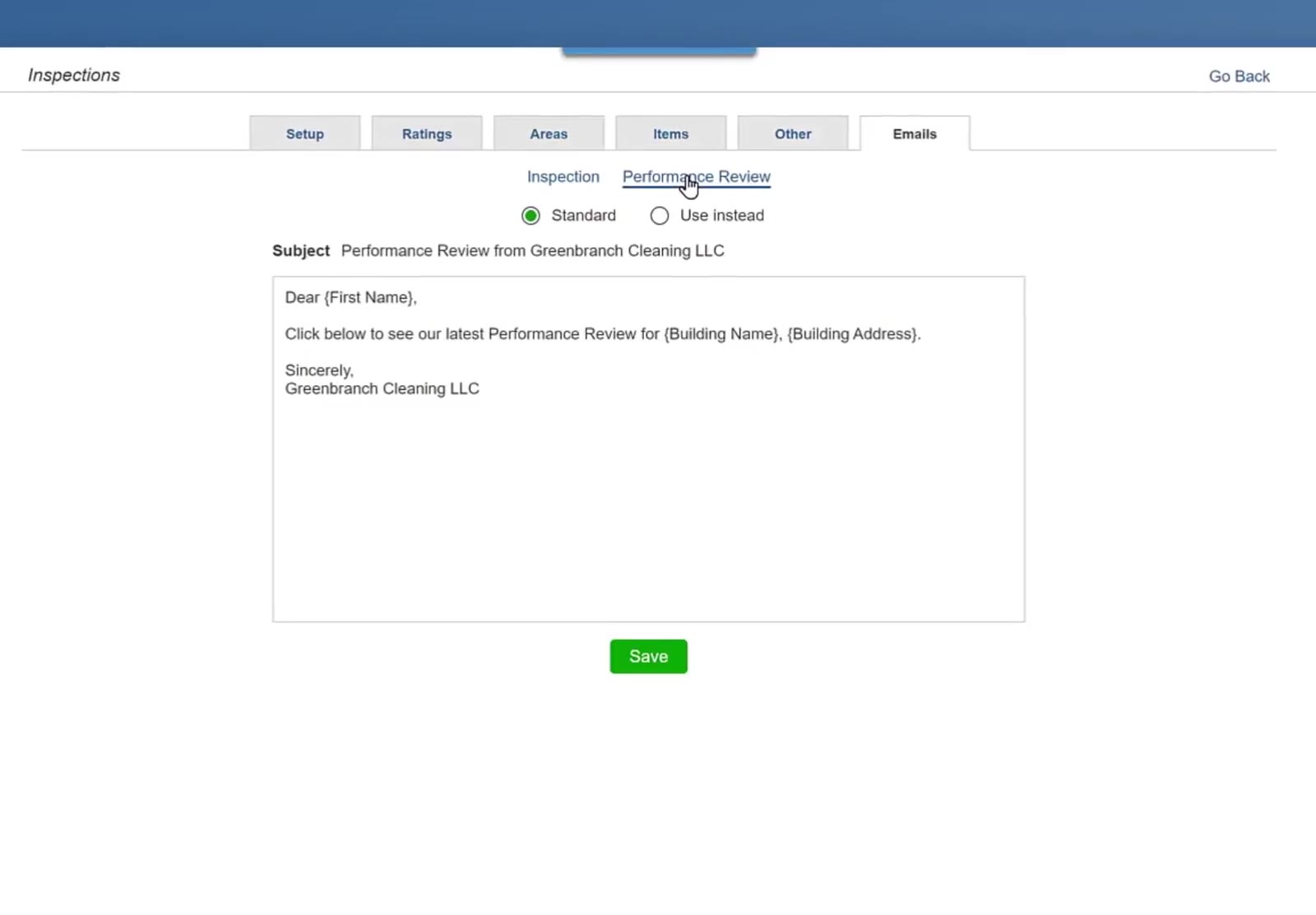
The Performance Review sub-tab holds its own subject and message.
FAQ
What rating scales does CleanGuru come with?
Grade, Pass/Fail, Sat/Unsat, Very Good - Poor (3), Very Good - Poor (5) and Yes/No.
What does the Deficient tick on a rating level do?
It marks which level counts as a deficiency. On the Very Good - Poor (3) scale, Poor is the level that is ticked. Only items rated at a deficient level can produce a ticket.
What does the Weight on an item do?
It decides how much that item counts towards the inspection score. An item at a weight of 5 counts five times as much as one at a weight of 1, so put the higher weights on the things that matter most.
Do the settings on the Other tab change customers I already have?
No, that tab is headed Add Customer:, so it sets what a customer starts on when you add them. Each customer's own record has its own Score Goal and Create Ticket that you can change on the customer.
Can I use my own wording in the emails?
Yes. Each email has a Standard and a Use Instead choice — pick Use Instead and write your own subject and message.