
Add Bid Attachment
Adding a bid attachment in CleanGuru lets you include your own documents, such as a certificate of insurance, as a named section of the proposal for a bidding module.
Access Bidding Settings
Navigate to the specific bidding module settings to add attachments for your bids.
Navigate to Settings
Click the Gear icon and select Settings.
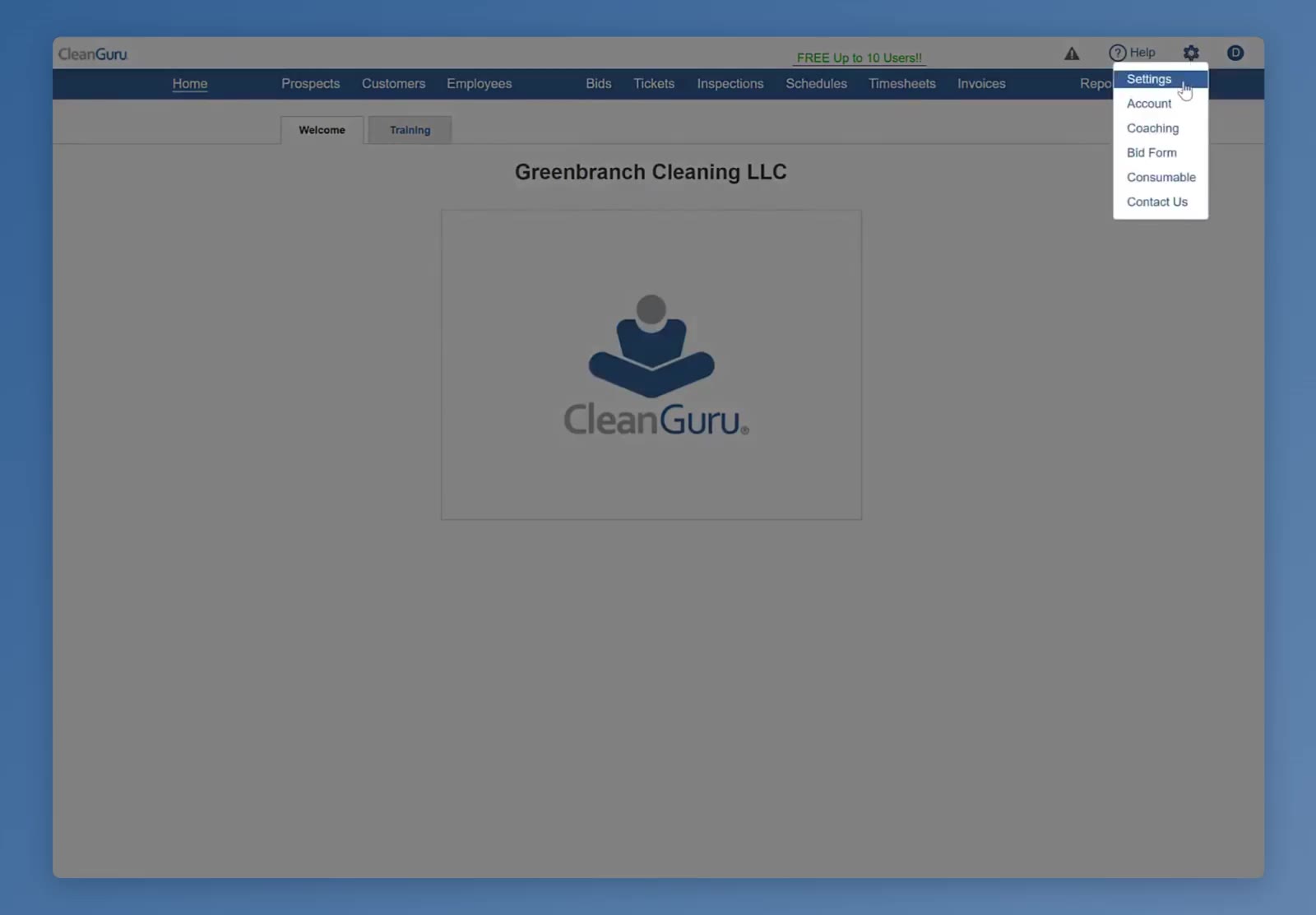
The Settings option is found under the Gear icon menu.
Open Bids Settings
Click the Bids button to view your bidding modules.
Select Module
Select the bidding module you wish to modify, such as Janitorial.
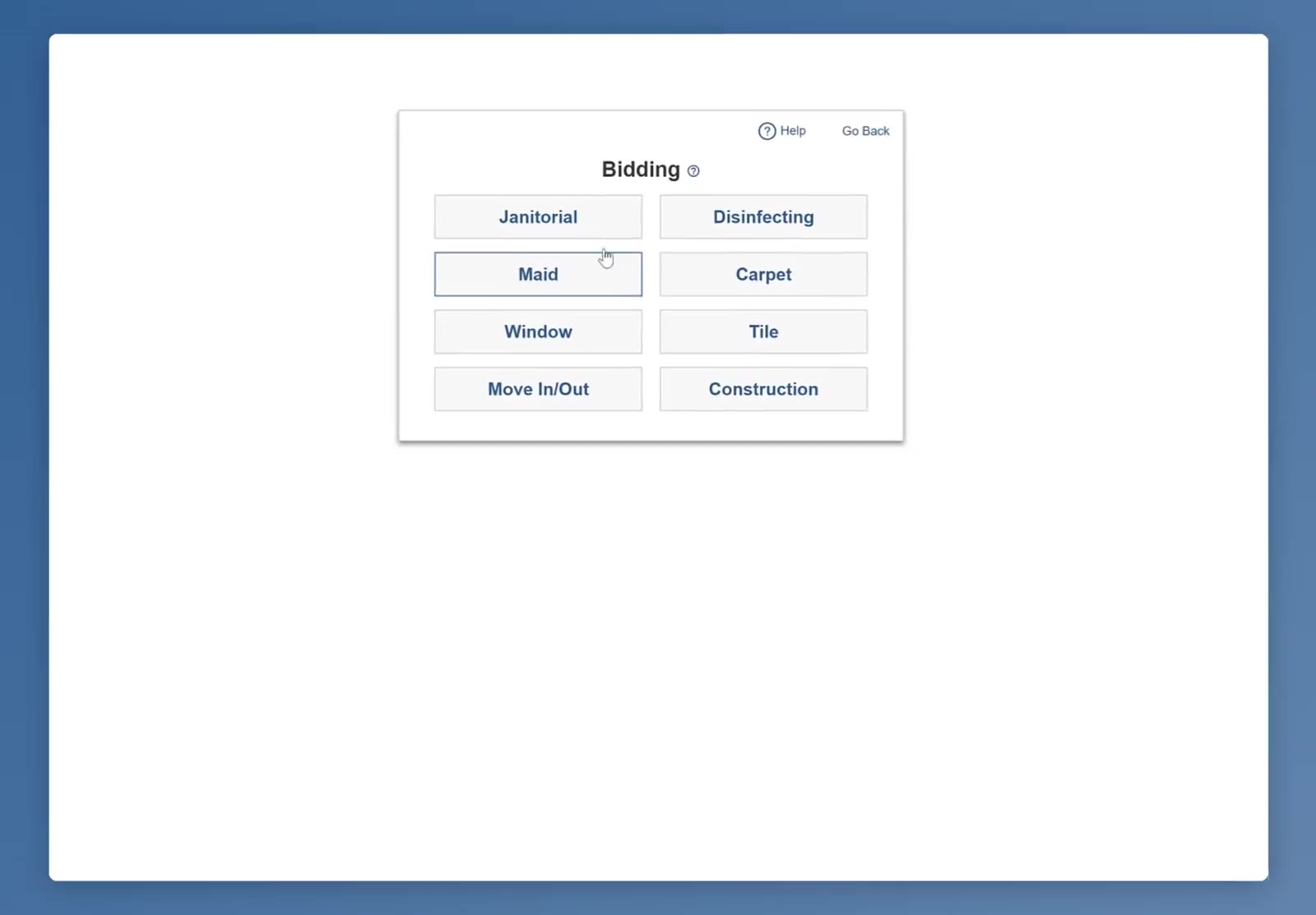
Choose the bidding module you want to update.
Upload Custom Attachments
Locate the Add Attachment Option
Click the Add Attachment link at the bottom of the sidebar menu.
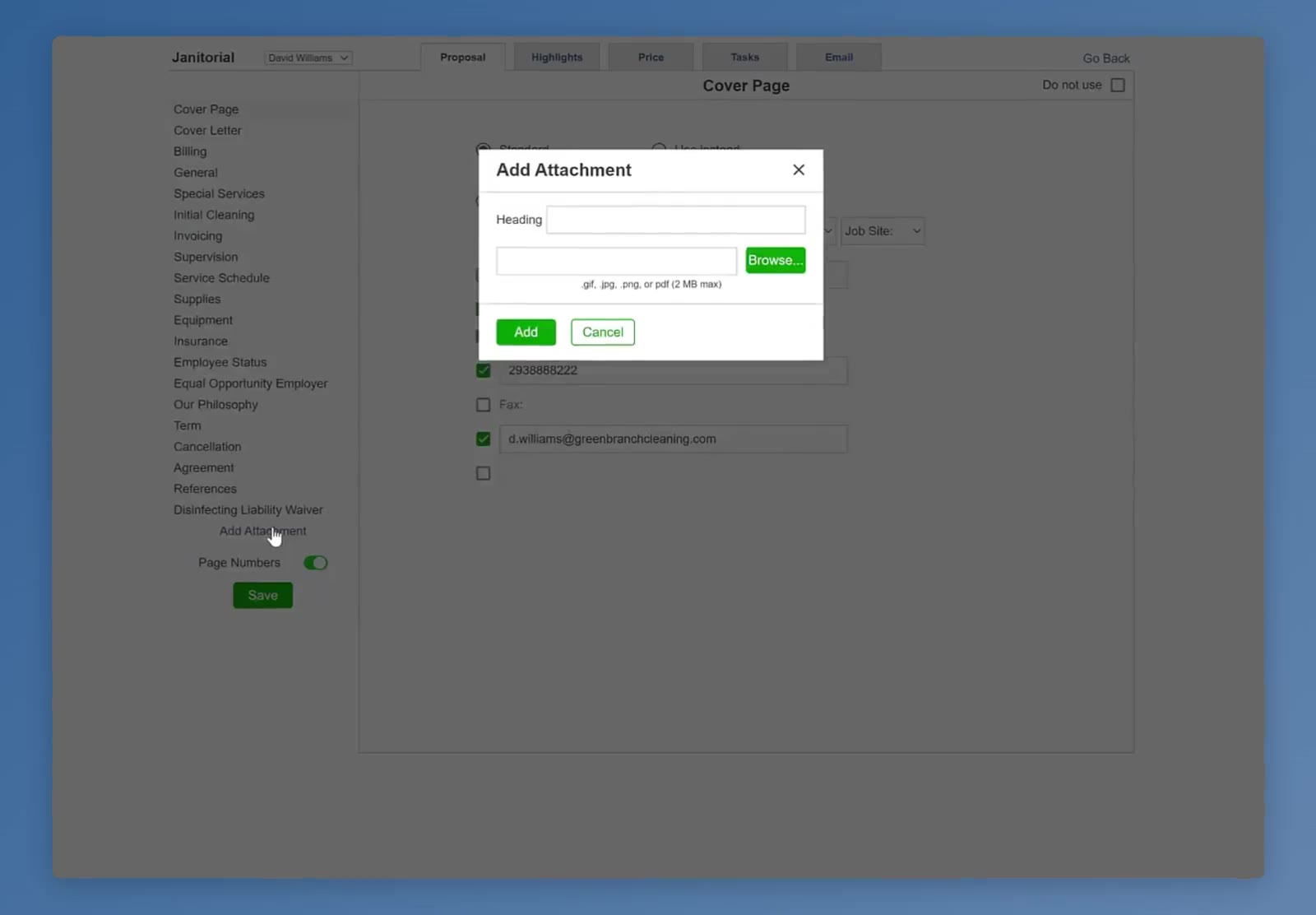
The Add Attachment link is located at the bottom of the left sidebar.
Name the Attachment
Enter a name for the document in the Heading field, such as Certificate of Insurance. This text is printed at the top of the attachment page in the finished proposal.
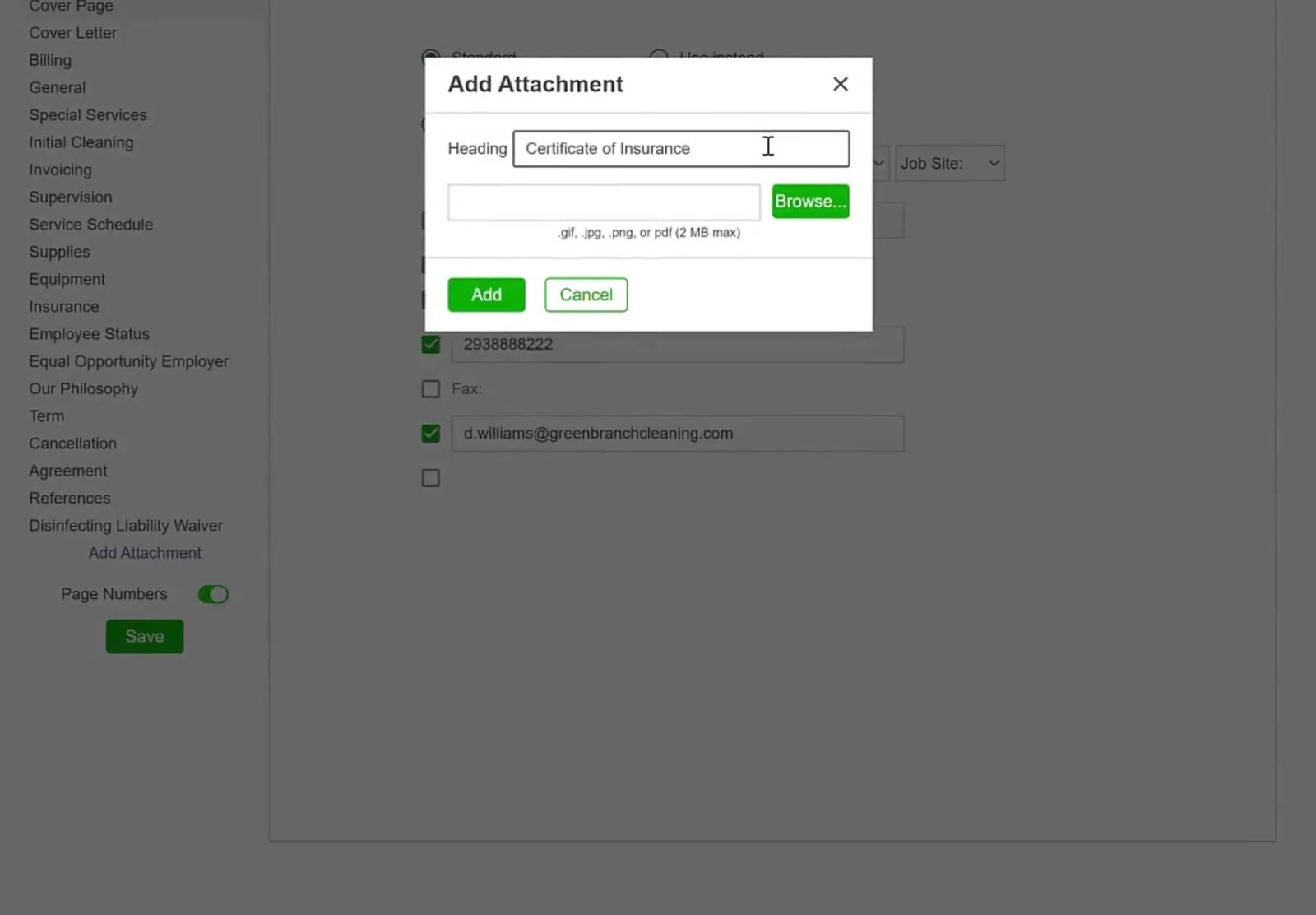
The Heading field is used to label the specific attachment.
Browse for File
Click the Browse... button, select your file, and click Open.
Finalize the Upload
Click the Add button to confirm the file selection.
File Requirements: CleanGuru supports .gif, .jpg, .png, and .pdf files. Each attachment must be under 2 MB in size.
Manage and Save Attachments
Review your uploaded attachment and save your changes for future use.
Preview the Attachment
Review the document preview to ensure it appears correctly.
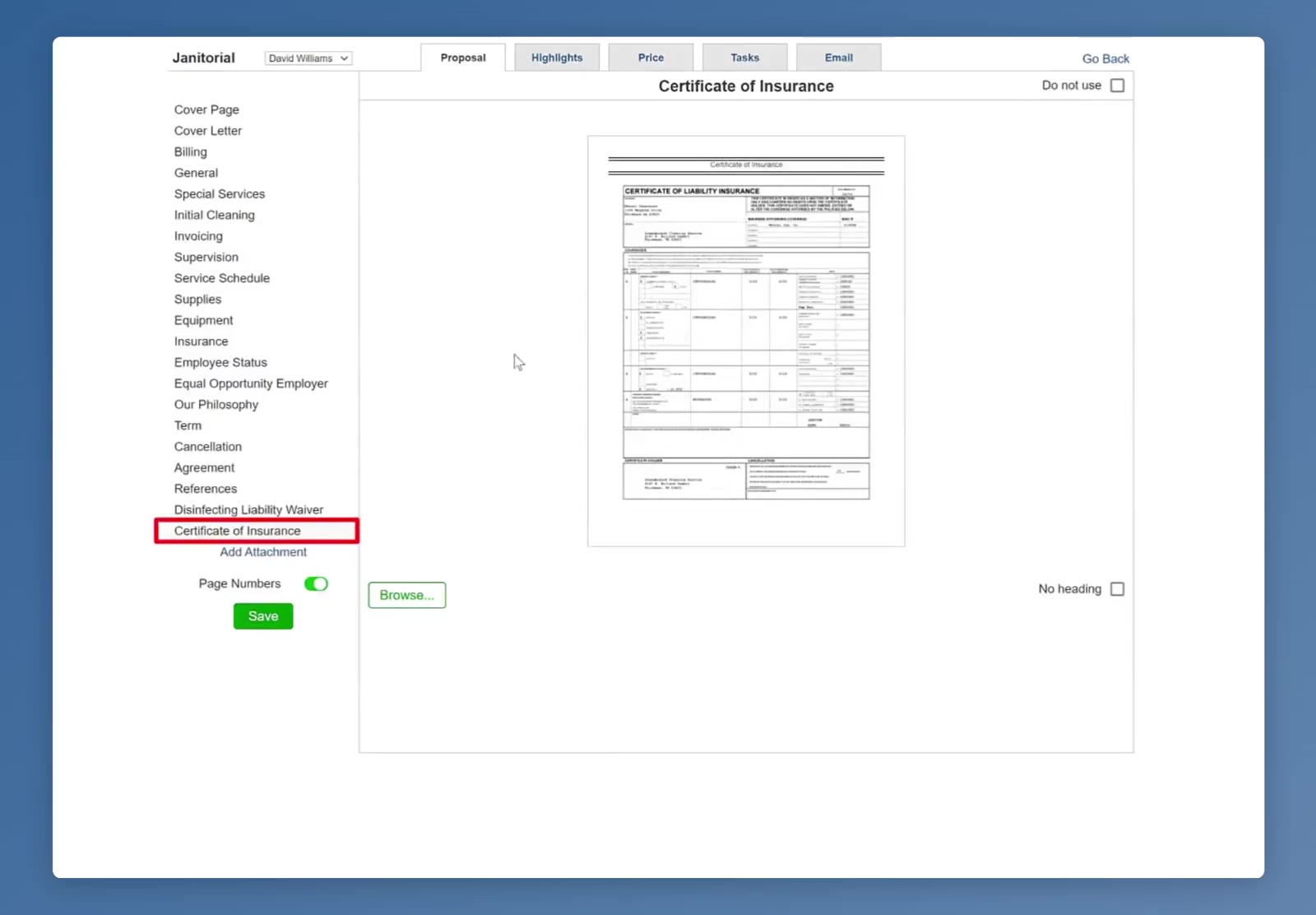
The uploaded document appears as a preview, and the attachment is now listed in the left sidebar.
Save Your Changes
Click the green Save button at the bottom of the left sidebar.
FAQ
What file types can I attach to a CleanGuru bid?
CleanGuru accepts .gif, .jpg, .png and .pdf files, up to 2 MB each. The Add Attachment window states this limit directly below the file field.
How many attachments can I add to one bidding module?
You can add up to ten attachments per bidding module.
Is a saved attachment included on every future bid in that module?
Yes. Once saved, the attachment is automatically available on every future bid in that module — there is nothing more to do. If you want to leave it out of one particular bid, open that bid, go to Options, and tick Do not use on the attachment.
Which bidding modules can have their own attachments?
You choose the module before adding the attachment, so it belongs to that module. The Bidding screen lists Janitorial, Disinfecting, Maid, Carpet, Window, Tile, Move In/Out and Construction.
Where does the attachment appear in the proposal?
In the finished proposal it is placed at the end, just before the work specifications, on its own page headed with the text you entered in the Heading field, such as Certificate of Insurance. While you are editing, it also appears as a named section in the proposal list on the left.
How do I swap in a different file for an existing attachment?
Open the attachment from the proposal list, click Browse... below the preview to choose a new file, then click Save.