
Customize Current Proposal
CleanGuru's proposal customization feature lets you tailor the language and structure of an individual bid. Rename sections, replace the standard wording with your own, and choose which sections appear in the proposal you send.
Access Proposal Options
Open the customization settings from within a specific bid to begin editing your proposal content.
Click the Proposal tab
From within an active bid, select the Proposal tab at the top of the bid screen.
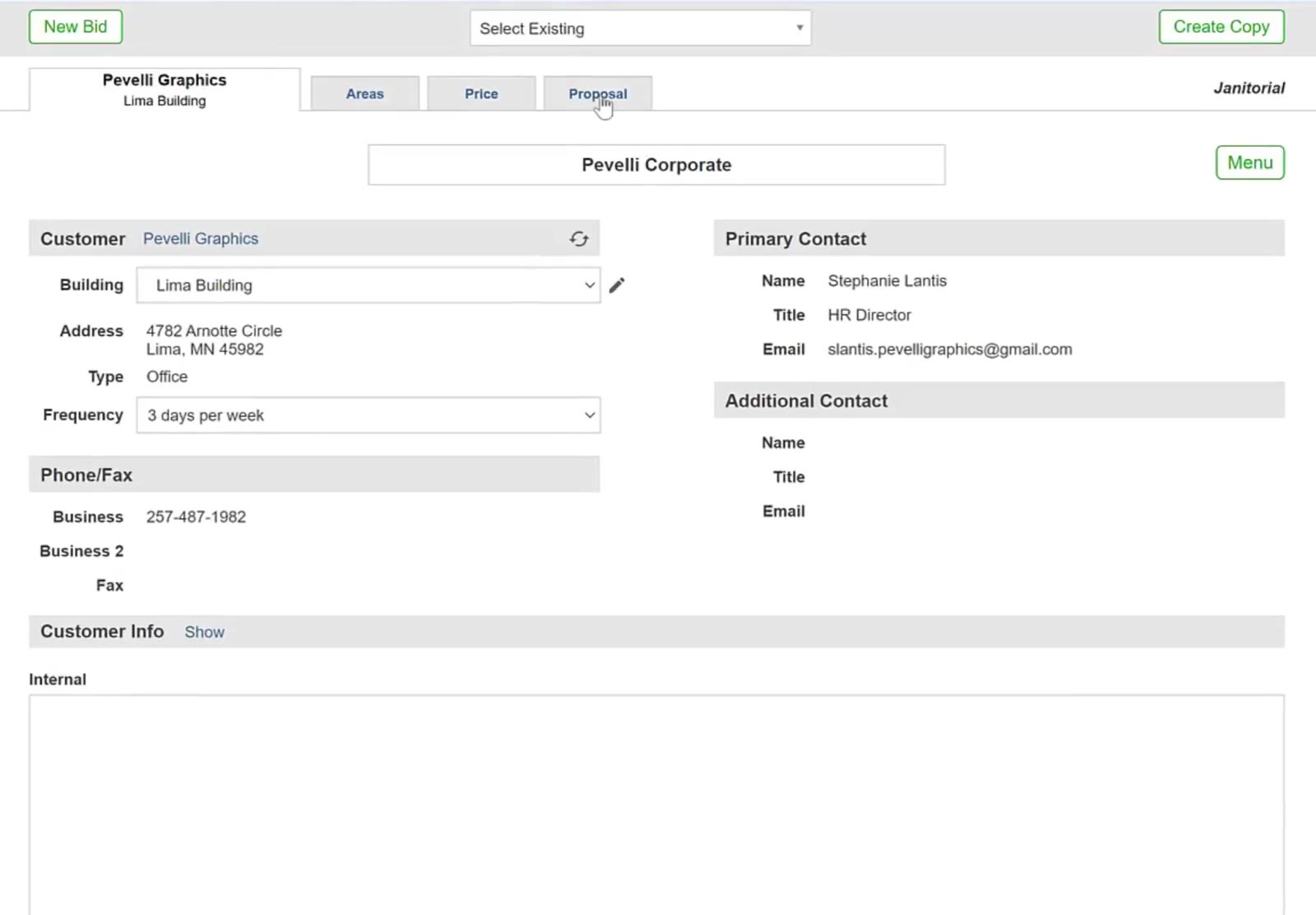
The Proposal tab sits alongside the Areas and Price tabs at the top of the bid screen.
Click the Options button
Select Options in the top-right corner of the Proposal tab to open the Customize Current Proposal interface.
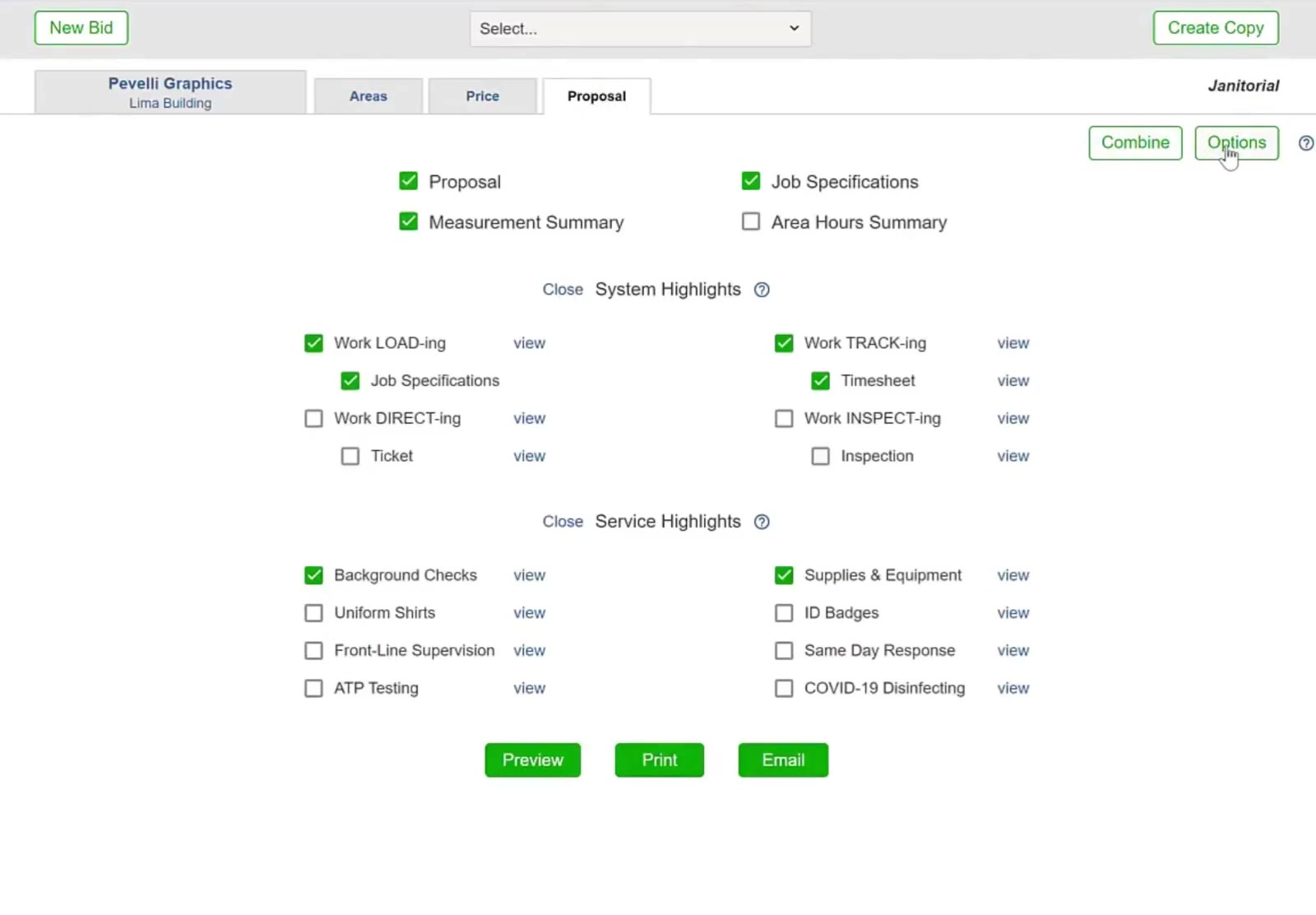
Click the Options button in the top-right corner to open the customization menu.
Customize Proposal Sections
Use the left-hand sidebar in the customization panel to reorder, rename and edit your proposal sections.
Click Edit
Hover over a section title in the sidebar and click Edit to rename it.
Enter the new name and click Save
Type the new title in the Rename Section window and click Save.
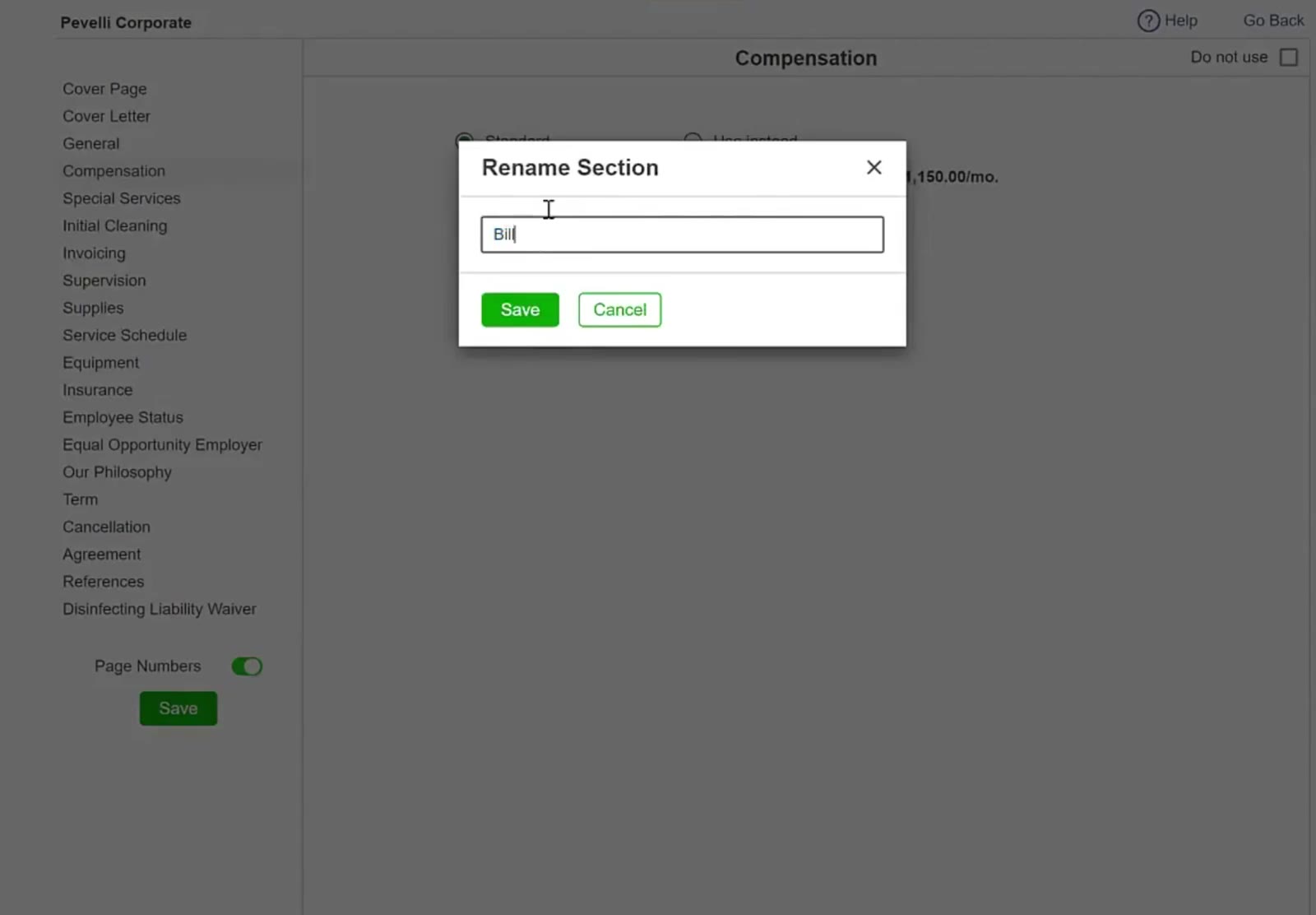
Use the Rename Section window to enter a new title for any proposal section.
Select a section to edit
Click any section name in the sidebar to view its content and available options.
Enter custom wording
Select the Use instead radio button to open the text editor and type or paste your custom language.
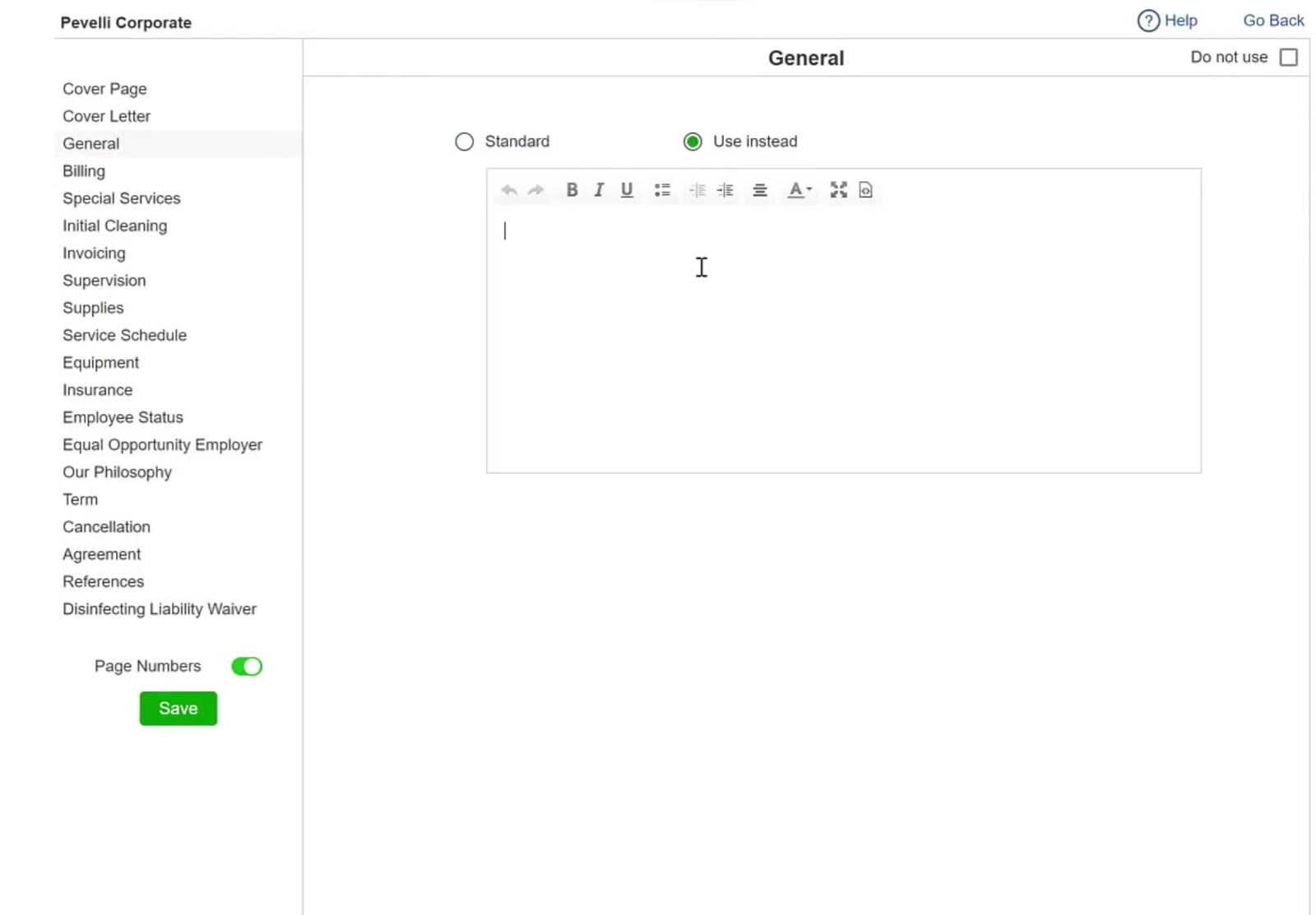
With Use instead selected, the section's text editor replaces the standard wording.
Enter a price for Initial Cleaning
Select the Initial Cleaning section in the sidebar. Leave the Do not use checkbox unchecked if you want this section included in your bid, then enter the price in the dollar field.
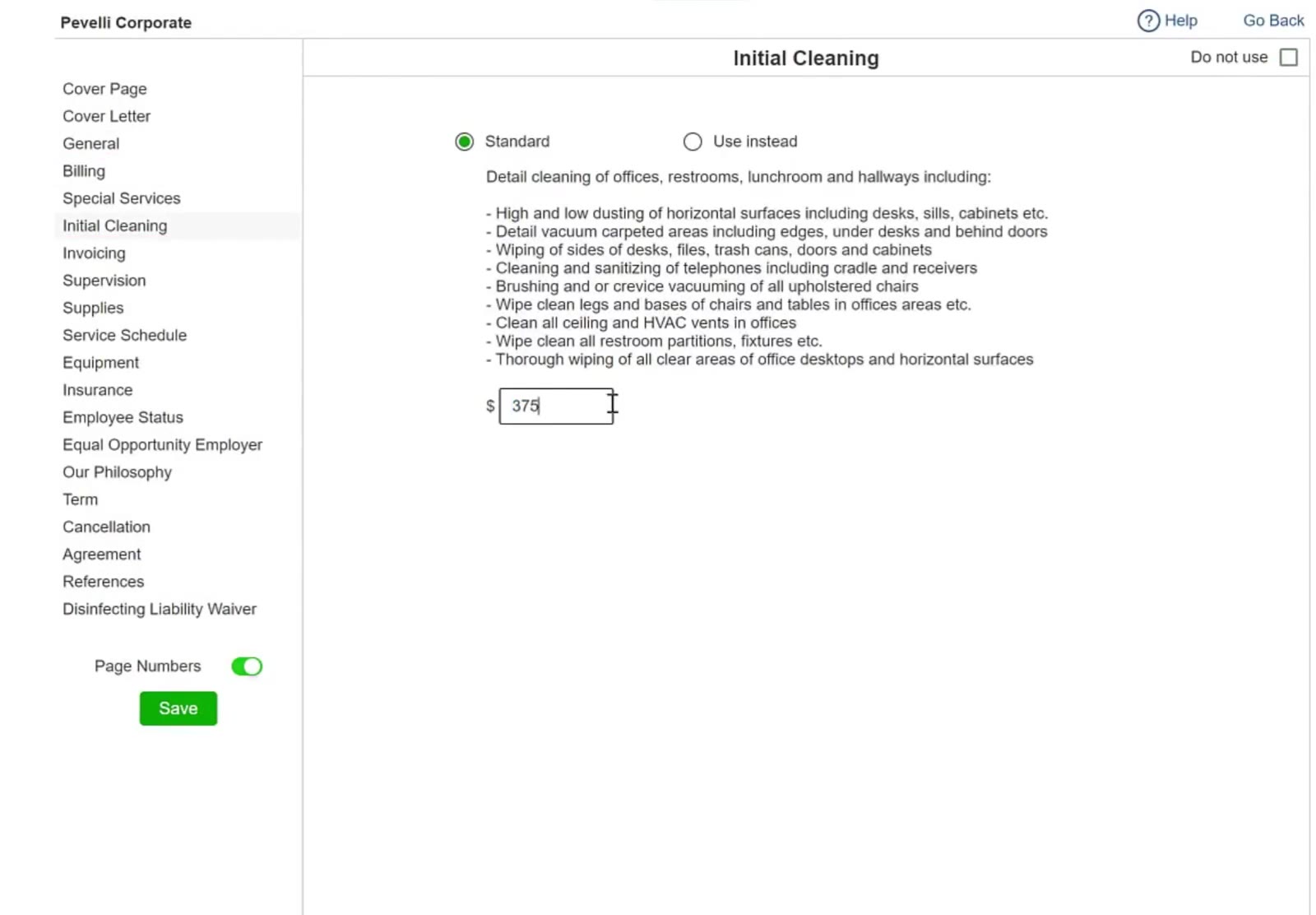
Enter the price in the dollar field of the Initial Cleaning section.
Toggle section usage
Select a section from the sidebar and use the Do not use checkbox to include or exclude it from the proposal.
Configure Insurance and Page Numbers
Select Insurance to check or uncheck specific coverage boxes, and use the toggle at the bottom of the sidebar to enable or disable Page Numbers.
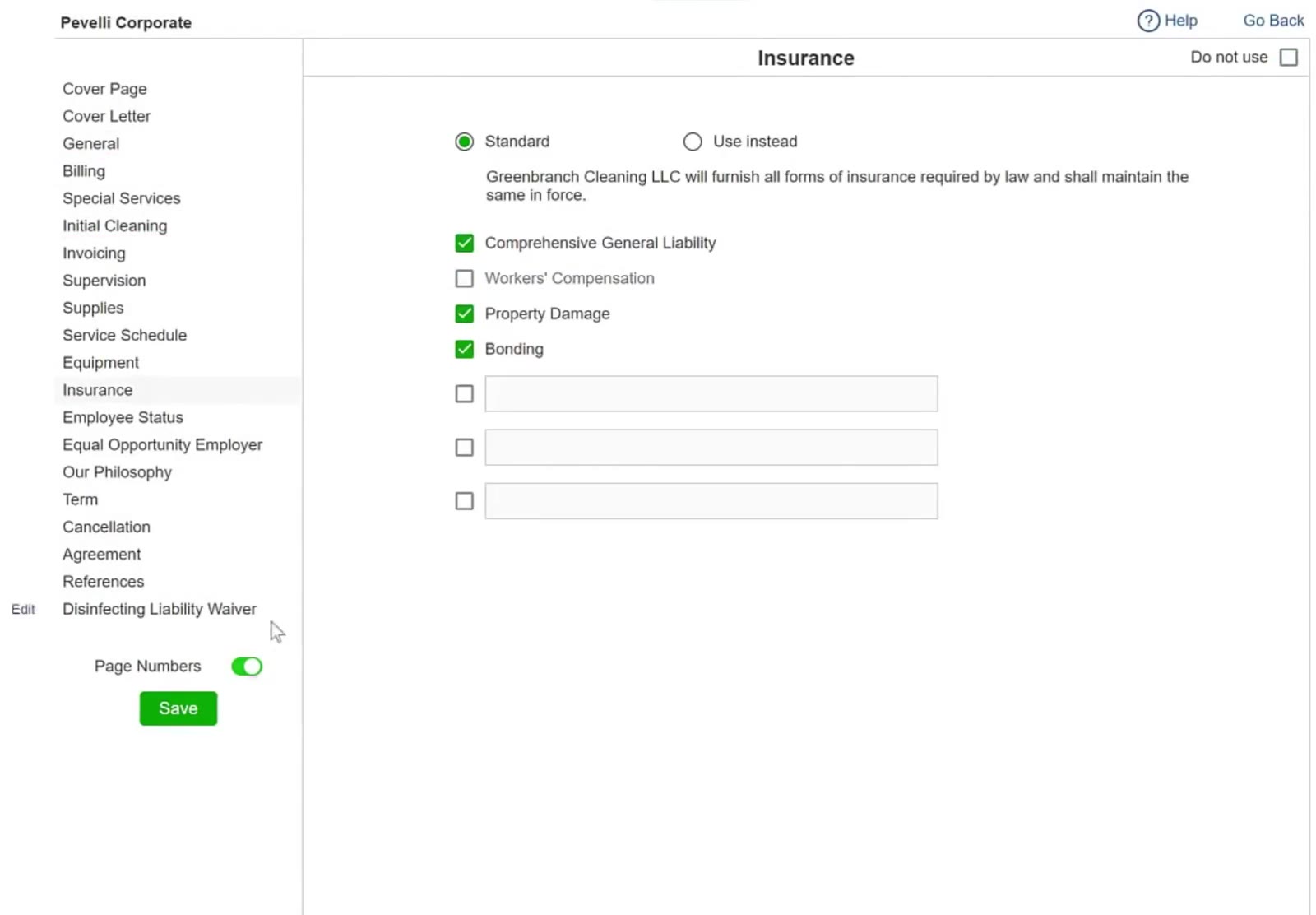
Manage Insurance coverage checkboxes and toggle Page Numbers at the bottom of the sidebar.
Click the Save button
Click the green Save button at the bottom of the sidebar to apply all adjustments to your current proposal.
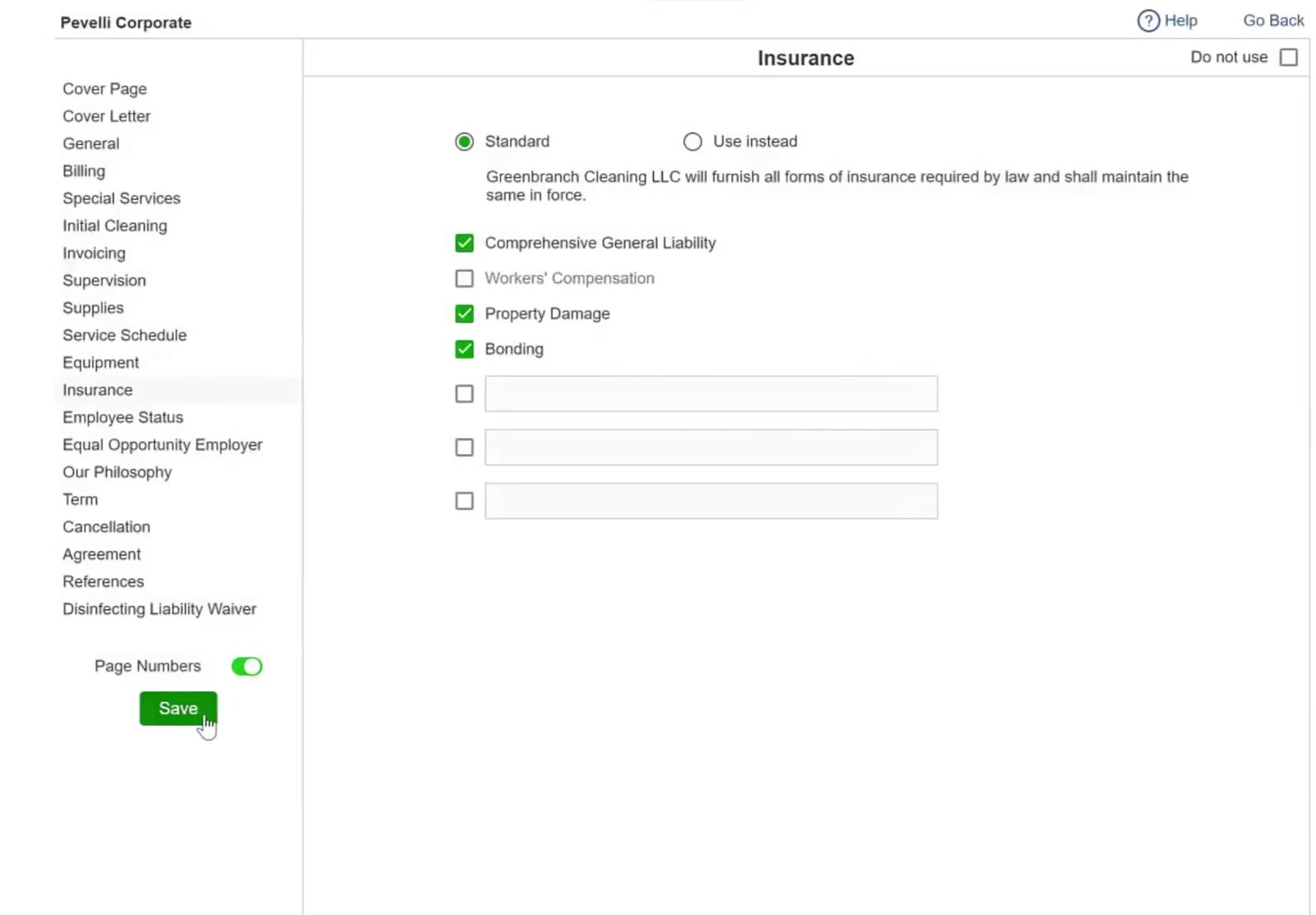
Click the green Save button at the bottom of the sidebar to preserve your adjustments.
FAQ
Will these changes affect my other bids?
No. The Customize Current Proposal screen changes only the bid you are working in. Changing the wording for all future bids is done separately, in Settings.
Can I change the order of the sections?
Yes. Hover over a section in the sidebar, then press and hold the left mouse button on the up or down arrow to move it.
How do I remove a section from the proposal?
Select the section in the sidebar and check the Do not use box in the top-right corner.
Can I go back to the standard wording after choosing Use instead?
Yes. Select the Standard radio button for that section.
Where do I enter the price for Initial Cleaning?
In the dollar field of the Initial Cleaning section. The field is available under both Standard and Use instead, so you can enter the price in either.
Which coverages can I show in the Insurance section?
Comprehensive General Liability, Workers' Compensation, Property Damage and Bonding, plus three blank rows for coverages you add yourself.