
Customize Future Proposals
Set your proposal wording once in Settings and every new bid for that service starts with it — your section names, your text, and only the sections you want.
Open the Settings for a Service
Open Settings
Click the gear icon at the top right and choose Settings.
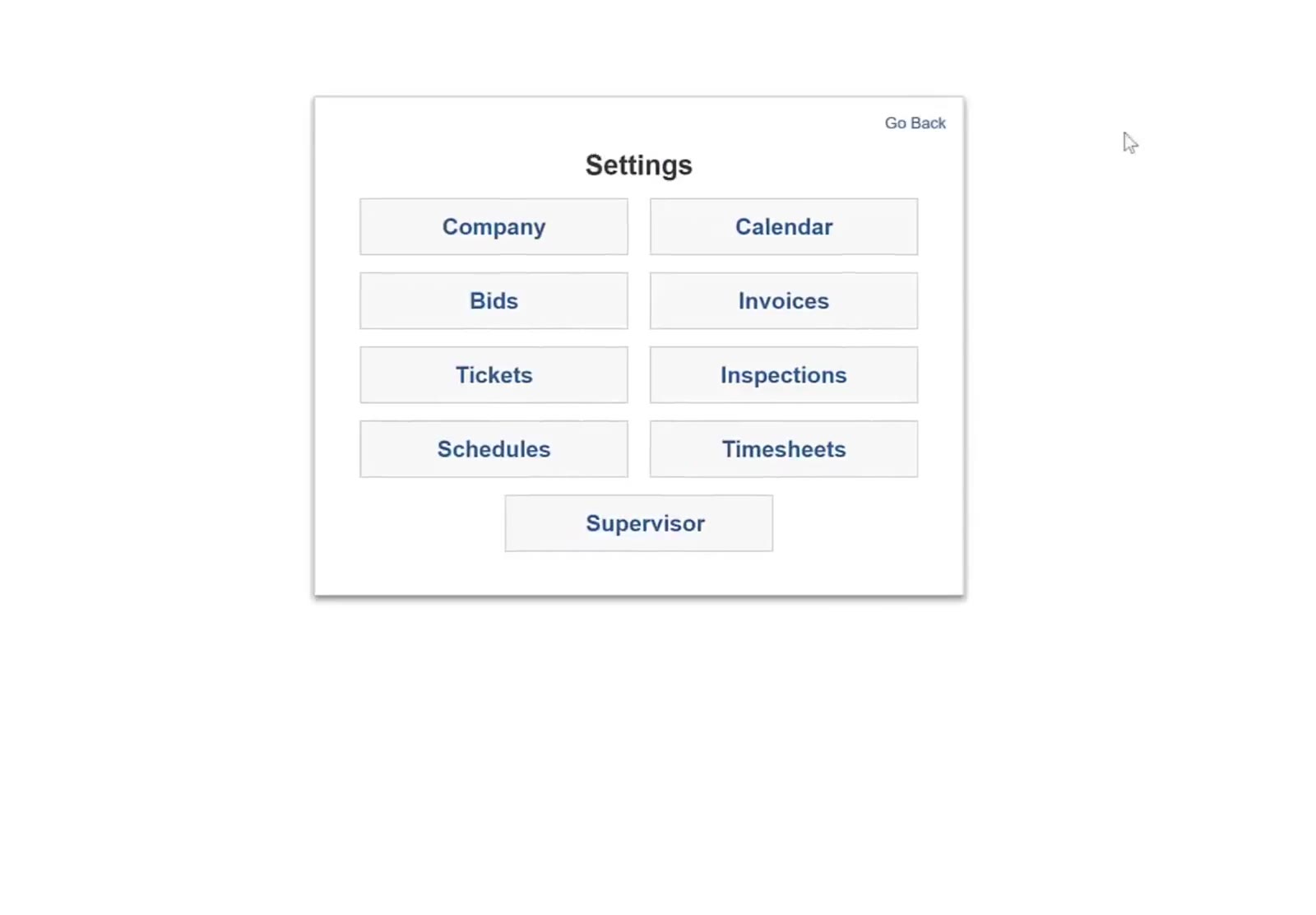
The Settings panel holds a Bids button, which is where proposal wording lives.
Open Bids and pick the service
Click Bids, then click the service you want to change — Janitorial, Disinfecting, Maid, Carpet, Window, Tile, Move In/Out or Construction. Whatever you change applies to that service only.
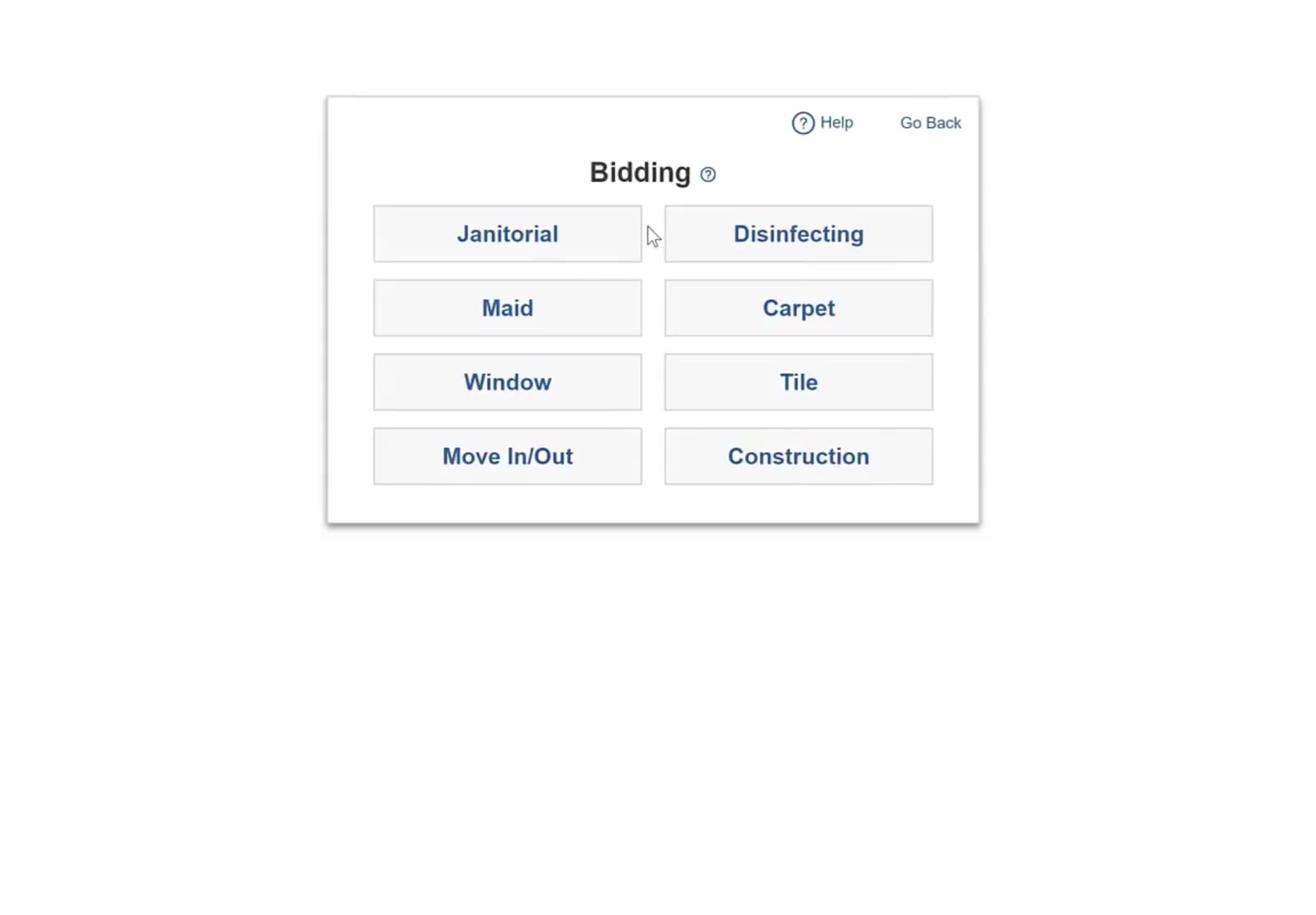
Each of the eight bidding modules keeps its own proposal settings.
Rename a Section
Find the section
The left sidebar lists every section a proposal can hold, from Cover Page down to Disinfecting Liability Waiver.
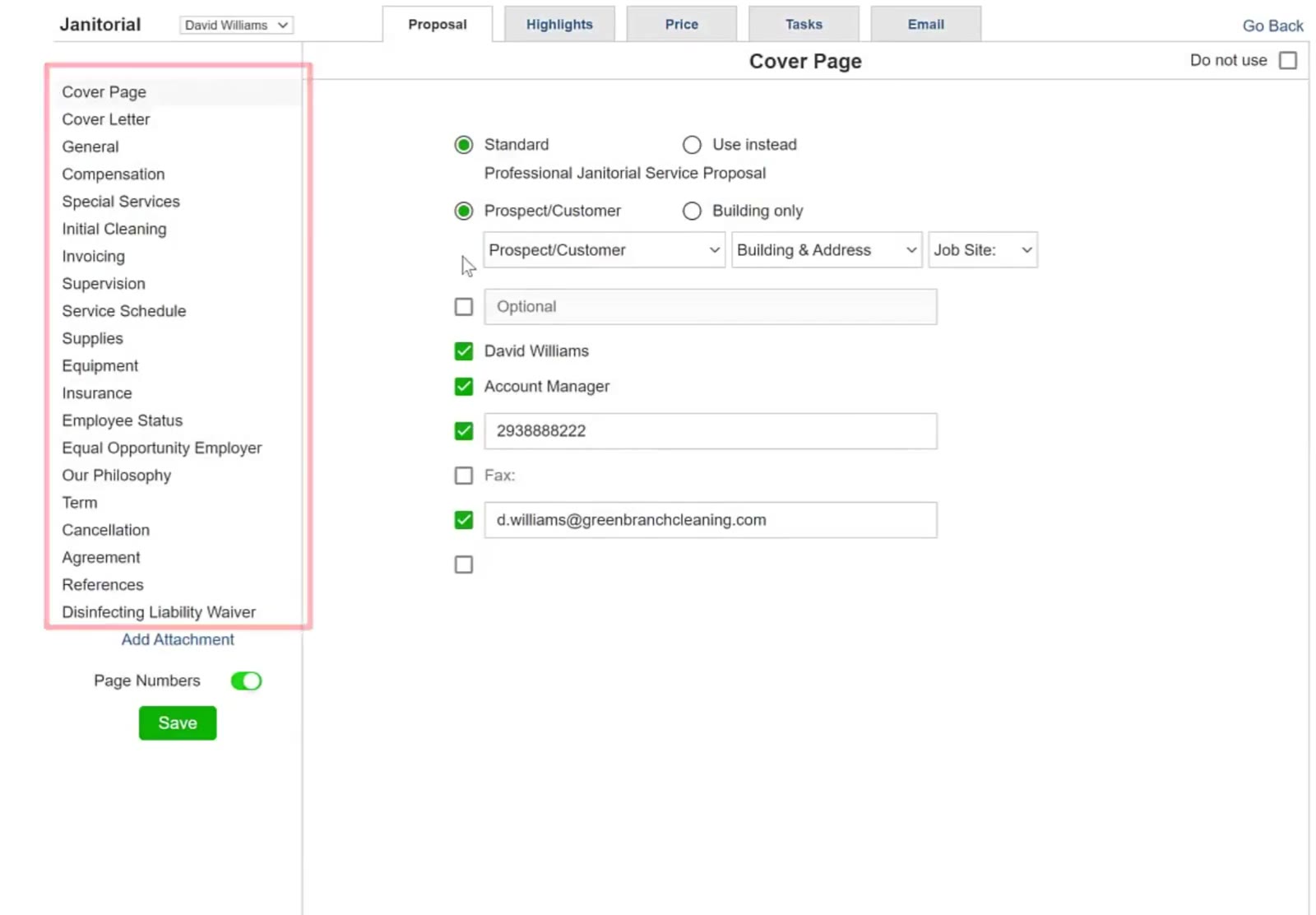
The sidebar holds all the proposal sections, with the green Save button underneath.
Rename it
Hover the section in the sidebar and click Edit. Type the heading you want in the Rename Section box and click Save. The new name shows in the sidebar and on the proposal.
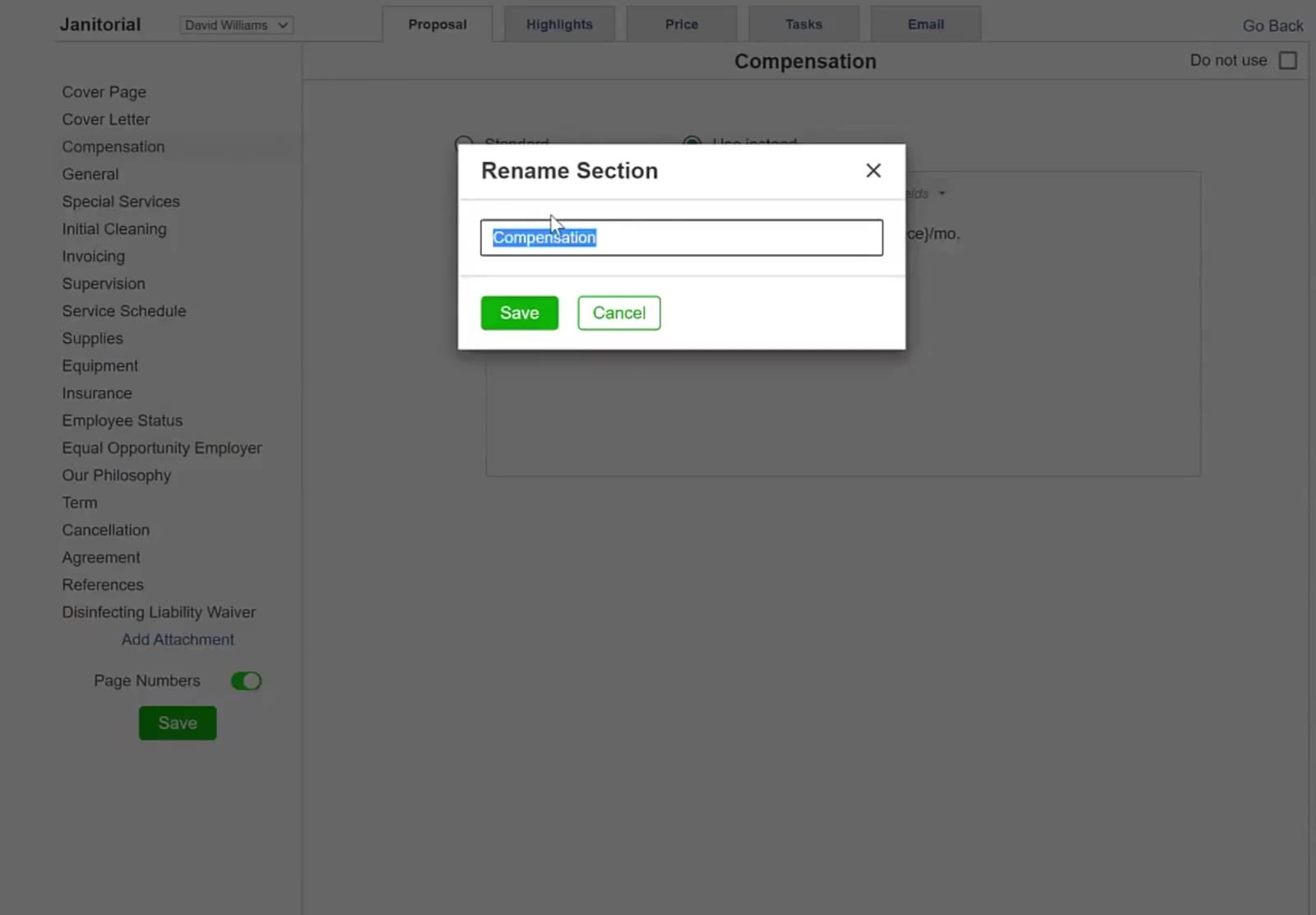
Renaming Compensation to Billing changes it everywhere that section appears.
Replace the Wording
Put in your own text
Click the section in the sidebar, then choose Use instead instead of Standard. An editor opens with the usual bold, italic, list and alignment buttons. Type or paste your wording.
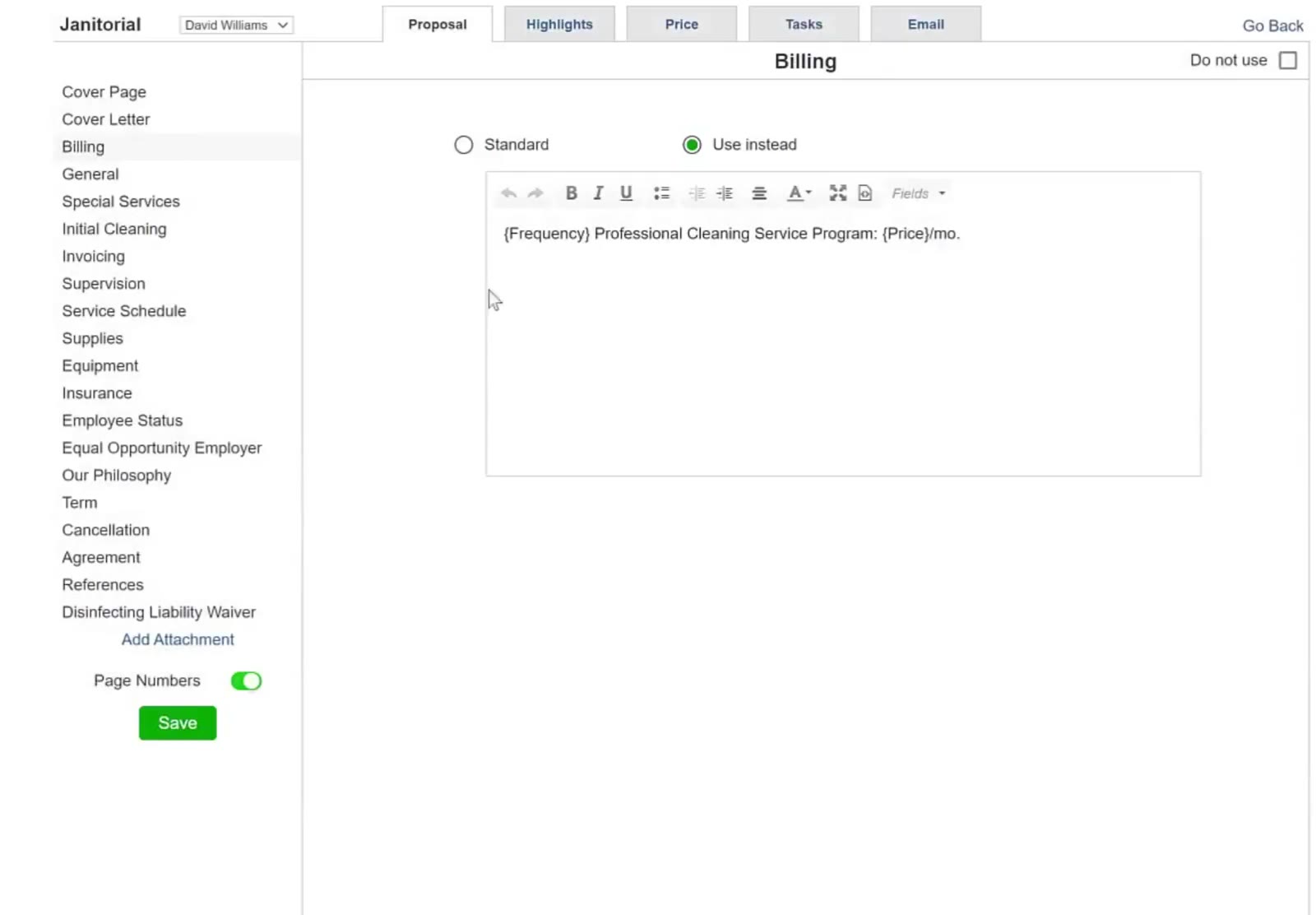
Use instead swaps the standard text for an editor, with the Fields dropdown at the right of the toolbar.
The Fields dropdown at the end of the toolbar drops in placeholders such as {Price}/mo and {Frequency}. CleanGuru fills those from the bid when the proposal is generated.
Choose What Appears
Leave a section out
Tick Do not use at the top right of a section's page and it stops appearing on new proposals for that service.
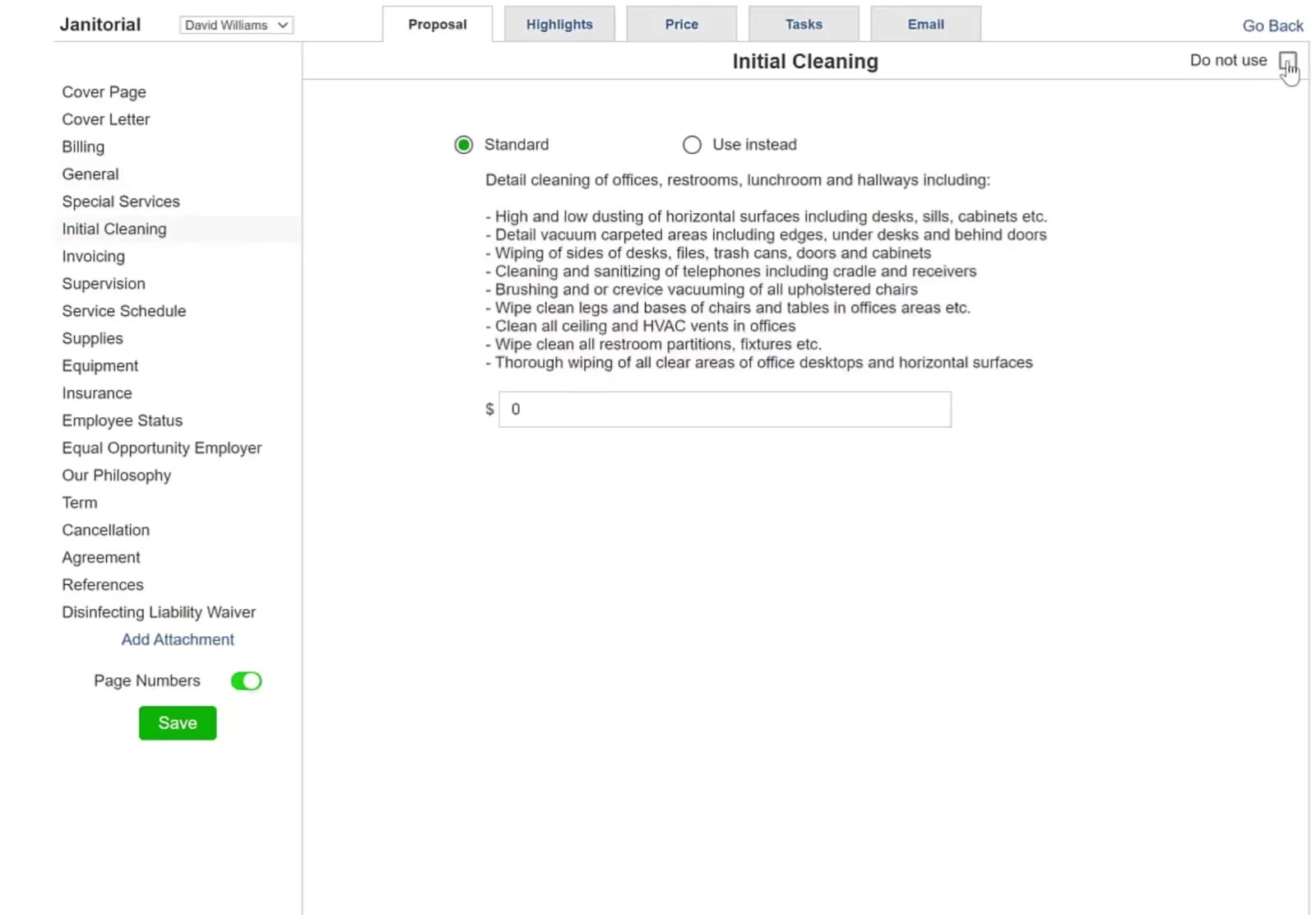
Do not use sits in the top right of each section's page.
Set the defaults inside a section
Some sections carry their own choices. Insurance, for example, has checkboxes for Comprehensive General Liability, Workers' Compensation, Property Damage and Bonding, plus blank rows you can fill in yourself.
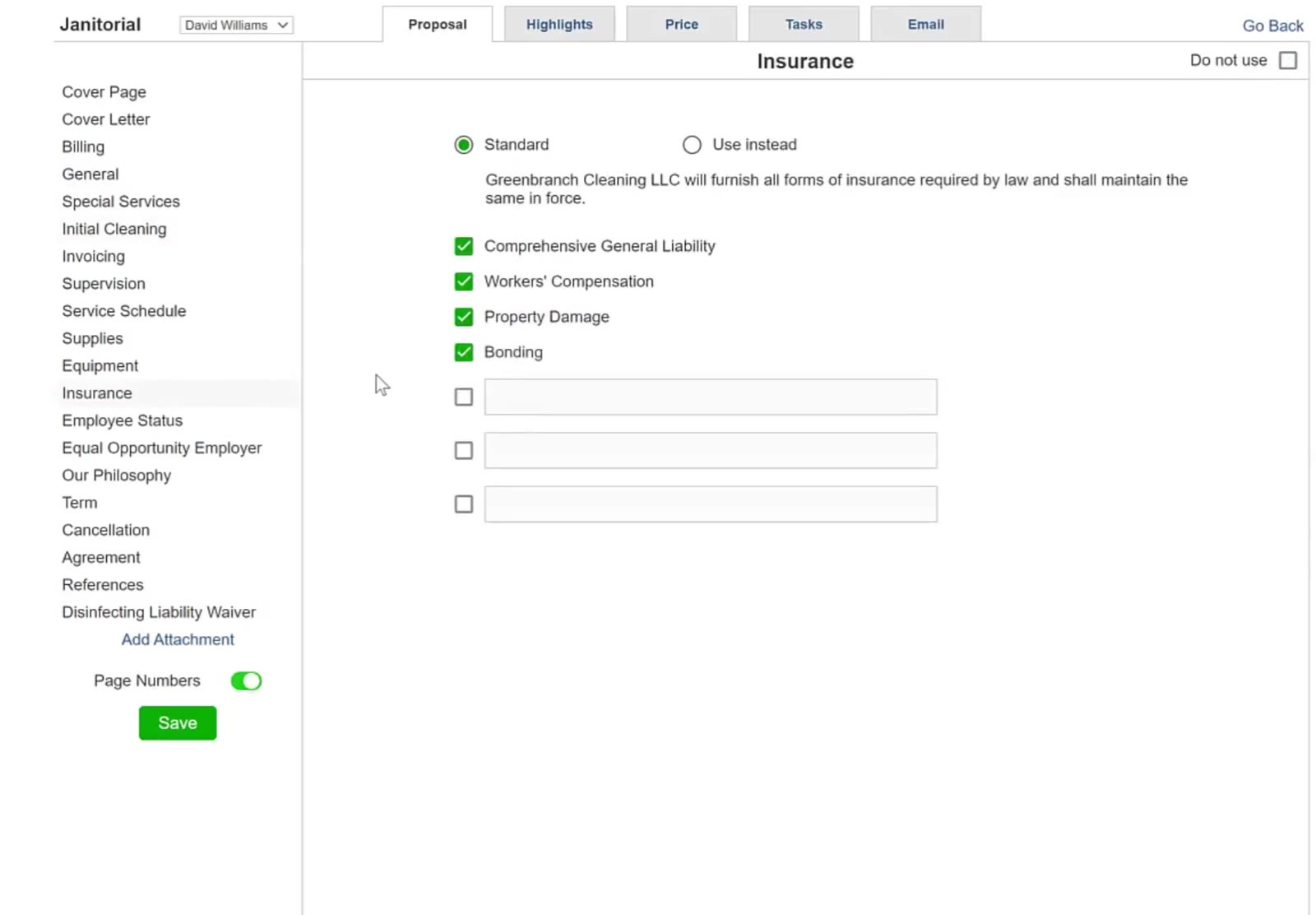
Insurance has its own checkboxes and three blank rows for anything you want to add.
Save
Click the green Save button below the sidebar. Nothing you changed takes effect until you do.
FAQ
Does this change proposals I have already sent?
No. It sets the starting point for proposals created after you save. Existing bids keep the wording they were built with.
Can I still change one individual proposal?
Yes. A bid's own Proposal Options screen overrides these settings for that bid only.
How do I put the standard CleanGuru wording back?
Open that section, choose Standard instead of Use instead, and click Save.
Do I have to do this for every service?
Yes. The settings belong to one bidding module, so Janitorial and Carpet can read completely differently.