
Edit Cleaning Tasks
Editing cleaning tasks in a CleanGuru bid area lets you adjust how often each task is performed, add standard or custom tasks, and change the items counted in that area.
Access Area Tasks
Open the Areas tab
Click the Areas tab at the top of the bid screen to load the list of included areas.
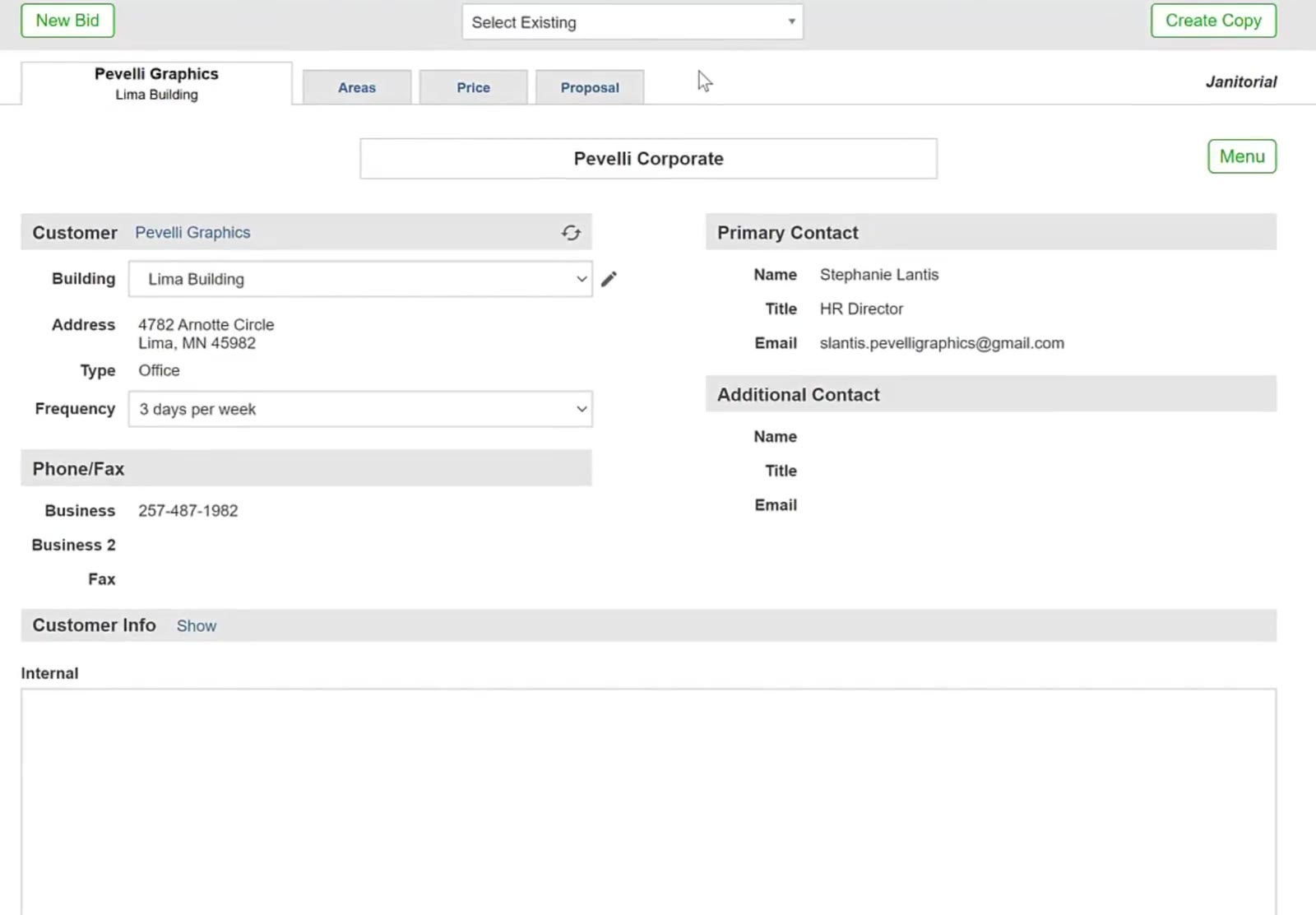
The Areas tab is located at the top of the bid screen, alongside the Price and Proposal tabs.
Open Options
Click the green Options button below the area list to open the task and item screen.
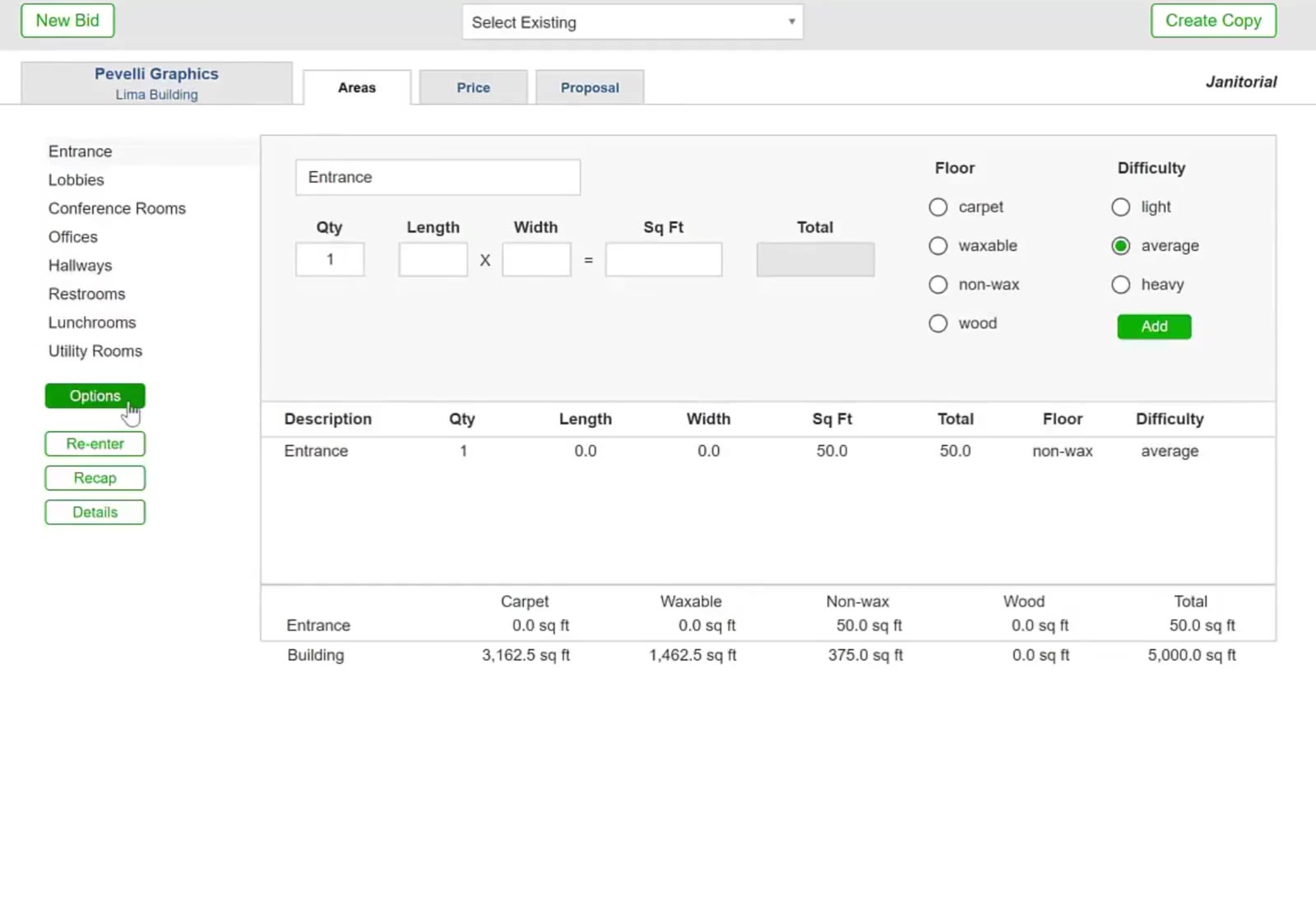
The green Options button sits below the area list on the Areas tab.
Select an area to edit
Choose the area you want to work on from the left-hand sidebar.
Add and Customize Tasks
Add a standard or custom task
Click Add Task in the Tasks section to open the task library modal.
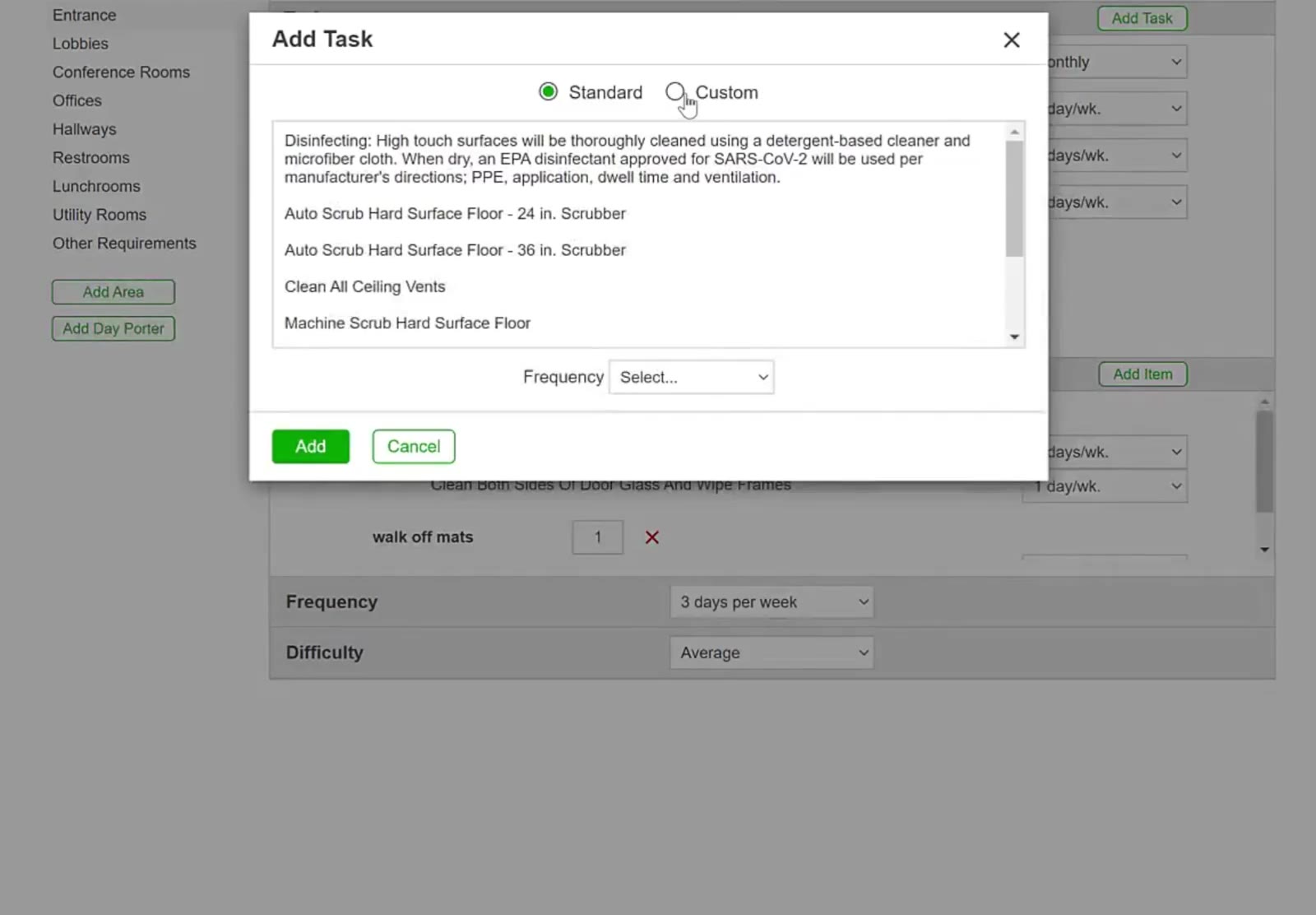
The Add Task modal displays the standard cleaning task library.
Switch to a custom task
Select the Custom radio button. The standard task library is replaced by your previously saved custom tasks. To build a new one, select New Task and click Add to open the Create Task (Custom) window.
Define the custom task
In the Create Task (Custom) window, enter the task description, set the Time in hrs and mins, and choose a Frequency.
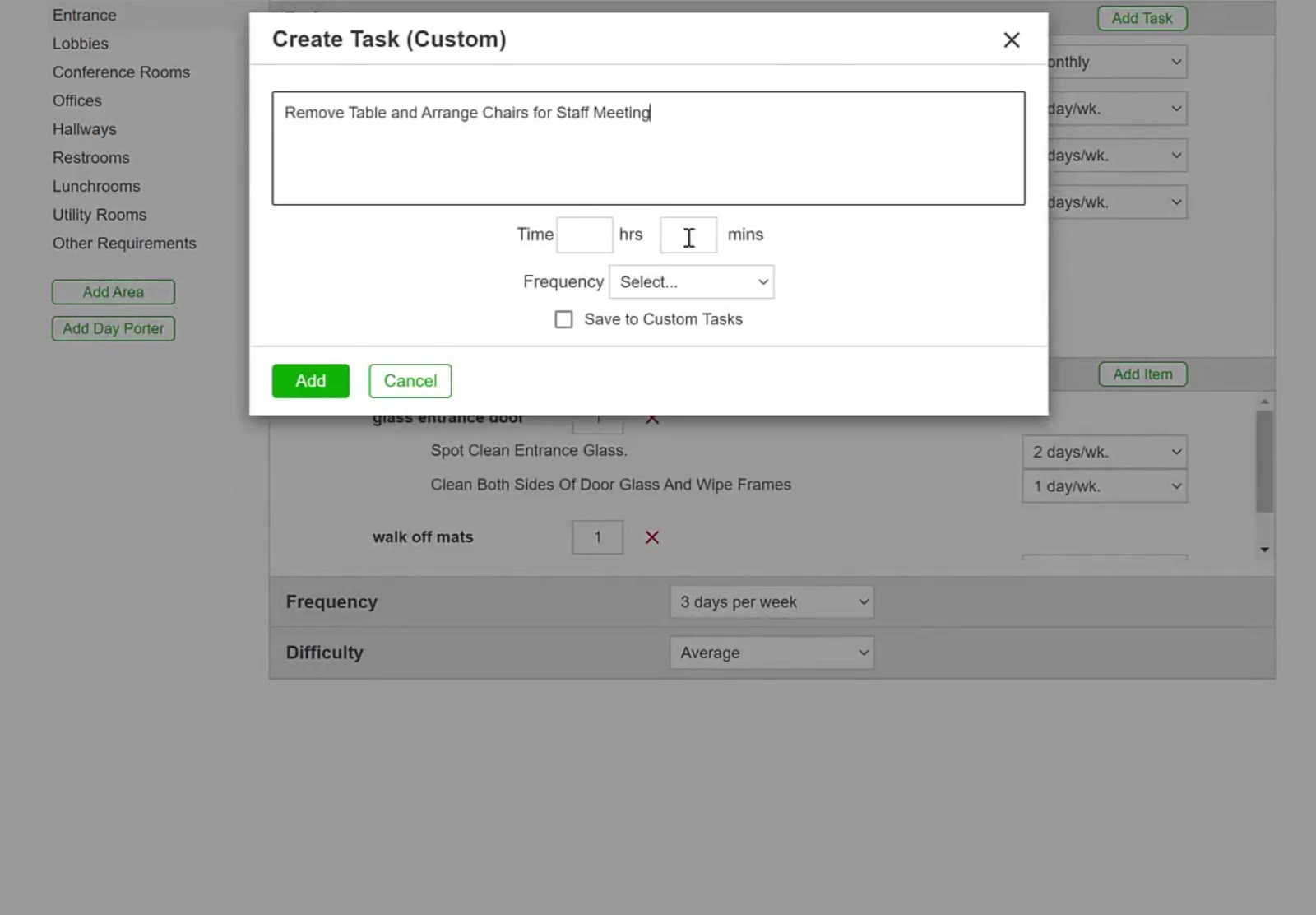
The Create Task (Custom) window holds the description, Time in hours and minutes, Frequency, and the Save to Custom Tasks checkbox.
Add the task
Check Save to Custom Tasks first if you want to reuse the task on other bids, then click Add.
Update Items and Frequencies
Edit task frequency and items
Use the dropdown menu to adjust task frequency or modify Item quantities in the list below.
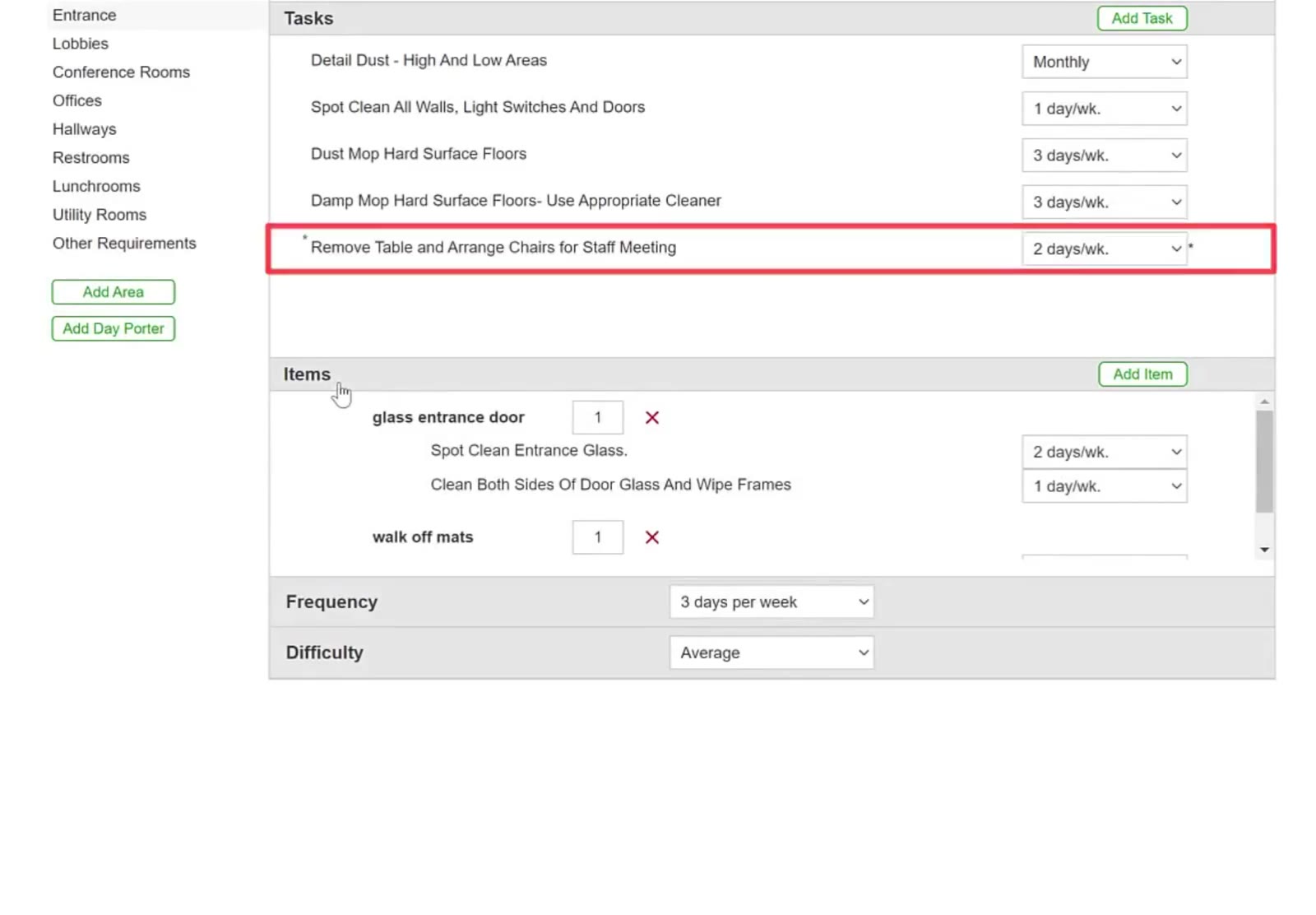
The task details screen shows the frequency dropdown and editable items list.
Items always show a red X for removing them. To remove a task, hover over the task row first — the red X appears at the right of the row.
Update task details
Click any task name to change its wording, then click Change. Tasks you added yourself also have a Time in hrs and mins you can change; standard tasks do not.
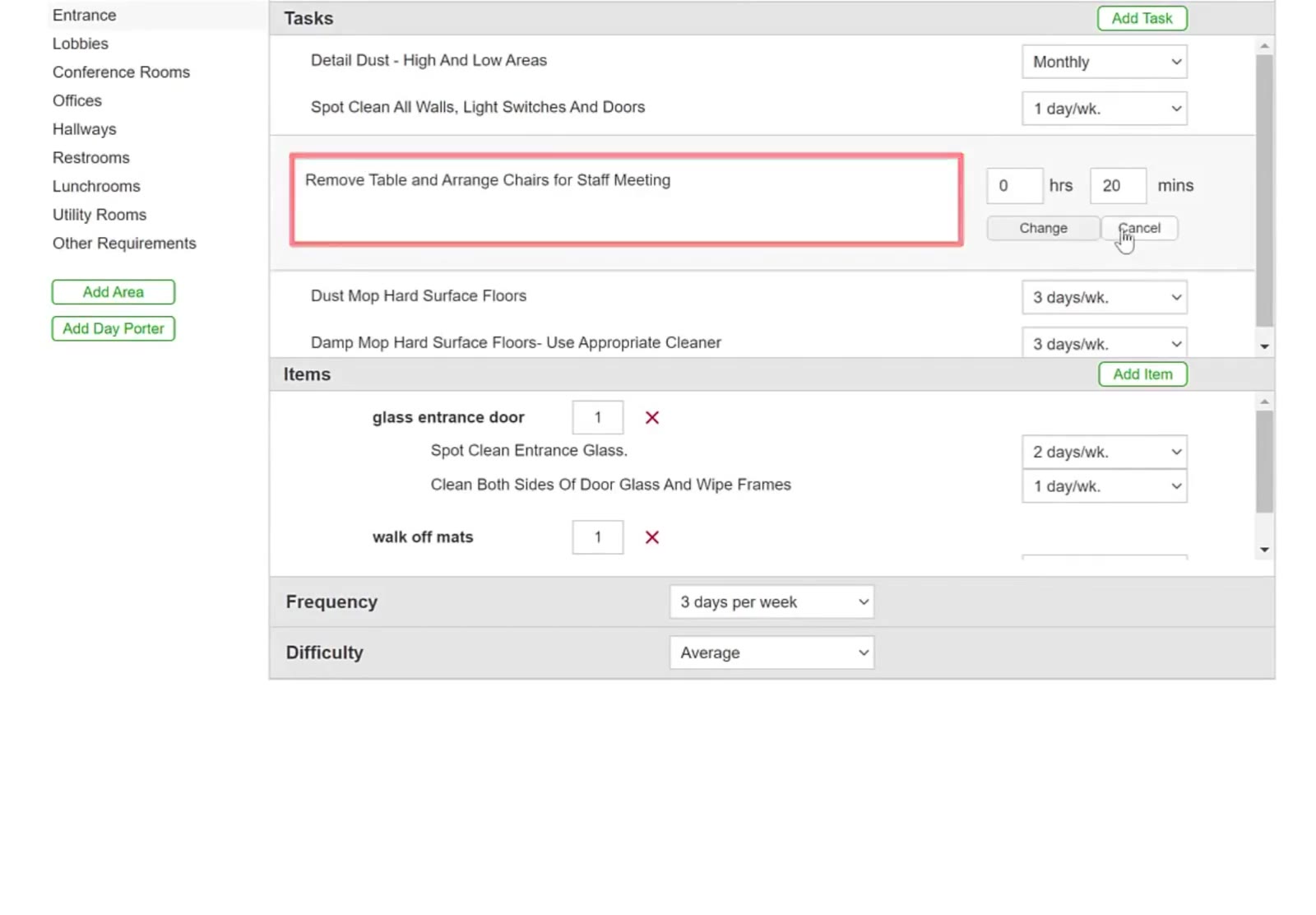
Clicking a custom task opens its description and Time fields, with Change and Cancel buttons below.
Reorder a task
Hover over a task row to reveal the up-and-down arrow handle at the far left, then drag the row to its new position in the list.
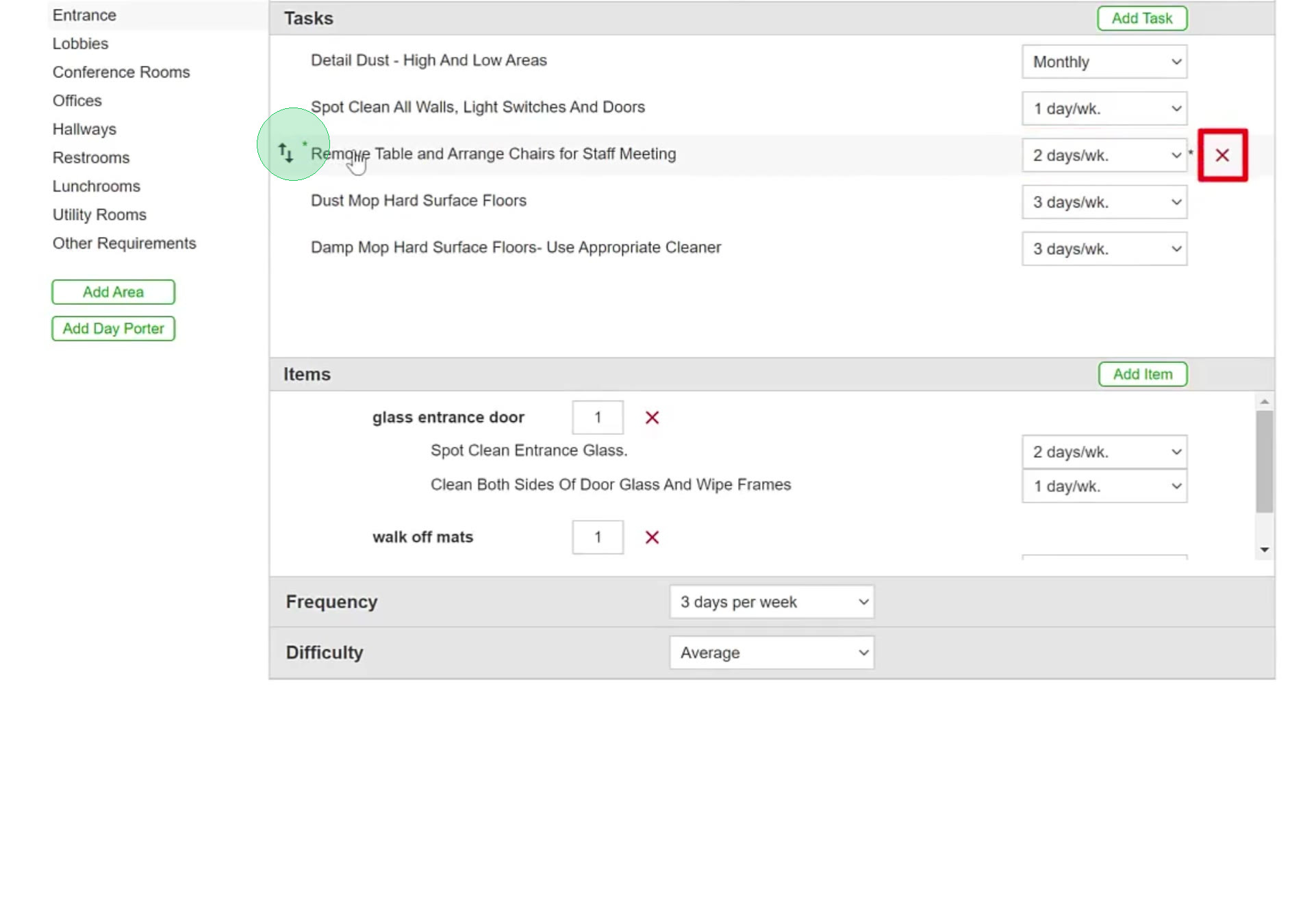
Hovering a task row reveals the up-and-down handle at the far left and the red X at the right.
Set the area frequency and difficulty
At the bottom of the area screen, use the Frequency dropdown to set how often the whole area is cleaned, and the Difficulty dropdown to set its difficulty level.
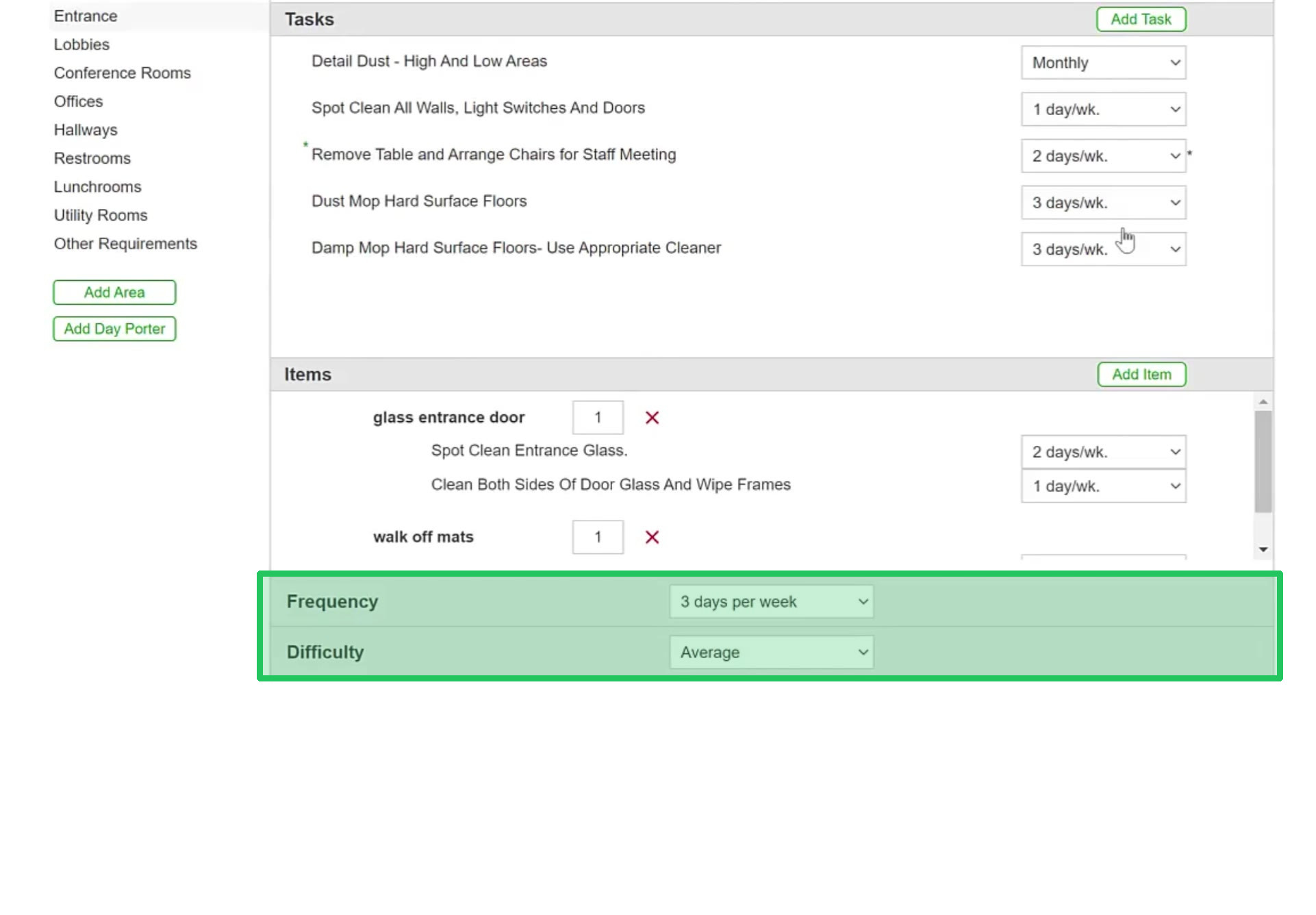
The Frequency and Difficulty dropdowns sit at the bottom of the area screen and apply to the whole area.
Finalize and go back
Review the updated task list, then click Go Back, or select another area from the sidebar to continue.
FAQ
What is the difference between a task and an item in a CleanGuru area?
Tasks are the cleaning actions performed in an area, such as Dust Mop Hard Surface Floors. Items are the countable things in that area, such as a glass entrance door or walk off mats, each with its own quantity box and cleaning frequency.
How do I add a task that is not in the CleanGuru library?
In the Add Task window select the Custom radio button, choose New Task and click Add. The Create Task (Custom) window opens, where you enter the description, the Time in hrs and mins, and a Frequency.
Can I save a custom task to reuse on other bids?
Yes. Tick Save to Custom Tasks in the Create Task (Custom) window before clicking Add, and the task is kept in your custom task library.
How do I change how often a task is performed?
Use the frequency dropdown beside the task in the Tasks list. Options include settings such as 1 day/wk., 3 days/wk. and Monthly.
How do I remove an item I do not need?
Click the red X beside the item in the Items list. You can also change the number in the quantity box instead of removing the item entirely.
Does changing a task frequency change the bid price?
Yes. The frequency sets how much time is allotted to clean each week, so changing it changes the total cleaning time and therefore the price.