
Change Prospect to Customer
When you win a bid, change the prospect over to a customer. That opens up the rest of the record — the tabs for tickets, inspections, schedules, timesheets and invoices.
Open the Prospect
Open your prospect list
Click Prospects in the top navigation bar.
Pick the company
Click the Select Existing dropdown and choose the prospect you are converting. This example uses Matero Plus Products.
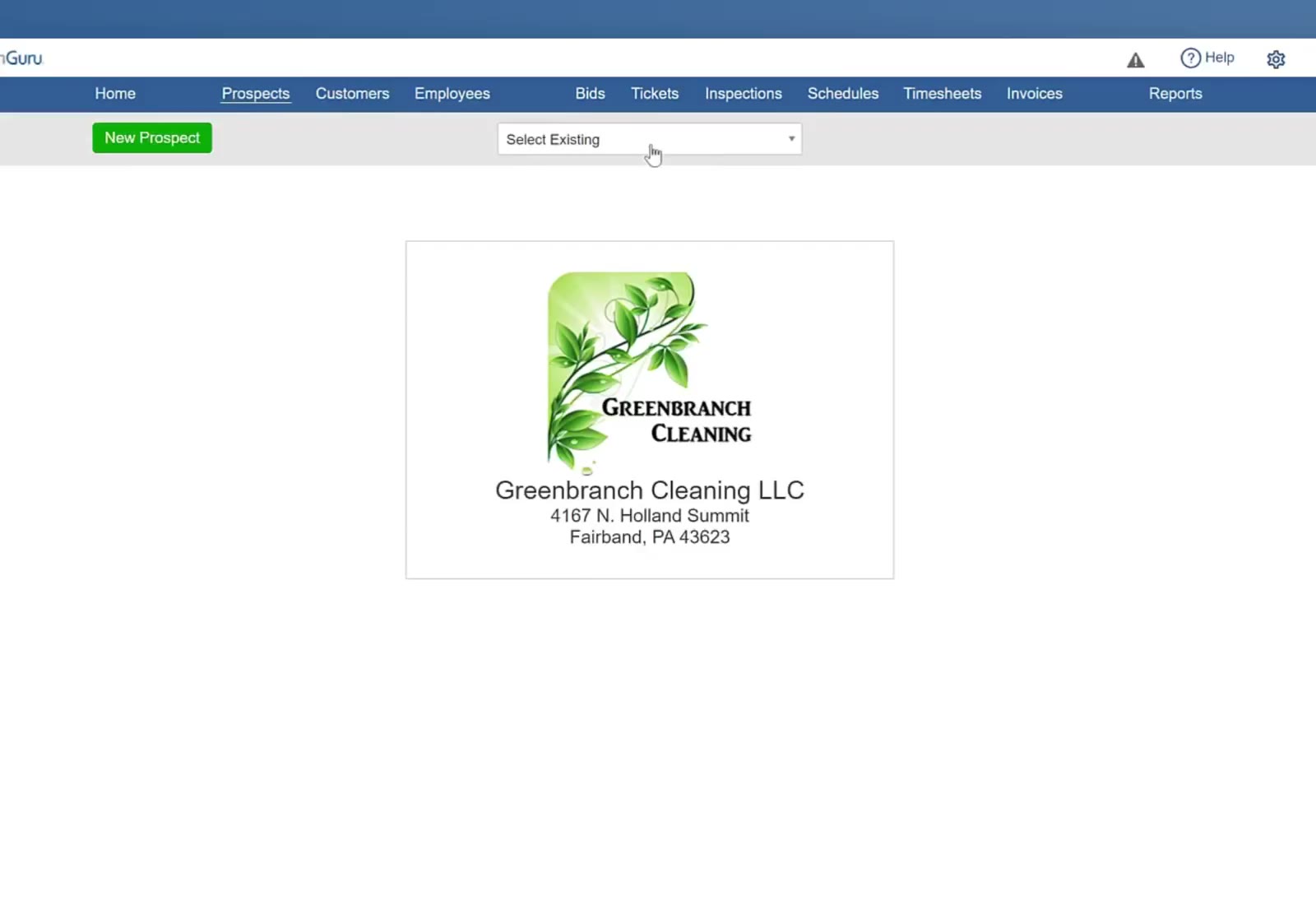
The Prospects screen has a New Prospect button and a Select Existing dropdown.
Change the Status
Find the status buttons
They sit at the top right of the record, beside the company name: Active, Commercial and Prospect.
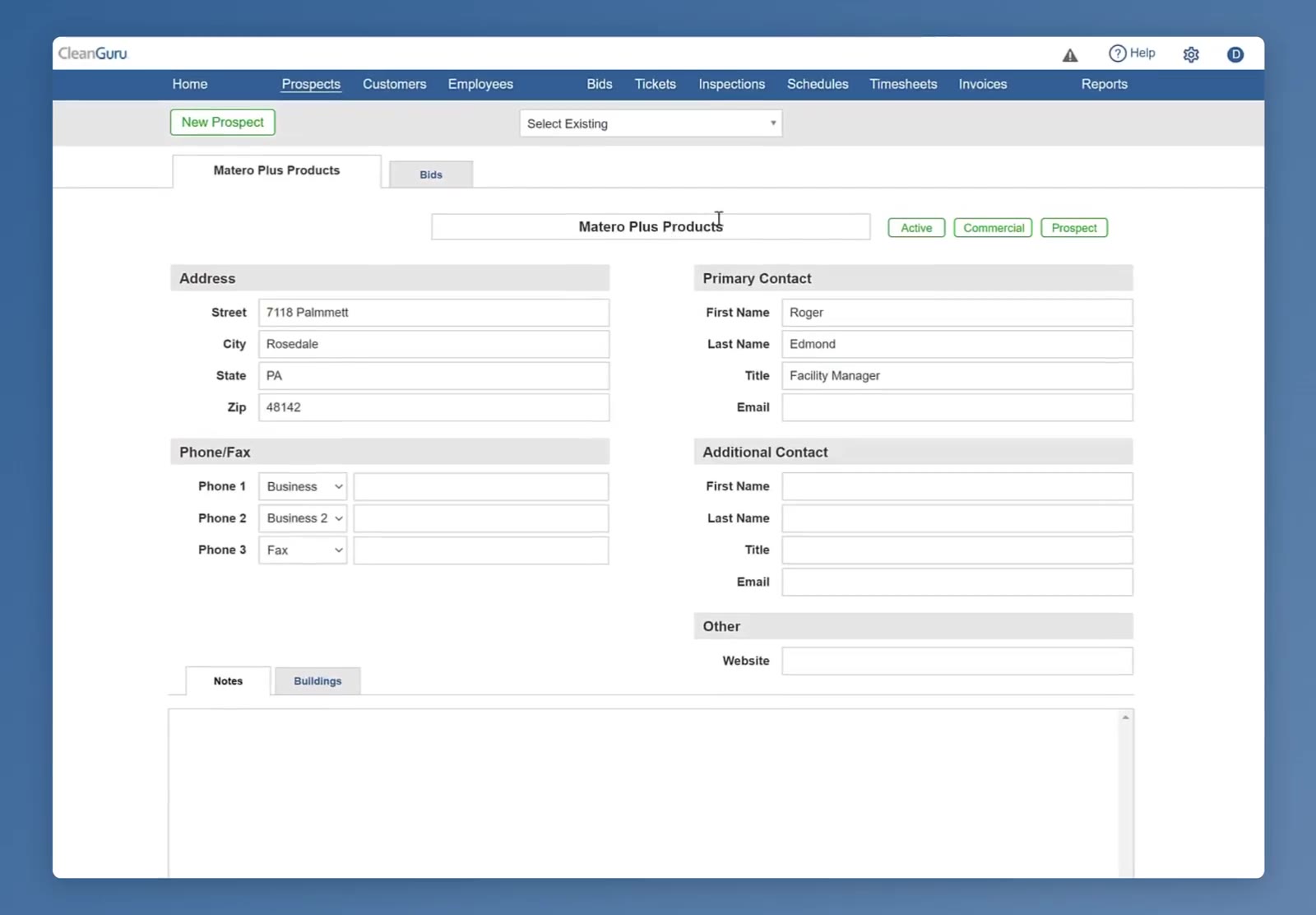
While the record is still a prospect, Bids is the only tab it carries.
Choose Customer
Click Prospect. A one-item dropdown opens underneath it. Click Customer.
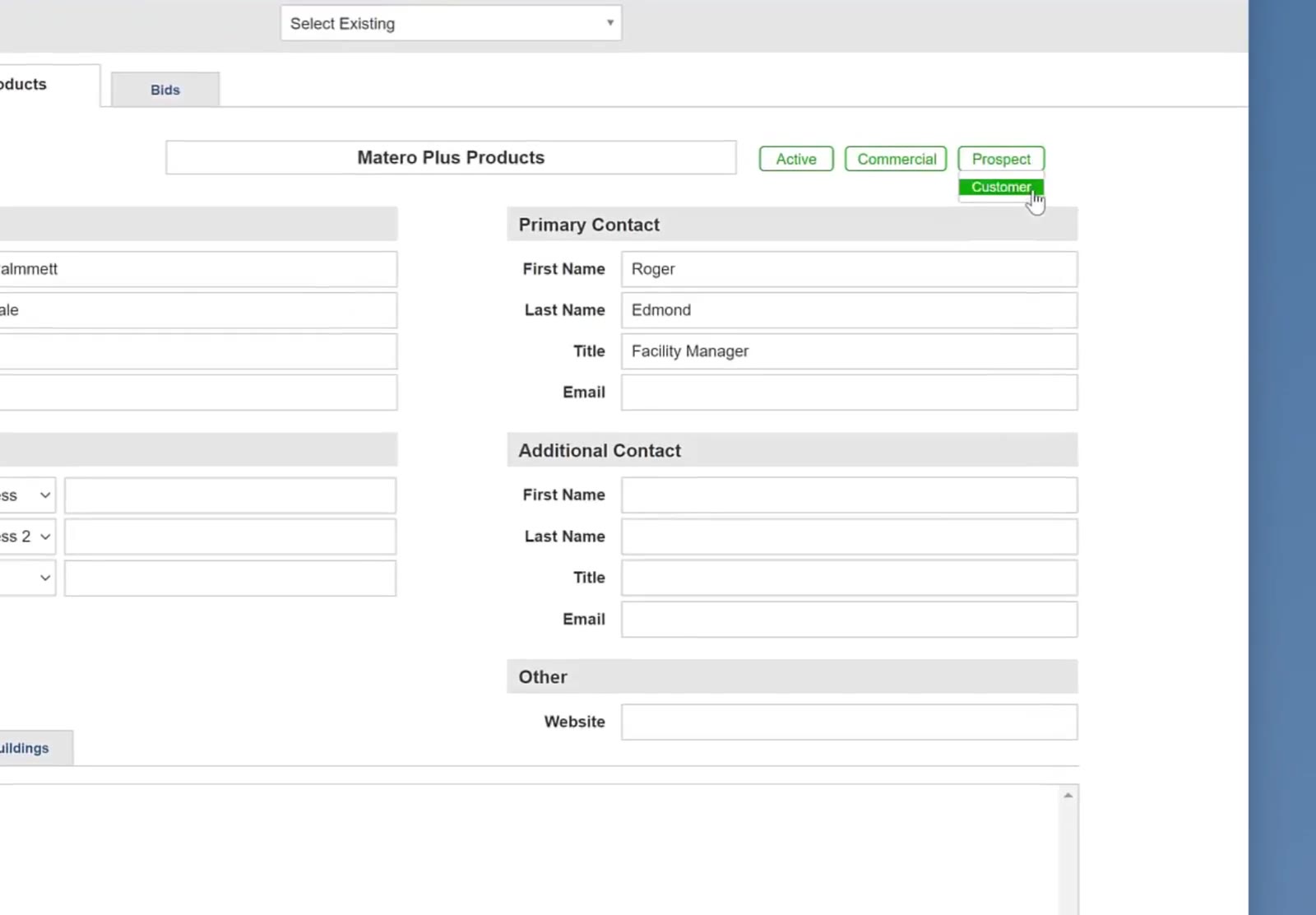
Clicking Prospect opens a one-item dropdown holding Customer.
The status change is what adds the tabs. They stay hidden while the record is a prospect.
Check the Record
Read the status button
The third button now reads Customer.
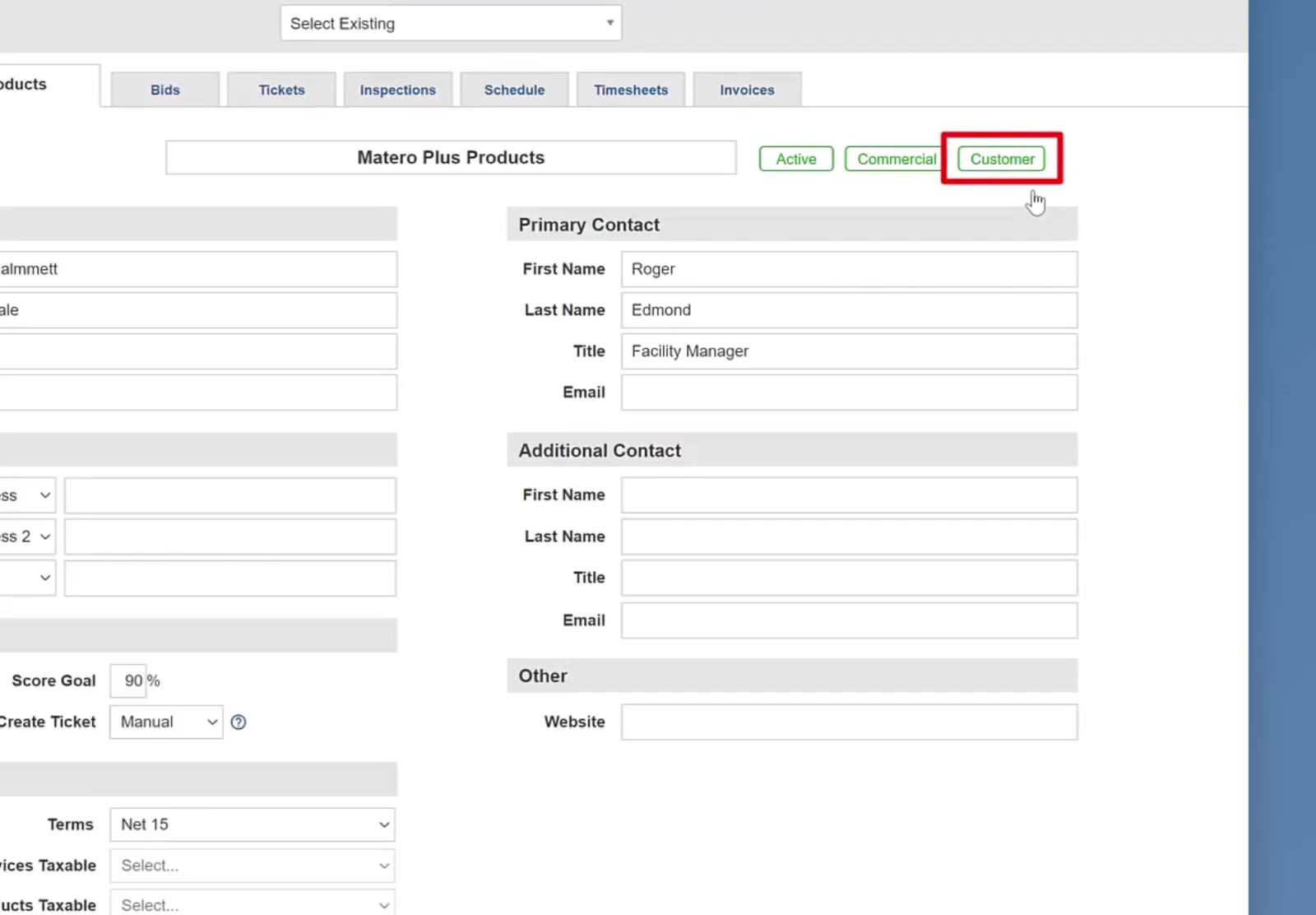
After the change the buttons read Active, Commercial and Customer.
Look at the tab row
Tickets, Inspections, Schedule, Timesheets and Invoices now sit next to Bids.
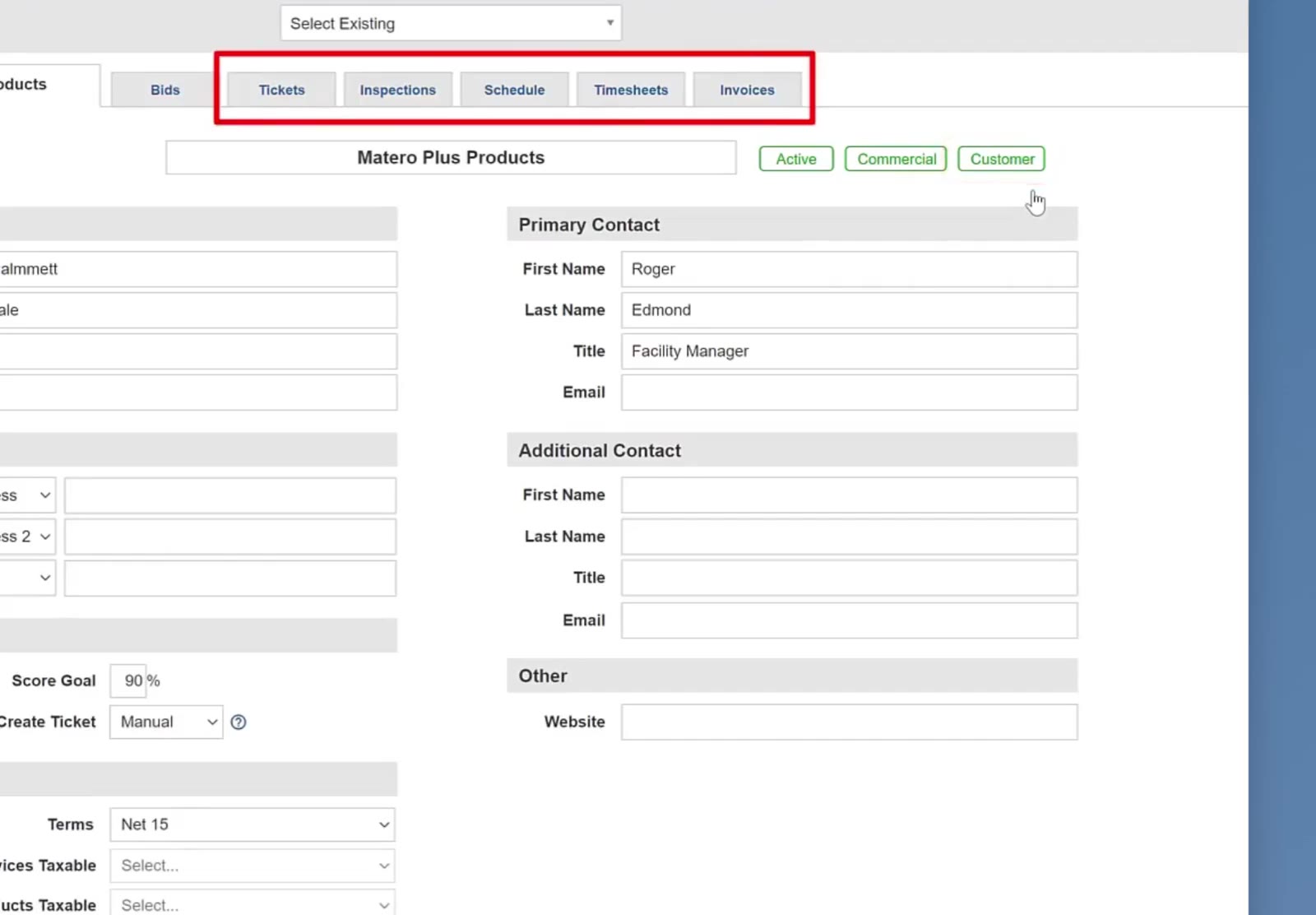
The five new tabs run across the top of the record.
Check the contact details
Primary Contact and Additional Contact keep whatever was on the prospect record.
Set the Customer Options
Set the inspection options
Score Goal and Create Ticket sit at the bottom left of the record. In this example the goal is 90% and Create Ticket is set to Manual.
Set the invoice terms
Terms holds the payment terms — Net 15 here. Services Taxable and Products Taxable sit underneath it.
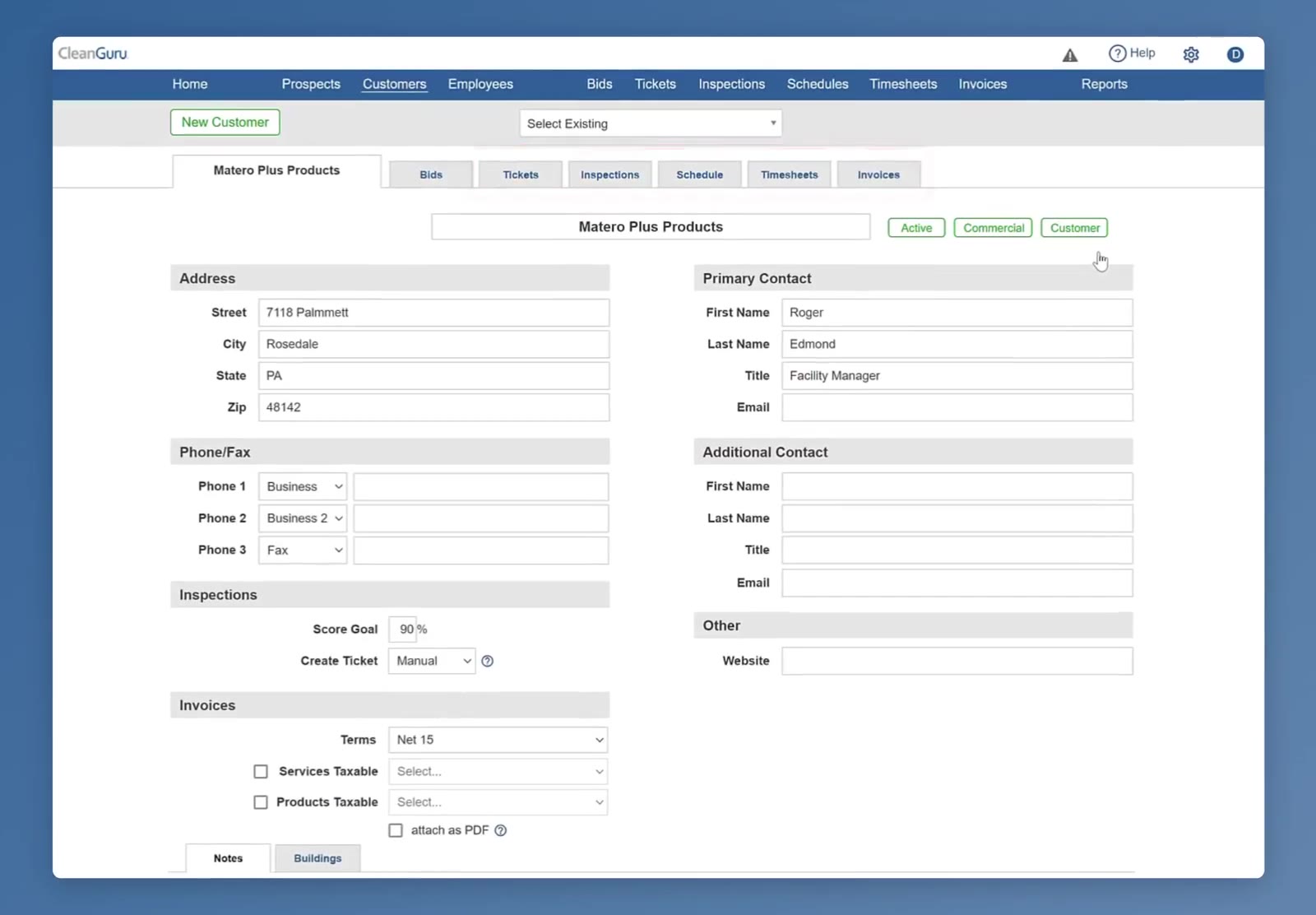
The converted record now opens under Customers instead of Prospects.
FAQ
Do I lose the bids when I convert?
No. The Bids tab is on the record before and after the change.
Where do I find the company afterward?
Under Customers in the top navigation bar, alongside your other customers.
Do I have to type the contact details in again?
No. The primary and additional contacts carry over from the prospect record.