
Add Secondary Building
Add a secondary building to a customer in CleanGuru so a client with more than one site has each location on its own record, with its own address and contact.
Select a Customer
Open Customers
Click Customers in the top navigation bar.
Select the customer
Use the Select Existing dropdown to open that customer’s profile.
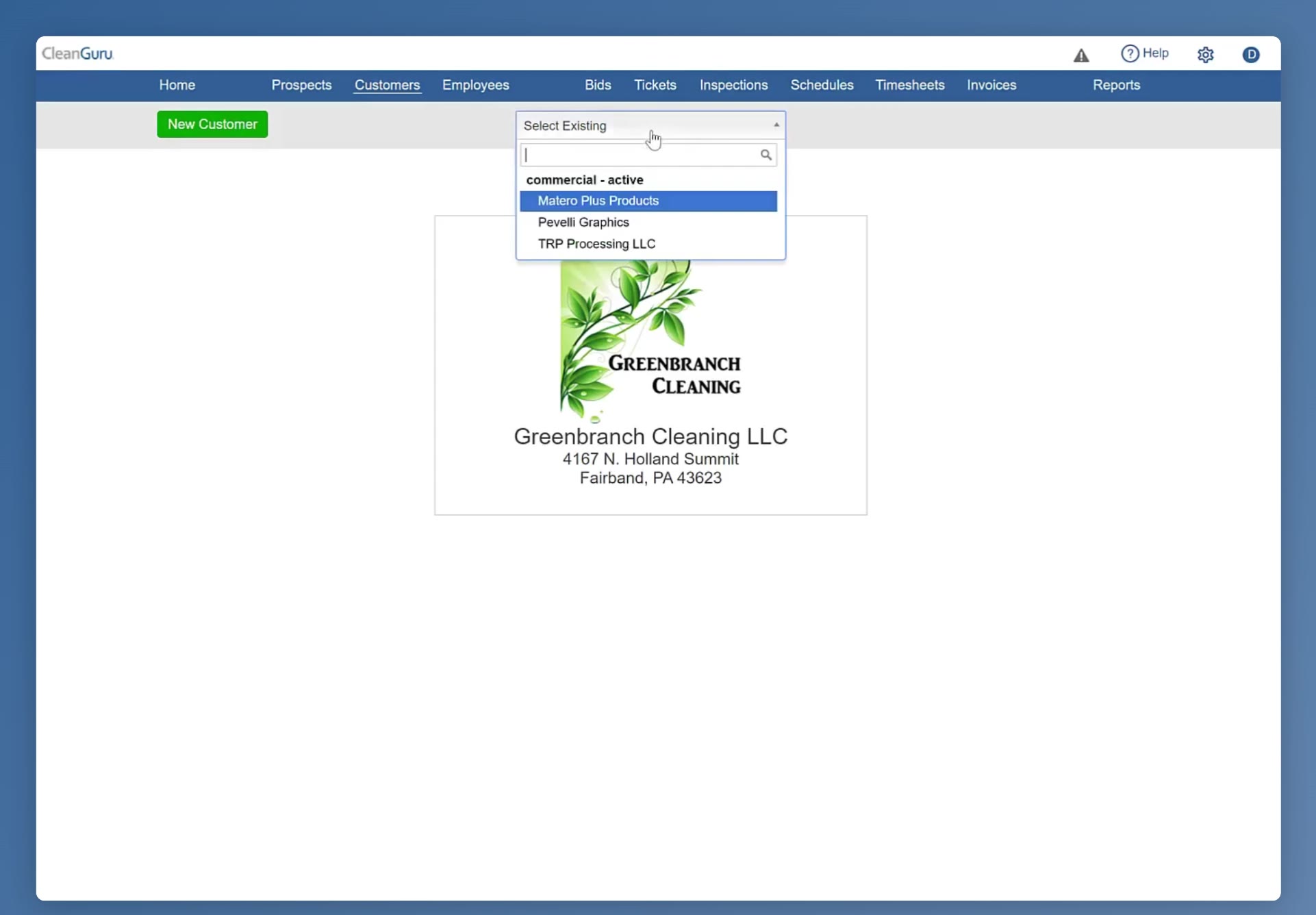
The Select Existing dropdown lists the customers you can open, grouped by type.
Access Building Management
Open the Buildings tab
Scroll to the bottom left of the profile and click Buildings.
Check what is already there
The table lists each building with its Address, City, Contact and Phone 1. The customer’s existing building is already in it.
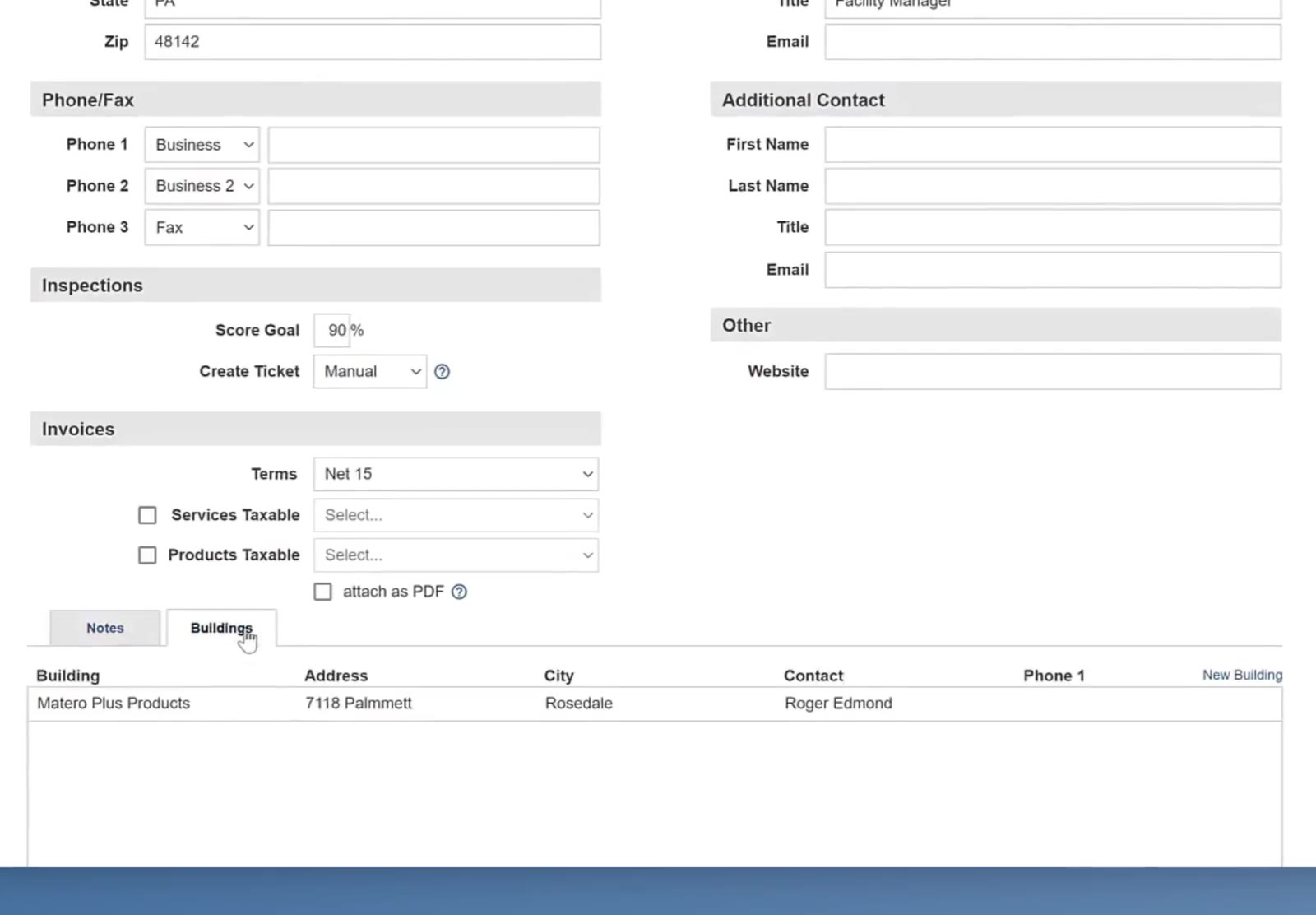
Notes and Buildings sit as a pair of tabs at the bottom of the profile. The New Building link is at the right-hand end of the table header.
Add a Building
Click New Building
The New Building link sits at the right-hand end of the Buildings table header.
Name the building and enter its address
In the Add Building window, type a name in the Building field, then fill in Street, City, State and Zip.
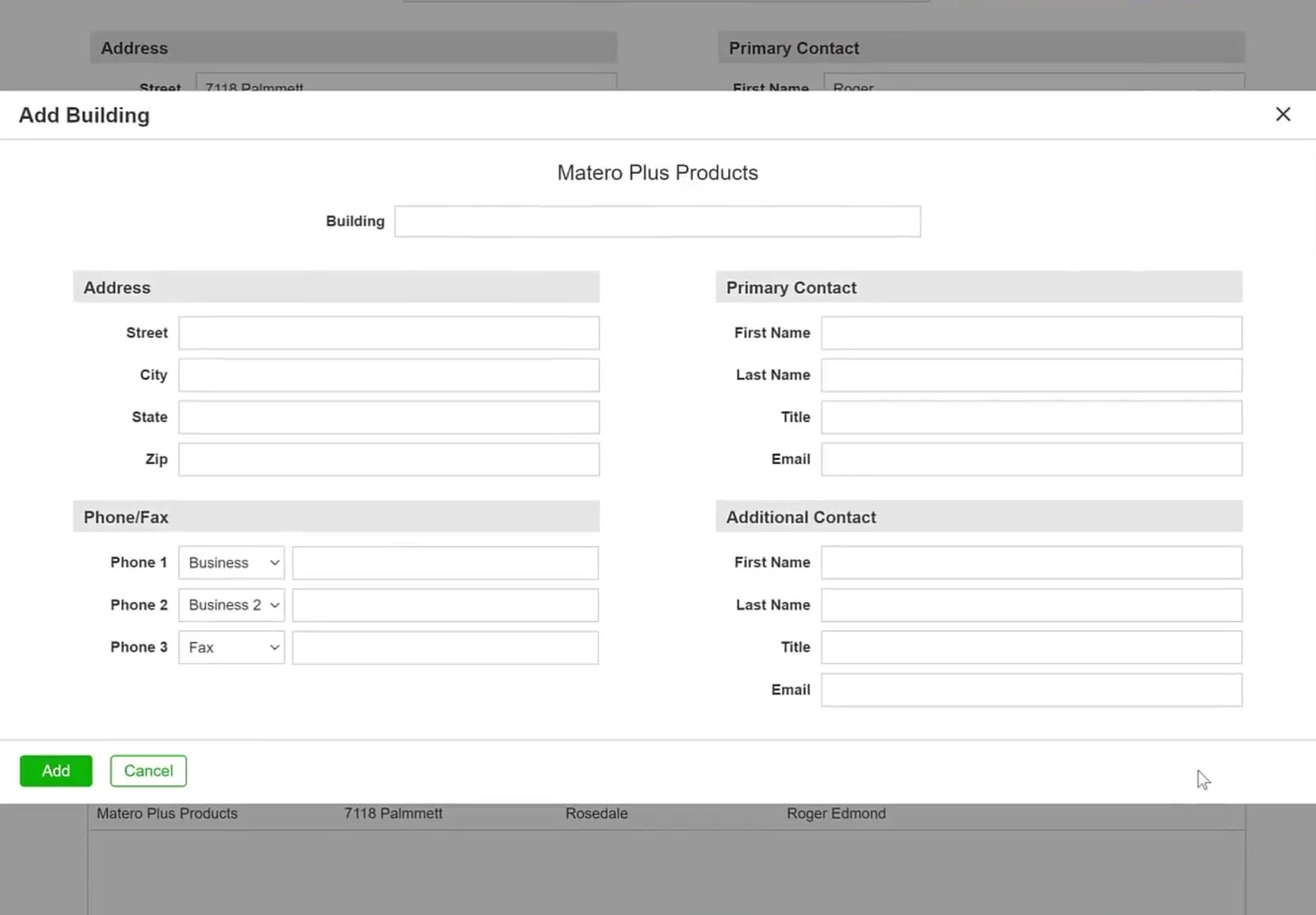
The Add Building window opens empty, with the Building name at the top and Address, Phone/Fax, Primary Contact and Additional Contact below.
Add the site contact
Enter the Primary Contact — first name, last name, title and email — and the building’s phone numbers. There is an Additional Contact block for a second person.
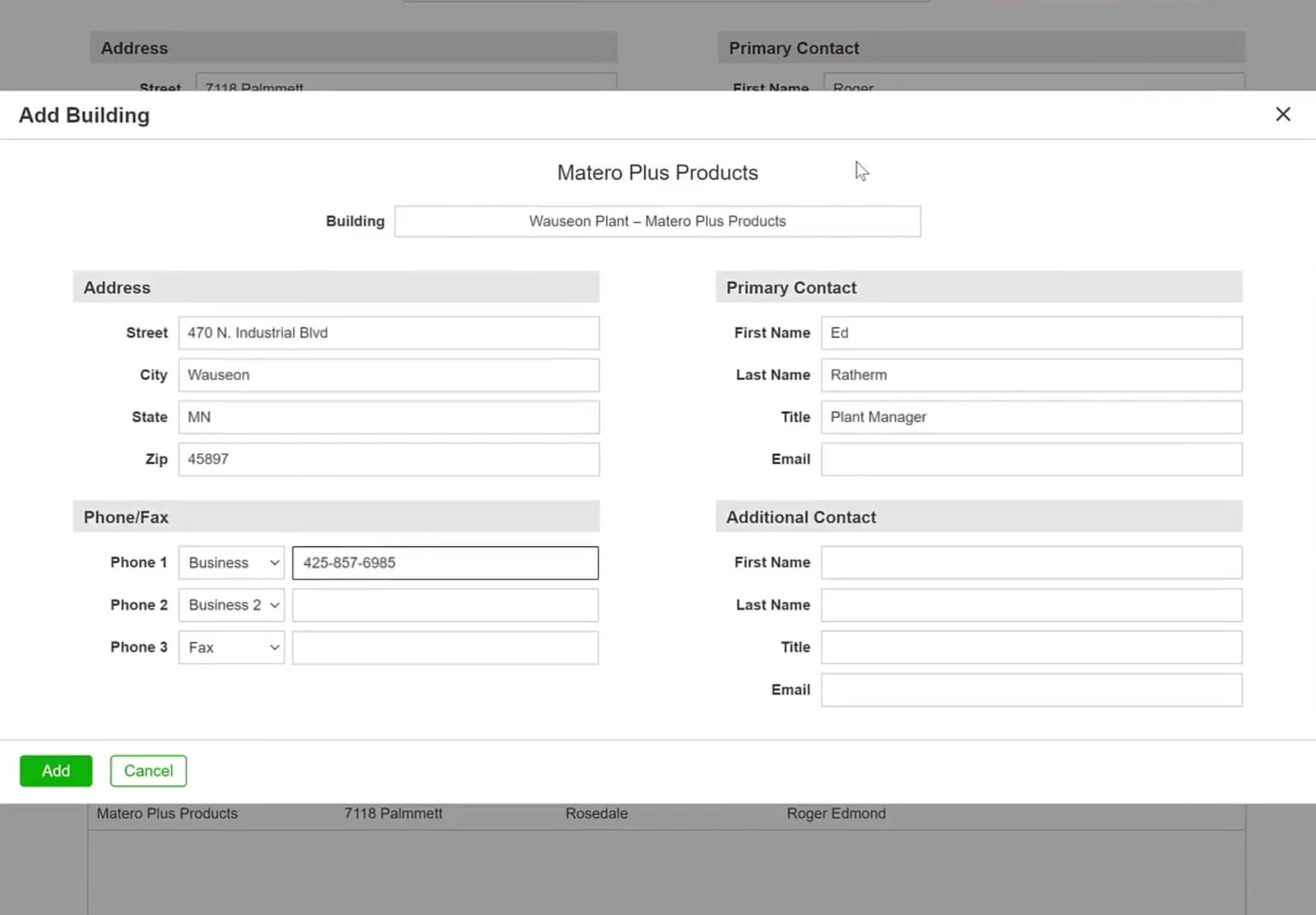
Enter the site's own contact under Primary Contact, and its numbers under Phone/Fax.
Save the building
Click the green Add button at the bottom left of the window.
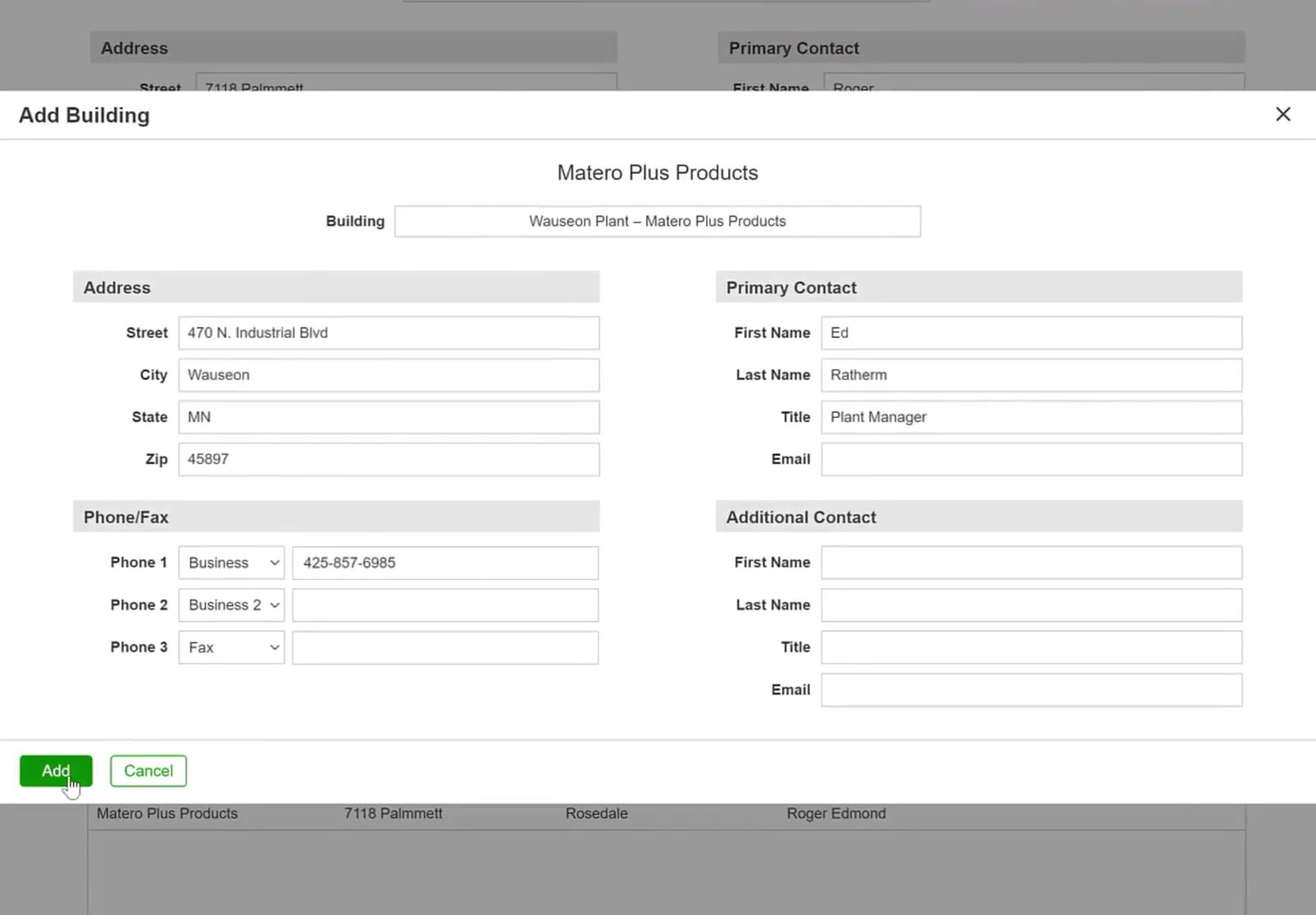
Click the green Add button to save the building.
Verify the Profile
Check the list
The new building appears in the Buildings table beneath the first one.
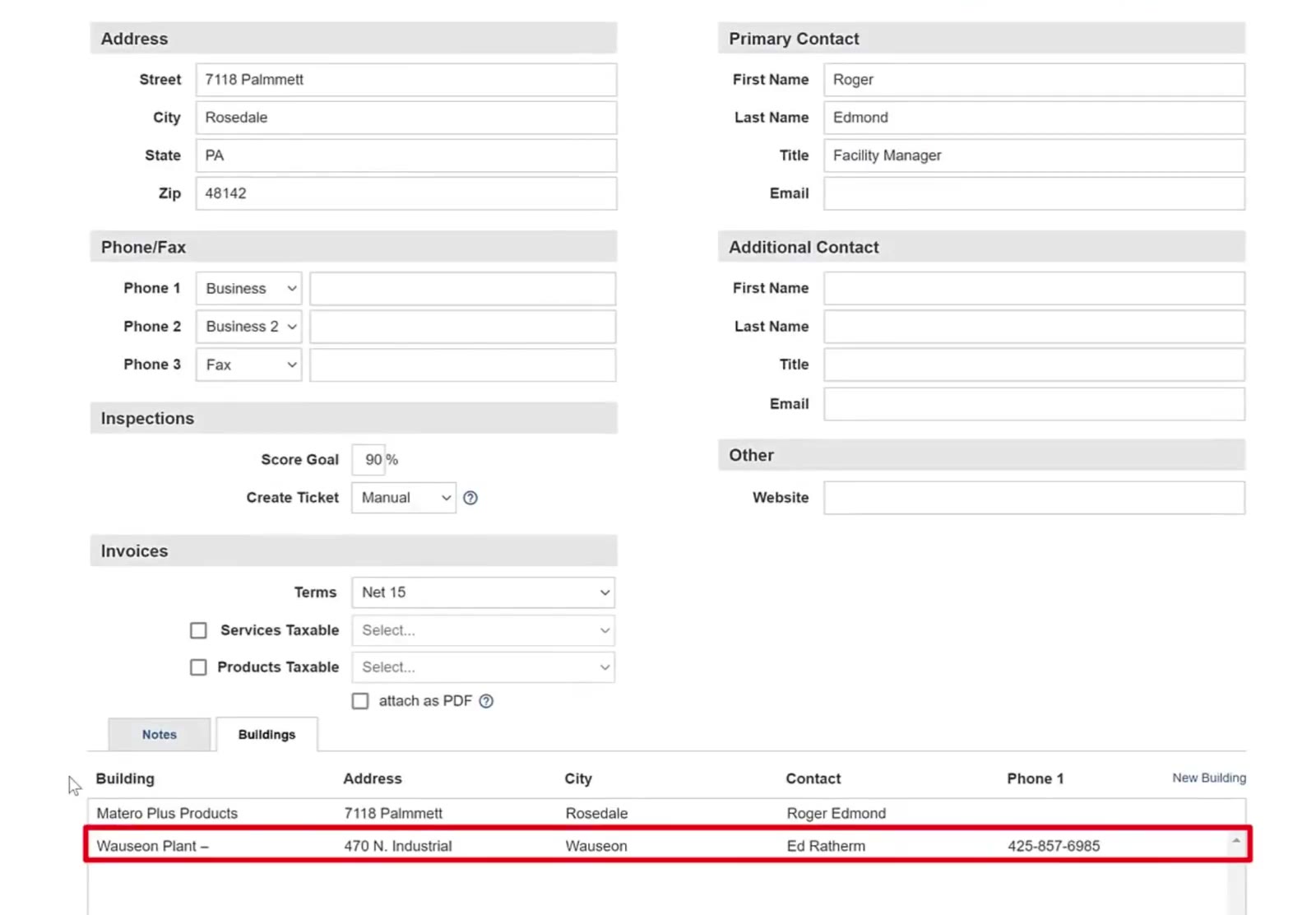
The Buildings table now lists both locations.
FAQ
Where do I find a customer’s buildings?
Open the customer’s profile and click the Buildings tab at the bottom left.
What does the Buildings table show?
One row per location, with Building, Address, City, Contact and Phone 1.
What can I enter for a new building?
A Building name, the Street, City, State and Zip, up to three Phone/Fax numbers, a Primary Contact and an Additional Contact.
Where does the new building appear?
In the Buildings table on the customer’s profile, beneath the one that was already there.
What can I do with the building once it is saved?
It is ready to use for scheduling and inspections.