
Calculate Average Wage
A job often has people on it earning different rates — two cleaners and a supervisor, say. The Average Wage calculator turns those rates into one hourly wage for the bid, so your labor cost comes out right. It uses what each person earns and how many hours a day they work on the job.
Working Out the Average Wage
You do this from the bid's Price tab, without leaving the pricing screen.
Open the calculator
On the Price tab of your bid, click the small calculator icon next to Wages. The Average Wage box opens.
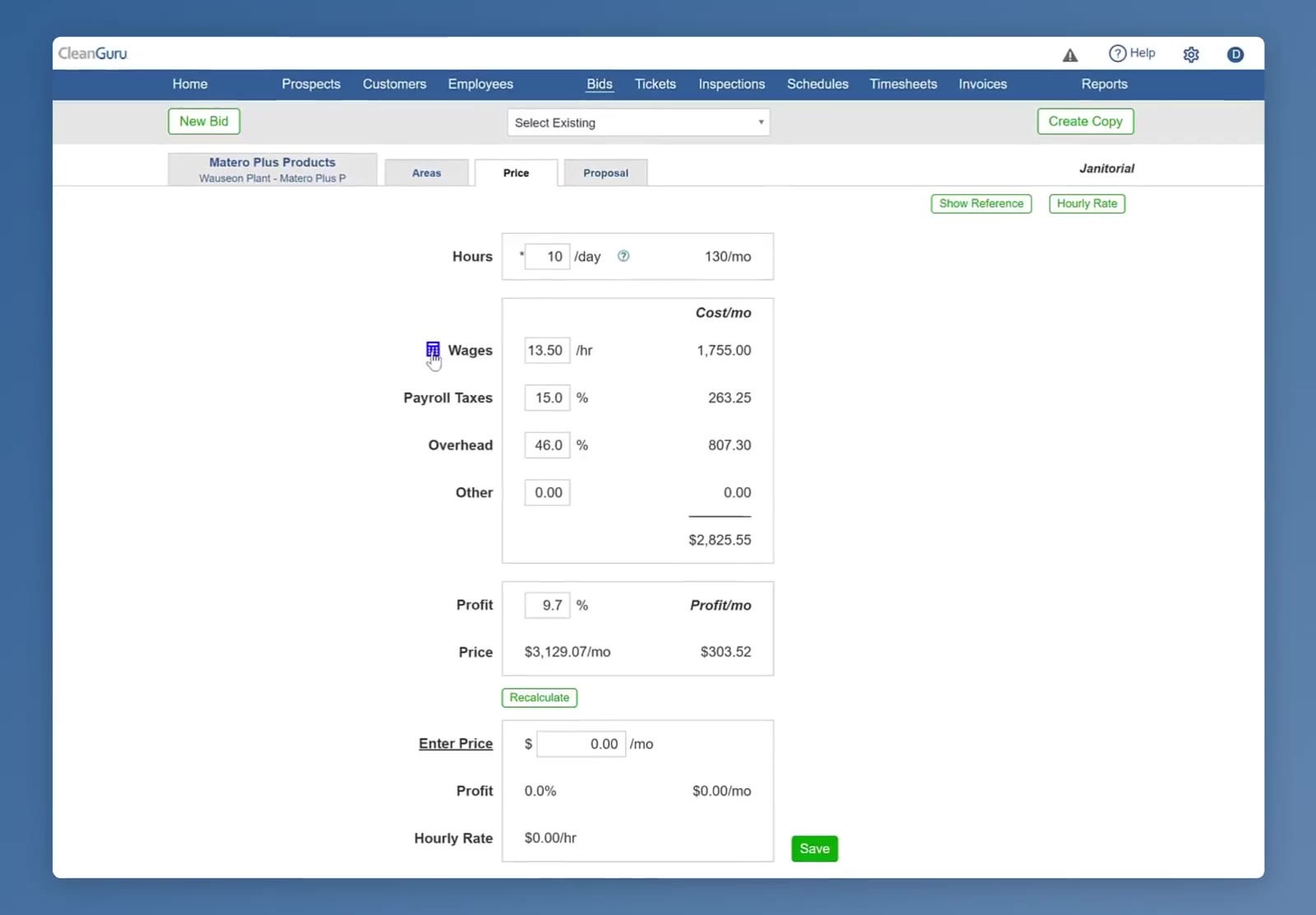
The Price tab. The calculator icon sits just left of the Wages field.
Set how many people are on the job
Use # Cleaners to pick the number. A row appears for each person.
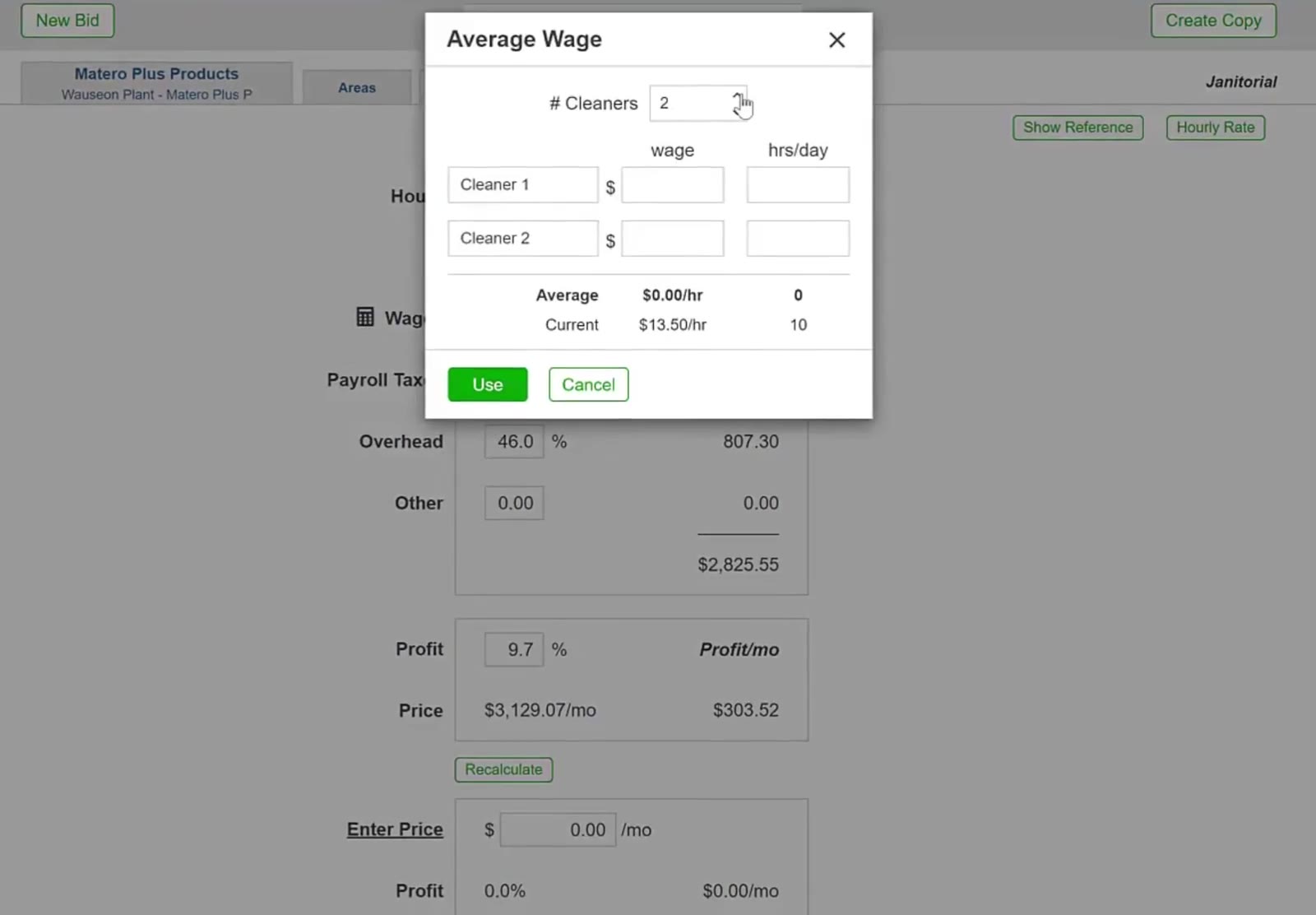
Setting the number of cleaners adds a row for each one.
Fill in each person's pay and hours
Type the hourly wage and the hrs/day that person works on this job. You can click a label such as Cleaner 1 and rename it — to Supervisor, for example.
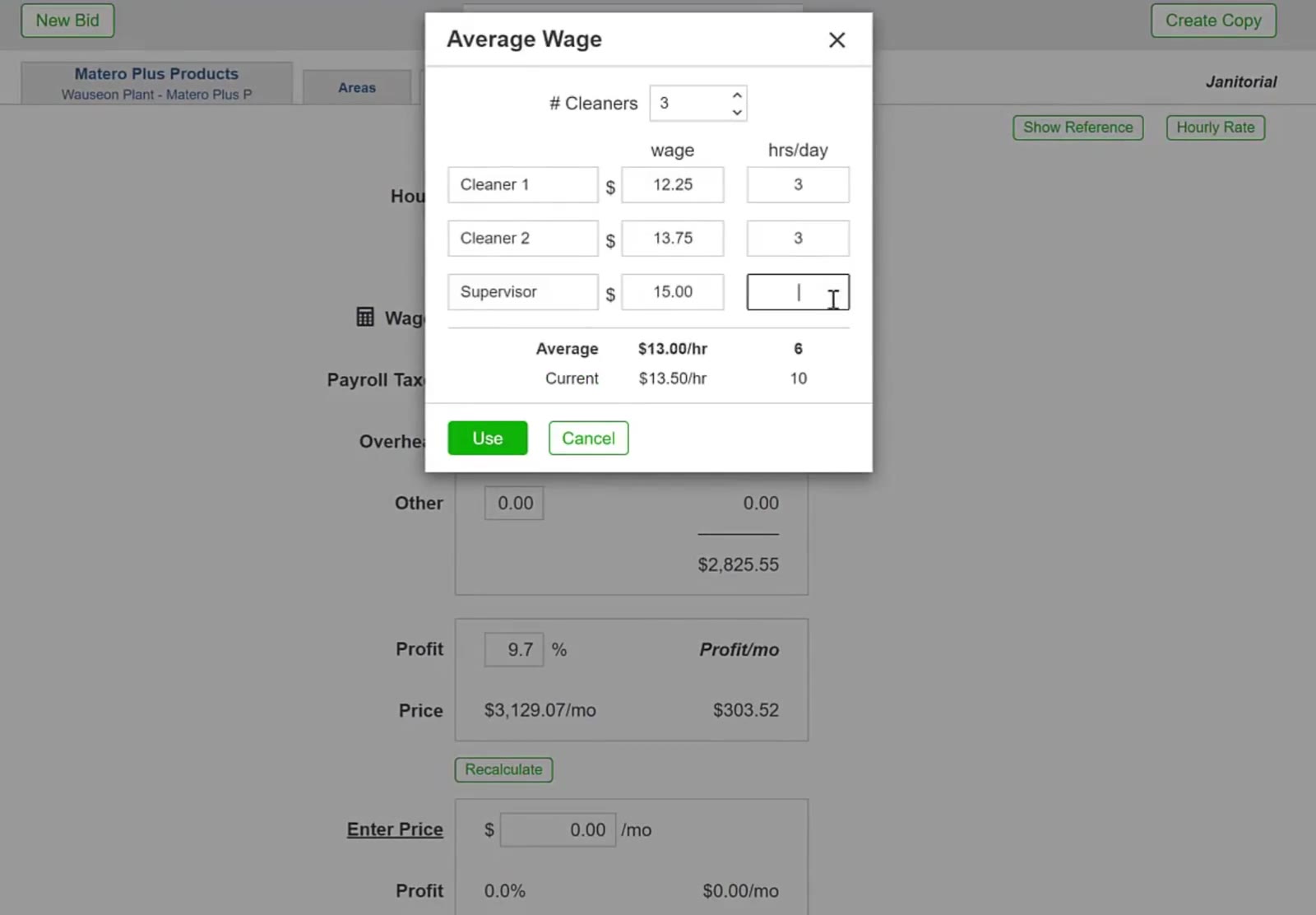
Enter a wage and the hours per day for each person on the job.
Check the two numbers in the right-hand column at the bottom of the box. The Average row adds up the hours you just entered. The Current row shows the hours per day from the Price tab. Those two numbers have to match. If they do not, your hours are wrong somewhere — fix them before you go on.
Check the average and use it
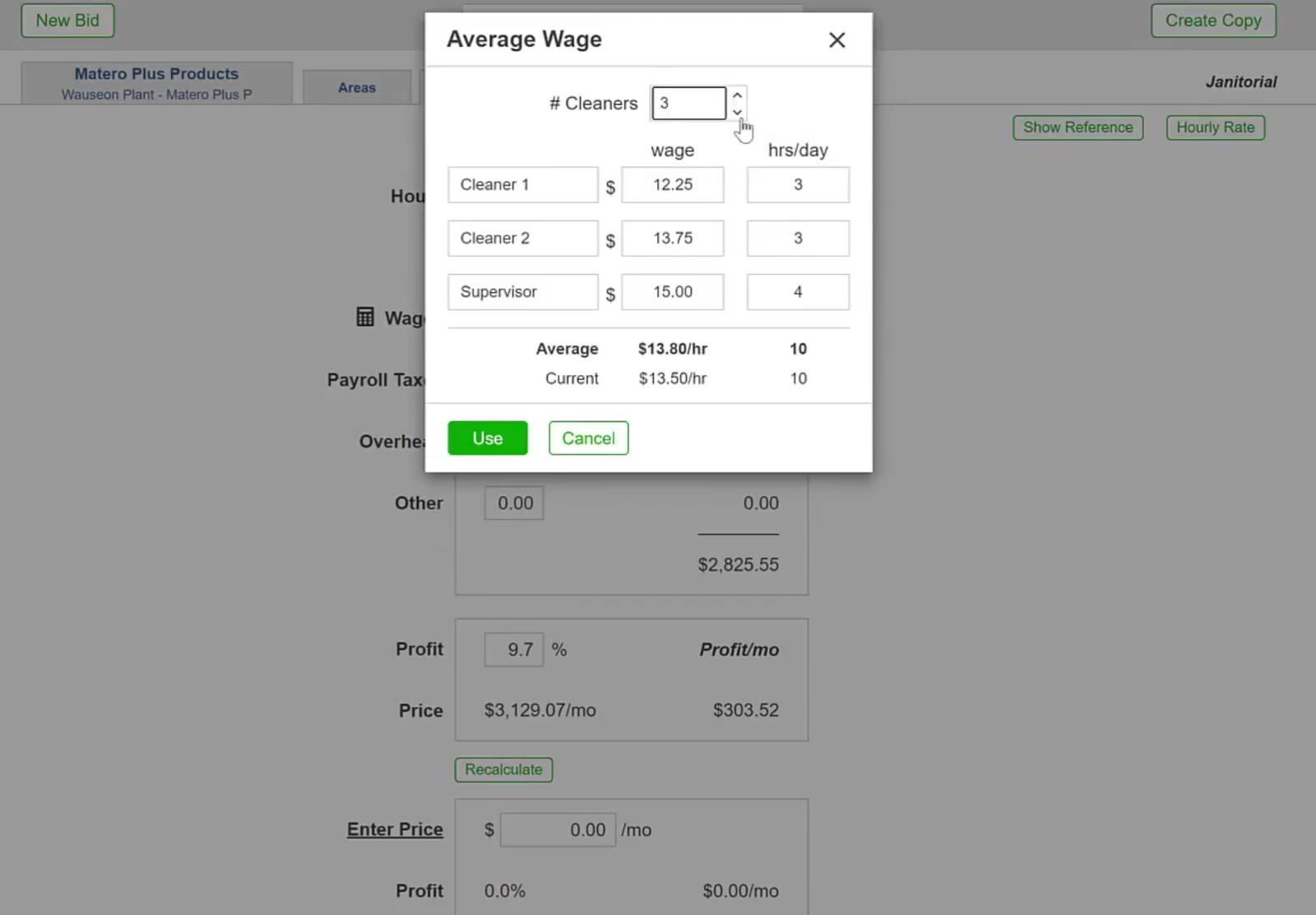
The Average row shows the new hourly rate. Once its hours match the Current row, click the green Use button.
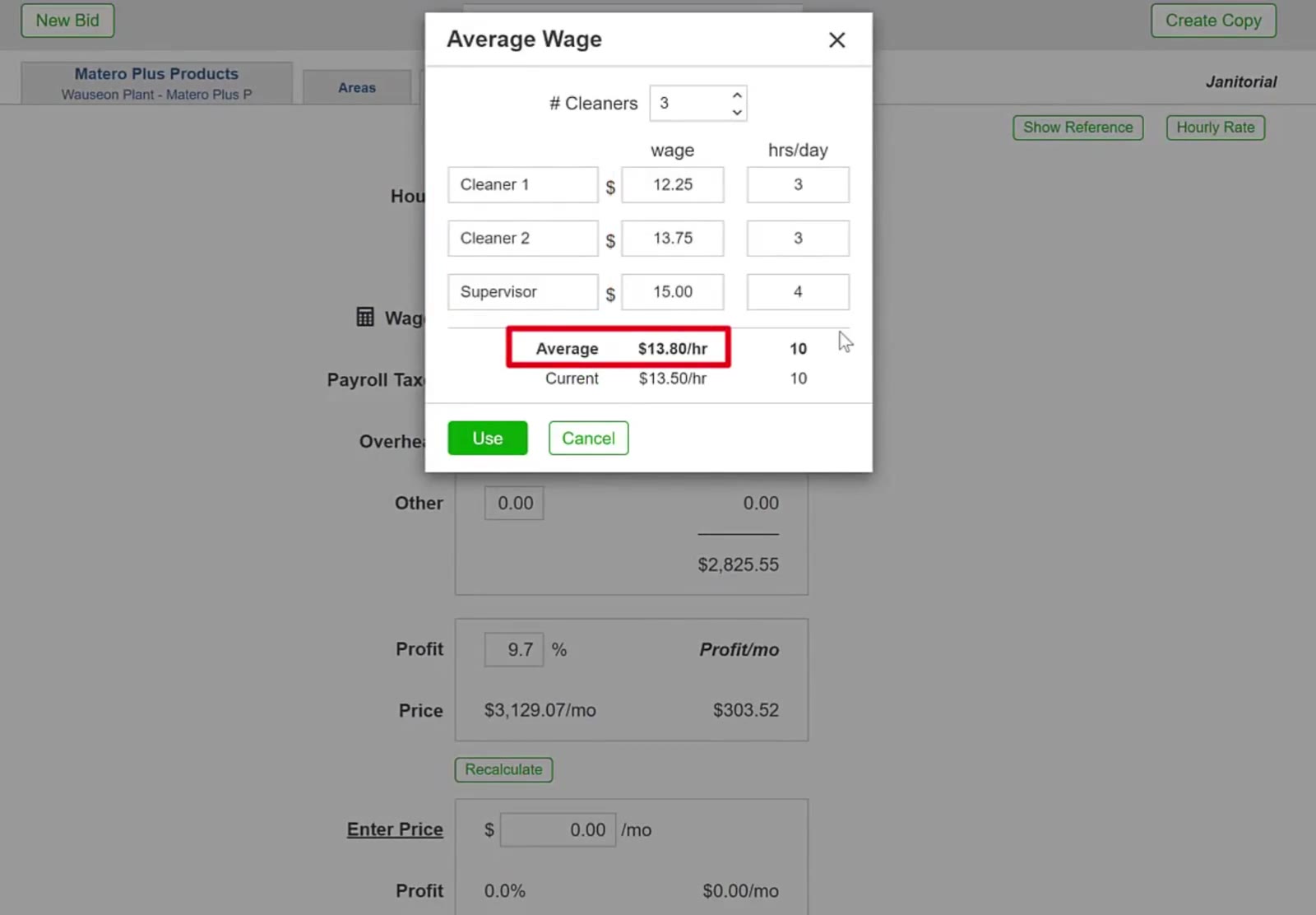
The Average row shows the new rate. Its hours (10) match the Current row, so the numbers add up.
Work the new wage through your price
You come back to the Price tab and the Wages field shows the new rate. Click Recalculate to carry it through your costs, profit and price.
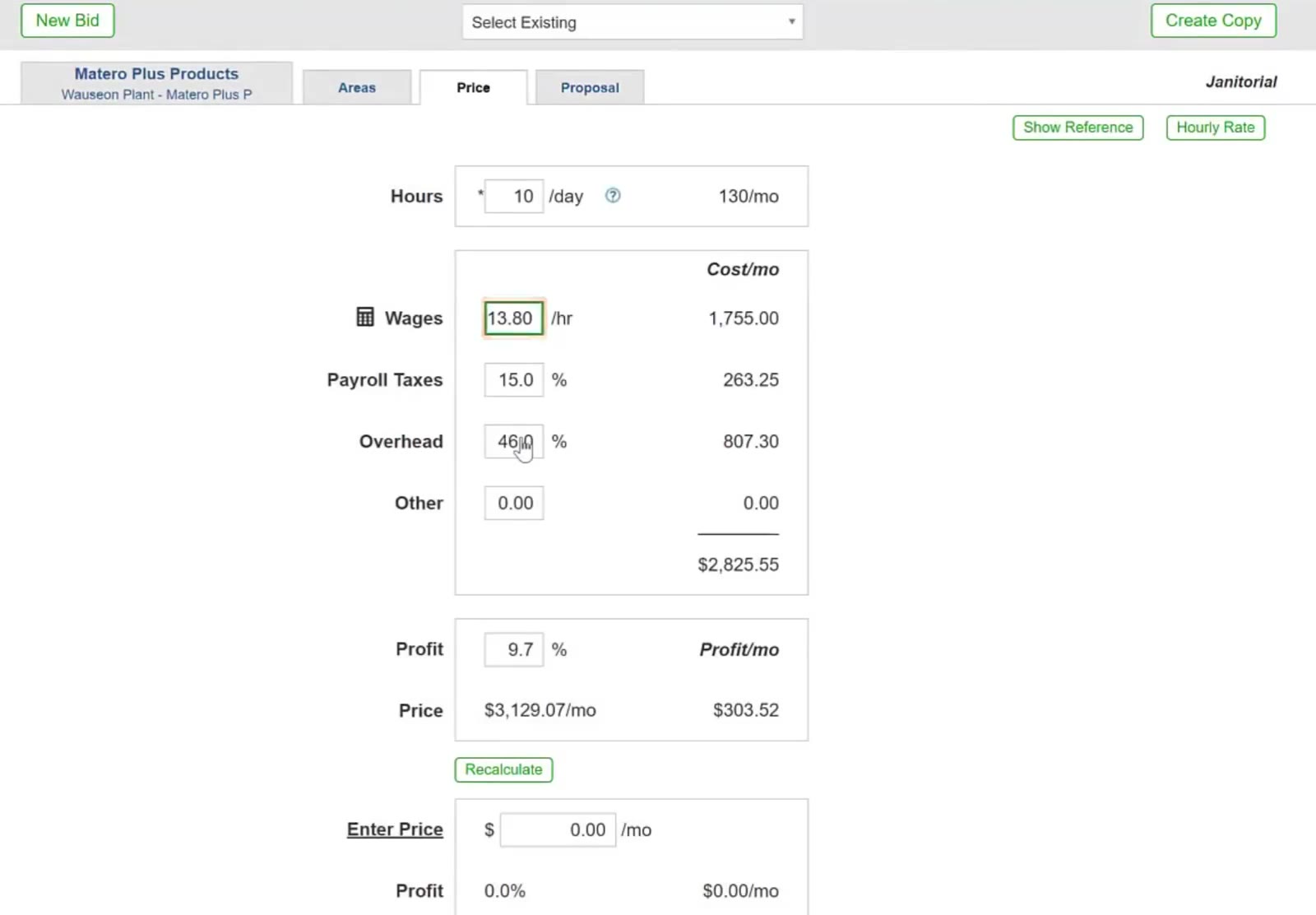
Back on the Price tab, the Wages field holds the new average.
A different wage means a different labor cost. Look at your Profit % and Profit/mo afterwards and make sure the bid still earns what you want.
Changing the Calculation
You can reopen the calculator any time and try a different crew.
Add or remove people
Change # Cleaners. Raising it gives you a blank row to fill in; lowering it takes rows off the bottom.
Change the number of cleaners to try a different crew.
Rename a role
Click a label like Cleaner 1 and type something that tells you more, such as Lead Janitor or Floor Specialist.
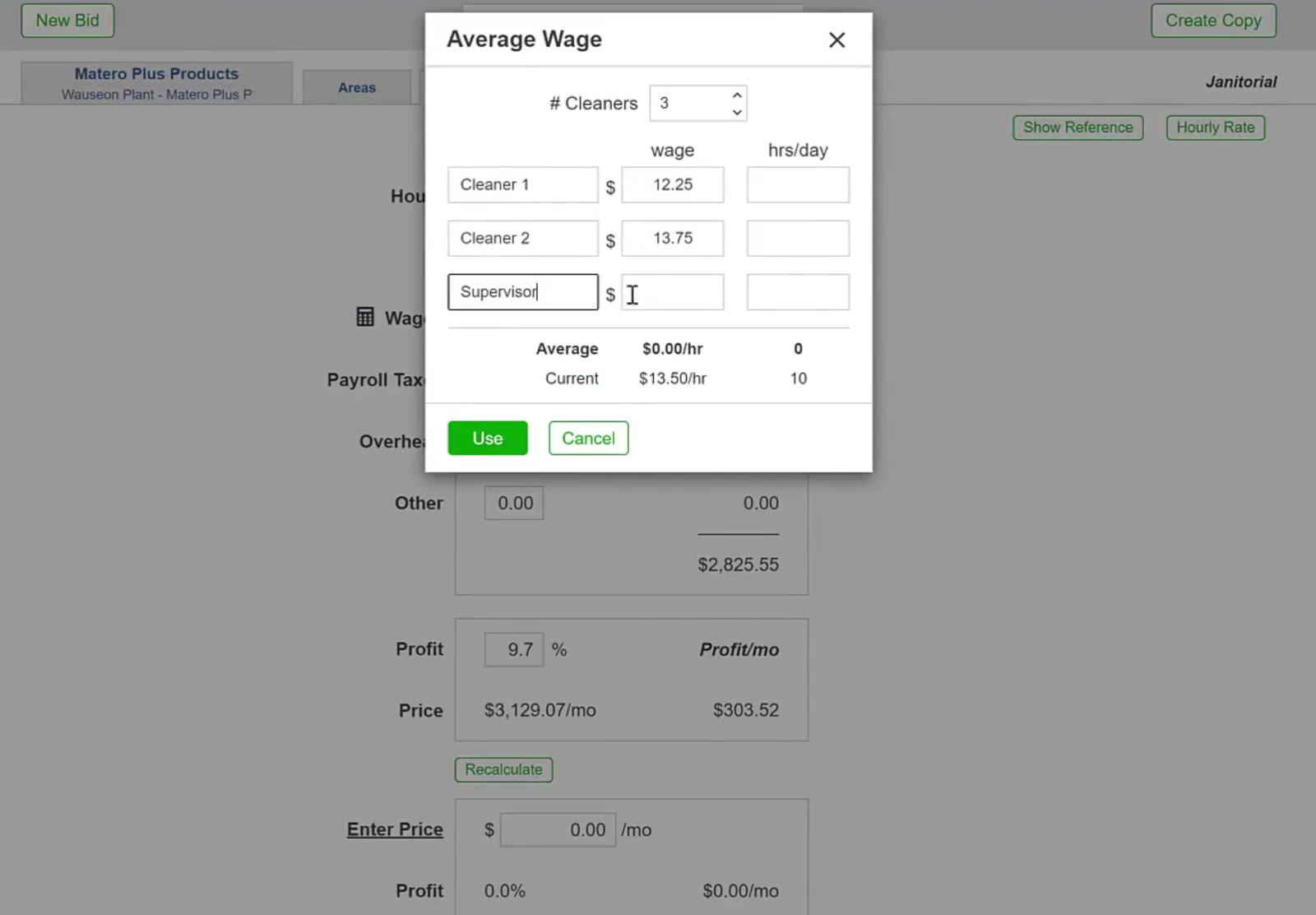
Rename a row so you can tell the roles apart.
The calculator saves you doing the math by hand and keeps the wage in your bid honest when your crew is paid different rates. Remember to check that the hours match, and to recalculate after you apply a new wage.
FAQ
Does the average wage include payroll taxes?
No. It works out the base hourly pay only. Payroll taxes are added separately as a percentage on the Price tab.
Is the calculation saved for other bids?
No. It belongs to the bid you are working on. A new bid starts from your default wage, and you can run the calculator again there.
How is the average worked out?
By hours, not by a straight average of the rates. Each person's wage is multiplied by their hours, those are added together, and the total is divided by the total hours. Three hours at $12.25, three at $13.75 and four at $15.00 comes to $13.80 an hour.
Can I just type over the Wages field myself?
Yes. But then the figure is your own, not the calculator's. If you want it worked out again, reopen the calculator and click Use.
Will names like "Supervisor" show up on the proposal?
No. Those labels are only for your own pricing. The prospect sees the price and the services, not what you pay your people.