
Add Day Porter
Adding a Day Porter to a CleanGuru janitorial bid schedules dedicated daytime cleaning staff with their own frequency, daily hours, and task checklist. The day porter is added alongside the bid's areas rather than inside one of them.
Access Bid Areas
Open the bid
: Select your existing bid from the Bids tab.
Navigate to Areas
: Click the Areas tab at the top of the bid summary screen.
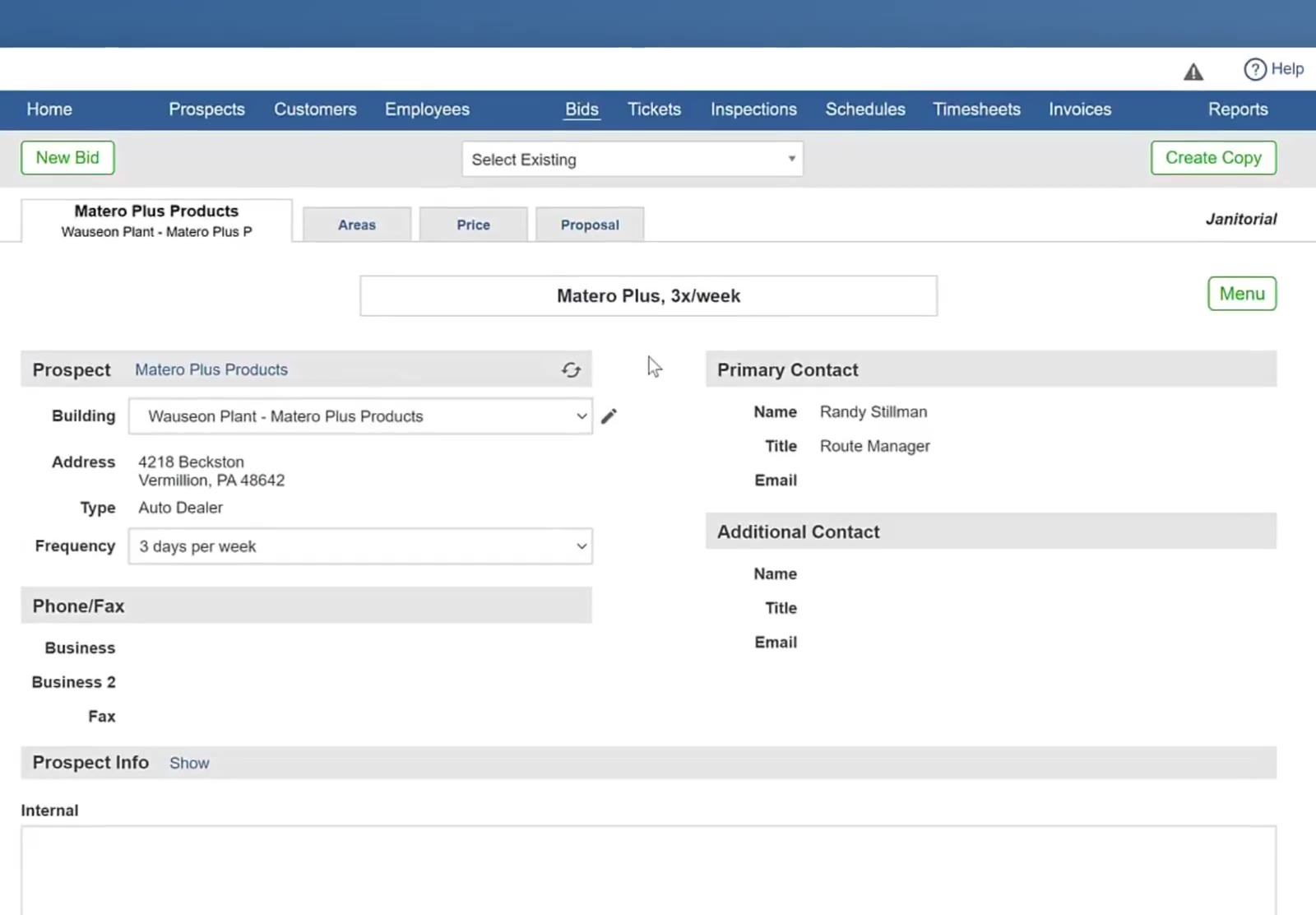
The Areas tab is located at the top of the bid summary screen.
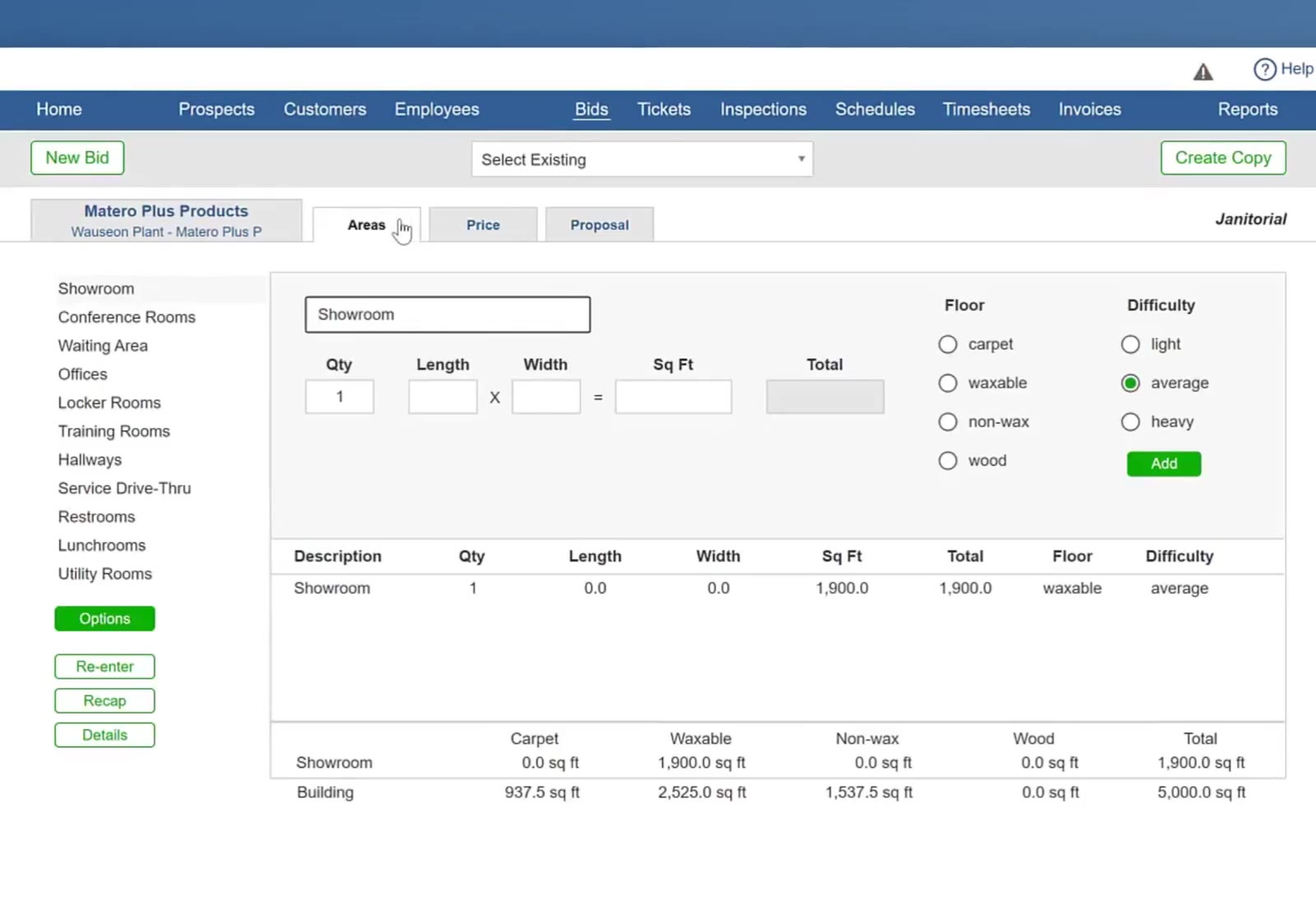
The Areas tab opens onto the bid's existing areas and their measurements.
Configure Day Porter
Open the area options
: On the Areas tab, click the green Options button in the left sidebar, below the list of areas.
Add the day porter
: Click the green Add Day Porter button that appears in the left sidebar, below Add Area.
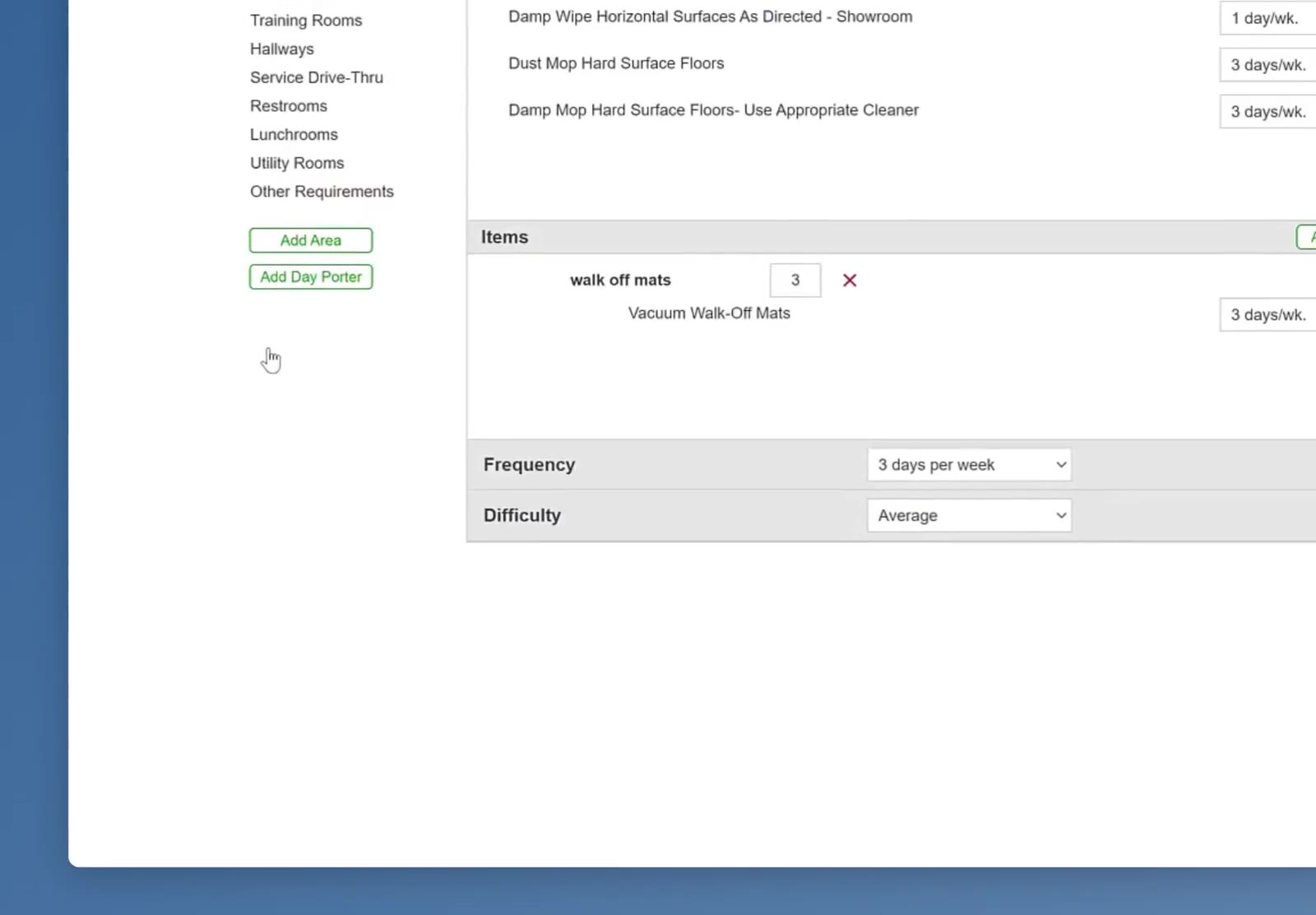
Clicking Options in the left sidebar reveals the Add Area and Add Day Porter buttons.
Set the service schedule
In the Day Porter window, choose a Frequency from the dropdown, enter the number of hours in the Hrs/day field, then click Add.
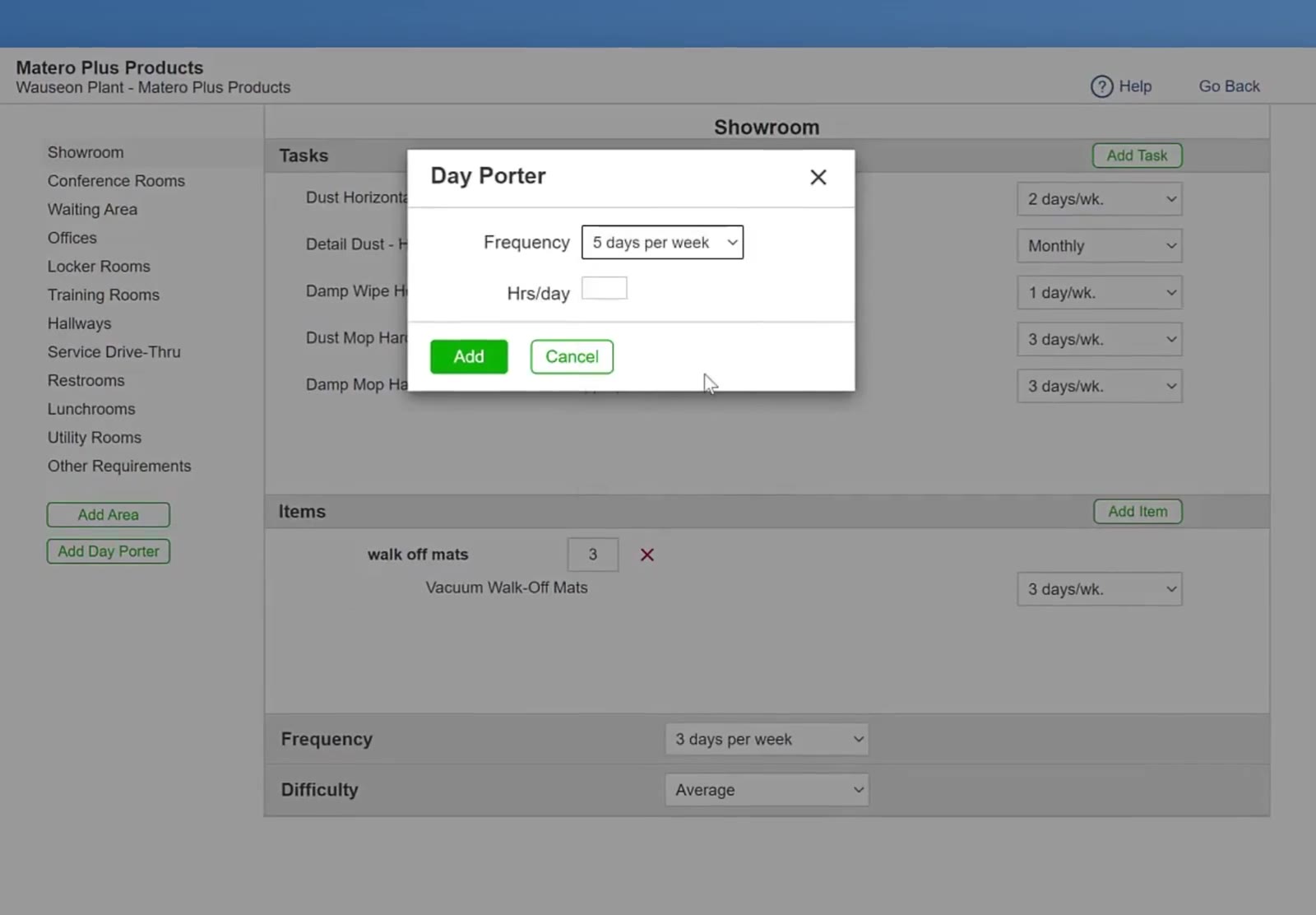
The Day Porter modal contains the Frequency dropdown and the Hrs/day field.
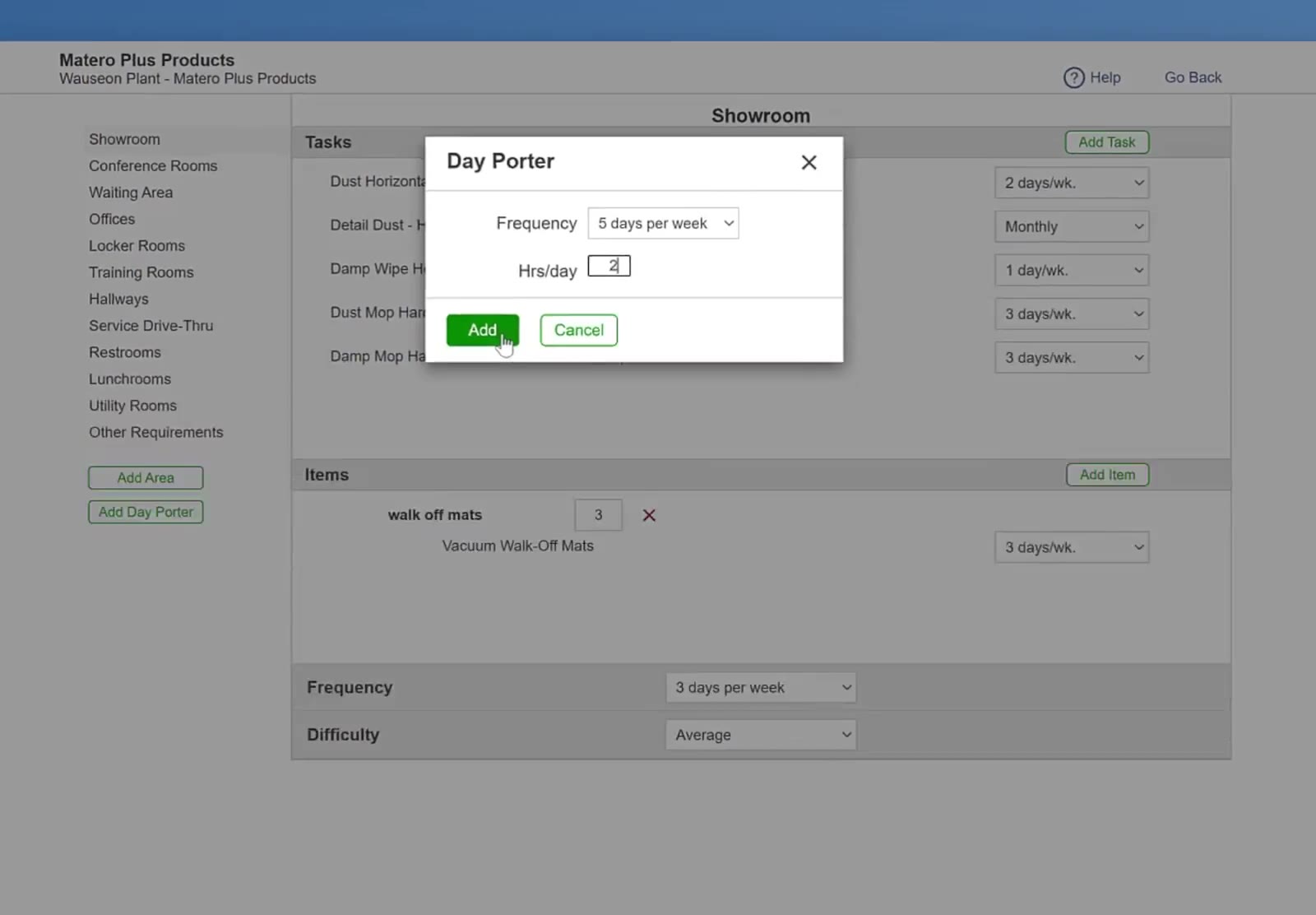
The green Add button is located at the bottom of the Day Porter modal.
Customize Porter Checklist
CleanGuru automatically generates a Day Porter checklist of specialized daytime tasks.
Review the checklist
CleanGuru generates the Day Porter task list automatically.
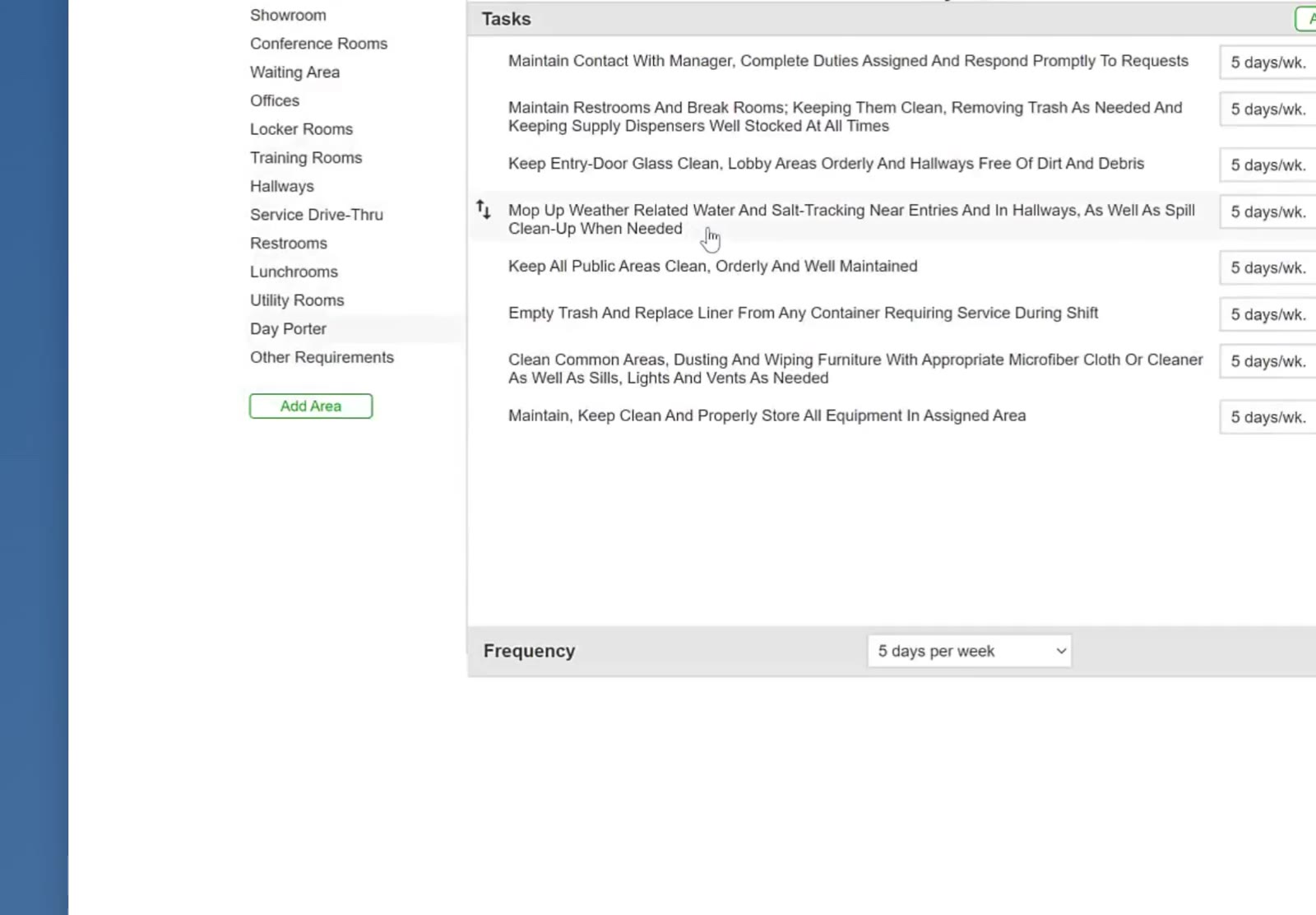
The Day Porter task list displays specialized daytime cleaning tasks with frequency settings.
Add a task
Click Add Task at the top right of the Tasks panel to open the task library. Pick a standard task, or select Custom, choose New Task and click Add to write your own.
Edit a task
Click any task name to change its wording, then click Change. Day porter tasks carry no time of their own — the Hrs/day at the top of the screen covers the whole shift.
Adjust a task frequency
Use the frequency dropdown next to a task to change how often it is performed.
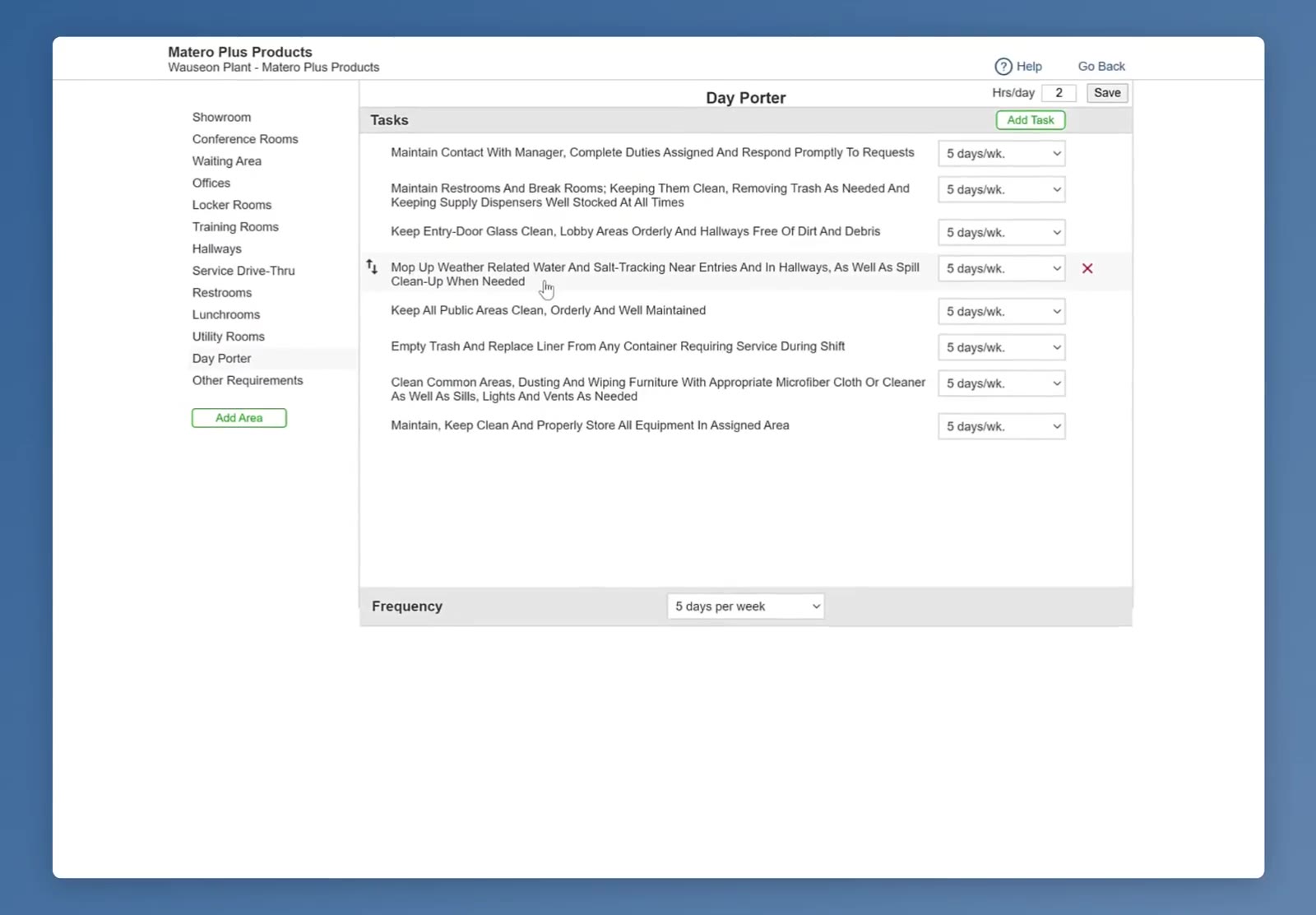
Hovering over a task reveals the red X that removes it; each task keeps its own frequency dropdown.
Remove a task
Hover over a task, then click the red X that appears at the right of the row.
Reorder a task
Hover over a task row to reveal the up-and-down arrow handle at the far left, then drag the row to its new position in the list.
Save the checklist
: Click Save in the top-right corner of the Day Porter screen to save the checklist and the Hrs/day value.
FAQ
What is a day porter in a cleaning bid?
A day porter is cleaning staff assigned to a building during business hours, separate from nightly janitorial work. In CleanGuru you add a day porter from the Areas Options sidebar, alongside the bid's areas, and it gets its own frequency, daily hours, and task list.
Can I add more than one day porter to the same bid?
No. CleanGuru allows one day porter per bid. Its Frequency and Hrs/day settings define how much daytime coverage the building gets.
Can I change the day porter hours after saving?
Yes. Go to Areas, click Options, select Day Porter, update the hours, and click Save.
Does the day porter task list appear on the customer proposal?
Yes. The day porter appears as its own section in the proposal.
How does a day porter affect the bid price?
Day porter labor adds its hours to the total time it takes to clean the building, so it directly affects the bid price.
What tasks are on the CleanGuru day porter checklist by default?
CleanGuru generates a standard day porter checklist that includes maintaining contact with the manager, maintaining restrooms and break rooms, keeping entry-door glass clean, mopping up tracked-in water, keeping public areas clean, emptying trash and replacing liners, cleaning common areas, and storing equipment. You can adjust or remove any of them.