
View Recommended Price
CleanGuru works out what a job should cost you and what to charge for it. The hours come from every task you loaded on the Areas tab. Your wage and payroll tax come from your settings, and overhead and profit are scaled to the size of the account. Every figure is yours to change before you set the price you will actually bid.
Check the Figures CleanGuru Worked Out
Open the Price tab
In the bid, click Price. CleanGuru has already added up every task you loaded on the Areas tab and worked the whole worksheet out from them.
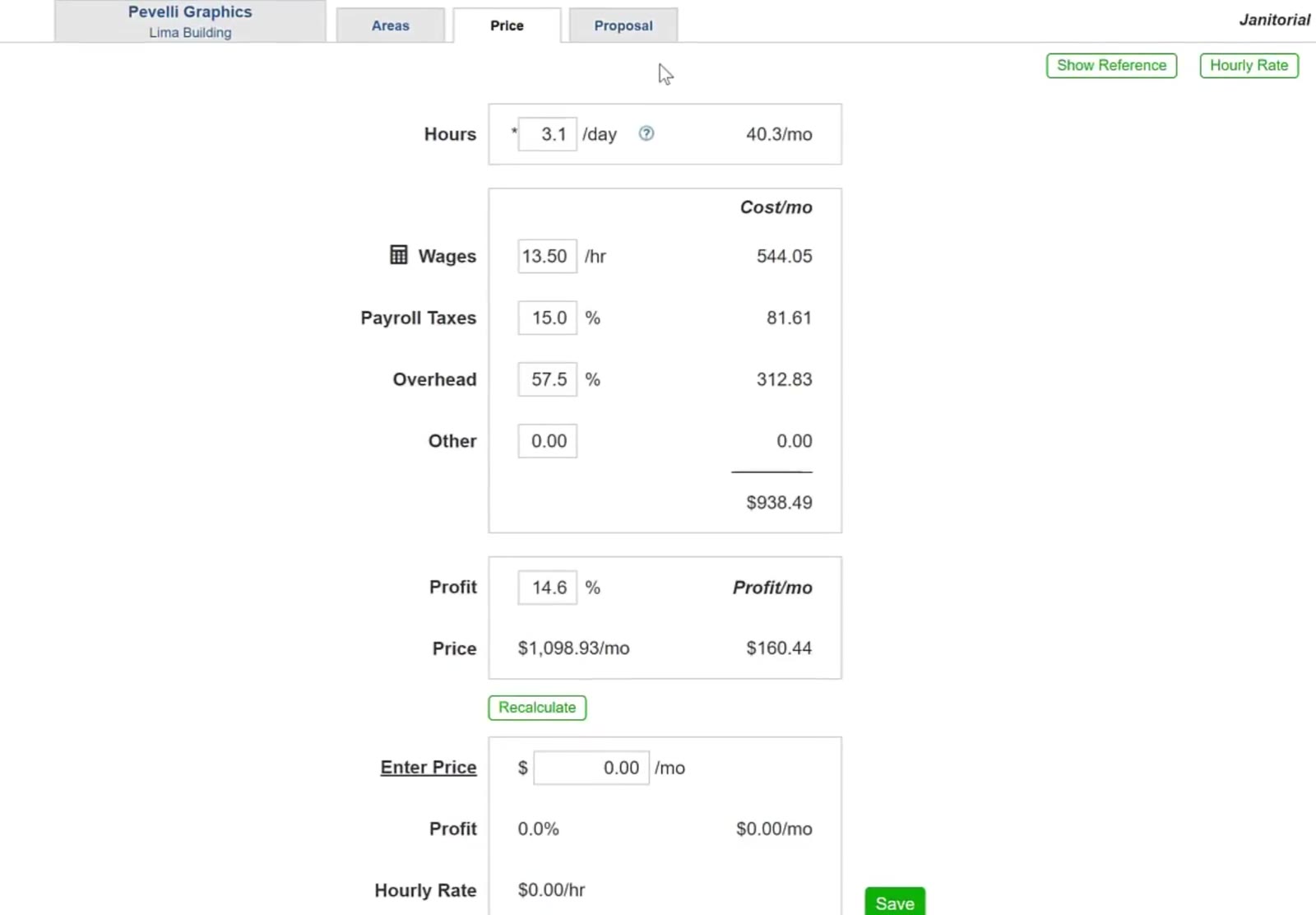
The worksheet arrives complete: hours, wages, taxes, overhead, profit and a monthly price.
Two buttons sit at the top right of the Price tab. Show Reference brings back the hours and figures CleanGuru worked out before you changed anything, so you can see how far you have moved from them. Hourly Rate is a different way to price the job — you give a rate per hour and CleanGuru works the monthly price out from that.
Read the hours
CleanGuru works the hours out from every task in every area of the bid and shows the monthly total beside them. Change the figure if you know the job will run differently.
Read the costs and the profit
Wages and Payroll Taxes come from your settings. Overhead and Profit are worked out by CleanGuru and scaled to the size of the account. Other starts empty, for anything else this job costs you. Any of them can be changed.
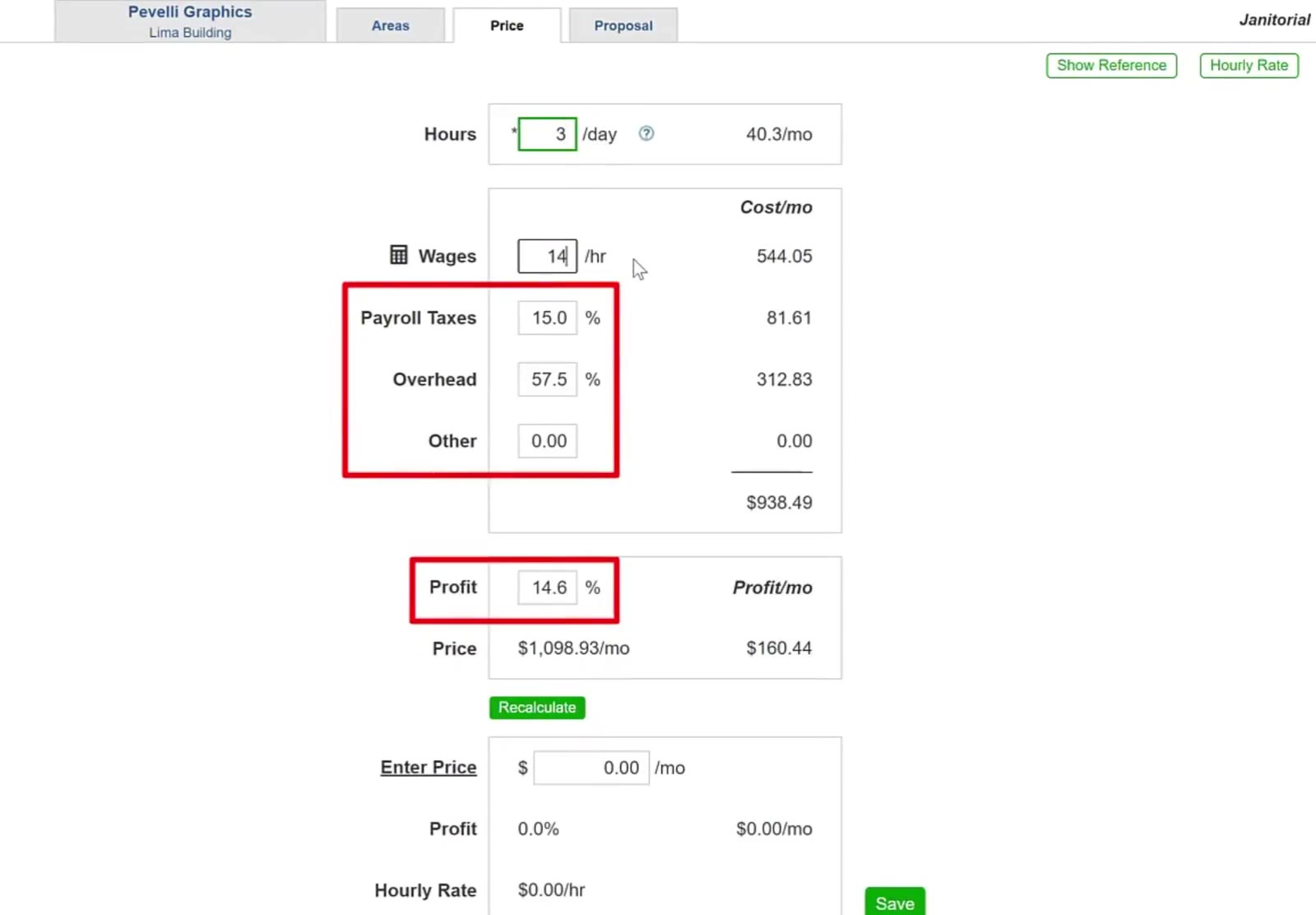
Every figure except Other arrives filled in, and any of them can be changed.
Recalculate
If you changed anything, click Recalculate. The cost column and the total update, and Price shows the monthly figure that earns the profit percentage shown.
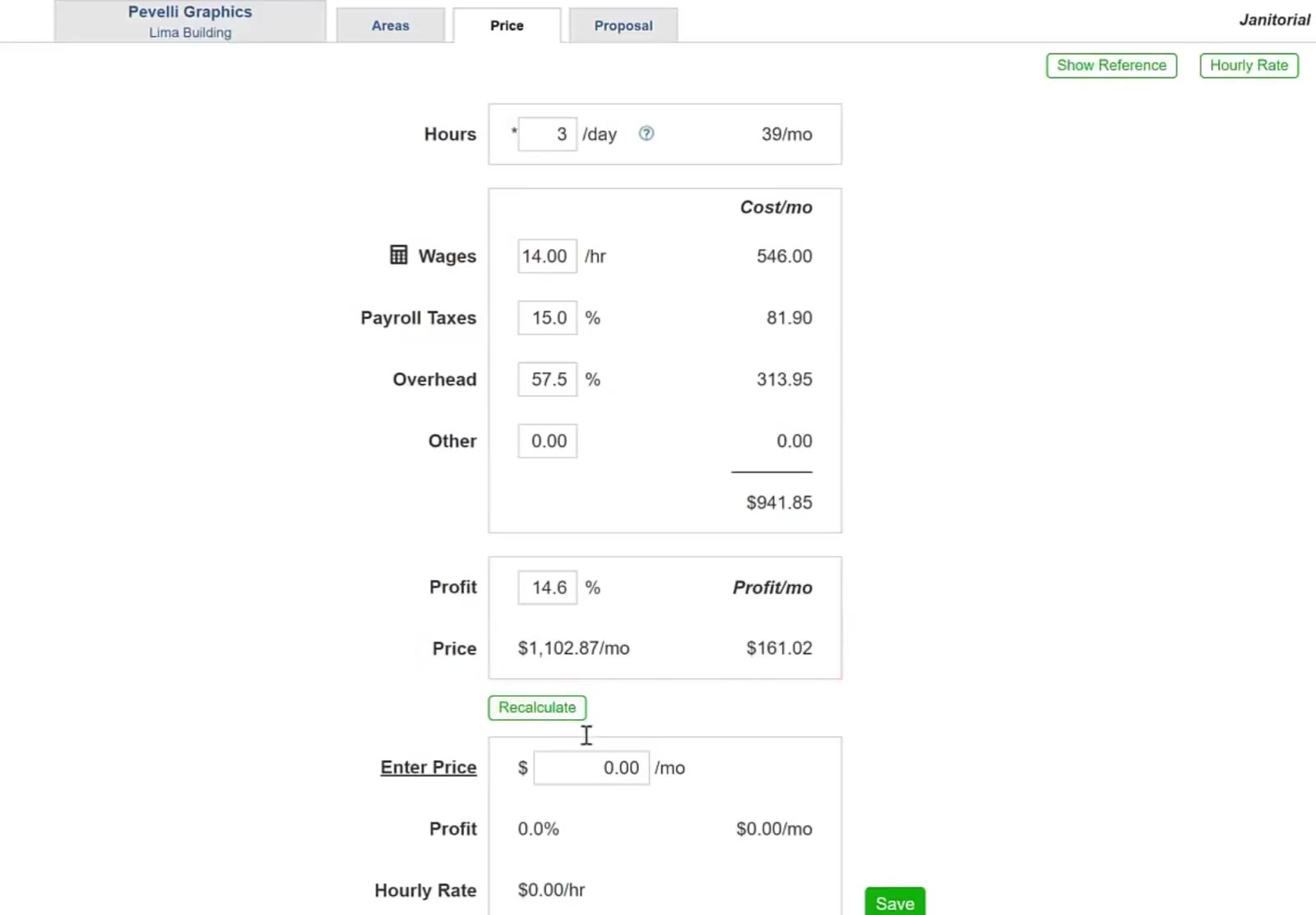
Recalculate updates the cost total and the recommended price.
Set the Price You Will Charge
Enter your price
The recommended figure is a suggestion, not the bid. Type what you actually intend to charge in Enter Price.
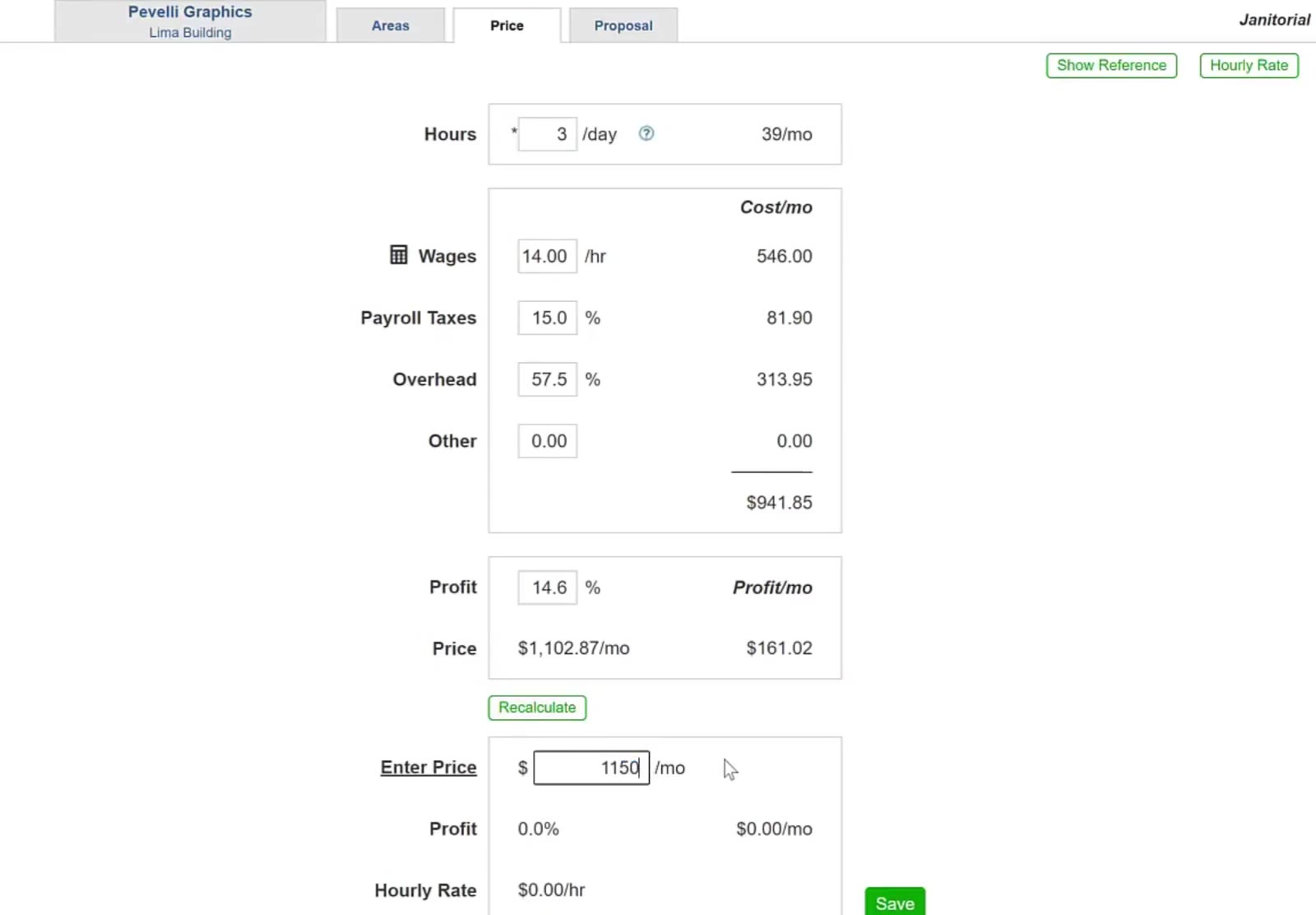
Enter Price is separate from the recommended figure, and the profit line below stays at zero until you save.
Save and check what it earns
Click Save. The Profit percentage and the Hourly Rate underneath update to match the price you entered.
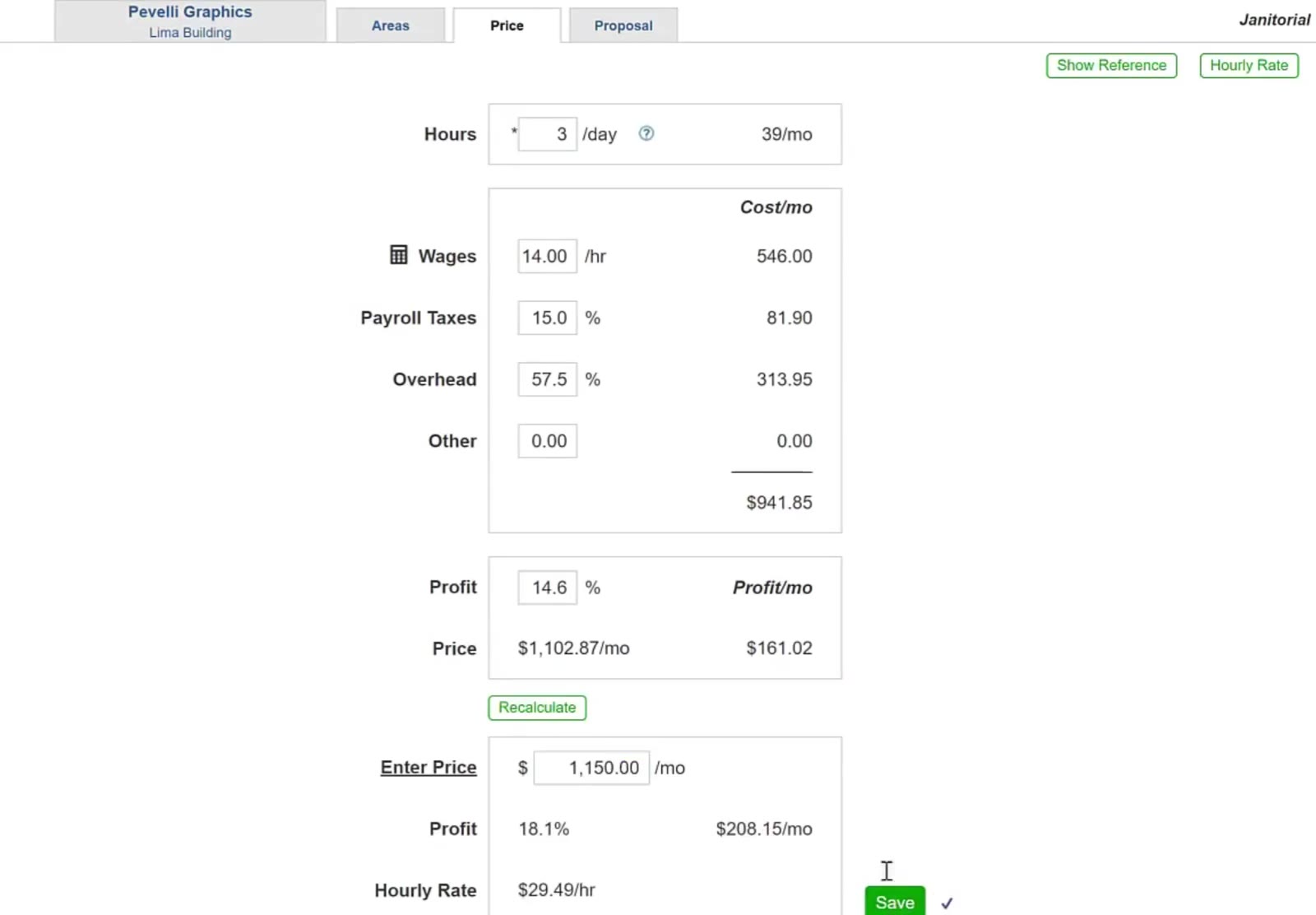
After Save, the profit percentage and hourly rate reflect the price you set.
If the profit comes back lower than you want, change the hours, the wage or the overhead and recalculate rather than just raising the price.
Move on to the proposal
Click the Proposal tab along the top of the bid. The price you saved carries through to the proposal document.
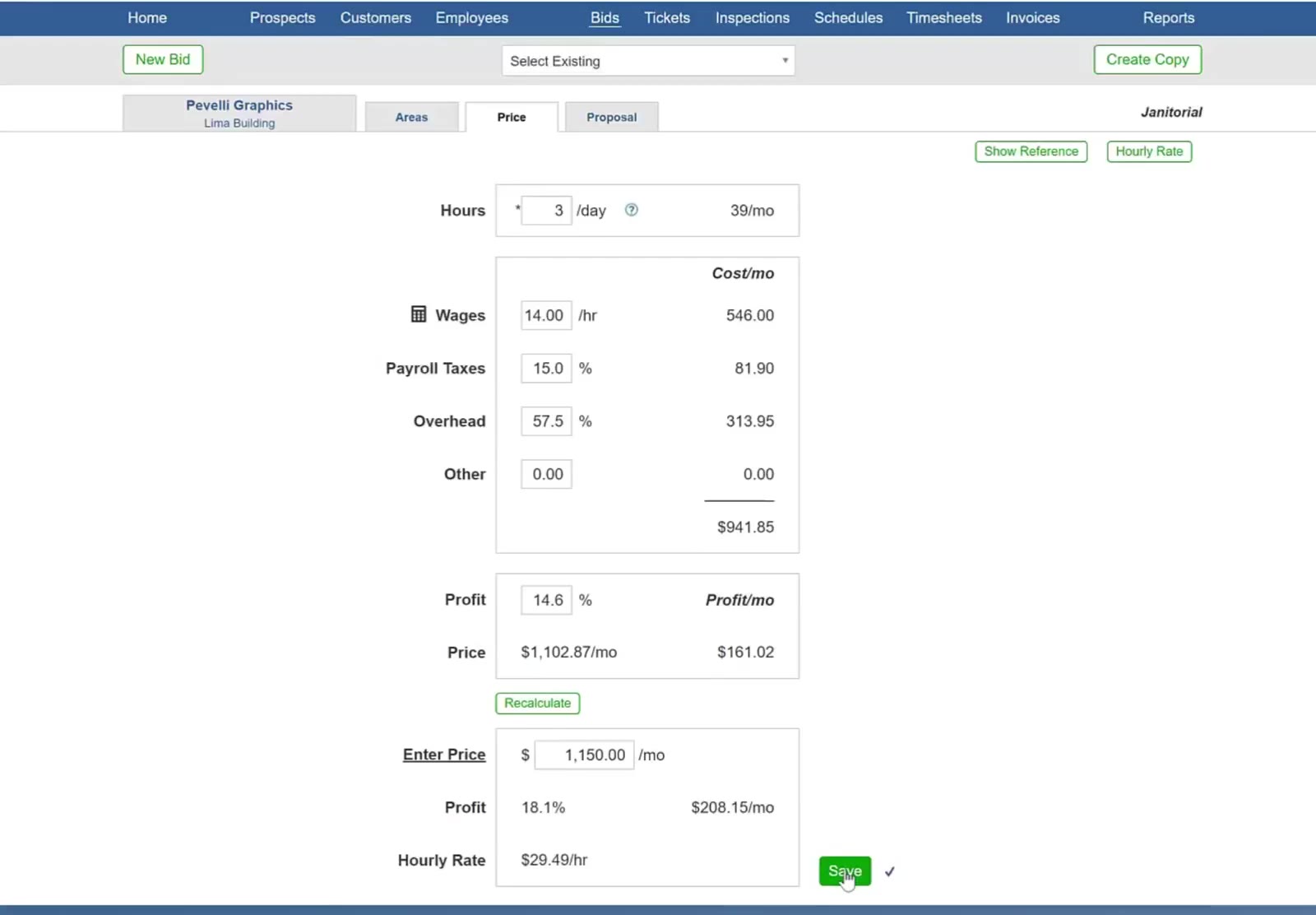
The Proposal tab sits next to Price along the top of the bid.
FAQ
Do I have to click Recalculate every time I change something?
Only if you want to see the new figures before you commit to them. Recalculate works everything out without saving. Save recalculates too, so clicking Save on its own also brings the figures up to date.
Can I use a different overhead percentage on one bid?
Yes. Change the Overhead percentage on that bid's Price tab. The figure CleanGuru puts there is worked out from the size of the account, so changing it applies to this bid only.
Where does the Hourly Rate come from?
It is the monthly price you entered divided by the month's labor hours. A price of $1,150.00 over 39 hours comes to $29.49 an hour.