
Add Image to Cover Page
Use CleanGuru to personalize your professional janitorial service bids by utilizing the building image upload feature. This ensures your building photos appear prominently on the cover page of your proposals.
Access Prospect Records
Select the record type
Click People in the top navigation bar and select Prospects or Customers.
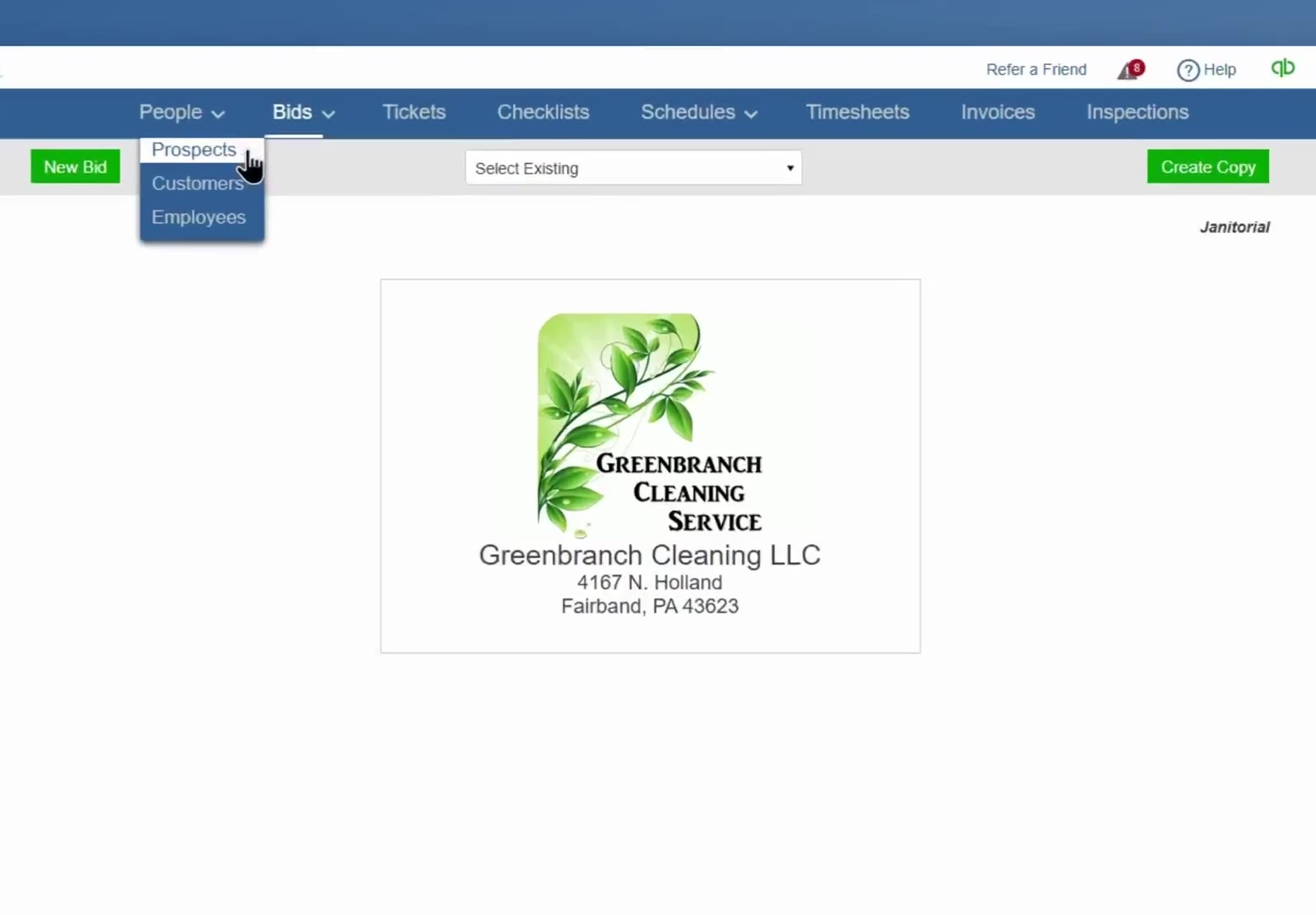
Select Prospects from the People menu in the top navigation bar.
Open the specific record
: Click the Select Existing menu and choose the name of the company for the proposal.
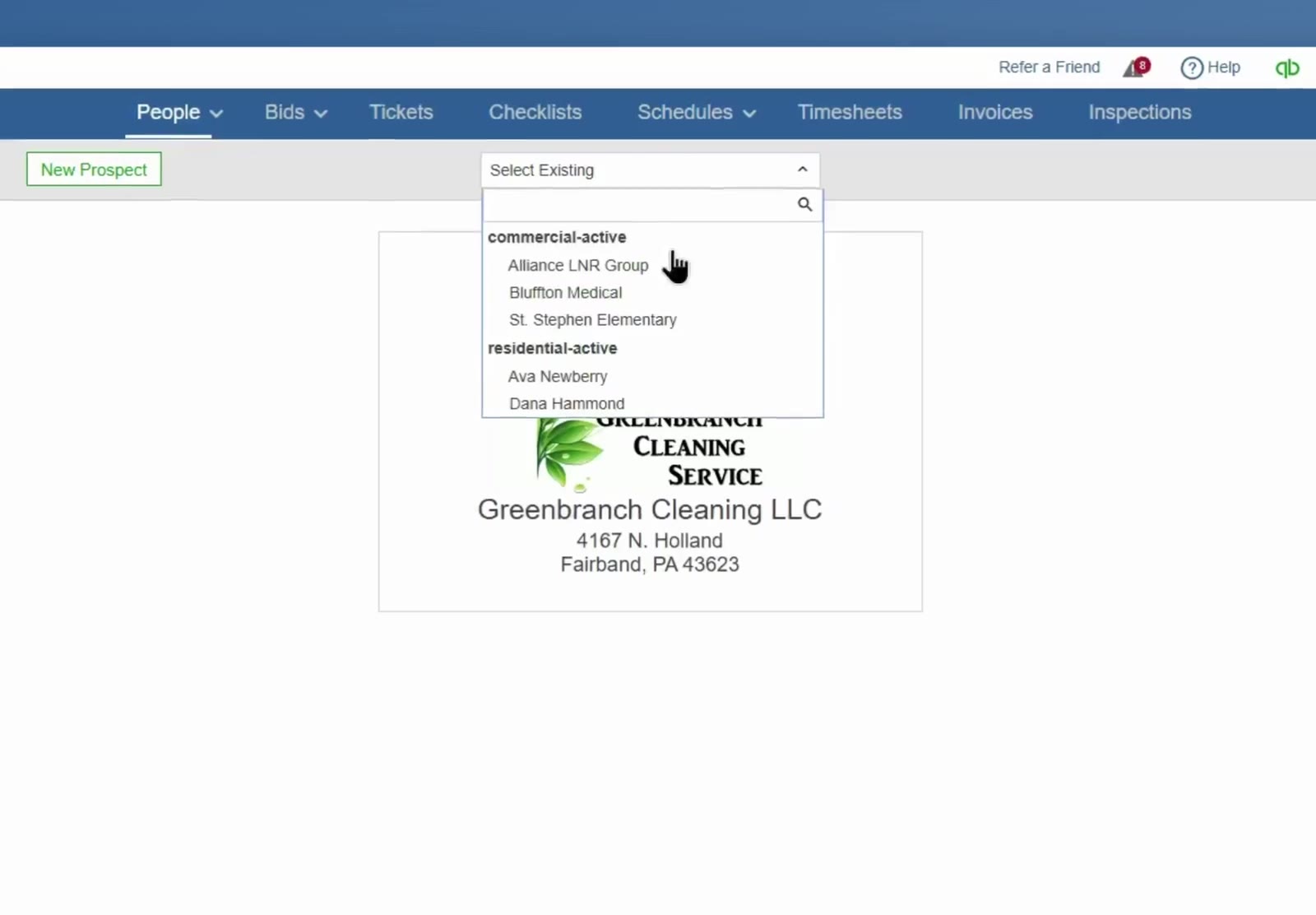
Choose a company name from the Select Existing menu.
If you haven't created the prospect yet, use the New Prospect button to enter their basic contact information before proceeding with the image upload.
Upload the Image
Locate the image field
: Find the Image field in the left column of the prospect record, below the Phone rows.
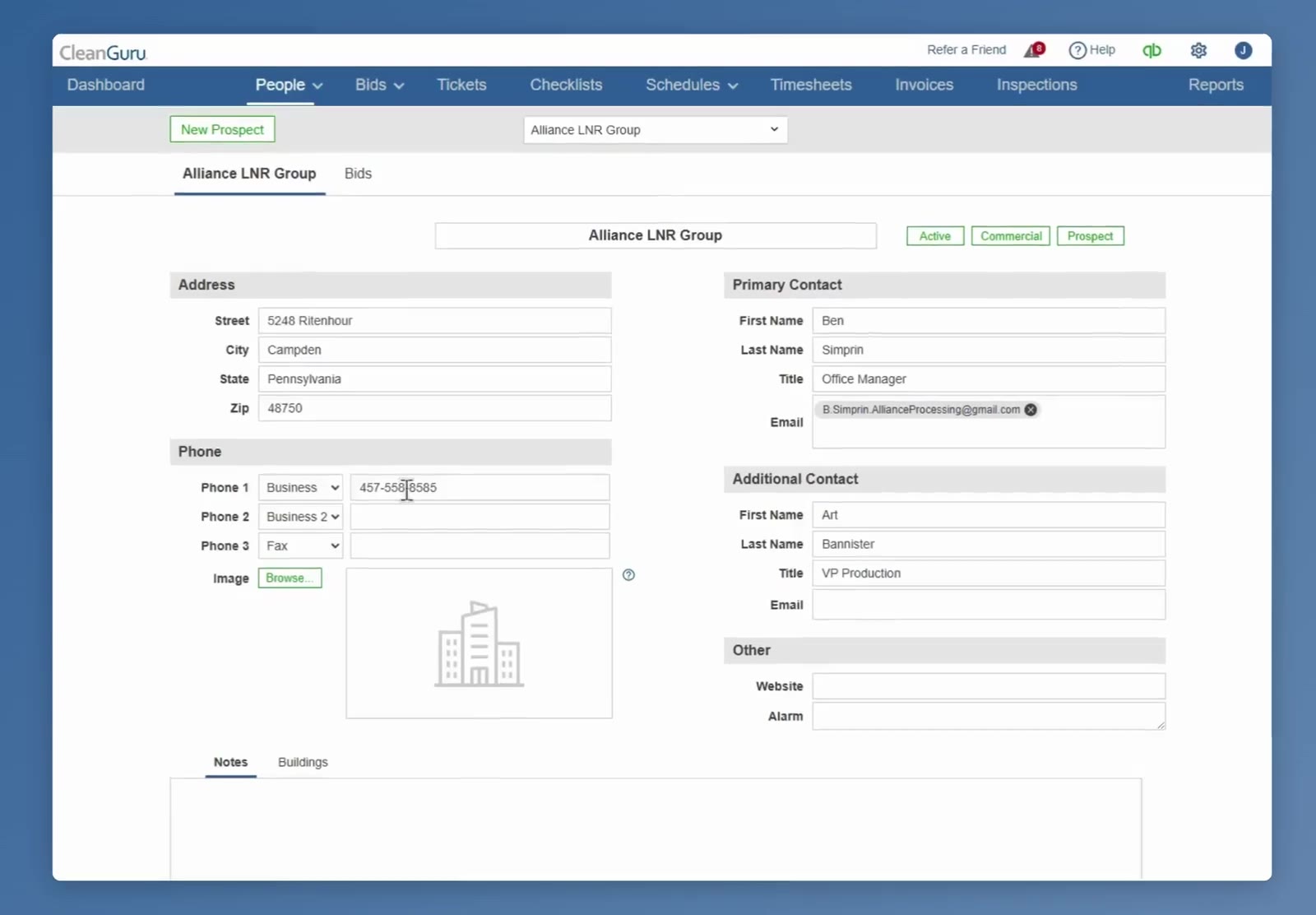
The Image field sits below the Phone rows, with a Browse button beside an empty placeholder.
Browse for your file
: Click Browse next to the image placeholder.
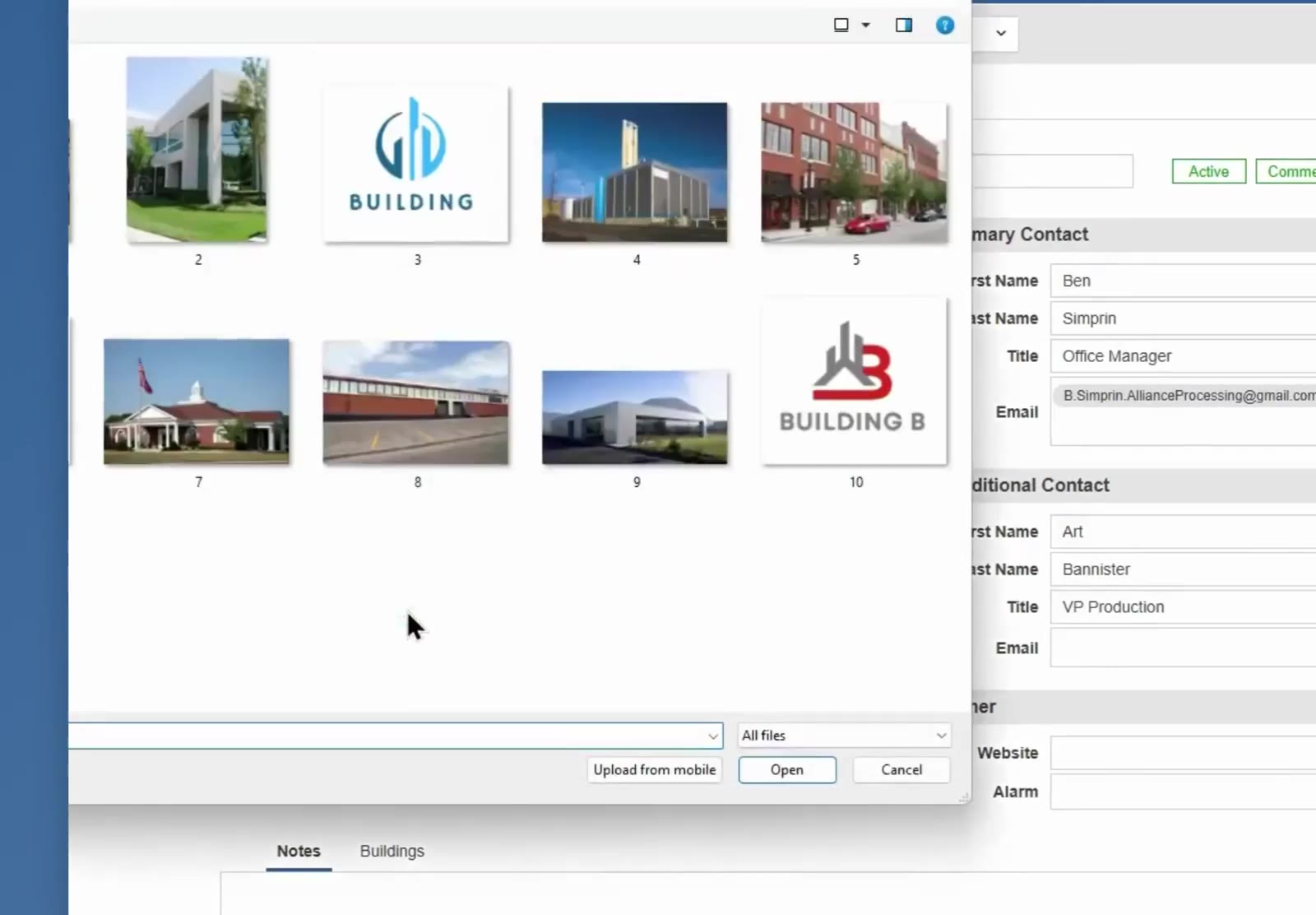
Click the Browse button next to the image placeholder.
File requirements: CleanGuru accepts .gif, .jpg, .png and .webp images, up to 5 MB.
Select and upload
: Select your image file and click Open.
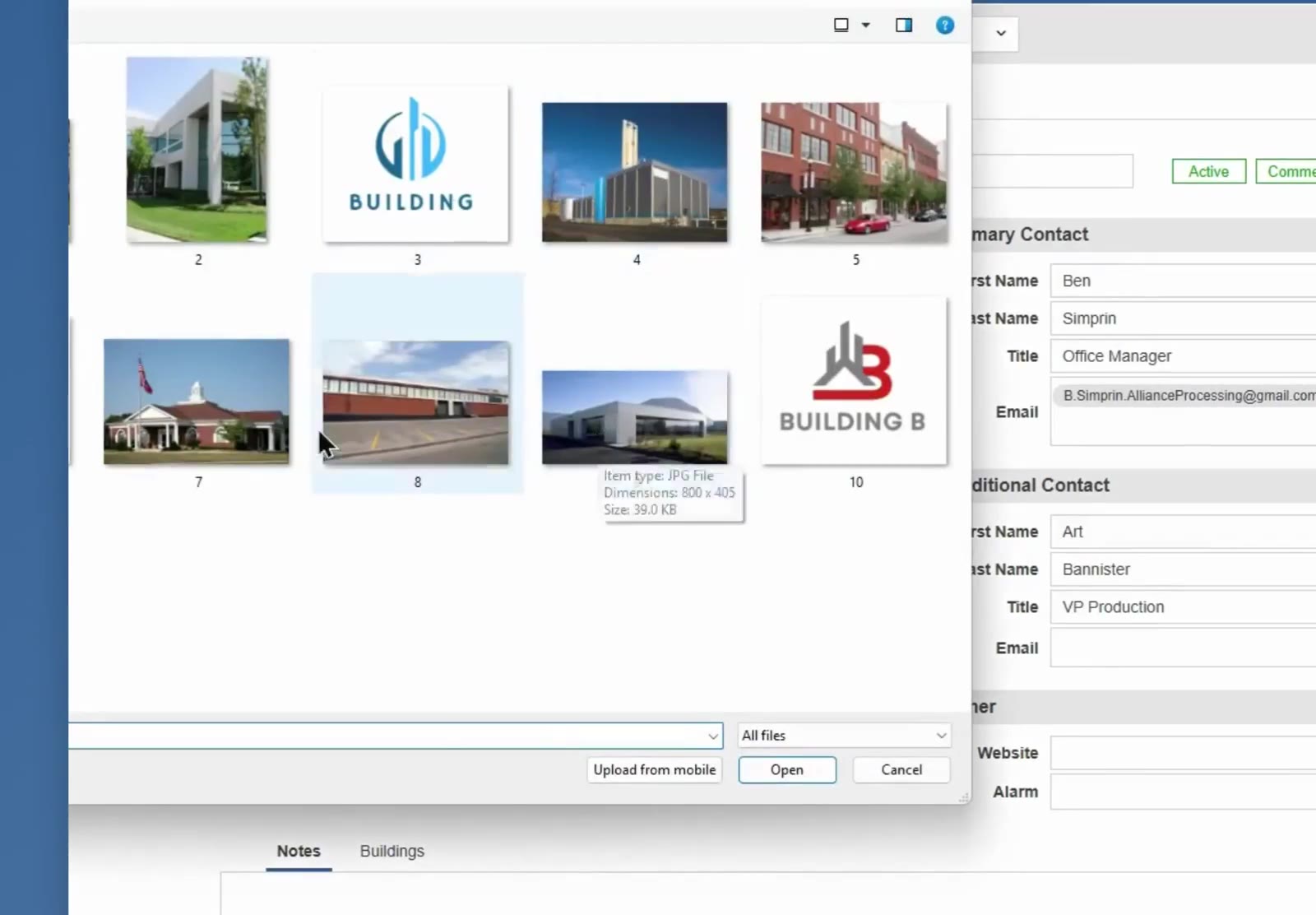
Select a file from your computer and click Open.
Confirm the upload
: Verify the thumbnail of the image appears in the Image section.
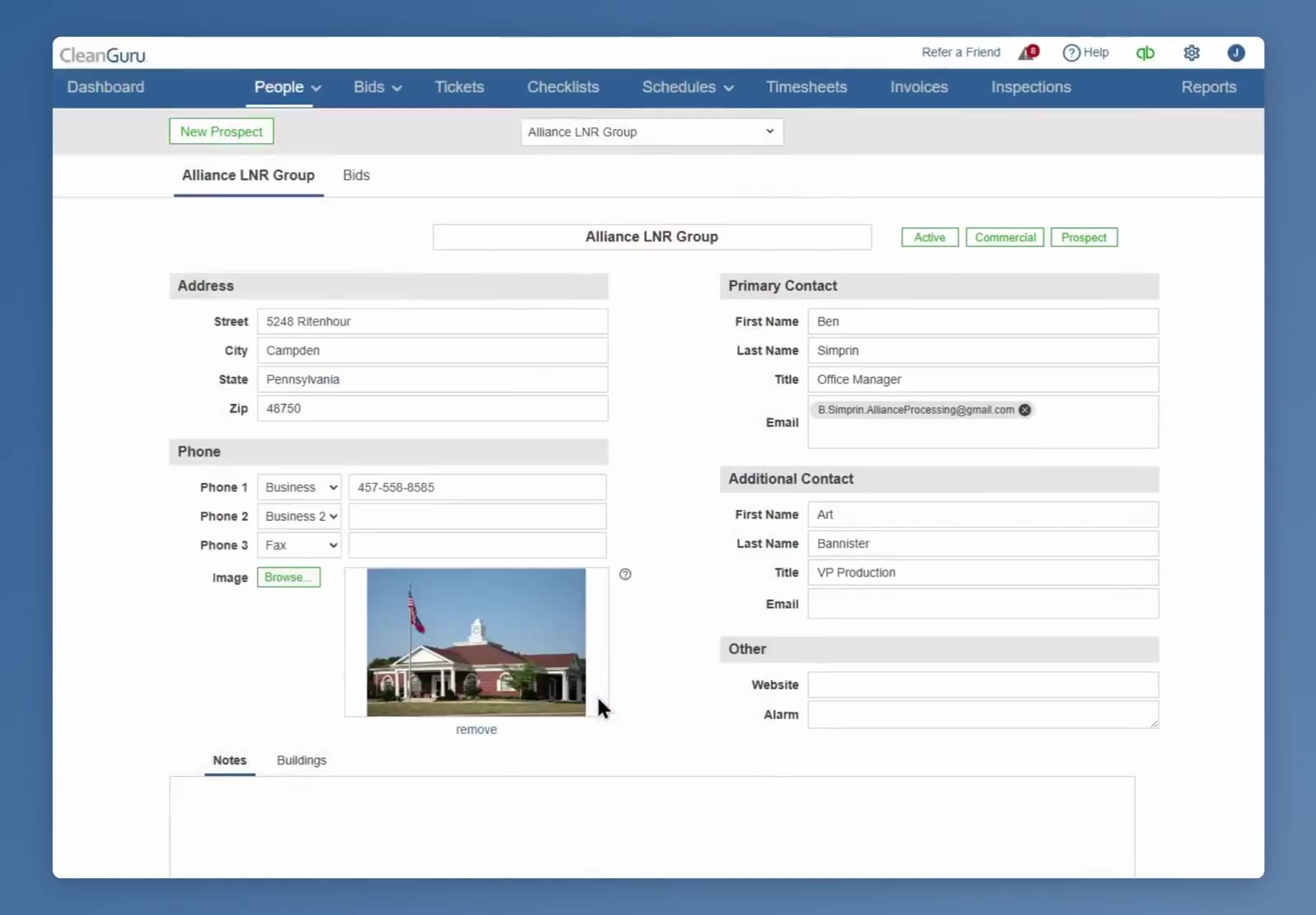
Confirm that a thumbnail preview appears in the Image field.
Verify the Image on the Proposal Cover Page
Review the proposal
: Open or generate a proposal for the prospect and view the cover page.
Check the placement
: Confirm the image appears on the cover page between the prospect name and address block and the Submitted By block.
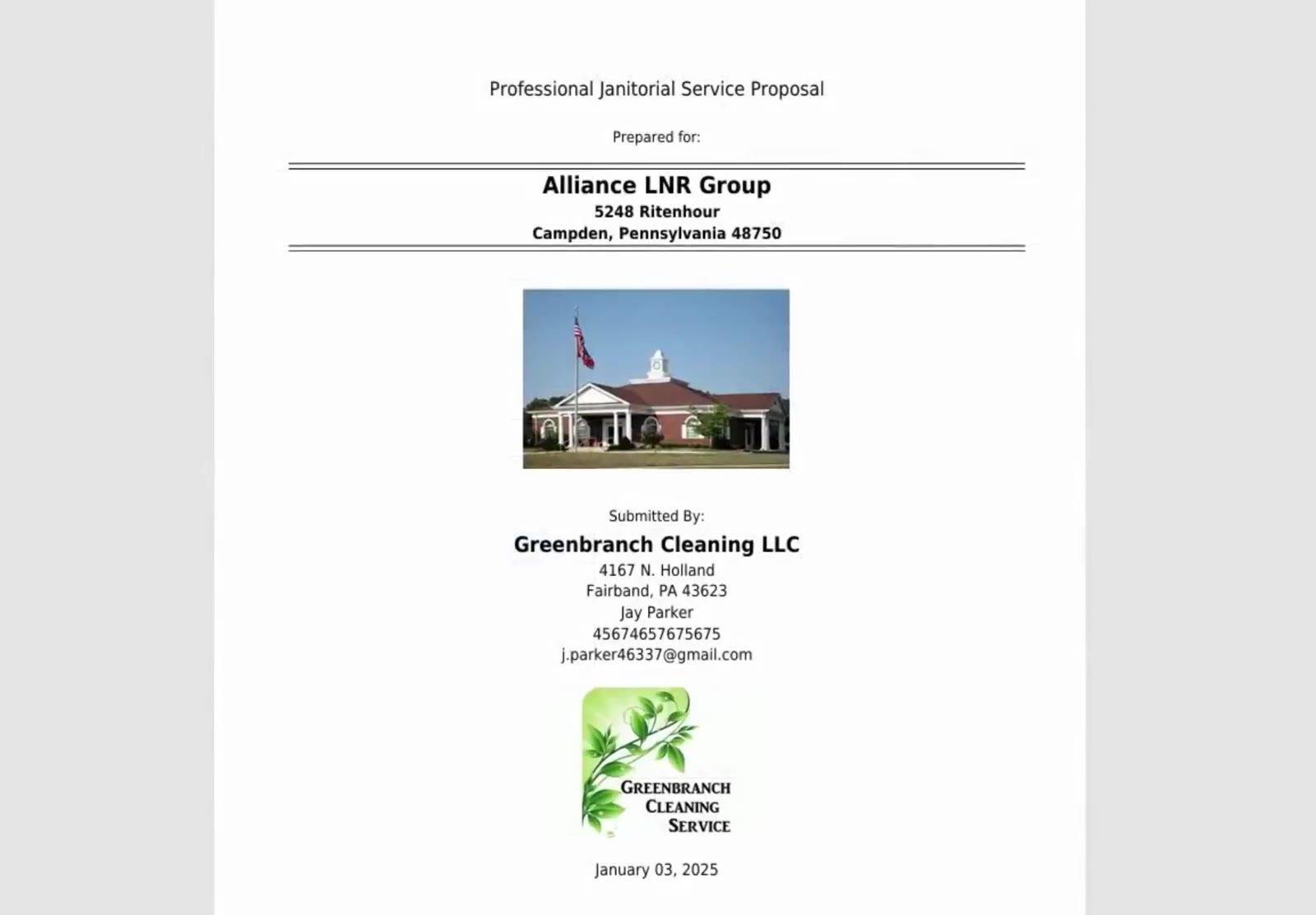
View the custom building image on the proposal cover page.
If the image does not show up on the cover page: open the proposal’s Options screen, select the Cover Page section, and verify it is selected for use.
FAQ
Where does the building image appear on the proposal?
On the cover page, between the prospect name and address block and the Submitted By block that carries your own company details.
How do I change or remove the image later?
Open the prospect record. To replace the image, click the remove link beneath the image thumbnail, then click Browse and select a different file. To delete the image without replacing it, click the remove link beneath the image.
Where is the Image field on the prospect record?
In the left column beneath the Phone 1, Phone 2 and Phone 3 rows, with a Browse button beside it.
Is the image attached to the prospect or to a single bid?
It is a field on the prospect record, so it belongs to that prospect rather than to an individual bid. Once uploaded, the photo appears automatically on the cover page of every new proposal you create for that client.
Do I need to save the prospect record after uploading the image?
No. The image is stored as soon as it uploads — the thumbnail appearing in the Image field is the confirmation. There is no Save button on the prospect record for this.
What file types and sizes can I use for the cover page image?
CleanGuru accepts .gif, .jpg, .png and .webp images up to 5 MB. These limits are not the same as bid and email attachments, which allow .pdf but cap files at 2 MB.