
Combine Bids - Multiple Buildings
When a customer has more than one building, you can send one proposal instead of one per building. Each building keeps the pricing from its own bid and its own set of documents; CleanGuru puts them together into a single proposal.
Open the Bid You Want to Lead With
Find the customer’s bids
Open the customer and go to their Bids list, which shows each bid’s module, name and building.
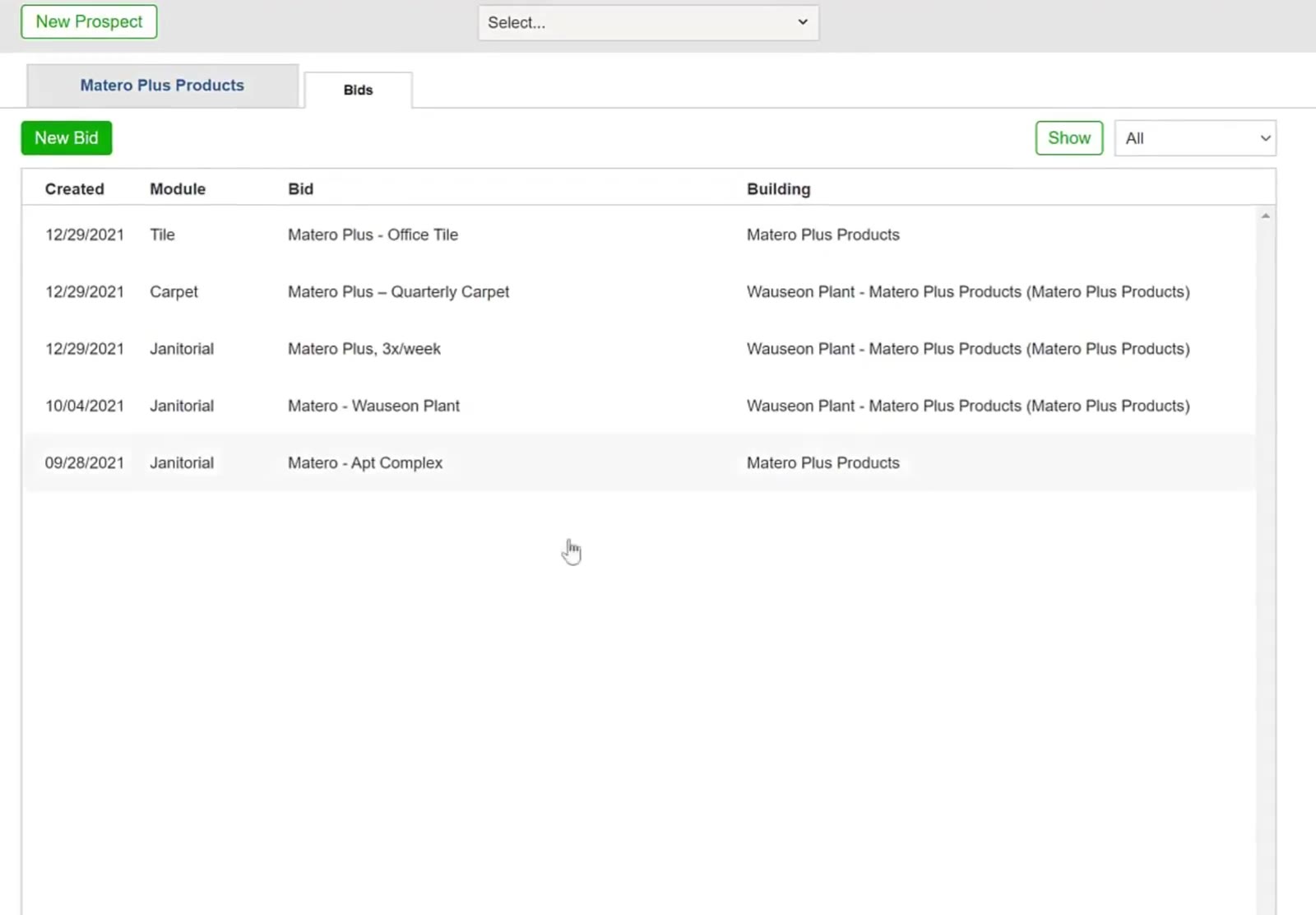
The customer’s Bids list, one row per bid.
Open the bid that will lead
Open the bid you want first in the proposal and click its Proposal tab.
Start the combined bid
Click Combine at the top right.
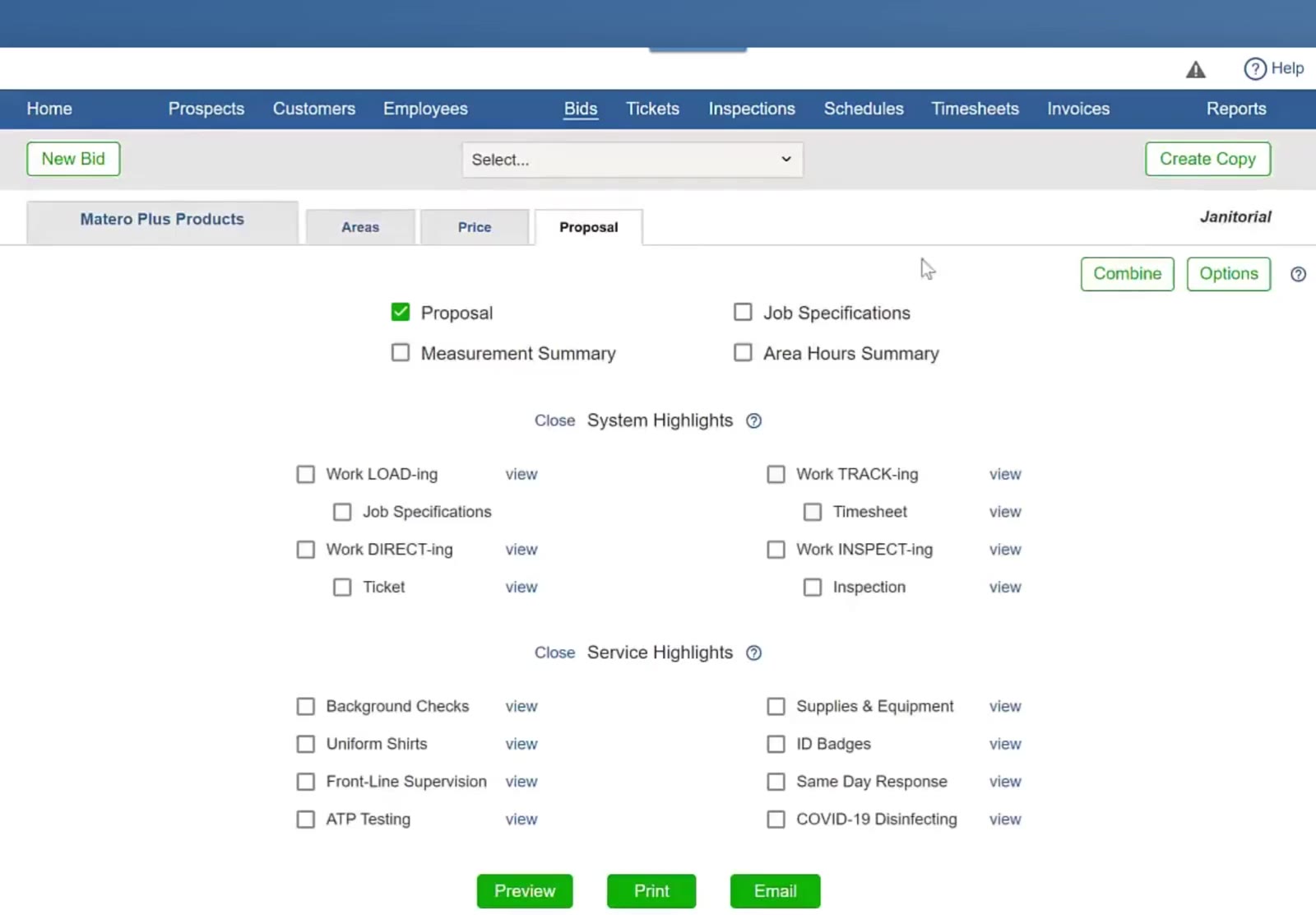
Combine sits at the top right of the Proposal tab.
Add the Other Buildings
Set the first building’s documents
The Combined Bid screen opens with that bid at the top. Tick what this building should include — Proposal, Job Specifications, Measurement Summary, Area Hours Summary.
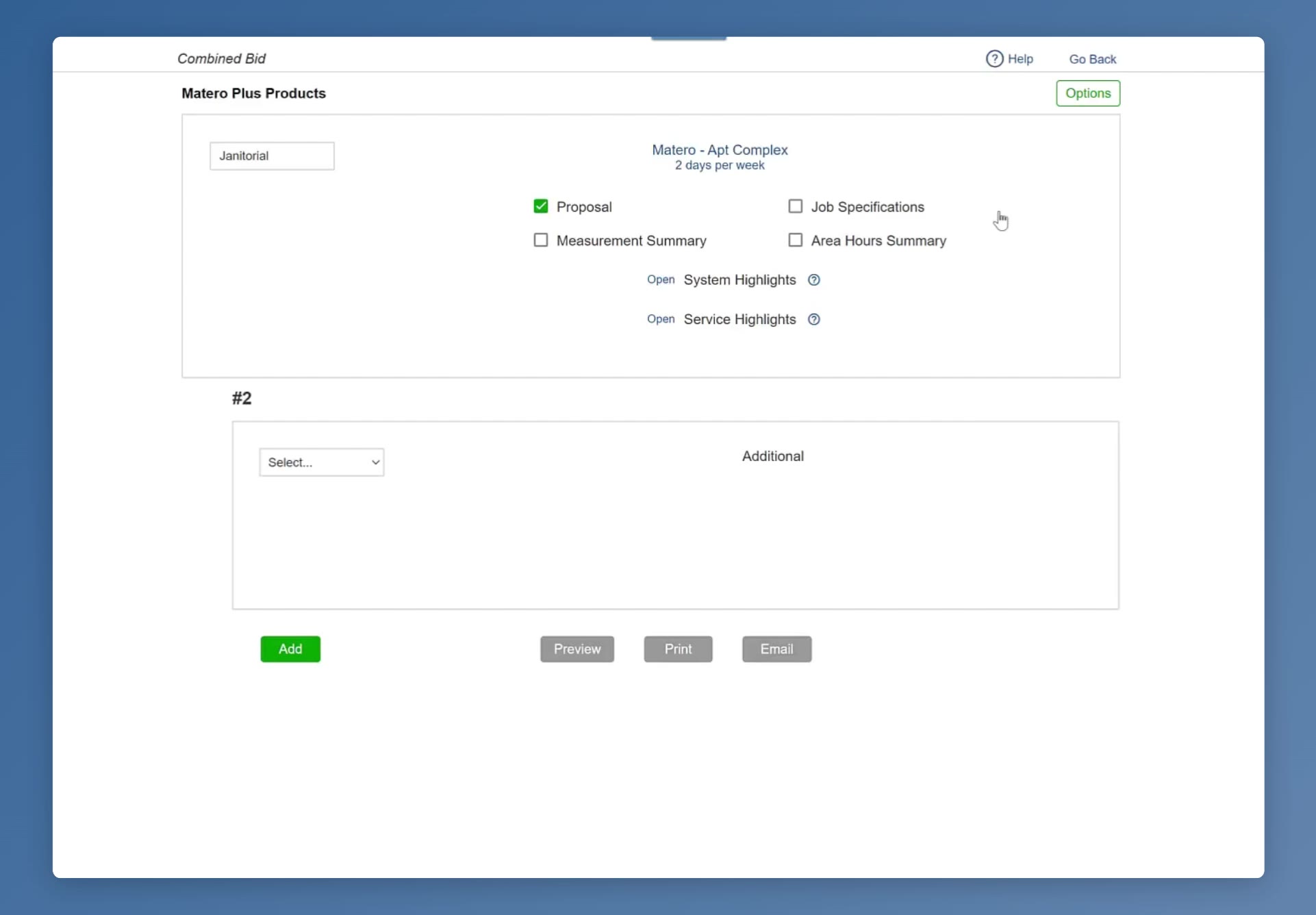
The Combined Bid screen, with the leading bid at the top and an empty #2 below it.
Pick the next building
Under #2, choose the module, then choose that building’s bid from the Select… list. The list holds this customer’s own bids — the primary building or any of its sub-buildings. Another customer’s bids never appear there.
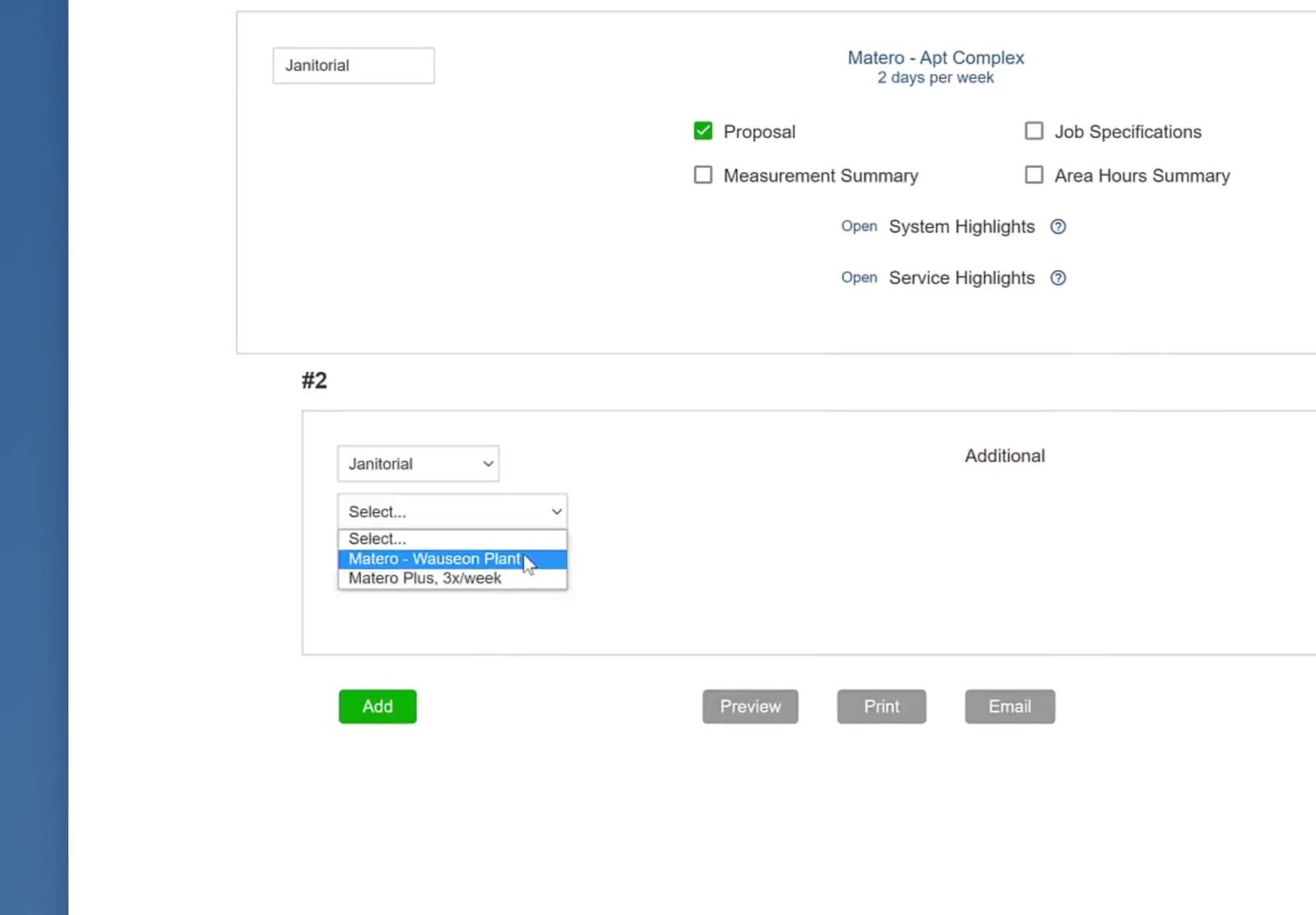
The Select list holds this customer’s bids in the chosen module, for the primary building or a sub-building.
Set that building’s documents
Tick the documents for the building you just added, then click the green Add for a #3 and repeat for every building.
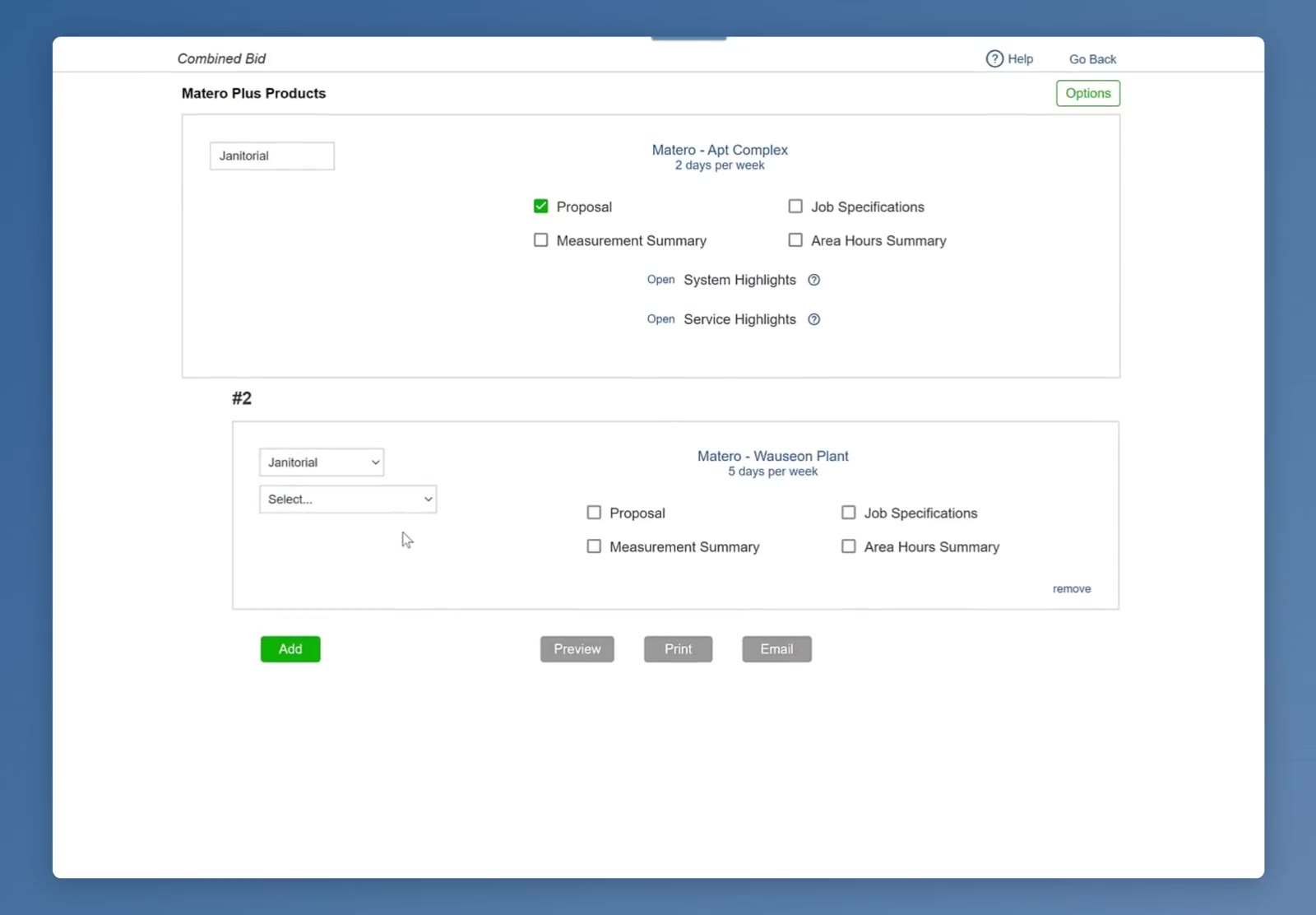
The second building added, with its own documents ticked.
Set the Proposal Wording
Open Options
Click Options at the top right of the Combined Bid screen.
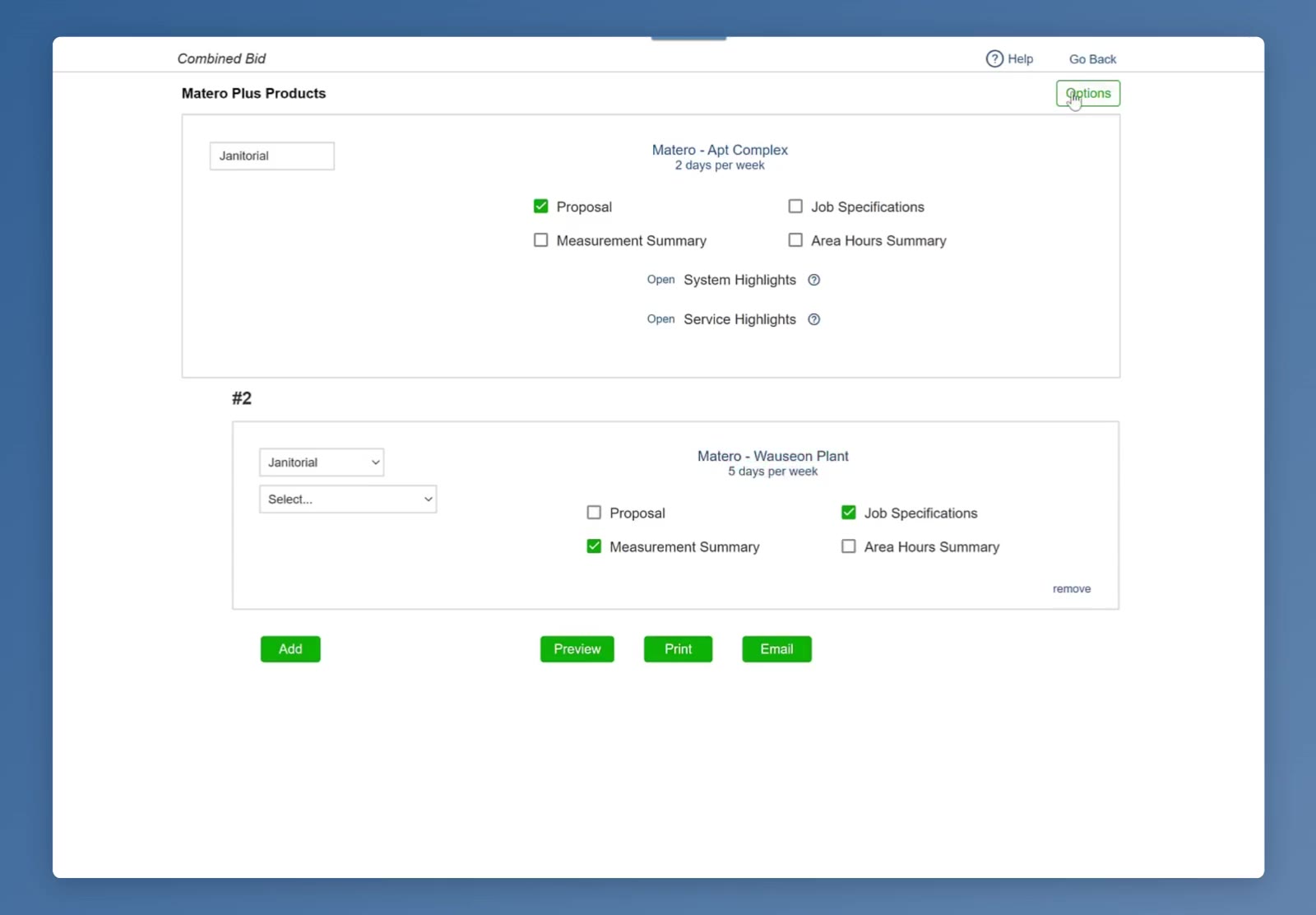
Options sits at the top right of the Combined Bid screen.
Reword or drop a section
The Options panel lists the buildings on the left and the proposal’s sections beside them — Cover Page, Cover Letter, General, Compensation and the rest. Pick a section and keep the standard wording or choose Use instead and write your own; tick Do not use to leave a section out. Click the green Save when you are finished.
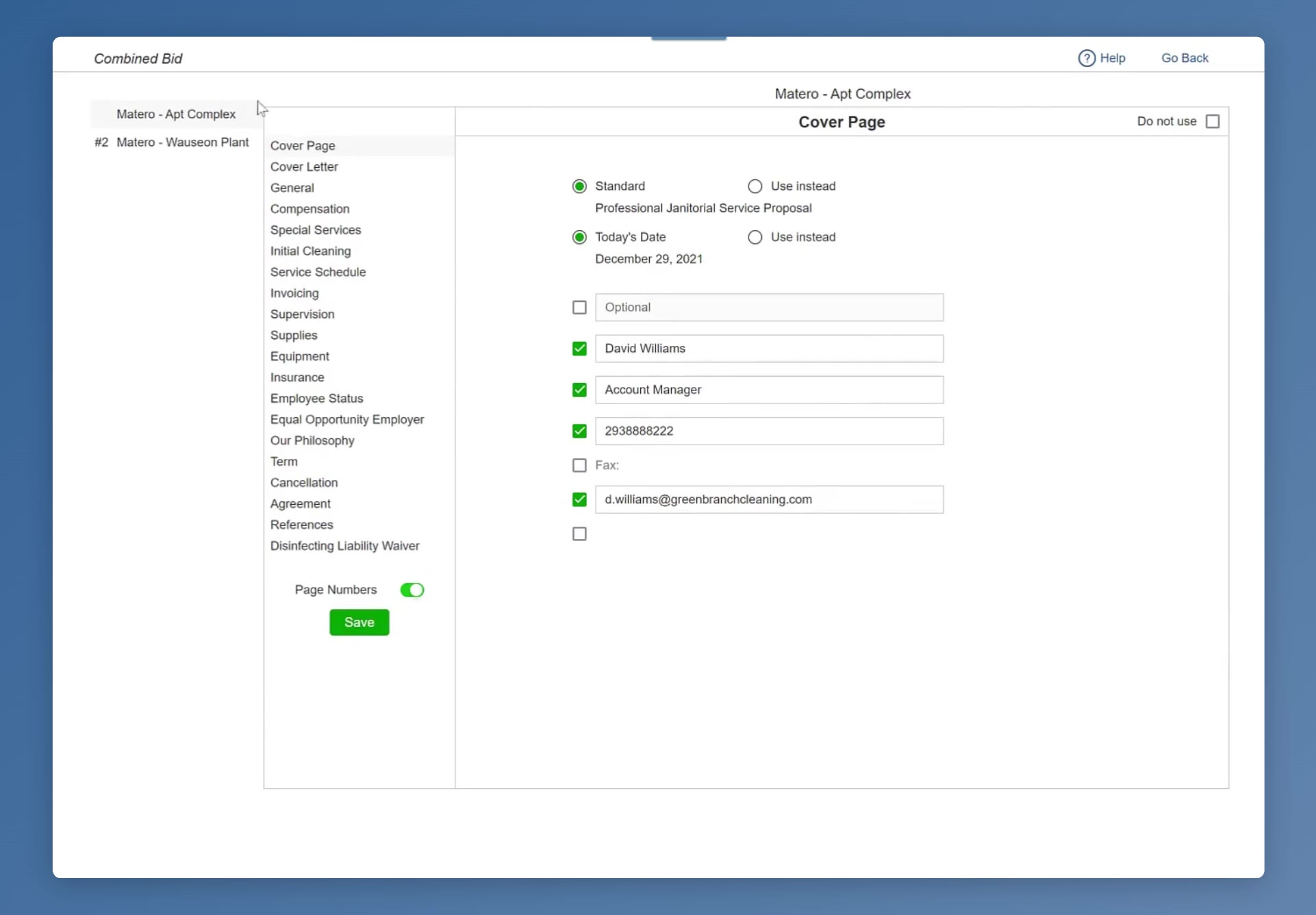
The Options panel lists the buildings on the left and the proposal sections beside them.
Send It
Preview, print or email
At the bottom of the Combined Bid screen, Preview shows the whole proposal, Print produces it and Email sends it to the customer.
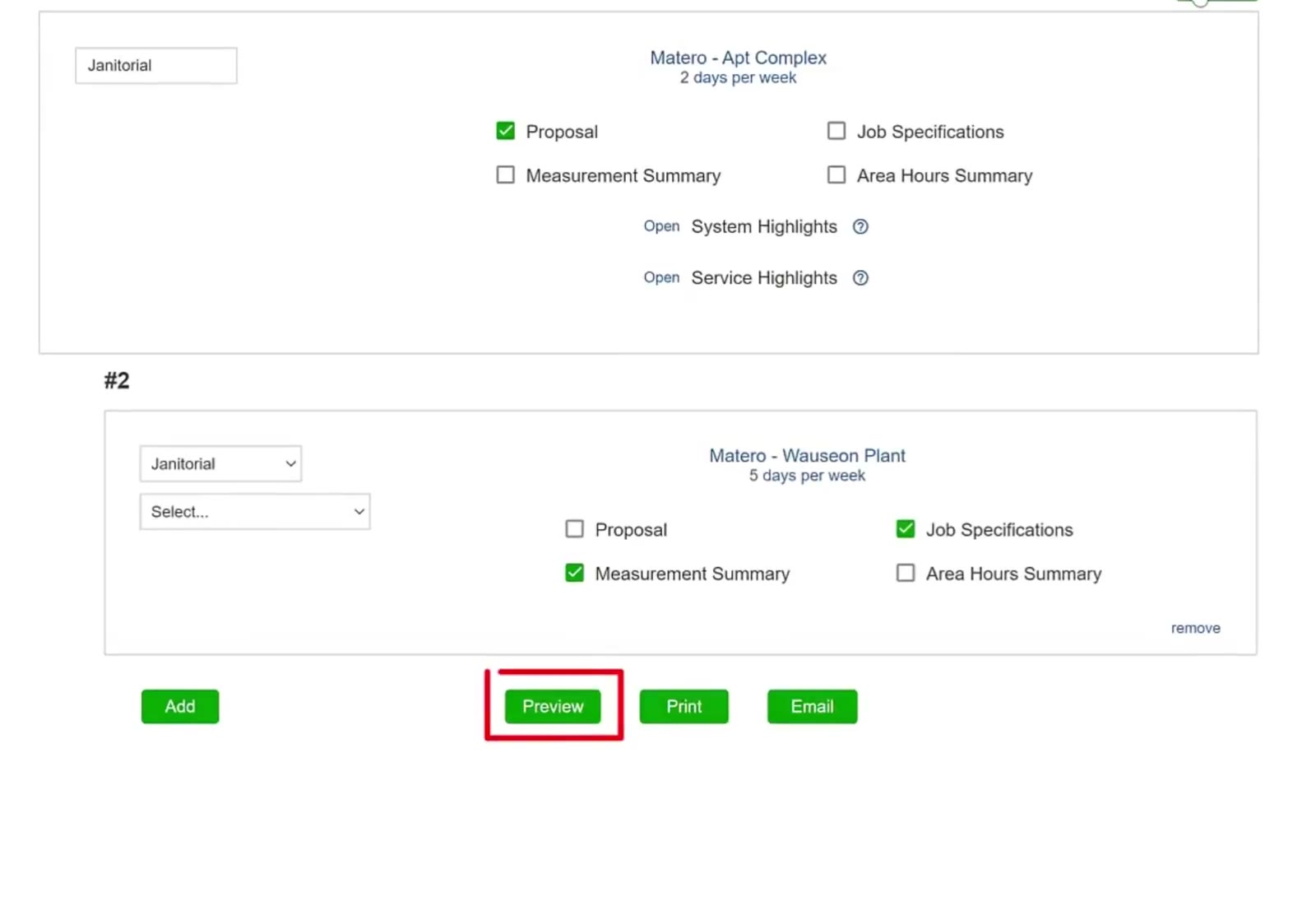
Preview, Print and Email sit at the bottom of the Combined Bid screen.
The customer receives one proposal covering every building, with each building’s own pricing and documents inside it.
FAQ
Does each building keep its own pricing?
Yes, and you choose how the proposal shows it: a pricing section for each building, or a single summary on the primary bid’s price section covering them all.
Can the buildings have different documents?
Yes. Each building has its own tick boxes for Proposal, Job Specifications, Measurement Summary and Area Hours Summary.
How do I add a third building?
Click the green Add and a #3 block appears. Repeat for each building you want in the proposal.
Can I take a building back out?
Yes — each added block has a remove link at its bottom right.
Where do I change the proposal wording?
In Options at the top right of the Combined Bid screen. Pick the building you want on the left, then reword any of its sections or leave one out. The section list runs from Cover Page through to the Disinfecting Liability Waiver.