
Combine Bids - Multiple Modules
A customer often buys more than one service. Combine puts a janitorial bid and, say, a tile or carpet bid into one proposal — each service keeping the pricing from its own bid, and you choosing which documents go with each.
Start From the First Bid
Open the bid to lead with
Open the bid you want first in the proposal and go to its Proposal tab.
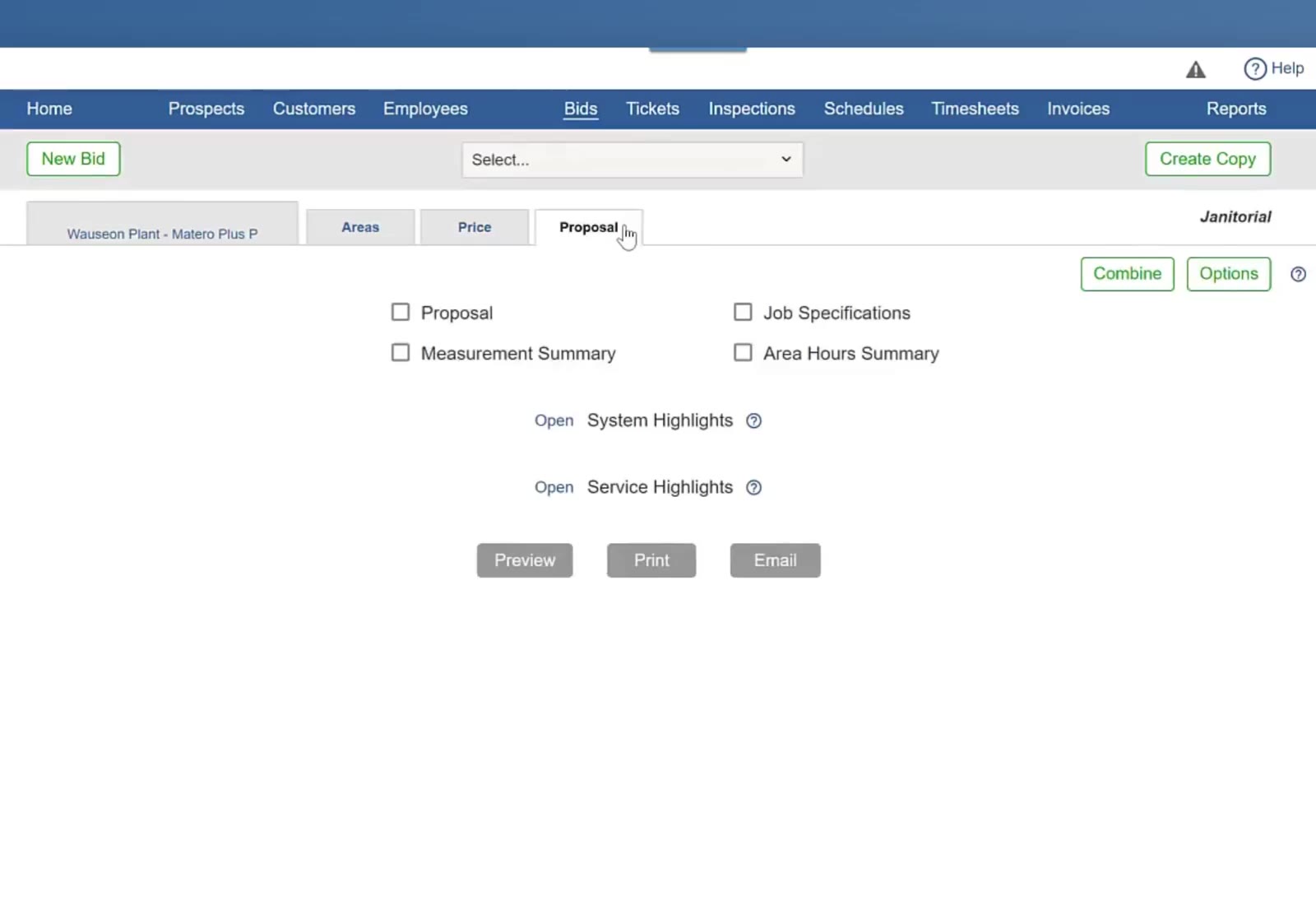
Combine and Options sit at the top right of the Proposal tab.
Click Combine
Combine sits at the top right of the Proposal tab, beside Options. The Combined Bid screen opens with that bid at the top.
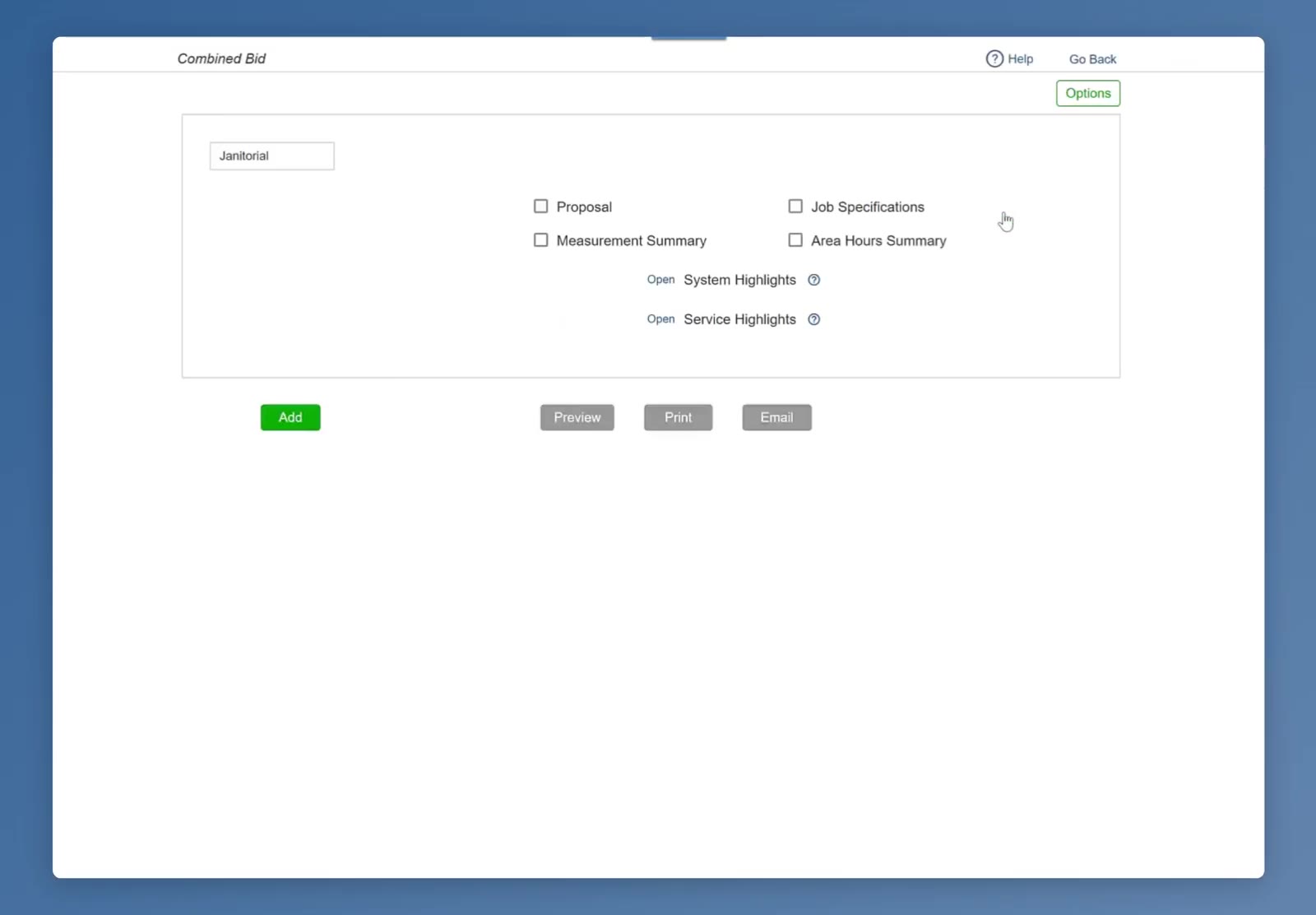
Combine opens the Combined Bid screen with the leading bid at the top.
Add the Other Service
Add a block for the next bid
Click the green Add to open a numbered block for the bid you are adding.
Pick the module and the bid
In the new block, choose the module for the other service, then choose the bid from the Select… list. Only this customer’s own bids appear there — the ones belonging to the primary bid.
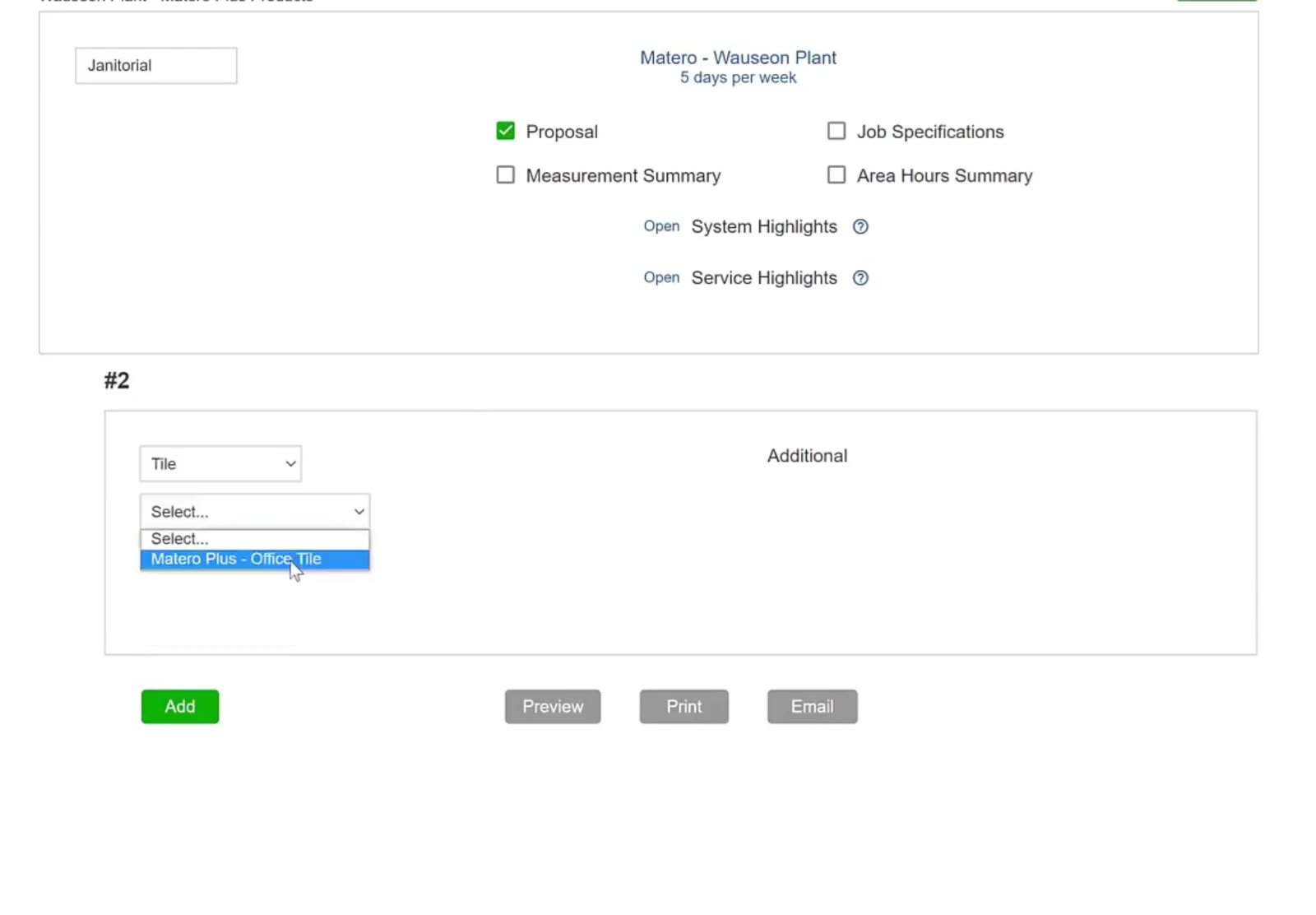
The Select list offers only this customer’s bids in the chosen module.
Choose the documents for both bids
Tick the documents for every bid on this screen — the one you started from as well as the one you just added. Each module offers its own: a janitorial bid has Job Specifications, a tile bid has Work Specifications with Total Residence or By Area.
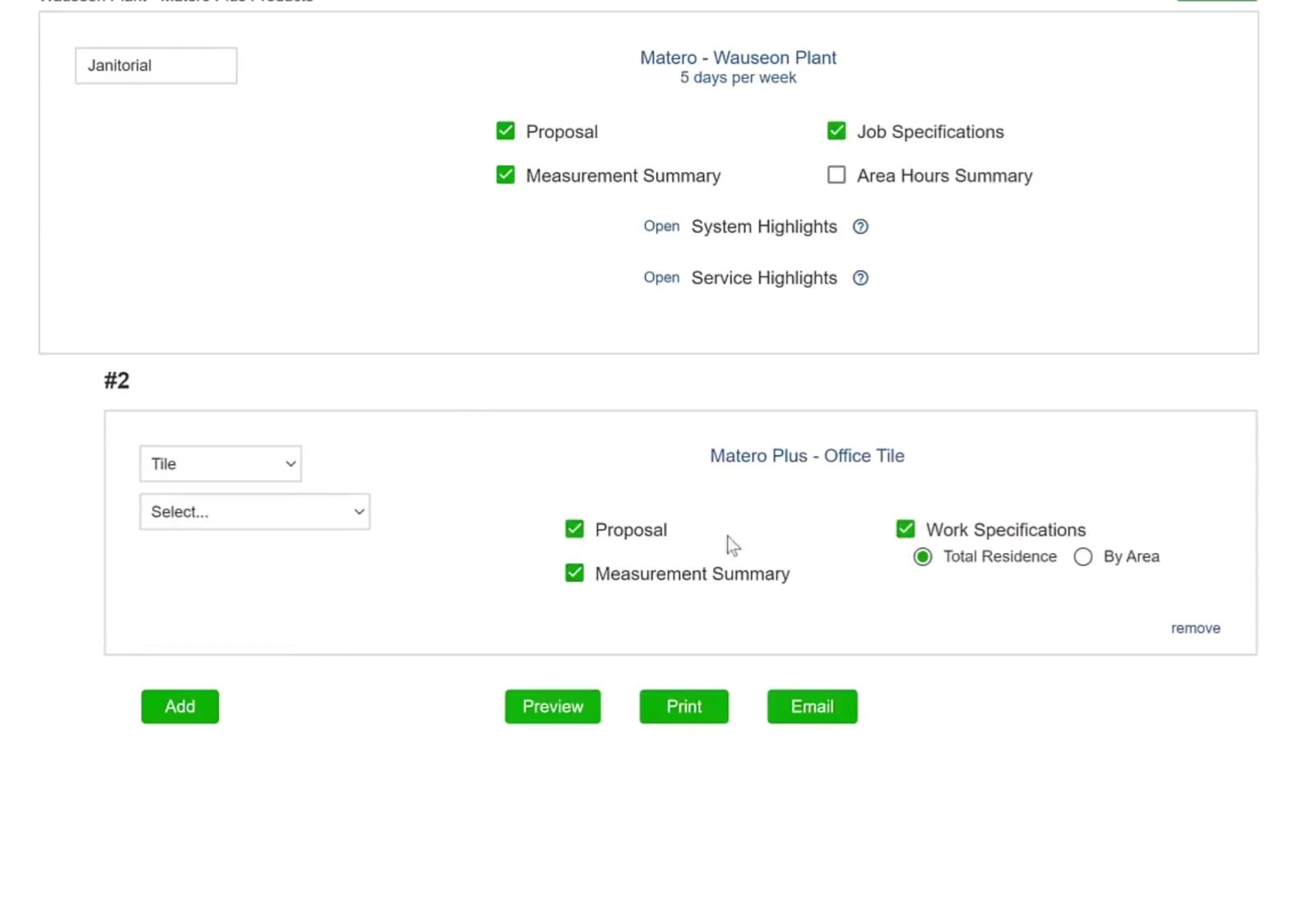
A tile bid offers Work Specifications, with Total Residence or By Area.
Add another service
Click Add again for another numbered block, then set its module and bid the same way.
Set the Proposal Wording
Open Options
Click Options at the top right of the Combined Bid screen.
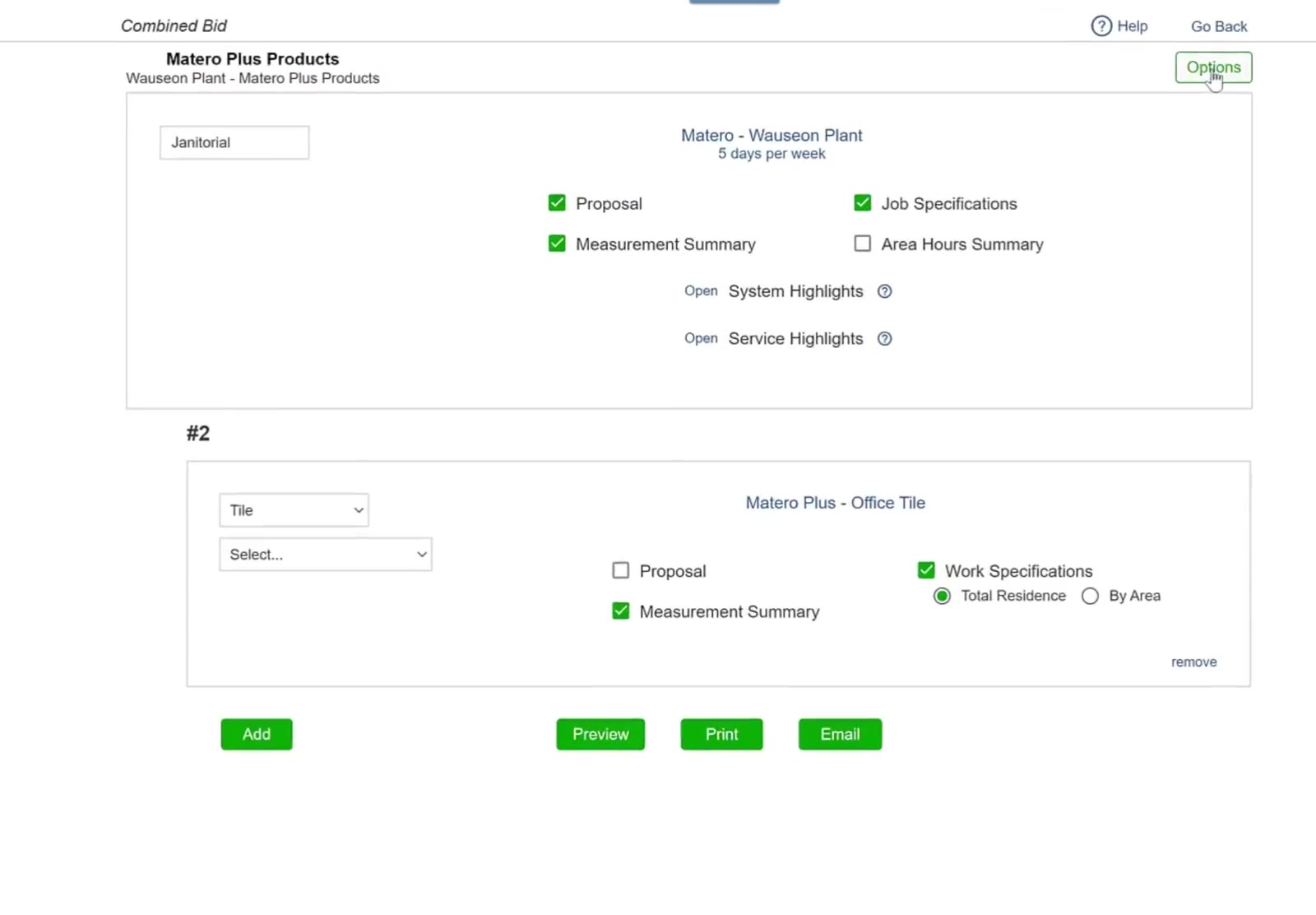
Options sits at the top right of the Combined Bid screen.
Reword a section
Select the proposal you want on the left, then change any of its sections — Cover Page, Cover Letter, General, Compensation, Special Services and the rest. Keep the standard wording, choose Use instead and write your own, or tick Do not use to leave a section out. Click the green Save when you are finished.
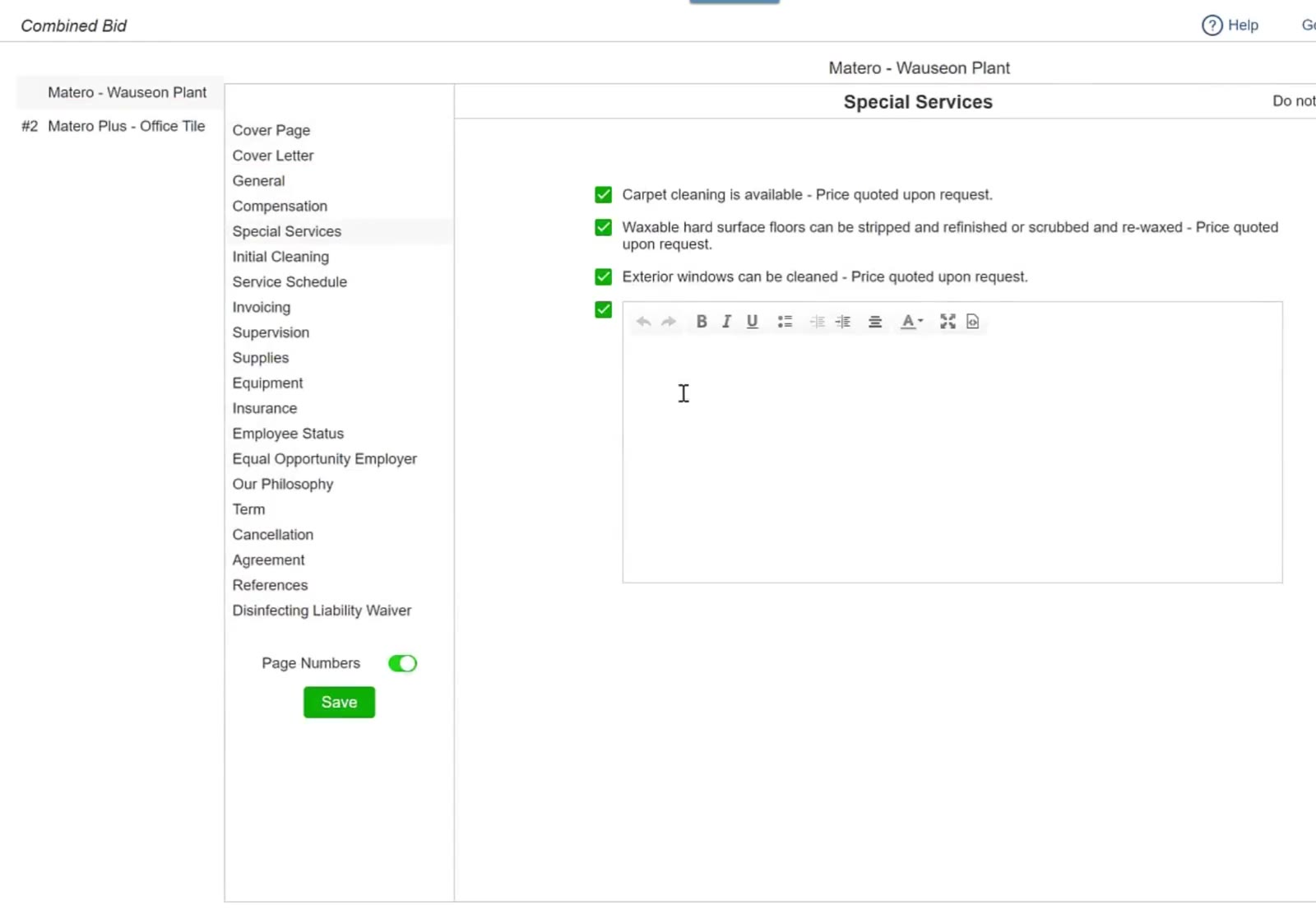
Special Services, with its standard lines and an editor for your own wording.
Send It
Preview, print or email
Back on the Combined Bid screen, Preview shows the whole proposal, Print produces it and Email sends it to the customer.
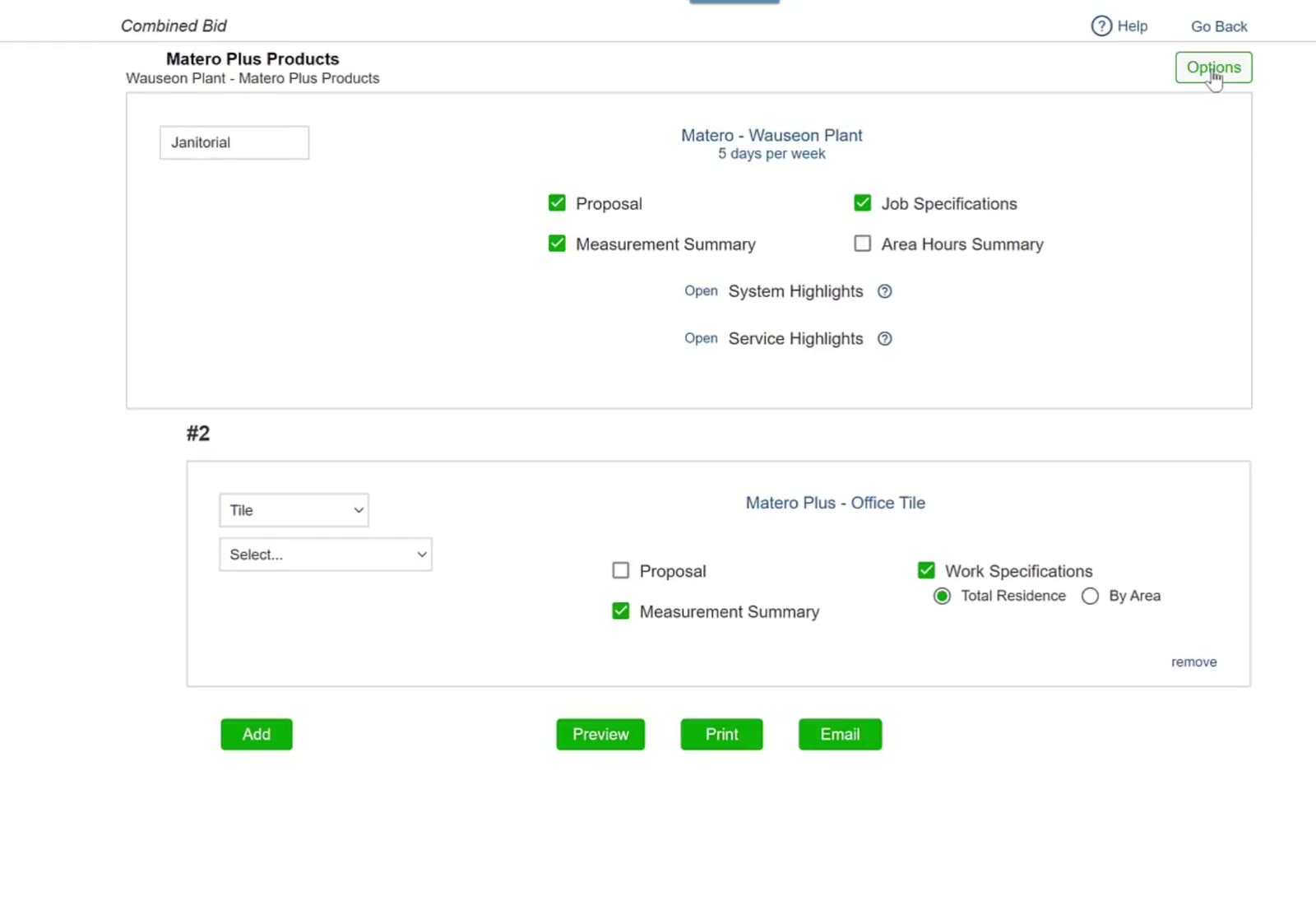
Preview, Print and Email sit at the bottom of the Combined Bid screen.
The customer gets one proposal covering every service, with each bid’s own pricing and documents inside it.
FAQ
How is this different from combining buildings?
It is the same Combine screen. The difference is only what you choose in each numbered block: bids in the same module for different buildings, or bids in different modules for the same customer.
Does each service keep its own pricing?
Yes, and how the proposal shows it is your choice: put all the pricing on the primary bid and leave it off the others, or keep each bid’s price separate.
Why are the document tick boxes different for each bid?
Each module has its own documents. A janitorial bid offers Job Specifications; a tile bid offers Work Specifications, with Total Residence or By Area.
How do I add a third service?
Click the green Add and a #3 block appears. Set its module and its bid the same way.
Where do I change the proposal wording?
In Options at the top right of the Combined Bid screen. Select the proposal you want on the left first, then you can change any section in it — Cover Page through to the Disinfecting Liability Waiver.