
Set Up e-Signature
Set up a digital signature in CleanGuru so it prints automatically on your bid documents, then choose exactly which documents and service types it appears on.
Create Your Signature
Open the signature tool
Go to the Bids tab and open Proposal. At the bottom of the screen, below the Preview, Print, and Email buttons, click the eSignature link.
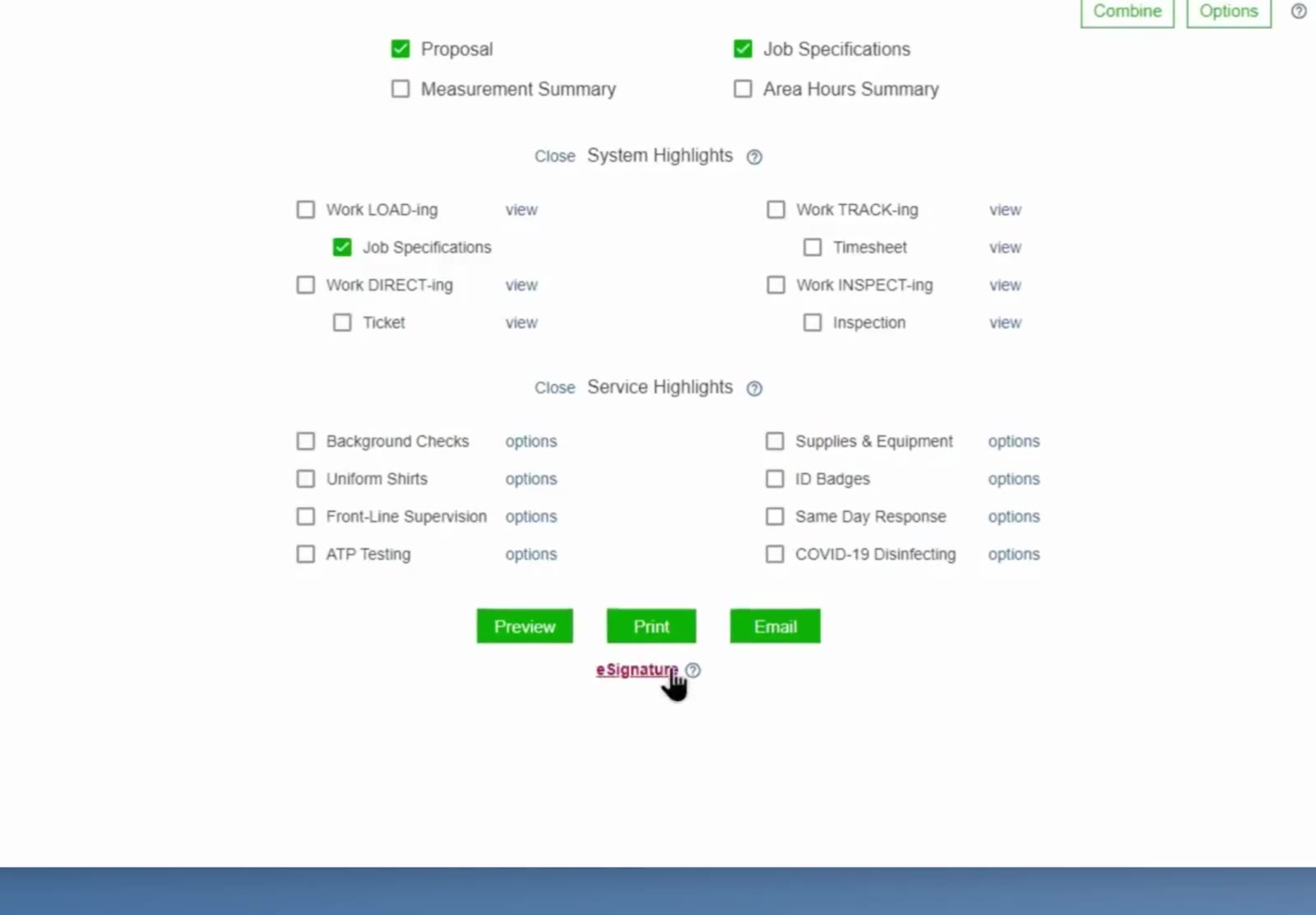
The eSignature link sits below the Preview, Print, and Email buttons on the Proposal tab.
Enter your name and pick a style
In the Add Signature window, type your name in Full Name. CleanGuru generates a set of handwriting styles from it. Select the radio button beside the one you want.
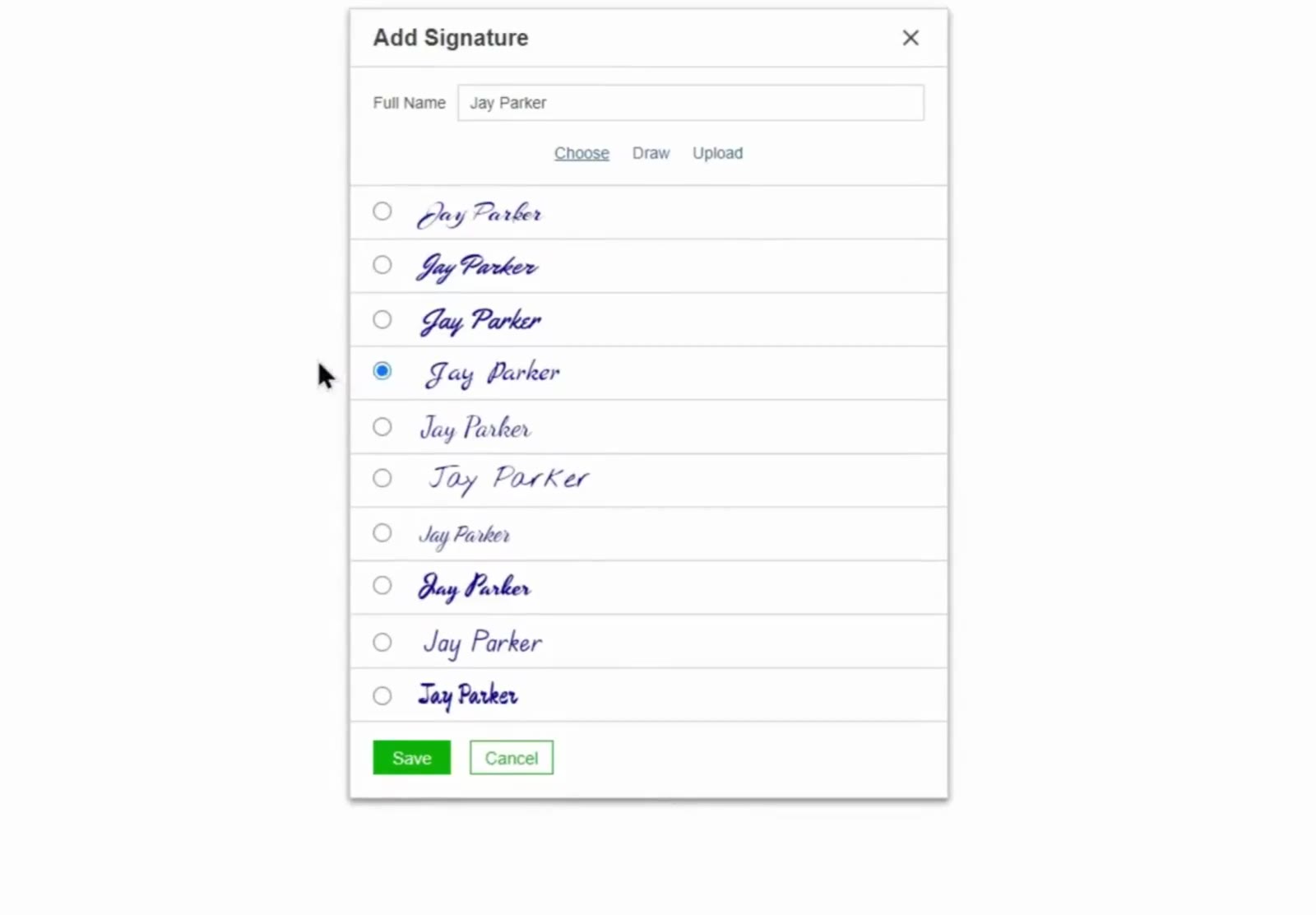
Type your name in Full Name, then select the radio button beside the style you want.
Or draw or upload your own
Instead of a generated style, use the Draw tab to sign with your mouse or trackpad, or the Upload tab to add an image of your real signature. When the signature looks right, click Save.
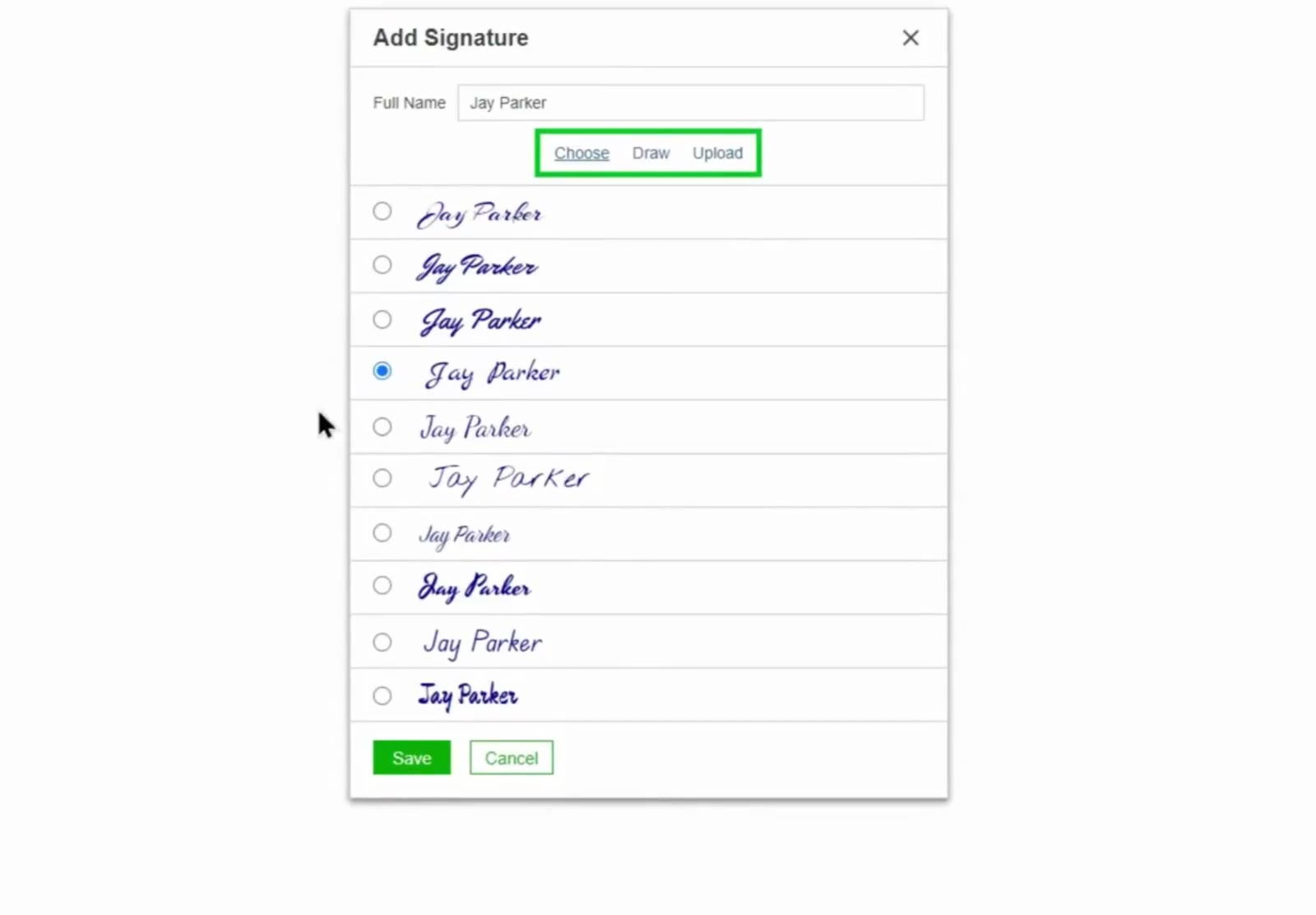
Choose, Draw, and Upload are the three ways to create the signature.
Check it on the proposal
Click Preview on the proposal screen. The PDF opens with your signature above your typed name in the closing.
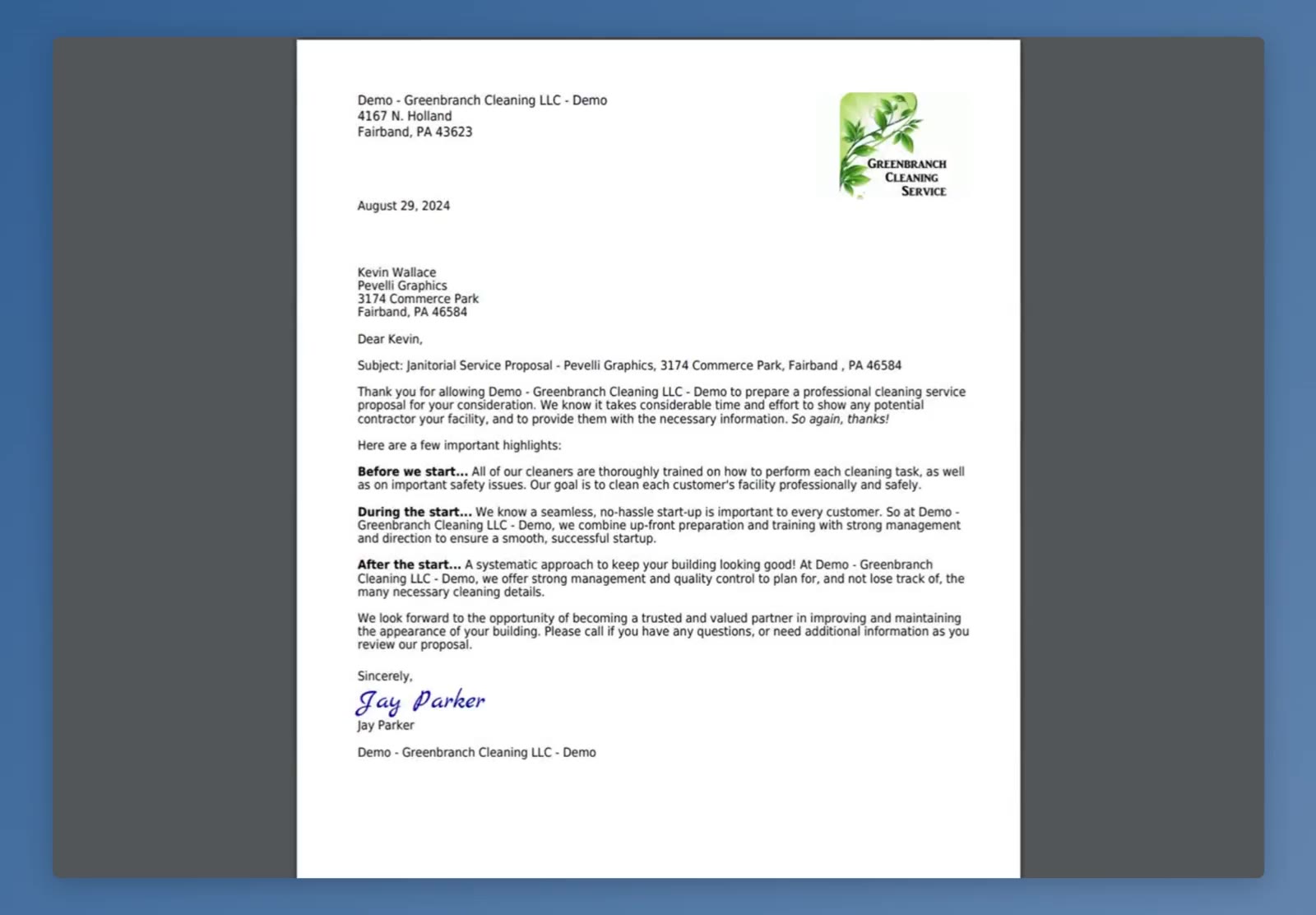
In the PDF preview the signature prints above your typed name in the closing.
Any single bid can override the settings below. In that bid, go to Proposal and click Options, then open the section you want — Cover Letter, for example — and turn the signature on or off for that section. If your signature does not show up on a preview, check there first.
Choose Where Your Signature Prints
Open Settings
Click the gear icon in the top right, then select Settings.
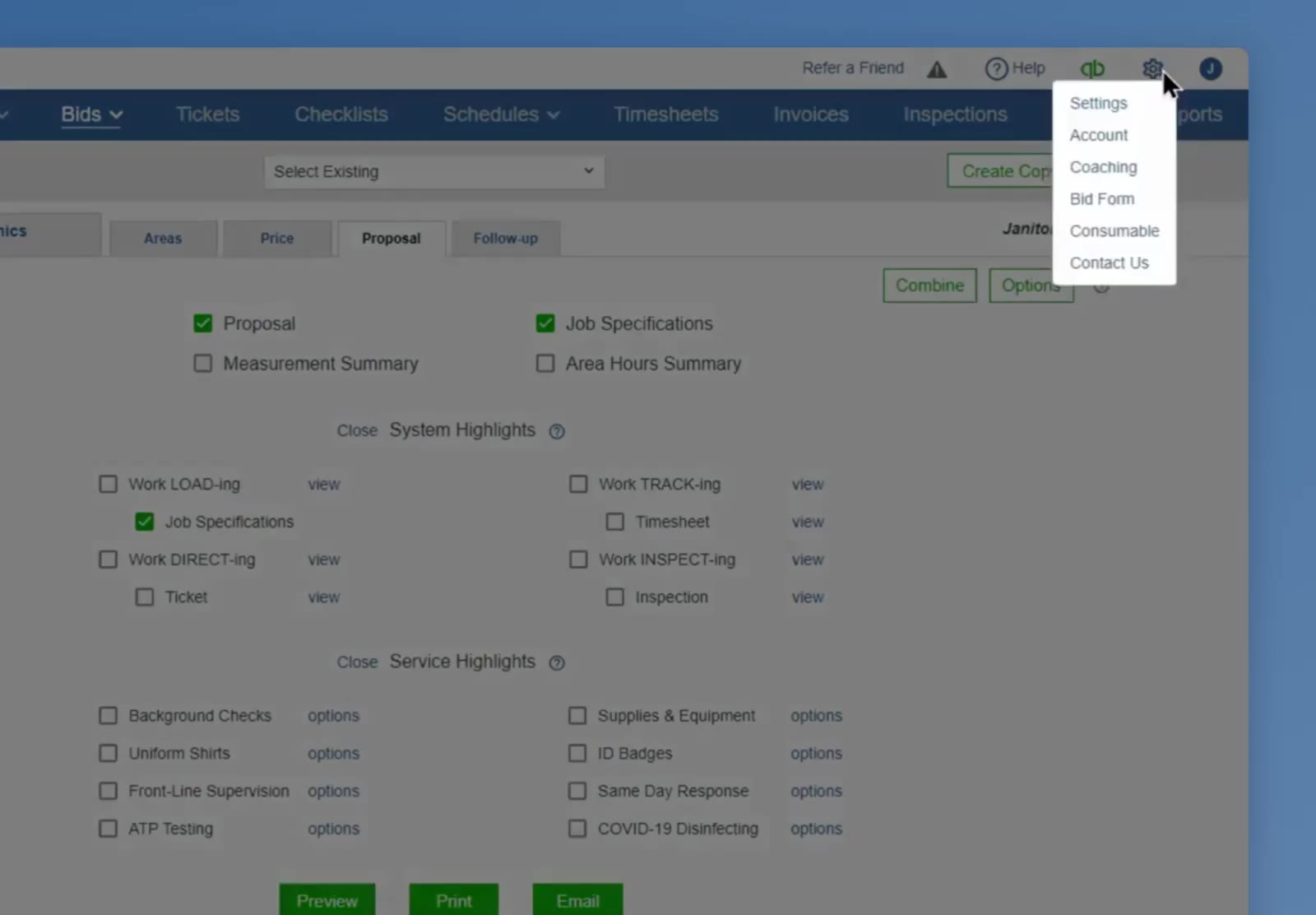
The gear icon in the top right opens the menu that holds Settings.
Open Bid settings
Click Bids.
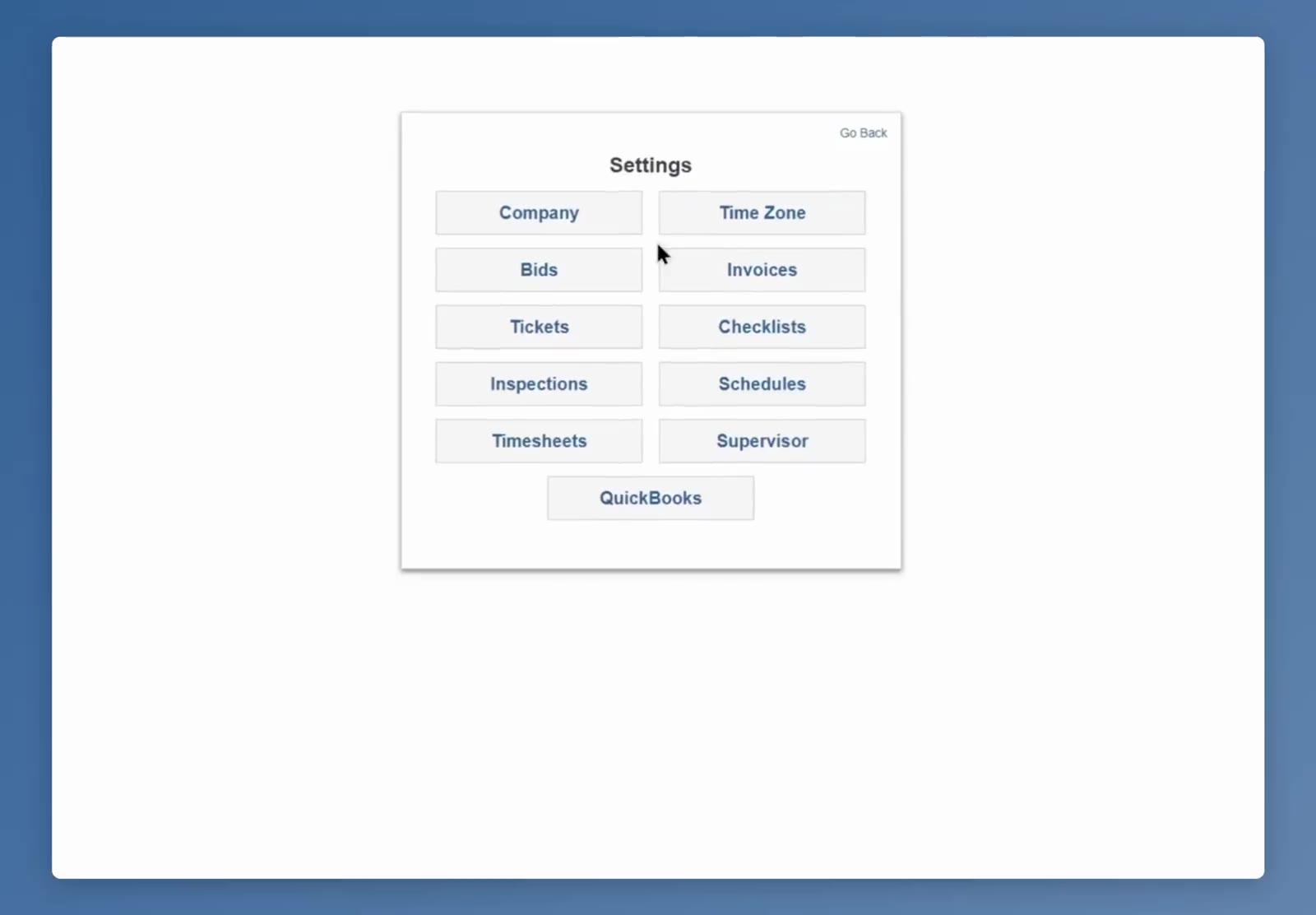
Bids in the Settings menu holds everything related to proposals.
Open the eSignature window
Click the eSignature link in the top left of the Bidding screen.
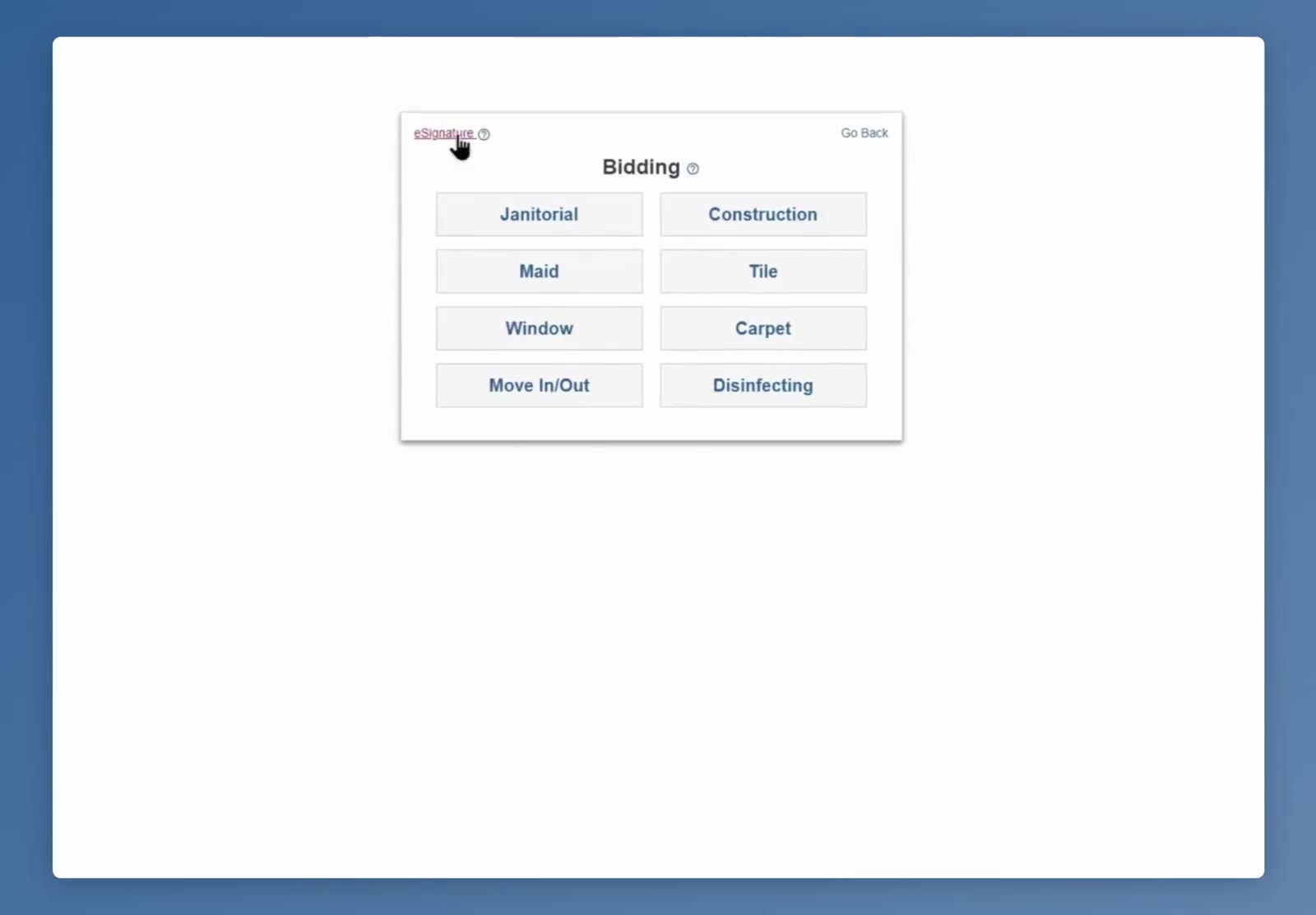
The eSignature link is in the top left of the Bidding screen.
Check the documents it should print on
Your saved signature appears at the top, with an Edit / Remove link under it. Below that, each column is a document — Cover Letter, Agreement, Liability Waiver, and Glass Waiver — and the entries under each column are the service types that use it. Check the box beside the document name to turn the whole column on or off, or check the service types one at a time. Then click Save.
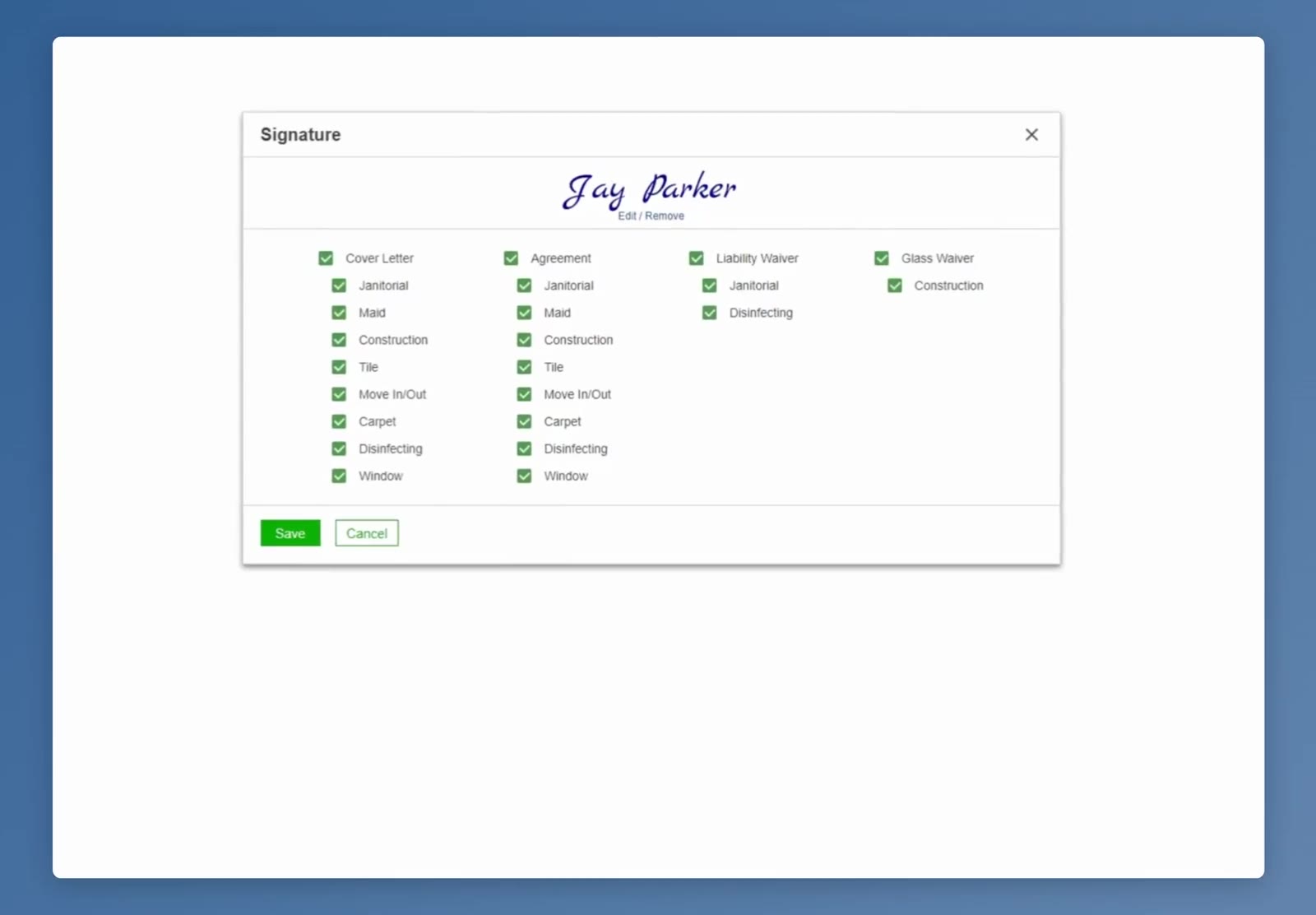
Each column is a document; the entries under it are the service types that use it.
CleanGuru saves one signature for your account. The checkboxes don't create different signatures — they only control which documents the saved one prints on. Edit the signature and it changes everywhere it is used.
FAQ
Can I use a different signature for different service types?
No. CleanGuru saves one signature. What you can vary is which documents it prints on for each service type.
What if none of the generated handwriting styles look right?
Use the Draw tab to sign with your mouse or trackpad, or the Upload tab to add an image of your own signature.
Which documents can carry the signature?
Cover Letter, Agreement, Liability Waiver, and Glass Waiver. Each one lists the service types it applies to, so a document only shows the services that use it.
How do I change or remove my signature later?
Open the eSignature window from Bid settings and click Edit / Remove under your signature. Because there is only one saved signature, any change you make applies everywhere it is used.