
Create Copy of Bid
When a new bid is mostly the same as one you have already built — the same building at a different frequency, or a second location with the same layout — copy the existing bid instead of starting again. The copy carries over the measurements, tasks and pricing structure, and you change only what is different.
Make the Copy
Open the Create Copy dialog
On any bid screen, click the green Create Copy button at the top right. Copies are made within a module, so start from the module the original bid is in.
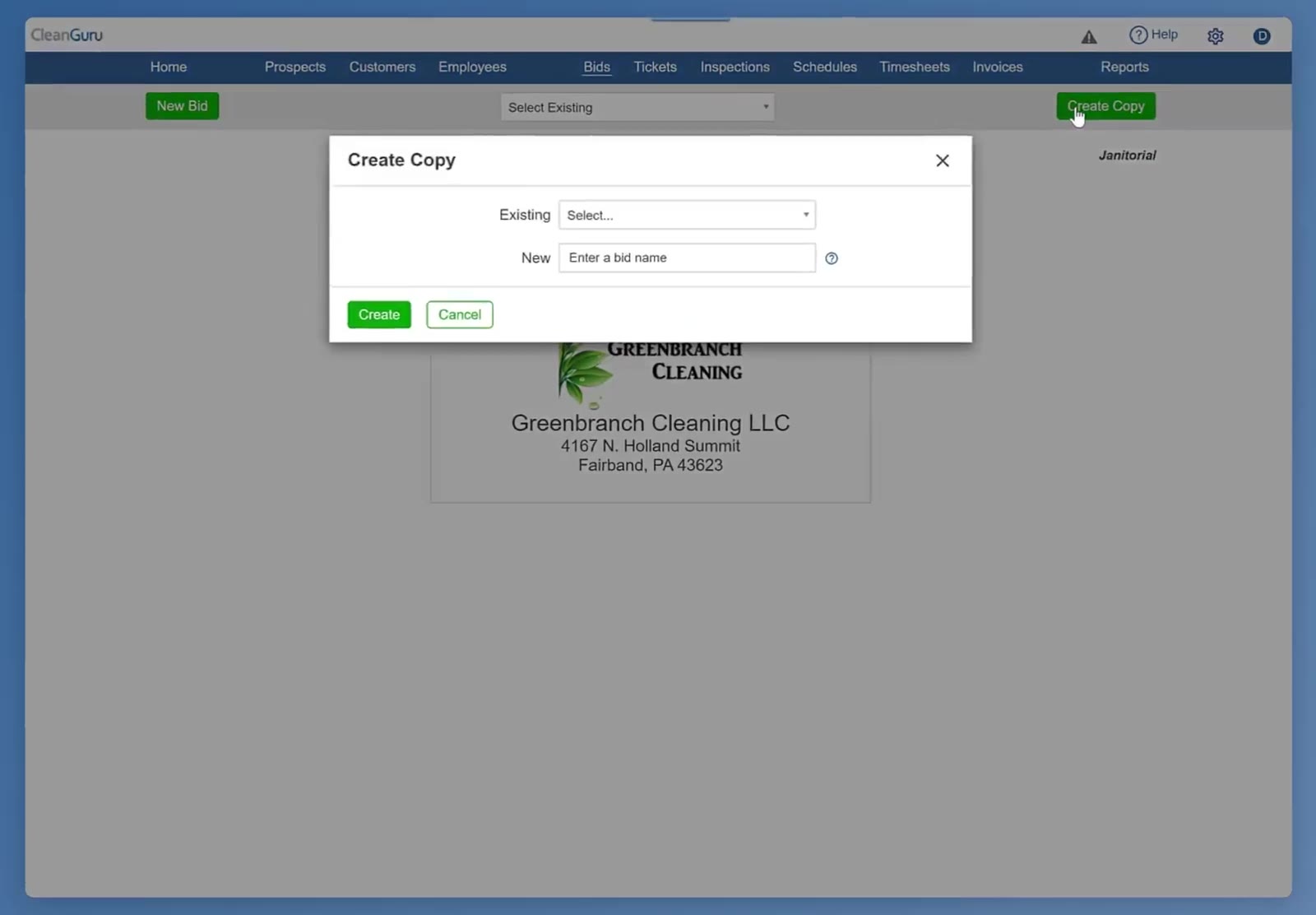
Create Copy asks for the bid you are copying and a name for the new one.
Pick the bid to copy
Choose the original from the Existing dropdown.
Name the copy
Type a name in the New box. Include what makes this version different — the frequency or the location — so the two are easy to tell apart later.
Create it
Click Create. CleanGuru opens the new bid on its details page.
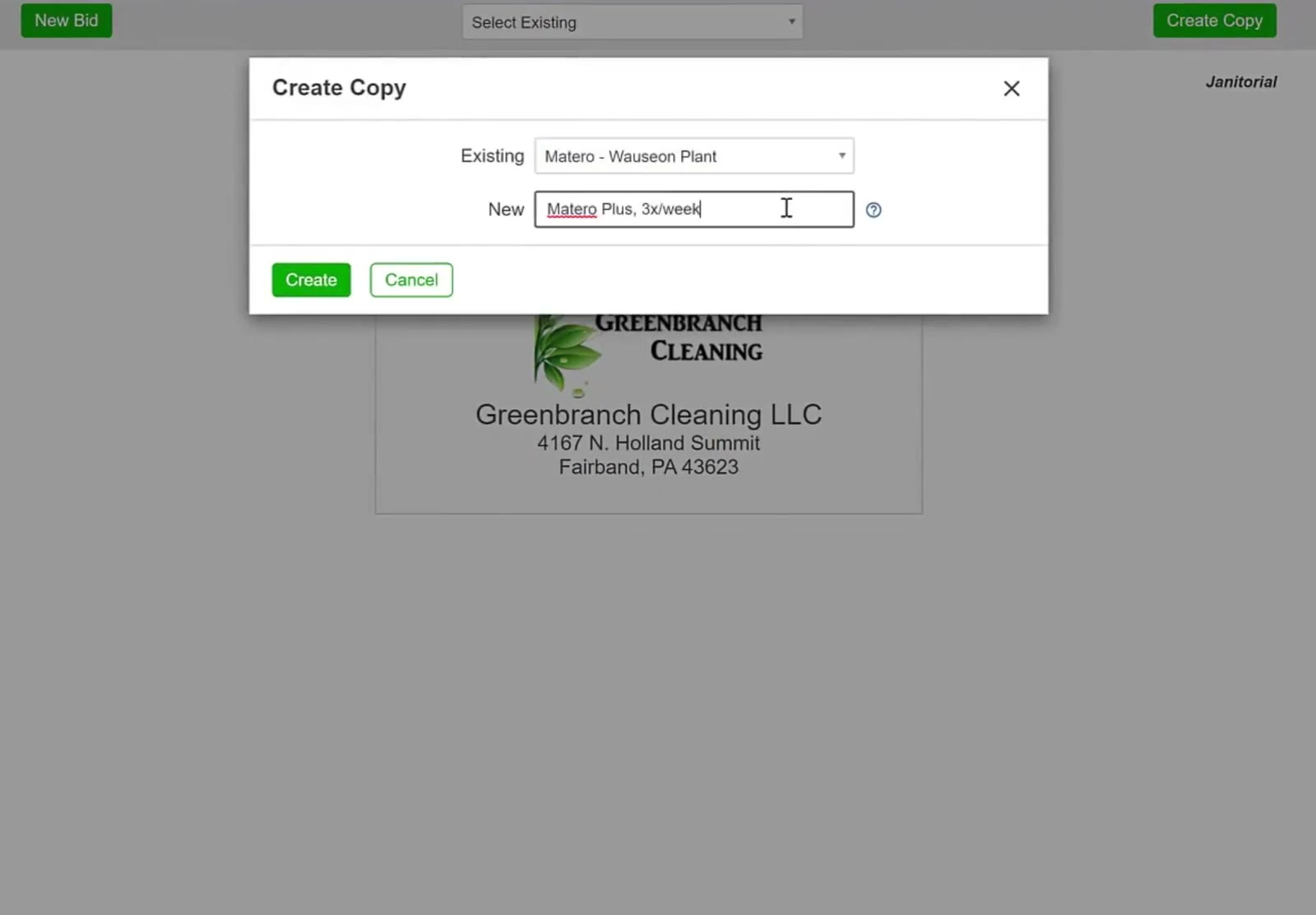
Choose the original in Existing, then give the copy a name that says what is different about it.
Change What Is Different
Change the frequency
On the bid details page, pick a new value from the Frequency dropdown — anything from one day a week through seven, or every other week, monthly, twice per month or one-time.
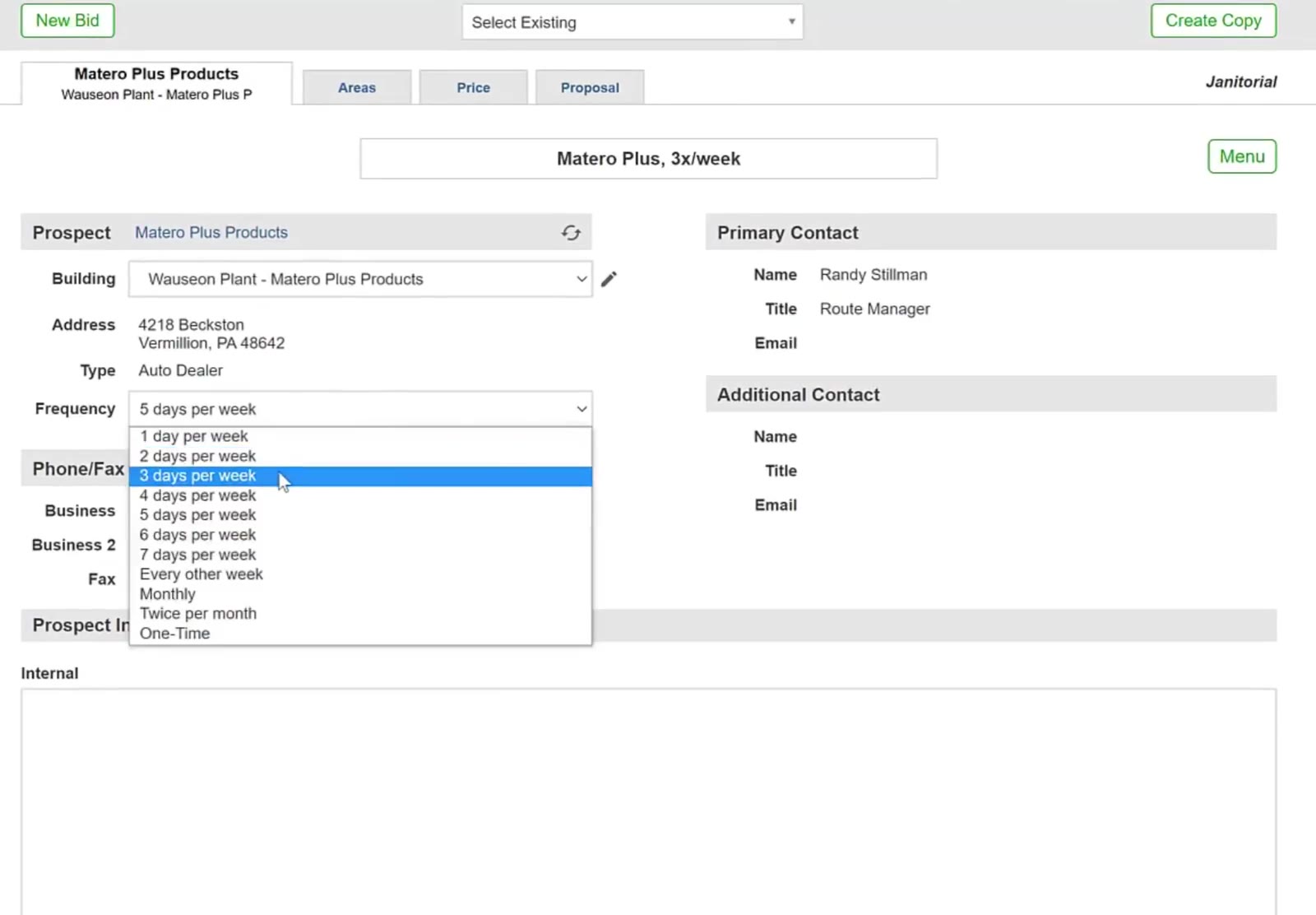
The Frequency dropdown on the bid details page sets how often the service runs.
Confirm the change
CleanGuru warns that changing the frequency will not affect measurements or area counts, but will update all standard tasks to the new frequency. Click OK.
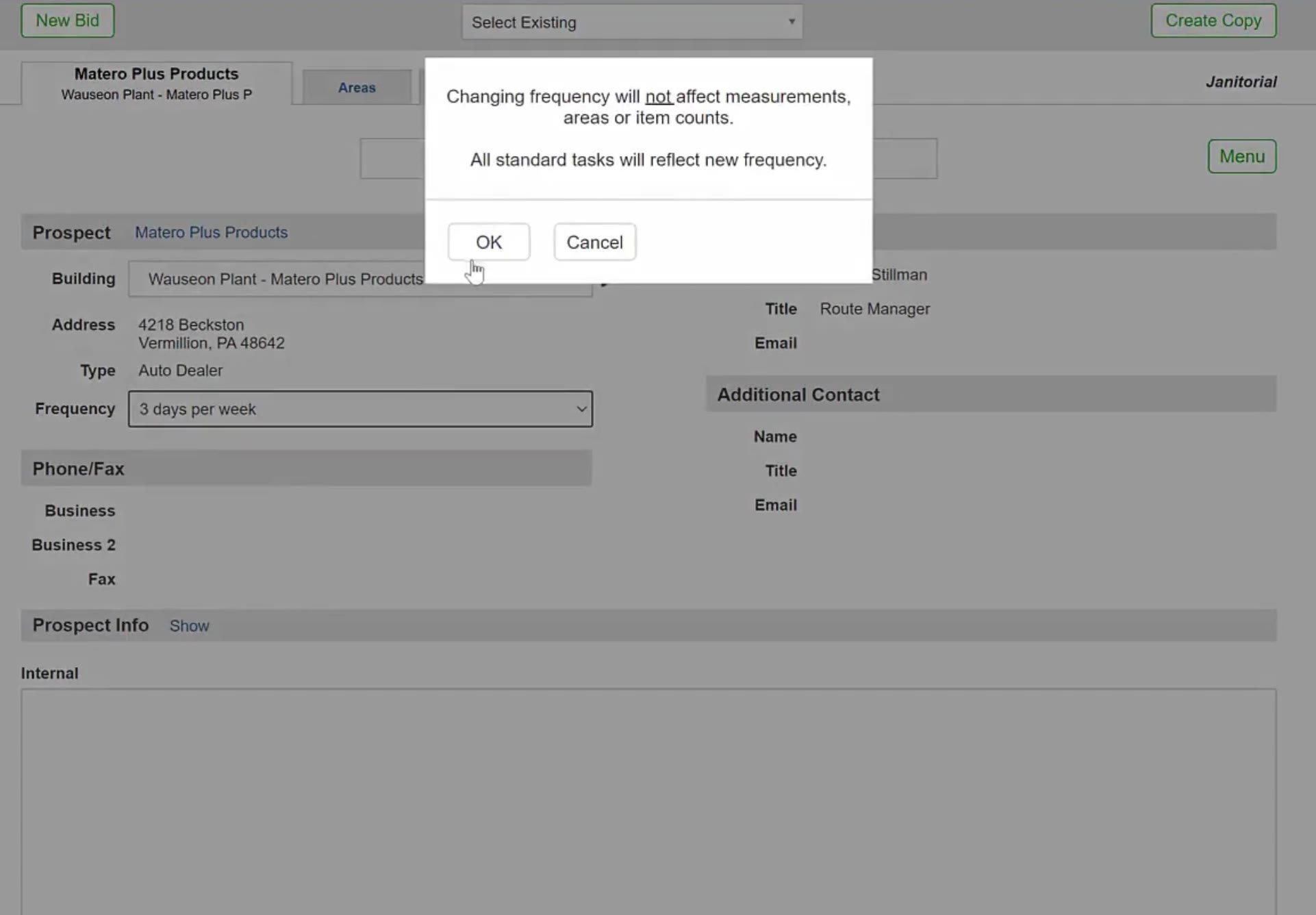
CleanGuru confirms that the change updates the tasks but leaves the measurements alone.
Review the areas
Click the Areas tab. Every area from the original is already there with its measurements, floor type and difficulty.
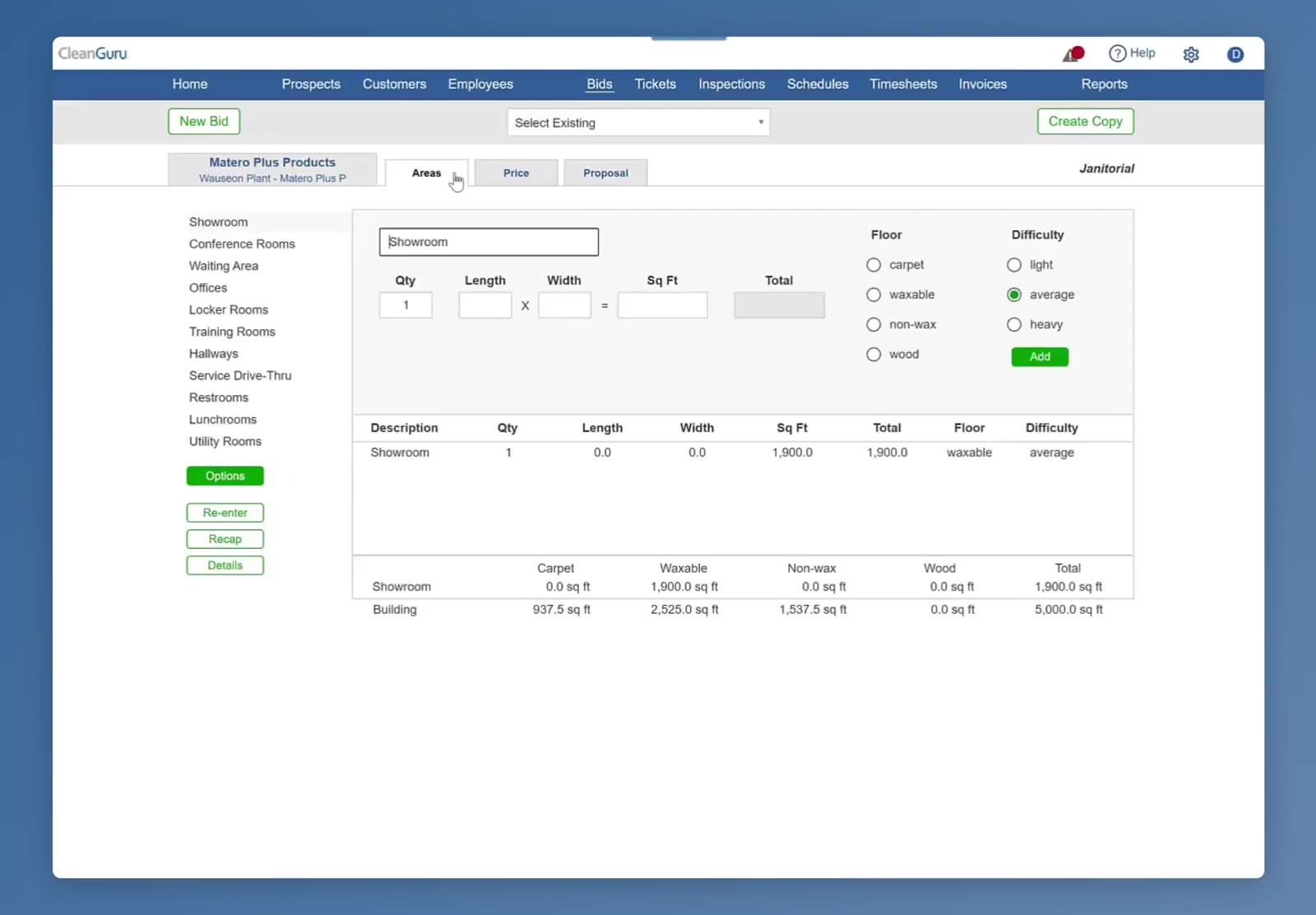
The Areas tab carries over every area from the original bid, with its measurements and floor type.
Adjust the measurements
Pick an area from the sidebar to edit its quantity, length, width, floor type or difficulty, and click Add to save the change. Re-enter reopens the measurement box if the whole building is a different size. Options opens the task list, where you can add, remove or re-time individual tasks.
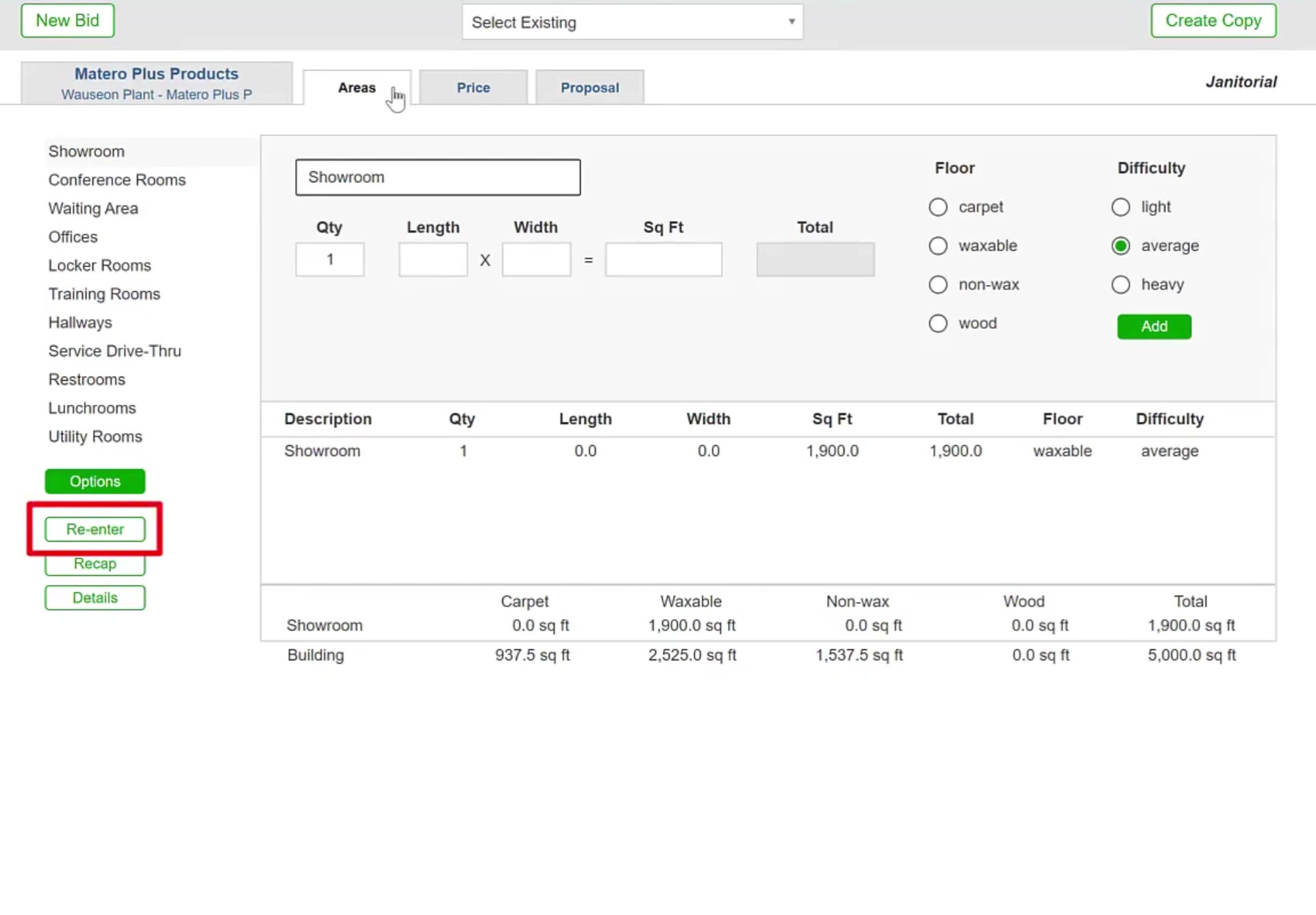
Re-enter reopens the measurement box; Options opens the task list for the selected area.
Check the new price
Click the Price tab. The hours and the calculated price have already been recalculated from the frequency and measurements you changed.
The copy is now a bid in its own right: it keeps everything the original had, carries your changes, and prices itself accordingly. This is the quickest way to put two versions of the same job in front of a customer.
FAQ
Does changing the frequency change my measurements?
No. CleanGuru says so in the confirmation box: the areas and their measurements stay exactly as they were. What changes is the standard task list, which is re-timed to the new frequency.
Can I copy a bid from one module into another?
Not with Create Copy — that works within a module, so a janitorial bid copies to another janitorial bid. To carry a bid across, use Import instead: click New Bid in the module you want, then Import at the bottom right of the New Bid box and pick the existing bid. Importing a janitorial bid into a tile bid brings its areas and measurements with it, so you only have to set the tile work and the price.
What should I call the copy?
Something that names the difference — the frequency, the building or the location. Both bids stay in the list, so a name like "3x/week" or the second site's name saves confusion later.
Does the copy affect the original bid?
No. The copy is a separate bid record. Changing its frequency, areas or price leaves the original untouched.
What if the new building is a different size?
Click Re-enter on the Areas tab to reopen the measurement box and enter the new figures, or edit each area individually and click Add.
Do I have to recalculate the price myself?
No. The Price tab reflects the frequency and measurements as they stand, so opening it after your changes shows the updated recommendation.