
Import Measurements
Import saves you measuring a building twice. When a customer already has a bid in one module, you can start a bid in another module from those same measurements instead of entering them again.
Start the New Bid
Open the module you are bidding
In the top navigation click Bids and choose the module for the new bid — Janitorial, Disinfecting, Maid, Carpet, Window, Tile, Move In/Out or Construction.
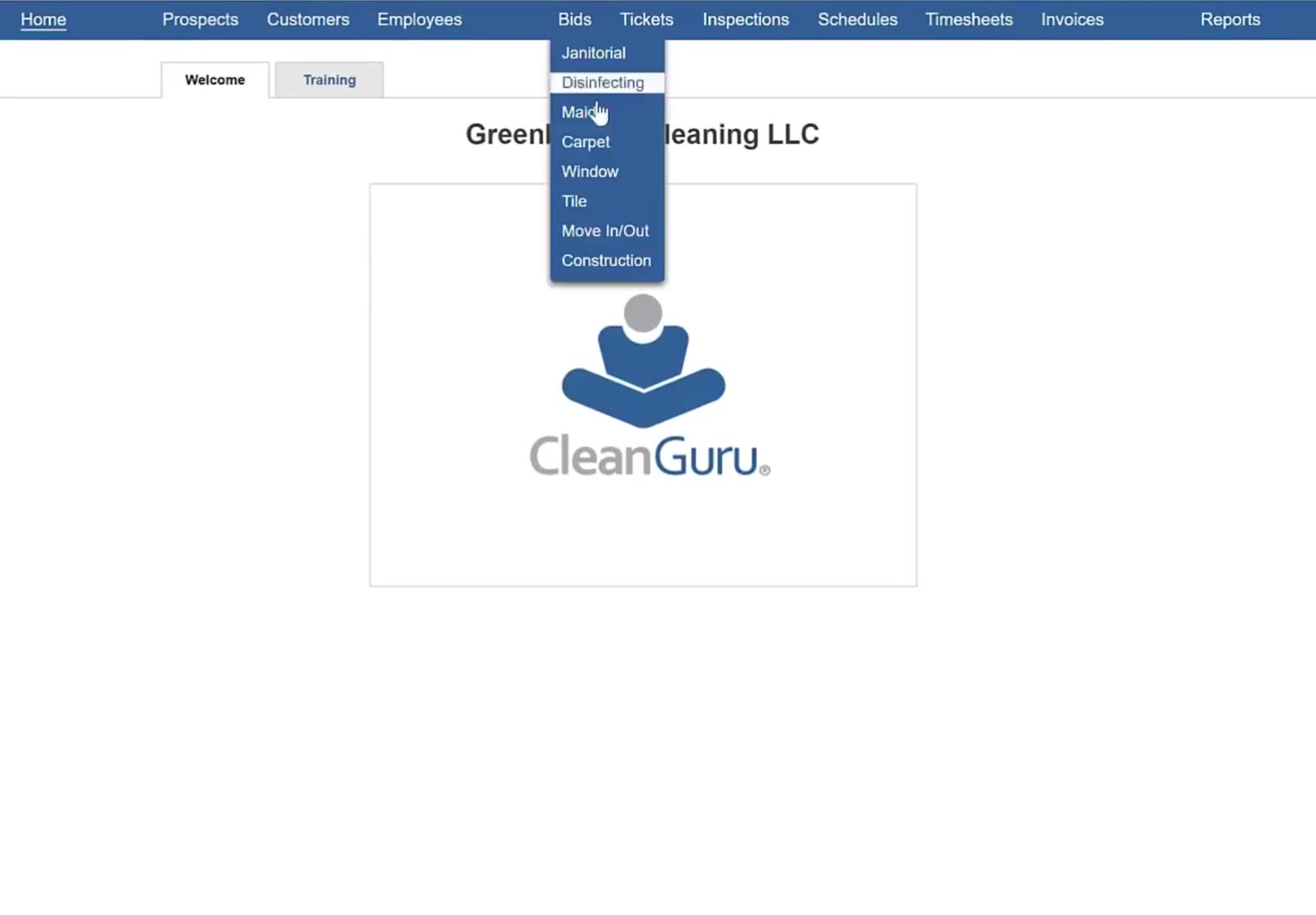
The Bids menu lists every module you can bid.
Start a new bid
Click New Bid at the top left of the module’s screen.
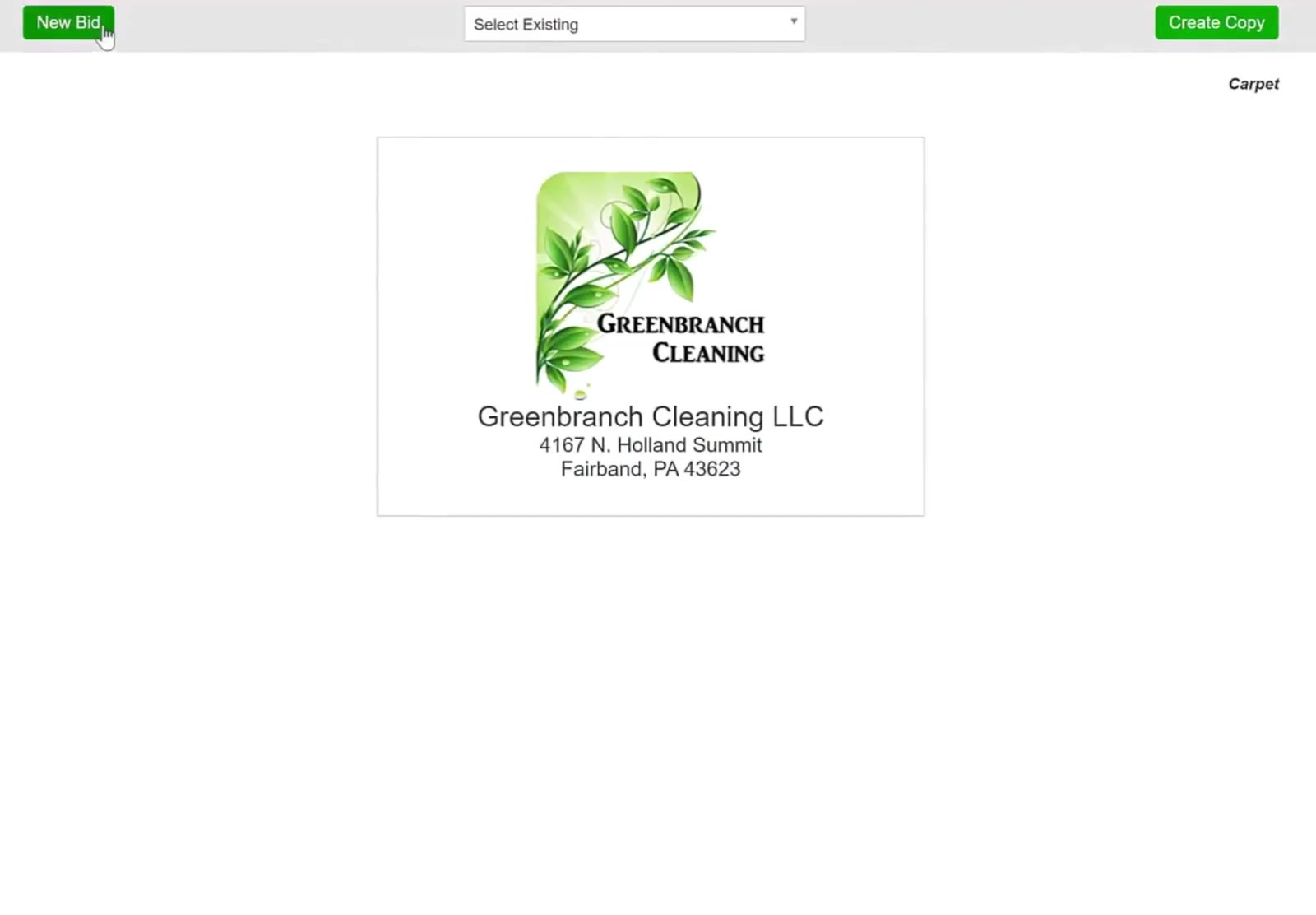
New Bid sits at the top left of the module’s screen.
Open the Import box
The Create Bid box opens. Click the Import link at its bottom right.
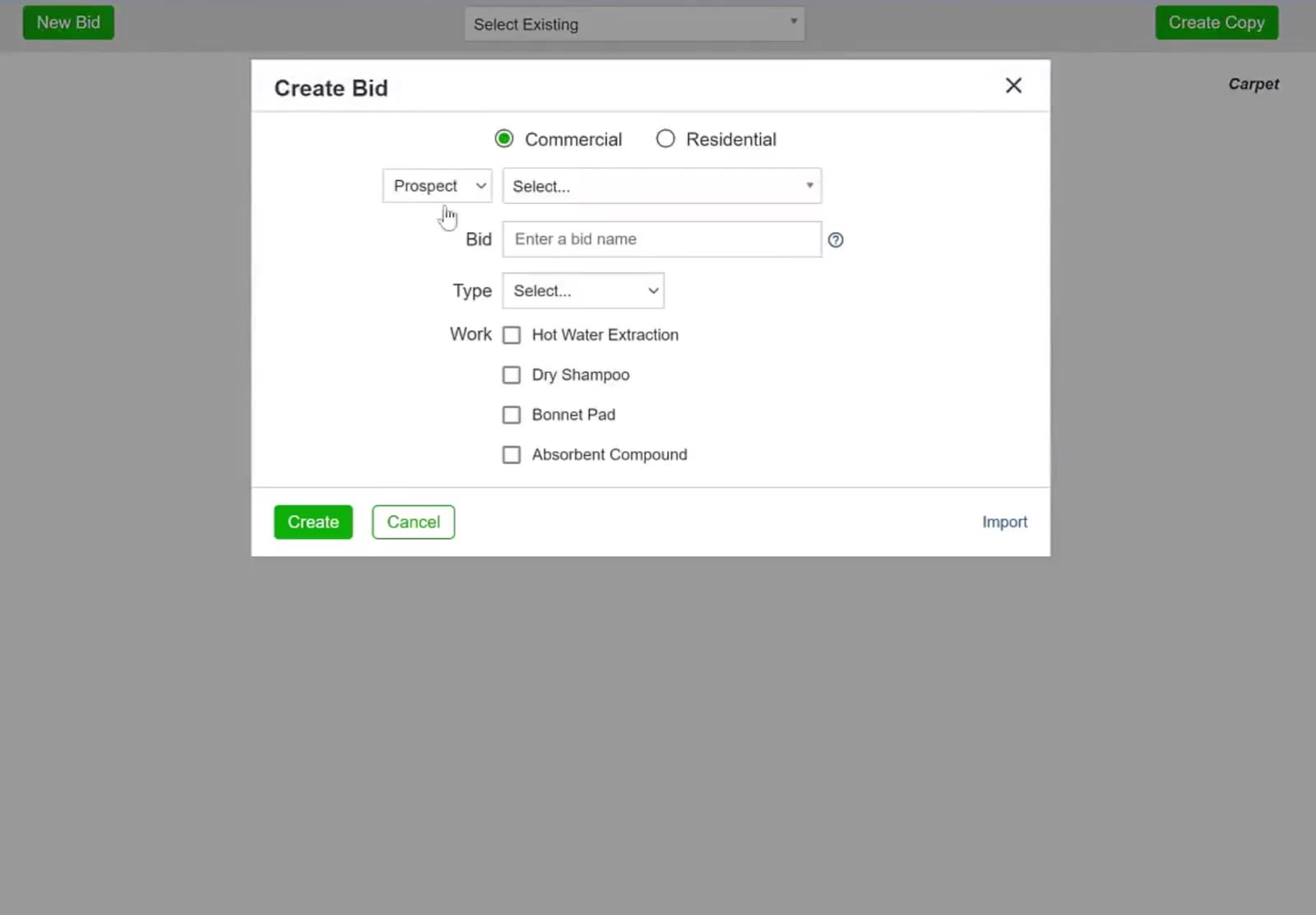
The Create Bid box, with the Import link at its bottom right.
Choose What to Import
Pick the bid to copy from
In Import from, choose the module holding the bid you want the measurements from. Existing then lists the bids in that module — pick the one to copy.
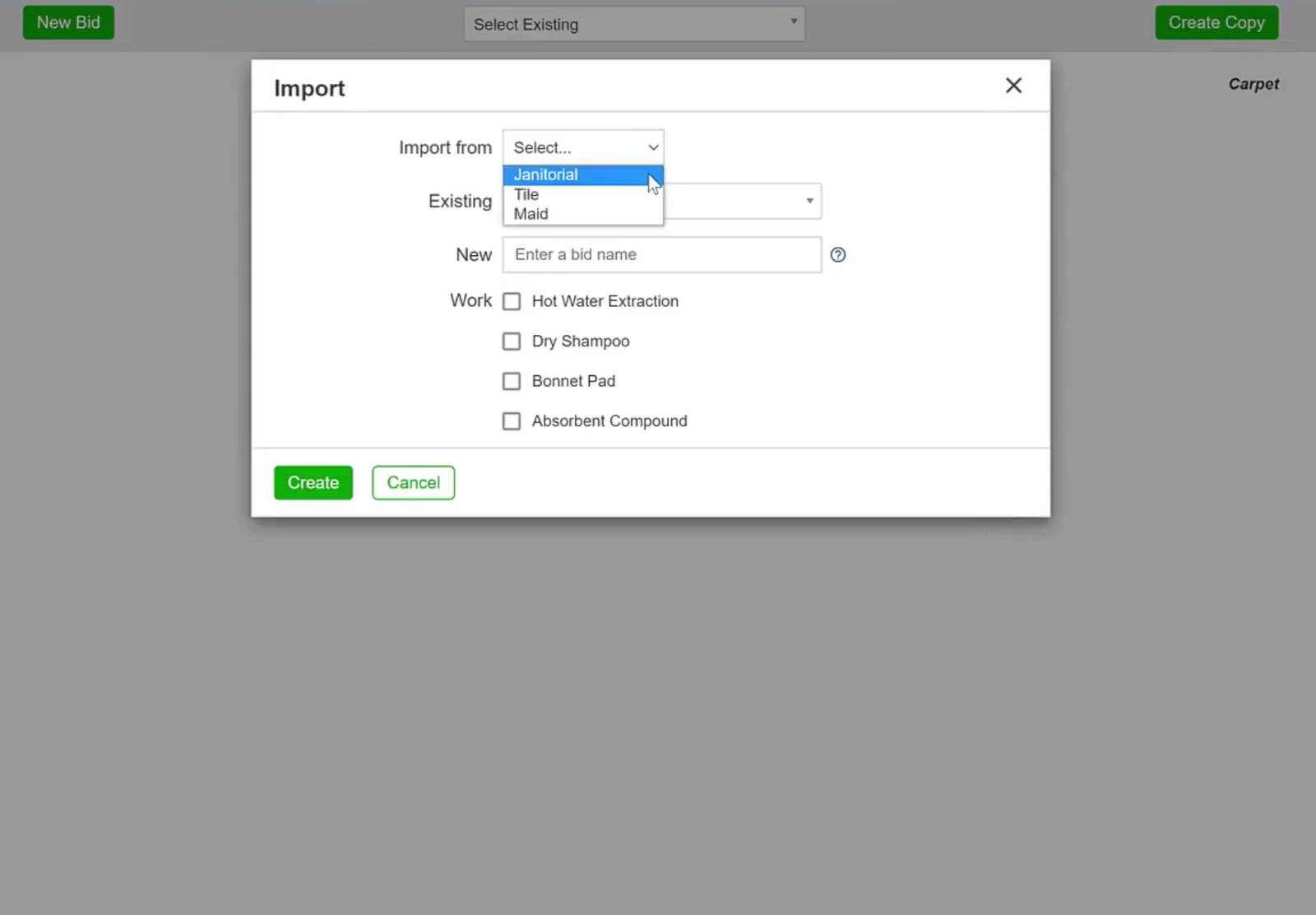
Import from lists the modules you can pull a bid from.
Name the new bid
Type a name in New.
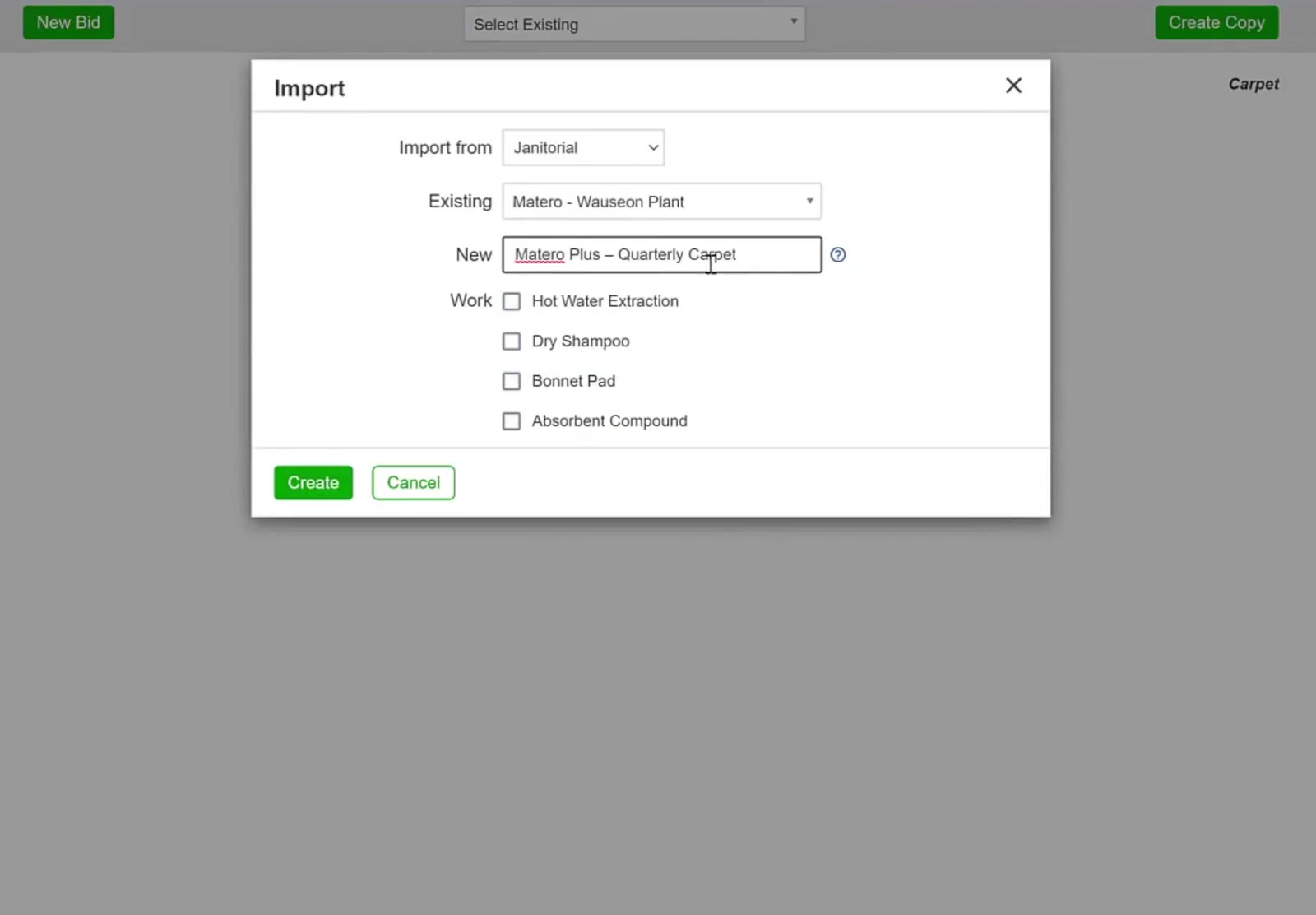
The source bid chosen and the new bid named.
Set the work and frequency
Tick the work being bid and choose how often from the frequency dropdown that appears beside it.
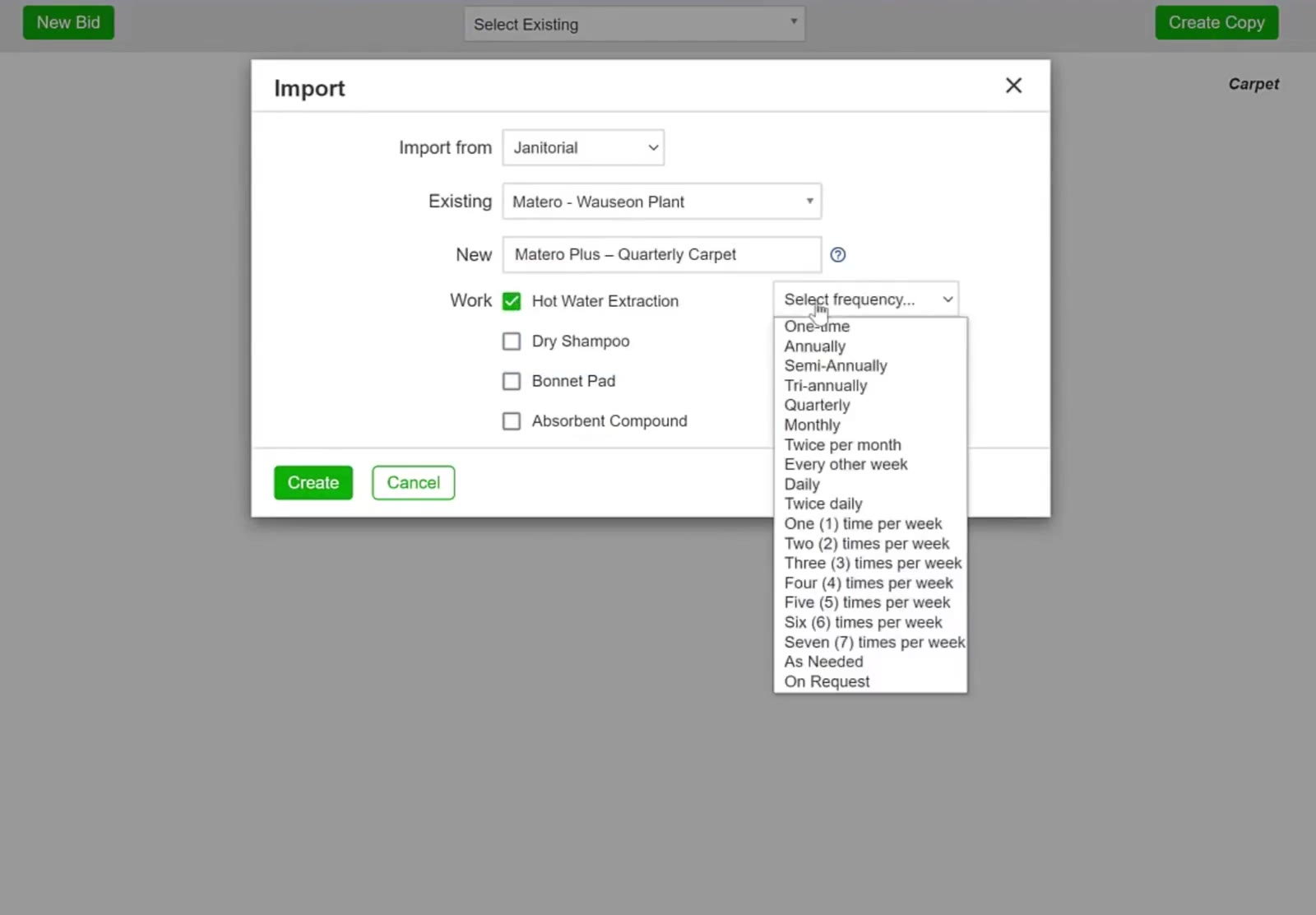
Ticking the work brings up a frequency dropdown beside it.
Create the bid
Click the green Create. CleanGuru builds the new bid with the measurements already in it.
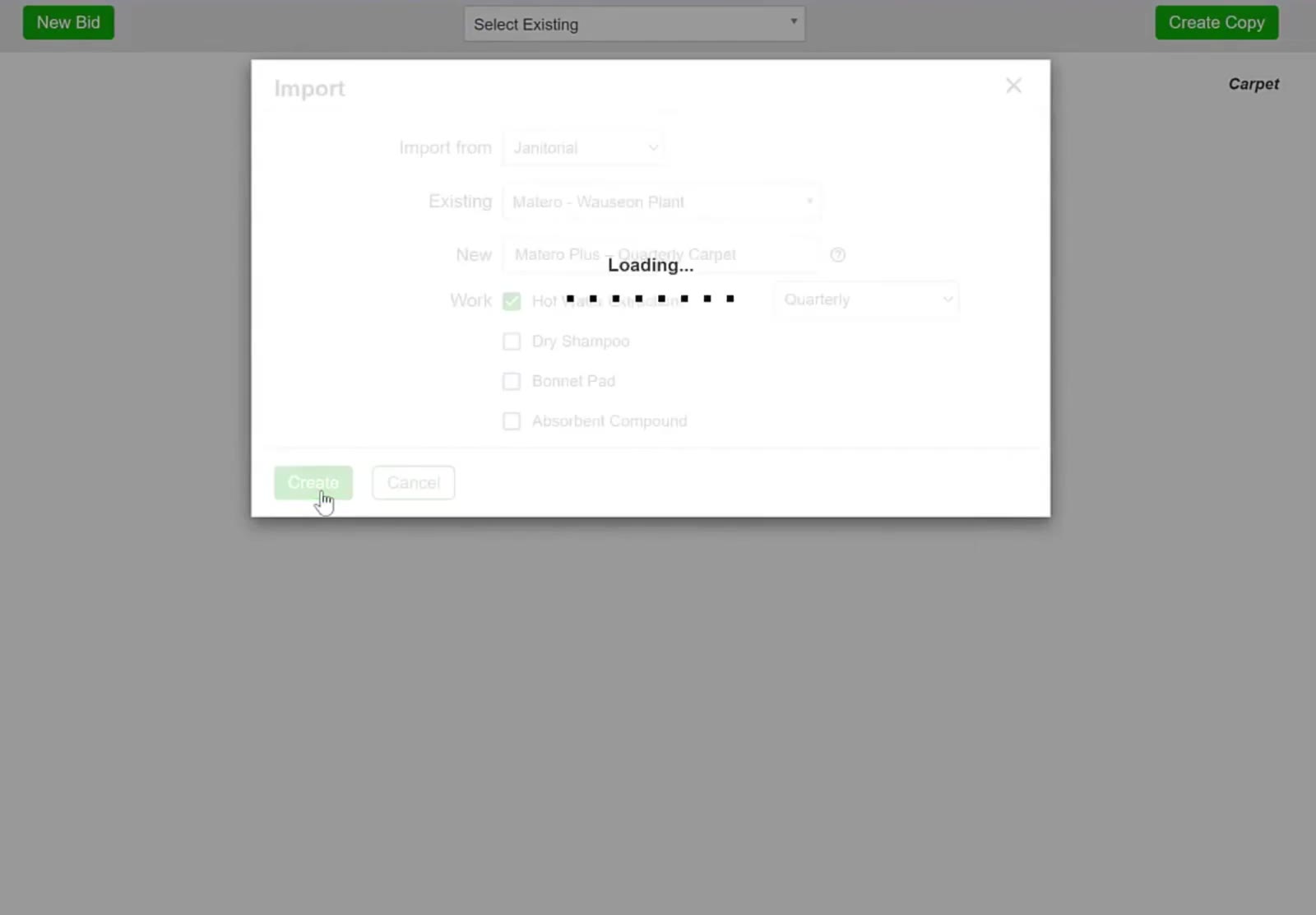
The finished Import box, ready to create.
Check the Imported Measurements
Check the square footage
The measurements come across with the bid. On this carpet bid they sit across the top of the Price tab as carpet, waxable, non-waxable and wood; on any bid you can also read them on the Areas tab, in the Building row at the bottom.
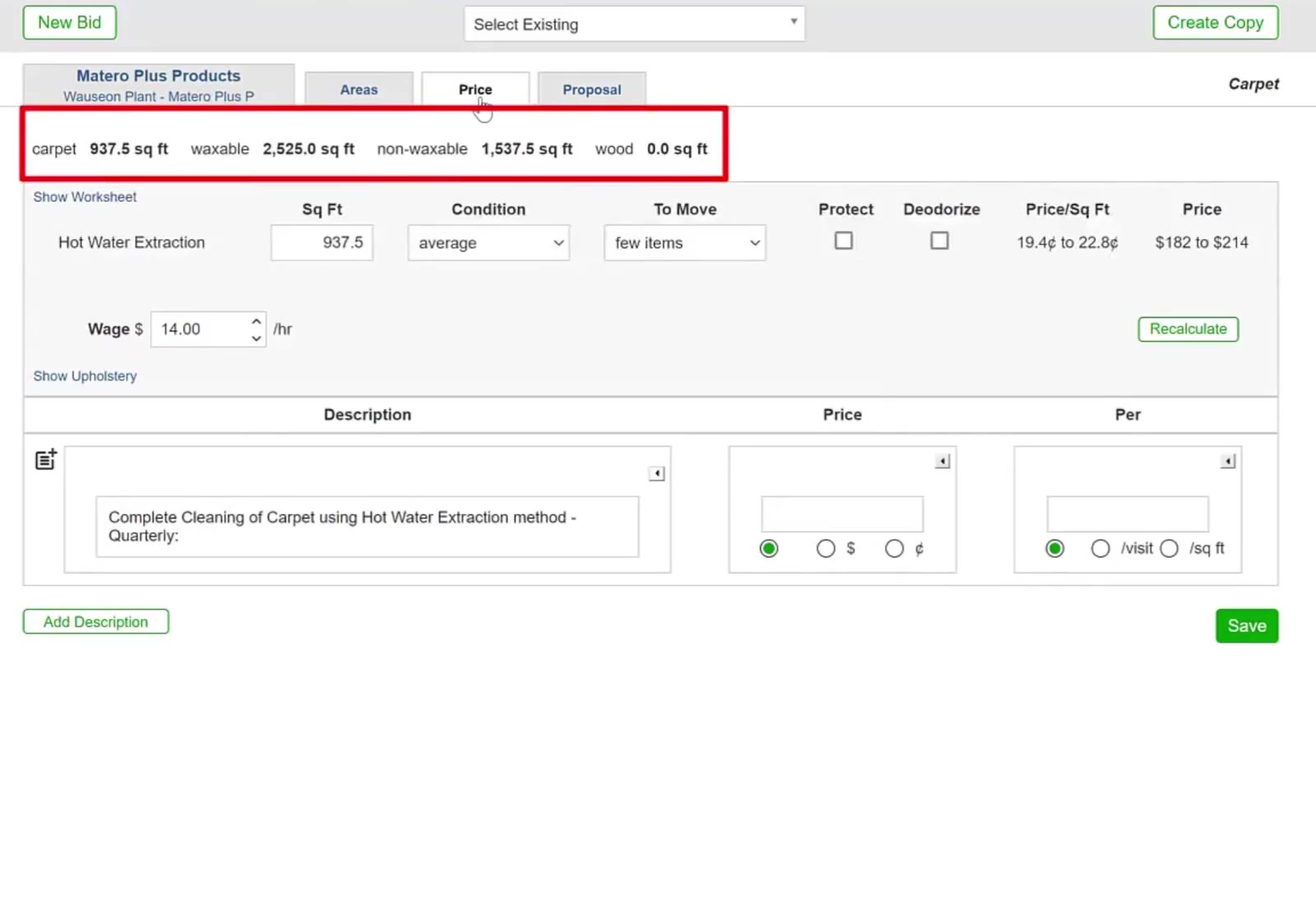
The imported square footage on the new carpet bid’s Price tab.
Save any changes
Click the green Save at the bottom right to save any changes to the Price page.
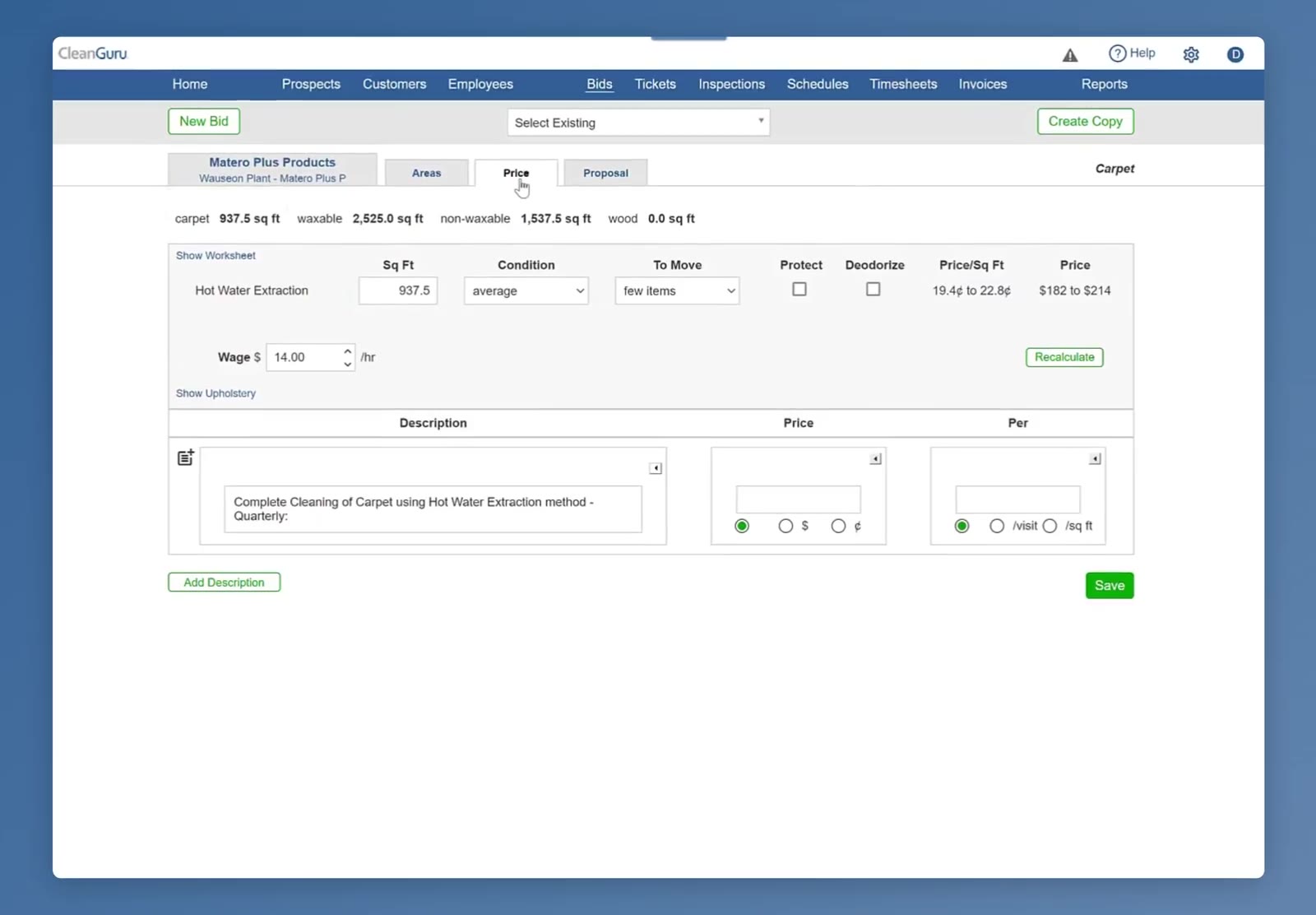
Save keeps any changes made on the Price page.
The new bid now carries the building’s measurements without a second walk-through.
FAQ
Do I have to measure the building again?
No — that is what Import is for. The measurements come straight from the bid you import from.
Which modules can I import from?
Whichever modules appear in the Import from list — not every module shows there.
How is this different from Create Copy?
Create Copy duplicates a bid inside the same module. Import brings measurements across from a different module.
Where is the Import link?
At the bottom right of the Create Bid box, below the work list.
Where do the imported measurements show up?
On the new bid’s Areas tab, at the bottom, in the row headed Building.