
Enter Measurements - Manual
Manual is for when you already have the building’s measurements. You work down the area list yourself, giving each area its square footage, its floor and how hard it is to clean, and CleanGuru totals the building as you go.
Open the Manual Form
Open the measurement box
On the Areas tab of a bid, an Enter Measurements box asks how you want to enter the building’s measurements.
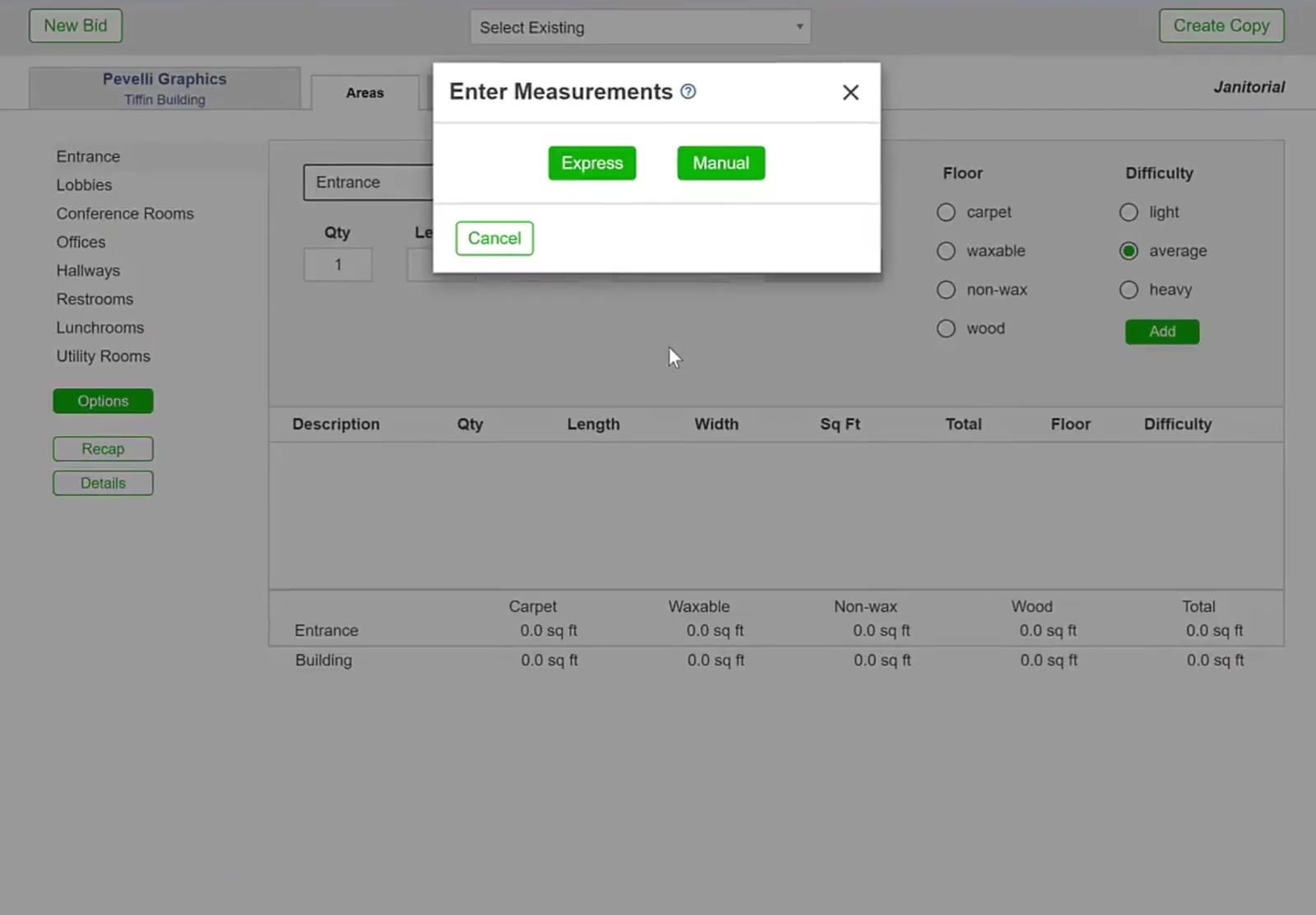
The Enter Measurements box offers Express or Manual.
Choose Manual
The Areas tab shows the building’s areas down the left and an entry form beside them, with the first area already selected.
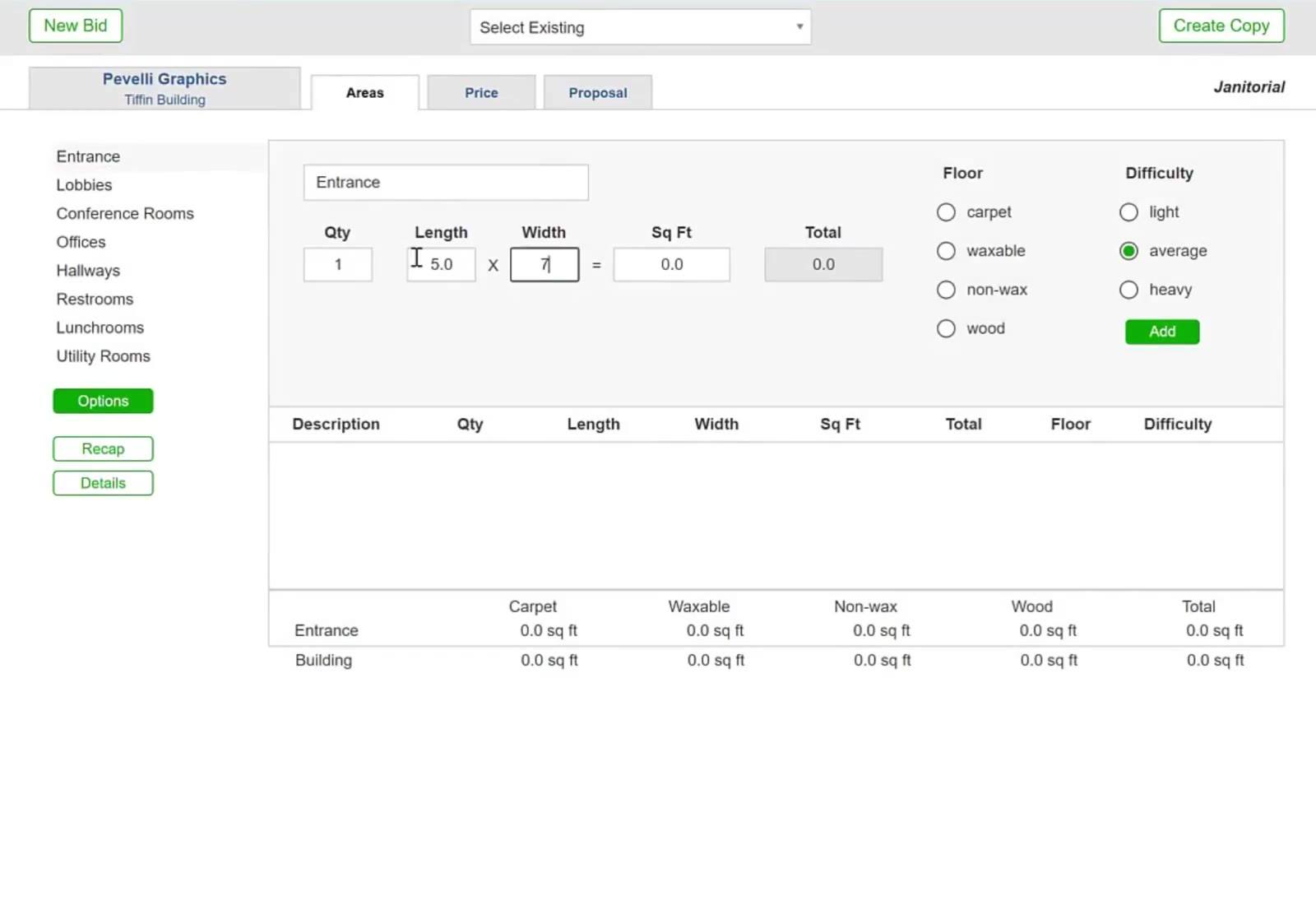
Manual opens an entry form beside the building’s area list.
Measure Each Area
Enter the dimensions
Type the Qty, then the Length and Width, and CleanGuru works out the Sq Ft and multiplies it by the quantity for the Total. You do not have to use a length and width — if you already know the area’s square footage, type it straight into Sq Ft instead.
Set Floor and Difficulty
Pick carpet, waxable, non-wax or wood under Floor, and light, average or heavy under Difficulty, then click the green Add.
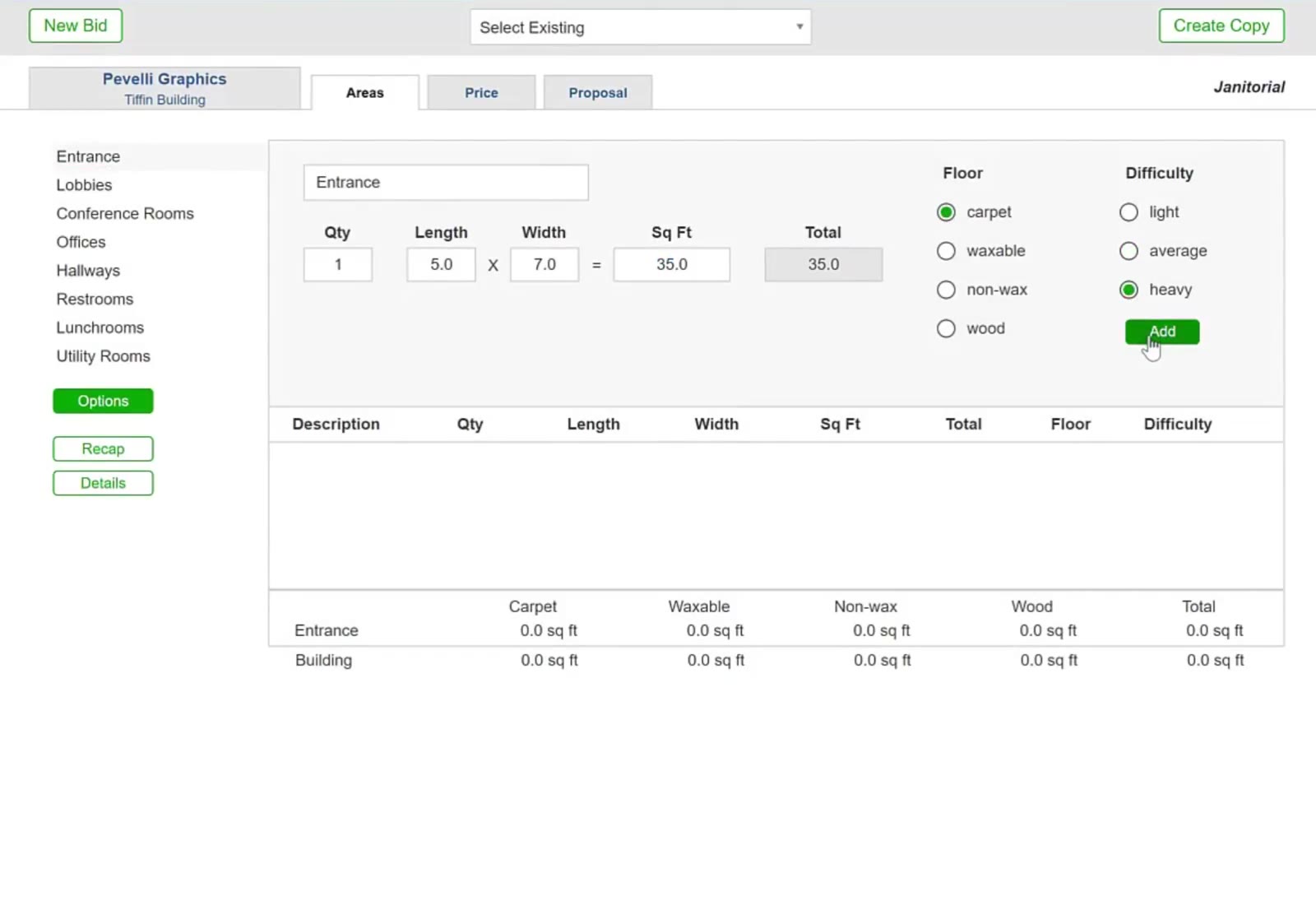
Entrance measured 5.0 by 7.0, with Floor and Difficulty set.
Move on to the next area
Click the next name on the left and the form clears for it. Each area you add builds up in the table below the form and in the totals at the bottom.
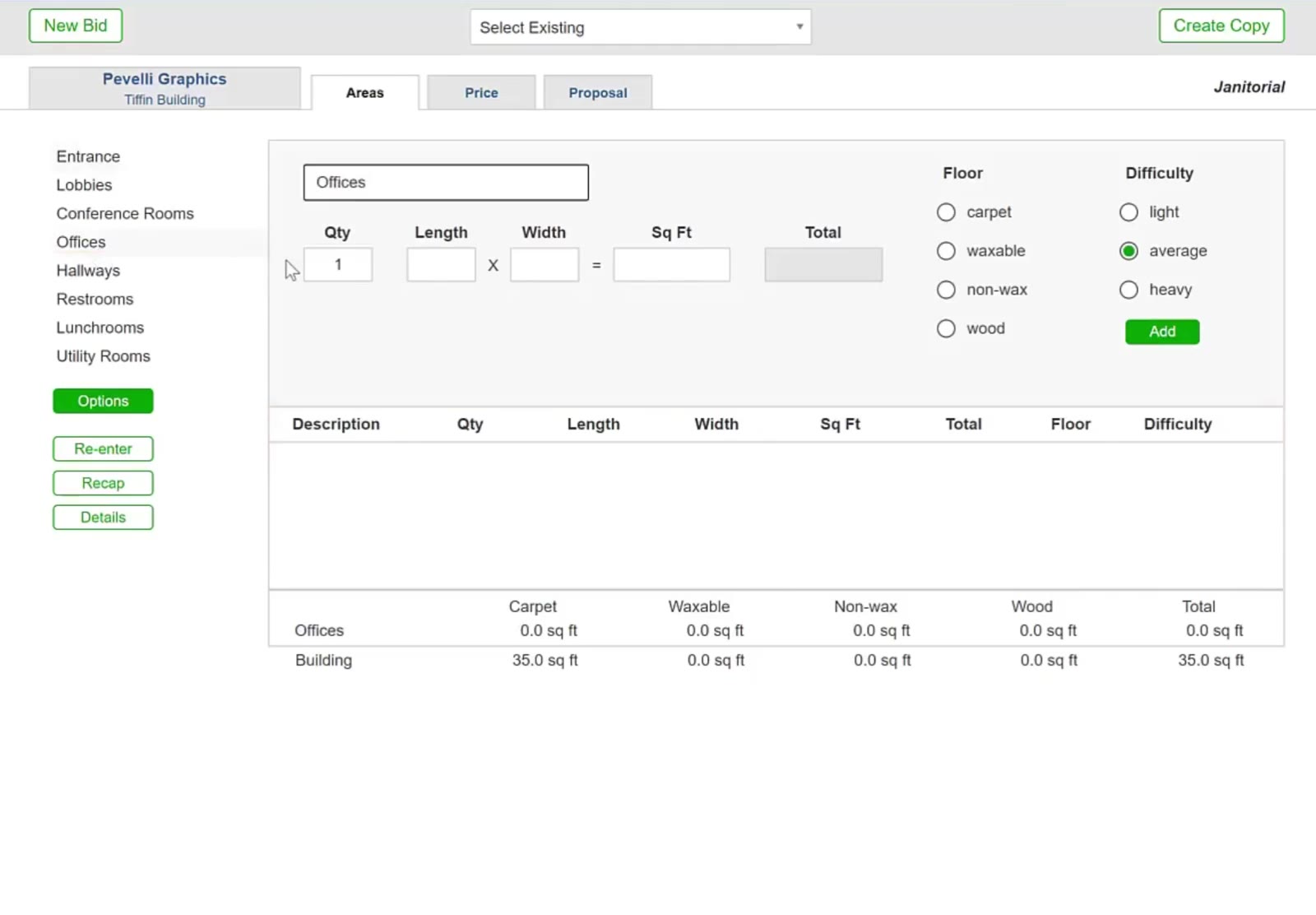
Clicking the next name on the left clears the form for that area.
Quicker Ways to Enter an Area
Measure identical rooms at once
Put the number of rooms in Qty and enter one room’s average Length and Width. The Total is the quantity times the square footage.
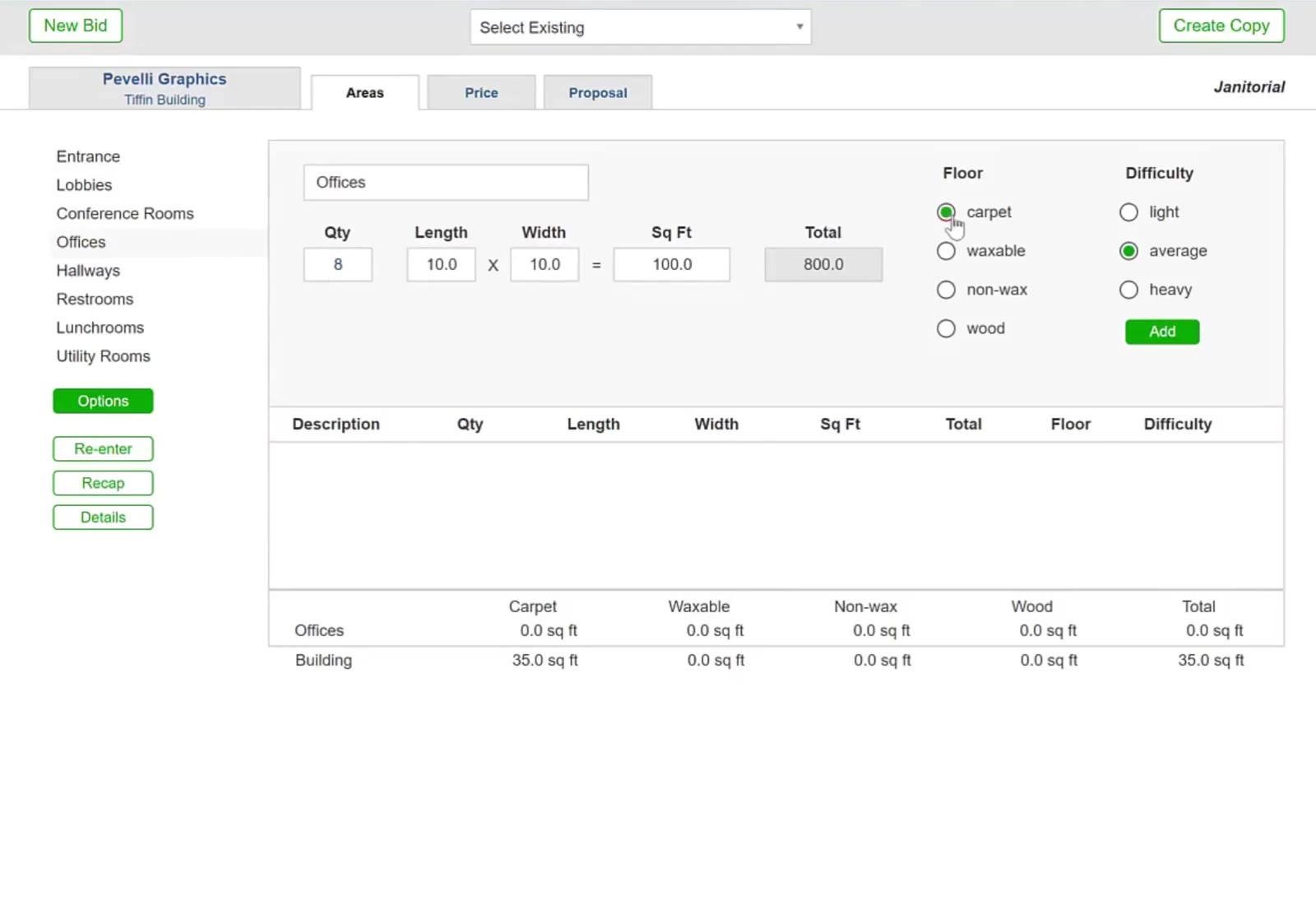
Qty 8 with one office’s average dimensions gives a total of 800 square feet.
Type square footage straight in
For an area you know as a total rather than a length and a width, leave Length and Width alone and type the number into Sq Ft.
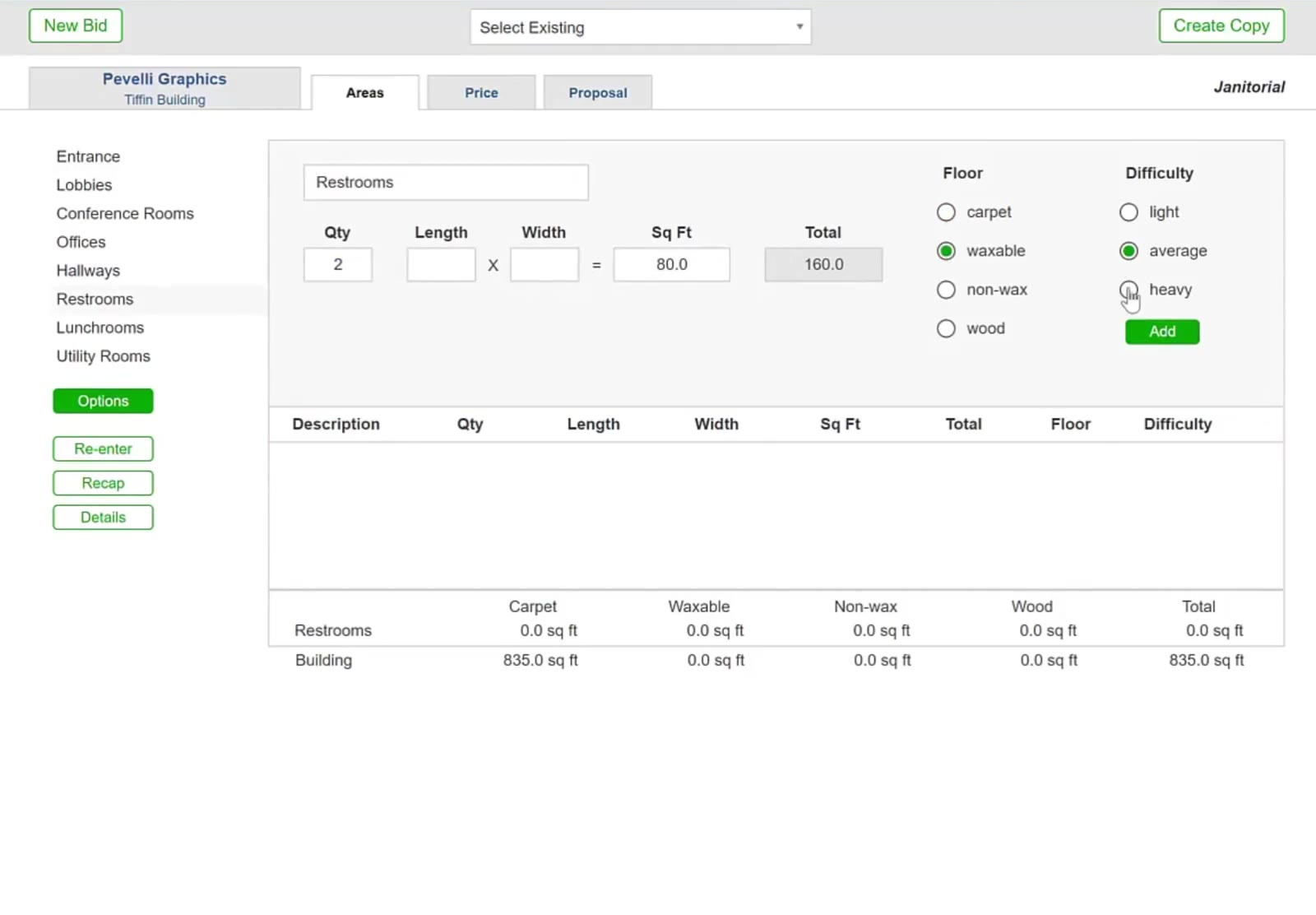
Restrooms entered as square footage instead of a length and width.
Check the Totals
Check the totals
Every area you have added is listed under Description, and the rows underneath split the square footage into Carpet, Waxable, Non-wax and Wood, with a Building row for the whole job.
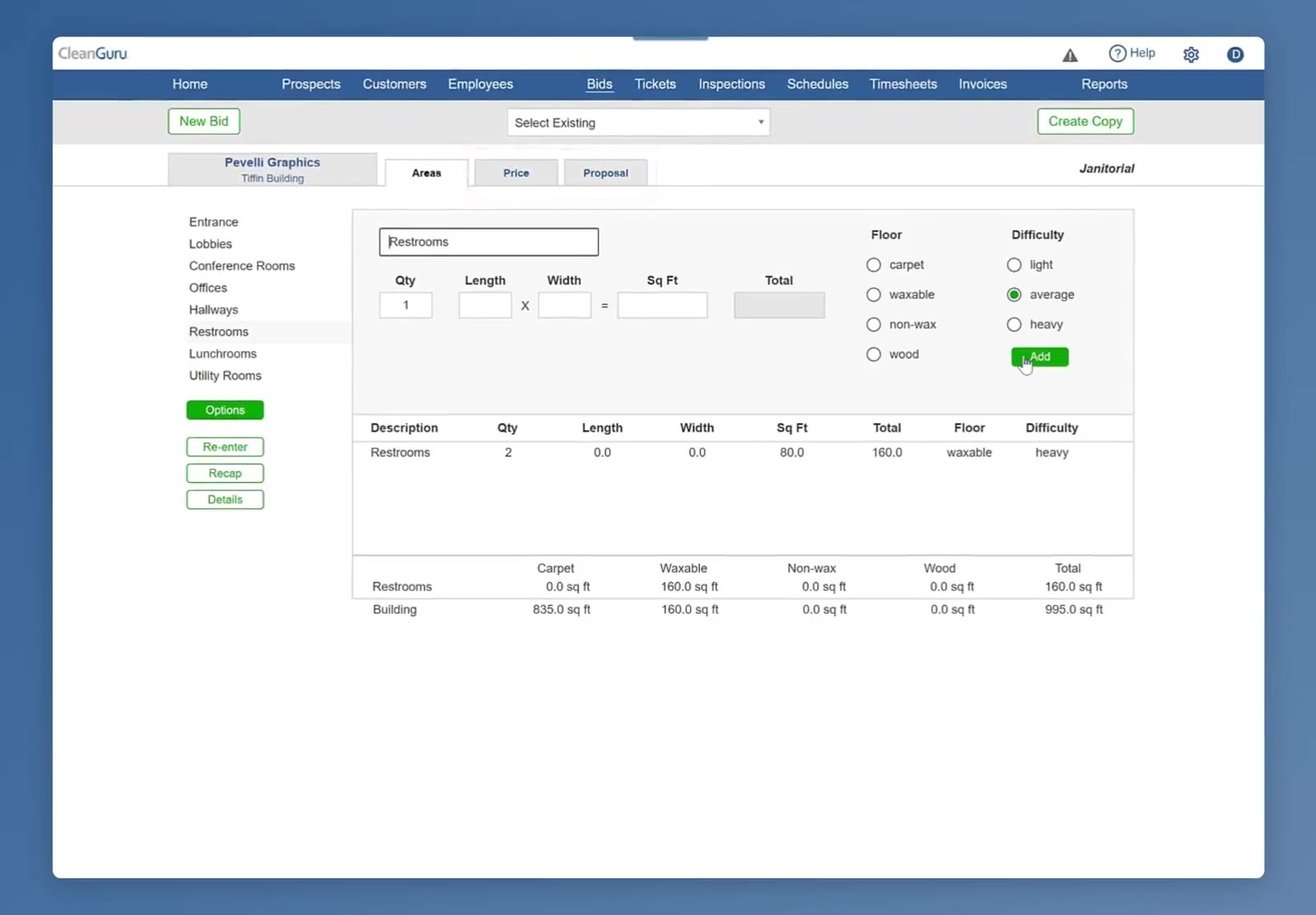
The table lists every area added, and the rows below total the building.
With every area measured, the bid has the square footage it needs for tasks and pricing.
FAQ
When should I use Manual instead of Express?
Use Manual when you have measured the building and want to enter each area yourself. Express works the other way: you give it the building’s total cleanable square footage and it spreads that across the usual areas.
Do I have to enter a length and width?
No. If you already know an area’s size, type it straight into Sq Ft and leave Length and Width alone.
How do I handle 8 identical offices?
Put 8 in Qty and enter one office’s average length and width. The Total is the quantity times the square footage.
Where do the areas I add show up?
In the table under the form, and in the totals at the bottom, which split the square footage into carpet, waxable, non-wax and wood and a Building row for the whole job.
Will the Enter Measurements box come up again?
Not on its own — it opens only while the bid has no measurements. To add one more area afterwards, click Options on the Areas tab, then the Add Area button in the sidebar. To start over, click Re-enter: that clears every measurement and the Enter Measurements box comes back.