
Create Tile Bid
A tile bid prices hard-floor maintenance — stripping, recoating, scrubbing, buffing or grout cleaning — by the square foot. You pick the method and how often it runs, measure the floor, and CleanGuru returns a price range you can turn into a proposal.
Start the Bid
Open the Tile bids screen
In the top navigation bar, hover Bids and choose Tile.
Start a new bid
Click the green New Bid button at the top left.
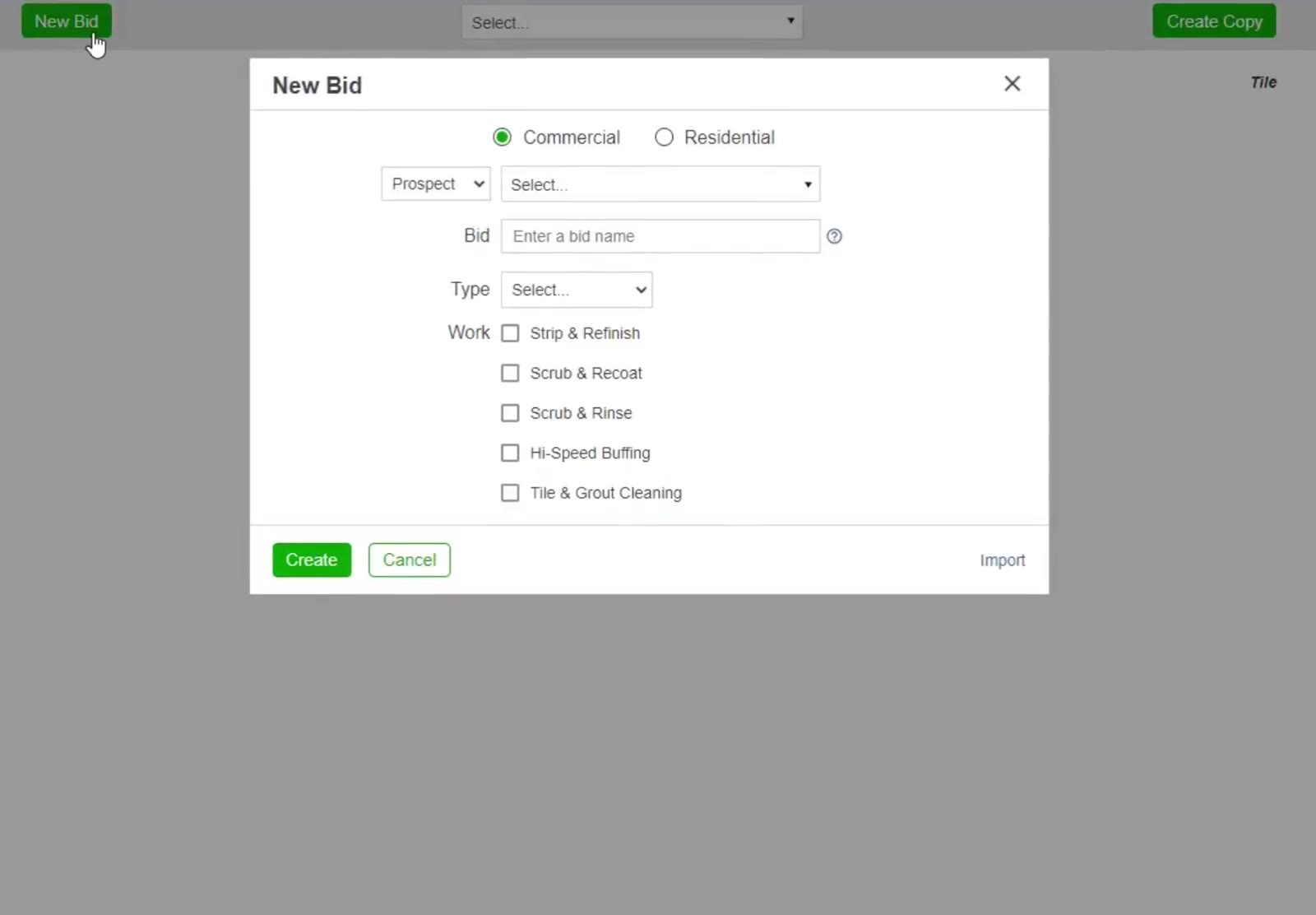
The New Bid dialog: Commercial or Residential, the prospect or customer, a bid name, the building Type, and the five tile methods under Work.
Fill in the bid details
Choose Commercial or Residential, pick Prospect or Customer and select the name, type a name in the Bid box, and set the building Type.
Choose the work and how often
Under Work, tick the method you are quoting — Strip & Refinish, Scrub & Recoat, Scrub & Rinse, Hi-Speed Buffing or Tile & Grout Cleaning. A frequency dropdown appears beside it; choose how often the work runs, then click Create.
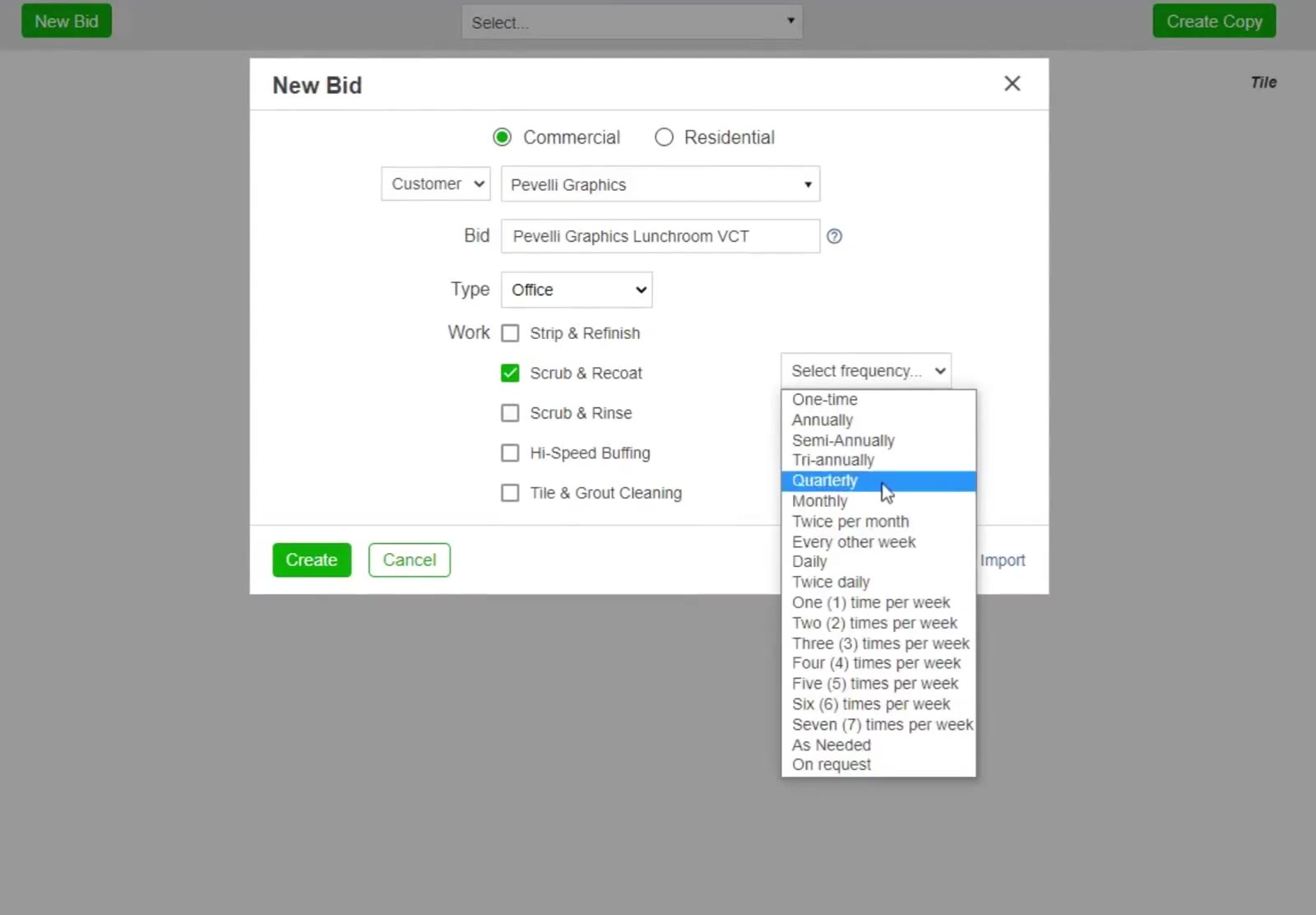
Ticking a method opens a frequency dropdown beside it, from One-time through to seven times a week, As Needed and On Request.
Measure the Floor
Open the Areas tab
Click Areas, then choose Manual in the Enter Measurements box so you can enter the floor exactly. Express estimates every area from the building’s total cleanable square footage instead.
Enter the area
Type the room name, then its Length and Width — CleanGuru works out the square footage. Pick the Floor type (VCT is waxable) and click Add. Repeat for every area you are quoting.
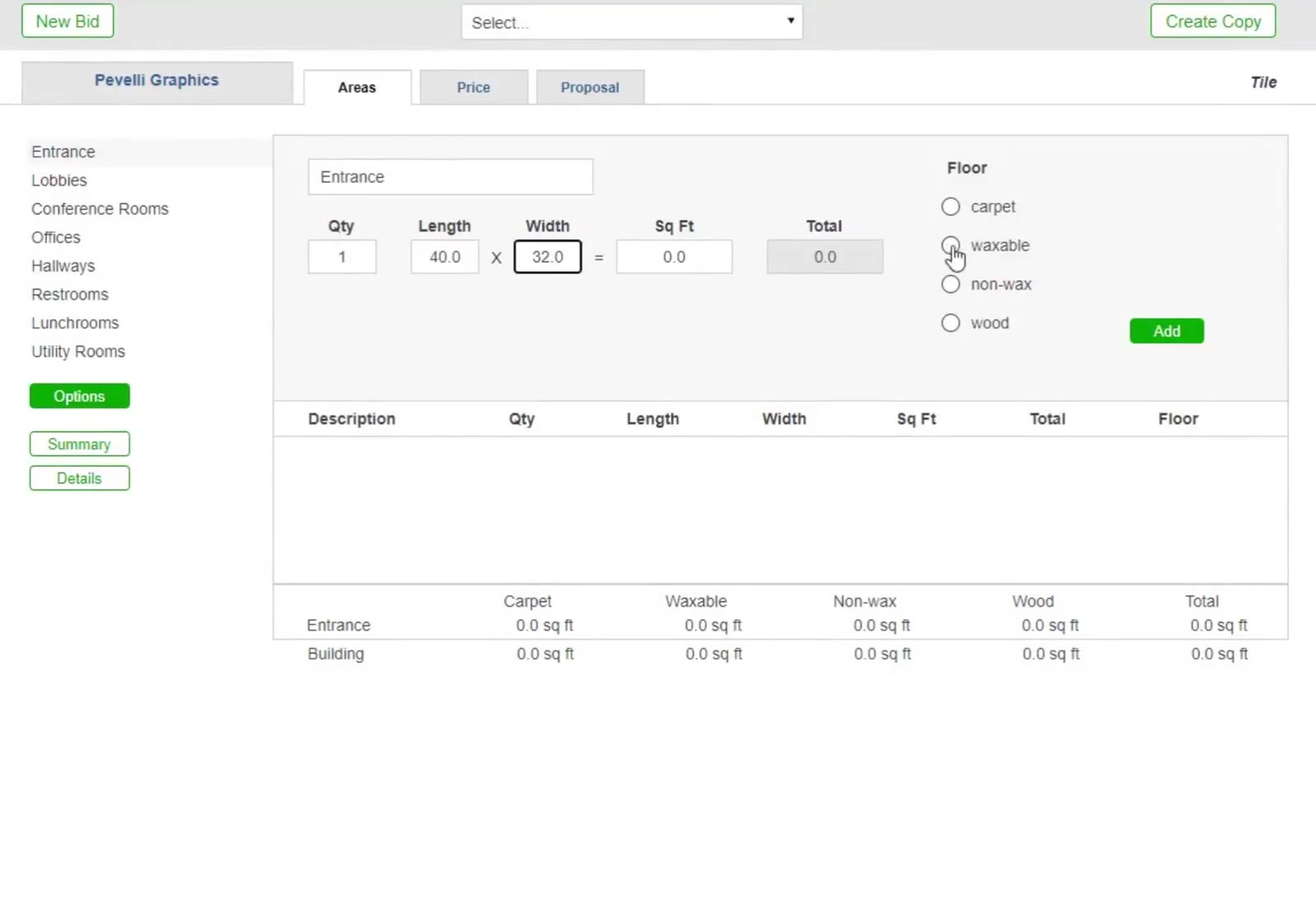
Manual entry on the Areas tab: name the area, give its length and width, choose the floor type, then click Add.
Check the Work Specifications
Open the specifications
On the Areas tab, click the green Options button below the area list.
Adjust the task list
The method you chose appears as a section with its frequency beside it. Use Add Task to add your own, Add Work to add a second method, and the Total Building / By Area sidebar to switch between the whole building and one area. Click Go Back when you are finished.
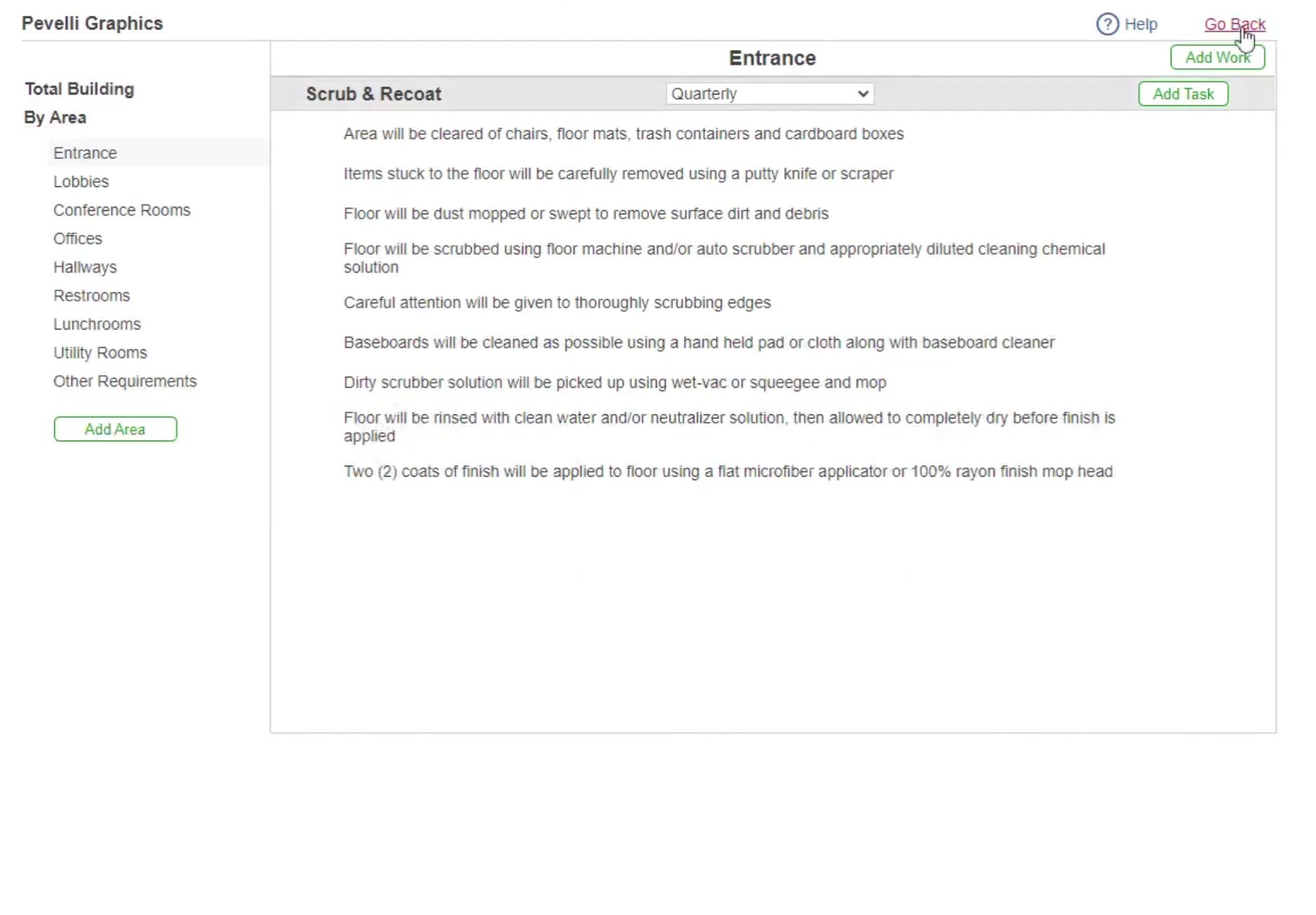
The work specifications. The method you chose appears as a section with its frequency, with Add Task for anything you want to add.
Price the Job
Open the Price tab
Click Price. Each method gets a row showing Sq Ft, To Move, Old Wax, Conditions, New Wax, Price/Sq Ft and Price.
Set the pricing factors
Enter your hourly rate in Wage $, set how much furniture there is To Move, the floor's Conditions and how many coats of New Wax you will lay, then click Recalculate.
Enter your price
CleanGuru has already written a description for each method you ticked. Type your figure into the Price box, choose $ or ¢ and /visit or /sq ft, then click Save. To reword a line, click the icon to its left to pick a standard description, or type your own.
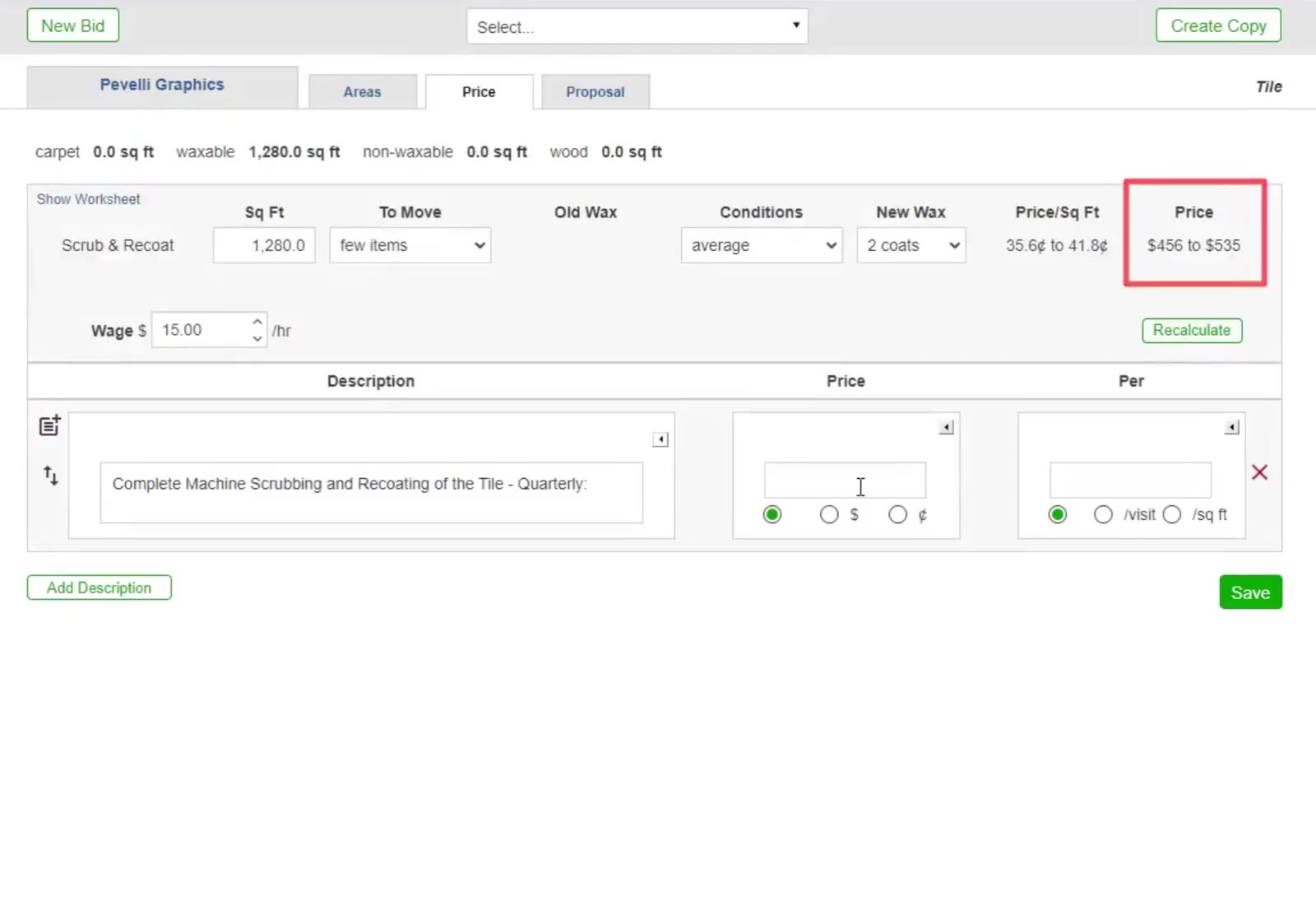
On the Price tab, wage plus how much there is to move, the floor conditions and the number of wax coats drive the recommended range.
Build the Proposal
Choose what the proposal contains
Click Proposal, then tick what to include — Proposal, Measurement Summary and Work Specifications, with Total Building or By Area for the specifications.
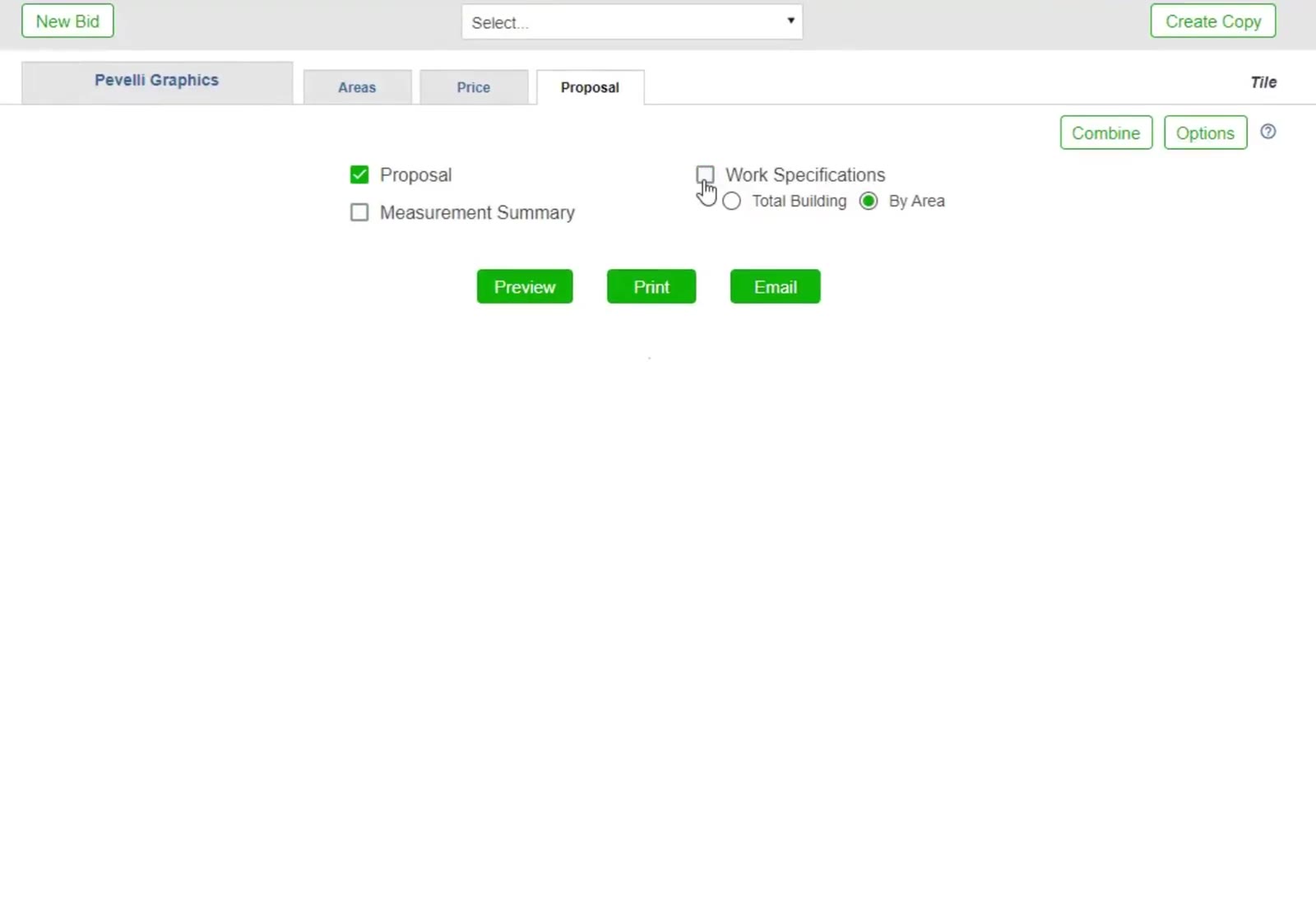
The Proposal tab: tick the documents you want, with Combine and Options at the top right.
Open the section options
Click Options at the top right of the Proposal tab.
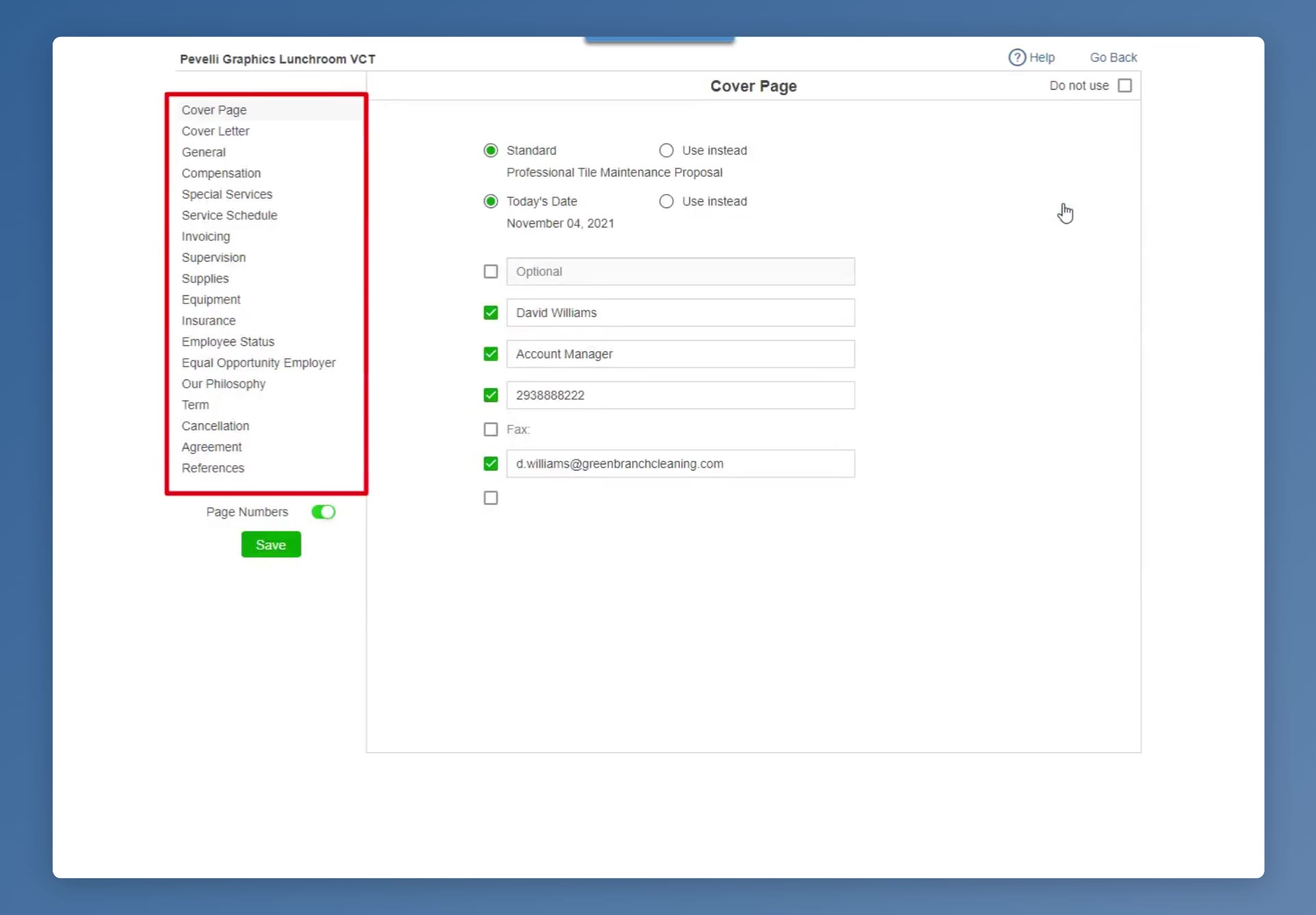
The proposal Options screen: the section list on the left, the selected section’s wording on the right, Do not use at its top right, and the Page Numbers toggle above Save.
Reword or drop a section
Pick a section in the list on the left — Cover Page, Cover Letter, General, Compensation through to References — to change its wording, or tick Do not use to leave it out of this proposal. Page Numbers switches page numbering on and off. Click the green Save, then Go Back to return to the Proposal tab.
Preview it, then send it
Click the green Preview button. Page through the proposal — the work specifications spell out every step of the method for the customer — then click Print or Email at the top, or Go Back to keep editing.
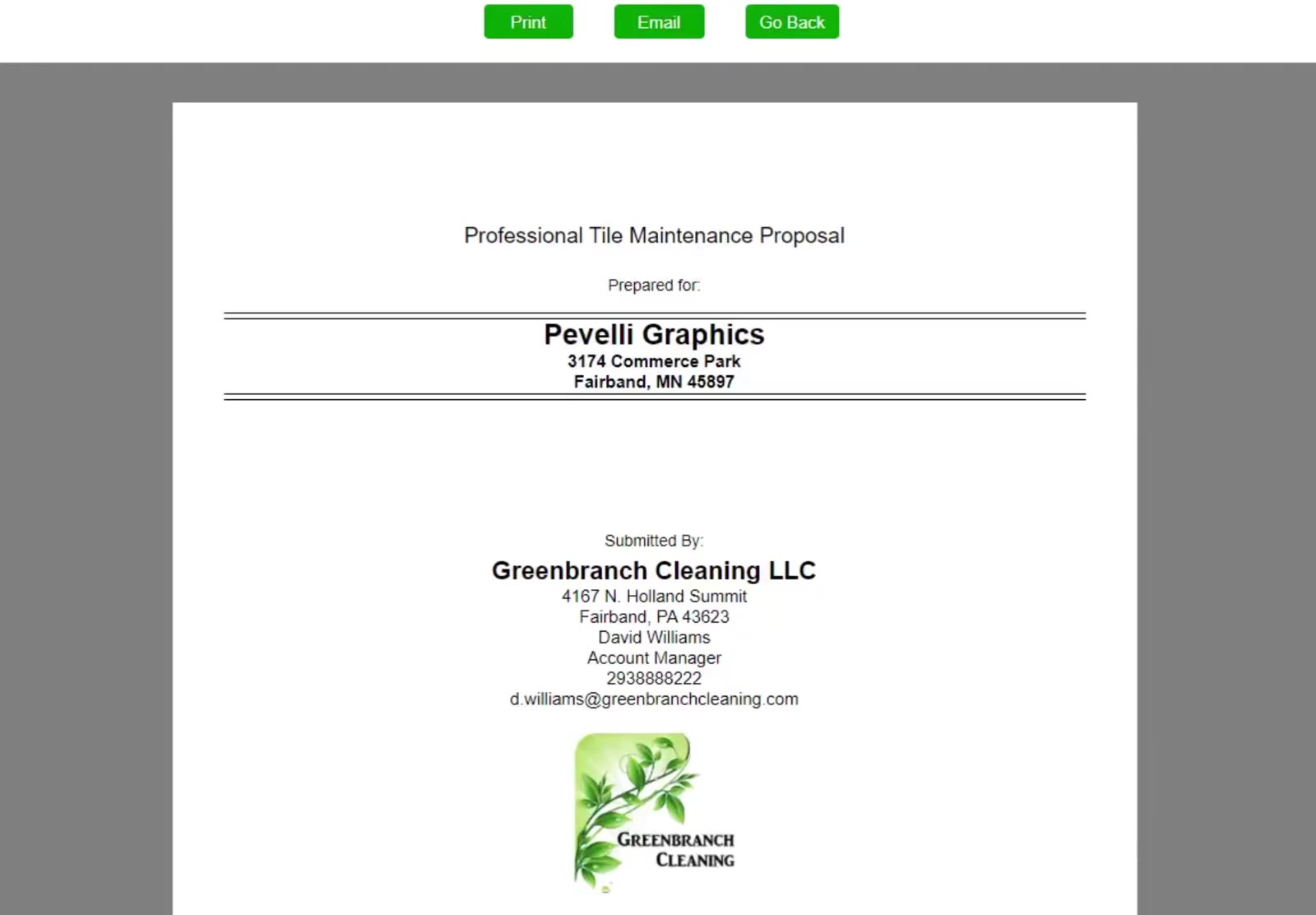
The proposal opens on its cover page, carrying your company details and logo.
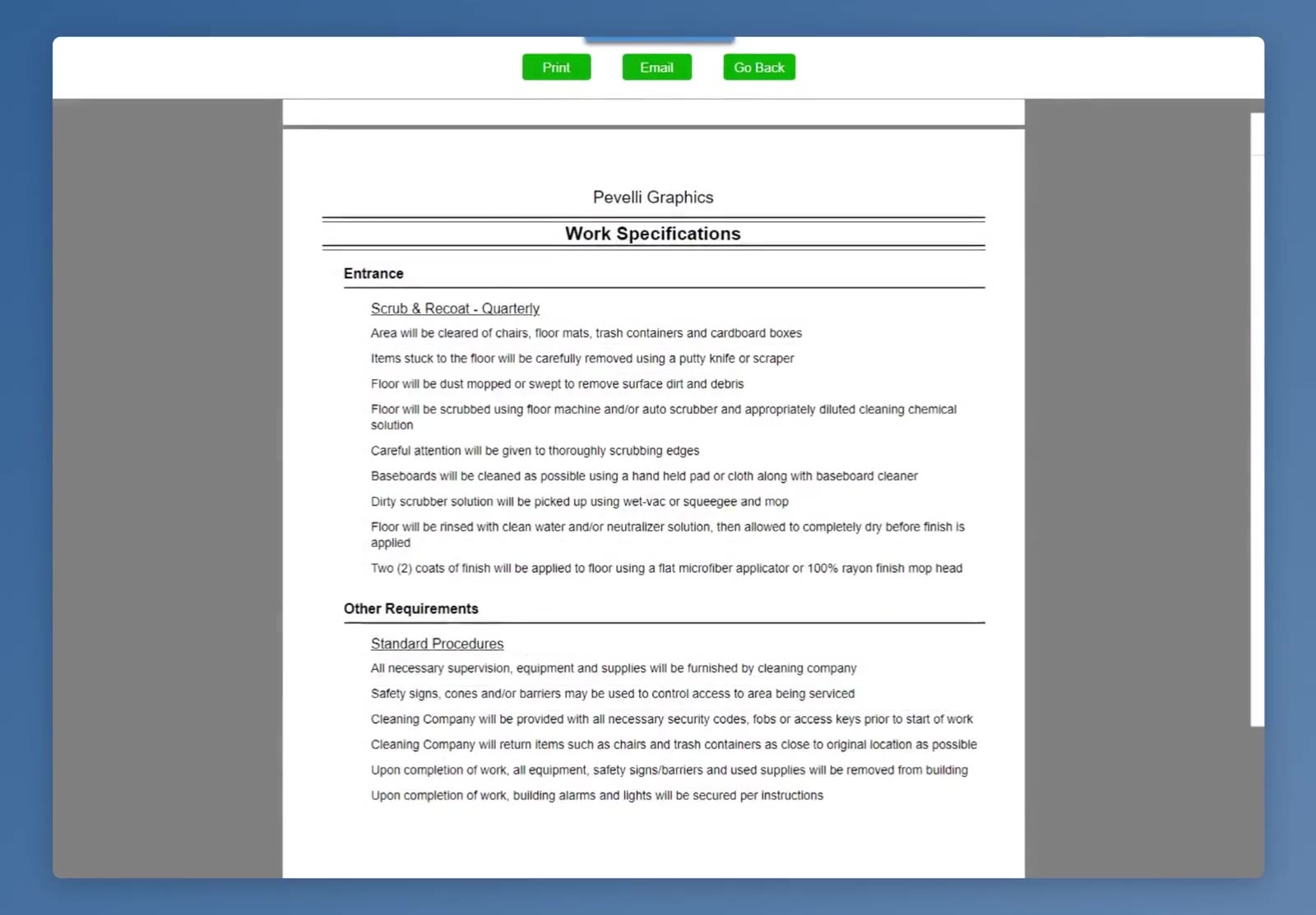
The work specifications go into the proposal in full, so the customer sees exactly what the method involves.
That is a complete tile bid: measured, specified, priced and packaged as a proposal you can send. The same path works for any of the five methods, and a floor that needs more than one — a strip and refinish now, quarterly scrub and recoat after — takes a second Work line in the same bid.
FAQ
Can one bid cover more than one method?
Yes. Tick more than one method in the New Bid dialog, each with its own frequency, or use Add Work on the specifications screen. Each method gets its own row on the Price tab.
Should I use Manual or Express?
Manual, when you know the room dimensions — tile work is priced on the floor you are actually treating. Express estimates every area from the building’s total cleanable square footage, which suits a whole-building janitorial bid better.
What do To Move, Conditions and New Wax change?
They are how much work the job really is: furniture to move out and back, the state of the existing finish, and how many coats you will lay. Raising any of them raises the recommended price.
Which Floor type do I pick for VCT?
Waxable. Non-wax covers sealed hard floors that do not take a finish, and the two price differently.
Do tile bids include marketing highlights?
No. System Highlights and Service Highlights belong to the janitorial module only. A tile proposal offers Proposal, Measurement Summary and Work Specifications.
Can I bill by the square foot instead of by the visit?
Yes. On the Price tab use the radio buttons for $ or ¢ and for /visit or /sq ft, then click Save.
Can I change the wording of a price description?
Yes. CleanGuru fills each line in from the method you selected. Click the icon to the left of a description to choose from its standard descriptions, or click into the box and type your own.