
Create Carpet Bid
Build a carpet cleaning bid from the customer and the rooms through to a finished proposal you can preview, print or email.
Start the Bid
Open the carpet module
Hover over Bids in the top navigation bar and choose Carpet from the dropdown.
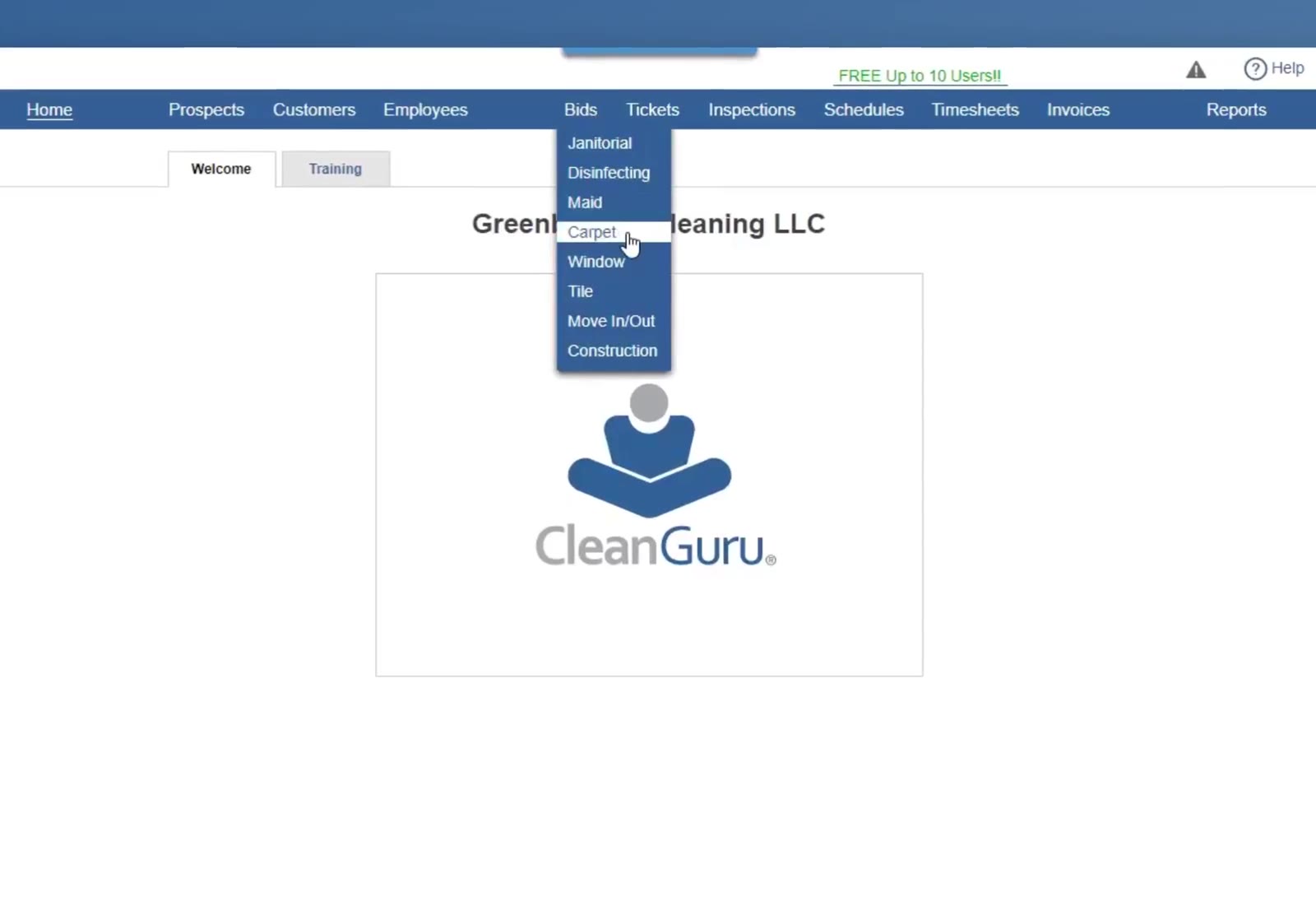
The Bids menu open on the navigation bar, listing all eight bid modules.
Start a new bid
Click the green New Bid button at the top left.
Say who the bid is for
Choose Commercial or Residential, set the dropdown beneath to Prospect or Customer, then pick the name beside it.
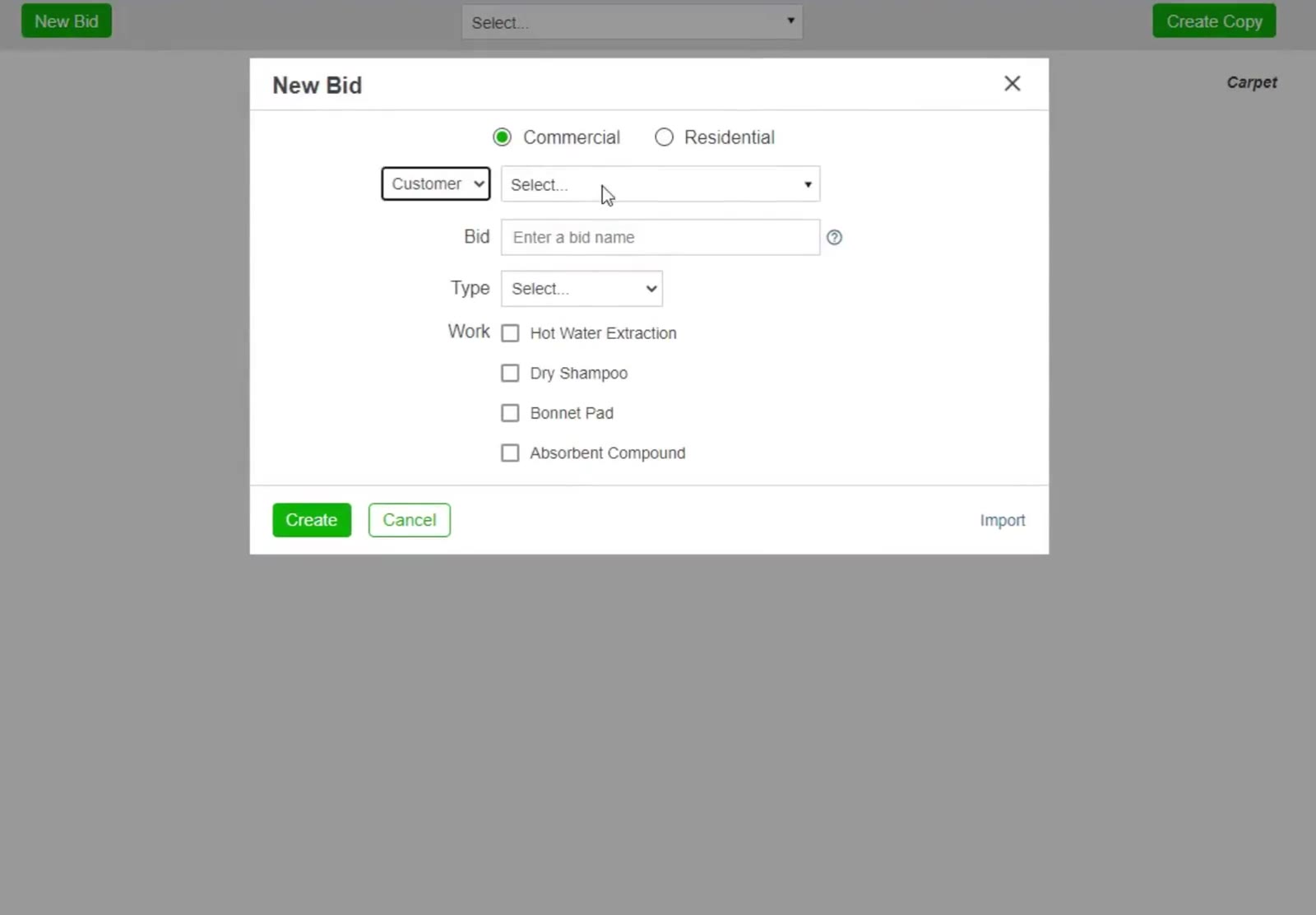
The New Bid box for a carpet bid — Commercial or Residential at the top, the customer beneath, and the Work methods below that.
Set the job up
Type a Bid name and choose a Type. Under Work, tick the methods you will use — Hot Water Extraction, Dry Shampoo, Bonnet Pad or Absorbent Compound — and set a frequency for each one you tick. Click the green Create button.
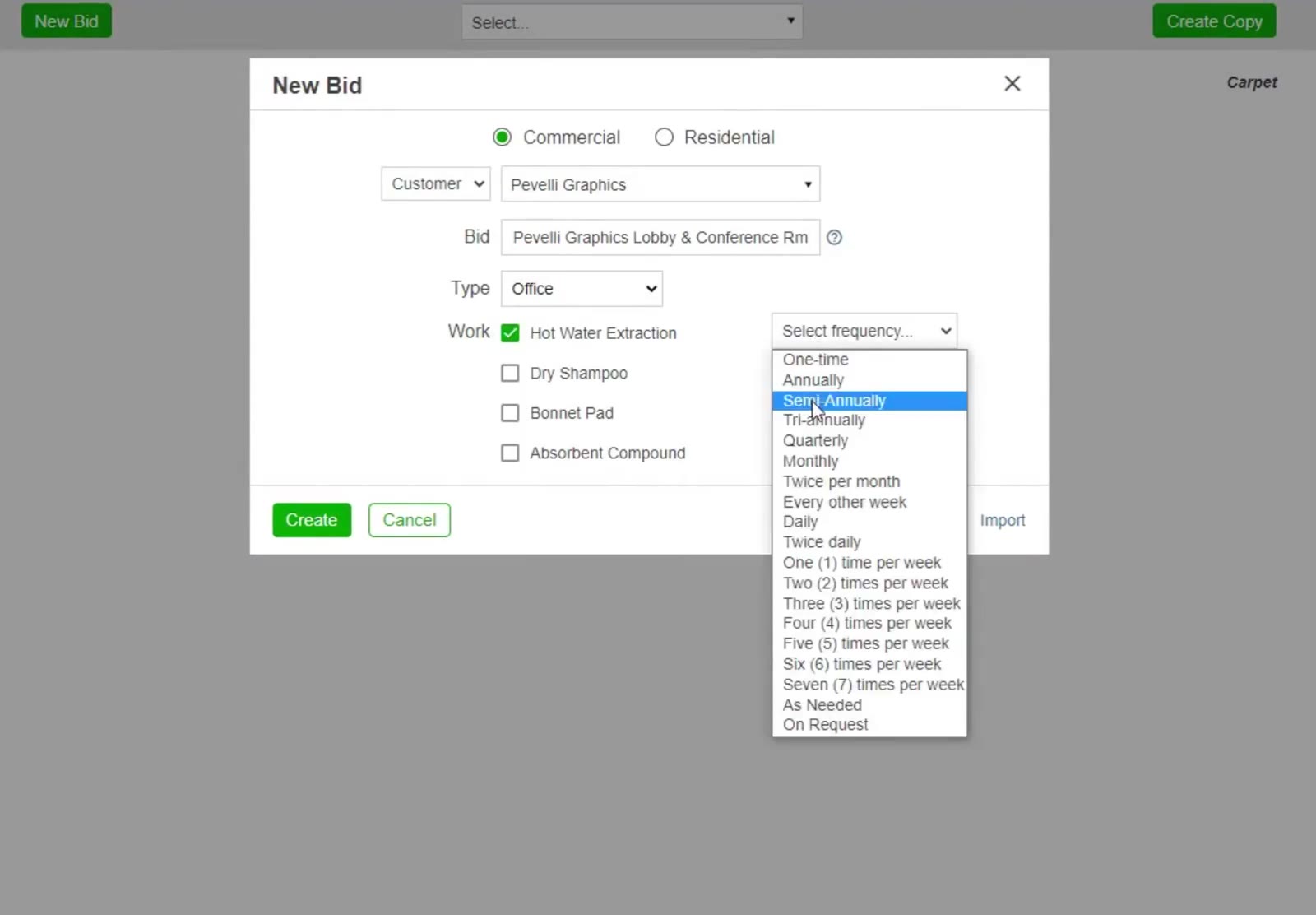
Hot Water Extraction ticked, with its own frequency dropdown open.
Measure the Areas
Open the Areas tab
Click Areas, then choose Manual when CleanGuru asks how you want to enter the measurements.
Measure each room
Pick an area on the left, enter Qty, Length and Width, set Floor to carpet, and click the green Add button. Repeat for every room you are cleaning.
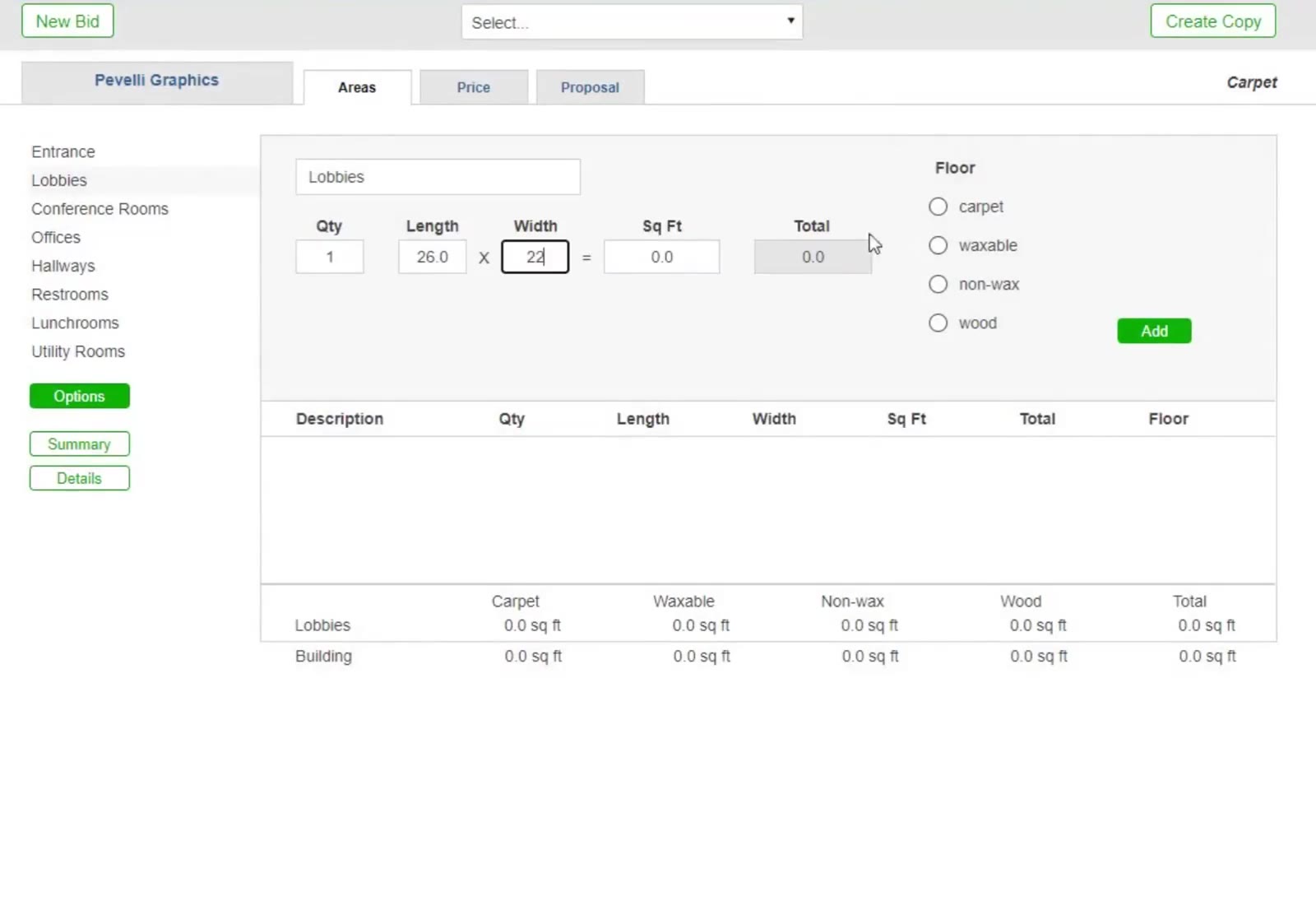
The Manual measurement screen: Qty, Length and Width for one room, with Floor set to carpet.
Open the work list
On the Areas tab, click the green Options button below the area list.
Check the tasks
Each method you ticked has its own section — add or change its tasks, and use Add Work to add a method. Click Go Back when you are finished.
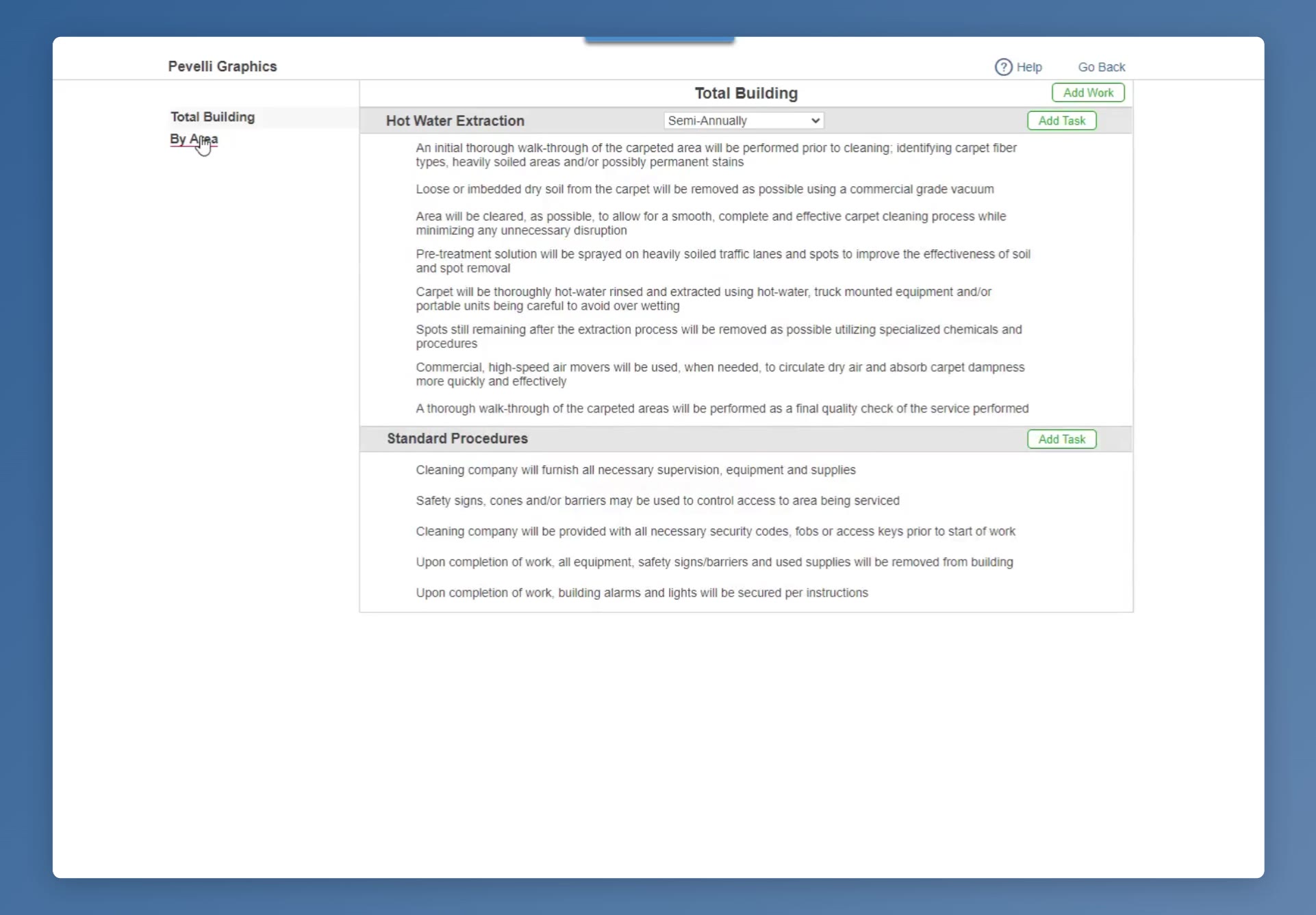
The tasks screen reached with Options, listing the work for each method you ticked.
Set the Price
Open the Price tab
Click Price. Each method you ticked gets a row showing its square footage, the carpet’s Condition, how much there is To Move, and optional Protect and Deodorize.
Adjust and recalculate
Set those, change the Wage $ if you need to, then click the green Recalculate button. CleanGuru gives a Price/Sq Ft and a Price as a range rather than a single figure.
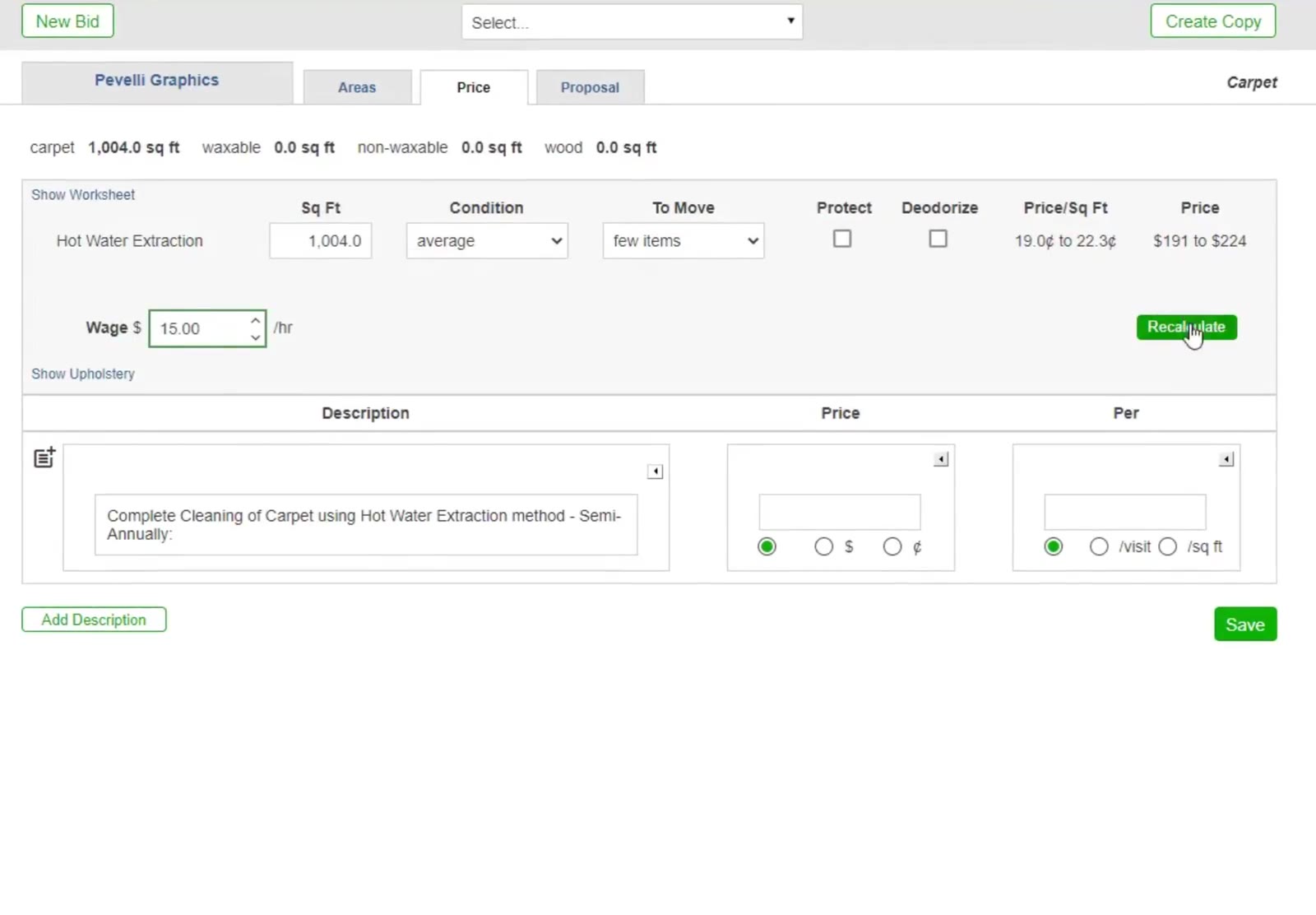
The Price tab — square footage, condition and items to move on the left, the wage below, and the price range at the right.
Save the pricing
CleanGuru has already written a description for each method you ticked. Reword it if you like — click the icon to its left to pick one of CleanGuru’s standard descriptions, or type your own — then choose whether the price reads per visit or per square foot and click the green Save button.
Build the Proposal
Choose what the proposal contains
Click Proposal and tick what to include — Proposal, Measurement Summary and Work Specifications, which you can show for the Total Building or By Area.
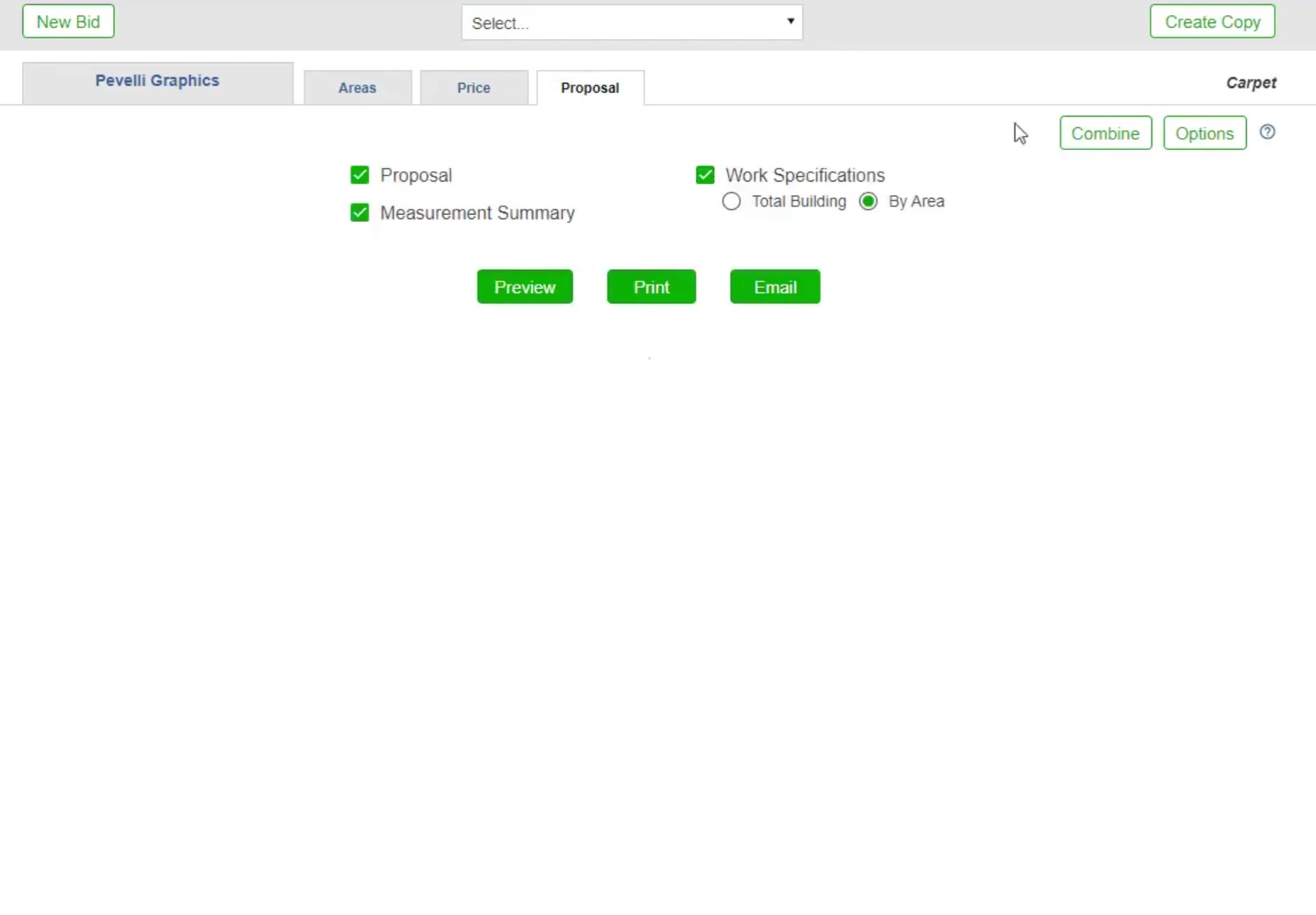
The Proposal tab for a carpet bid: Proposal, Measurement Summary, and Work Specifications with a Total Building or By Area choice.
Open the section options
Click Options at the top right of the Proposal tab.
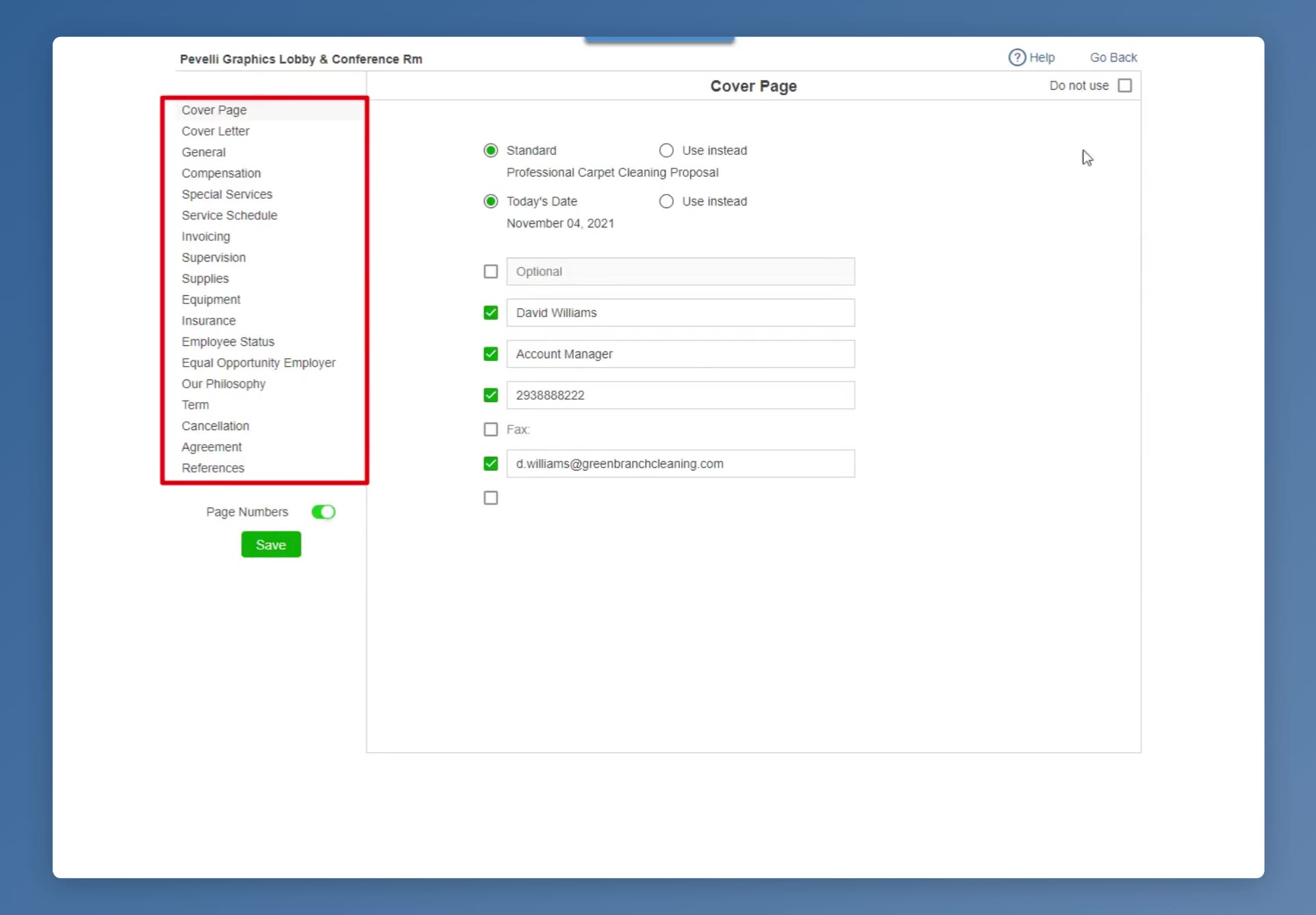
The proposal Options screen: the section list on the left, the selected section’s wording on the right, Do not use at its top right, and the Page Numbers toggle above Save.
Reword or drop a section
Pick a section in the list on the left to change its wording, or tick Do not use to leave it out of this proposal. Page Numbers switches page numbering on and off. Click the green Save, then Go Back to return to the Proposal tab.
Preview it, then send it
Click the green Preview button. Read every page, then use Print or Email at the top, or Go Back to keep editing.
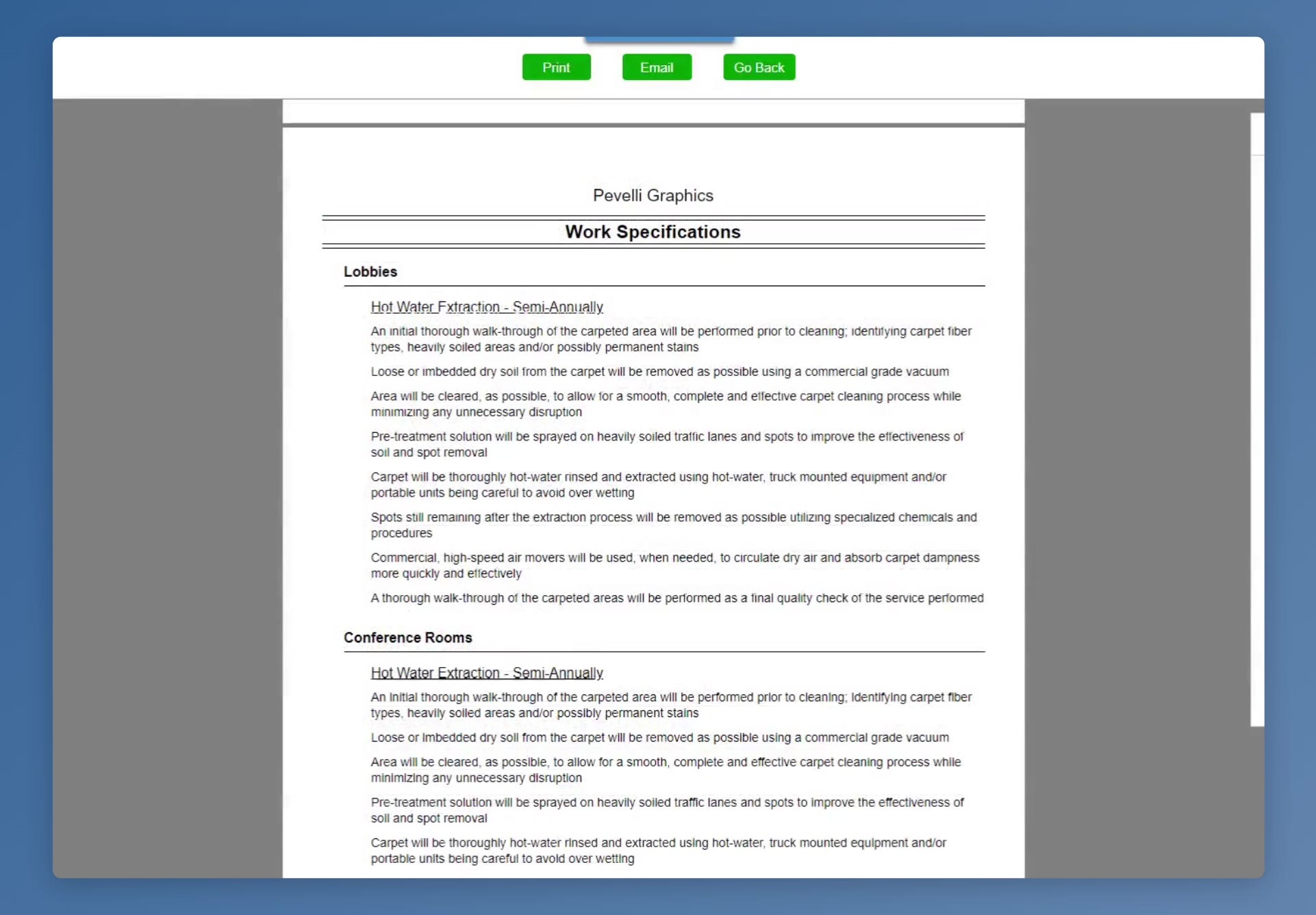
The Work Specifications page in the preview, broken down by area.
FAQ
Which cleaning methods can I put on one bid?
Hot Water Extraction, Dry Shampoo, Bonnet Pad and Absorbent Compound. Tick as many as the job needs — each one you tick gets its own frequency.
Why is the price shown as a range?
Carpet work is priced per square foot, and the range reflects the square footage, the condition of the carpet, how much there is to move and your hourly wage. Click Recalculate after any change to update it.
Can I change the wording of a price description?
Yes. CleanGuru fills each line in from the cleaning method you selected. Click the icon to the left of a description to choose from its standard descriptions, or click into the box and type your own.
Do carpet bids have System and Service Highlights?
No. Those belong to the janitorial module. A carpet proposal offers the Proposal, the Measurement Summary and the Work Specifications.
What is the difference between Total Building and By Area?
It sets whether the Work Specifications page lists the work once for the whole building or separately for each room you measured.
Where do I change the cleaning tasks?
On the Areas tab, click the green Options button below the area list. Click Go Back when you are finished.