
Create Maid Bid
A maid bid in CleanGuru prices a home rather than a building. You give it the number of bedrooms and bathrooms, give the rooms their square footage, review the task list, and CleanGuru returns a suggested price for weekly, bi-weekly and monthly service.
Start the Bid
Open the Maid bids screen
In the top navigation bar, hover Bids and choose Maid.
Start a new bid
Click the green New Bid button at the top left.
Fill in the bid details
Pick Prospect or Customer and select the name, type a name in the Bid box, and choose the residence Type. Set Beds and Baths, then tick the services under Work: Maid Service, Deep Cleaning or Annual Cleaning.
Create the bid
Click Create.
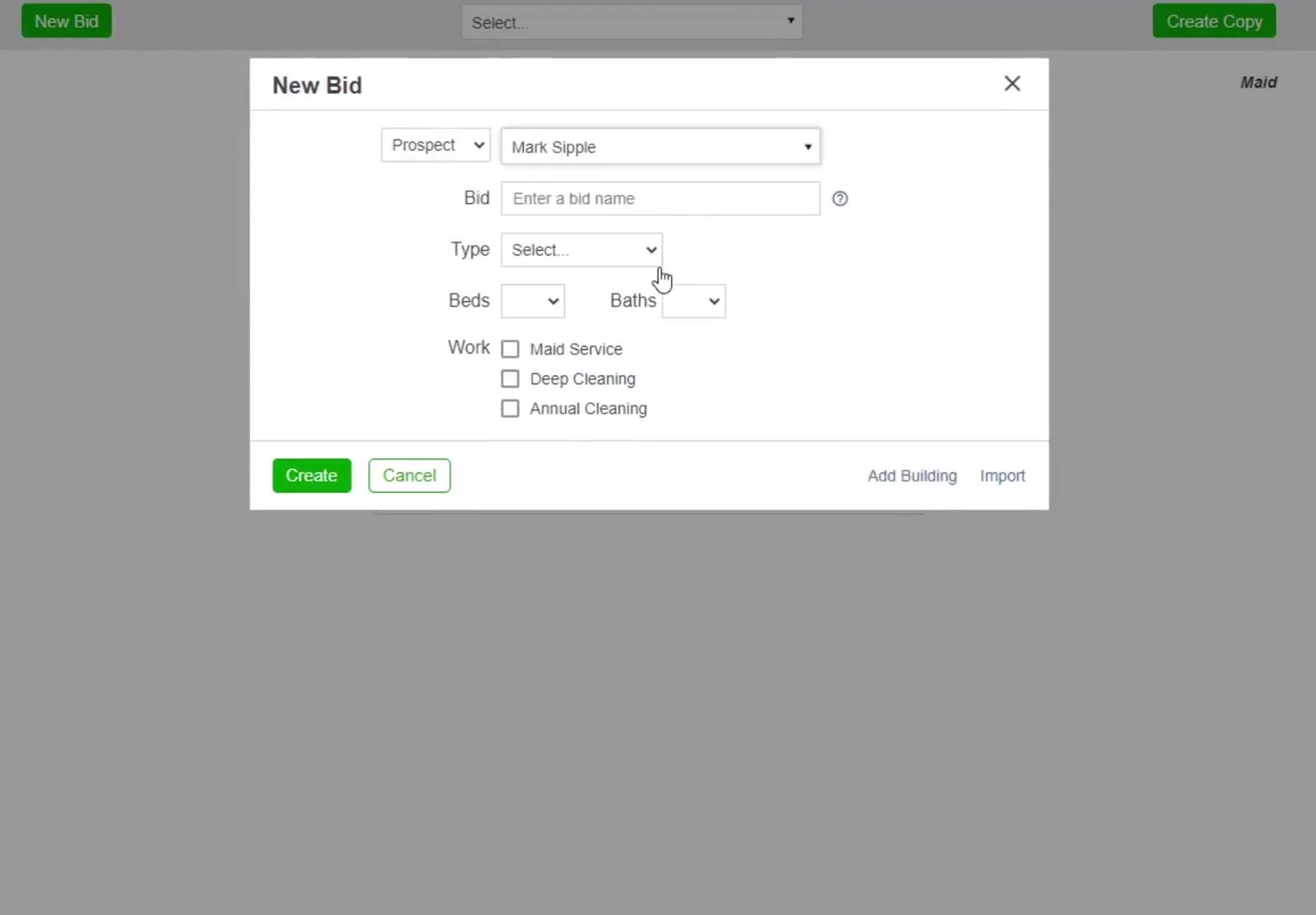
Hover Bids in the top navigation bar and choose Maid. The New Bid dialog asks for beds, baths and the services you are quoting.
Measure the Home
Open the Areas tab
Click Areas, then choose Express in the Enter Measurements box. Manual lets you measure each room yourself instead.
Choose how to enter the square footage
Express opens on By Sq Ft, where the home's total cleanable square footage is spread across the standard rooms. Switch to By Room to enter each room separately.
Enter the total square footage
Type the home's total cleanable square footage into the Total box. Each row's Sq Ft is a percentage of it, and the running figure turns green at 100%. Adjust Floor and Type if you need to, then click Enter.
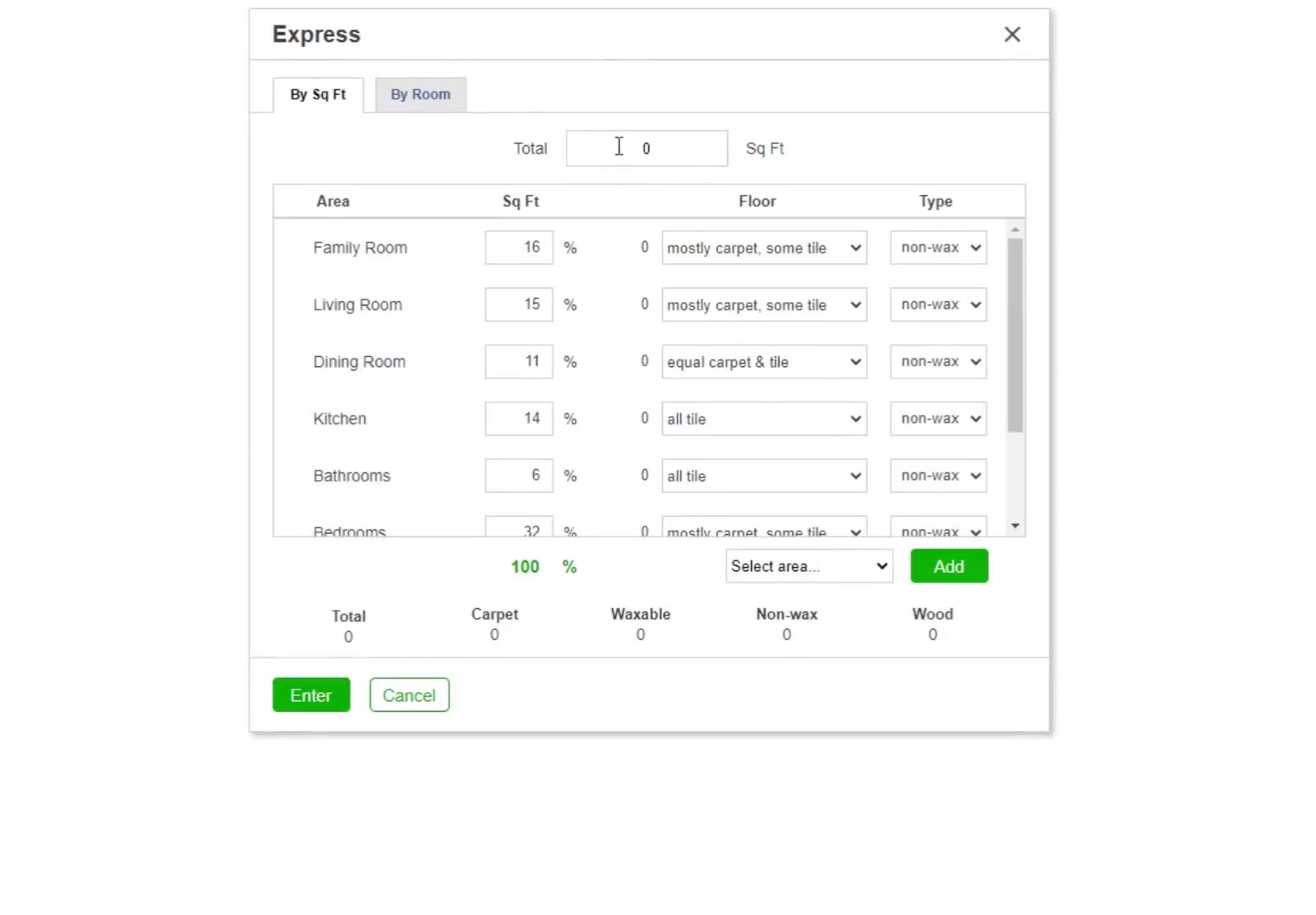
Express opens on By Sq Ft, which spreads the home's total cleanable square footage across the standard rooms. By Room lets you enter each room separately.
Check the totals
The Areas tab now lists every room and totals the home by floor type. Re-enter reopens the measurement box if you want to start again.
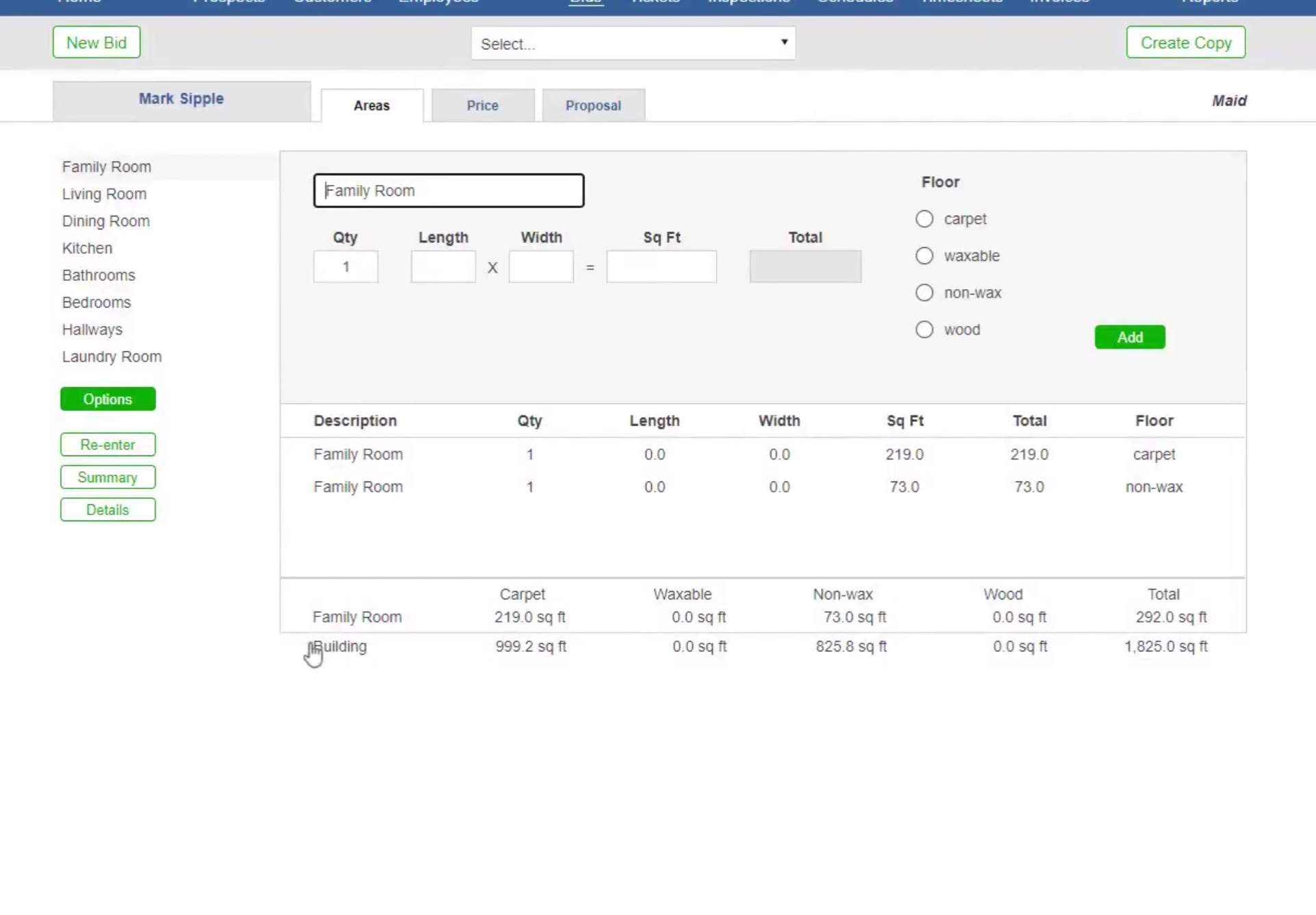
Once the measurements are applied, the Areas tab lists every room and totals the home by floor type.
Review the Task List
Open the work specifications
On the Areas tab, click the green Options button below the room list.
Review the whole-home list
Total Residence shows every task in the service, with Add Task to add your own and Add Work to add a service.
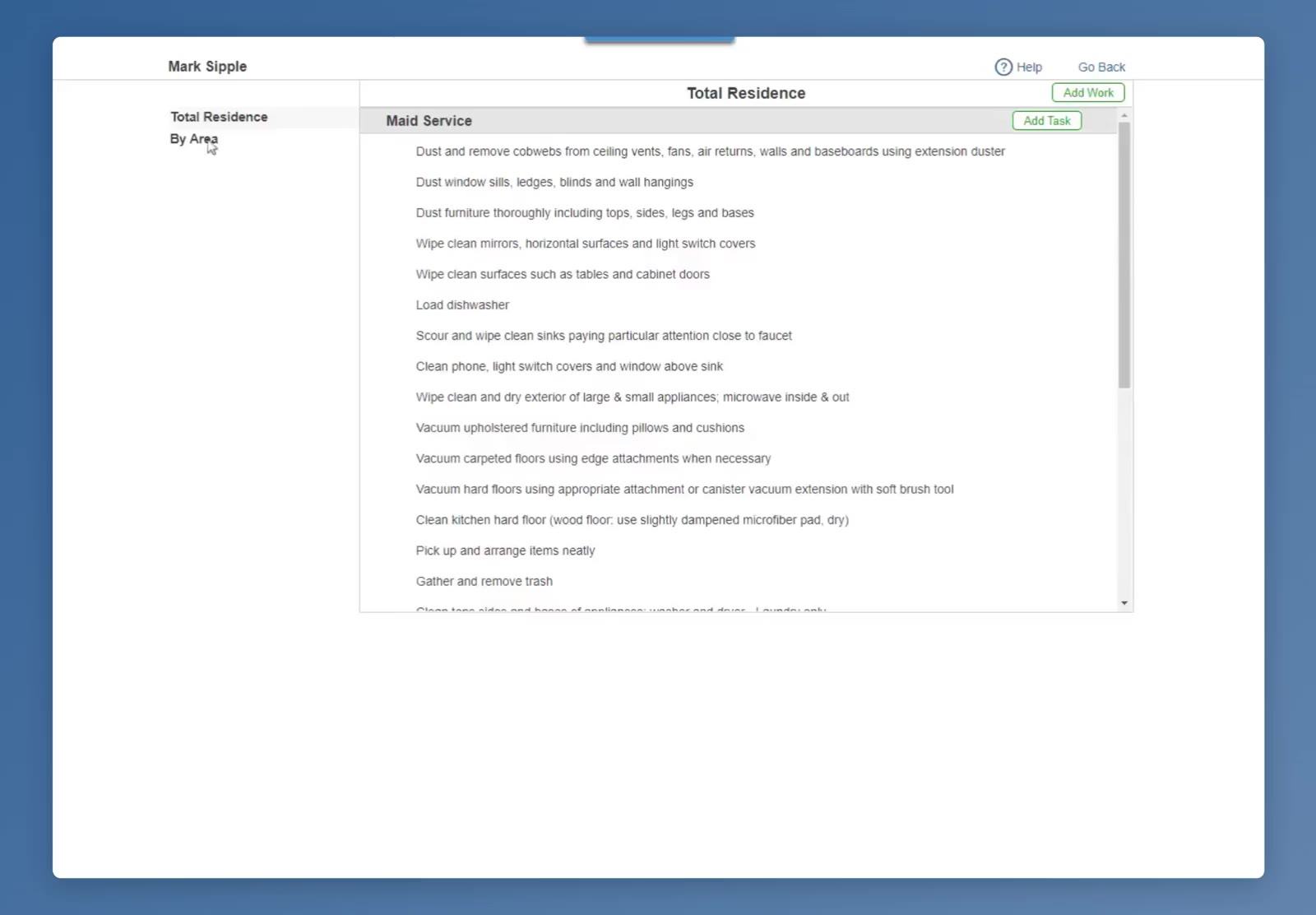
Total Residence shows the whole task list, with Add Task to add your own.
Or work room by room
Switch to By Area to see and edit the tasks for one room at a time. Add Area adds a room. Click Go Back when you are finished.
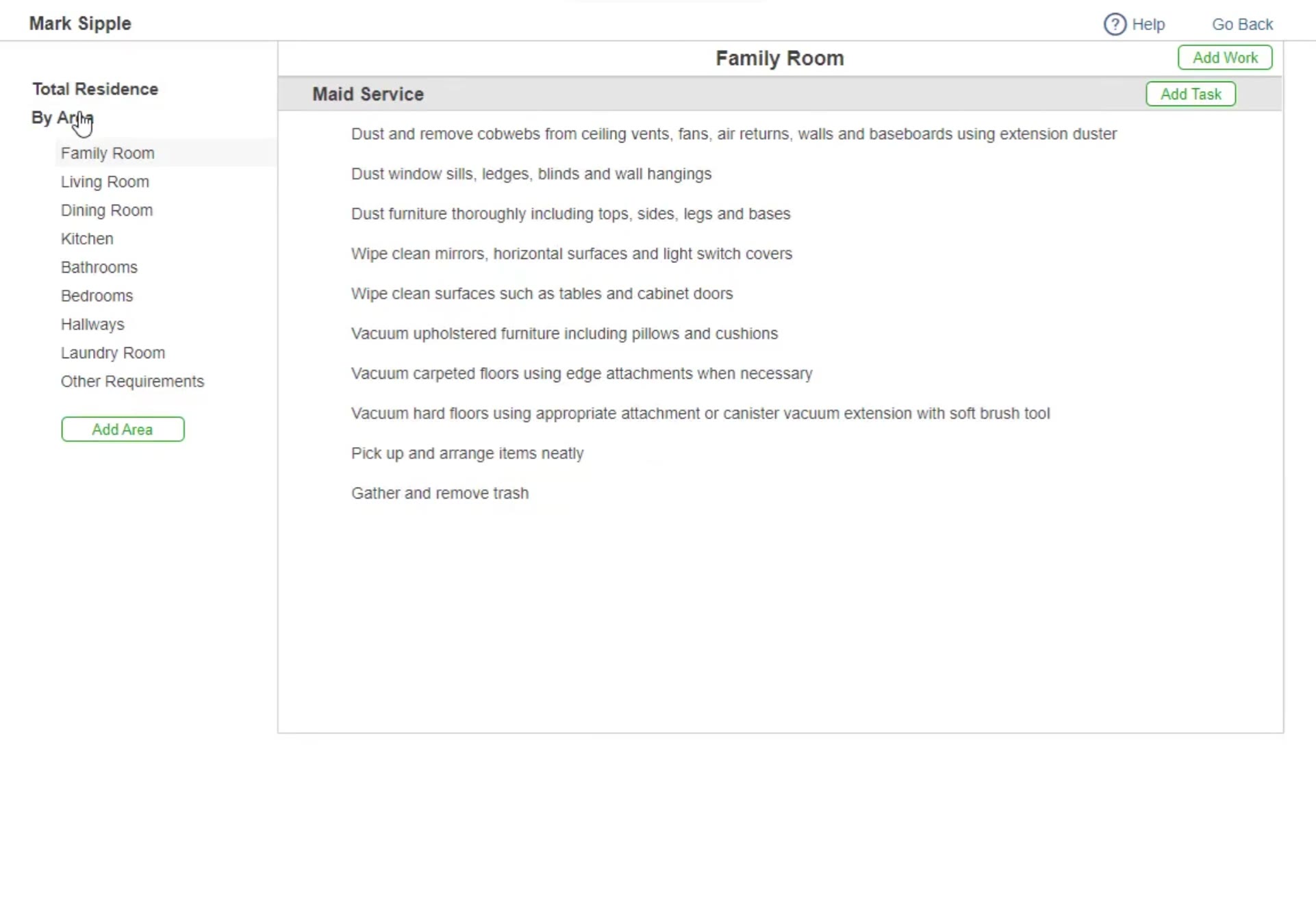
By Area shows the tasks one room at a time, so you can tailor the task list room by room.
Price the Job
Open the Price tab
Click Price.
Set the pricing factors
Enter your hourly rate in Wage $, set Difficulty and Expectations, and tick any extras: Inside Panes, Pets, Stove or Fridge. Click Recalculate.
Read the recommendation
CleanGuru returns a price range for Weekly, Bi-weekly and Monthly service, so you can quote whichever the customer wants.
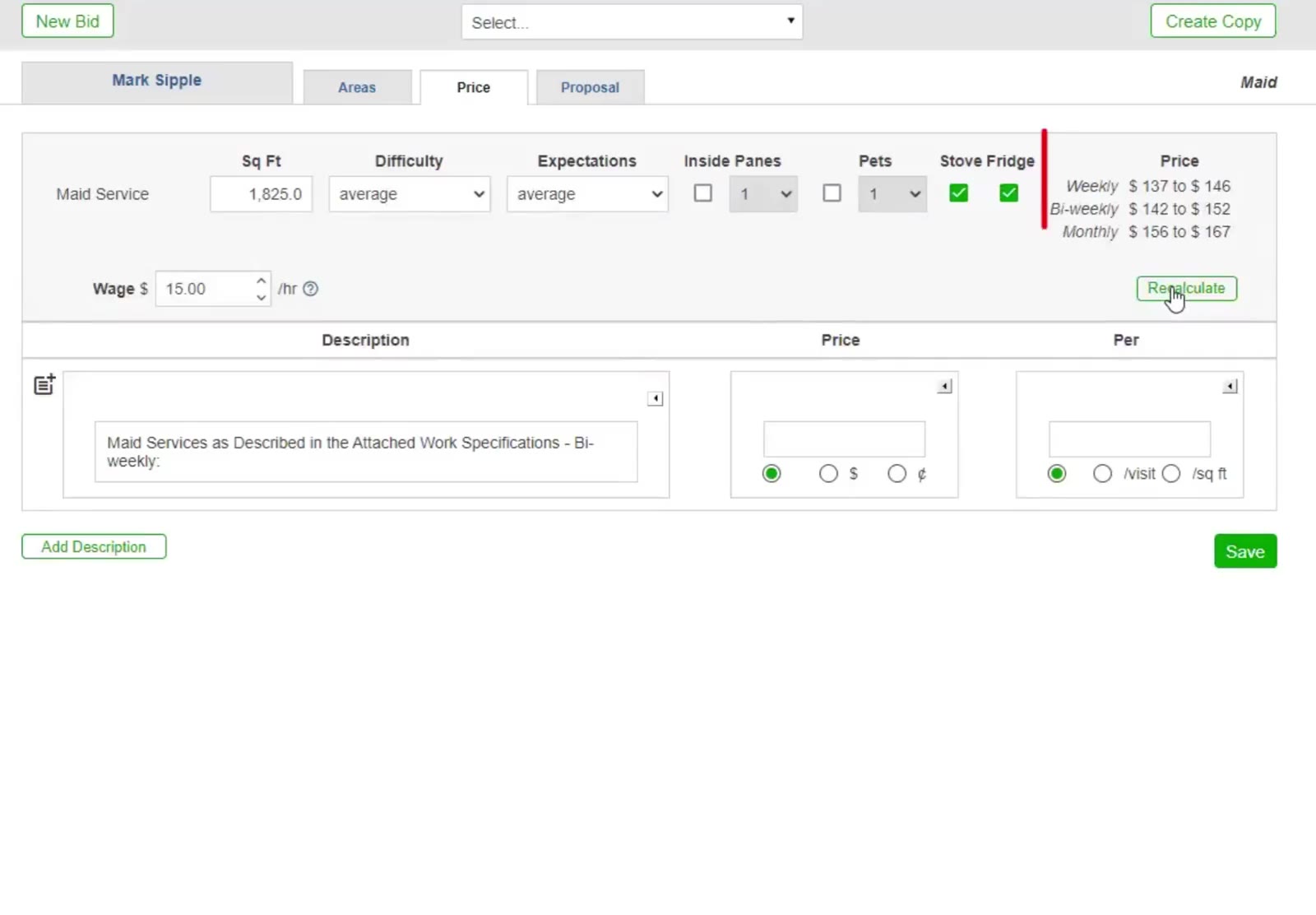
On the Price tab, wage, difficulty, expectations and the extras drive the recommended range for weekly, bi-weekly and monthly service.
Enter your price
CleanGuru has already written a description for the service you chose. Type your figure into the Price box, choose $ or ¢ and /visit or /sq ft, then click Save. To reword a line, click the icon to its left to pick a standard description, or type your own.
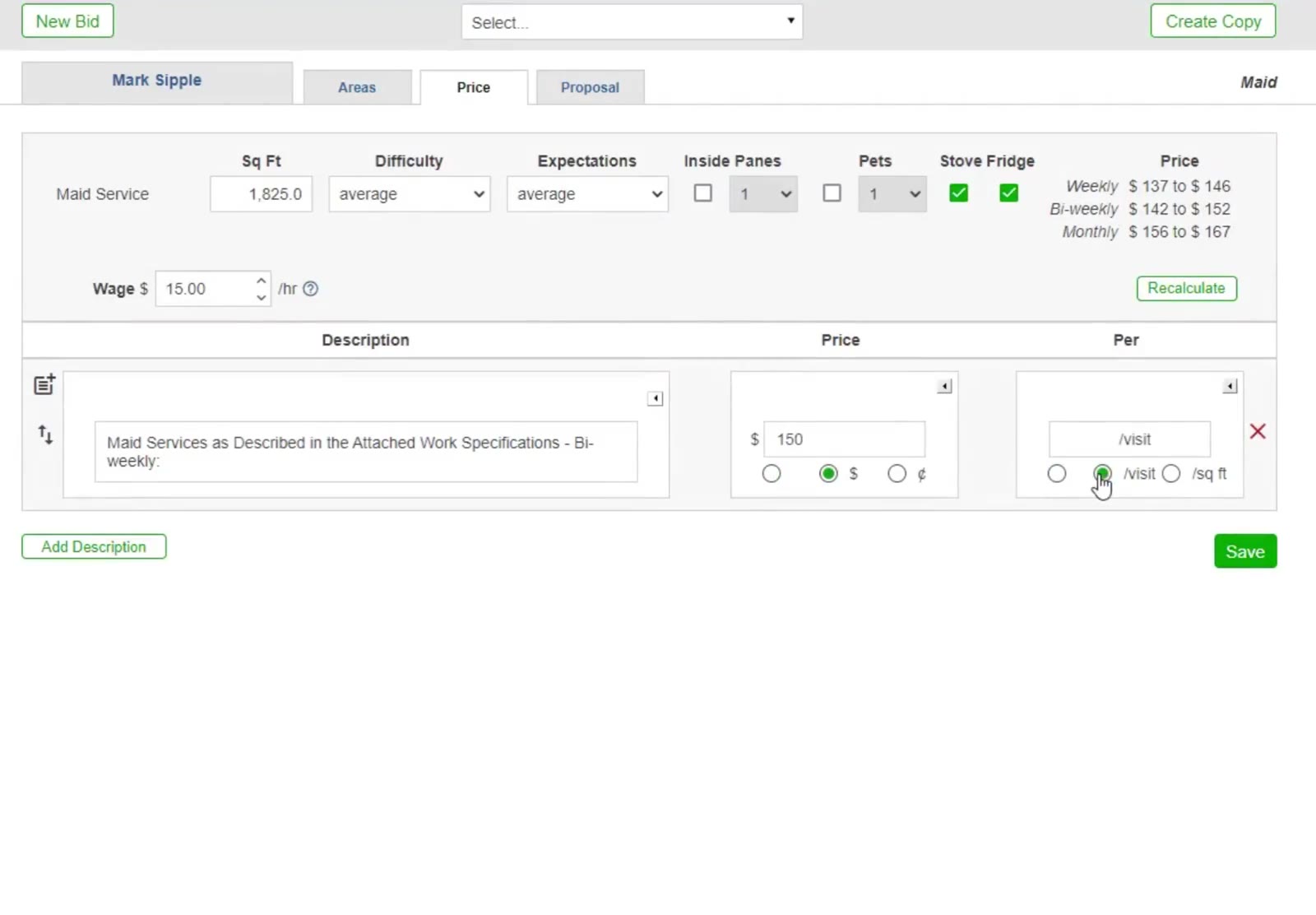
The Description, Price and Per table. Each description is written from the service you chose, and the icon at its left opens CleanGuru’s standard descriptions.
Build the Proposal
Choose what the proposal contains
Click Proposal, then tick what to include — Proposal, Measurement Summary and Work Specifications, with Total Residence or By Area for the specifications.
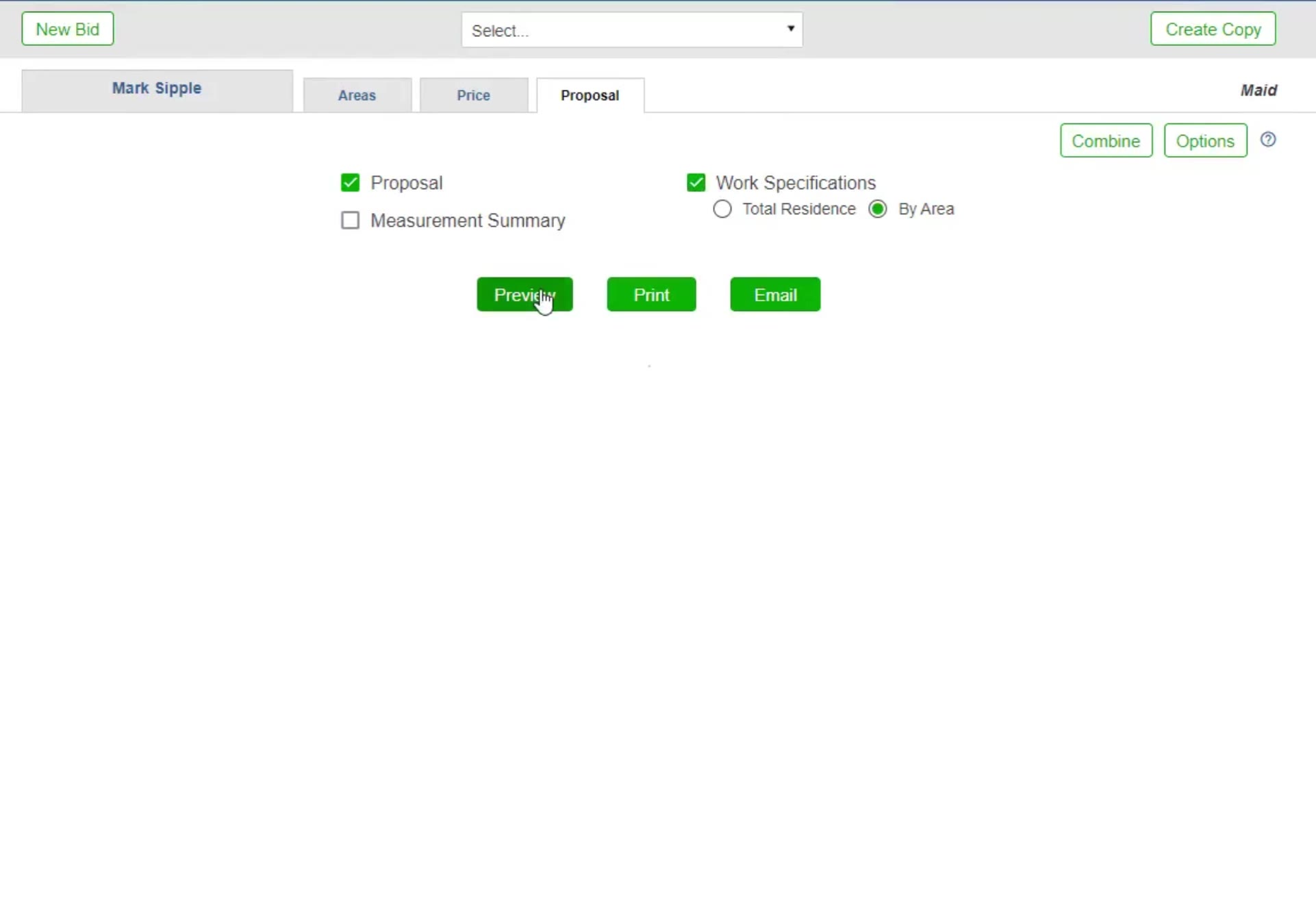
The Proposal tab: tick the documents you want, with Combine and Options at the top right.
Open the section options
Click Options at the top right of the Proposal tab.
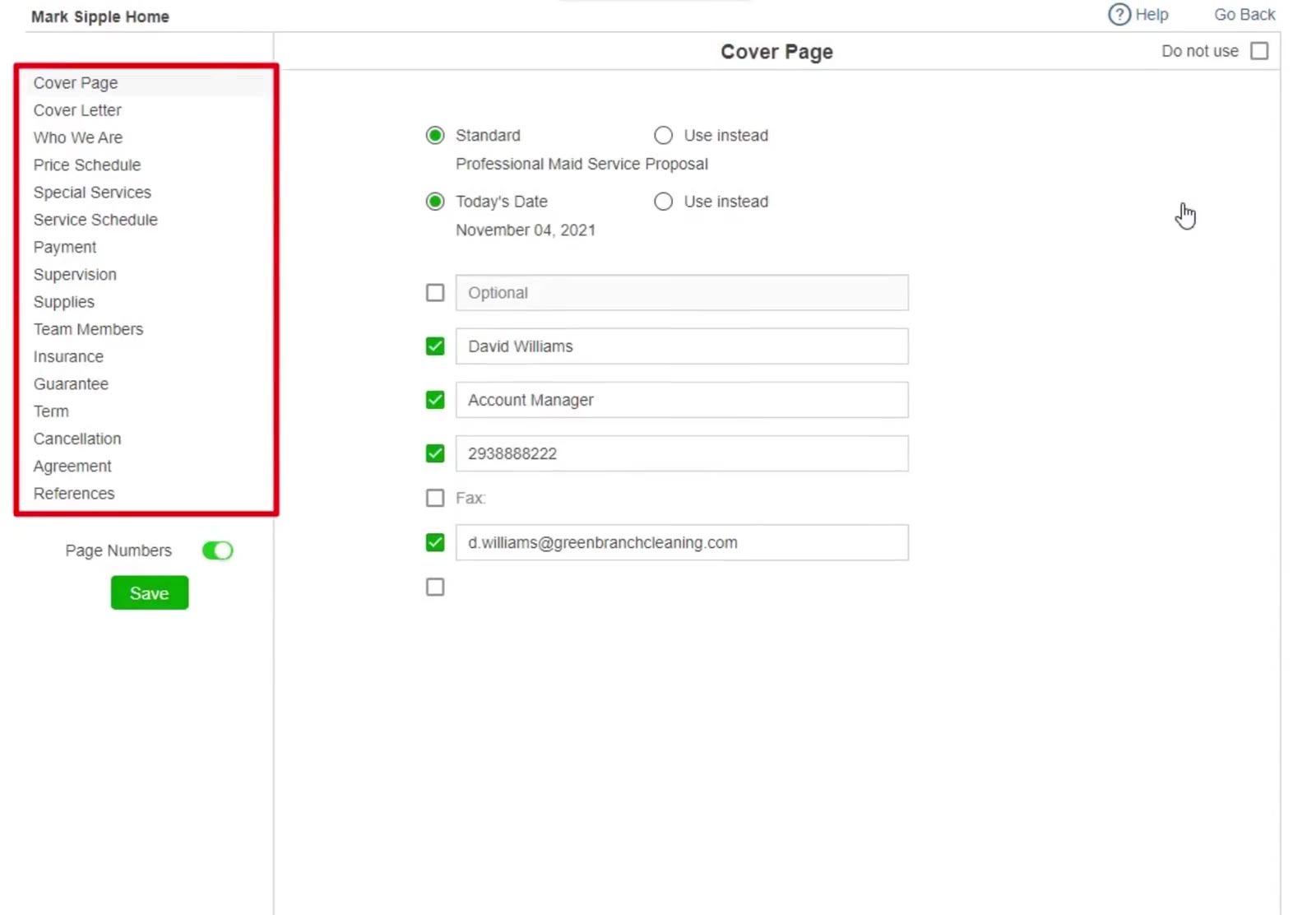
The proposal Options screen: the section list on the left, the selected section’s wording on the right, Do not use at its top right, and the Page Numbers toggle above Save.
Reword or drop a section
Pick a section in the list on the left — Cover Page, Who We Are, Price Schedule, Team Members, Guarantee and the rest — to change its wording, or tick Do not use to leave it out of this proposal. Page Numbers switches page numbering on and off. Click the green Save, then Go Back to return to the Proposal tab.
Preview the proposal
Click Preview.
Check the pages
Page through the document. The task list and your policies appear in full.
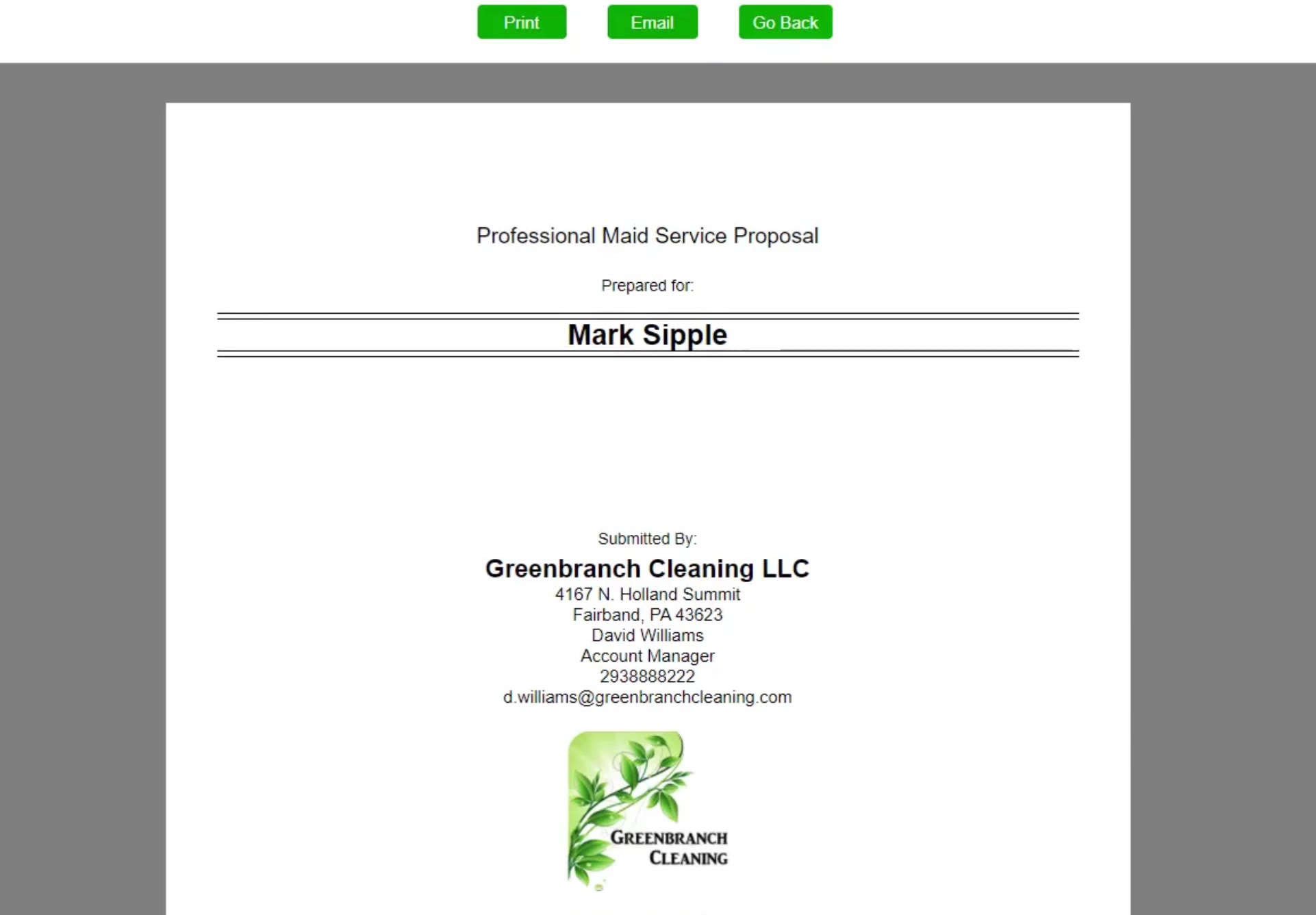
The proposal opens on its cover page, carrying your company details and logo.
Send it
Click Print or Email at the top, or Go Back to keep editing.
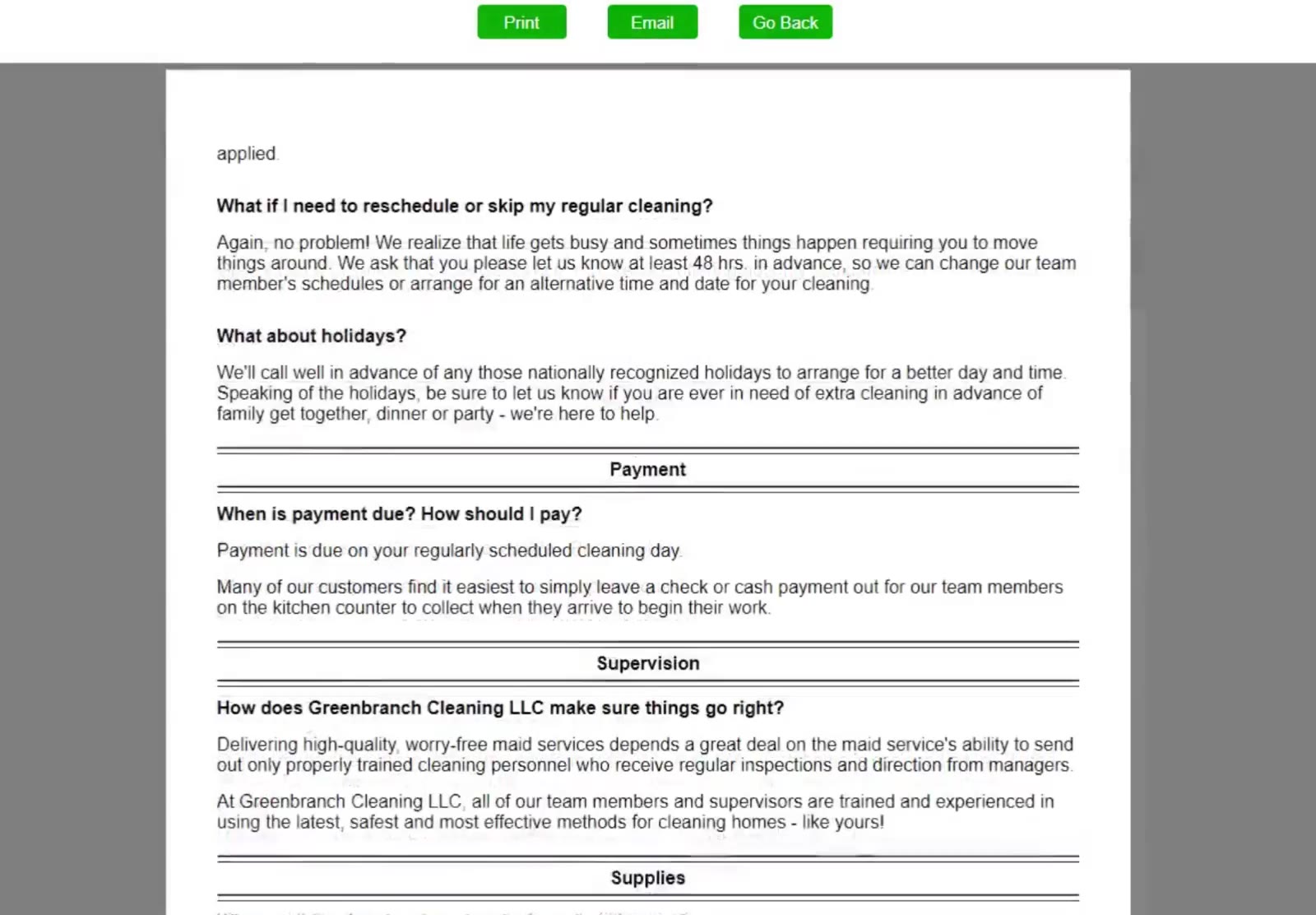
Your policies go into the proposal in full, so the customer can read them before signing.
That is a complete maid bid: measured, its task list set, priced for every frequency and packaged as a proposal you can send. The same path works for a one-off deep clean; only what you tick under Work changes.
FAQ
What is the difference between By Sq Ft and By Room?
By Sq Ft takes the home's total cleanable square footage and spreads it across the standard rooms using typical percentages. By Room lets you enter each room separately. By Sq Ft is faster; By Room is more exact.
Why does the Price tab show three prices?
CleanGuru prices the same home for weekly, bi-weekly and monthly service, because a home cleaned less often takes longer each visit. Quote whichever frequency the customer wants.
What do Inside Panes, Pets, Stove and Fridge do?
They are extras that add time to the visit. Ticking them raises the recommended price range.
Can I change the task list for one room only?
Yes. On the work specifications screen switch to By Area, select the room, and use Add Task or edit the tasks listed there.
Do maid bids include marketing highlights?
No. System Highlights and Service Highlights belong to the janitorial module only. A maid proposal offers Proposal, Measurement Summary and Work Specifications.
Should the customer see the task list for the whole home or room by room?
That is your choice. On the Proposal tab, Work Specifications has a Total Residence and a By Area setting; By Area produces a longer, more detailed document.
Can I change the wording of a price description?
Yes. CleanGuru fills each line in from the service you selected. Click the icon to the left of a description to choose from its standard descriptions, or click into the box and type your own.