
Connect to Quickbooks
Connect CleanGuru to QuickBooks Online once, and you can send approved timesheet hours straight to your accounting system instead of keying them in twice.
Authorize the Connection
Open the QuickBooks Connect dialog
Click the green QuickBooks icon in the utility bar at the top right of CleanGuru, between the Help link and the settings gear.
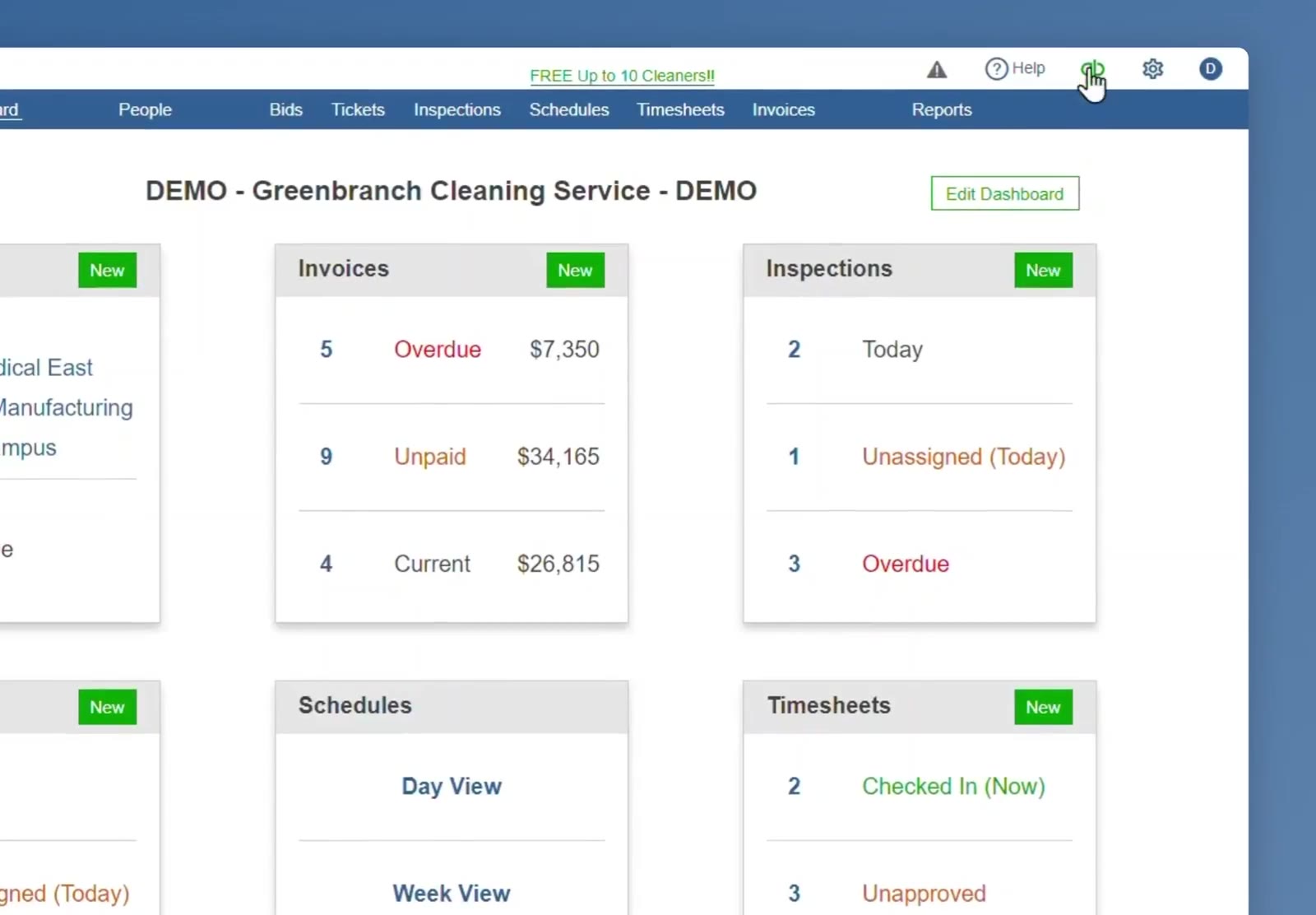
The green QuickBooks icon sits in the utility bar at the top right.
Start the connection
Click the green Connect button in the dialog. CleanGuru sends you to Intuit's sign-in page.
Sign in to Intuit
Enter the Email or User ID and Password for your QuickBooks Online account, or click Sign in with Google. Then click Sign In.
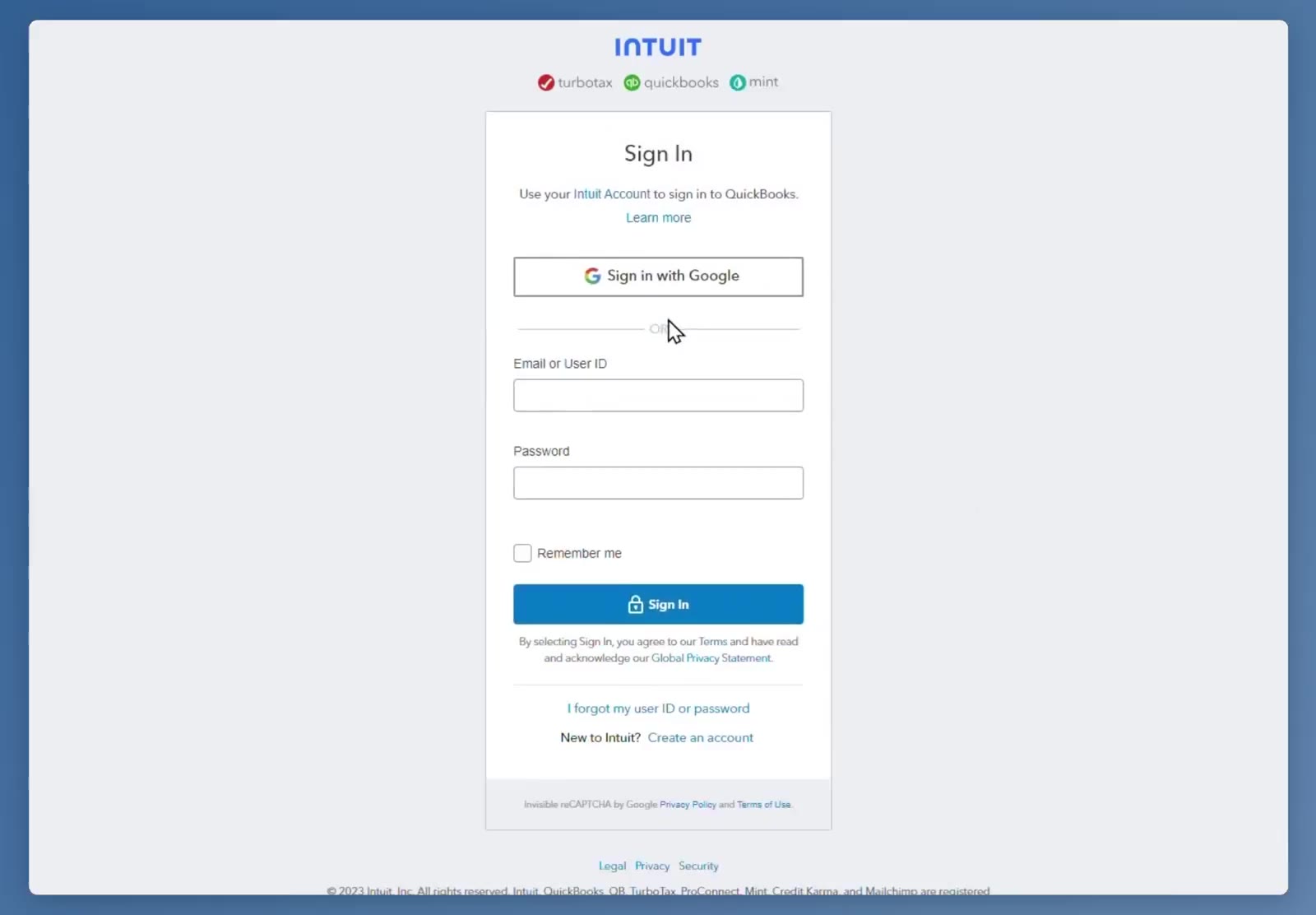
Sign in with your Intuit credentials, or use Sign in with Google.
Approve the data sharing
Intuit shows a screen titled Connecting CleanGuru to your company. Click Show details about data if you want to read what is shared, then click the green Connect button.
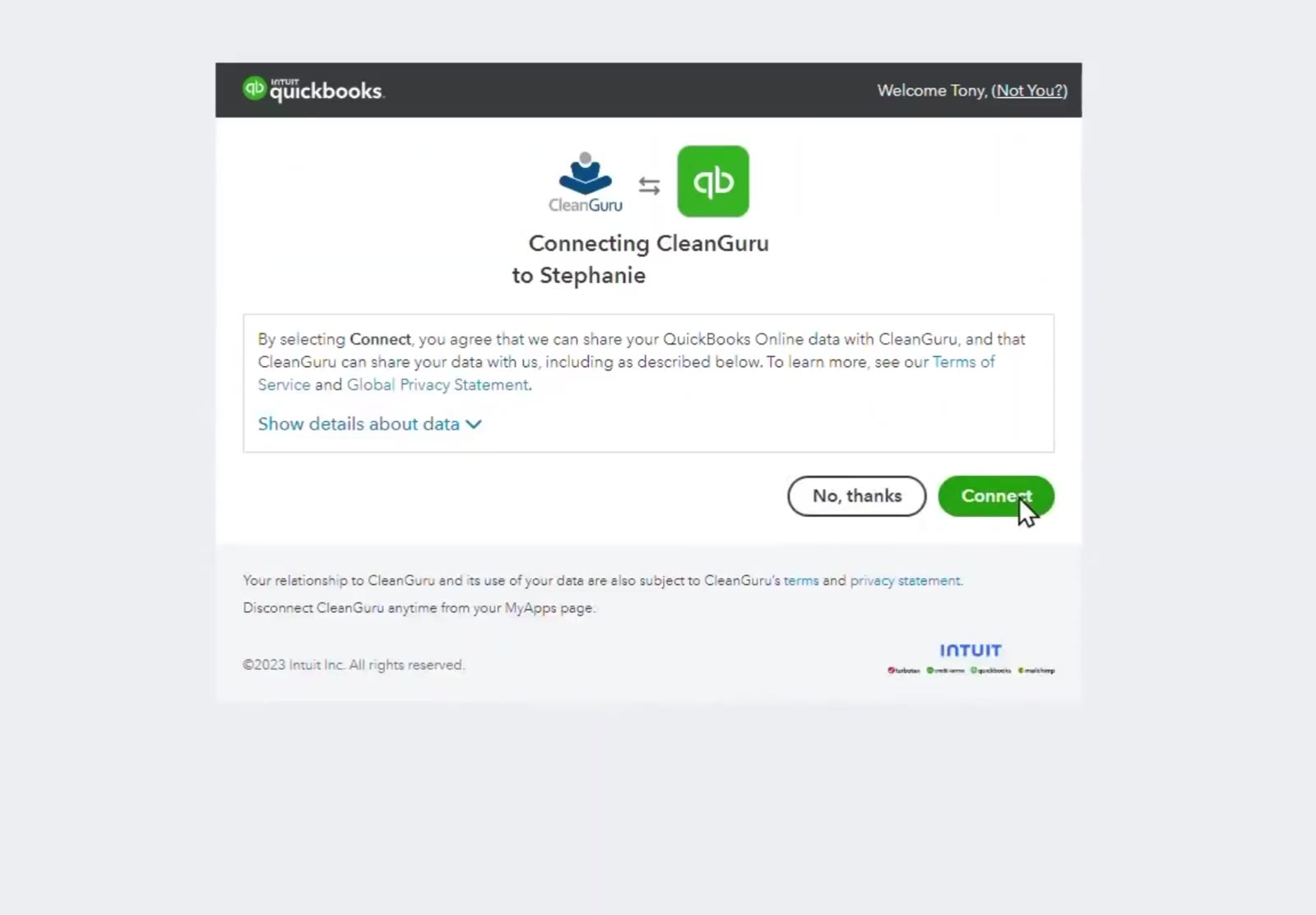
Intuit asks you to approve the data sharing before the link is made.
Sync Approved Timesheets
Set the start date
Back in CleanGuru, the QuickBooks Connect dialog now shows Sync Approved Timesheets Dated ... and After. Set that date to the earliest timesheet you want to send.
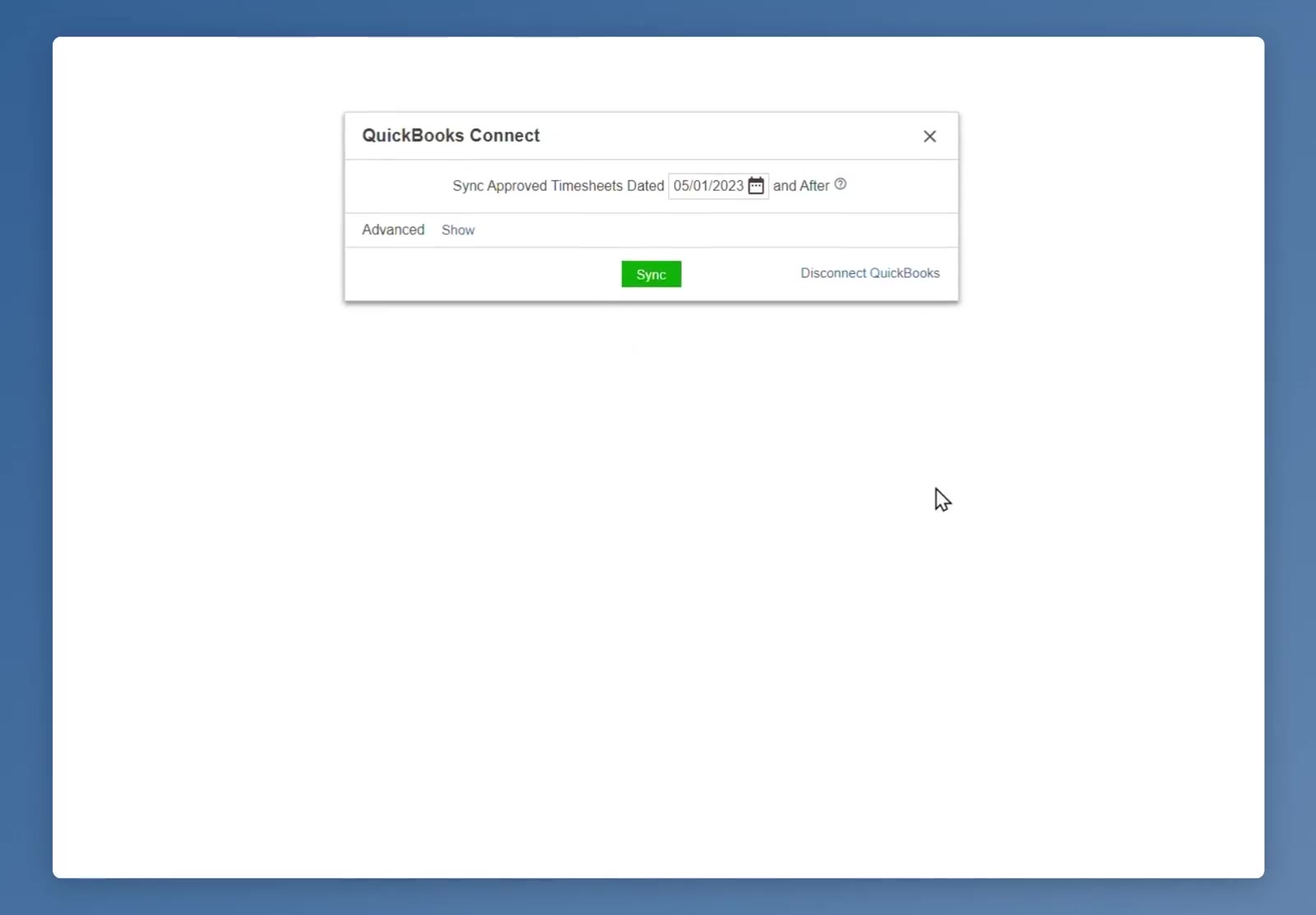
Once connected, the dialog shows the start date, the Sync button, and the Disconnect QuickBooks link.
Run the sync
Click the green Sync button. Only timesheets that are approved in CleanGuru and dated on or after the date you set are sent. When it finishes, a pop-up tells you how many timesheets went through, and how many failed if any did.
The same dialog carries a Disconnect QuickBooks link, so you can end the integration from CleanGuru whenever you want.
FAQ
Which version of QuickBooks does this connect to?
QuickBooks Online. The Intuit authorization screen confirms it is your QuickBooks Online data being shared.
Which timesheets get sent?
Only timesheets that have been approved in CleanGuru and are dated on or after the date in the Sync Approved Timesheets Dated field.
Can I sign in with Google?
Yes. The Intuit sign-in page offers Sign in with Google alongside the Email or User ID and Password fields.
How do I end the connection?
Click Disconnect QuickBooks in the QuickBooks Connect dialog.
How do I know the sync worked?
A pop-up appears when the sync finishes, showing how many timesheets were sent and how many failed.