
Set Up Dashboard
The CleanGuru dashboard puts bids, invoices, inspections, tickets, schedules, and timesheets on one screen, and you can turn off the tiles you don't need.
What the Dashboard Tiles Show
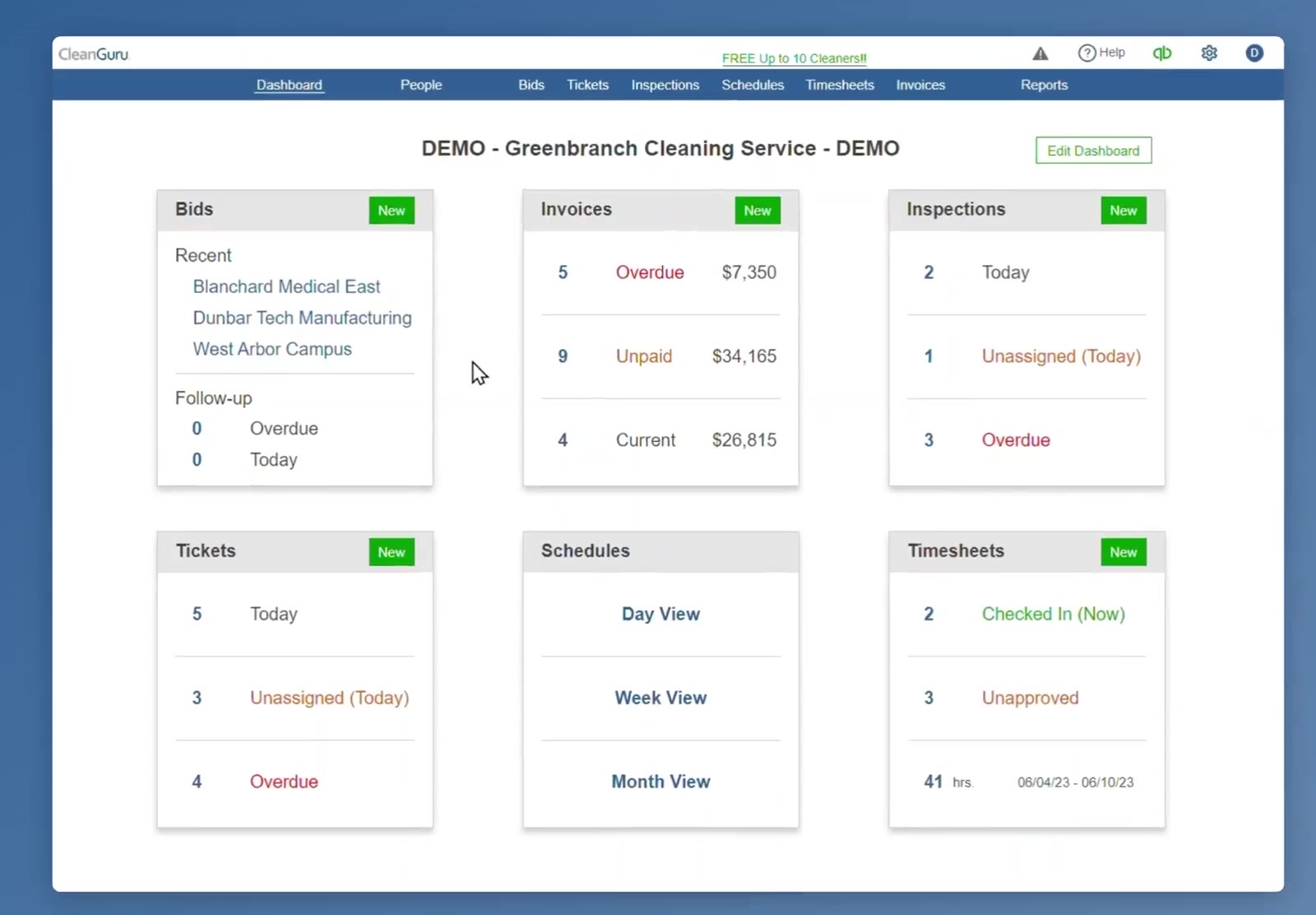
The dashboard holds six tiles, with Edit Dashboard in the top right.
- Bids — your three most recent prospects, plus follow-ups due today and follow-ups overdue.
- Invoices — a count and dollar total for Overdue, Unpaid, and Current invoices.
- Inspections — inspections due today, inspections unassigned for today, and overdue inspections.
- Tickets — tickets due today, tickets unassigned for today, and overdue tickets.
- Schedules — links to Day View, Week View, and Month View.
- Timesheets — who is checked in right now, how many hours are unapproved, and total hours for the pay period shown on the tile.
The tiles are clickable. Click a number to open the list behind it. Click New to start a new record of that kind — most tiles ask which kind first, so New on Invoices asks whether you want an invoice, a template, a payment, or a credit.
Open a Calendar from the Dashboard
Pick a schedule view
On the Schedules tile, click Day View, Week View, or Month View. Month View opens the full calendar of scheduled jobs.
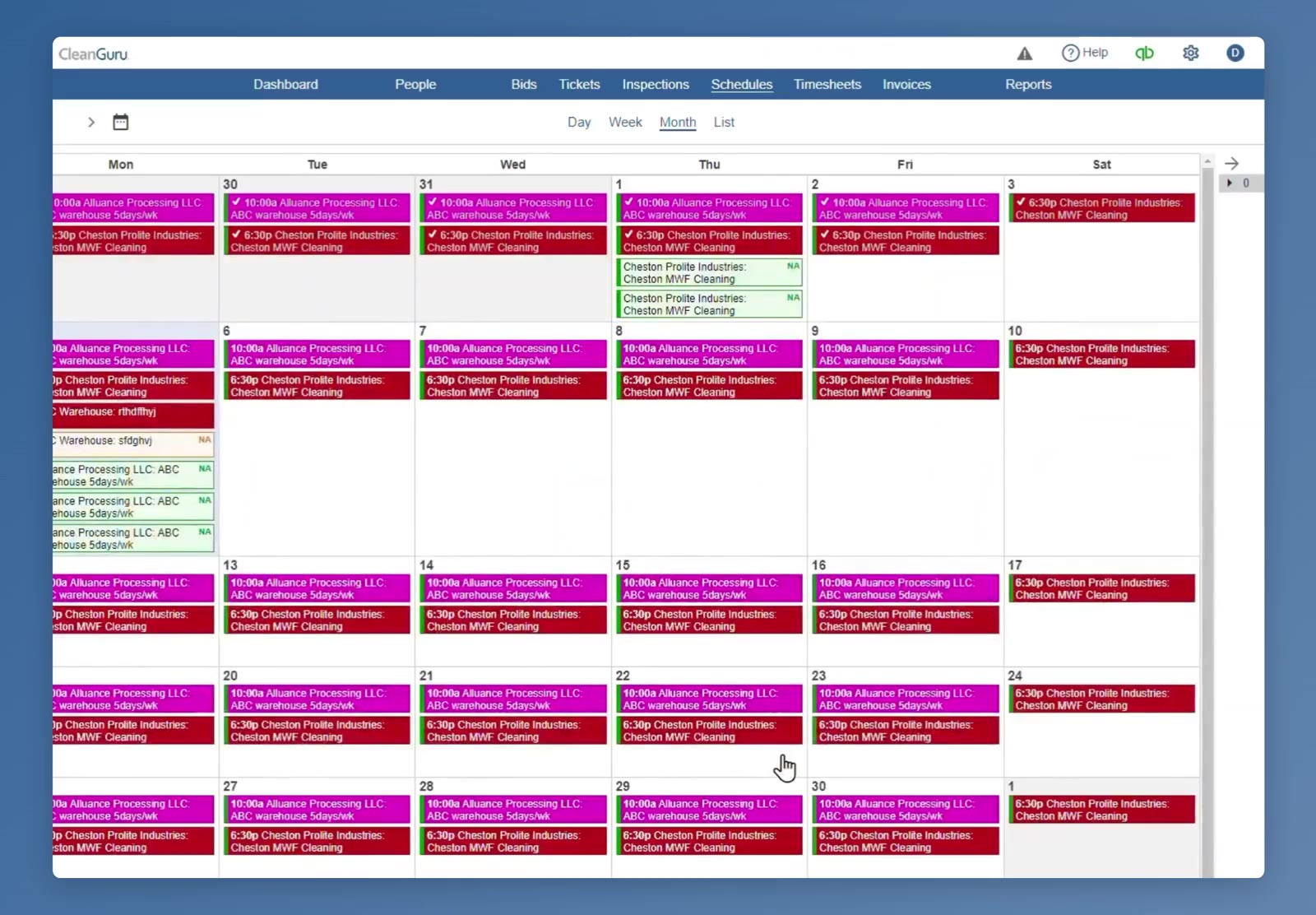
Month View opens the full calendar of scheduled jobs.
Choose Which Tiles You See
The master user sets the layout for the whole account. Everyone else sees the same tiles, except that a tile never shows for a module the user does not have access to.
Open edit mode
Click Edit Dashboard in the top right of the dashboard.
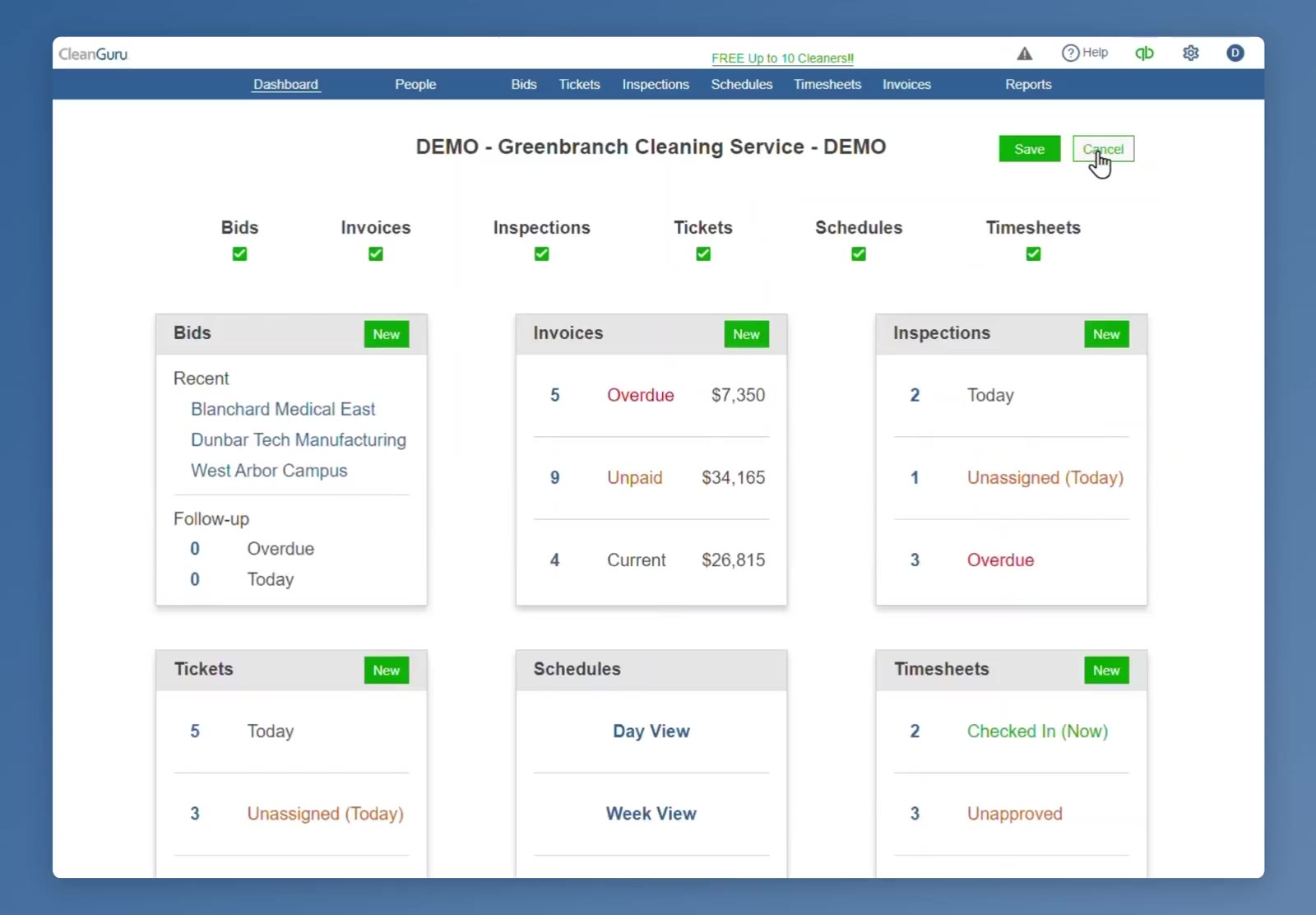
In edit mode the module names run across the top with a green checkmark under each, and Save and Cancel replace Edit Dashboard.
Turn tiles off
Click the green checkmark under any module to turn that tile off. Click it again to turn it back on.
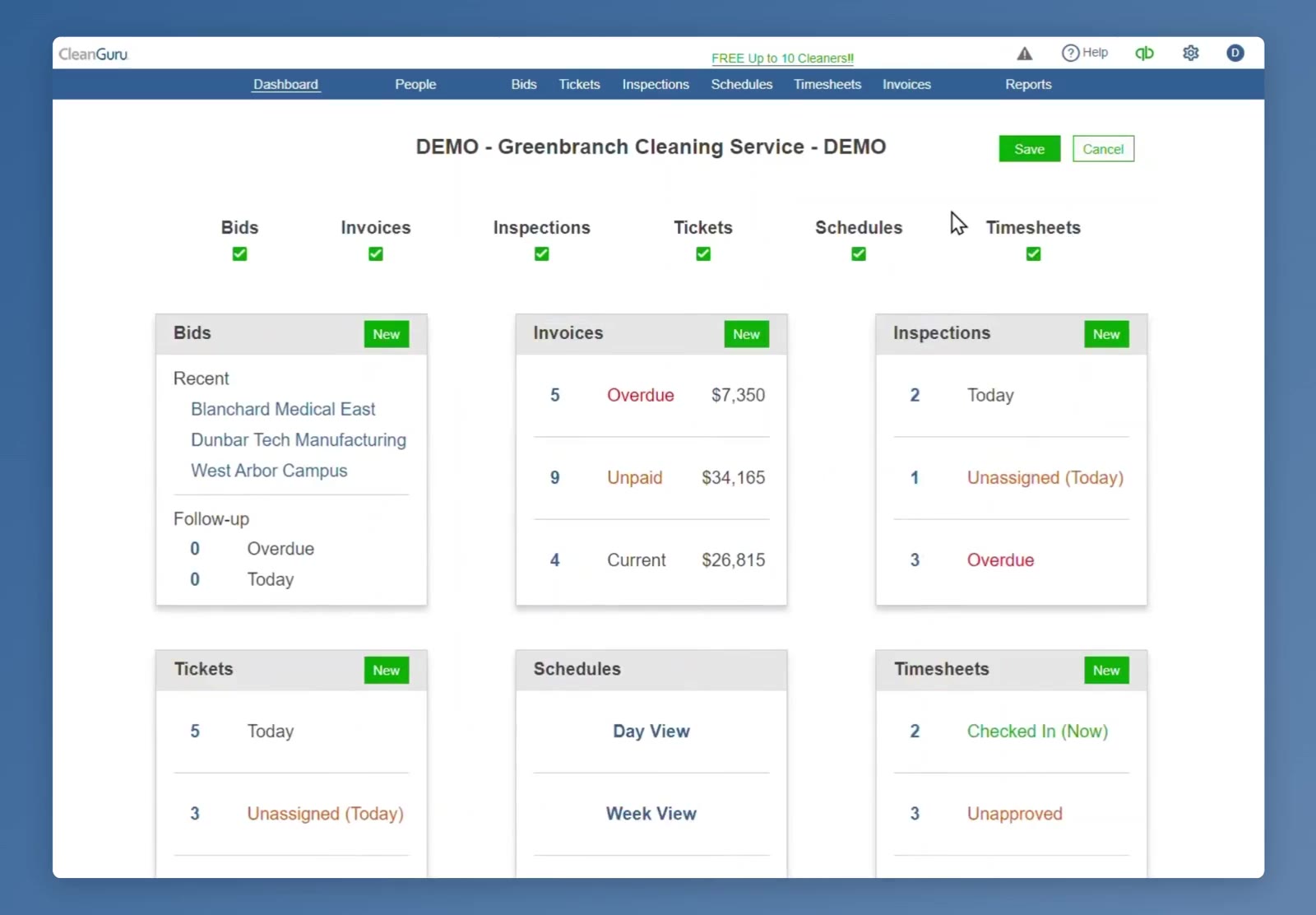
Each module name has its own checkmark, so you can keep only the tiles your role uses.
Save the layout
Click Save. The dashboard returns to the normal view showing only the tiles you kept.
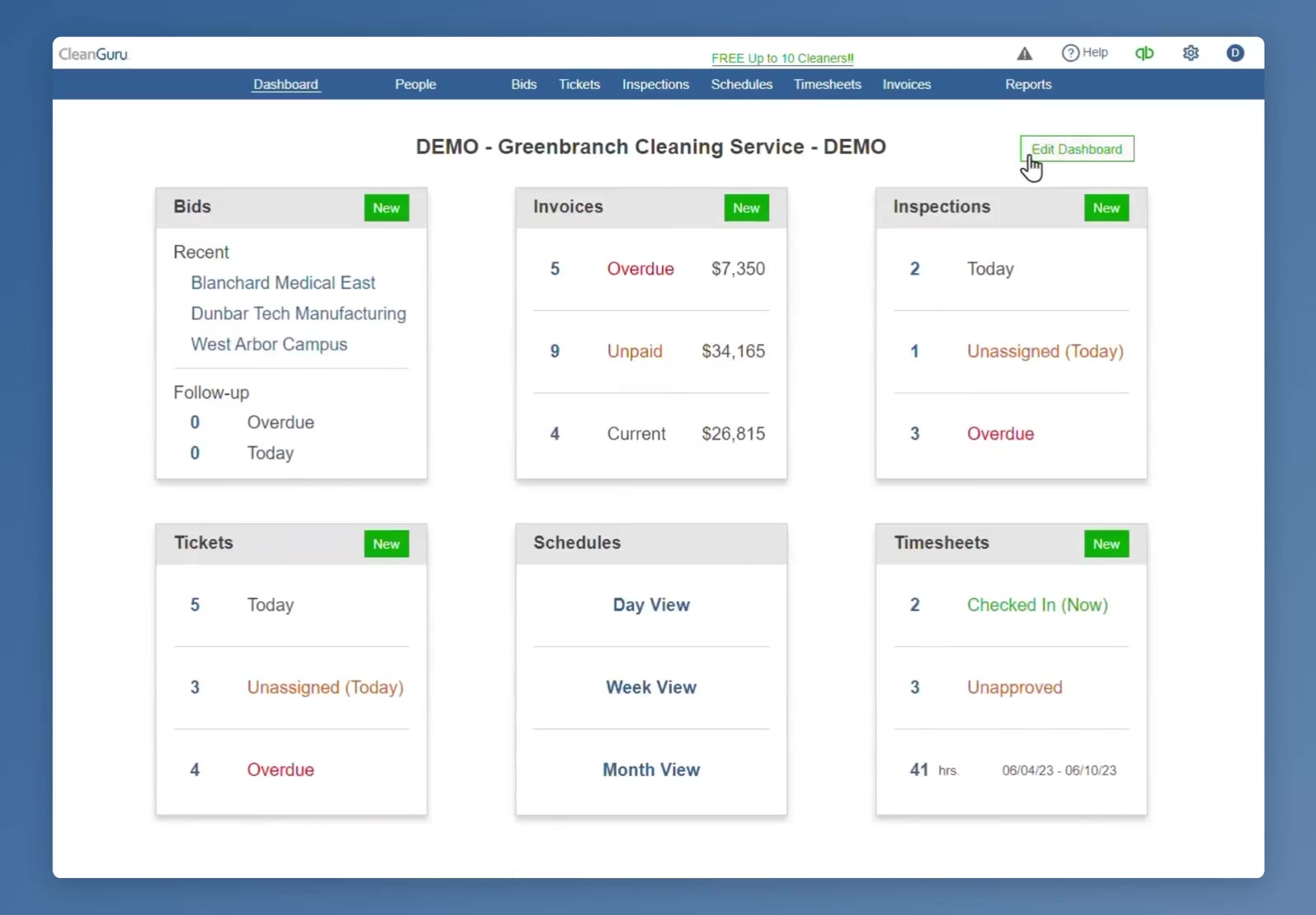
After Save, Edit Dashboard reappears and the dashboard shows your chosen tiles.
FAQ
Which tiles can the dashboard show?
Bids, Invoices, Inspections, Tickets, Schedules, and Timesheets.
What does the Timesheets tile show?
How many employees are checked in right now, how many hours are still unapproved, and the total hours for the pay period listed on the tile.
What calendar views does the Schedules tile open?
Day View, Week View, and Month View.
How do I bring a hidden tile back?
Click Edit Dashboard, click the module's checkmark to turn it back on, and click Save.
Can I move the tiles around?
No. Tiles can be turned on and off, but their positions are fixed.