
Add Marketing Highlights
Add System and Service Highlights to a CleanGuru janitorial proposal to show a prospect how your company works and what your service includes.
Select System Highlights
Open Proposal Tab
Open your bid and click the Proposal tab.
Select System Highlights
In the System Highlights section, tick Work LOAD-ing, Work TRACK-ing, Work DIRECT-ing or Work INSPECT-ing to include it. Each one has a second, indented checkbox beneath it — Job Specifications, Timesheet, Ticket and Inspection — for adding a sample of that document.
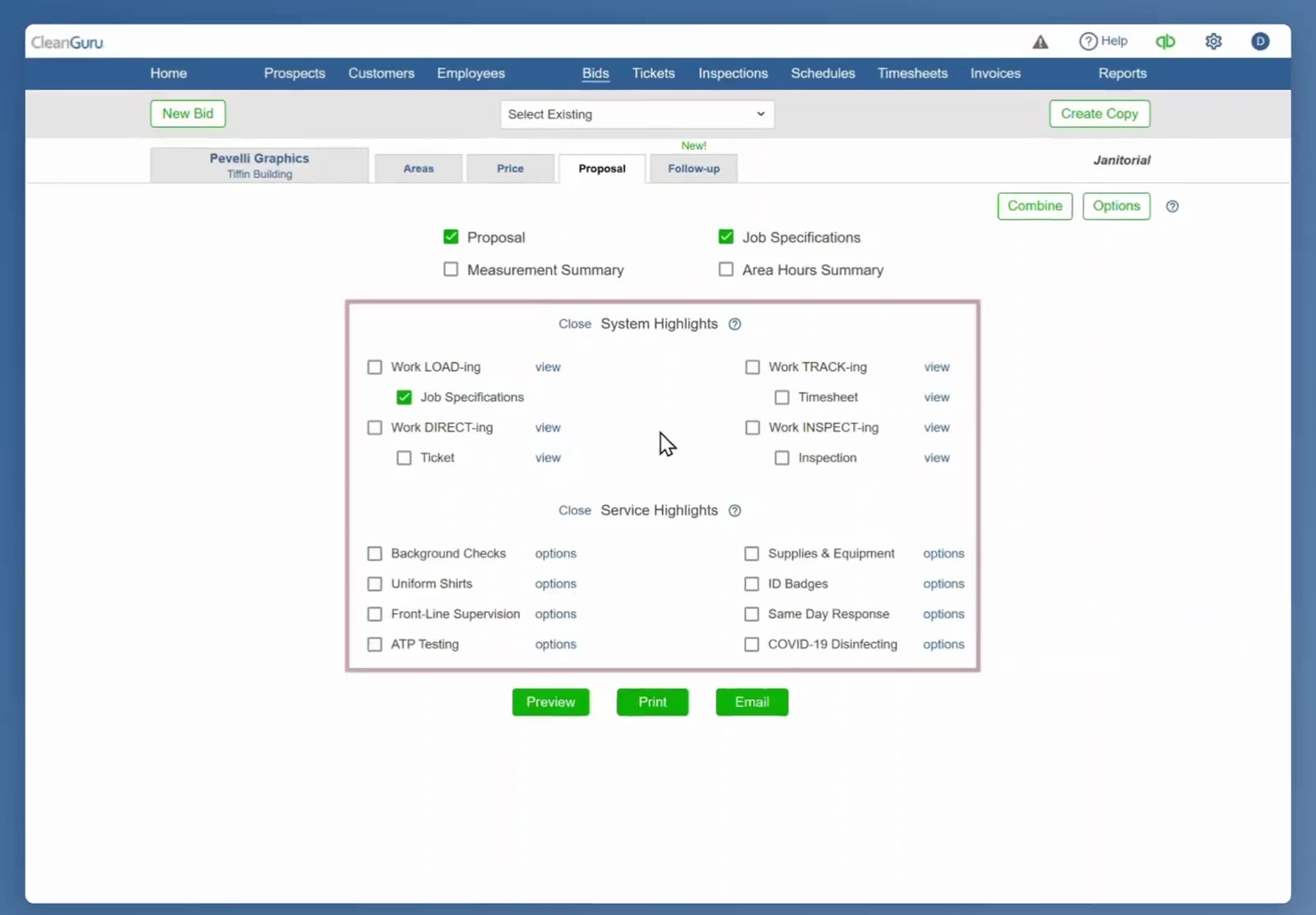
The Proposal tab of a janitorial bid holds the System Highlights and Service Highlights sections.
Preview Highlights
Click the view link next to a highlight to see the information the client will receive.
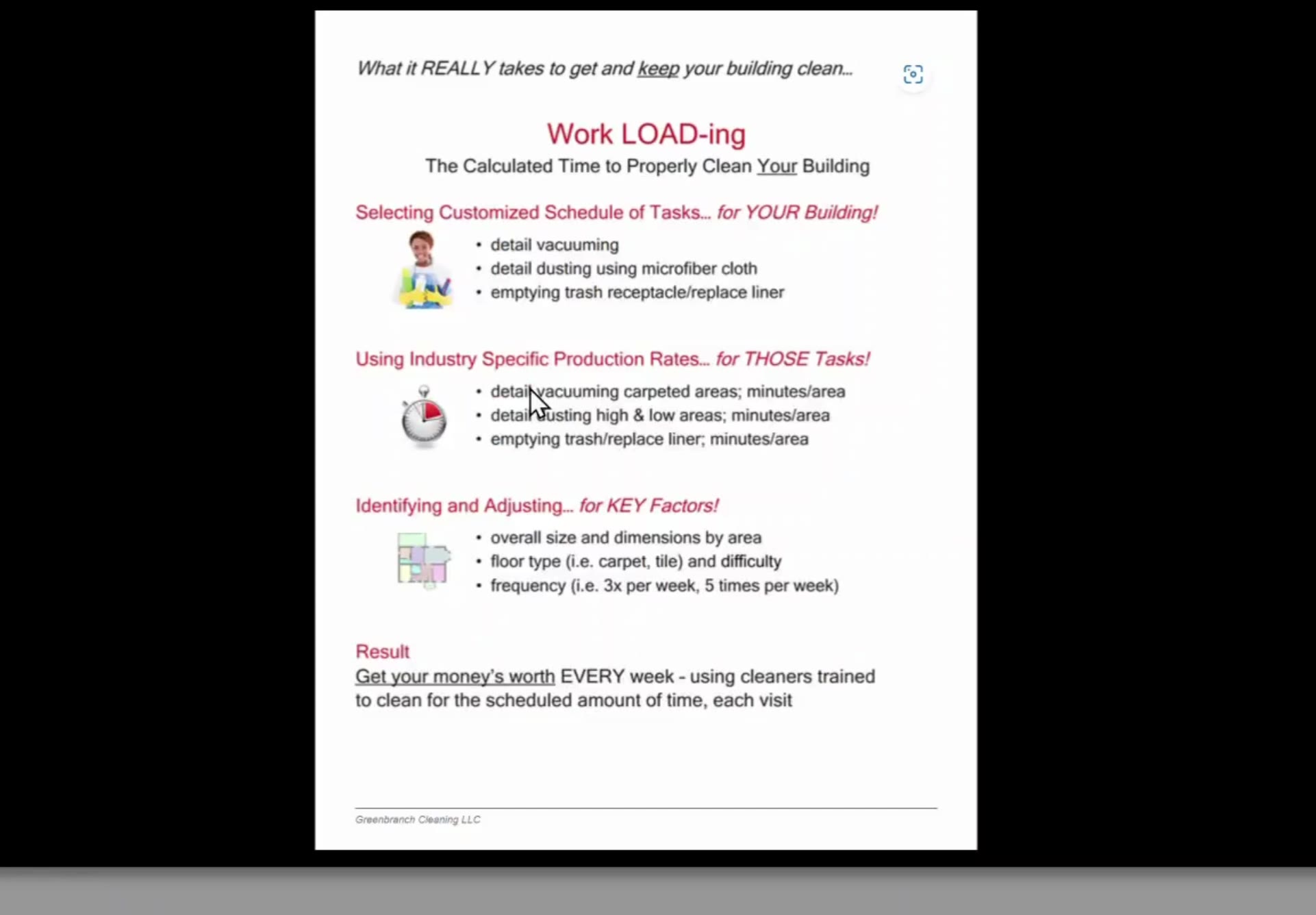
The view window shows the full Work LOAD-ing page, including the schedule of tasks and the production rates behind it.
Customize Service Highlights
Select Service Highlights
In the Service Highlights section lower down the page, tick the highlights you want to include.
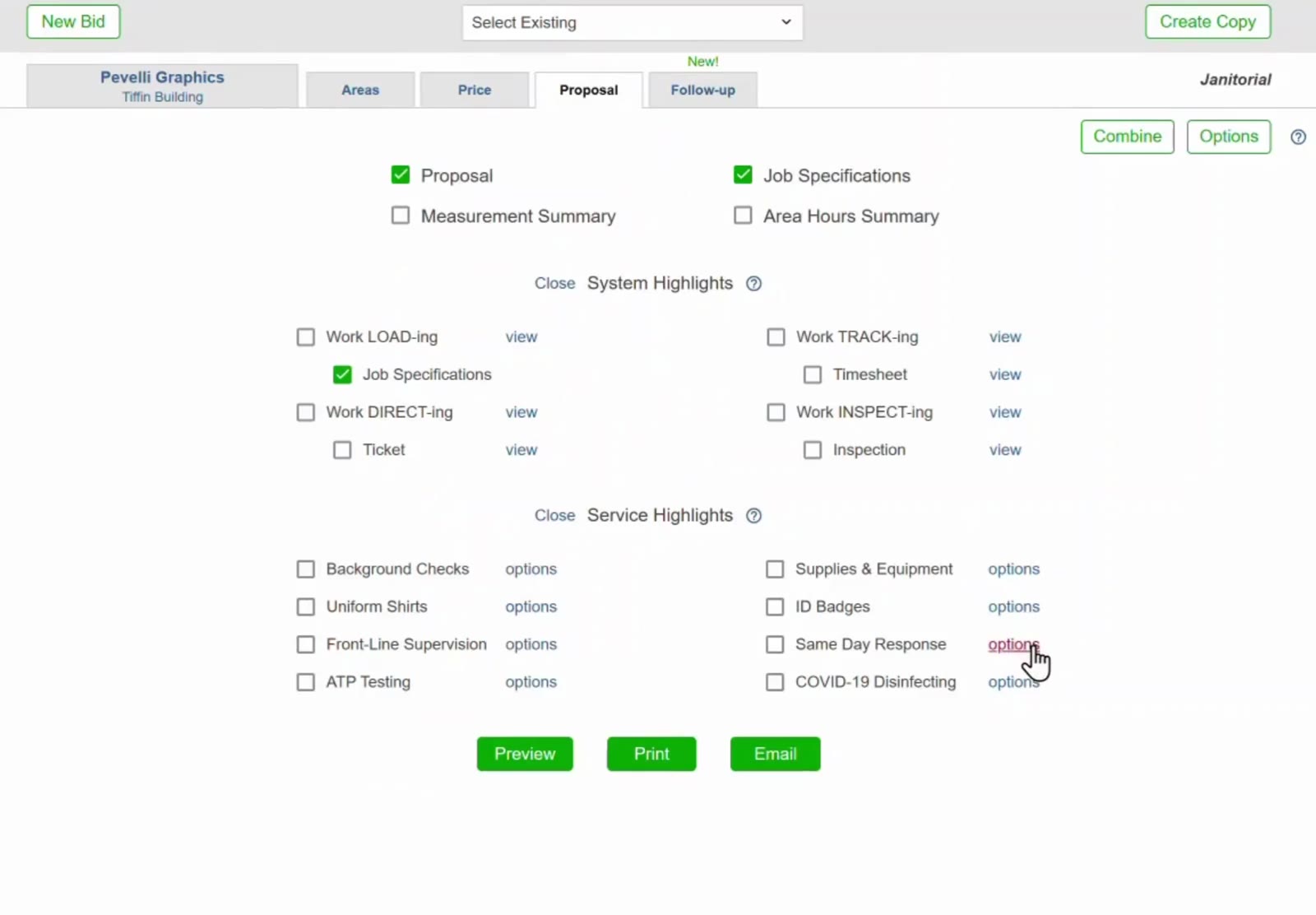
Every Service Highlight has its own checkbox and an options link.
Open the options window
Click the options link next to a Service Highlight to open its customization window.
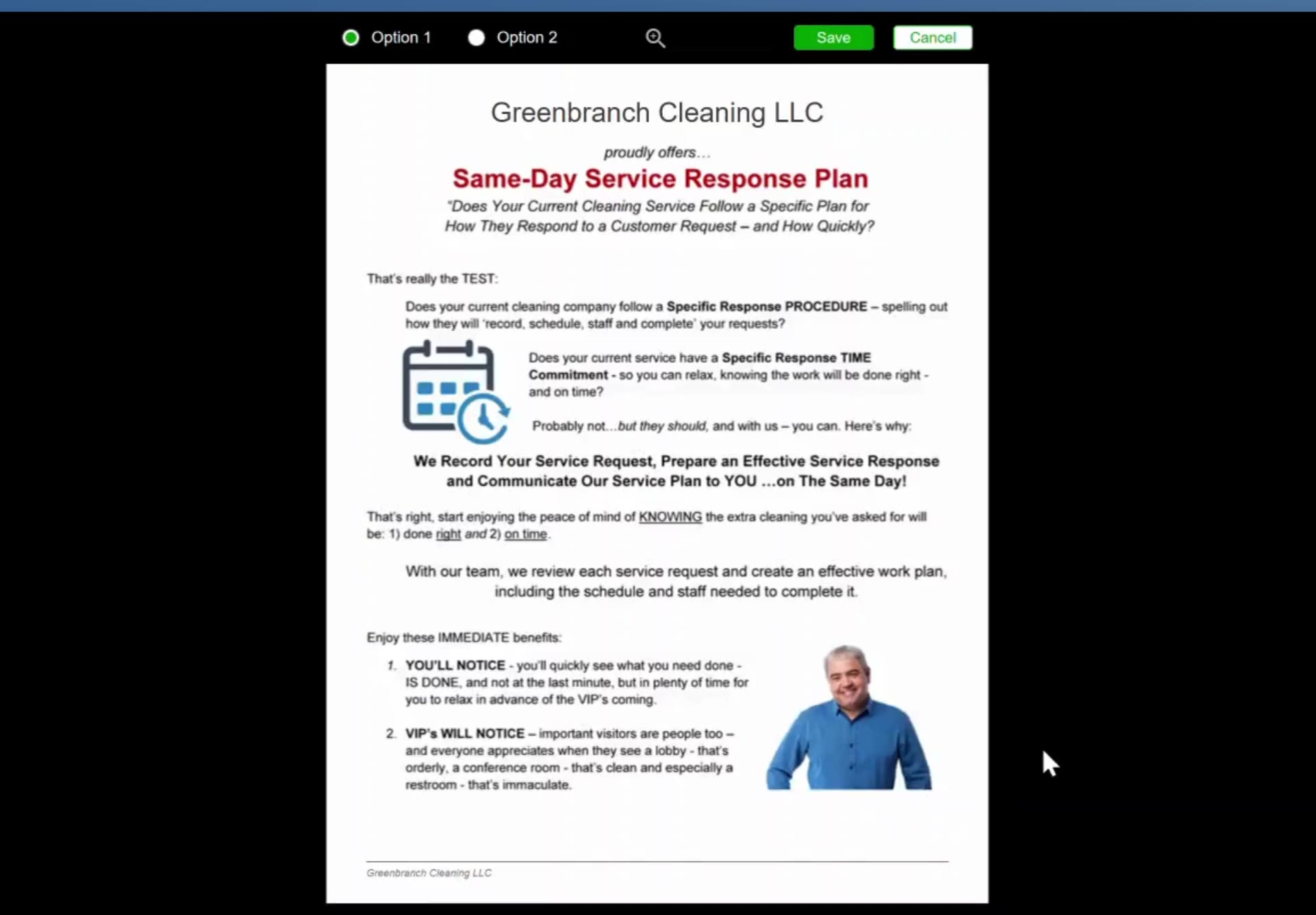
The options window shows the finished page, with Option 1 and Option 2 at the top.
Choose a photo and save
Select Option 1 or Option 2, then click Save.
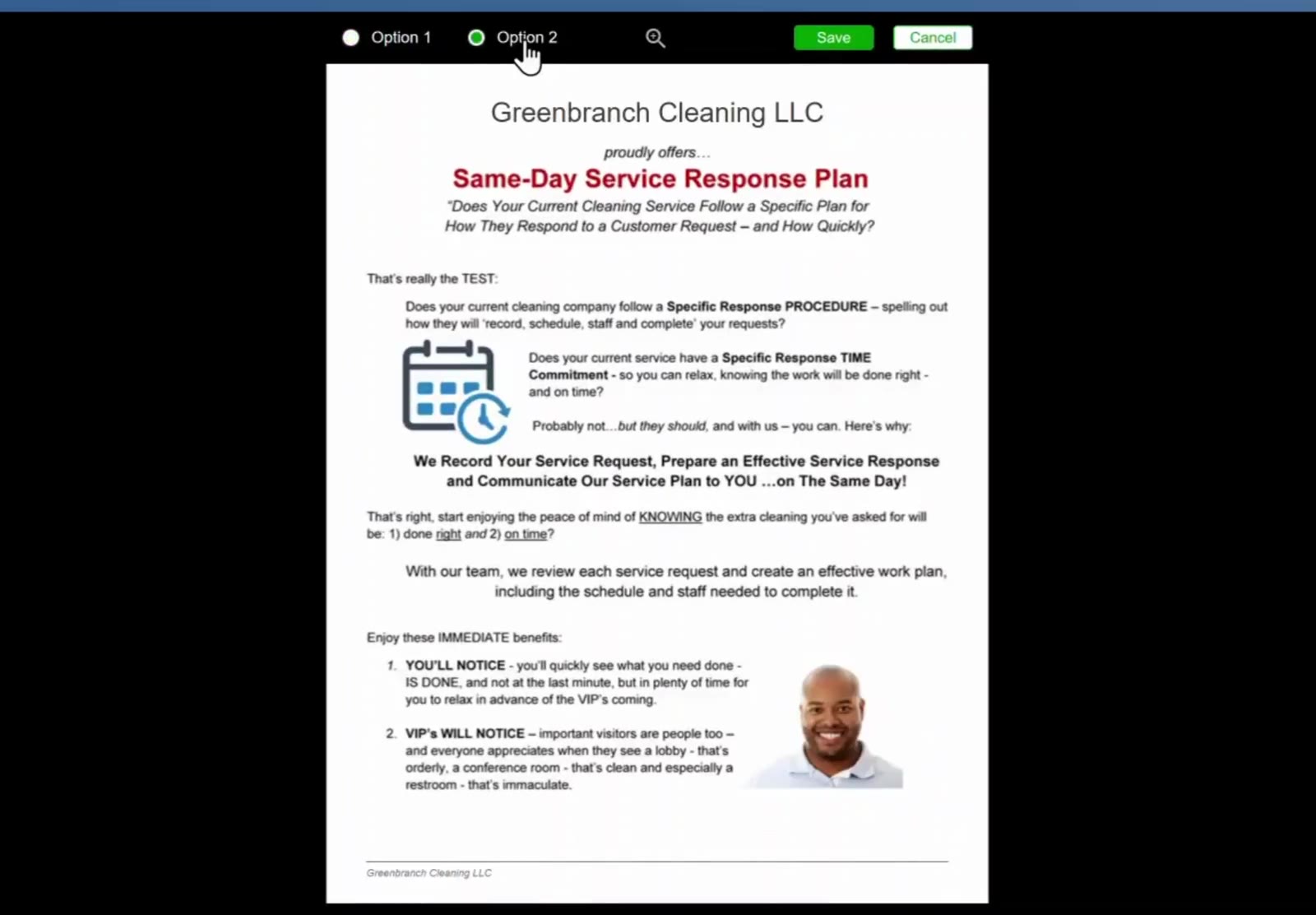
Option 1 and Option 2 carry the same wording and differ only in the photo. Click Save to keep your choice.
Finalize Your Proposal
Review your selections
Look over the ticked boxes in both the System Highlights and Service Highlights sections before you produce the document.
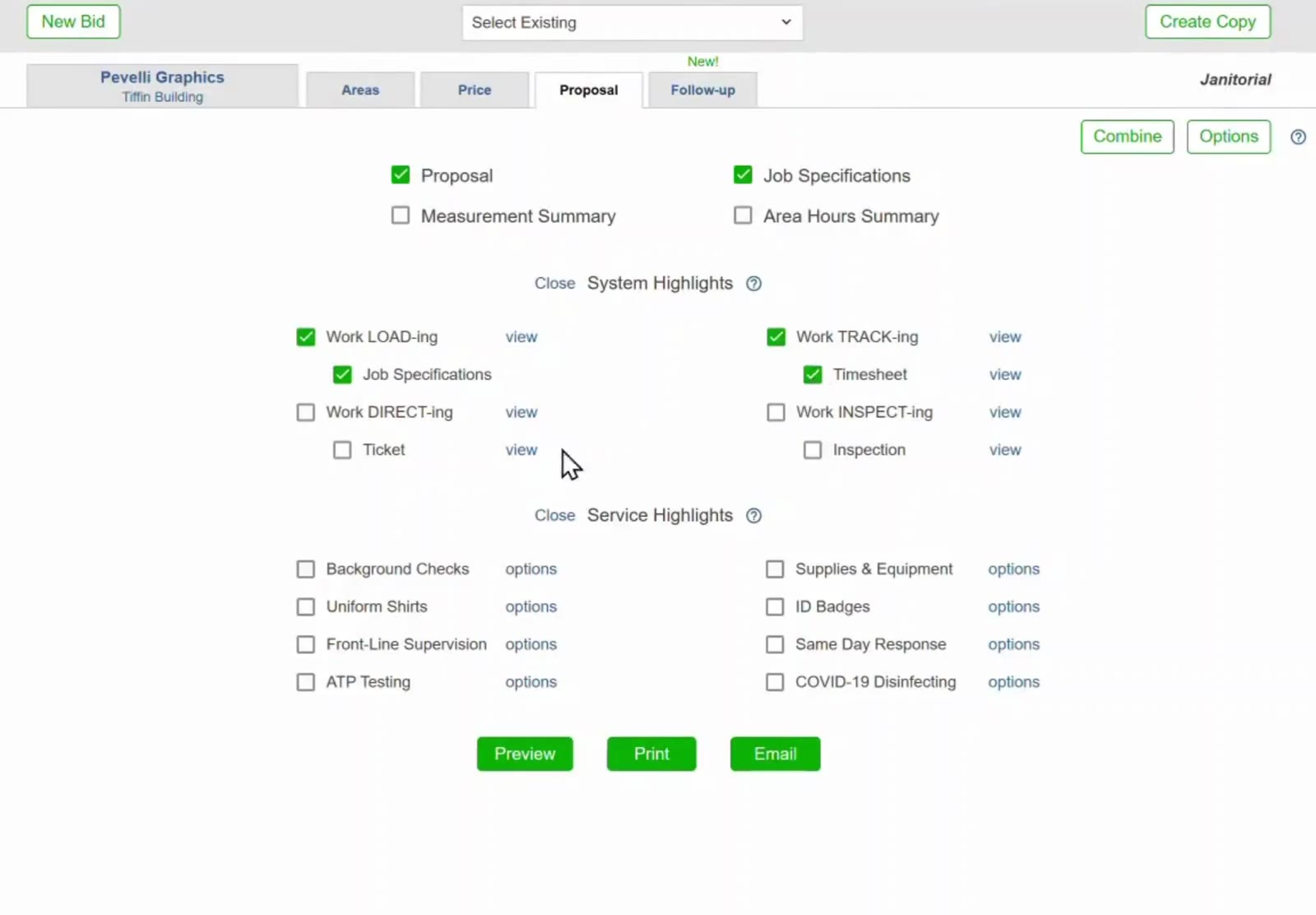
Ticked boxes show which highlights and sample documents will appear in the proposal.
Preview, print or email
Use the Preview, Print and Email buttons at the bottom of the page.
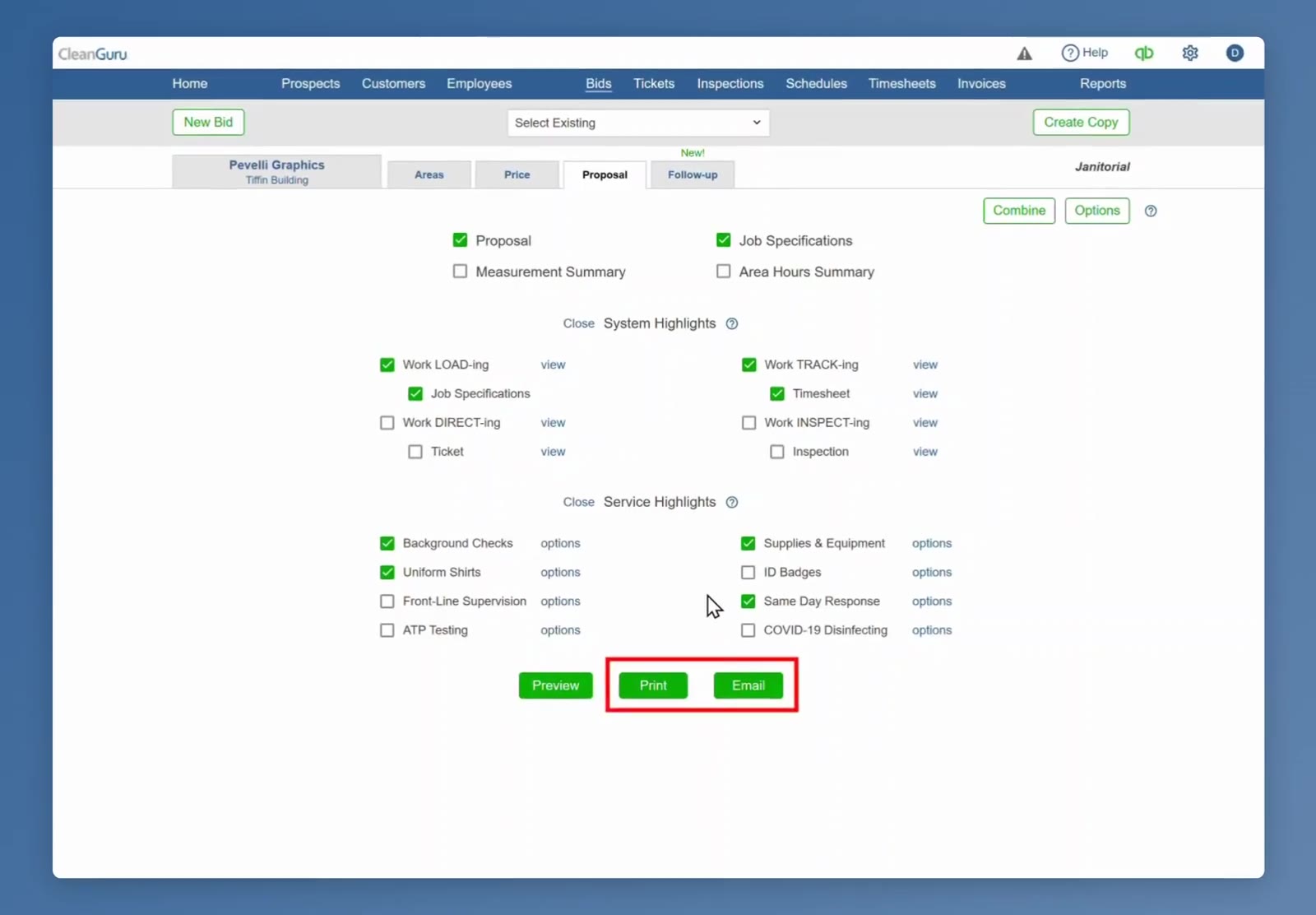
Preview, Print and Email sit at the bottom of the Proposal tab.
FAQ
Which proposals have highlights?
Janitorial proposals only. If you do not see the System Highlights and Service Highlights sections, check that you are in a janitorial bid.
What is the difference between System Highlights and Service Highlights?
System Highlights describe how you manage the account: Work LOAD-ing, Work TRACK-ing, Work DIRECT-ing and Work INSPECT-ing, each with a view link. Service Highlights are the specific things you commit to providing: Background Checks, Uniform Shirts, Front-Line Supervision, ATP Testing, Supplies & Equipment, ID Badges, Same Day Response and COVID-19 Disinfecting, each with an options link. Both are separate sections on the Proposal tab.
How can I see what a highlight says before I include it?
Click the view link beside a System Highlight. The full page opens exactly as the prospect will read it.
What is the difference between Option 1 and Option 2?
Only the photograph. The heading and the wording are identical in both.
Can I add sample documents to the proposal?
Yes. Job Specifications, Timesheet, Ticket and Inspection each have their own indented checkbox beneath a System Highlight.
How do I send the finished proposal?
Use the buttons at the bottom of the Proposal tab. Preview opens the whole document so you can check it before you Print or Email it to your prospect.