
Auto Follow up
CleanGuru can follow up on a bid for you. On the Follow-up tab, choose which messages go out, when they go, and whether CleanGuru sends them automatically or simply reminds you.
Open the Follow-up Tab
Open the bid
Open the bid you want to follow up on. In this example it is Pevelli Graphics.
Click Follow-up
The Follow-up tab sits to the right of Proposal.
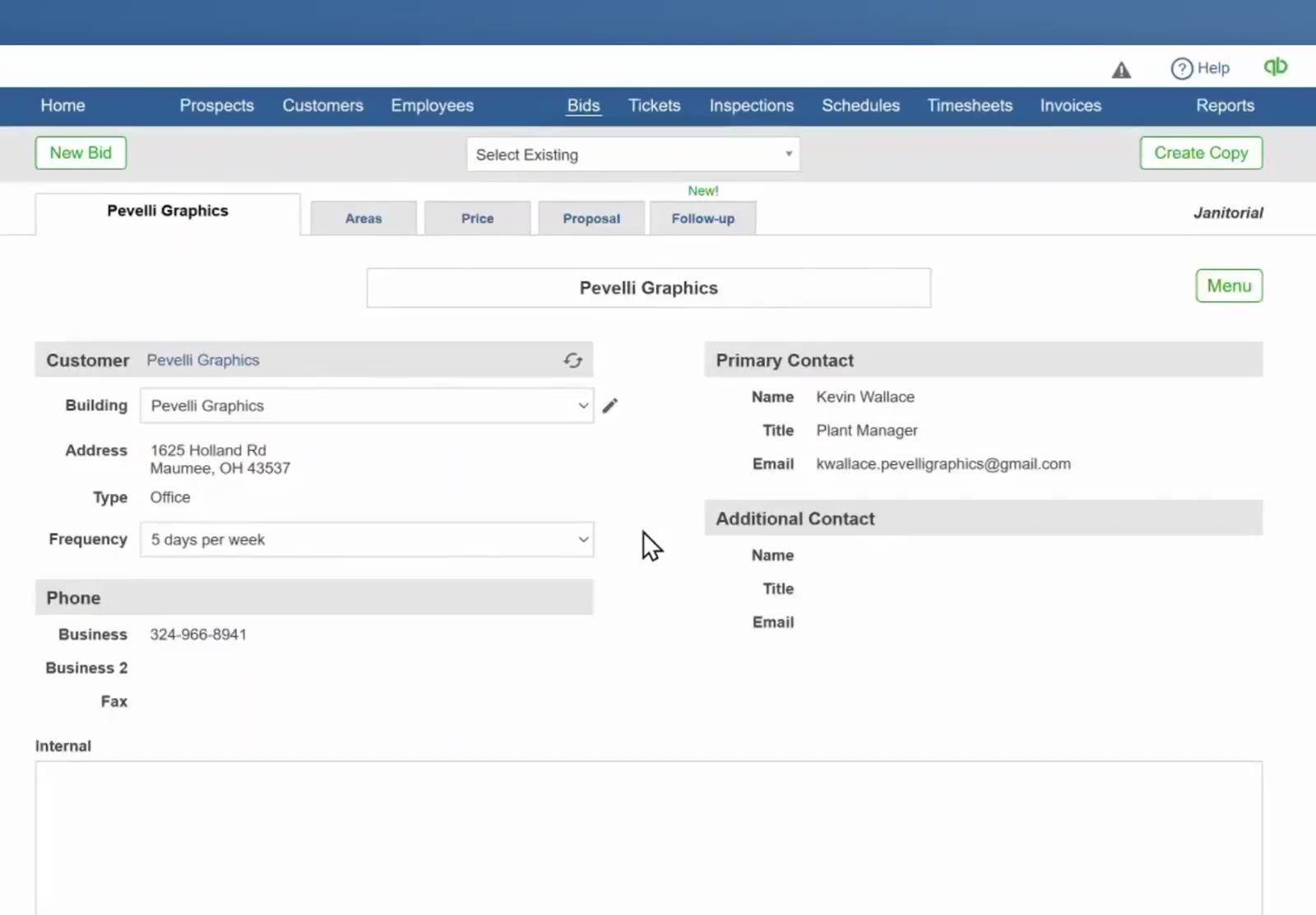
Follow-up sits along the row of bid tabs, to the right of Proposal.
Read the two columns
Before Submitting holds Thanks for Opportunity and After Walkthrough. After Submitting holds 1st Follow-up, 2nd Follow-up, 3rd Follow-up and Additional.
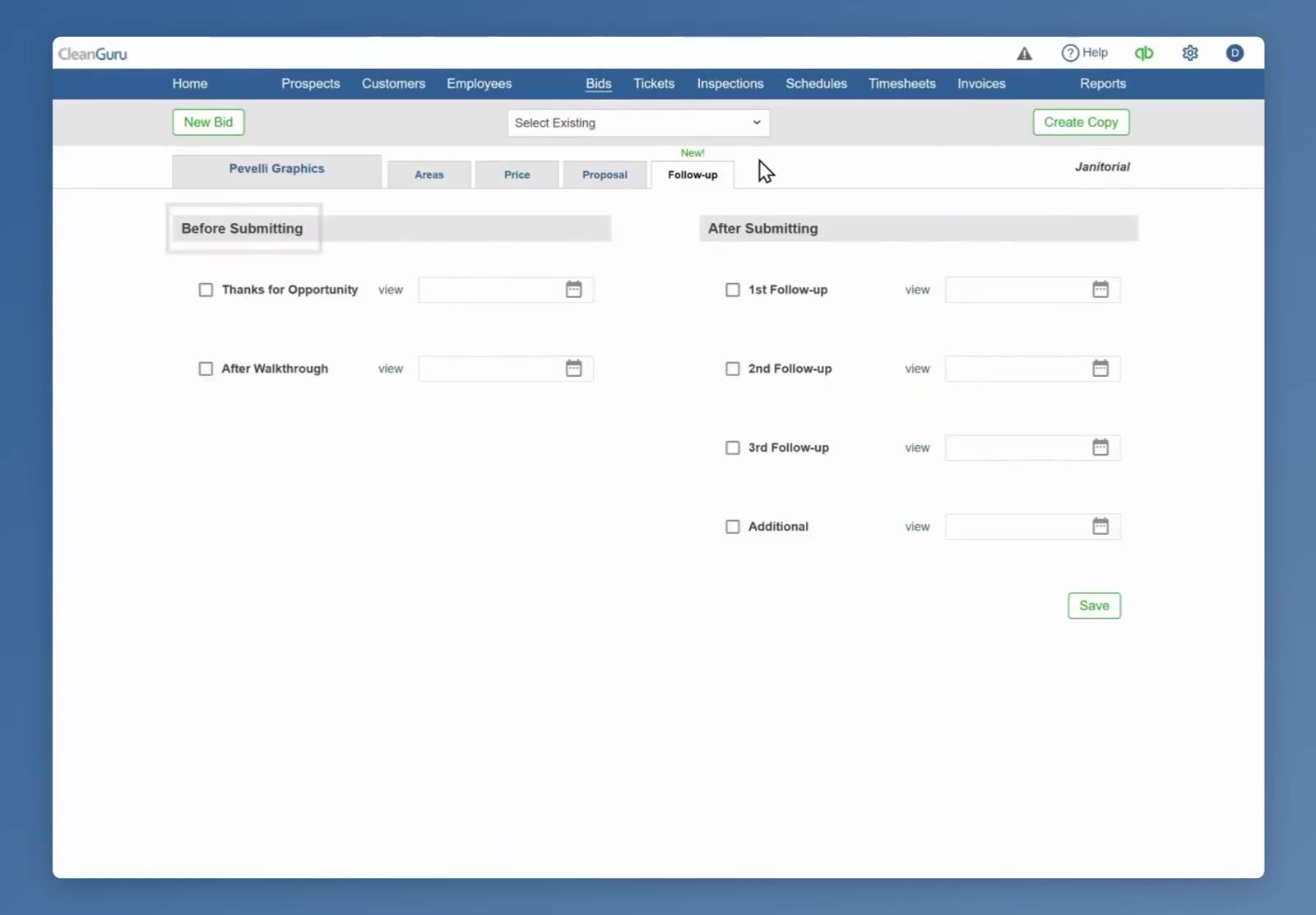
Every row has a checkbox, a view link, and a date box with a calendar icon.
Read the Message First
Open the email
Click view beside a follow-up. The message opens with To, Bcc, Subject and the body already written.
Change it if you want to
Your logo sits above the message and your signature below it, each with a green check you can clear to leave it off. Click Save to keep your changes, or Send to send the message now.
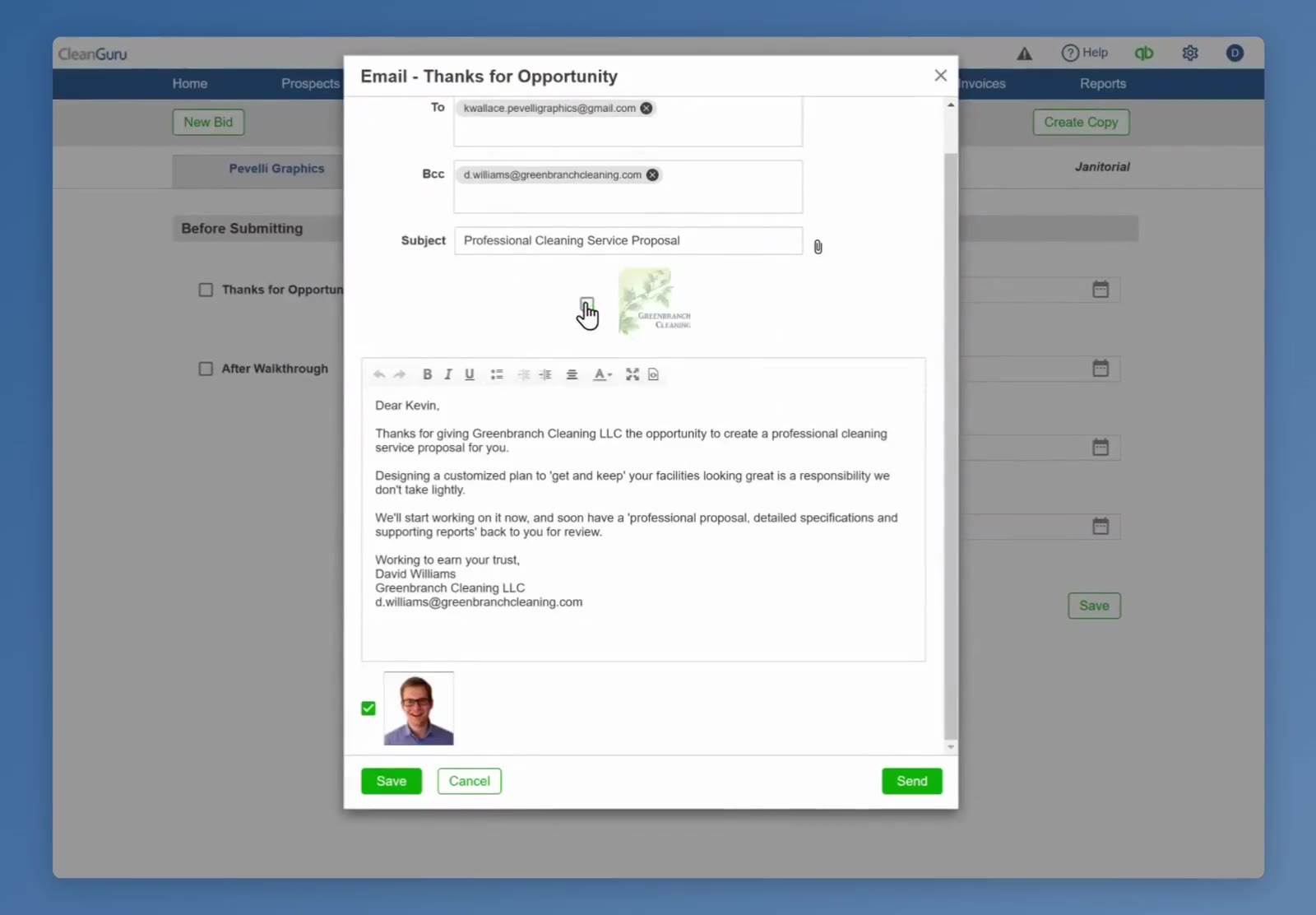
The message opens ready to go, with your logo above it and your signature underneath.
Schedule a Follow-up
Check the box
Check the box beside the follow-up you want. auto send and manual appear underneath it.
Choose how it goes out
auto send has CleanGuru send the email on the day you pick. manual leaves the sending to you.
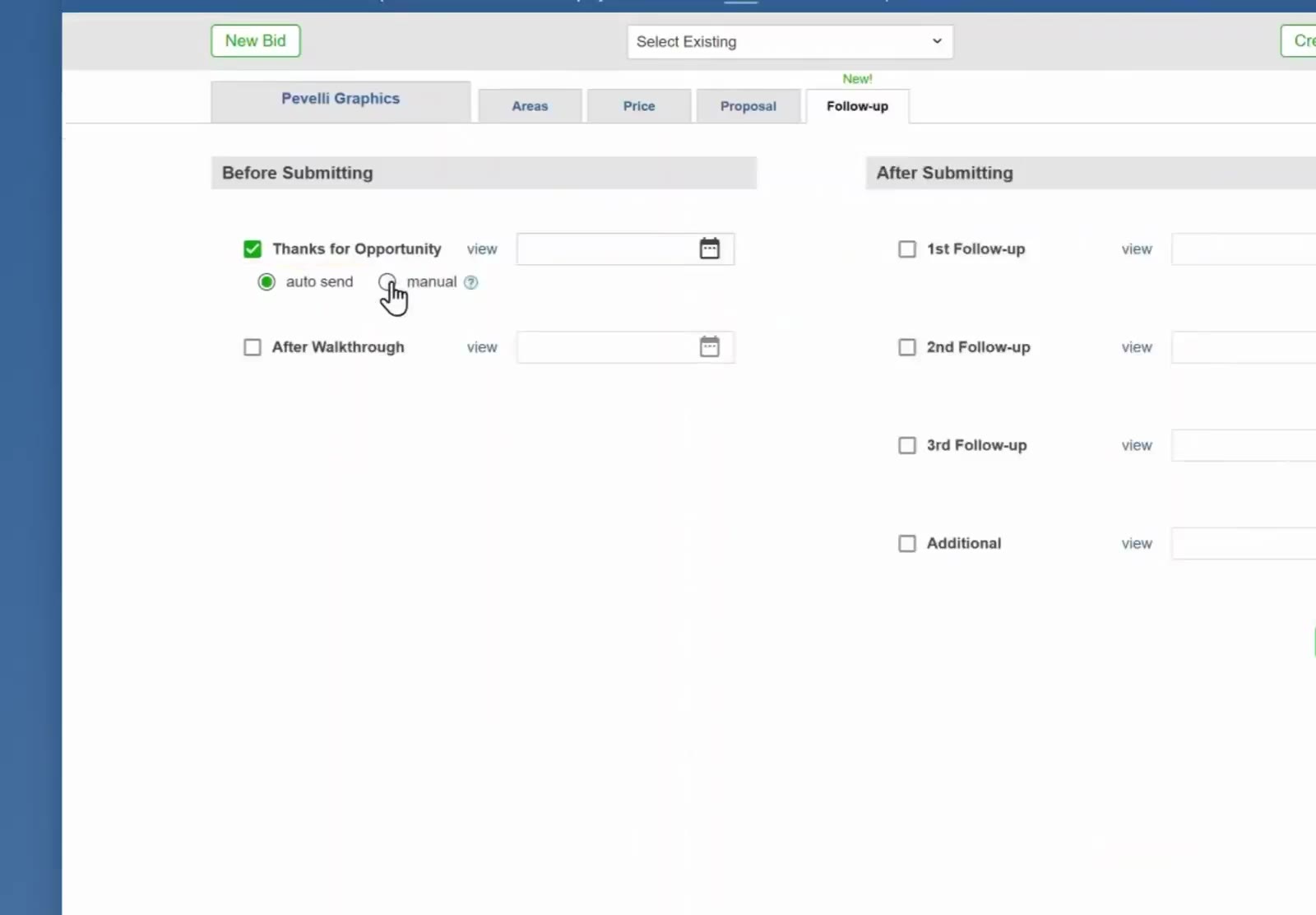
Checking a follow-up brings up the auto send and manual choice.
Pick the day
Click the calendar icon at the end of the row and choose a date.
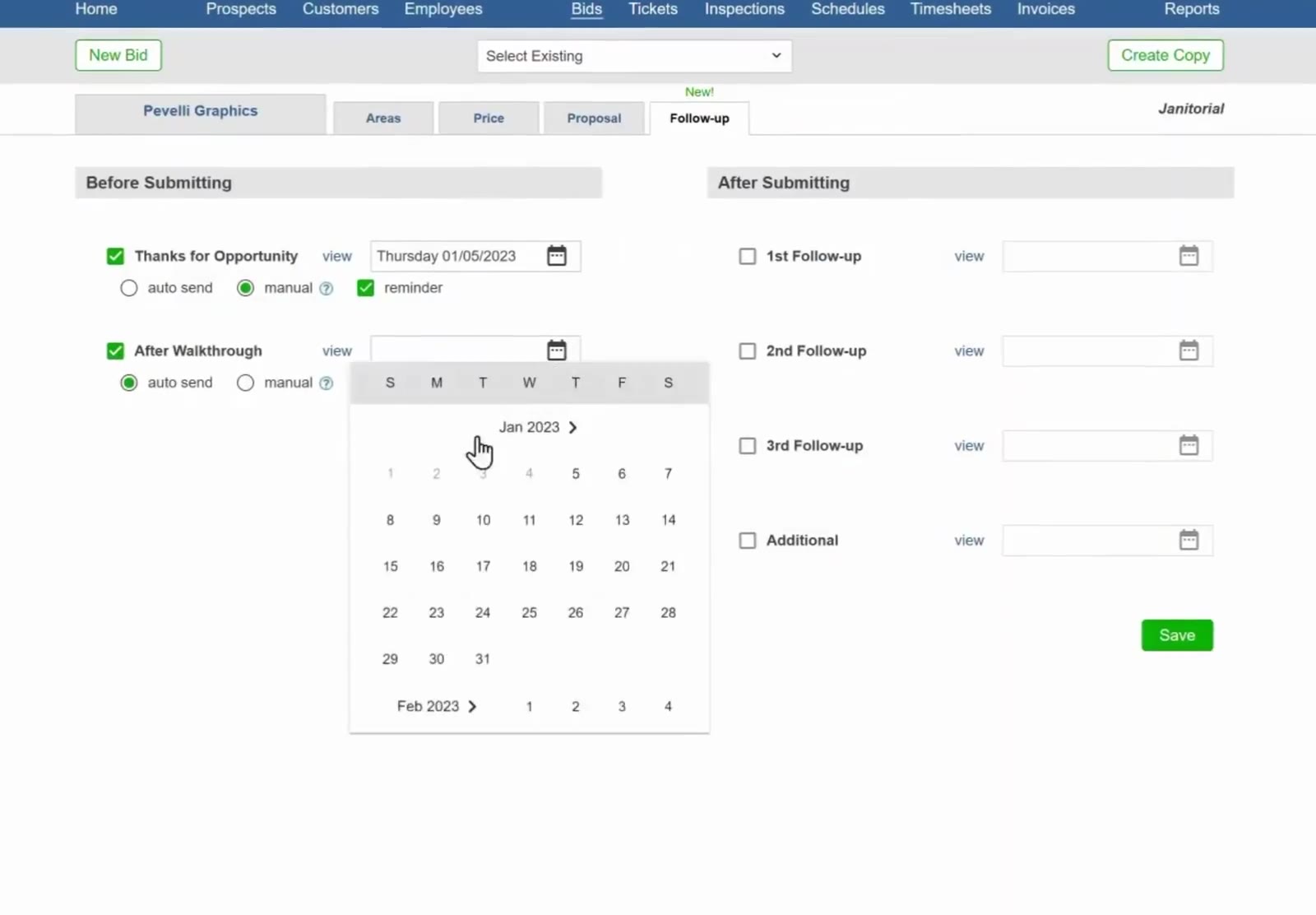
The calendar opens from the row you are setting.
Add a reminder
A follow-up set to manual also shows a reminder checkbox. Check it and the Reminder window opens.
Fill the reminder in
Set the date and the time, then check Email, Text or both. Your email address is already filled in; type a mobile number if you want a text. Click Save.
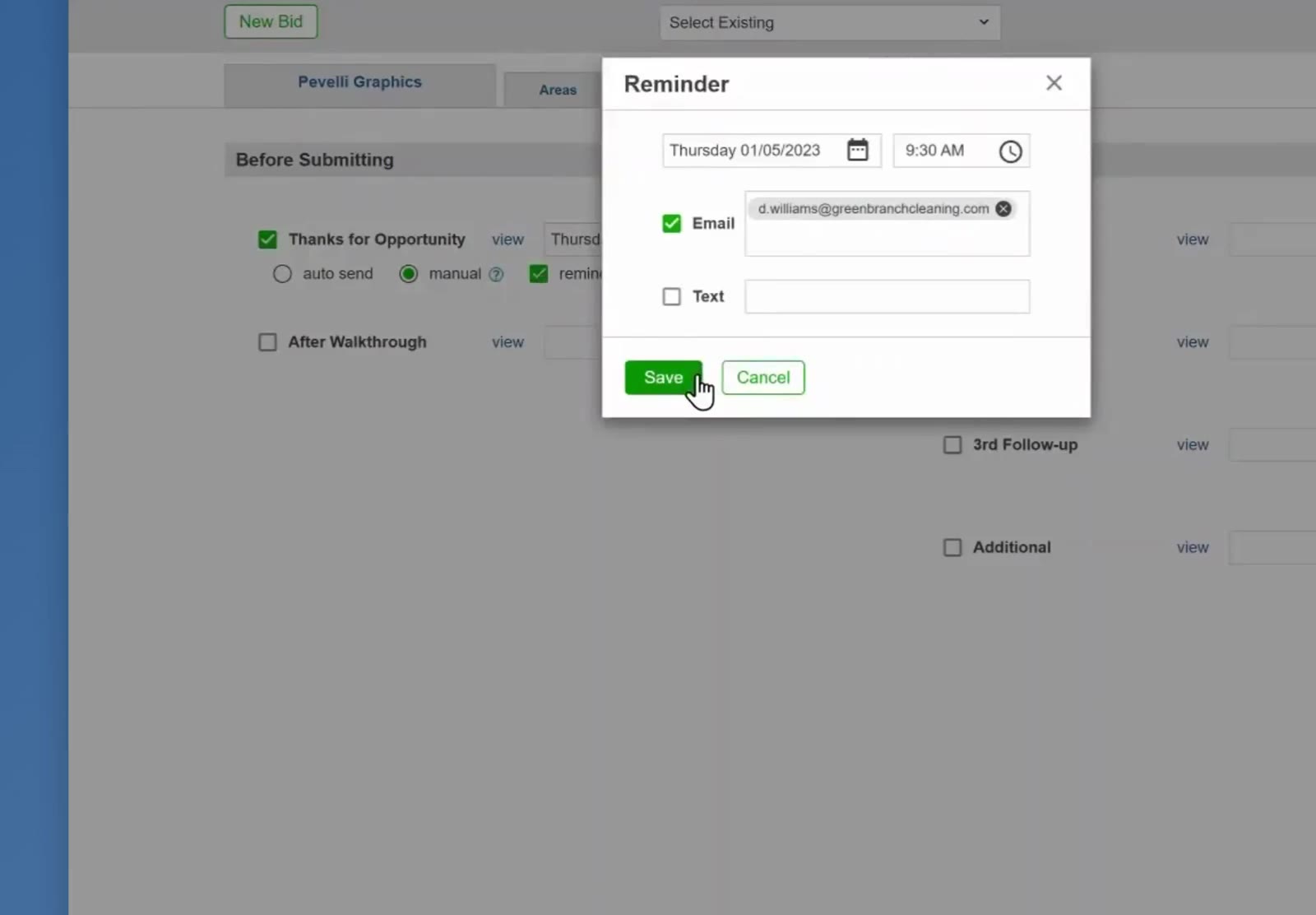
The Reminder window takes a date, a time, and where to send the alert.
The reminder box only appears on a follow-up set to manual. One set to auto send does not get one, because CleanGuru sends it for you.
Build the Rest of the Sequence
Set up the ones after you submit
In After Submitting, check 1st Follow-up, 2nd Follow-up, 3rd Follow-up or Additional, and give each one a date the same way.
Save the page
Click Save at the bottom right. Nothing is scheduled until you do.
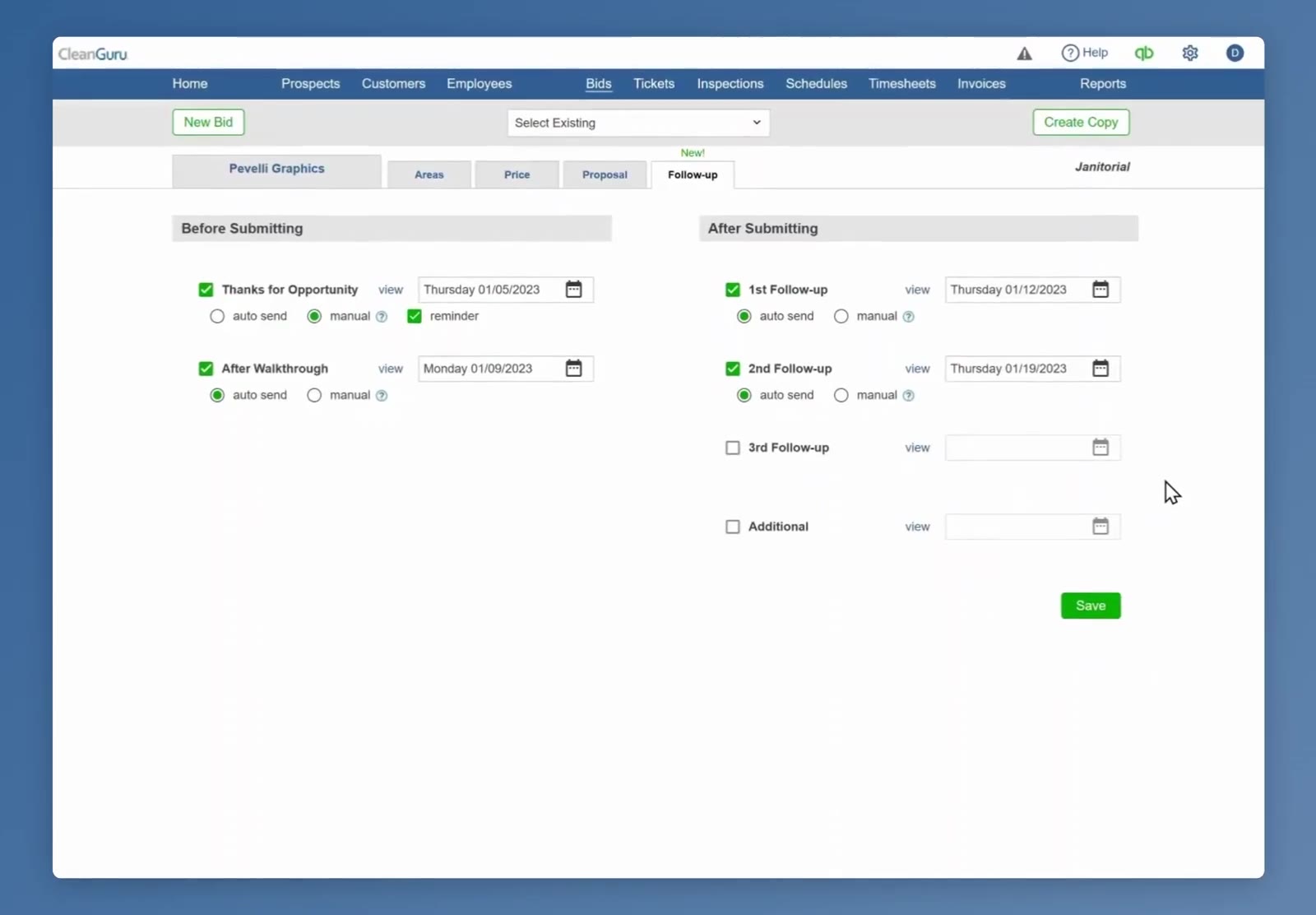
A finished sequence: two messages before the bid goes out and two after, each with its own date.
FAQ
What is the difference between auto send and manual?
auto send has CleanGuru send the email for you on the day you set. manual leaves the sending to you, and lets you set a reminder so you know when it is due.
Do I have to use all of them?
No. Check only the ones you want. Anything left unchecked is ignored.
Can I read the email before it goes out?
Yes. Click view beside the follow-up to open it. You can change the wording and save it from there.