
Add Supervisor
Set up a supervisor in CleanGuru as a Staff/Support employee and give them a login, so they can use the app with only the permissions you grant.
Create the Employee Record
Open Employees
Click Employees in the top navigation bar.
Start a new employee
Click the green New Employee button to open the Add Employee window.
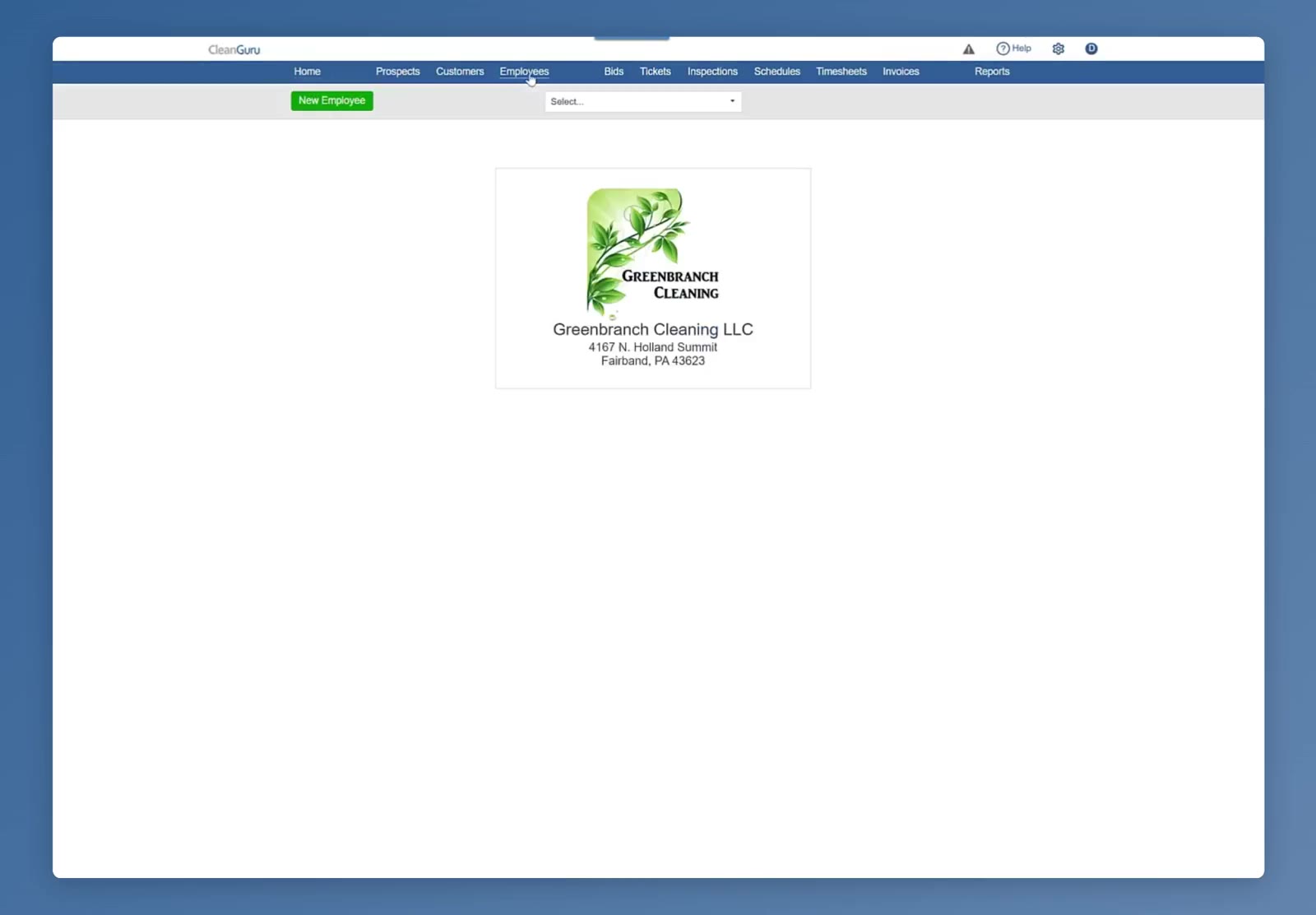
The green New Employee button sits at the top left of the Employees screen.
Enter the name
Type the supervisor’s First and Last name.
Add a phone or email
Enter a Mobile number or an Email address. One of the two is needed so this person can be sent their login details.
Enter the wage
Type the hourly rate in the Wage field. The wage is not required.
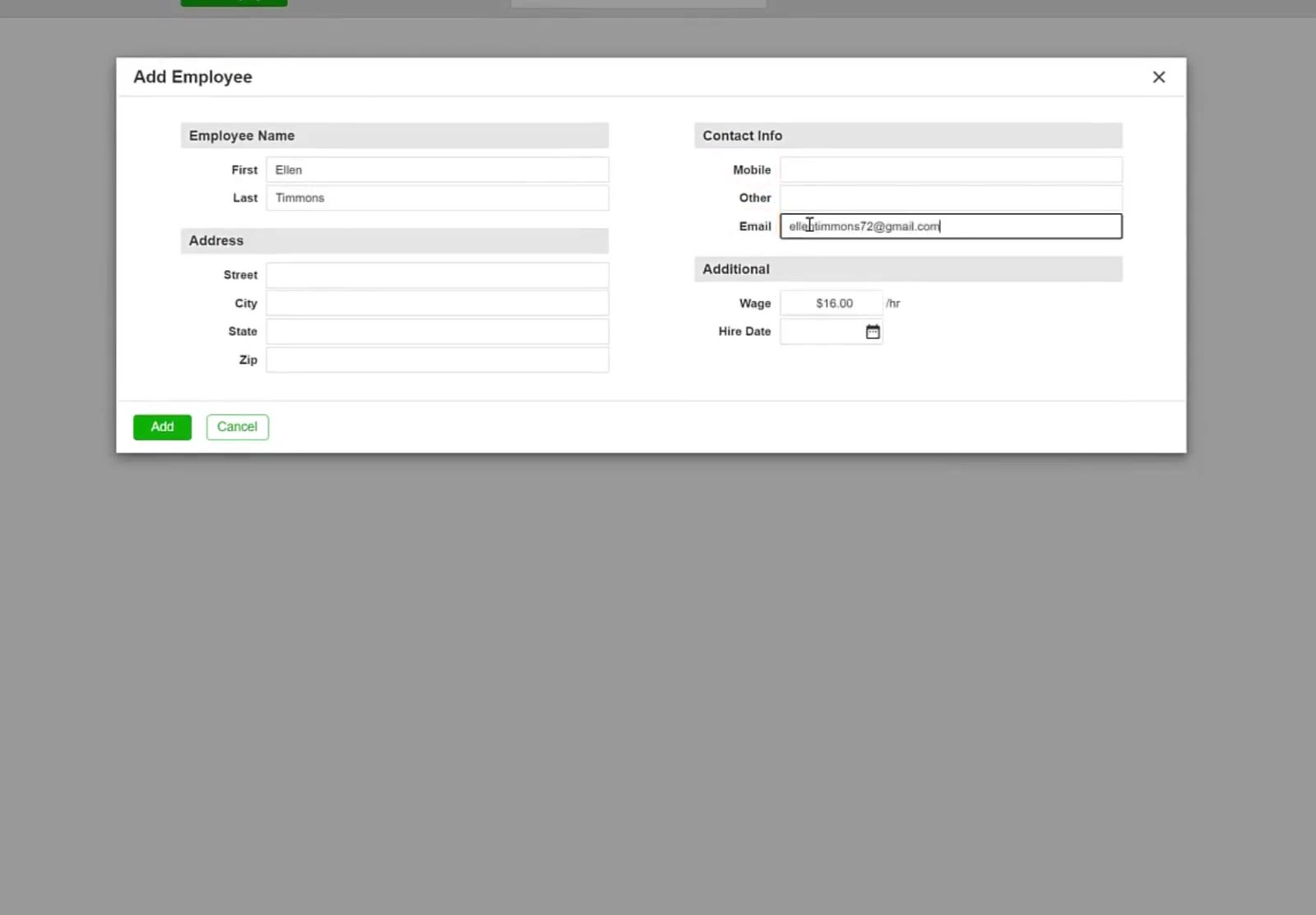
The Add Employee window takes the name, the contact details and the wage.
Create the record
Click the green Add button. The employee’s profile opens.
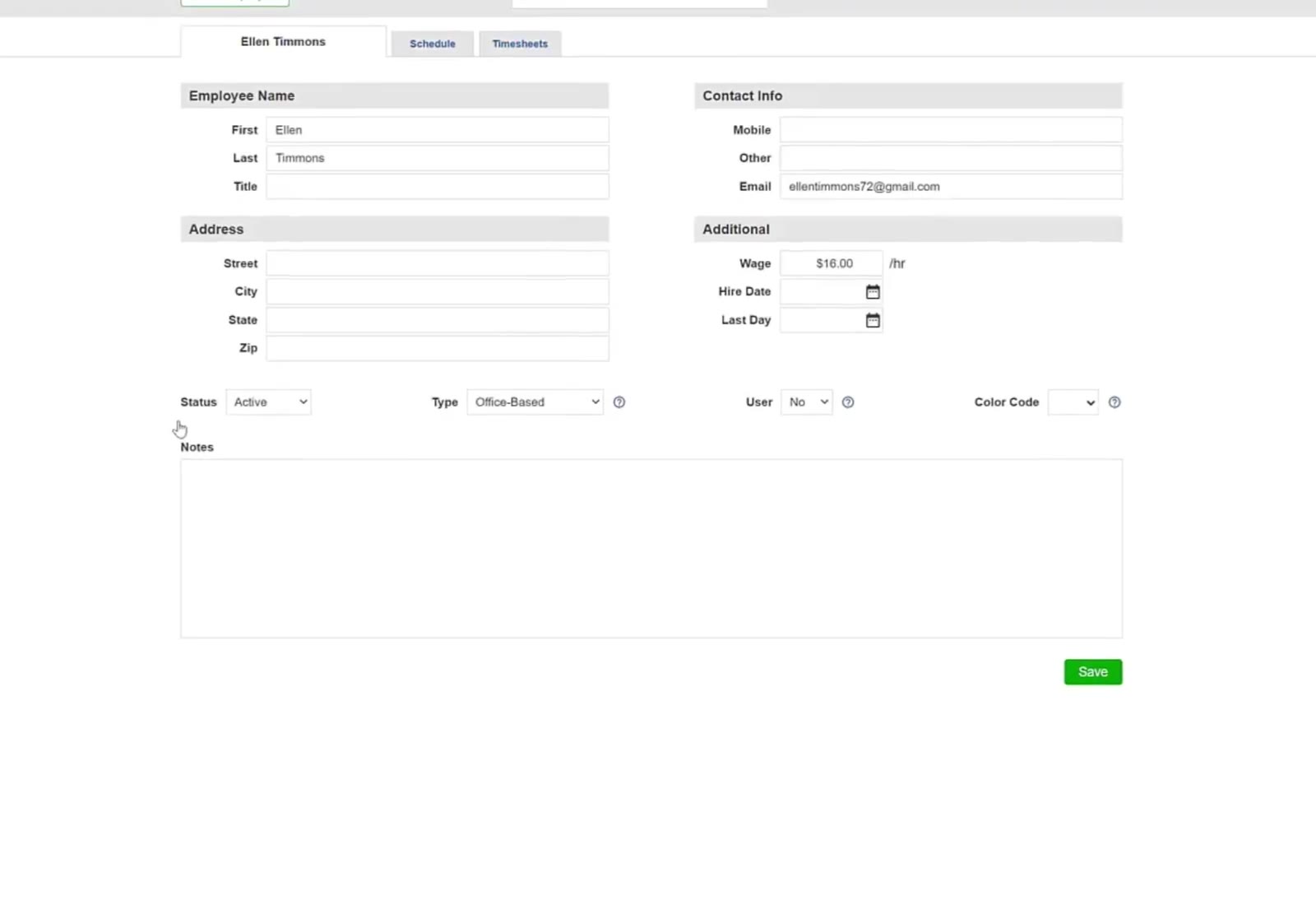
Saving opens the employee's full profile.
Give App Access
Set the type
In the Type dropdown, choose Staff/Support — the type for people whose duties go beyond cleaning.
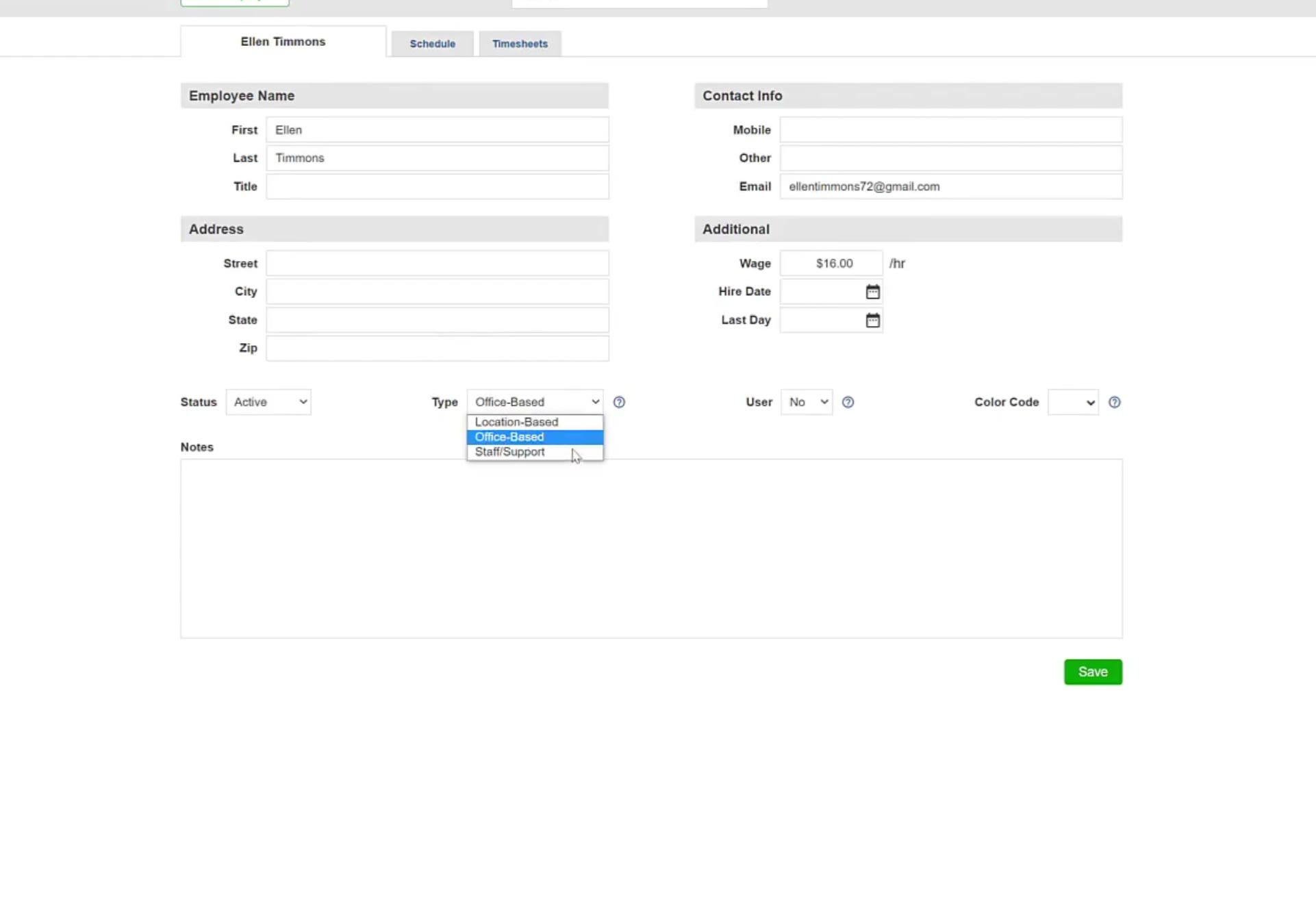
The Type dropdown offers Location-Based, Office-Based and Staff/Support.
Make them a user
Change User from No to Yes.
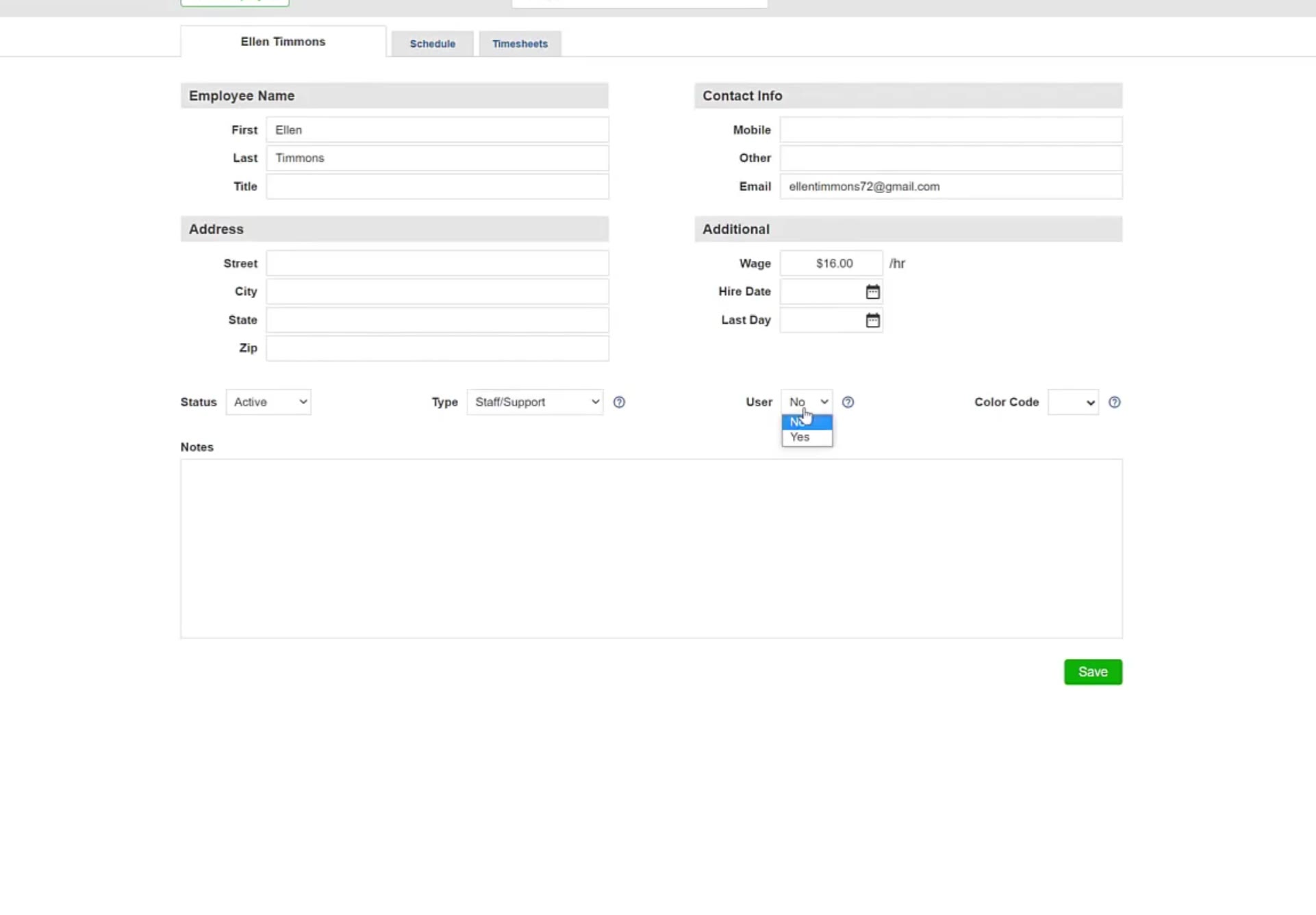
The User dropdown open on the employee's profile, with Type already set to Staff/Support.
Save the profile
Click the green Save button. The Setup User window opens.
Give them a username
Type a unique Username at the top of the Setup User window.
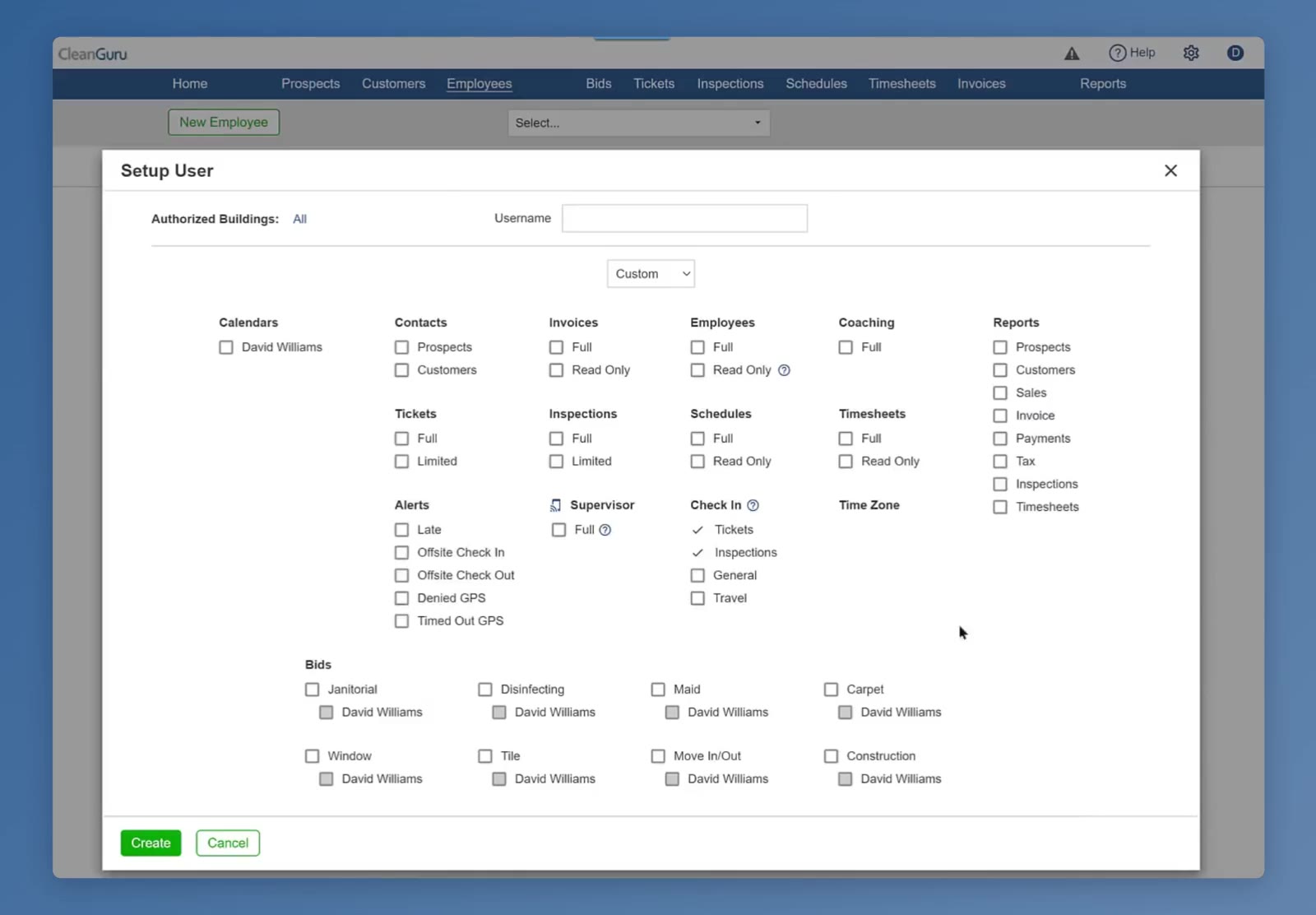
The Setup User window: Authorized Buildings and Username at the top, then the permission grid.
Set the permissions
Tick what this person may reach. The window covers Calendars, Contacts, Invoices, Employees, Coaching, Reports, Tickets, Inspections, Schedules, Timesheets, Alerts, Check In and Bids, plus a Supervisor option with Full. Authorized Buildings and a preset dropdown sit above the grid.
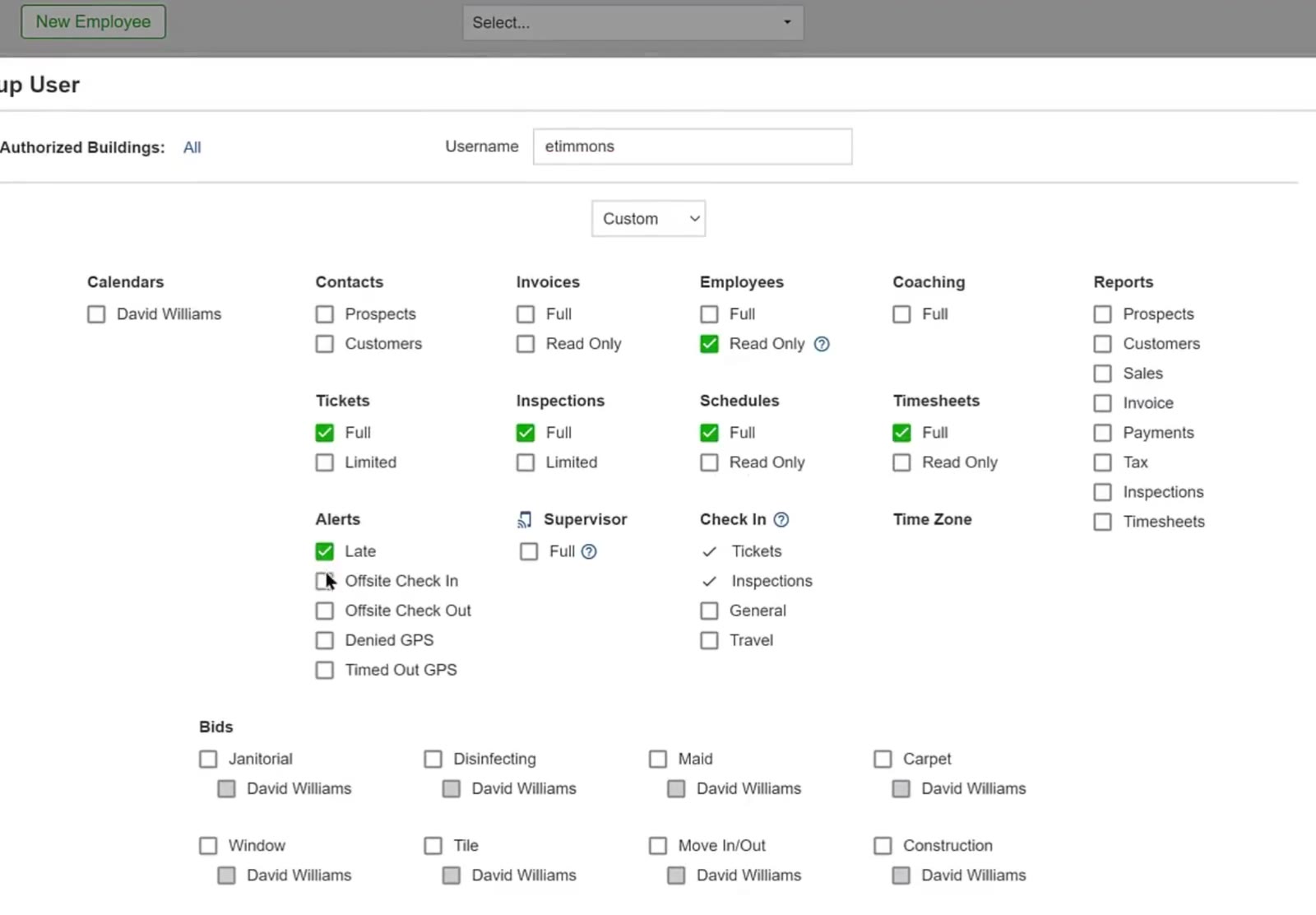
Tick only what this person needs. Supervisor has its own Full checkbox below Alerts.
Create the login
Click the green Create button. CleanGuru confirms where the password setup link was sent.
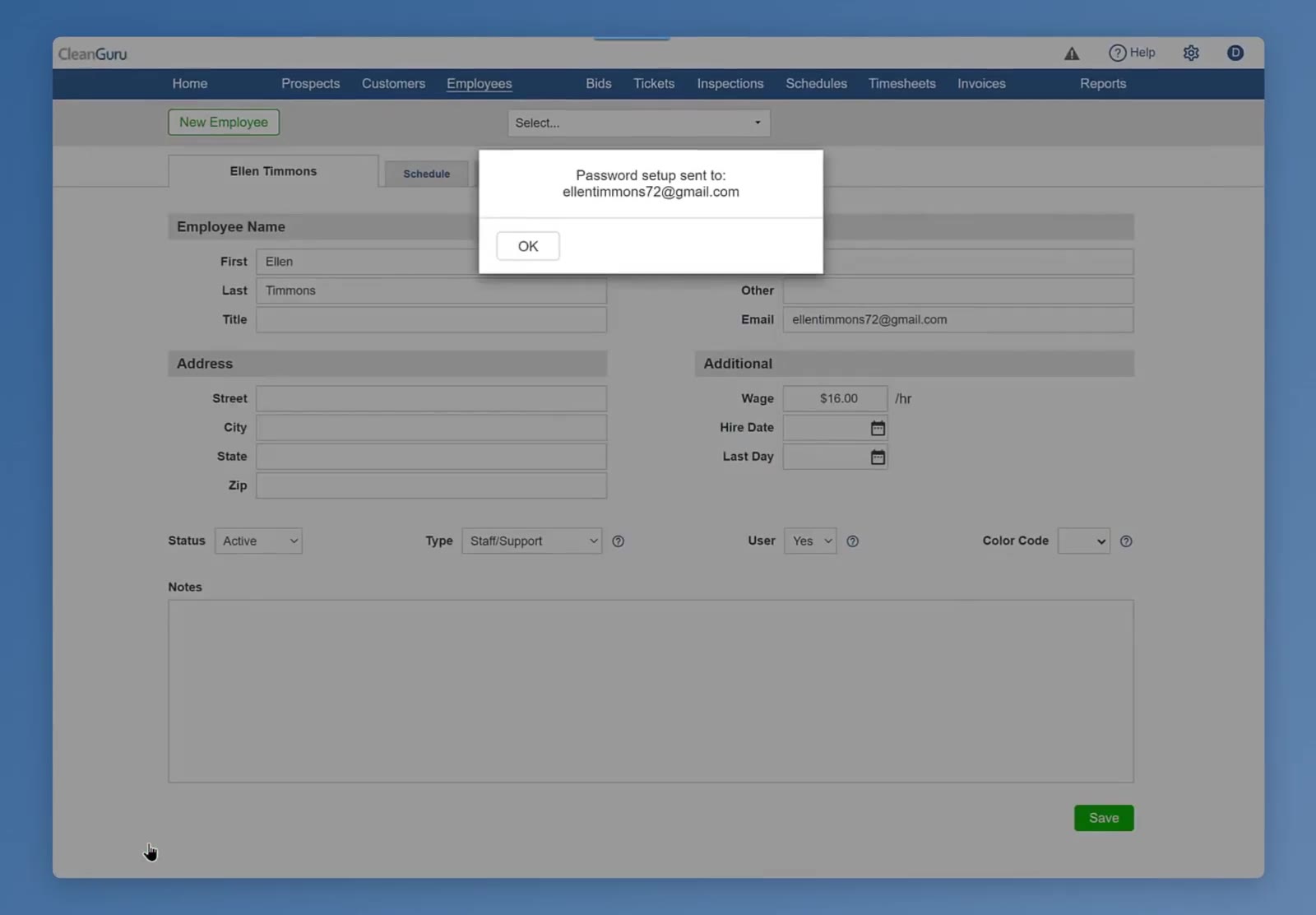
CleanGuru confirms where the password setup link was sent.
The setup link goes out
CleanGuru sends the password setup link to the email address or mobile number on the record.
They set a password and get the app
The link lets them set a password, and the welcome page links to the CleanGuru app on Google Play and the App Store.
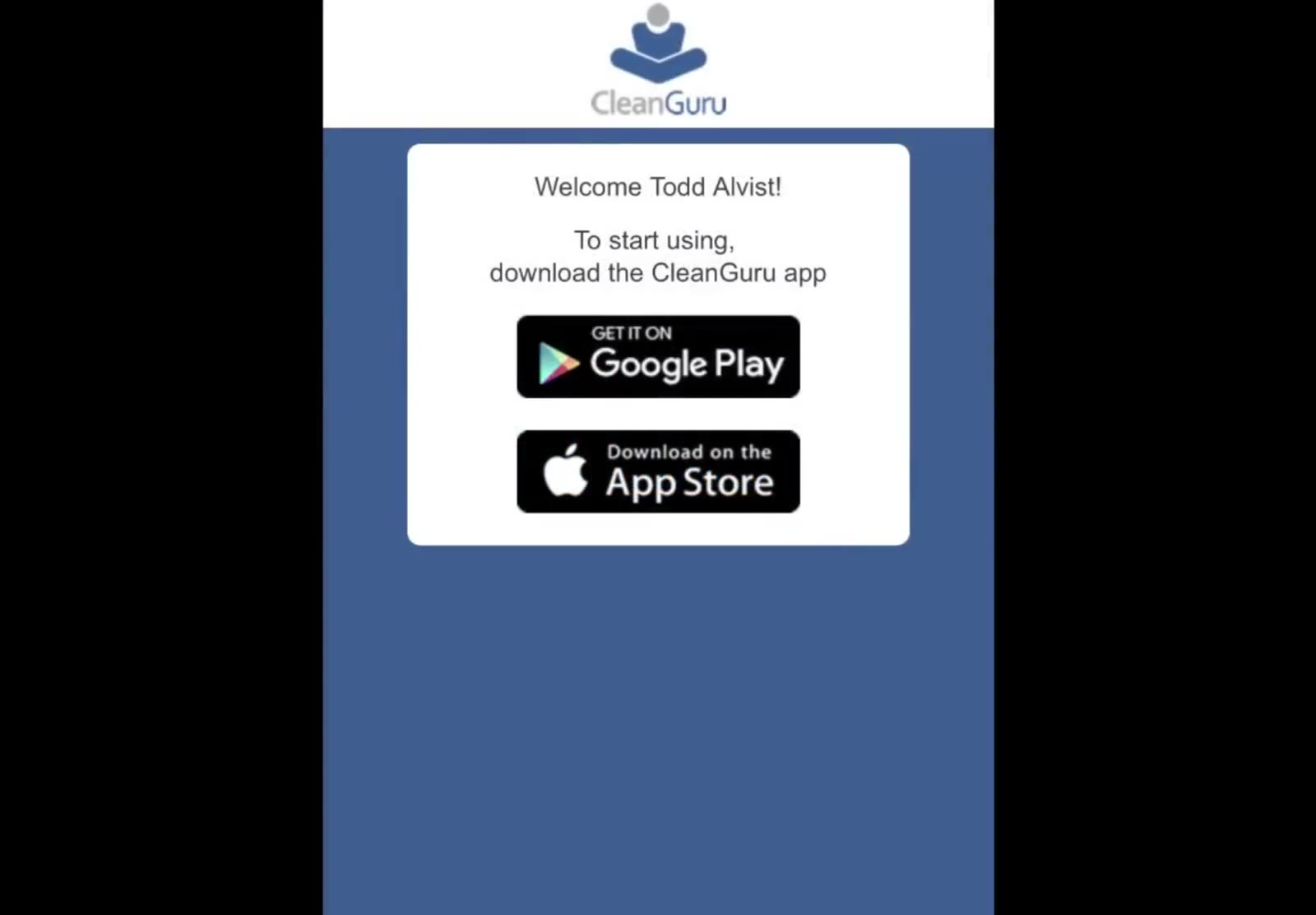
The welcome page links to the CleanGuru app on Google Play and the App Store.
FAQ
What is the Staff/Support type for?
People whose duties go beyond cleaning, such as supervising other team members.
Does a supervisor need both a phone number and an email address?
One or the other. CleanGuru sends the password setup link to whatever is on the record — the email address, the mobile number, or both.
Where do I choose what a supervisor can see?
In the Setup User window, which opens when you save the profile with User set to Yes.
How does the supervisor get into the app?
They follow the password setup link, set a password, and use the links on the welcome page to install the CleanGuru app from Google Play or the App Store.
Is the hourly wage required?
No.