
Set Up Alternative Check In
The Alternative Check-In feature in CleanGuru gives employees a reliable way to clock in and out when mobile app access is unavailable. It suits teams working at fixed locations where a lobby phone or an on-site landline is used for timekeeping. Setting it up has three parts: register the authorized phone numbers for the customer location, give each employee a PIN, and hand out their check-in cards.
Registering Authorized Phones for a Customer
For security, the system accepts time logs only from pre-approved phone numbers. You link those numbers to the customer location where the work is performed.
Open the customer record
Click the Customers tab in the top navigation bar, choose Select Existing, and pick the customer from the dropdown. When the profile loads, click the Timesheets tab.
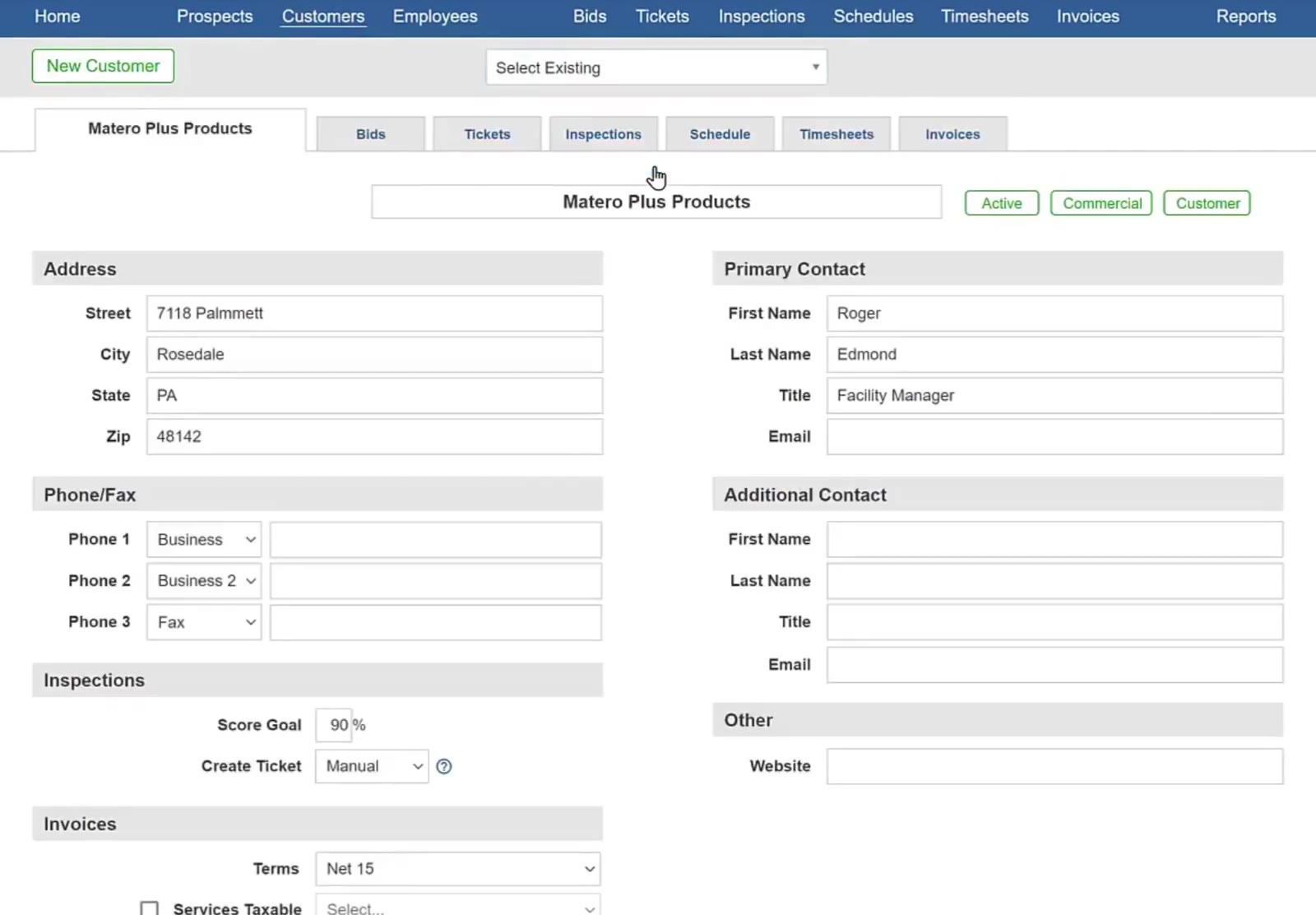
Open the customer record and go to the Timesheets tab.
Open the Alternative Check In sub-tab
Inside Timesheets, click Alternative Check In, next to GeoFence. This area lists every approved phone for the customer.
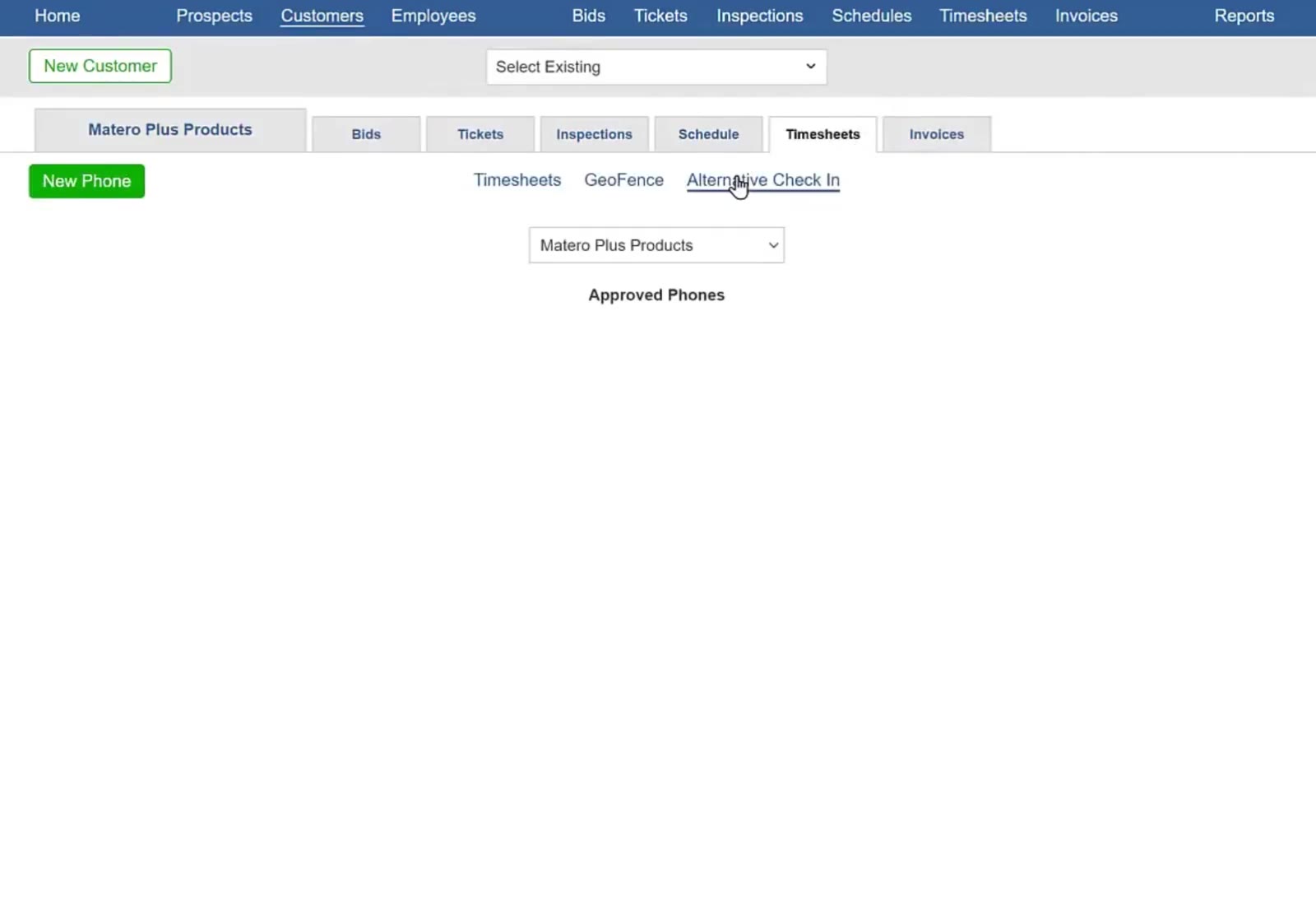
The Alternative Check In sub-tab lists the approved phones for the selected customer.
Add the phone
Click the green New Phone button. Enter the ten-digit number employees will call from, use the optional note field to label it — "Lobby Phone" or "Office Landline," for example — then click Add.
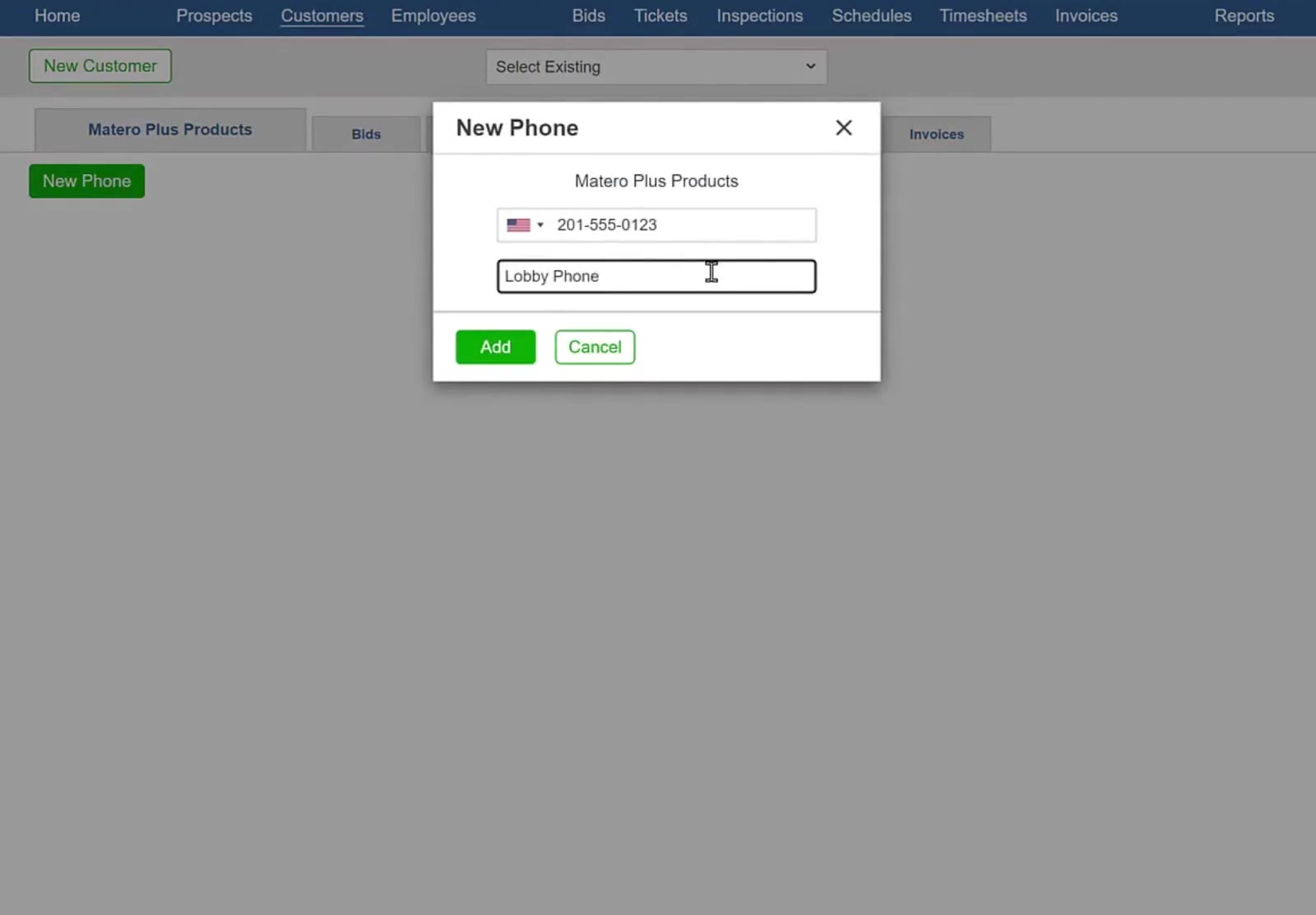
Enter the phone number and an optional note identifying the device at the customer site.
The system will only recognize check-ins made from these specific numbers. If an employee calls from an unregistered phone, their attempt to log time will be rejected.
Assigning PINs and Work to Employees
With the phone authorized, prepare your employees by giving each one a PIN and assigning them to the work they will check in against.
Give the employee a PIN
Click the Employees tab, select the employee, and open their Access tab. In the PIN (Alt.) section, click Generate for a unique four-digit code, or type a code of your own. Click Save.
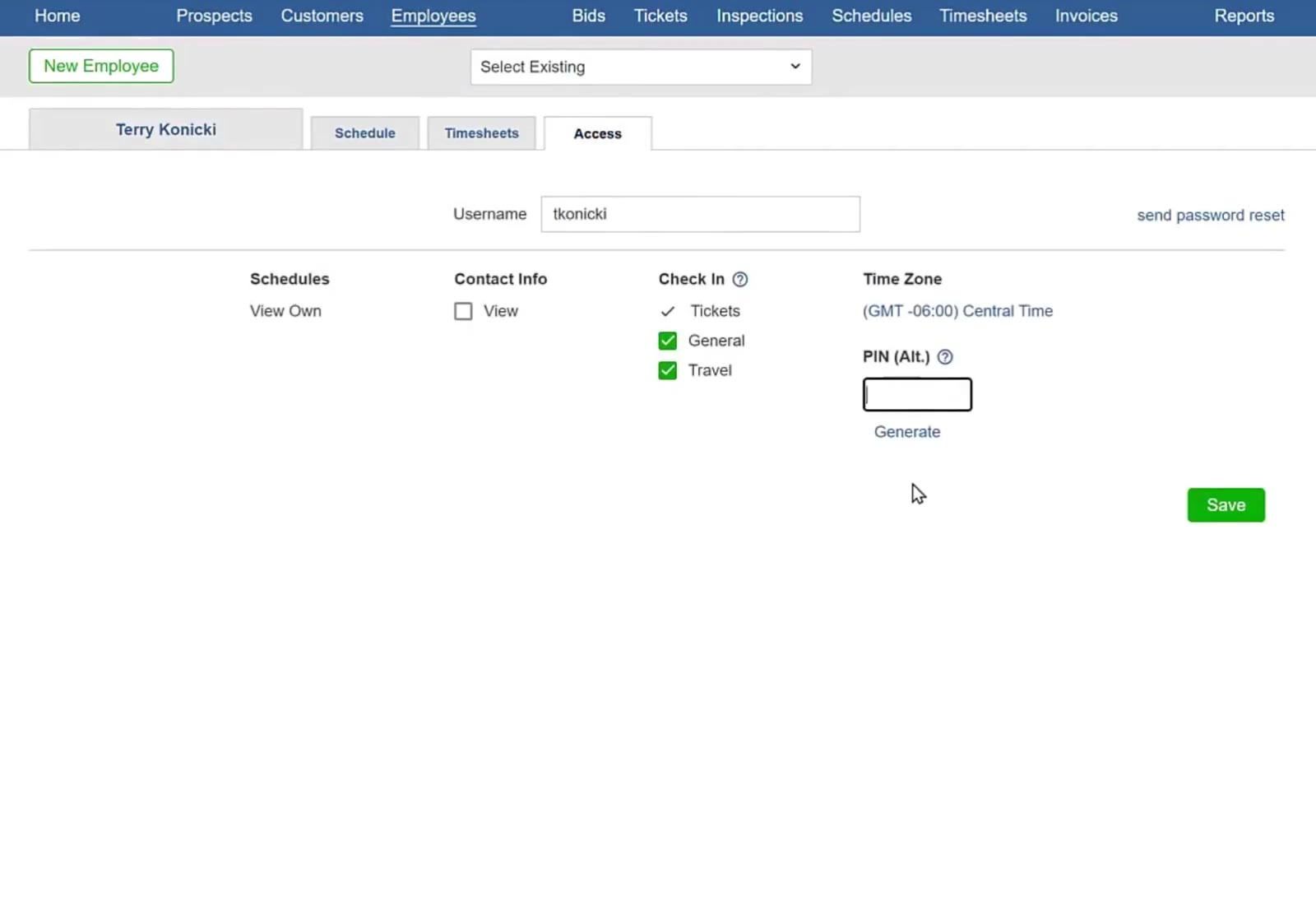
Generate a four-digit PIN on the employee's Access tab, or type one in yourself.
Assign the employee on the ticket template
Go to the Tickets tab and select Templates. Open the template for the job, find the Assigned row, and use the Assign button to choose the employees authorized for this work. Click Save, and apply the change to future tickets when prompted.
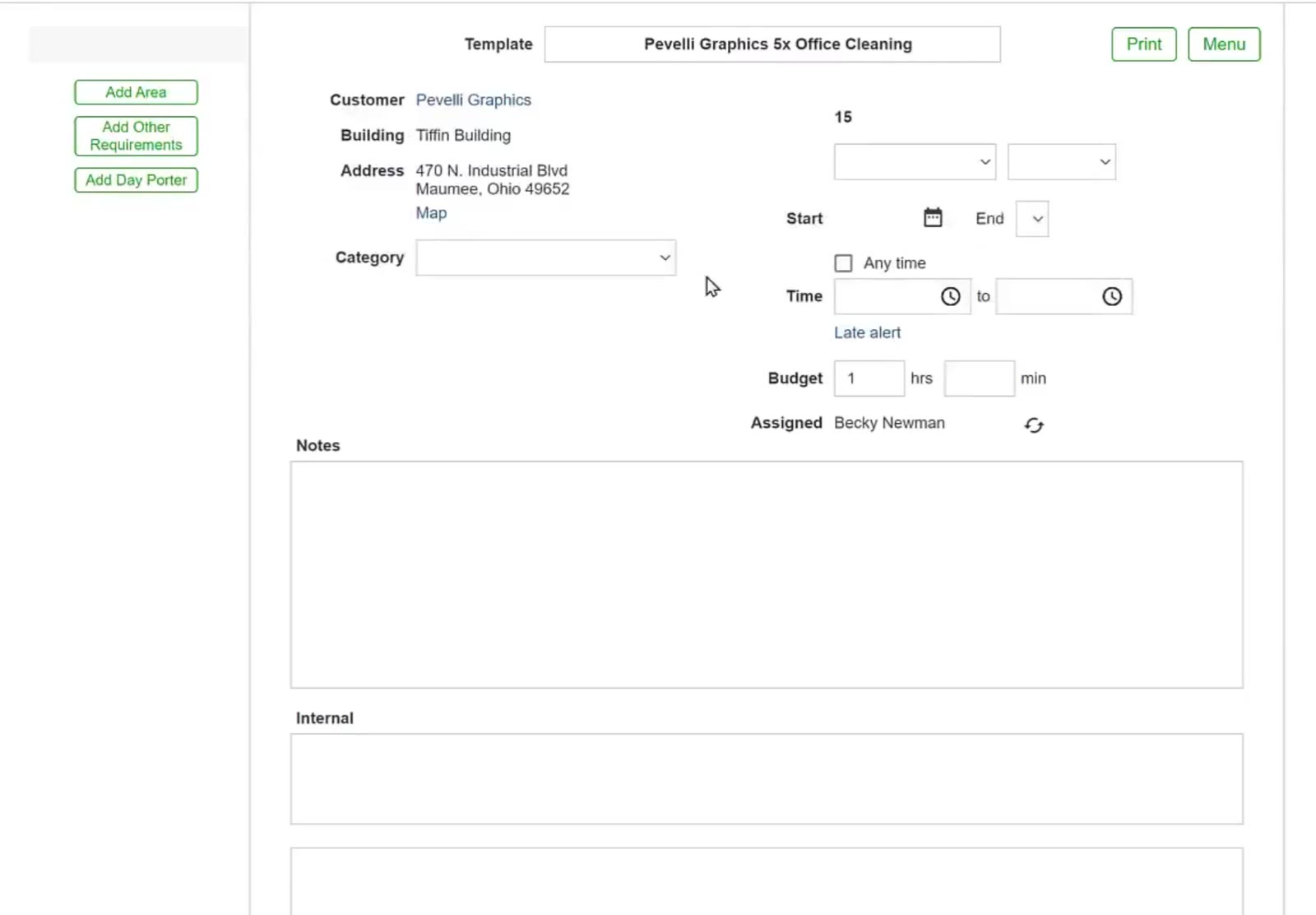
The Assigned row on the ticket template determines whose PIN check-ins can be matched to this job.
Generating and Printing Check-In Cards
To help employees remember the process, print check-in cards that show the number to call and leave a space for the PIN.
Open global settings
Click the gear icon in the top right of the screen, select Settings, then click Timesheets.
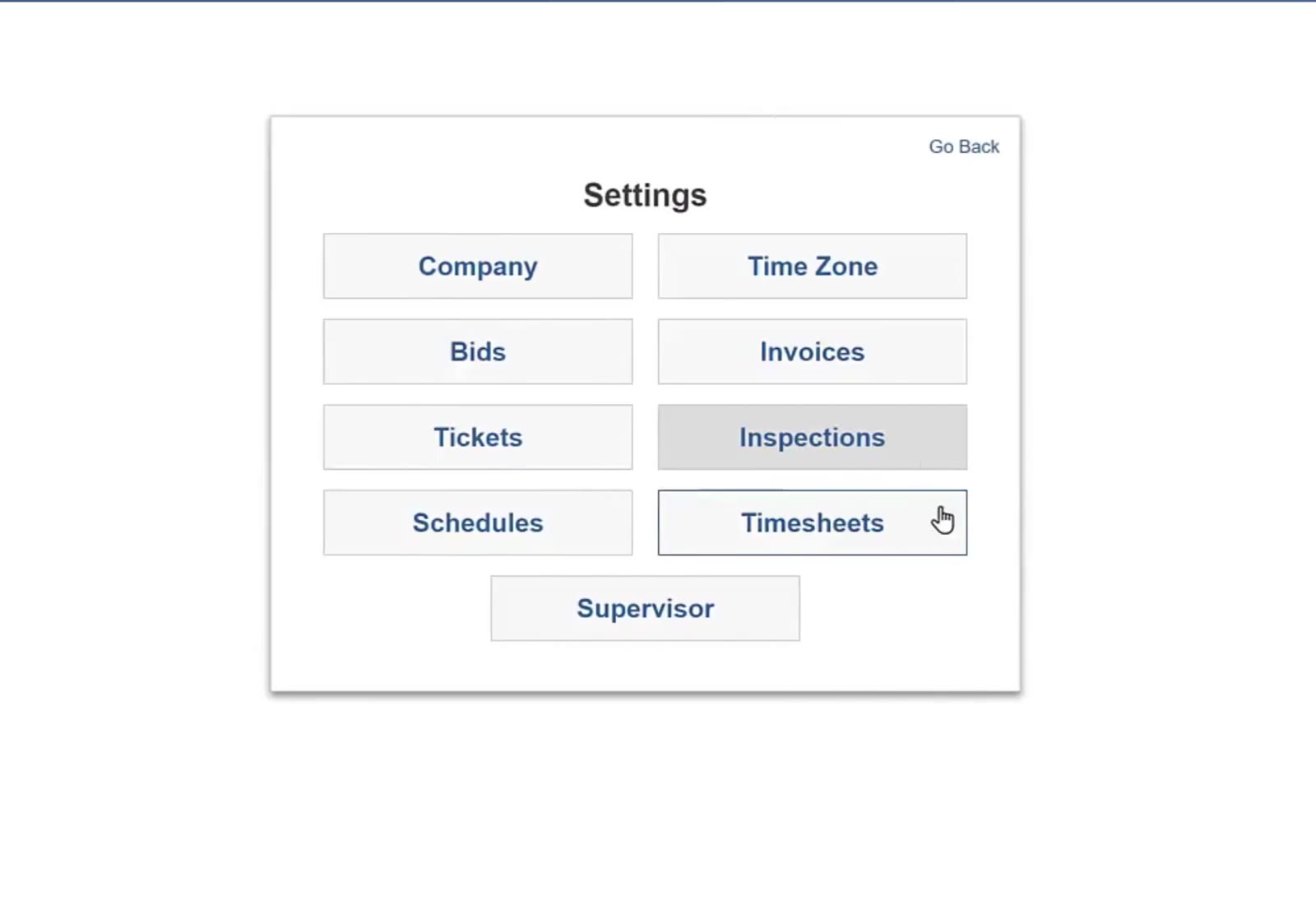
Open Settings from the gear icon and choose Timesheets.
Print the cards
Click Print Employee Check In Cards. This generates a PDF with several cards per page. Each card carries your company name, the Alternative Check In number to call, and blank spaces for the employee's name and PIN.
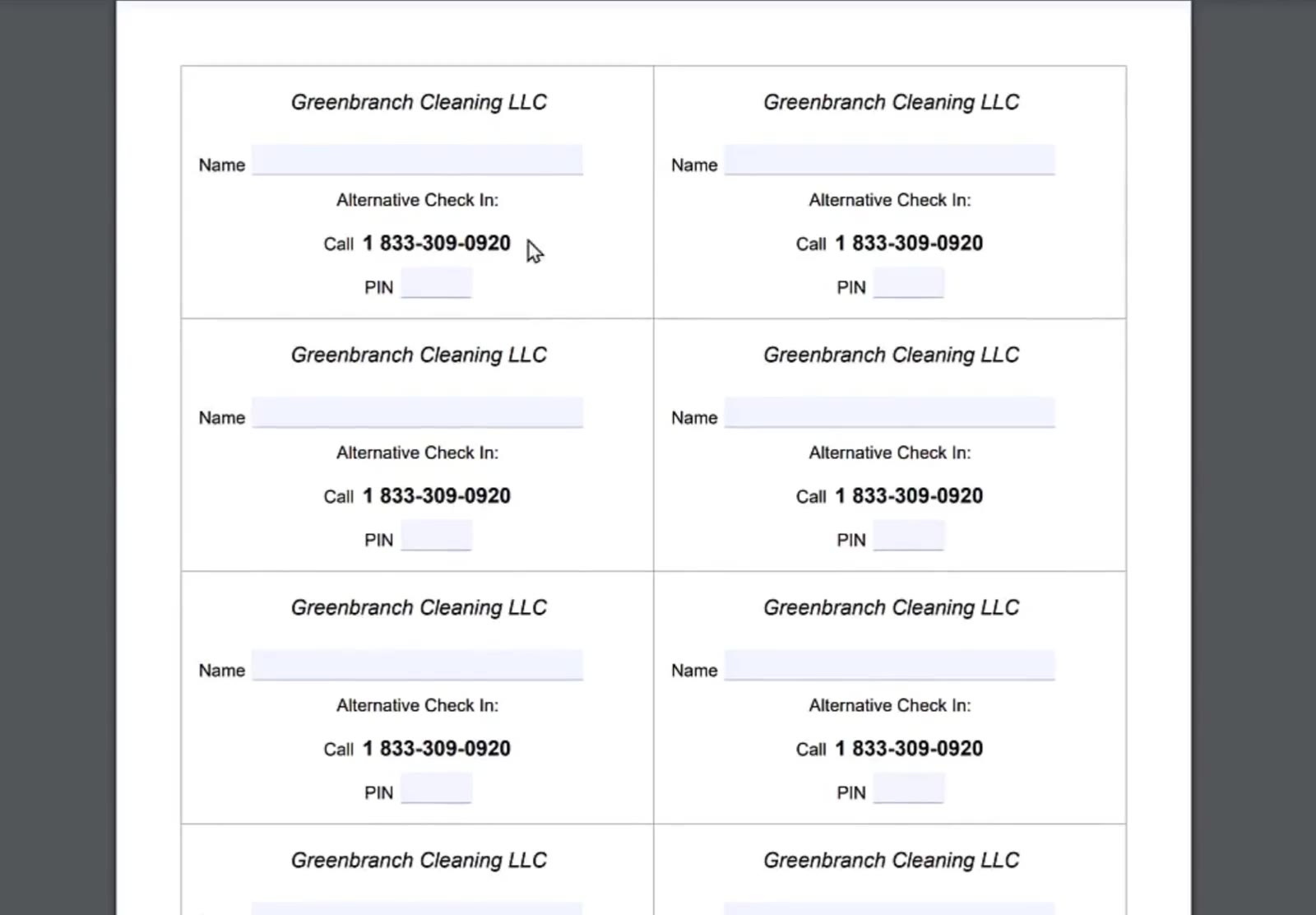
Each printed card shows the number to call and leaves room for the employee's name and PIN.
How Employees Log Time
With the phone registered and PINs assigned, employees can log their hours without the mobile app.
-
Call the number: The employee dials the Alternative Check In number from an authorized on-site phone.
-
Enter the PIN: When the automated system prompts, the employee enters their four-digit PIN.
-
Automatic match: The system identifies the employee by their PIN and the customer location by the phone number they are calling from.
Alternative Check-In gives you a time-tracking method that works without smartphones, so hours are still recorded against the right work tickets and your labor costs stay accurate. Distribute the printed check-in cards to your team and make sure everyone knows which on-site phones are authorized.
FAQ
What happens if an employee calls from their personal cell phone?
If that number is not registered as an authorized phone for the customer, the system will not recognize the check-in. This keeps employees from clocking in when they are not on site.
Can I assign the same PIN to multiple employees?
No. Each employee needs a unique PIN so the system can attribute the time log to the right person.
How many authorized phones can I add for one customer?
You can add several numbers for a single customer location, which helps when a building has more than one landline or check-in area.
What if an employee forgets their PIN?
Open the Access tab in their employee profile to view the current PIN or generate a new one.
Is there an extra cost for using Alternative Check-In?
No. This feature is included in your CleanGuru subscription.