
Archive Alerts
Alerts tell you about late arrivals and missed shifts. Archiving clears them out of your active list without deleting them — one at a time, several at once, or the whole list.
Open Your Alerts
Open the alerts page
Click the alert icon at the top right of any CleanGuru page. A red badge on it shows how many alerts are unread.
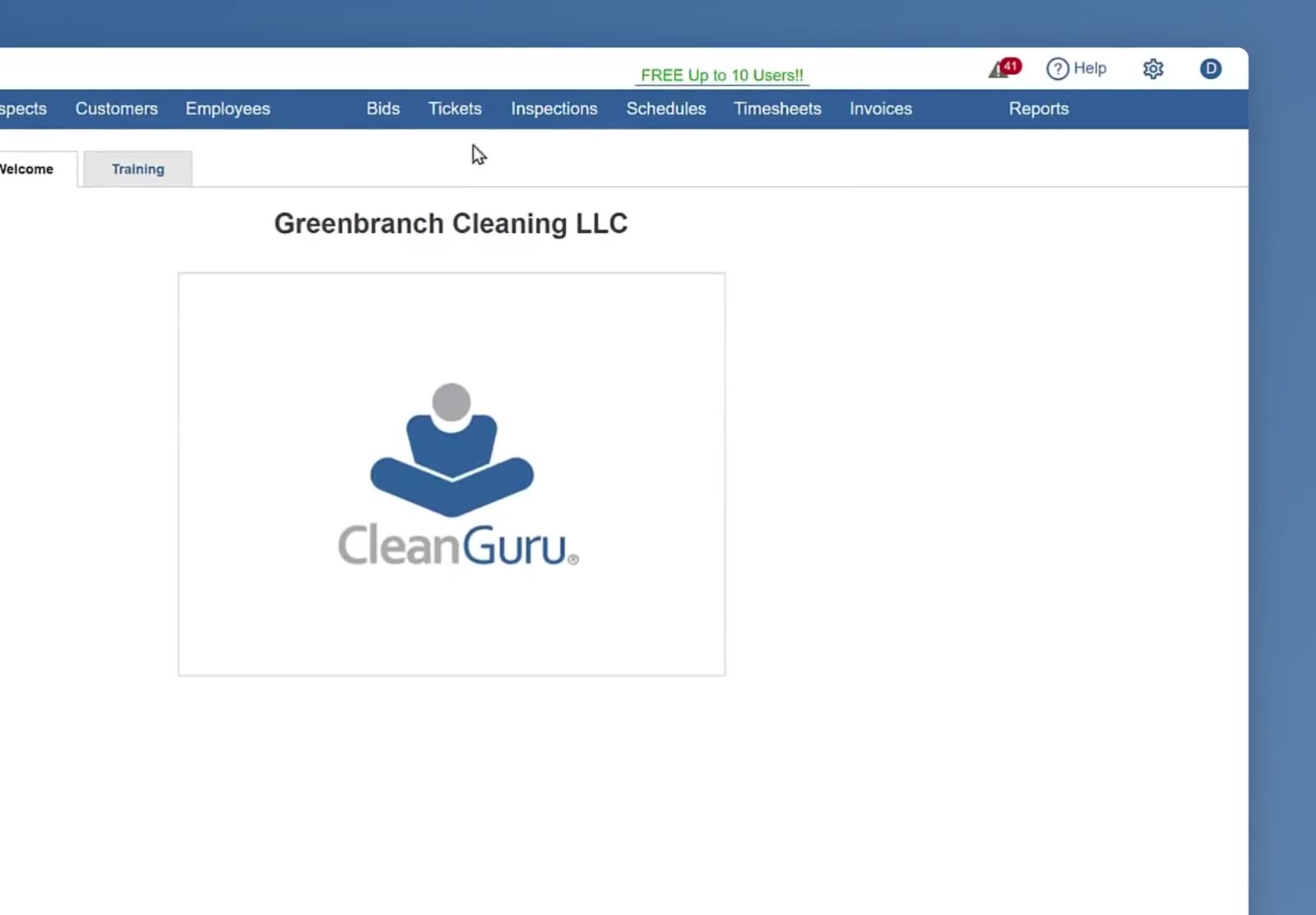
The alert icon at the top right, with a red badge showing the unread count.
Choose what you are looking at
The list opens on Active. Use the date dropdown at the top right to change the range — Last 30 Days, Today, This Month, This Year, Last Month, Last Year, All, or Custom.
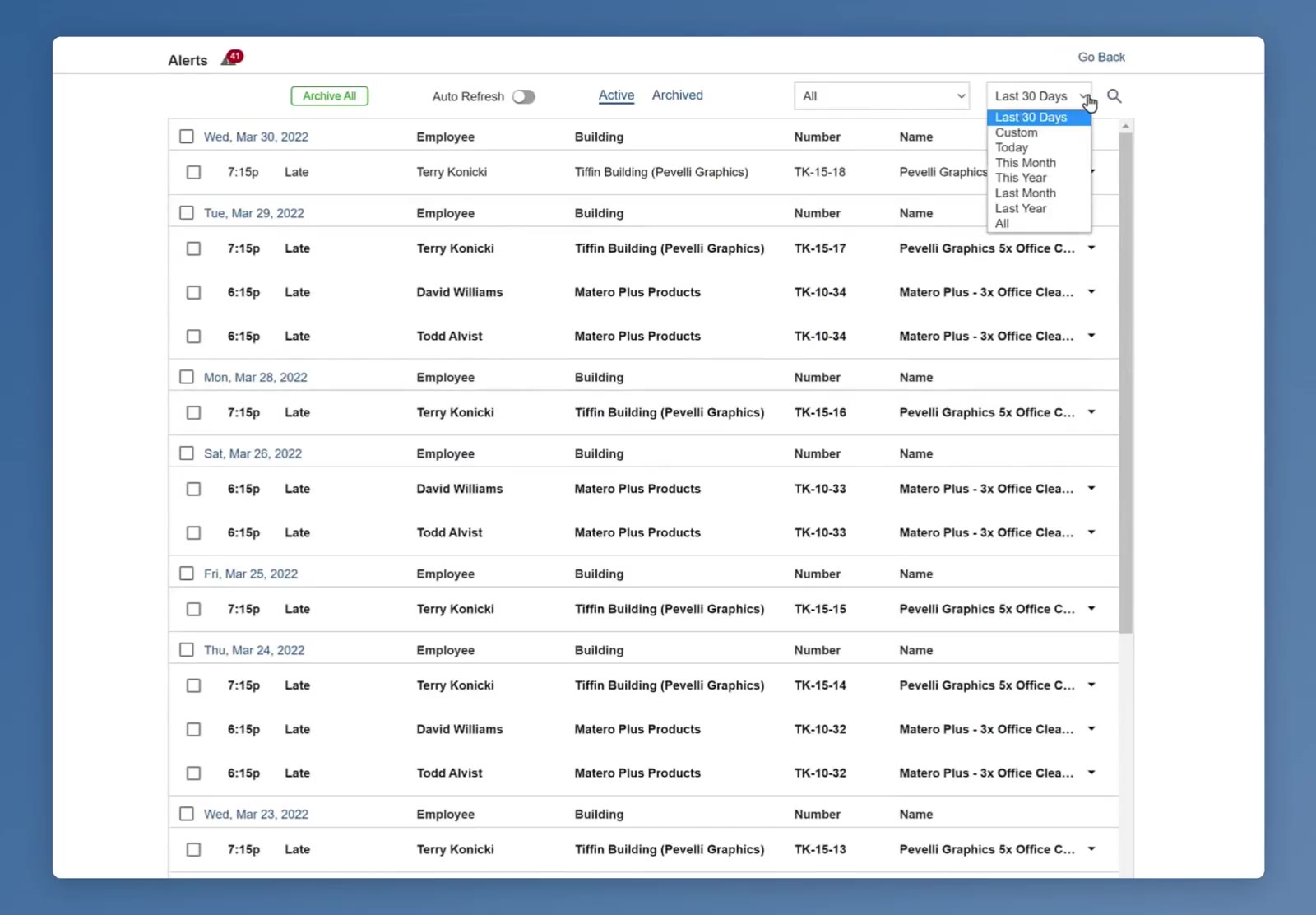
The Alerts page with the date dropdown open on Last 30 Days.
Archive Alerts
Archive one alert
Click the arrow at the far right of its row and choose archive.
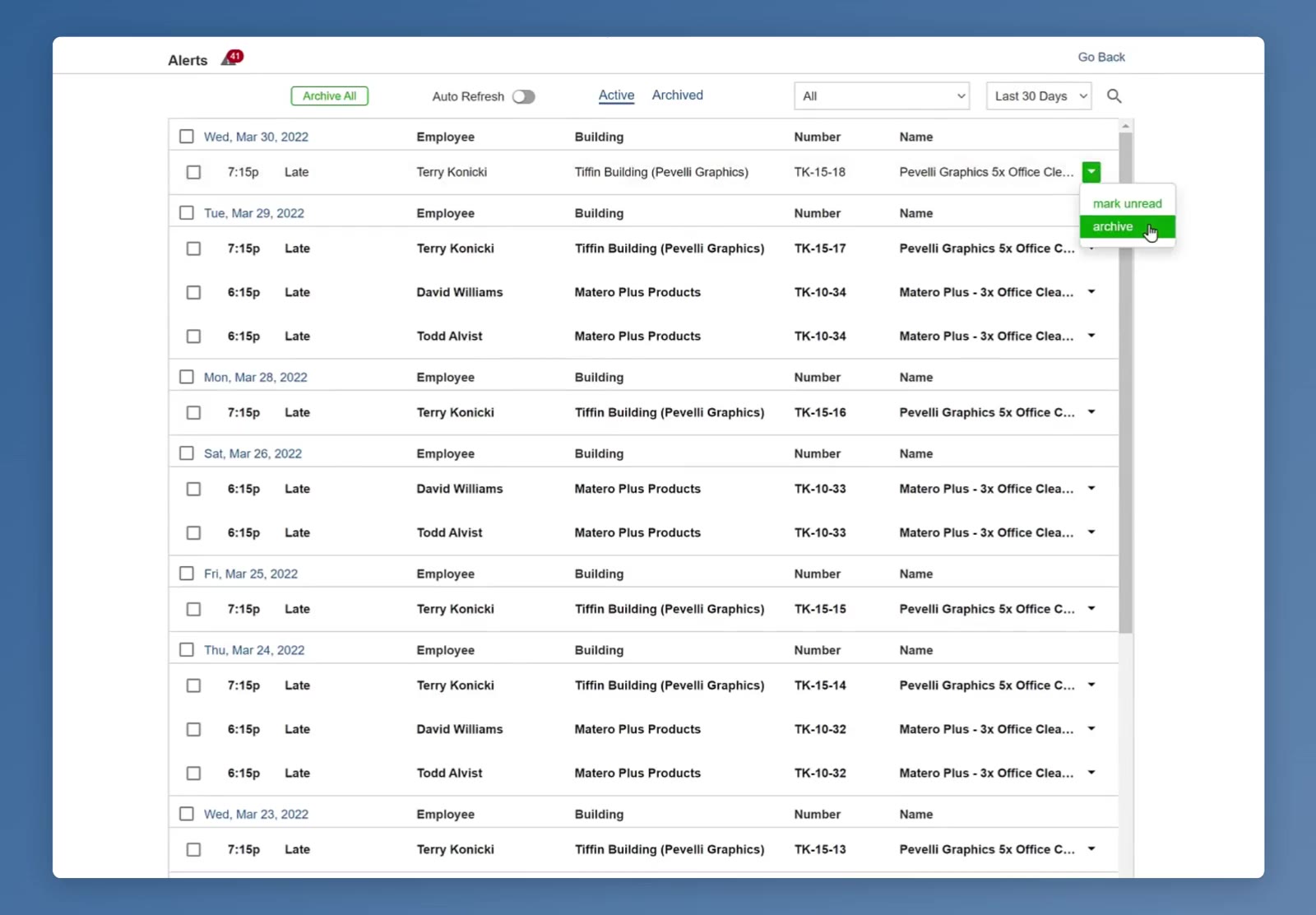
A row menu open, offering mark unread and archive.
Or pick out several
Tick the checkbox beside each alert you want to clear. Ticking the checkbox on a date heading selects every alert under that date, and you can untick any you want to keep.
Archive the ones you picked
A green Menu button appears at the top left. Click it and choose archive.
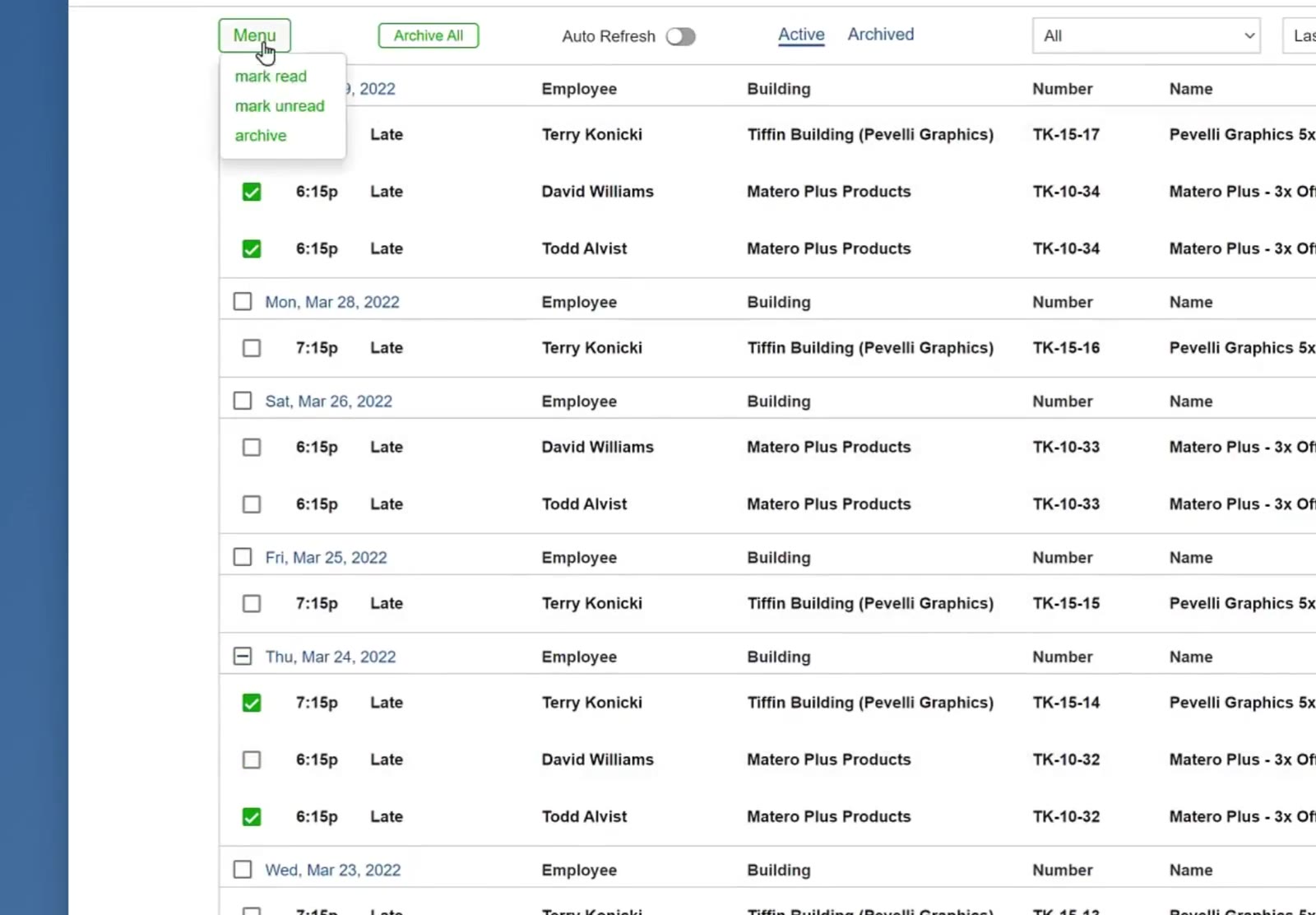
Two alerts ticked, and the Menu button open with mark read, mark unread and archive.
Clear the Whole List
Archive everything
Click the green Archive All button at the top of the list.
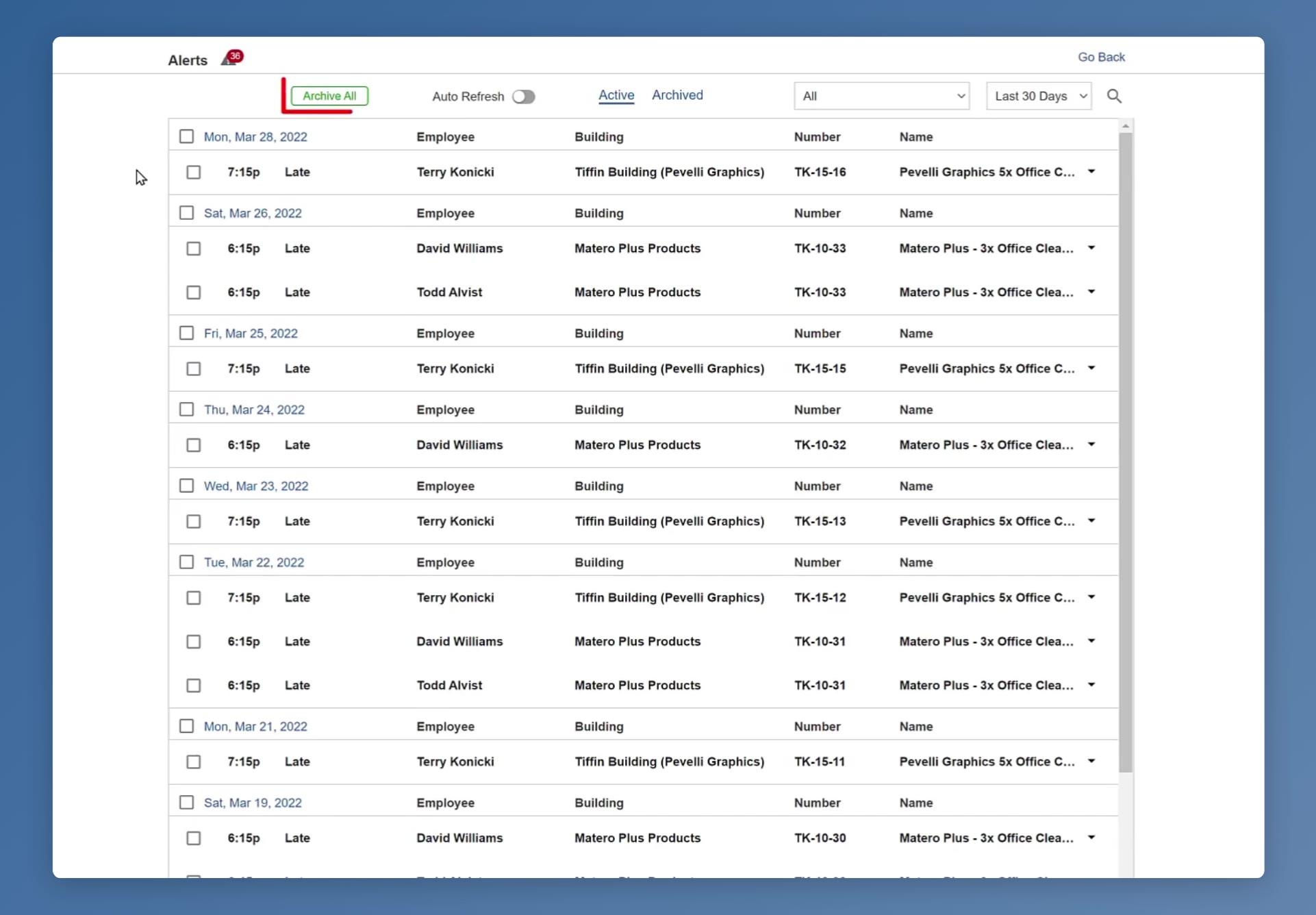
The Archive All button at the top of a full alerts list.
Confirm
Click OK when CleanGuru asks "Archive All Alerts?"
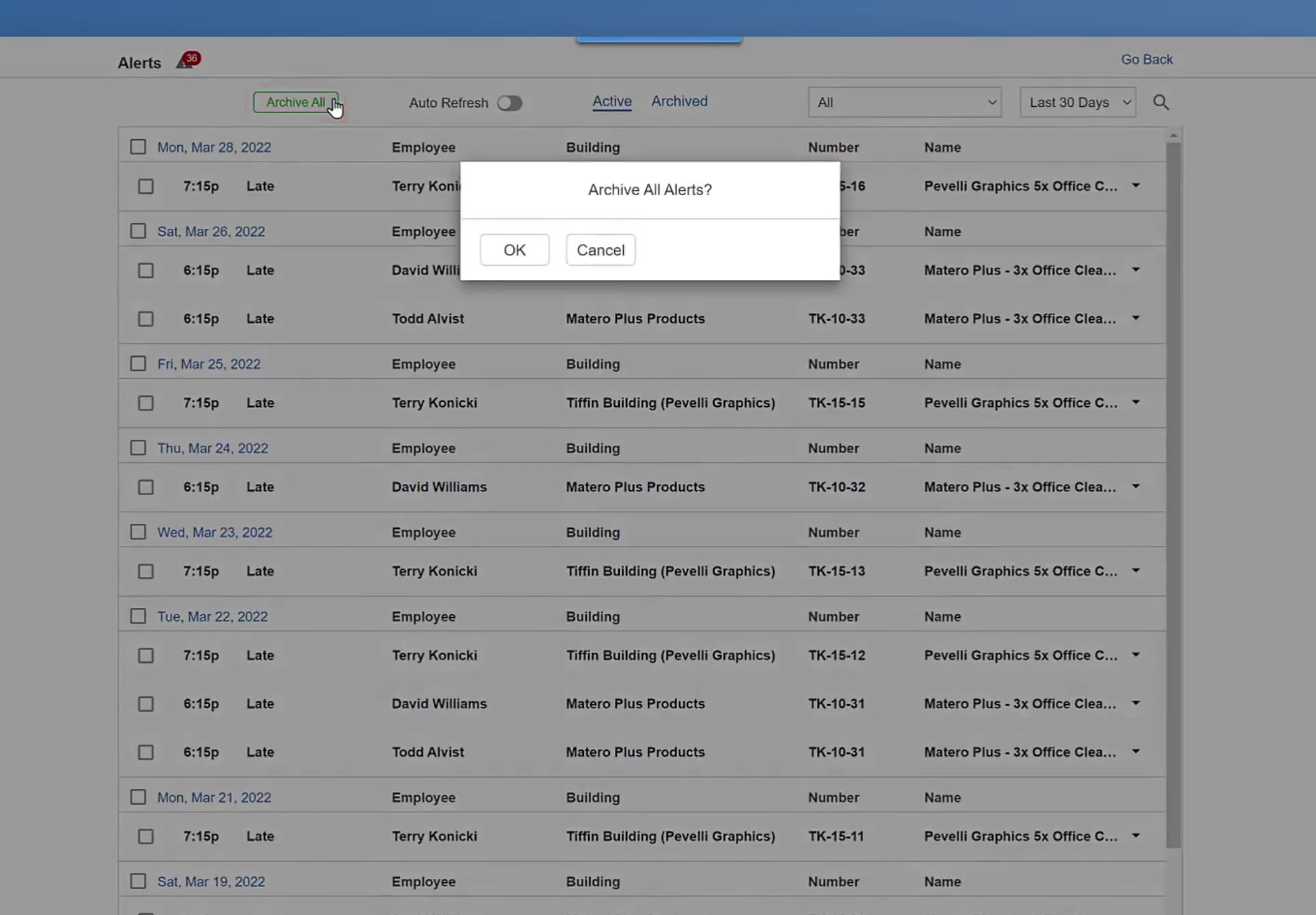
The Archive All Alerts? box, with OK and Cancel.
Check the result
The Active list now reads "No results found" and the red badge on the alert icon is gone.
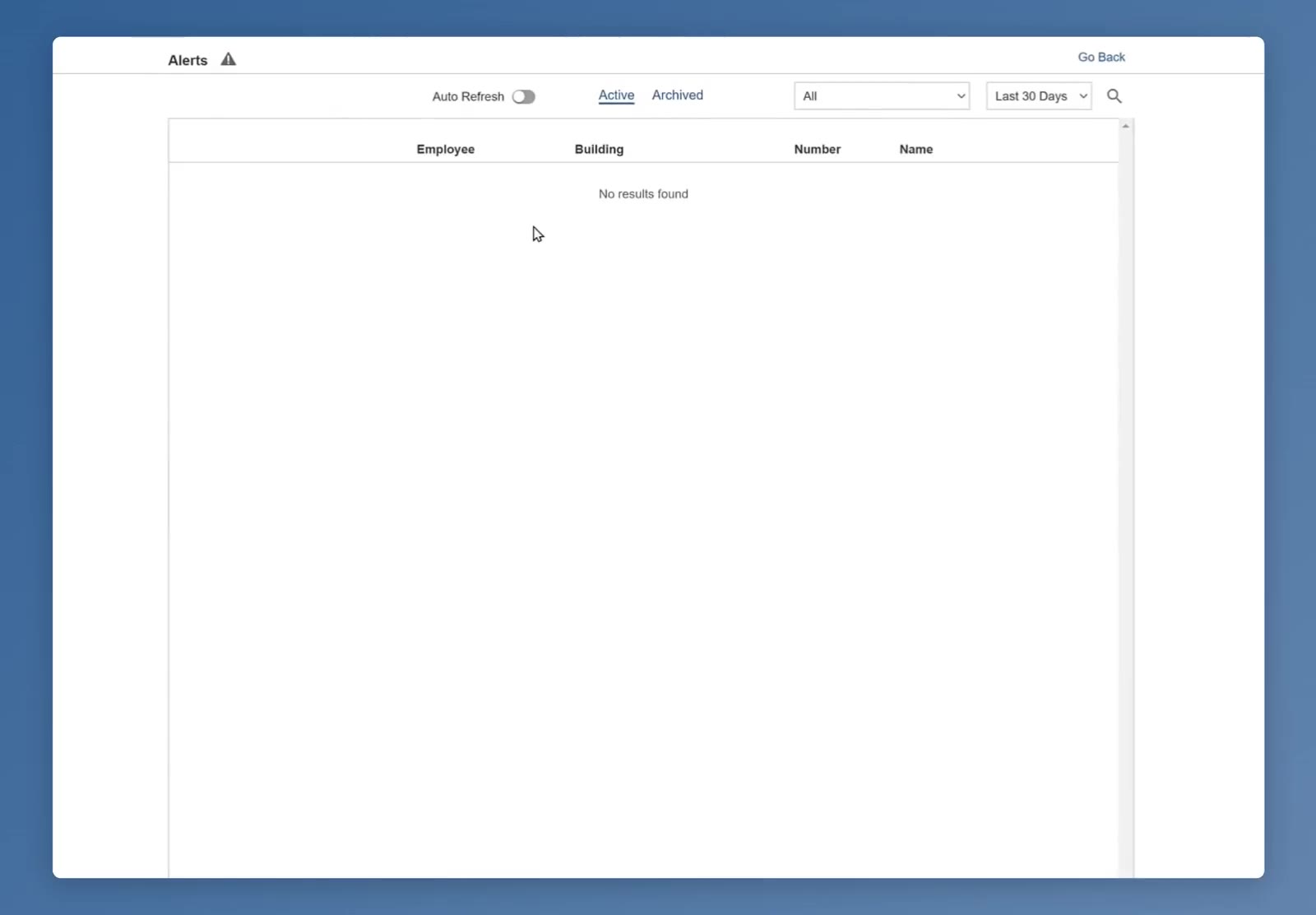
The Active list empty after archiving, reading No results found.
FAQ
Does archiving delete an alert?
No. It moves the alert off the Active list. Click Archived at the top of the list to switch to the archived ones.
How do I archive a single alert?
Click the arrow at the far right of its row and choose archive.
How do I archive a whole day at once?
Tick the checkbox on that date heading, which selects every alert under it, then click Menu at the top left and choose archive.
Can I do anything with alerts other than archive them?
Yes. Tick the ones you want, click Menu, and choose mark read or mark unread instead of archive.
Can I bring an archived alert back?
Yes. Click Archived at the top of the list, tick the alerts you want, then click Menu and choose make active.